



TrueNAS Hardware Guide

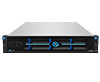
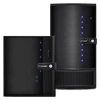
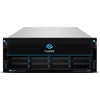
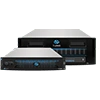
TrueNAS Enterprise systems use components that are qualified and tested by the TrueNAS team to offer the best storage and performance with TrueNAS Enterprise Edition.

This guide will go over the minimum hardware requirements and offer suggestions for TrueNAS Community Edition users.

Minimum Hardware Requirements

ProcessorMemoryBoot DeviceStorage
Any x86_64 compatible (Intel or AMD) processor8 GB memory20 GB SSD boot deviceTwo identically-sized devices for a single storage pool

Storage Considerations

The heart of any storage system is the symbiotic pairing of the file system and physical storage devices. The ZFS file system in TrueNAS provides the best available data protection of any file system at any cost and makes effective use of spinning-disk storage, all-flash storage, or a mix of both. ZFS is prepared for the eventual failure of storage devices and is highly configurable to achieve the perfect balance of redundancy and performance to meet any storage goal. A properly configured TrueNAS system can tolerate multiple storage device failures and recreate its boot media with a copy of the configuration file.

Read full post gdoc_arrow_right_alt

Understanding IPv6

What is IPv6?

IPv6 is the next generation Internet protocol replacing the current IPv4 protocol. IPv4 is running out of numbers due to the ever increasing number devices world wide wanting to connect. The rise of the Internet of Things (IoT), where smart sensors in homes, motor vehicles, and businesses all want or need to connect to the Internet to allow data collection and sharing for analytics, device maintenance and monitoring, increased safety and productivity, and overall improvement in consumer and customer experiences is a source of an ever-increasing demand for IP addresses. Because of the length and configuration of IPv6 addresses, there is little risk of this protocol running out of numbers any time soon.

Read full post gdoc_arrow_right_alt

Using the Console Setup Menu

The Console Setup menu displays at the end of the iso installation process and after the system boots up. You can access this menu to administer the TrueNAS system if it has a keyboard and monitor.

By default, TrueNAS does not display the Console Setup menu with SSH or web shell connections. The admin user, the root user (if enabled), or another user with administrator or root-level permissions can start the Console Setup menu by entering this command:

Read full post gdoc_arrow_right_alt

Managing Network Settings (Enterprise HA)

TrueNAS Enterprise
The instructions in the article only apply to TrueNAS Enterprise (HA) systems.

Configuring Enterprise (HA) Network Settings

Read full post gdoc_arrow_right_alt

Setting Up a Network VLAN

A virtual LAN (VLAN) is a partitioned and isolated domain in a computer network at the data link layer (OSI layer 2). Click here for more information on VLANs.

TrueNAS uses vlan(4) to manage VLANs.

Before You Begin

Before you begin, make sure you have an Ethernet card connected to a switch port and configured for your VLAN. Ensure that you have also preconfigured the VLAN tag in the switched network. Consult with your IT department to obtain this VLAN tag if you are not the network administrator for your systems.

Read full post gdoc_arrow_right_alt

Network Configuration Screens

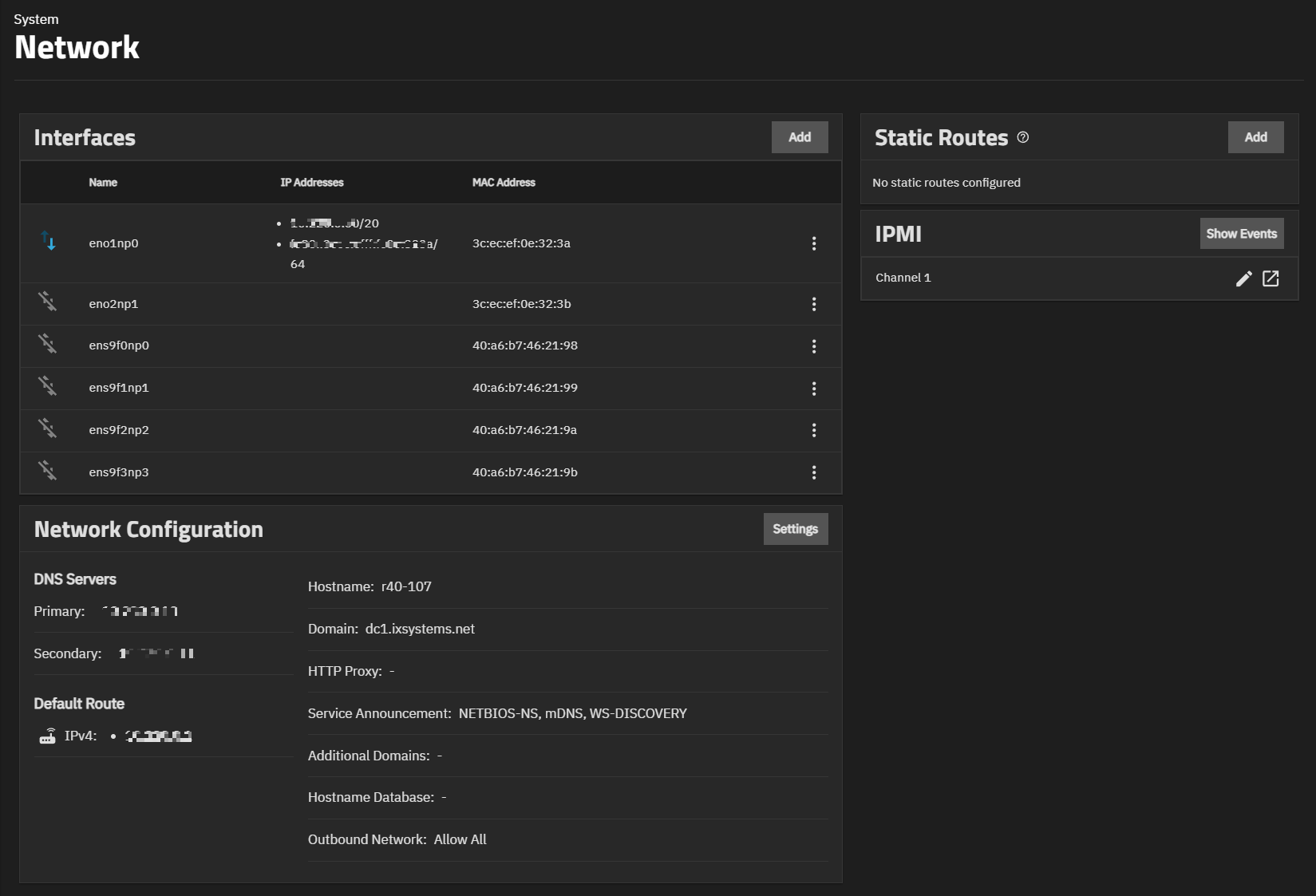
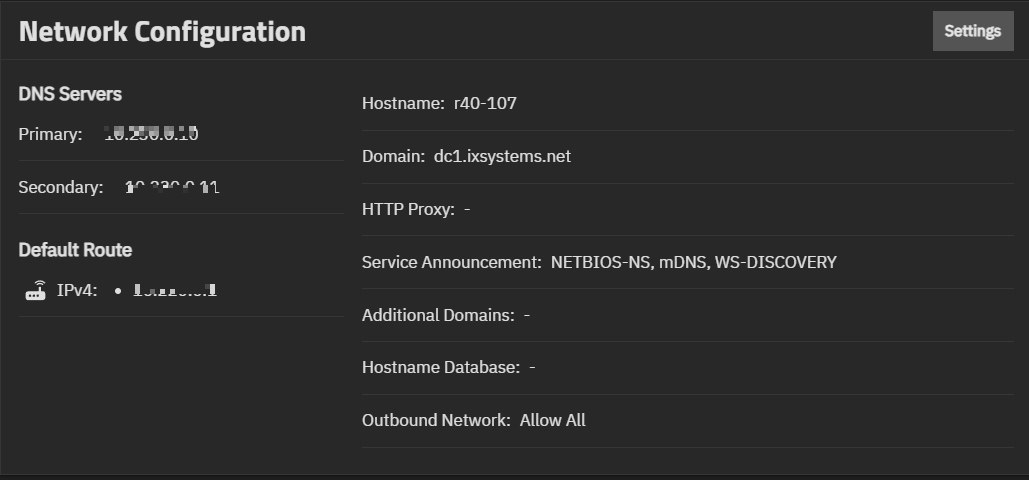
The Network Configuration widget shows the general networking settings for the TrueNAS system.

DNS Servers shows the IP addresses for the primary and secondary name servers.

Default Route shows the IP address for the default gateway.

The remaining general network settings shown in the widget are the system host name, domain name, HTTP proxy address, any configured service announcement, additional domains, the host name database, and the outbound network setting.

Read full post gdoc_arrow_right_alt

Network Interface Screens

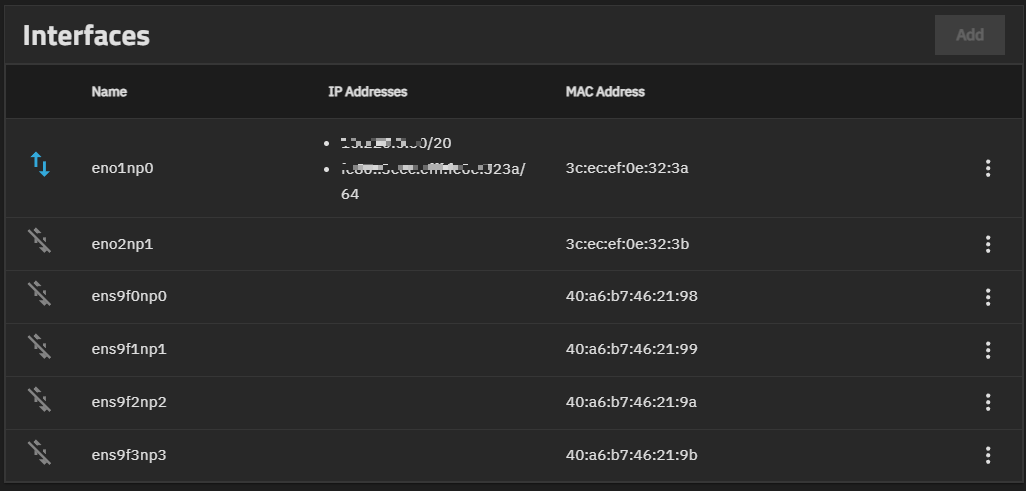
The Interfaces widget on the Network screen shows the configured interface port names and IP addresses, and the MAC addresses associated with network interface cards in your TrueNAS system.

Add opens the Add Interface screen.

The more_vert at the right of each interface shows a dropdown list with two options:

TrueNAS Enterprise

High Availability (HA) Enterprise systems cannot reset or edit interface settings with failover enabled. On systems with HA failover enabled, the Reset Configuration or Edit options are disabled. Go to System > Failover to disable failover before attempting to modify interfaces on HA systems.

Read full post gdoc_arrow_right_alt

Networking Recommendations

Follow these best practices for a stable and performant network.

The TrueNAS team welcomes contributions from members of the TrueNAS community!

Use the Feedback button on the right side or click Edit Page at the top right of this page to suggest your own networking tips and tricks.

Static IP Address

By default, TrueNAS configures the primary network interface for Dynamic Host Configuration Protocol (DHCP) IP address management. Consider assigning a static IP address for increased network stability and communication between devices.

Read full post gdoc_arrow_right_alt

Static Routes

Static routes define specific paths for network traffic that bypass the default gateway.

Contents