




TrueNAS Development Documentation
This content follows experimental development changes in TrueNAS 28, a future version of TrueNAS.
Use the Product and Version selectors above to view content specific to a stable software release.
Top Toolbar Screens
11 minute read.
The top toolbar buttons allows for quick software feedback, displays the status of TrueCommand and directory services configured on your system, active alerts, and shows other system management options.

| Icon | Name | Description |
|---|---|---|
| Toggle collapse | Click to expand or collapse the main menu panel on the left side of the screen. | |
 | Search UI | Searches UI screens and elements or redirects queries to the TrueNAS Documentation Hub. |
| Send Feedback | Opens the Send Feedback feedback window for sending UI ratings and bug reports to the TrueNAS developers. | |
| Status of TrueCommand | Displays either the status of a TrueCommand cloud connection or a dialog that allows users to sign up for a new TrueCommand cloud connection. | |
| Status of TrueNAS Connect | Opens the TrueNAS Connect Service and dialog showing the current status of the service and the TrueNAS Connect dialog that allows you to connect to the service and open the login screen for TrueNAS Connect. | |
| Update Status | Shows the system update progress and which user account started the update. Only appears in the top bar when a TrueNAS system update starts. | |
| Directory Services status | Displays a dialog with the status of Active Directory and LDAP directory servers configured on the system. | |
| Running Jobs | Displays the Running Jobs dialog. Click the History button to display the Tasks screen with a list of All, Active or Failed tasks or processes. | |
| Alerts | Displays a list of system alerts and a dropdown list with the alert options Alert Settings and Email. | |
| Settings | Displays a dropdown list of setting options Change Password, Two-Factor Authentication (when Global 2FA is enabled), My API Keys, Guide, and Log Out. | |
| Power options | Displays the power related options Restart or Shut Down. |
The Search UI global search bar allows users to search for screens and elements within the TrueNAS UI or to redirect search terms to the TrueNAS Documentation Hub.
Using Global Search
Click the Search UI bar or type Ctrl + / to select the UI global search.
Enter a keyword to search for elements within the TrueNAS UI. For example, enter SMB to search for results relating to SMB shares and the SMB service.
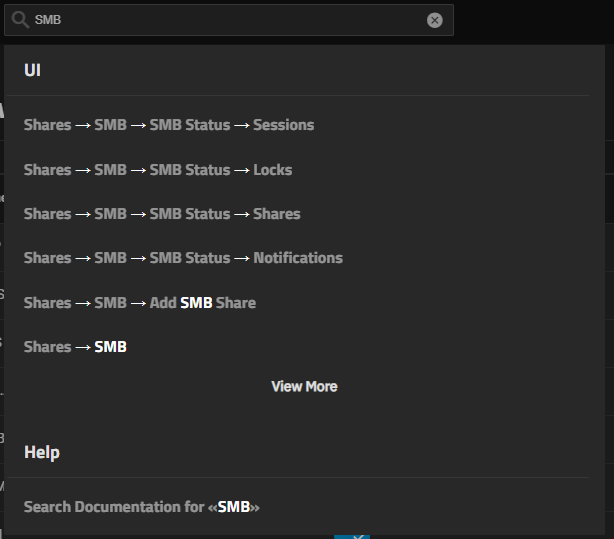
Global search returns UI screens, widgets, and button names matching the entered query. Click View More to view additional results, if needed.
Select a screen result under UI to go to the matching screen within the TrueNAS UI. For example, select Shares arrow_right_alt SMB to go to the SMB screen.
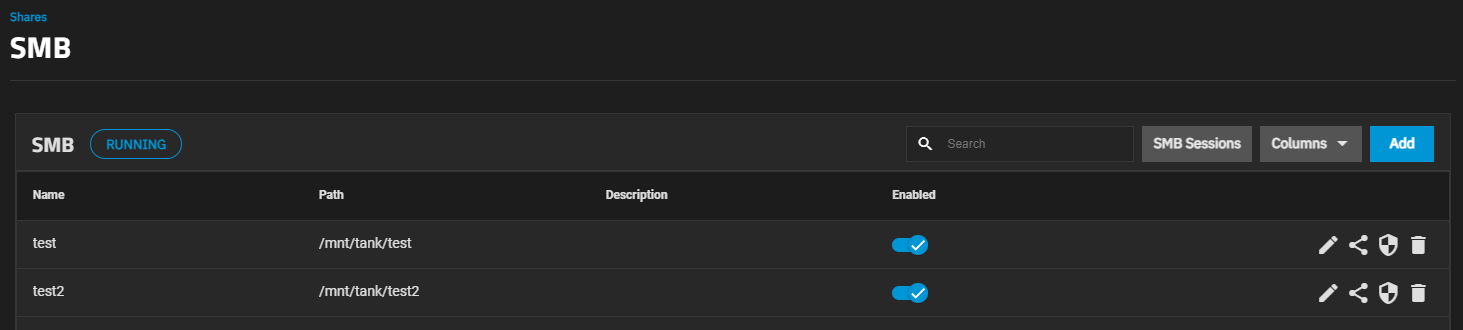
Select a widget or button result to go to the screen containing the element. For example, select Shares arrow_right_alt SMB arrow_right_alt Add SMB Share to locate to the Add button on the SMB screen.
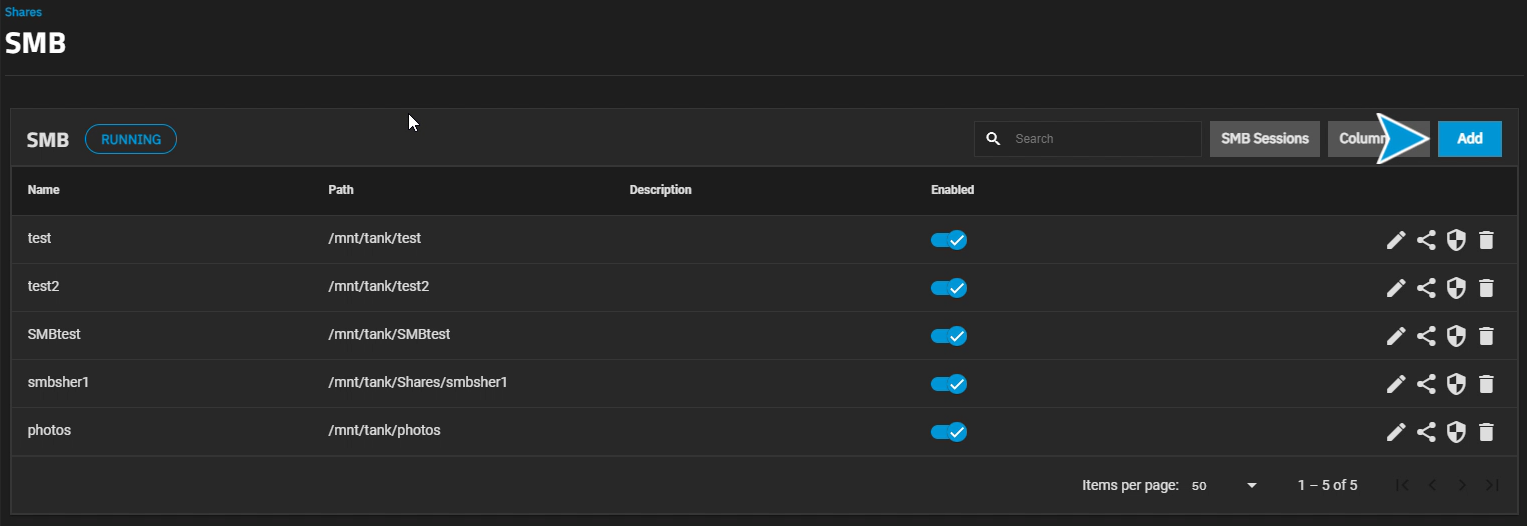
TrueNAS indicates the selected element with a glow effect.
Click Search Documentation for «query» to redirect the search to the TrueNAS Documentation Hub. TrueNAS opens a new browser tab to display documentation search results for the query.
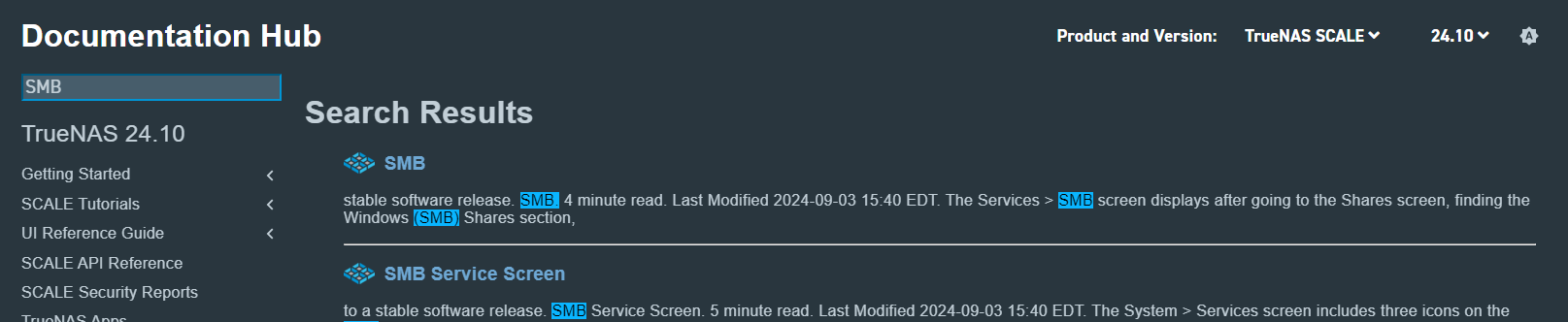
Use this option to search for tutorials and UI reference documentation for the feature, or to look for further information when the entered search term does not find any matching UI elements.
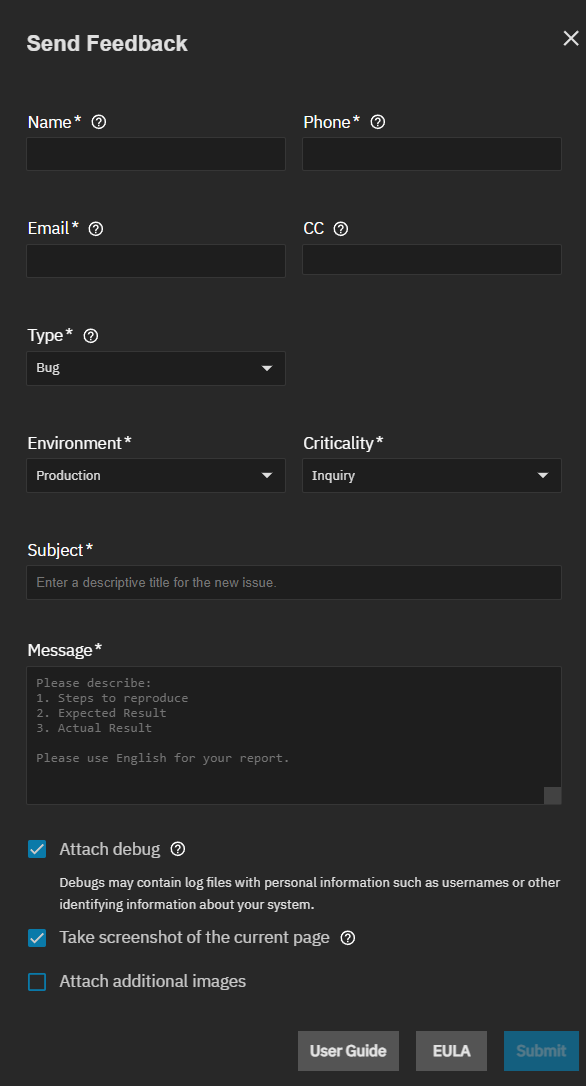
The icon on the toolbar at the top of all UI screens, and the File Ticket button on the System > General Settings > Support card open the Send Feedback window.
There are two version of the Send Feedback window: community and Enterprise.
The Send Feedback window community version allows non-Enterprise users to submit bug reports and open Jira tickets if they have a Jira account.

Login To Jira To Submit opens a Jira login screen where you enter your Jira credentials so TrueNAS can create the ticket using your credentials.
The Enterprise version of the Send Feedback window includes contact, system, and other details required to support Enterprise customer reports. If the system is down or impacting a prodcution system please contact TrueNAS support directly.
User Guide opens the Documentation hub.
EULA opens the End User License Agreement (EULA) screen showing a copy of the TrueNAS end user license agreement. I Agree digitally marks it as signed, then closes the screen and updates the Support card with the license and hardware information.
Submit sends the bug report to TrueNAS.
The Status of TrueCommand icon lets users sign up with and connect to TrueCommand Cloud.
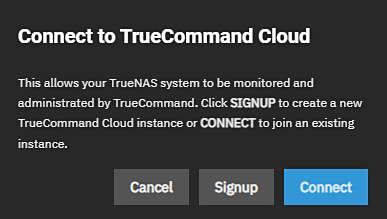
Clicking Signup opens the TrueCommand sign-up page in a new tab.
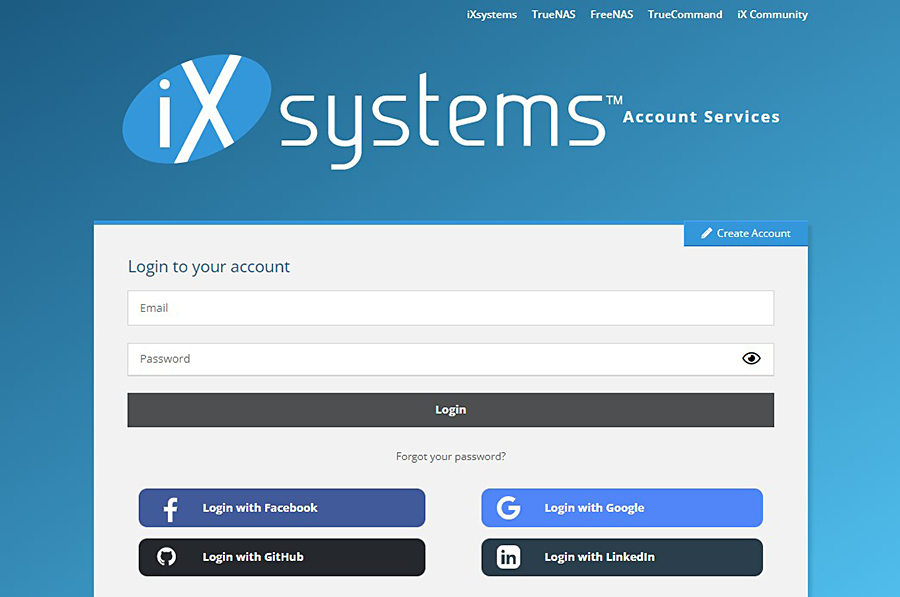
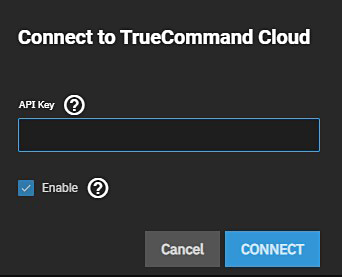
After users sign up, they can click the Connect button and enter their API key to connect TrueNAS to TrueCommand Cloud.
TrueNAS displays a message telling users to check their email for verification instructions.
TrueNAS provides quick access to TrueNAS Connect from the top toolbar in your TrueNAS system. The Status of TrueNAS Connect icon opens the TrueNAS Connect dialog. Before you sign up for TrueNAS Connect, the dialog shows it is waiting to connect.
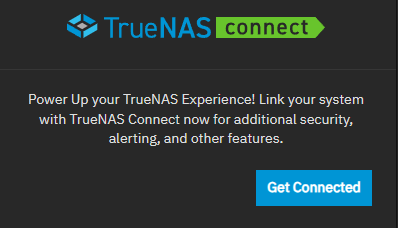
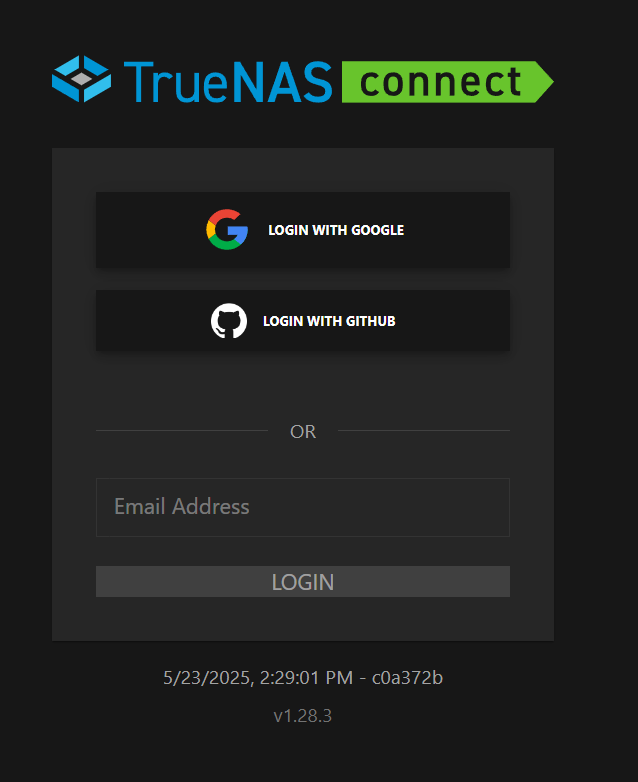
Click Get Connected to open the TrueNAS Connect sign-in screen.
After connecting to TrueNAS Connect and registering the system, the Status of TrueNAS Connect icon shows an active status indicator. The TrueNAS Connect dialog shows the status of the active connection.
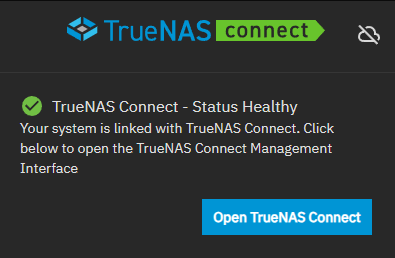
Click Open TrueNAS Connect to open the TrueNAS Connect management interface. Click cloud_off Disable Service to disconnect the system from TrueNAS Connect.
See connect.truenas.com for more information.
When configured, the Directory Services Monitor icon button displays the status of Active Directory and LDAP services.
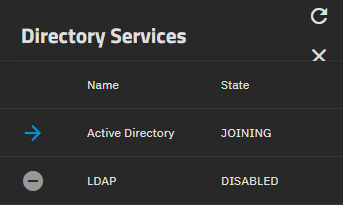
Click on either service to go to its configuration screen.
The Running Jobs icon button opens the Running Jobs window showing a minimized view of all running, waiting, and failed jobs/processes. Hover the mouse over an error job to view a pop-up window with the error message for that failed job.
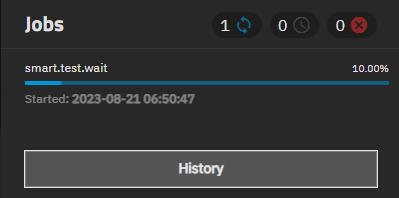
Click the minus (-) at the top right corner of any dialog or pop-up window to minimize a job/process.
Click on a running job to open a dialog for that job.
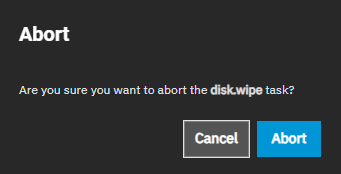
A running job shows a progress bar and a stop_circle button to the right of the job. Click on this to show the Abort dialog. Click Abort to stop the job and abort the process.
Beginning in 25.04, the Abort option is only available for select jobs. Jobs that are unable to be aborted are listed without the stop_circle button as an option.
Click on Go to Jobs to open the Jobs screen with tabs to screens listing all successful, active, or failed and aborted jobs. Click on the All, Active, or Failed button at the top of the screen to show the log of jobs that fit that classification.
Click View next to a task to see the log information and error message for that task.
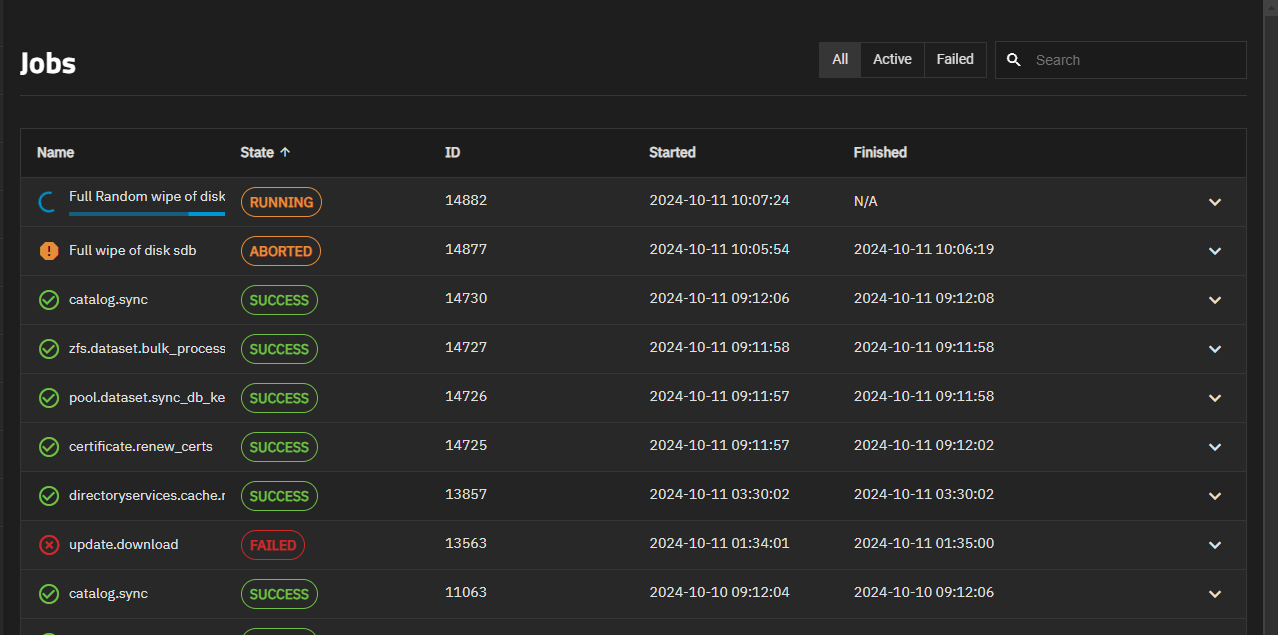
For more information, see Jobs Screens.
The Alerts icon displays a list of current alert notifications. To remove an alert notification click Dismiss below it or use Dismiss All Alerts to remove all notifications from the list. You can also select the All Alerts, Critical, Warnings, Info, or Dismissed alert type tabs to filter alerts by type.
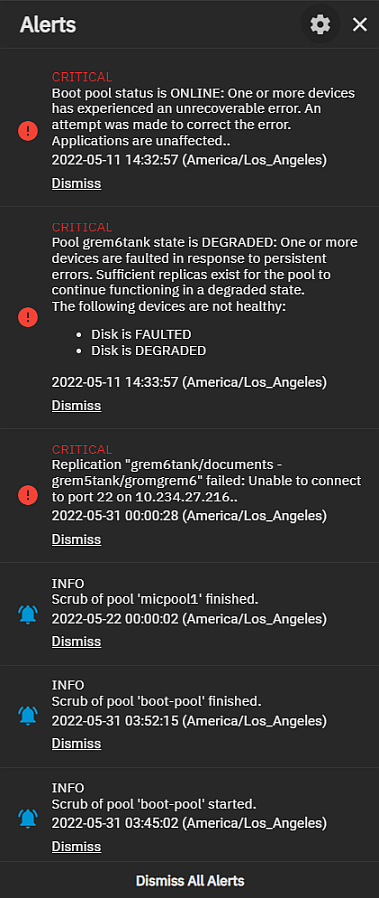
Use the icon to display the Alerts dropdown list with two options: Alert Settings and Email.
Select Alert Settings to add or edit existing system alert services and configure alert options such as the warning level and frequency and how the system notifies you. See Alerts Settings Screens for more information.
The Alert Settings Screens article includes information about the TrueNAS Enterprise high availability (HA) alert settings.
Select Email to configure the method for the system to send email reports and alerts. See Setting Up System Email for information about configuring the system email service and alert emails.
Each screen in TrueNAS displays relevant alerts with an admonition box.
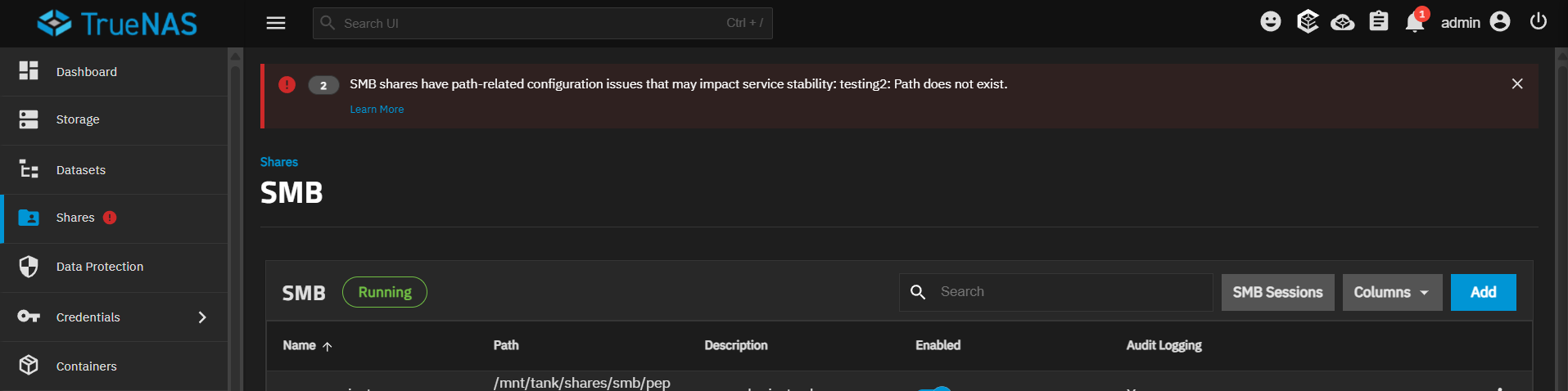
Click Learn More on an admonition to view documentation related to the issue, or click close to dismiss the alert.
The Settings button shows a menu of general system settings options. The options are Change Password, Preferences, Two-Factor Authentication (when Global 2FA is enabled), My API Keys, Guide, and Log Out.
The Change Password button displays a dialog where you can change the login password for the currently logged-in administrator.
The Preferences option opens a screen with Theme, Session Timeout, and Localization settings to customize the UI for the currently logged in user account.
The Two-Factor Authentication button displays only when Global 2FA is enabled and opens the Two Factor Auth screen. Users can also access this screen from Credentials > Two Factor Auth.
The My API Keys button displays the API Keys screen that lists current API keys and where you can add or manage API keys that identify outside resources and applications without a principal.
The Guide button opens the TrueNAS Documentation Hub website in a new browser tab.
The Log Out button logs the current user out of the TrueNAS UI.
The Preferences screen customizes the UI screens for the currently logged-in user.
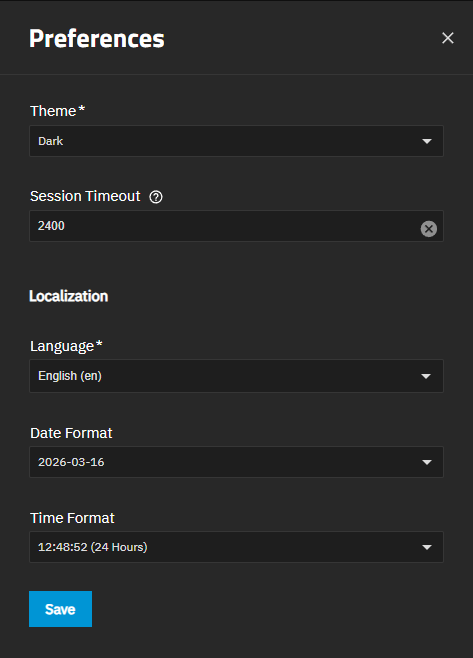
| Setting | Description |
|---|---|
| Theme | Sets the UI color theme for the currently logged-in user. Options are: ixDark (default option), ixBlue, Dracula, Nord, Paper, Solarized Dark, Midnight, and High Contrast. Selecting an option immediately changes the UI to the selected color theme. |
| Session Timeout | Sets the number of seconds a session remains active or inactive before it is automatically ended by logging out the user. |
| Language | Sets the lauguage for the UI screen. The default setting is English, but it might be customized to the language based on the country of origin for an Enterprise customer. You can filter the list by typing in the field after clearing the default value, or use the scroll option to find and select a language. |
| Date Format | Sets the desired date format for the UI. |
| Time Format | Sets the desired time format for the UI. |
The Power button provides two options that let the user restart or shut down their TrueNAS system.