




TrueNAS Development Documentation
This content follows experimental development changes in TrueNAS 28, a future version of TrueNAS.
Use the Product and Version selectors above to view content specific to a stable software release.
Update Screens
4 minute read.
The Update screen provides options to update TrueNAS software from the update server or by uploading a local update file.
The Update screen shows the installed version, other installation or update options, and update profiles.
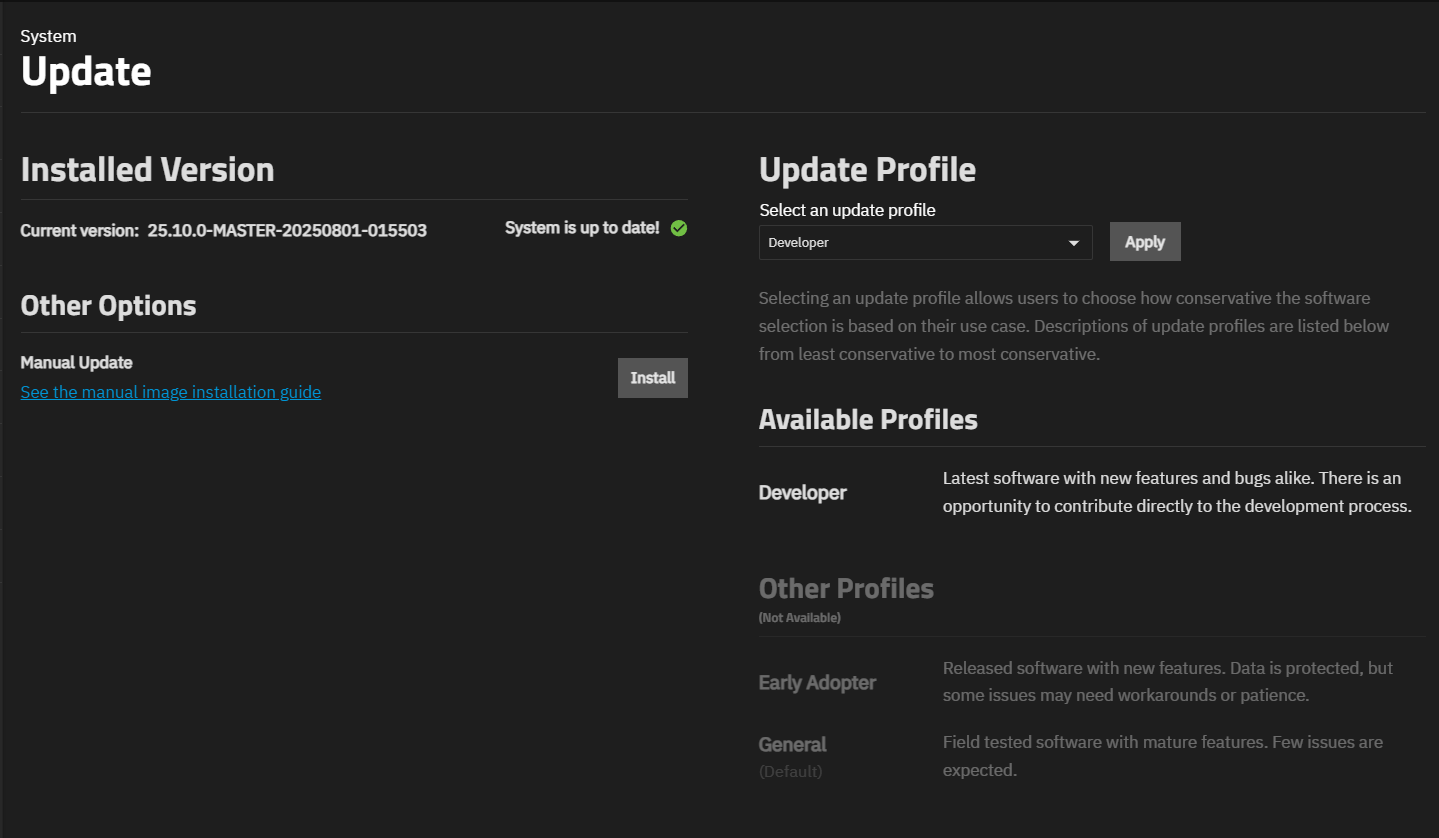
The screen shows four information areas:
- Installed Version - Shows the current release of TrueNAS running on the system.
- Other Options - Shows the Manual Install option, and a link to the TrueNAS Documentation Hub article on manually updating the release.
- Update Profile - Shows the Select an update profile dropdown list.
- Available Profiles - Shows a list of update profiles, and a description of what each provides.
This section shows the current TrueNAS release installed on the system. When autocheck is enabled, TrueNAS checks for available updates nightly. An update option appears only when the system detects an update for the selected profile. System is up to date shows when no updates are available to the profile set in Select an update profile.
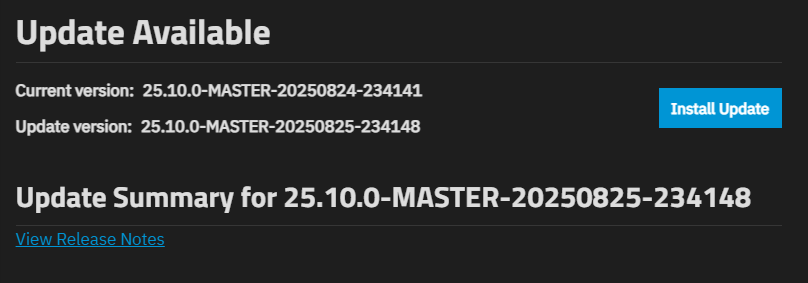
If an update is available, the update version number and the Install Update button appear below the current release version. A release notes summary for the update version displays inline, followed by links to the full release notes and other resources.
Install Update starts the update process.
This section shows the Manual Update option.

The See the manual image installation guide link opens the TrueNAS Documentation Hub article with information on performing a manual upgrade.
Install opens the Manual Update screen.
Each profile changes the type of releases or updates available. Default profiles display a label identifying them on the Update screen. Each update profile and the description of software in each shows on the Update screen in the Available Profiles area.
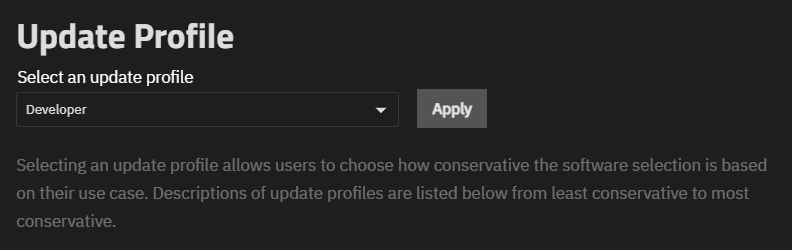
Apply changes the profile to the selected option.
The profiles listed in this section show the profile and a brief description of releases made available to each profile. These profiles are on the Select an update profile dropdown list. Available profiles differ by user type: Enterprise users see General and Mission Critical; Community Edition users see Developer, Early Adopter, and General.

Profile selections allow users to choose how conservative the software selection is based on the use case. The following table summarizes each profile and the intended users. See the TrueNAS Software Status page for current version recommendations by user type. See the Software Development Life Cycle for details on TrueNAS release stages.
| Profile | Description |
|---|---|
| Early Adopter | Available to Community users wanting to try out or test early or nightly releases still in development. Pre-release access to new features and functionality of TrueNAS software. Some issues might need workarounds, bug reports, or patience. |
| General | Available to Community and some Enterprise customers, but is not recommended for Enterprise customers. General releases are field-tested software with mature features. Expect a few issues in the general release profile. |
| Mission Critical | Available to Enterprise users only. This profile is the most conservative release, offering mature software for 24×7 operations with high availability for a clearly defined use case. Software updates are very infrequent and based on need. |
| Developer | Available to developer users. The developer profile is for nightly builds of software in active development. Expect many issues and frequent, sometimes twice daily updates. |
The Save configuration settings from this machine before updating? window opens after clicking Install to the right of Manual Install.
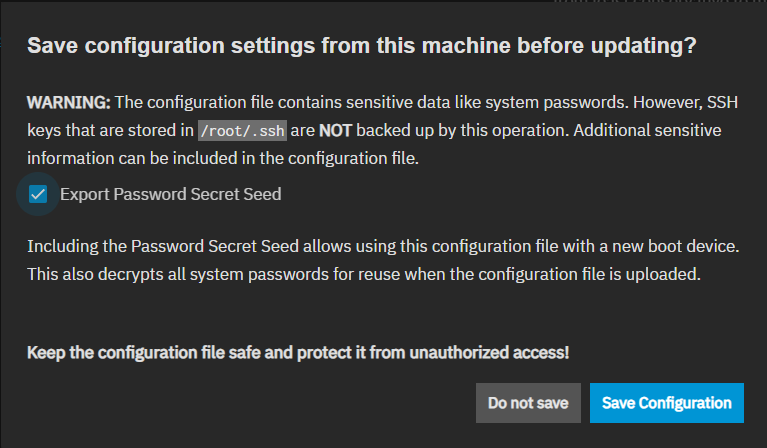
Export Password Secret Seed includes password hashes used for system authentication. It does not store user login passwords. The secret seed decrypts encrypted fields in the TrueNAS configuration database. Various fields are encrypted because they might contain sensitive information such as cryptographic certificates, passwords (not user login passwords), or weak hashing algorithms. For example, SMB users have NT hashes stored in the configuration database. When a configuration file is restored without the secret seed, encrypted fields are set to empty values. This breaks services that depend on the missing data, such as SMB via local accounts and apps.
Save Configuration downloads the system configuration file. Store the configuration file in a secure location that is regularly backed up.
The Manual Update screen opens after saving the system configuration settings.
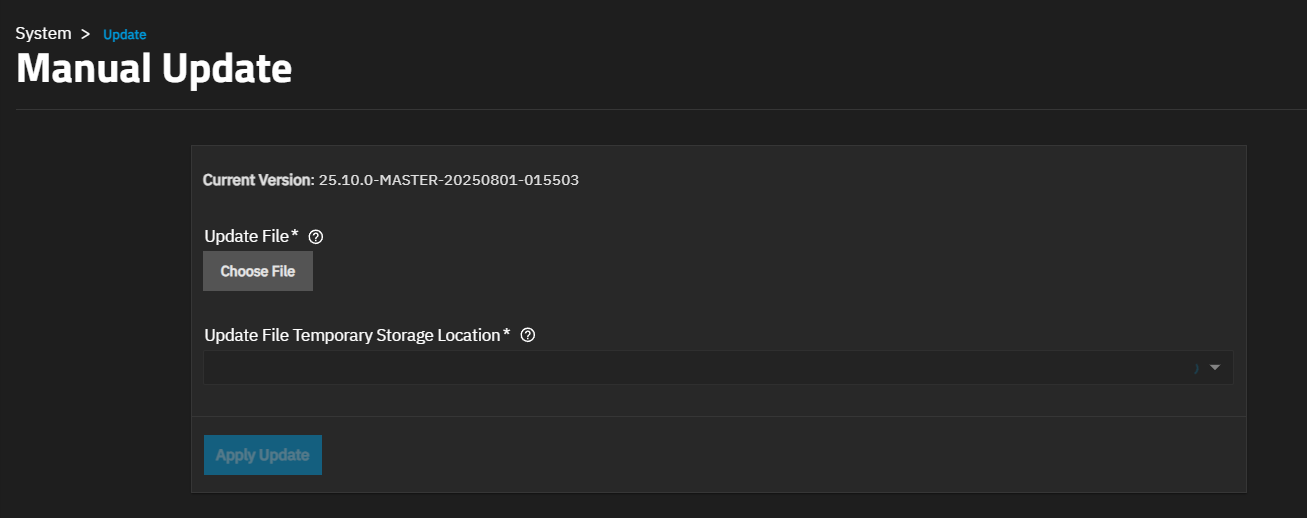
Current Version shows the TrueNAS release version running on the system.
Choose File opens a browser window to locate the downloaded update file.
The Update File Temporary Storage Location dropdown lists Memory Device and a mount path entry for each pool available on the system. Select Memory Device to store the update file in system RAM during installation, or select a pool mount path to store it on disk if the system has limited memory available.
Apply Update starts the installation.