



TrueNAS Development Documentation
This content follows experimental development changes in TrueNAS 28, a future version of TrueNAS.
Use the Product and Version selectors above to view content specific to a stable software release.
Storage Tiering
6 minute read.
This feature is only available on TrueNAS Enterprise systems.
Storage Tiering is an Enterprise feature that operates as a share-level toggle that lets admin users decide whether to write data to flash performance tiers or regular HDD tiers within a fusion pool at any time.
Users can also transparently migrate datasets between tiers without breaking share access paths.
To use tiering, you must configure and activate the TrueNAS Storage Tiering feature, create a fusion pool, create a dataset in the fusion pool, then create shares for tiering use.
If your goal is to consolidate SSD drives from one pool into another pool as part of enabling Storage Tiering, follow the Storage Tiering Migration Guide instead. That procedure adds tiering-specific preflight items, a topology change to the Pool A special class, and a third phase covering tier migration jobs.
On a preexisting pool, a dataset can have the ZFS
special_small_blocksproperty set to a non-zero value lower than the dataset record size. TrueNAS assigns a dataset to the performance tier only when the threshold is greater than or equal to the record size, so it flags these datasets as regular.Review these datasets before you enable tiering. For a dataset you want in the regular tier, click Edit on the dataset and set Use Metadata (Special) VDEVs to Off. This changes only where TrueNAS writes new data, so contact support to move data that is already on the special vdev. After tiering is on, this setting no longer displays on the dataset Edit screen, and you change the threshold through the Change Storage Tier action.
Go to Storage and click Tiering.
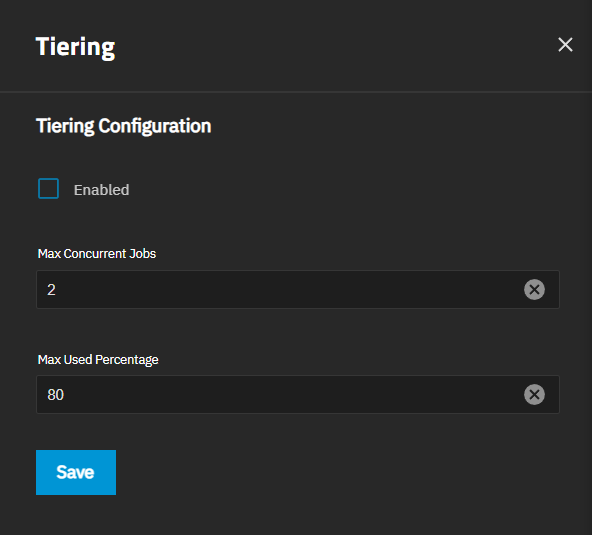
Enter your desired values for Max Concurrent Jobs and Max Used Percentage, then select Enable and click Save
After tiering is on, SMB shares and WebShares stop following nested datasets. Each share exposes only its own dataset, and any child datasets under it are no longer visible to clients through that share. Create a separate share for each dataset you want to expose.
Go to the Storage Dashboard, click Create Pool, or click Add To Pool, then select New Pool.
Create your data VDEV, then click on the Special option to add disks to the VDEV.
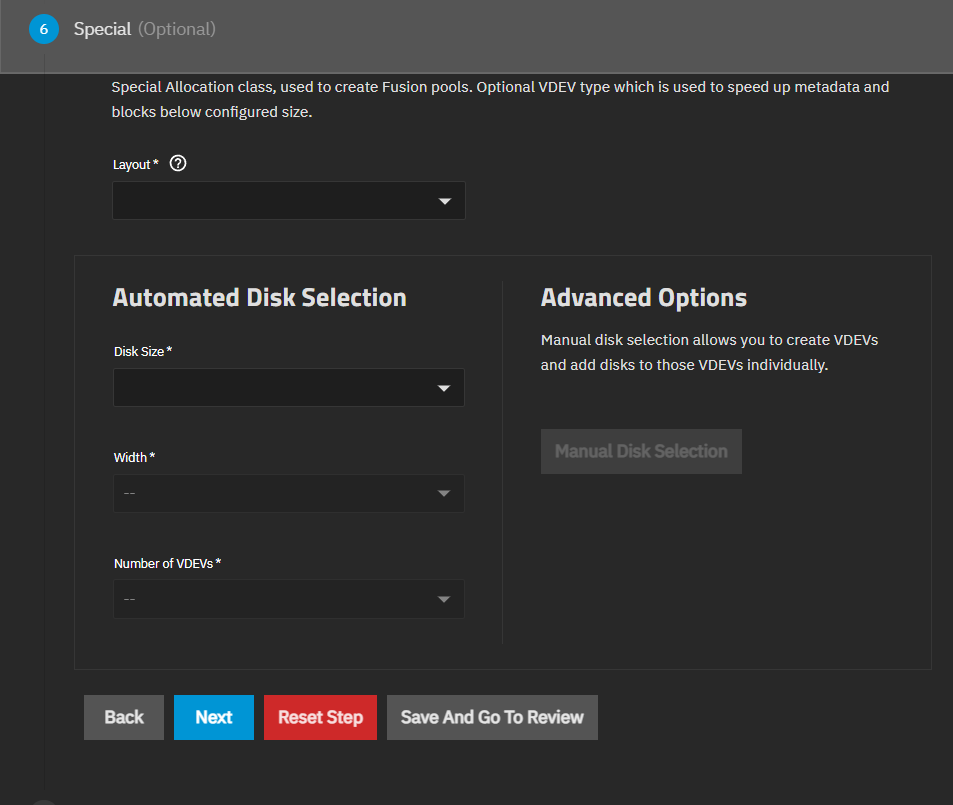
We recommend that you configure the Special VDEV layout with a level of redundancy similar to the data VDEV. However, you can use different types of VDEVs (such as a 10WZ2 HDD Data VDEV paired with a 5WZ1 Special SSD VDEV) for performance reasons.
Click Save And Go To Review, then click Create Pool to create the VDEV.
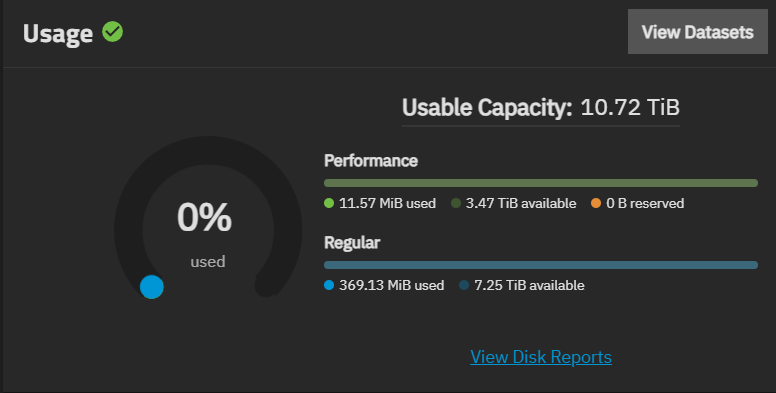
After you enable tiering and create a fusion pool, you can see your Performance and Regular tier capacity usage on the Storage Dashboard.
For more general information and best practices on fusion pools, see Creating Fusion Pools.
With tiering active, TrueNAS uses L2ARC for the regular tier data and, unless specifically configured, uses the ZFS intent log (ZIL) for the performance tier.
Go to Datasets, select the fusion pool you created, and click Add Dataset. Enter the values you want for the dataset configuration and save it.
After you create a dataset, the Details card shows which storage tier the dataset is on.
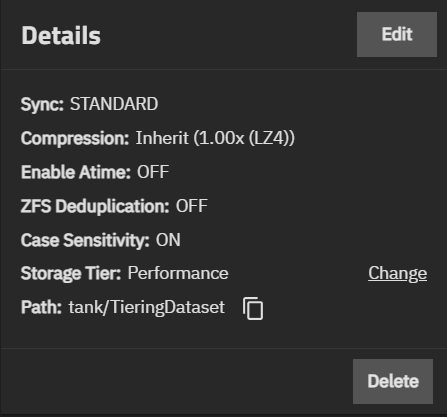
You can create as many datasets in the fusion pool as you need to suit your different storage tier purposes.
Storage tiering works with SMB and NFS sharing. You can create as many shares for fusion pool datasets as you need for your different storage tier purposes. For example, you can have one share and dataset for regular tier cold storage on HDDs, and another share and dataset for a performance tier with fast reads and writes on SSDs.
Go to Shares > Windows (SMB) Shares and click Add. Select a share purpose and select the dataset you created for tiering as the path. After you configure the rest of the share settings, click Save.
Storage Tier on the Windows (SMB) Shares card and the Shares > SMB screen shows the tier level of the dataset: performance or regular.

Go to Shares > UNIX (NFS) Shares and click Add. Select the dataset you created for tiering as the path. After you configure the rest of the share settings, click Save.
Storage Tier on the UNIX (NFS) Shares card and the Shares > NFS screen shows the tier level of the dataset: performance or regular.

When you want to change from the regular tier to performance (for faster reads and writes to SSDs), or from the performance tier to regular (for slower reads and writes to HDDs), you can do so from either the Datasets screen or the Shares screen.
To change storage tiers from the Datasets screen, select the dataset used in your tiering configuration, and click Change on the dataset Details card.
To change storage tiers from the SMB or NFS shares screens, click to the right of the share and select Change Storage Tier.
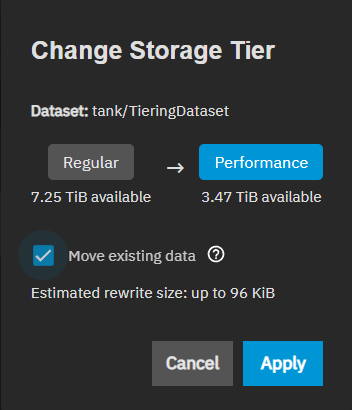
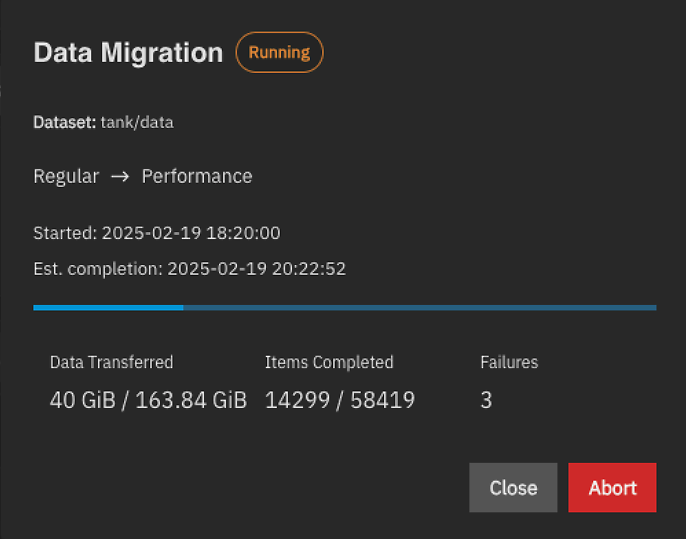
When you change storage tiers, you can select whether you want to migrate existing data to the new storage tier. This can take some time to complete depending on the amount of data in the dataset.
Migration progress shows on the Data Migration card. To abort in-progress tier migrations, click Abort. If you close the Data Migration card, find the active migration in the Running Jobs window to see the job status again.