



TrueNAS Development Documentation
This content follows experimental development changes in TrueNAS 28, a future version of TrueNAS.
Use the Product and Version selectors above to view content specific to a stable software release.
Import Pool
3 minute read.
ZFS pool importing works for pools exported or disconnected from the current system, those created on another system, and for pools you reconnect after reinstalling or upgrading the TrueNAS system.
The import procedure only applies to disks with a ZFS storage pool.
TrueNAS supports pool imports using the WebUI or API only. Manual pool import via command line can cause unexpected behavior and system issues.
To import a pool, go to the Storage Dashboard and click Import Pool at the top of the screen.
TrueNAS detects the pools that are present but not connected and adds them to the Pools dropdown list.
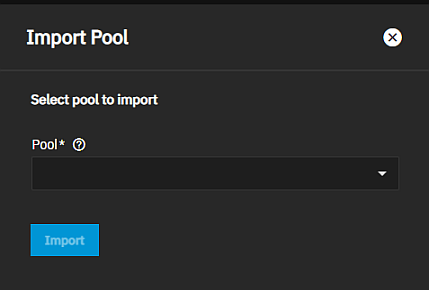
Select a pool from the Pool dropdown list, then click Import.
Importing SED Drives
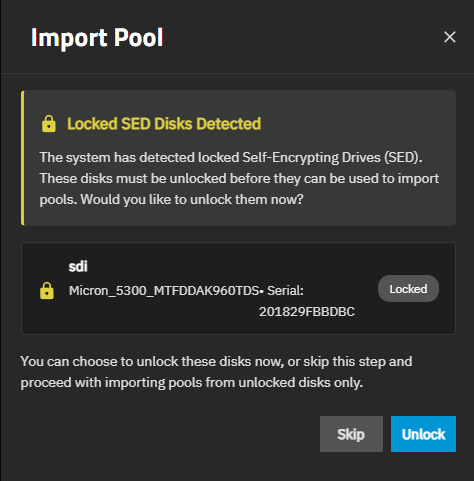
When importing SED drives into a pool, if TrueNAS finds SED-locked disks, it stops and shows information about locked disks and provides the option to unlock or skip unlocking and proceeding with the import. If skipped, the disks remain locked and inaccessible until they are unlocked with the global SED password or any individual SED password applied to the disk.
Use the individual disk SED password when the disk is locked with an individual password; otherwise, use the global SED password to unlock it.
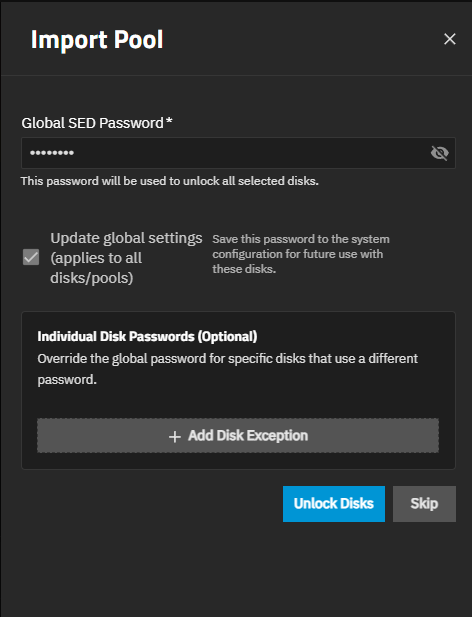
Unlock the Import Pool screen initiates the unlock process for the SED disks to make the data on them accessible after import, and it shows the Global SED Password and Individual Disk Passwords (Optional) fields, and the Add Disk Exceptions option.
The Skip on the unlocked SED disk screen where you enter the individual disk SED passwords allows you to exit out of the unlock SED process and proceed with the pool import. To proceed with unlocking the disks, click Unlock Disks.
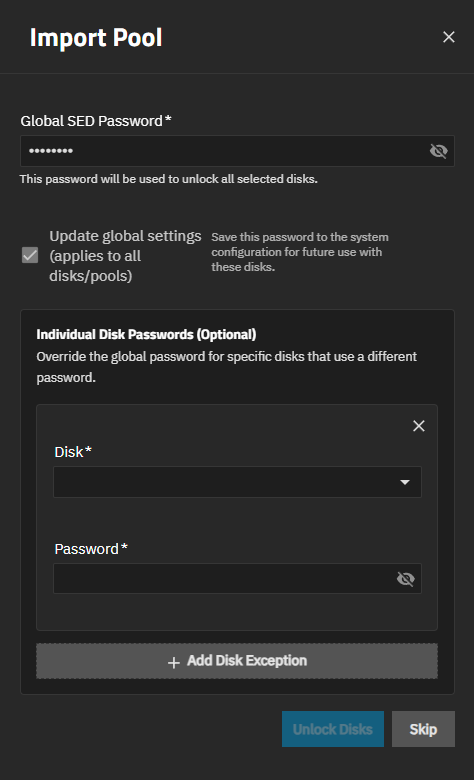
Add Disk Exception expands to show the Disk Name and Password fields that, when entered, overrides the global SED password for the added disk(s). The x icon is the Remove disk exception function. Use it to remove the disk exception fields and activate the Unlock Disks button.
The Update global settings (applies to all disks/pools) option is selected by default. This indicates the password is saved to the system configuration for future use with these disks.