




TrueNAS Development Documentation
This content follows experimental development changes in TrueNAS 28, a future version of TrueNAS.
Use the Product and Version selectors above to view content specific to a stable software release.
WebShare Shares Screens
4 minute read.
If you have not added WebShare shares to the system, the WebShare widget shows text stating general information about WebShares until a share is added.
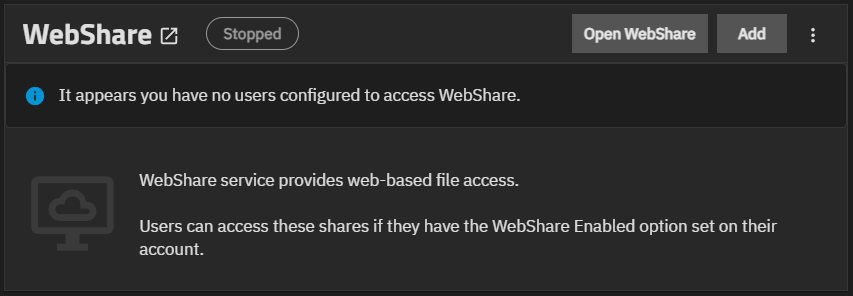
Add at the top right of the widget opens the Add WebShare screen where you configure a Webshare share.
After adding an WebShare share, it is listed in the table on the widget.
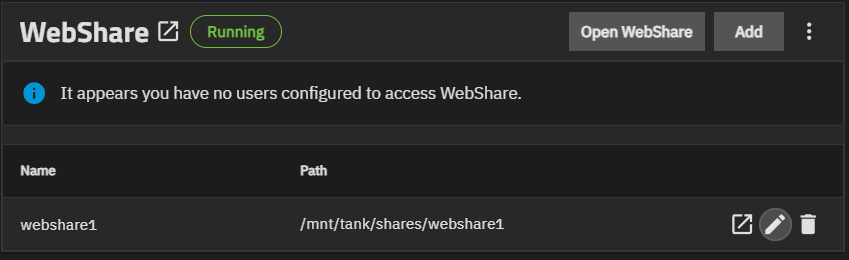
The WebShare header shows the status of the WebShare service as either Stopped (red) or Running (green). Before adding the first share, the Stopped status displays in the default color. The header is a link that opens the Sharing > WebShare screen.
Open WebShare opens a browser window with access to the WebShare. Add opens the Add Webshare screen.
The dropdown list shows two options available to WebShare shares in general:
- Turn Off/ON Service toggles to Turn Off Service when the WebShare service is enabled, and to Turn On Service when the WebShare service is disabled.
- Config Service opens the WebShare service configuration screen.
The WebShare table in the WebShare widget and on the WebShares screen lists all WebShare shares added to the system. The table header shows the status of the WebShare service as stopped or running. The table columns show the share name and the path to the dataset for the share.
A message shows at the top of the table and on the WebShares widget on the Shares screen if a user is not configured to allow WebShare access.
Each Webshare share row shows the share name, the path to the shared dataset, and three icons:
- Open - Launches a web browser showing access to the WebShare.
- Edit - Opens the Edit Webshare.
- Delete - Opens a delete confirmation dialog.
The delete icon opens a Delete confirmation dialog. The dialog shows the name of the share, and a warning message about deleting the WebShare.
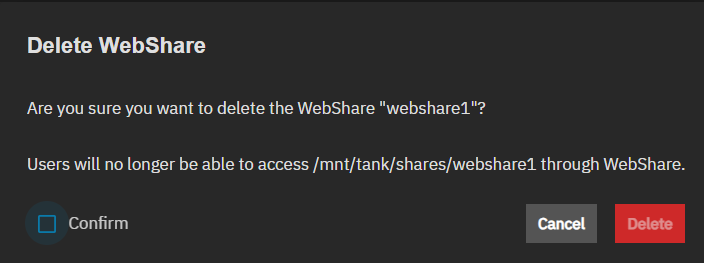
Select Confirm to activate the Delete button.
The Shares > WebShare screen shows the same WebShares table found on the WebShare widget.
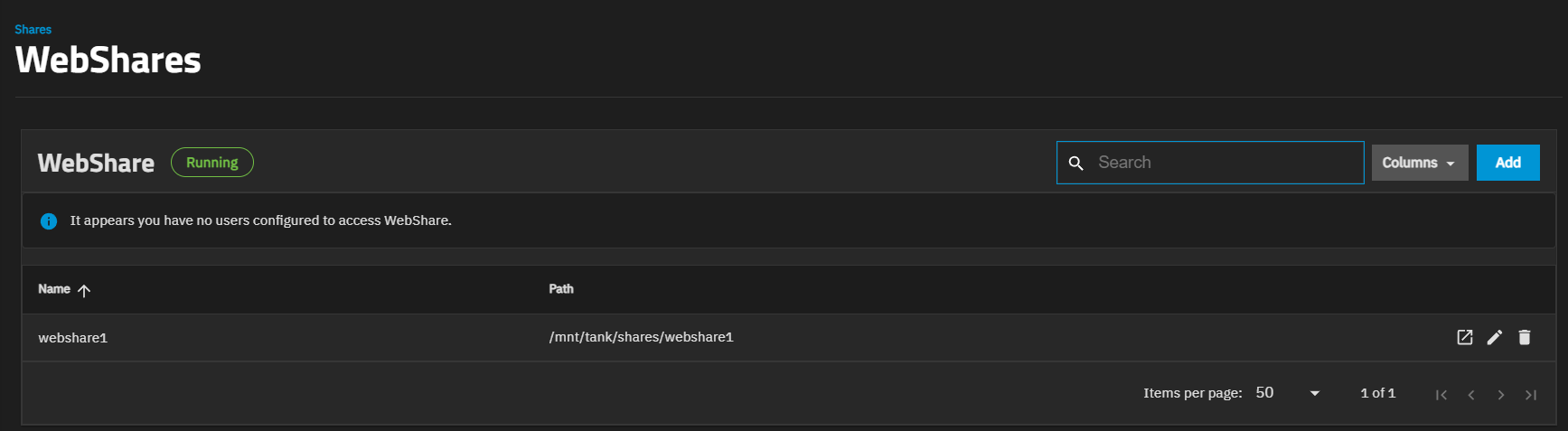
Shares in the breadcrumb at the top of the screen returns you to the main Shares dashboard.
Columns shows a set of options to customize the list view. Options include Unselect All, Name, Path, and Reset to Defaults.
Add opens the Add WebShare configuration screen.
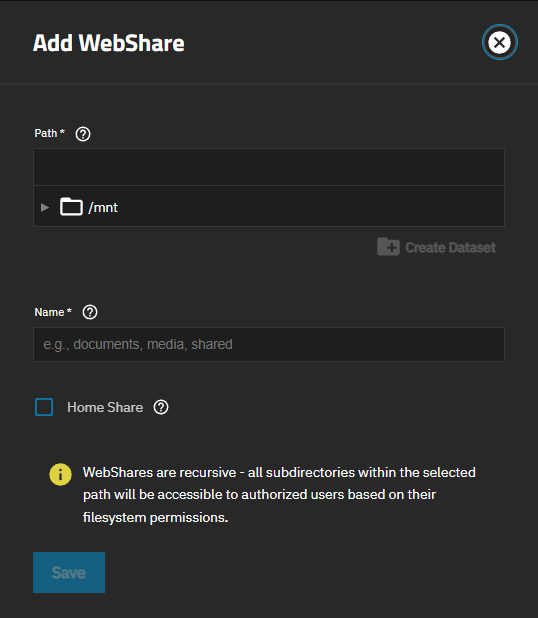
The two WebShare configuration screens, Add WebShare and Edit WebShare, have the same setting options.
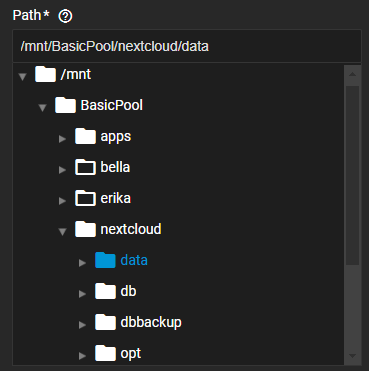
The Create Dataset option becomes active after selecting a parent dataset in the Path file browser field. It opens the Create Dataset dialog.
Save creates the share (or saves an existing one) and adds it to the WebShare widget and the WebShare table on the WebShare screen.
| Setting | Description |
|---|---|
| Path | Populates with the full path to the dataset for the share based on the datasets selected using the file browser directly under the Path field. |
| Create Dataset | Opens the Create Dataset dialog, which allows you to create a dataset for a share while configuring the share. Create adds the dataset. The Create Dataset option remains inactive until a dataset is clicked on in the file browser. |
| Name | Sets the name for the share of alphanumeric characters and can include a hyphen or underscore. |
| Home Share | Used as the base path for a user home directory when set. Only one WebShare can have this enabled. |