




TrueNAS Development Documentation
This content follows experimental development changes in TrueNAS 28, a future version of TrueNAS.
Use the Product and Version selectors above to view content specific to a stable software release.
Setting Up SMB Private Dataset Shares
22 minute read.
When creating a share, do not attempt to set up the root or pool-level dataset for the share. Instead, create a new dataset under the pool-level dataset for the share. Setting up a share using the root dataset leads to storage configuration issues.
SMB Home Share is a legacy feature for organizations looking to maintain existing SMB configurations. Microsoft deprecated the Home Shares feature in Windows 10 and removed it completely from Windows 11. They no longer support Home Shares as of October 2025. TrueNAS removed the home share option from the SMB share Purpose list in 24.04 (Dragonfish).
The SMB share Other Options in pre-25.10 releases includes a home share legacy option, but it is not recommended for new shares. It is for organizations still using the legacy home shares option to add a single SMB share to provide a personal directory for every user account. Future TrueNAS releases can introduce instability or require configuration changes affecting this legacy feature. This option does not show in 25.10 and later releases unless an existing home share is upgraded to 25.10 or later.
Private directories are not intended for every user on the system.
When setting the Purpose dropdown list to the Private Dataset Share option, TrueNAS might show the private directories to all users with access to the root level of the share, but setting the share ACL prevents other users from accessing the private share.
Examples of setting up private SMB shares are those for backups, system configuration, and users or departments that need to keep information private from other users.
This article covers:
- Adding the private dataset share user.
- Creating the private dataset share and the dataset.
- Modifying ACL permissions for the dataset (who has access to the file system) and the share (who has access to the share).
The share user is the individual user account for the private dataset share. You can manually create this user as described below, or by using a directory server (FreeIPA or Active Directory). Users that requires access to an SMB share must be created with the SMB Access granted. TrueNAS assigns this level of access to new users by default, but administrators can disable/enable this manually on the Add User or Edit User screen.
Go to Credentials > Users to verify that the user for a private dataset exists and is correctly configured. If the user does not exist, create the user. If the user exists but does not have SMB Access enabled, edit the user to enable this level of access.
How do I create a user?
When creating a user, you must:
- Enter a value in Full Name or description for the user, such as a first and last name.
- Enter a value in Username.
- Enter a value in Password and confirm that password.
- Specify or accept the default user ID (UID)
To manually add a new user, go to Credentials > Users, and then click Add to open the Add User screen.
Enter a username for the user. Names are case sensitive!
Set the level of access given to this user from the options provided.
SMB Access is selected by default, and required for a user to have access to an SMB share.Select WebShare to give this user access to a WebShare.
Select TrueNAS Access and then the administration role from the dropdown list that shows after selecting the TrueNAS Access option.
- To create an administrator with full access, select Full Admin.
- To create an administrator with access to manage shares, select Sharing Admin.
- To create an administrator with read-only access, select Readonly Admin.
- To allow the user to access the Shell in the UI, select Shell Access.
To allow the user to establish an SSH session with the system, select SSH Access. Selecting this option also selects the Shell Access option by default. To limit the user to only Shell access, do not select the SSH Access option.
Enter a password for the user, and confirm it.
Enter additional details for the user. Setting options change based on the access option selected in Allow Access. If this is an SMB share user, leave the default SMB Access selected.
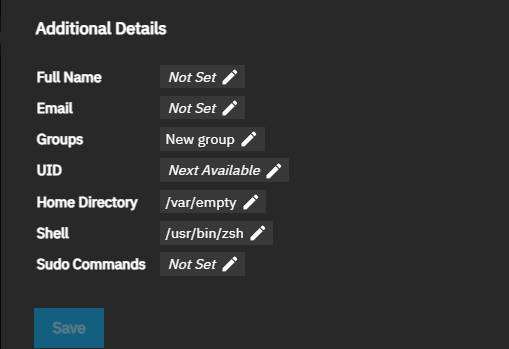
When Shell Access and SSH Access are assigned to the user, the Shell and Sudo Command settings show in the Additional Details section.
Enter the full name for the user. The full user name is not case sensitive.
(Optional) Enter the email for the user. Starting in TrueNAS 25.10, system notifications are sent to recipients configured in system email settings rather than user account emails.
Set up a group.
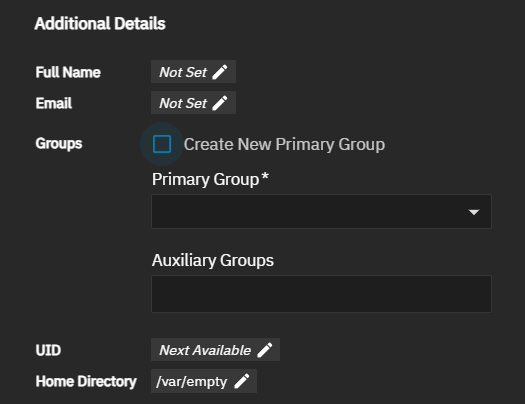
Accept the default group setting, which is Create New Primary Group. This creates a group with the same name as the admin user. The role setting adds the user to the appropriate auxiliary group for that role.
To select a different group, clear the checkmark, and select a new group on the Primary Group dropdown list. Next, select the group in Auxiliary Groups from the dropdown list.
(Optional) Add a home directory for the user.
Some functions, such as replication tasks, require setting a home directory for the user configuring the task.
SSH User ValidationUsers must have a home directory and shell access to log in with SSH.When creating a user, the default home directory path is set to /var/empty. This directory is an immutable directory shared by service accounts and accounts that should not have a full home directory. If set to this path, TrueNAS does not create a home directory for the user. You must change this to the path for the dataset created for home directories.
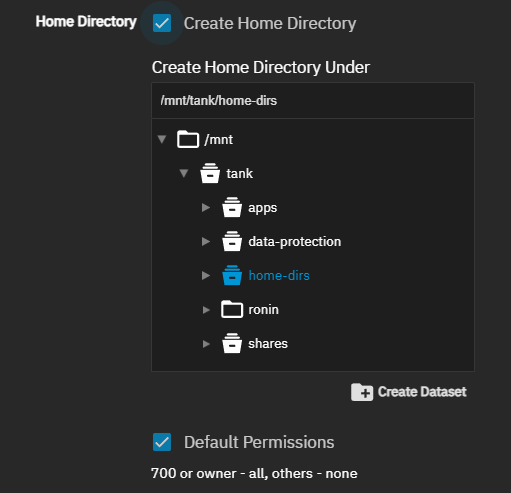
Select Create Home Directory to create a new home directory. Leave unselected to select an existing home directory. The file browser field is renamed based on whether you select this option.
Click the arrow to expand the dataset tree until you reach the home directory parent dataset. After clicking on a dataset, the Create Dataset option activates. Use the Create Dataset option to add a new dataset for the home directory if one does not already exist.
Leave Default Permissions selected to accept the default permissions, or clear the checkmark to select Read, Write, and Execute for each role (User, Group, and Other) and customize these permissions for the user, group, or other.
Select the shell option from the dropdown list. Default is zsh when you select Shell Access or SSH Access
Set up the sudo command options.
If required, set the sudo permissions to assign. For improved security, temporarily enable limited sudo permissions only when required to complete an administrative task and disable sudo after completing the task. See Allowing Sudo Commands for more information.
To improve security, deny sudo permissions unless required for specific, recurring administrative tasks, or allow sudo permissions only when needed to perform a discrete task, and then deny again when finished. Do not allow sudo permissions for read-only administrators.
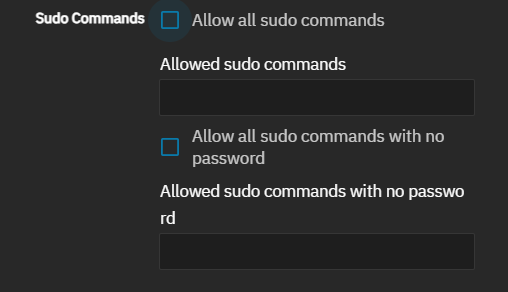
Select Allow all sudo commands if you want to allow the user to enter sudo commands in the shell or an SSH session, but still have TrueNAS prompt the user for their password. To limit the sudo commands allowed to a few rather than all commands, enter each in the Allowed sudo commands field. Enter each command as an absolute path to the ELF (Executable and Linkable Format) executable file, for example, /usr/bin/nano.
/usr/bin/ is the default location for commands. Press enter after each command to separate the entries.Select Allow all sudo commands with no password to allow the user to enter sudo commands in the shell or an SSH session, and not have TrueNAS prompt the user to enter their password. To limit the commands allowed to a few rather than all sudo commands, enter each in the Allowed sudo commands with no password field. Enter each command as an absolute path to the ELF (Executable and Linkable Format) executable file, for example, /usr/bin/nano.
/usr/bin/ is the default location for commands. Press enter after each command to separate the entries.Alternatively, accept default user sudo permissions and apply permissions to a new administrator group if you choose to use a group to assign permissions.
Click Save to add the user.
TrueNAS must be joined to Active Directory or have at least one local SMB user before creating an SMB share. When creating an SMB user, ensure that Samba Authentication is enabled. You cannot access SMB shares using the root user, TrueNAS built-in user accounts, or those without Samba Authentication selected.
You can edit and use an existing dataset and share to use for a private dataset share, or you can create a new dataset and share. We recommend creating a new dataset and share.
When creating a new share, TrueNAS allows you to use the Add Dataset or Add SMB screen to create the share and dataset. Each method has advantages depending on the type of share you want to create. In general, when creating a simple SMB share and dataset, you can use either screen.
When adding a new share and dataset for a private dataset share, we recommend using the Add SMB screen to create a new share and dataset for private datasets, or for any other customized SMB share, rather than using the Add Dataset screen.
We recommend using the Add Dataset screen when you want to customize the dataset with the advanced setting options. After which, use the Add SMB or Edit SMB screen to create or customize an SMB share with presets and advanced options.
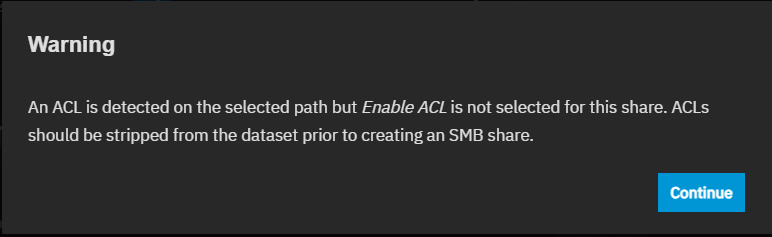
When using the file browser in the Add SMB or Edit SMB screens, if the parent dataset selected has an ACL, TrueNAS might show a warning message advising you to strip the ACL from the dataset.
When this happens, click Continue to close the dialog so you can continue adding the dataset.
Alternatively, close the Add SMB screen, go to the Datasets screen, select the same dataset, locate the Permissions widget, and then click Edit to open the Edit ACL screen.
Click Strip ACL on the Edit ACL screen. Save the change, then return to the Shares screen and open the Add SMB screen.
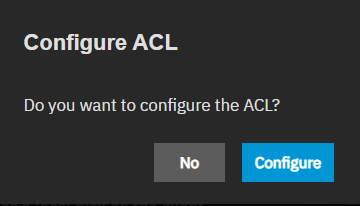
If you did not stop to strip the ACL, TrueNAaS shows a Configure ACL dialog to remind you to edit the ACL.
Click Configure to open the Edit ACL screen, or No to close the dialog and do nothing.
To avoid possible permission issues or error messages when creating the private dataset share, check the file system permissions assigned to the parent dataset for the private share dataset. If the admin user who creates the private dataset share and dataset is not listed as the owner or as an ACL entry, the permission issues blocks creating the share dataset.
Before creating the private share dataset, go to Datasets, select the parent dataset for the private share dataset, locate the Permissions card to view the owner and ACL entry permissions listed for that dataset. To see more details, click Edit to open the Edit ACL screen.
The owner and owner group default user is root, which means only the root user can create the private share dataset. When set to root, if another logged-in admin user tries to create a new private dataset share nested under the parent, TrueNAS shows an error message and prevents adding the new private dataset share until you correct the permissions issue.
You can change the admin user who is creating the private dataset share dataset to the ACL as the Owner and Owner Group user. Click apply for both the owner and owner group changes.
Alternatively, leave the Owner and Owner Group set to the root user and add a new user entry for the admin user who creates the private dataset shares. Give that admin user full access permissions. For more information on changing permissions, see Storage Permissions.
To create SMB private dataset share, go to Shares, and click Add on the Windows (SMB) Shares card to open the Add SMB screen.
Select Private Dataset Share on the Purpose dropdown list, then click Advanced Options to configure additional share setting options.
Enter or browse to select the path to the parent dataset for the private share dataset. Click on the dataset where you want to add the private share dataset, then to create a new dataset, click Create Dataset. The Create Dataset dialog opens.
Enter the private dataset name, for example rikka-private, then click Create Dataset. The dialog closes, and Path populates with the full path to the new dataset.
Modifying an Existing Share
If you created a simple share and dataset using the Add Dataset screen, to customize it, go to Shares, select it on the SMB screen (or card if it shows on the list), then click Edit. Verify the path and Name field are populated, and change the Purpose from Default Share to Private Dataset.
Follow naming conventions for:
The dataset name populates the share Name field and becomes the share name. The Path field is updated with the dataset name. The share and dataset must have the same name.
(Optional) Click Advanced, scroll down to select Enable Logging to enable SMB share audit logging.
(Optional) Scroll down to Other Options on the Advanced Options screen to locate the legacy Export Recycle Bin option, which only shows if you select a share created in an earlier TrueNAS release. This option allows moving files deleted in the share to a recycle bin in that dataset.
Files are renamed to a per-user subdirectory within
.recycle directory at the root of the SMB share if the path is the same dataset as the share. If the dataset has a nested dataset, the directory is at the root of the current dataset. If this is the case, there is no automatic deletion based on file size.(Optional) Select any other advanced options that applies to your share needs.
Click Save.
Enable or restart the SMB service when prompted and make the share available on your network.
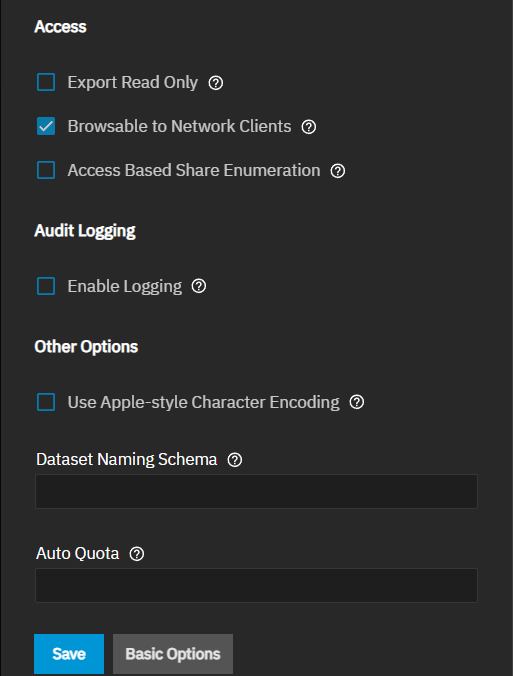
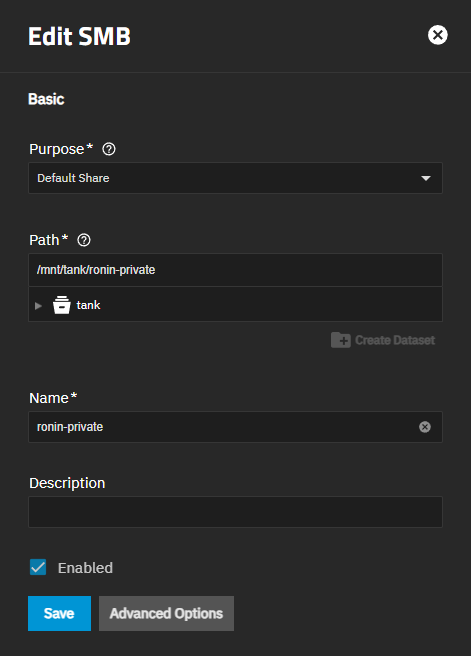
There are two types of ACL permissions for shares: file system and share permissions. The private dataset share requires both the dataset and share ACL permissions to allow or prevent access to the share.
If you did not modify the dataset ACL permissions as described above, when prompted by the system to configure the dataset ACL, accept the option. The Edit ACL screen for the new private share dataset opens. This controls who can access or modify file system permissions for the dataset the share uses.
The Edit Share ACL option for the share opens the Share ACL for rikka-private screen where you can modify who can see or access the share when connecting to it through Windows File Explorer.
Setting Dataset Permissions
First, set the dataset permissions to allow your admin user and the user assigned to the private directory to access the share.
Your admin user must have permissions granted for the parent dataset covered in Checking Parent Dataset File Permissions and the private dataset covered in this section. If you want or need to grant another user access to the private share dataset, other than the private share user or a group of users, add an ACL entry to the dataset on the Edit ACL screen, and then grant share ACL to allow access to the private dataset.
Accessing the Edit ACL screen with the dataset permissions:
From the Datasets screen, select the dataset row for the private share dataset. Click Edit on the Permissions card to open the Edit ACL screen. See Setting Up Permissions for more information on editing dataset permissions.
From the Shares screen, click the triple dot icon for the share row, then click Edit Filesystem ACL to open the Edit ACL screen.
Set the permission for the private dataset to allow additional users or a group if others are permitted to access the private directory share.
Click the Owner dropdown, select the administration user with full control, and then repeat for Group. You can set the owning group to your Active Directory domain admins. Click Apply Owner and Apply Group to apply the changes.
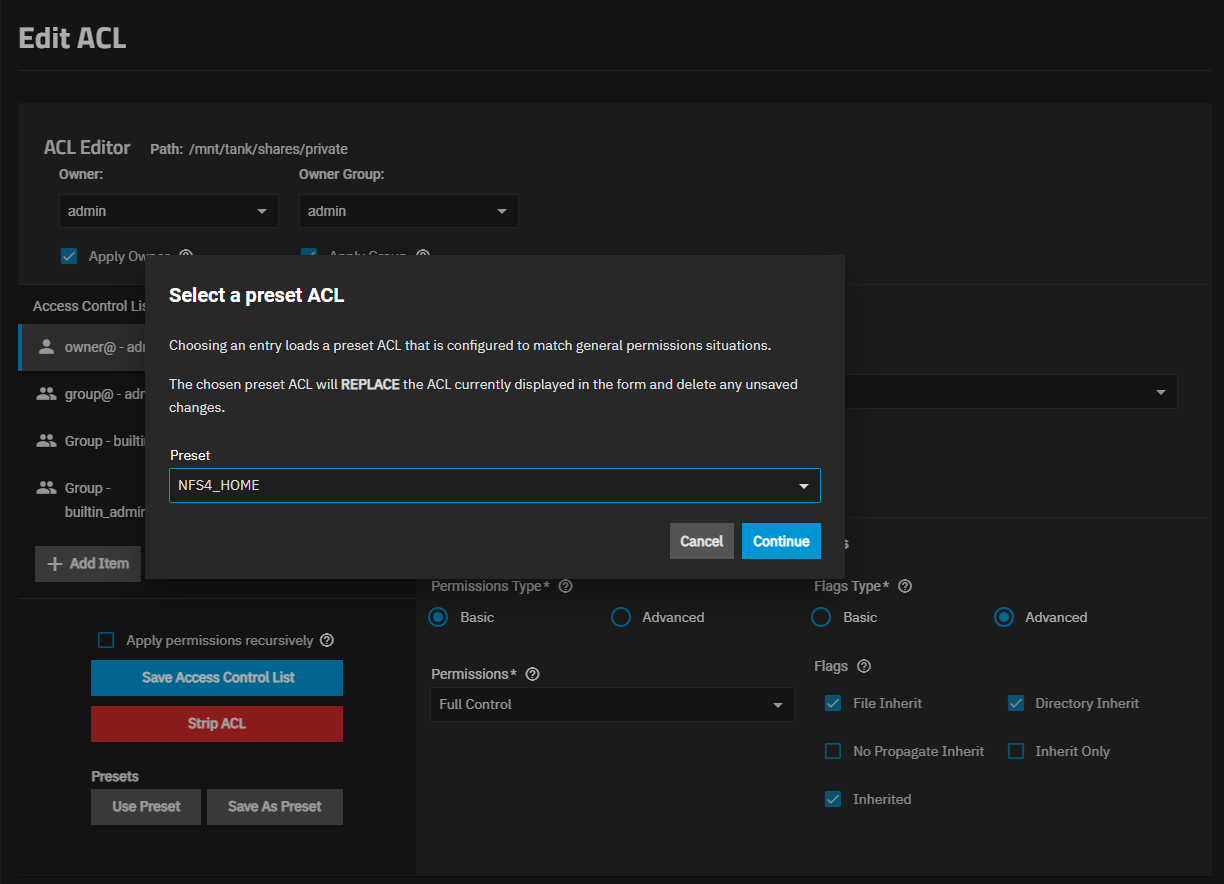
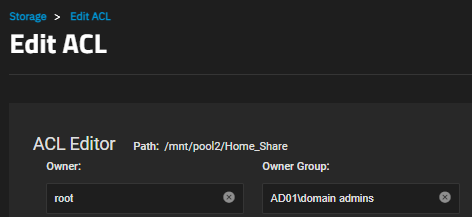
Click Use Preset and choose NFS4_HOME. If the dataset has a POSIX ACL, choose HOME. Click Continue.
Next, click Add Entry to add user entries for each user that needs access to the dataset. To assign required permissions, select User in Who and locate the user name in the User dropdown list. Select the required permissions. Repeat for each user that needs access. Alternatively, if you added users to a group, select, set Who to Group and locate the group in the dropdown list.
As of TrueNAS 22.12 (Bluefin) and later, TrueNAS does not support SMB client operating systems that are labeled by their vendor as End of Life or End of Support. This means MS-DOS (including Windows 98) clients, among others, cannot connect to TrueNAS SMB servers.
The upstream Samba project that TrueNAS uses for SMB features notes in the 4.11 release that the SMB1 protocol is deprecated and warns portions of the protocol might be further removed in future releases. Administrators should work to phase out any clients using the SMB1 protocol from their environments.
After adding all users or groups and setting the required permissions for each, click Save Access Control List.
Setting Share Permissions
If the private dataset is nested under a parent dataset that has other private datasets nested under it, you must set the share ACL permission to restrict access to the files in the private share dataset (directory) to prevent other users from accessing the private share. Windows File Explorer shows all datasets nested under the share parent but blocks other users not granted access permission from opening and viewing the contents of that folder or directory.
Click the triple dot icon at the right of the private dataset share on the Shares screen, then click Edit Share ACL to open the Share ACL for rikka-private screen.
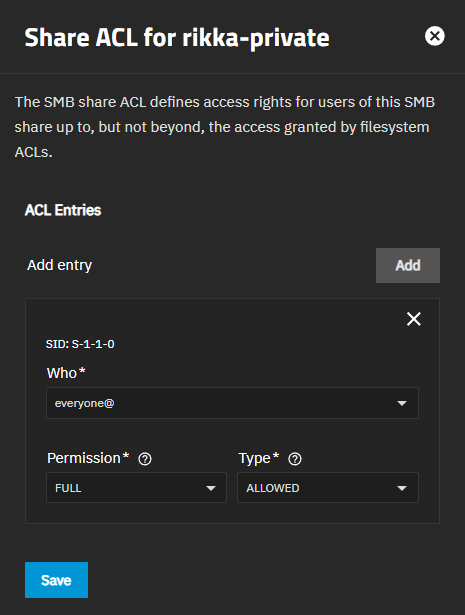
Change Who from the default everyone@ to the private dataset share user. In the example, the user is rikka for the rikka-private share. Leave Permissions set to Full and Type set to Allowed. Click Add to show another Add entry group of settings. Change Who to the admin user to allow for share maintenance tasks, like moving the directory to a new location if that becomes necessary.
If granting other users in a group to a private share for that group, add an entry for each user and change the level of permissions to what is needed. For example, if the group members can read the files but not change them, set Permission to READ for those users, and grant the user that maintains the documents either FULL or CHANGE permissions.
Click Save when finished.
This section applies to users upgrading from earlier releases of TrueNAS where they configured SMB shares for use as home shares.
TrueNAS has removed the Use as Home Share option, found in the Other Options section of the Advanced Options screen for the Add SMB and Edit SMB screens in earlier releases of TrueNAS. The Private Dataset Share in the a Purpose dropdown list in 25.10 and later releases replaces home shares, and is the recommended method to provide users with a private personal folder they access through an SMB share.
Follow the instructions in the Adding Private Dataset Shares section below to set up private and personal shares.
TrueNAS allows creating one private directory per user, while it still allows creating as many non-private directories as desired or needed. When a user first authenticates to a Private Dataset Share, TrueNAS automatically creates a subdirectory named after their username (for example, /mnt/poolname/share-name/username/). Each user only sees and can access their own subdirectory when connecting to the share. Users can create as many directories as needed through Windows File Explorer.
TrueNAS does not control what Windows allows through the File Explorer. The share ACL settings control who can access the private directory share. If the personal directories show in File Explorer, use Windows file properties and access control to hide the folder in the share.
Other options for configuring individual user directories include:
- Configure a single share on the TrueNAS and provision individual user directories on the client OS.
- Create a single SMB share and configure the ACL so that users can create individual directories on the share that inherit write access for the user and grant read access to the administrator.
- Create an SMB share using the Private Dataset Share preset, and then create per-user datasets under the umbrella of a single share when users access the share.
Creating an SMB private dataset share requires provisioning users or joining Active Directory, and configuring the system storage and share.