




TrueNAS Development Documentation
This content follows experimental development changes in TrueNAS 28, a future version of TrueNAS.
Use the Product and Version selectors above to view content specific to a stable software release.
Adding and Managing SMB Shares
33 minute read.
When creating a share, do not attempt to set up the root or pool-level dataset for the share. Instead, create a new dataset under the pool-level dataset for the share. Setting up a share using the root dataset leads to storage configuration issues.
TrueNAS has implemented administrator roles to align with FIPS-compliant encryption and security hardening standards. The Sharing Admin role allows the user to create new shares and datasets, modify the dataset ACL permissions, and start/restart the sharing service, but does not permit the user to modify users or grant the sharing administrator role to new or existing users.
Full Admin users retain full access control over shares and creating/modifying user accounts.
Verify your Active Directory connections are working and error-free before adding an SMB share. When an SMB share is configured but not working or is in an error state, AD cannot bind, and TrueNAS cannot start the SMB service.
Creating an SMB share on your system requires adding the share and then getting it working.
Create the SMB share user account.
You can manually add user accounts or use Active Directory to provide additional user accounts. If setting up an external SMB share, we recommend using Active Directory, or at a minimum, synchronizing the user accounts between systems.
Create the SMB share and dataset.
You can use the Add SMB screen to create a basic SMB share or a more specific share type with specific feature requirements using the Advanced Options settings before saving the share.
The Add Dataset and the Add SMB share screens allow TrueNAS to create a dataset and SMB share from the same screen. Use either option to create a basic SMB share.
When creating an SMB share that requires customization or is intended for a specific purpose, such as working with Veeam Backup & Restore immutability or a repository for block or fast cloning (requires an Enterprise license), use the Add SMB screen Purpose presets to create the share and dataset for these special SMB shares. For more information on Veeam SMB shares, refer to the Solutions > Integrations Veeam and Veeam Immutability guides.
When setting up multi-protocol (SMB and NFS) shares, refer to the Multiprotocol Shares tutorial for configuration instructions.
This article describes adding a dataset while adding the share using the Add SMB screen.
After adding or modifying the user account for the share, edit the dataset permissions.
Start the service and mount the share to your other system.
TrueNAS must be joined to Active Directory or have at least one local SMB user before creating an SMB share. When creating an SMB user, ensure that Samba Authentication is enabled. You cannot access SMB shares using the root user, TrueNAS built-in user accounts, or those without Samba Authentication selected.
To add or edit users, go to Credentials > Users, then add or edit an existing user to create the SMB share user(s). Click Add to create a new user or as many new user accounts as needed. Joining TrueNAS to Active Directory creates the user accounts.
Enter the values in each required field, verify SMB Access is selected, then click Save. For more information on the fields and adding users, see Creating User Accounts.
By default, all new users are members of a built-in group called builtin_users. You can use a group to grant access to all users on the server or add more groups to fine-tune permissions for large numbers of users.
When accessing files through a web file share (WebShare) and an SMB share, you must configure the SMB share with the Multi-Protocol share Purpose preset. This configuration coordinates file access between the different protocols. It reduces, but does not eliminate, the risk of file conflicts. This configuration results in the SMB share experiencing a performance impact (slower response).
Note, even with this preset configuration, avoid simultaneous access to the same files from both protocols, since that can cause data corruption.
You can create an SMB share while creating a dataset on the Add Dataset screen or create a dataset and the share using the Add SMB share screen. This article covers adding the dataset using the Add SMB share screen.
Use a dataset instead of a full pool for SMB or NFS shares. Sharing an entire pool makes it more difficult to restrict access later.
If you want to organize the SMB share dataset under a parent dataset (for example, under smb-shares), create that parent dataset so you can select it as the parent in step 2 below. Alternatively, you can create the parent and SMB share dataset using the Create Dataset option associated with the file browser in the Add SMB screen by making the create dataset instructions a two-=step process.
To create a basic Windows SMB share and a dataset, go to Shares, then click Add on the Windows Shares (SMB) widget to open the Add Share screen.
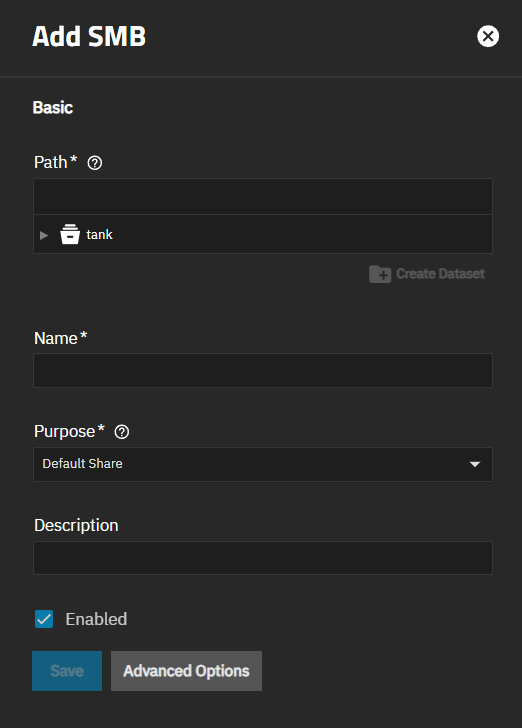
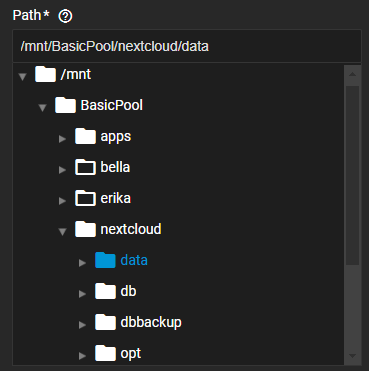
Enter or browse to select the SMB share mount path (parent dataset where you want to add a dataset for this share). You cannot use a root dataset for a share. When the dataset selected has an existing ACL, a warning dialog shows. Click Continue. Click on the dataset under which you want to add the SMB share dataset. The blank Path field populates with the path selected in the file browser field directly below it. The Path file browser field is the directory tree on the local file system that TrueNAS exports over the SMB protocol.
Click Create Dataset. Enter a name for the dataset in the Create Dataset dialog, then click Create. The system creates the new dataset and populates the Name field with the dataset name, which becomes the share name.
To make the new dataset the parent for an SMB share, select the just-added dataset, then click Create Dataset again to add the child dataset for the share.
The path forms part of the share pathname when SMB clients perform an SMB tree connect. Because of how the SMB protocol uses the name, it must be less than or equal to 80 characters. Do not use invalid characters as specified in Microsoft documentation MS-FSCC section 2.1.6.
If you change the name, follow the naming conventions for:
Select a share type on the Purpose dropdown list. The share type selected locks or unlocks the pre-determined Advanced Options settings for the share.
Select Default Share to create a basic SMB share with the Browsable to Network Clients option preselected. This determines whether this share name is included when browsing shares.
Select Private Datasets Share to create an alternative to home shares. See Setting Up SMB Home Shares for more information on replacing this legacy feature with private SMB shares and datasets.
Select Multi-protocol Share to create a multi-protocol share (NFSv4/SMB). Set this if the path is shared through NFS, FTP, or used by containers or apps. Note: This setting can reduce SMB share performance as it turns off some SMB features for safer interoperability with external processes. See Setting Up SMB Multichannel for more information on creating multi-protocol shares.
Select Time Machine Share to create a Time Machine share. The SMB share is presented to Mac OS clients as a Time Machine target. See Adding a Basic Time Machine SMB Share for more information on creating and using Time Machine shares.
Select Final Cut Pro Storage Share (available in TrueNAS 25.10.1 and later) to create a share optimized for Final Cut Pro workflows. The SMB share is configured with Apple-style character encoding and requires Apple SMB2/3 protocol extensions for compatibility with Final Cut Pro. See Setting Up Final Cut Pro SMB Shares for more information on creating shares for Final Cut Pro workflows.
Select External Share to create an external share. Enter the full domain name or IP address and the share name as 192.168.0.200\SHARE in Remote Path.
Select Time Locked Share to create a share that makes files read-only after the grace period you specify expires. This setting does not work if the path is accessed locally or if another SMB share with the Time Locked Share purpose uses the same path. Warning: This setting might not meet regulatory requirements for write-once storage.
(Optional) Enter a short description or explanation of the share purpose or use in Description. This shows on both the SMB widget and Share > SMB screen to help explain how the share is used. For example, if for an external share, enter external share in the field. The description entered shows in the SMB table on the SMB screen and the Windows (SMB) Share widget.
Select Enabled to allow sharing of this path when the SMB service is activated. Leave the checkbox cleared to disable the share without deleting the configuration.
(Optional) Click Advanced Options to show additional configuration settings. Click to configure other advanced settings such as access, audit logging, or settings specific to the type of share selected in Purpose.
Click Save to create the share and add it to the Shares > Windows (SMB) Shares list.
Start or restart the SMB service when prompted.
A basic SMB share does not need to use the Advanced Options settings. Click Advanced Options to finish customizing the SMB share settings.
See SMB Shares Screens for all settings and other possible use cases.
SMB Audit Logging
Configure and enable SMB auditing for an SMB share at creation or when modifying an existing share.
SMB auditing is only supported for SMB2 (or newer) protocol-negotiated SMB sessions. SMB1 connections to shares with auditing enabled are rejected.
From the Add SMB Share or Edit SMB Share screen, click Advanced Options and scroll down to Audit Logging.
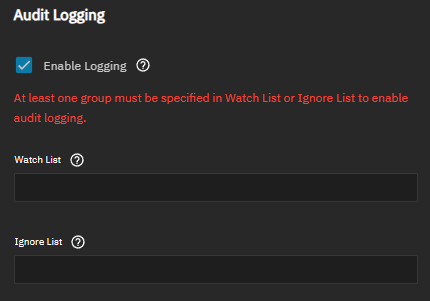
Selecting Enable turns auditing on for the share you are creating or editing.
At least one of Watch List or Ignore List must contain entries when enabling audit logging.
Auditing all SMB operations without restrictions creates large audit databases that grow rapidly and consume significant disk space. High-volume SMB environments can generate hundreds of thousands of audit entries per day, leading to increased disk I/O that affects overall system performance and database query delays when reviewing audit logs.
Use Watch List or Ignore List to limit auditing to specific groups and reduce audit volume.
Use Watch List to specify which groups should have their SMB operations audited. Use Ignore List to exclude specific groups from auditing.
- Click the Watch List field to display available groups on the system.
- Select a group to add it to the list.
- Repeat to add additional groups.
When Watch List contains entries, TrueNAS audits only SMB operations performed by members of the listed groups.
Configuring Ignore List:
- Click the Ignore List field to display available groups on the system.
- Select a group to exclude it from auditing.
- Repeat to exclude additional groups.
TrueNAS does not record SMB operations performed by members of groups in the Ignore List.
When using both lists: If a user is a member of groups in both Watch List and Ignore List, the Watch List takes precedence and TrueNAS audits that user’s operations.
SMB authentication events are logged globally for all users connecting to the SMB server, regardless of Watch List or Ignore List settings. Watch and ignore lists control subsequent operations (connect, file creates, reads, writes, etc.) but do not filter authentication events. Users in the Ignore List still have their initial authentication logged, but their file operations on the share are not audited.
Review your settings to verify that at least one list contains entries and the correct groups are selected.
Click Save.
After saving, you may need to restart the SMB service for audit logging to begin. Go to System Settings > Services, toggle the SMB service off then on, and verify the service is running before testing audit log generation.
To manage an SMB share, click dropdown list to the right of each share to see the options for the share you want to manage. Options are:
- Edit opens the Edit SMB screen where you can change settings for the share.
- Edit Share ACL opens the Share ACL screen, where you can add or edit ACL entries.
- Edit Filesystem ACL opens the Edit ACL screen, where you can edit the dataset permissions for the share. The Dataset Preset option determines the ACL type and the type of ACL Editor screen that opens (POSIX or NSFv4).
- Delete opens a delete confirmation dialog. Use this to delete the share and remove it from the system. Delete does not affect shared data.
Change Storage Tier opens the Change Storage Tier dialog. Use this to migrate the share and its associated dataset from one storage tier to another.
Configure and enable SMB auditing for an SMB share at creation or when modifying an existing share.
SMB auditing is only supported for SMB2 (or newer) protocol-negotiated SMB sessions. SMB1 connections to shares with auditing enabled are rejected.
From the Add SMB Share or Edit SMB Share screen, click Advanced Options and scroll down to Audit Logging.
Selecting Enable turns auditing on for the share you are creating or editing.
At least one of Watch List or Ignore List must contain entries when enabling audit logging.
Auditing all SMB operations without restrictions creates large audit databases that grow rapidly and consume significant disk space. High-volume SMB environments can generate hundreds of thousands of audit entries per day, leading to increased disk I/O that affects overall system performance and database query delays when reviewing audit logs.
Use Watch List or Ignore List to limit auditing to specific groups and reduce audit volume.
Use Watch List to specify which groups should have their SMB operations audited. Use Ignore List to exclude specific groups from auditing.
- Click the Watch List field to display available groups on the system.
- Select a group to add it to the list.
- Repeat to add additional groups.
When Watch List contains entries, TrueNAS audits only SMB operations performed by members of the listed groups.
Configuring Ignore List:
- Click the Ignore List field to display available groups on the system.
- Select a group to exclude it from auditing.
- Repeat to exclude additional groups.
TrueNAS does not record SMB operations performed by members of groups in the Ignore List.
When using both lists: If a user is a member of groups in both Watch List and Ignore List, the Watch List takes precedence and TrueNAS audits that user’s operations.
SMB authentication events are logged globally for all users connecting to the SMB server, regardless of Watch List or Ignore List settings. Watch and ignore lists control subsequent operations (connect, file creates, reads, writes, etc.) but do not filter authentication events. Users in the Ignore List still have their initial authentication logged, but their file operations on the share are not audited.
Review your settings to verify that at least one list contains entries and the correct groups are selected.
Click Save.
After saving, you may need to restart the SMB service for audit logging to begin. Go to System Settings > Services, toggle the SMB service off then on, and verify the service is running before testing audit log generation.
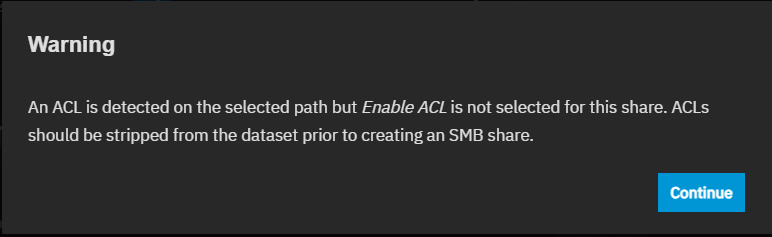
When using the file browser in the Add SMB or Edit SMB screens, if the parent dataset selected has an ACL, TrueNAS might show a warning message advising you to strip the ACL from the dataset.
When this happens, click Continue to close the dialog so you can continue adding the dataset.
Alternatively, close the Add SMB screen, go to the Datasets screen, select the same dataset, locate the Permissions widget, and then click Edit to open the Edit ACL screen.
Click Strip ACL on the Edit ACL screen. Save the change, then return to the Shares screen and open the Add SMB screen.
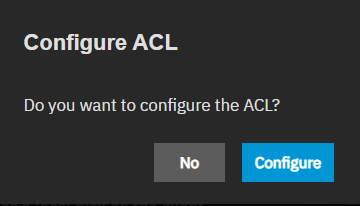
If you did not stop to strip the ACL, TrueNAaS shows a Configure ACL dialog to remind you to edit the ACL.
Click Configure to open the Edit ACL screen, or No to close the dialog and do nothing.
You have two options that modify ACL permissions for SMB shares:
- Edit Share ACL modifies ACL permissions that apply to the SMB share.
- Edit Filesystem ACL modifies ACL permissions at the share dataset level.
See the ACL Primer for general information on Access Control Lists (ACLs) in general, the Permissions article for more details on configuring ACLs, and Edit ACL Screen for more information on the dataset ACL editor screens and setting options.
You cannot access SMB shares with the root user. Change the SMB dataset ownership to the admin user (Full Admin user).
Using the Edit Share ACL option configures the permissions for just the share, but not the dataset the share uses. The permissions apply at the SMB share level for the selected share. They do not apply to other file sharing protocol clients, other SMB shares that export the same share path (i.e., /poolname/shares specified in Path), or to the dataset the share uses.
After creating the share and dataset, modify the share permissions to grant user or group access.
Click on Edit Share ACL to open the Edit Share ACL screen to modify permissions at the share level.
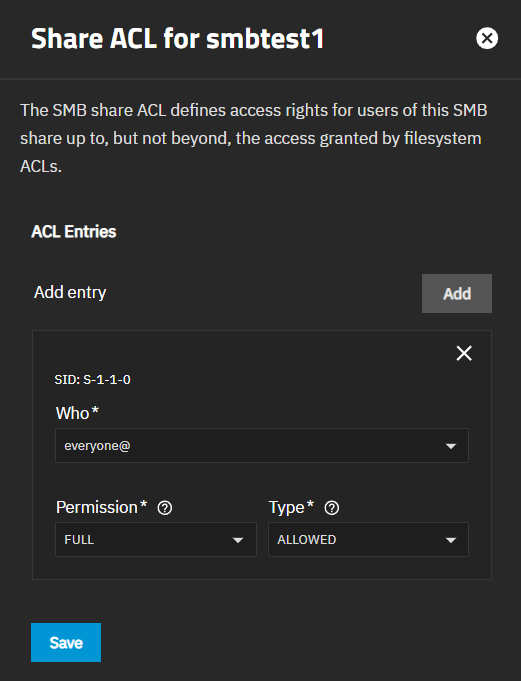
Select either User in Who, then the user name in User, and then set the permission level using Permissions and Type.
(Optional) Click Add then select Group, the group name, and then set the group permissions.
Click Save.
See Permissions for more information on setting user and group settings.
You cannot access SMB shares with the root user. Change the SMB dataset ownership to the admin user (Full Admin user).
To configure share owner, user and group permissions for the dataset Access Control List (ACL), use the Edit Filesystem ACL option. This modifies the ACL entry for the SMB share the path (defined in Path) at the dataset level. To customize permissions, add Access Control Entries (ACEs) for users or groups.
To access the dataset (filesystem) permissions, click on the dropdown list to the right of each share then on Edit Filesystem ACL to open the Edit ACL screen for the dataset associated with the share. You can also go to Datasets, select the dataset (same name as the share), then click Edit on the Permissions widget to open the Edit ACL screen.
Samba Authentication selected by default when SMB share users are created or added to TrueNAS manually or through a directory service, and these users are automatically added to the builtin-users group. Users in this group can add or modify files and directories in the share.
The share dataset ACL includes an ACE for the builtin-users group, and the @owner and @group are set to root by default. Change the @owner and @group values to the admin (Full admin) user and click Apply under each.
To restrict or grant additional file permissions for some or all share users, do not modify the builtin-users group entry. Best practice is to create a new group for the share users that need different permissions, reassign these users to the new group and remove them from builtin-users group. Next, edit the ACL by adding a new ACE entry for the new group, and then modify the permissions of that group.
Private dataset (home share) users can modify the builtin-users group ACE entry to grant FULL_CONTROL
If you need to restrict or increase permissions for some share users, create a new group and add an ACE entry with the modified permissions.
To change permissions for the builtin_users group, go to Datasets, select the share dataset, and scroll down to the Permissions widget.
Click Edit to open the Edit ACL screen. Locate the ACE entry for the builtin-users group and click on it.
Check the Access Control List area to see the if the permissions are correct.
Enter or select Group in the Who field.
Begin typing builtin_users in the Group field until it displays, then click on it to populate the field.
Select Basic in the Permissions area then select the level of access you want to assign in the Permissions field. For more granular control, select Advanced then select on each permission option to include.
Click Save Access Control List to add the ACE item or save changes.
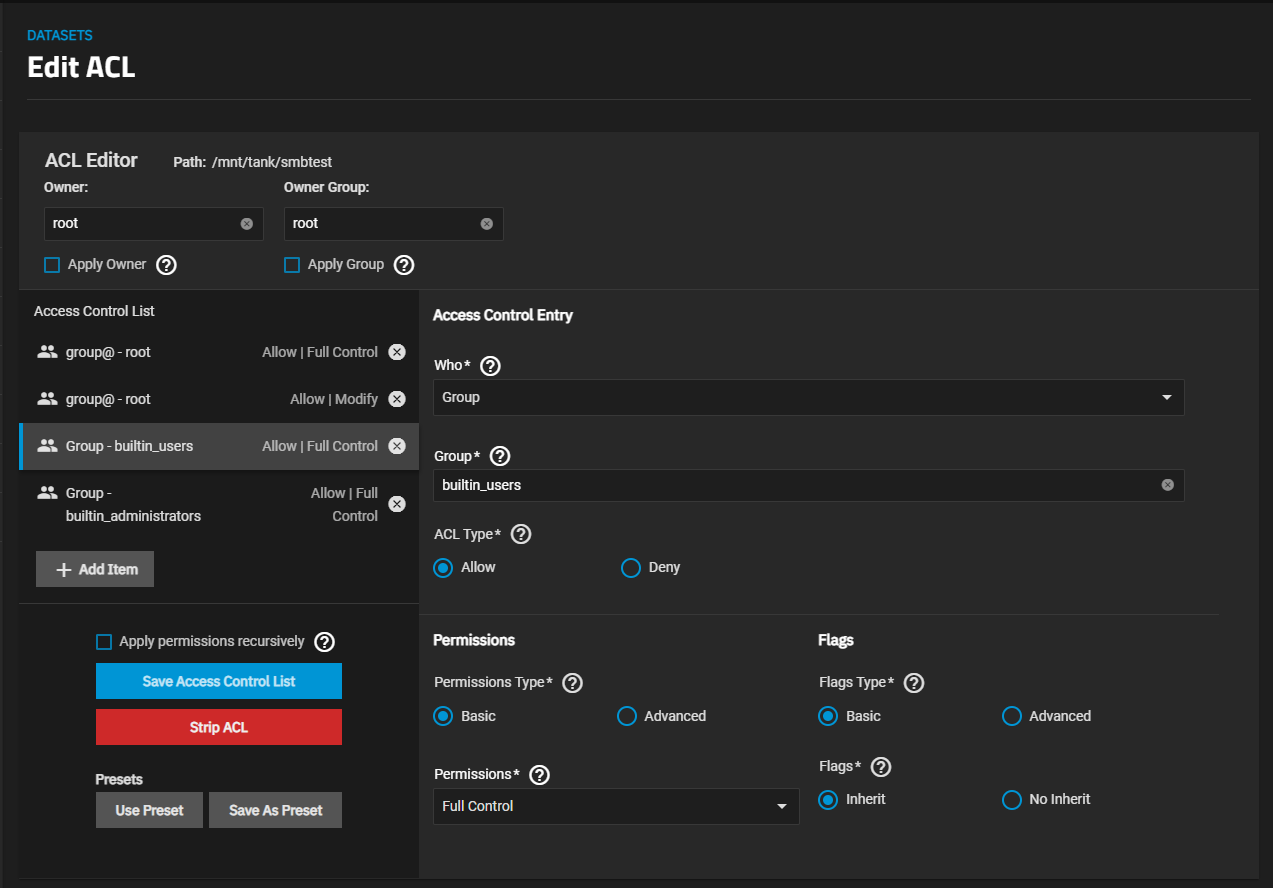
To change the permission level for some share users, add a new group, reassign the user(s) to the new group, then modify the share dataset ACL to include this new group and the desired permissions.
Go to Groups, click Add and create the new group.
Go to Users, select a user, click Edit, remove the builtin-user entry from Auxiliary Groups and add the new group. Click Save. Repeat this step for each user or change the group assignment in the directory server to the new group.
Edit the filesystem (dataset) permissions. Use one of the methods to access the Edit ACL screen for the share dataset.
Add a new ACE entry for the new group. Click Add Item.
Select Group in the Who field, type the name into the Group field, then set the permission level.
Select Basic in the Permissions area then select the level of access you want to assign in the Permissions field. For more granular control, select Advanced then select on each permission option to include.
Click Save Access Control List.
If restricting this group to read only and the share dataset is nested under parent datasets, go to each parent dataset, edit the ACL. Add an ACE entry for the new group, and select Traverse. Keep the parent dataset permission set to either Full_Control or MODIFY but select Traverse.
If a share dataset is nested under other datasets (parents), you must add the ACL Traverse permission at the parent dataset level(s) to allow read-only users to move through directories within an SMB share.
After adding the group and assigning it to the user(s), next modify the dataset ACLs for each dataset in the path (parent datasets and the share dateset).
Add the new group to the share ACL. Use one of the methods to access the Edit ACL screen for the share dataset.
Add a new ACE entry for the new group. Click Add Item to create an ACE for the new group.
Select Group in the Who field, type the name into the Group field, then set the permission level.
Click Save Access Control List.
Return to the Datasets screen, locate the parent dataset for the share dataset, use one of the methods to access the Edit ACL screen for the parent dataset.
Add a new ACE entry for the new group. Click Add Item to create an ACE for the new group.
Select Group in the Who field, type the name into the Group field, then select Traverse.
Click Save Access Control List.
Repeat for each parent dataset in the path. This allows the restricted share group to navigate through the directories in the path to the share dataset.
To connect to an SMB share, start the SMB service.
After adding or editing a share, TrueNAS prompts you to restart the SMB service so that changes take effect.
You can also start the service from the Windows (SMB) Share widget or on the System > Services screen from the SMB service row.
From the Sharing screen, click on the Windows (SMB) Shares to display the service options, which are Turn Off Service if the service is running or Turn On Service if the service is not running.
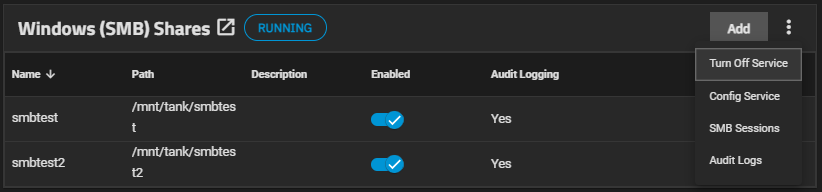
Each SMB share on the list also has a toggle to enable or disable the service for that share.
To make SMB share available on the network, go to System > Services and click the SMB Start Service button to start the service. Toggle Start Automatically on if you want the service to activate when TrueNAS boots.
Configure the SMB service by clicking Config Service from the dropdown menu on the Windows (SMB) Shares widget header or by clicking edit on the Services screen. Unless you need a specific setting or are configuring a unique network environment, we recommend using the default settings.
SMB Stateful Failover requires an Enterprise license and a High Availability (HA) configuration. When enabled, this setting is incompatible with:
- Minimum Protocol set to SMB1
- Any share using the Multi-Protocol Share or Legacy Share purpose
- Any auxiliary SMB parameters
TrueNAS 27 and later supports stateful SMB HA failover for Enterprise systems. When enabled, TrueNAS maintains SMB session state across controller failover events, so SMB clients can recover existing connections without re-authentication.
TrueNAS blocks updates while this setting is active because the underlying CTDB clustering layer requires matching versions on both controllers.
To upgrade an HA system with Stateful Failover enabled:
- Disable Stateful Failover and click Save.
- Upgrade both controllers.
- Re-enable Stateful Failover and click Save.
Go to System > Services and click the edit Configure icon on the SMB service row to open the SMB Service screen.
Click Advanced Settings to expand the advanced options.
Select the Stateful Failover checkbox.
Click Save.
TrueNAS supports macOS Spotlight search on SMB shares through TrueSearch, the TrueNAS file indexing service that also powers WebShare search. After enabling Spotlight on the SMB service, macOS users can use native Finder search to quickly locate files on mounted SMB shares.
See the TrueSearch requirements below. If the system does not meet them, the Enable Search (Spotlight) setting is disabled and a notice displays with a link to configure TrueNAS Connect.
TrueSearch requires a system connected to TrueNAS Connect or a TrueNAS Enterprise license that includes TrueSearch. The number of files TrueSearch can index depends on the system edition and TrueNAS Connect plan:
| Edition | TrueNAS Connect | Maximum Indexed Files |
|---|---|---|
| Community Edition | Connected, Foundation plan | 1,000,000 |
| Community Edition | Connected, Plus plan | 10,000,000 |
| Community Edition | Not connected | TrueSearch is not available without a TrueSearch license key. |
| Enterprise | Any | No limit. The license must include TrueSearch. |
Go to System Settings > Services and locate the SMB service row.
Click the Configure icon to open the SMB Service screen.
Click Advanced Settings to expand the advanced options.
Select Enable Search (Spotlight).
Click Save.
After saving, TrueSearch begins indexing every active SMB share. TrueSearch excludes encrypted datasets from indexing to protect sensitive data.
TrueSearch indexes every active SMB share. You cannot enable indexing per share.
Open Finder.
Click Go > Connect to Server in the menu bar.
Enter the SMB share address in the format
smb://<TrueNAS-IP>/<sharename>and click Connect.Enter the username and password for a TrueNAS user account with access to the SMB share, then click Connect.
The mounted share appears in the Finder sidebar under Locations.
After mounting the SMB share:
Open Finder and navigate to the mounted SMB share.
Press Cmd+F or click the search icon in the Finder window.
Click the SMB share name in the search bar to set the search scope to the mounted share.
Spotlight does not return results from SMB shares when the search scope is set to This Mac.Enter search terms. Spotlight supports searching by file name, file content, and file type.
TrueSearch filters out the keywords BEFORE, AND, and THE by default. Queries containing these words return results as if those words were not in the query.
Results appear as TrueSearch returns matches.
The instructions in this section cover mounting the SMB share on a system with the following operating systems.
External SMB shares are essentially redirects to shares on other systems. Administrators might want to use this when managing multiple TrueNAS systems with SMB shares, and if they do not want to keep track of which shares are on which boxes for clients. This feature allows admins to see and connect to any TrueNAS system with external shares active.
Create the SMB share on another TrueNAS remote server (for example, system1), as described in Adding an SMB Share above.
We recommend using Active Directory when creating user accounts, but at a minimum, synchronize user accounts between the system with the share (system1) and on the TrueNAS system where you set up the external share (for example, system2).
On system2 (the local system), select External Share, enter the full domain name or IP address, and the share name.
Separate the server and share name with the \ character. Example: 192.168.0.200\SHARE in Remote Path.
Click Save to add the share.
Repeat the system2 instructions above on system1 to see the SMB shares on each system.
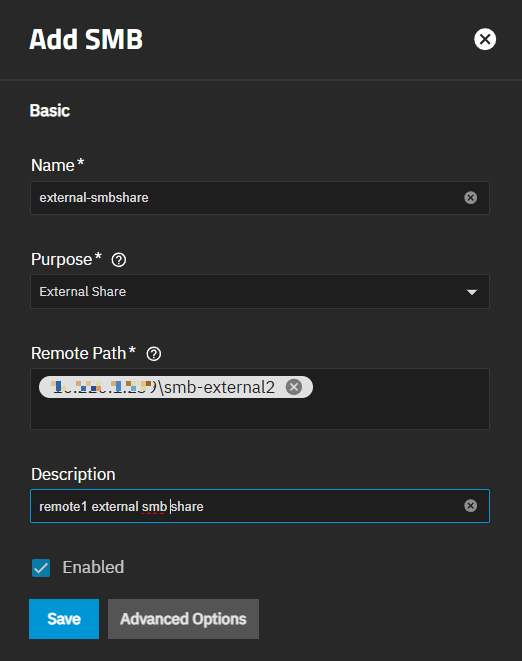
Repeat for each TrueNAS system with SMB shares to add as an external share.
When setting up an external share between TrueNAS systems that are on different releases, for example, one system is on 25.04 and the other is on the latest release of 25.10, follow the external share instructions for each release.
Set the TrueNAS 25.04 system SMB Purpose to the default preset, leave the default settings associated with this share as is, and then enter the redirect path to share on the 25.10 system as EXTERNAL:ipaddress\sharename in the Path field. For example, EXTERNAL:10.220.3.33\testshare2. Be aware, changing the path also changes the SMB share name. Verify the share name is set to the desired or existing share name and not renamed to the redirect string in Path.
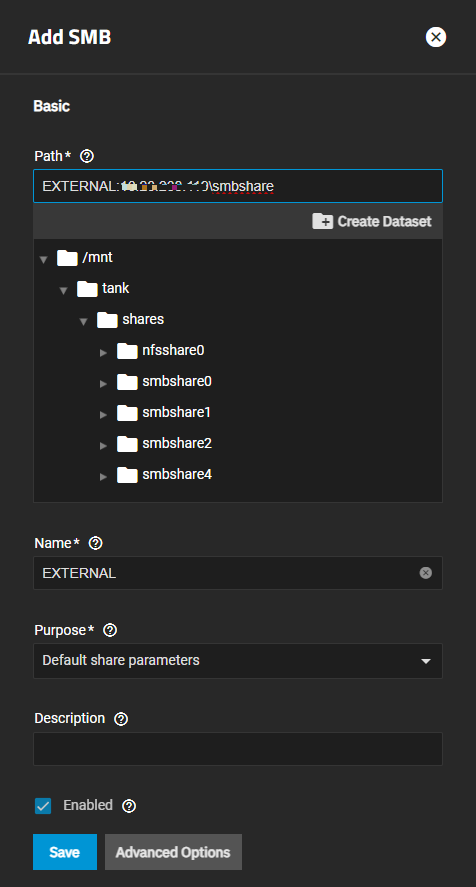
Set the TrueNAS 25.10 system SMB Purpose to External Share, and then enter the path to the share on the 25.04 system as ipaddress*sharename* in the Remote Path field. For example, 10.220.1.34*testshare*.
Add descriptions to each share that identify the purpose of the share. The description shows on the Windows (SMB) Shares widget and the SMB screen.
Save changes made to the share.