




TrueNAS Development Documentation
This content follows experimental development changes in TrueNAS 28, a future version of TrueNAS.
Use the Product and Version selectors above to view content specific to a stable software release.
S3 Buckets Screens
12 minute read.
The S3 bucket screens and the Object Storage (S3) Buckets card on the Shares screen show the S3 buckets on the system and the options to add, edit, and delete buckets.
The Object Storage (S3) Buckets card on the Shares screen shows general information about S3 object storage until you add a bucket.
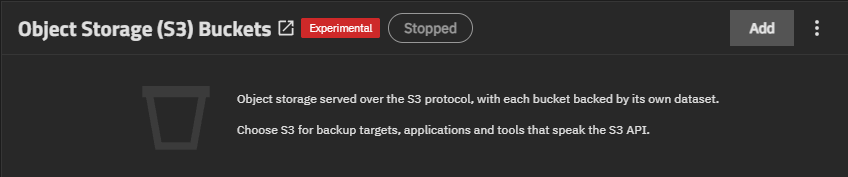
The Object Storage (S3) Buckets header is a link that opens the S3 Buckets screen. The Experimental label shows next to the header.
The service status button shows the S3 service as Stopped or Running.
Add opens the Add S3 Bucket screen.
The dropdown list shows options for the S3 service:
- Turn On Service starts the S3 service. It changes to Turn Off Service when the service is running.
- Config Service opens the S3 service configuration screen.
- Access Keys opens the S3 Access Keys screen.
After you add a bucket, the card lists buckets in a table.
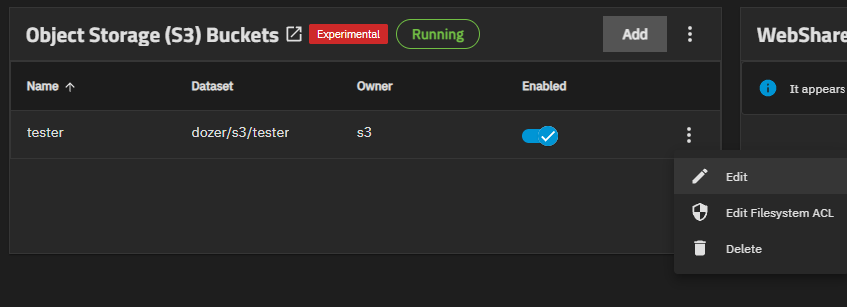
The card table shows the bucket Name, the bucket Dataset, the bucket Owner, and an Enabled toggle. The Enabled toggle starts or stops serving the bucket to S3 clients.
The icon on a bucket row shows these options:
- Edit opens the Edit S3 Bucket screen.
- Edit Filesystem ACL opens the ACL editor for the
s3data directory of the bucket. - Delete opens the Delete S3 bucket confirmation dialog.
The Start S3 Service dialog opens after you save a bucket while the S3 service is stopped.
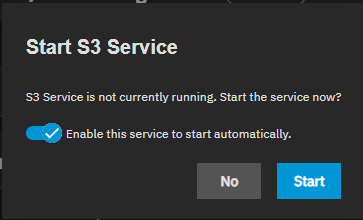
Enable this service to start automatically starts the S3 service when the system boots.
Start starts the S3 service. No closes the dialog without starting the service.
The Shares > S3 screen shows the S3 Buckets table. The table lists all S3 buckets on the system with more detail than the card. Click the Object Storage (S3) Buckets card header to open the screen.
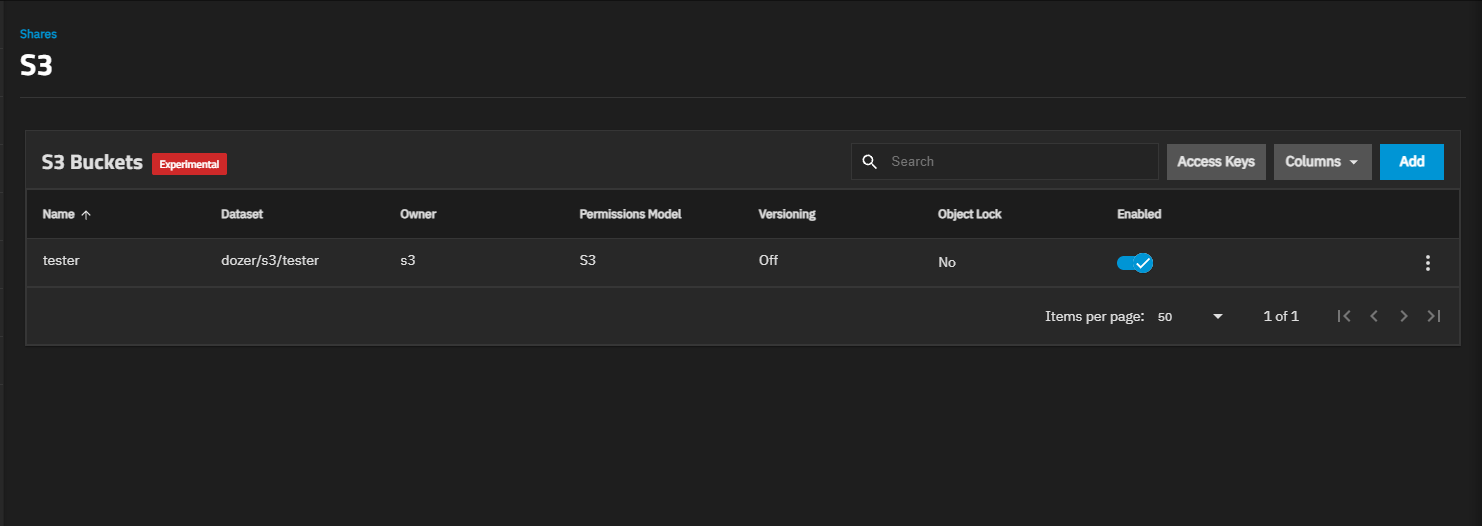
Shares in the breadcrumb at the top of the screen returns you to the Shares screen.
Access Keys opens the S3 Access Keys screen.
Columns shows options to customize the table view. The table shows the Name, Dataset, Owner, Permissions Model, Versioning, Object Lock, and Enabled columns by default. Object Ownership and Storage Tier are hidden by default.
Add opens the Add S3 Bucket screen.
The icon on a bucket row shows the same Edit, Edit Filesystem ACL, and Delete options as the card. When storage tiering is available for the bucket dataset, the list also shows Change Storage Tier.
The Delete option opens the Delete S3 bucket confirmation dialog.
Deleting a bucket removes the bucket from the S3 service. It does not delete the bucket dataset or any objects in it, including objects under object lock. The S3 service stops serving the objects to clients.
To remove the stored data, delete the bucket dataset from the Datasets screen after you delete the bucket.
Delete removes the bucket. Cancel closes the dialog.
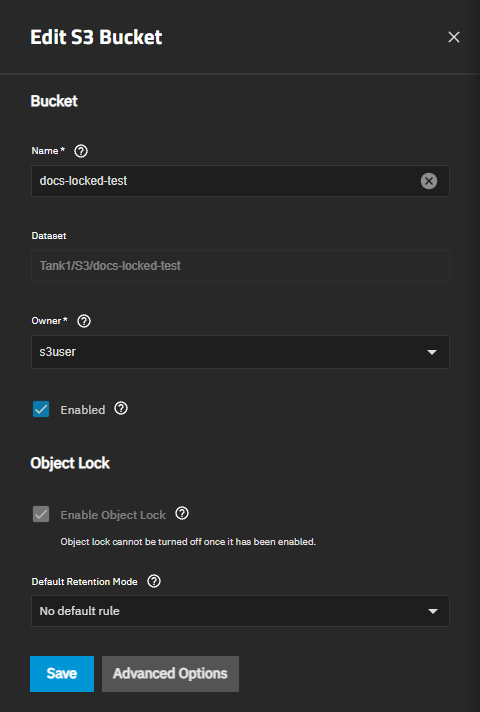
The Add S3 Bucket and Edit S3 Bucket screens show the same settings, with these differences:
- The Add S3 Bucket screen shows Parent Dataset, a file browser to select the dataset where TrueNAS creates the bucket dataset.
- The Edit S3 Bucket screen shows the bucket Dataset as read-only. You cannot change the dataset after you create the bucket.
The screen opens in basic mode and shows the Bucket and Object Lock settings. Advanced Options shows the Versioning, ZFS Snapshots, Access, Other Options, and Auditing settings. Basic Options returns to the basic settings.
Save creates the bucket or saves changes to an existing bucket.
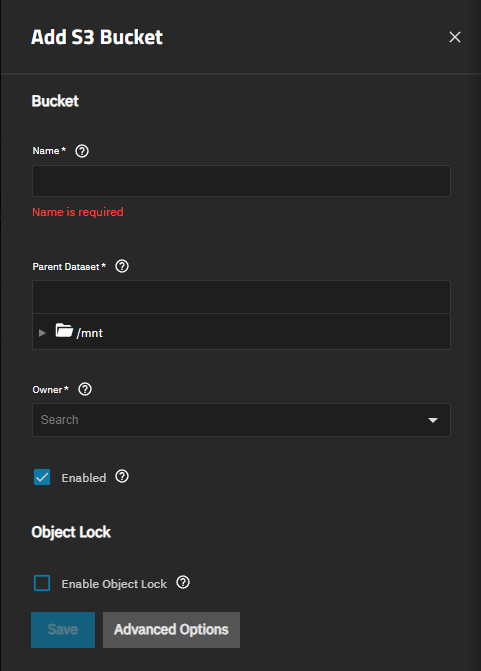
The Bucket settings name the bucket, set the dataset location, and assign the bucket owner.
Click Here for More Information
| Setting | Description |
|---|---|
| Name | (Required) Enter a name for the bucket. The name must follow the S3 bucket naming rules. Enter 3 to 63 characters using lowercase letters, numbers, periods, and hyphens. The name must start and end with a letter or number, cannot contain two periods in a row, and cannot be formatted as an IP address. |
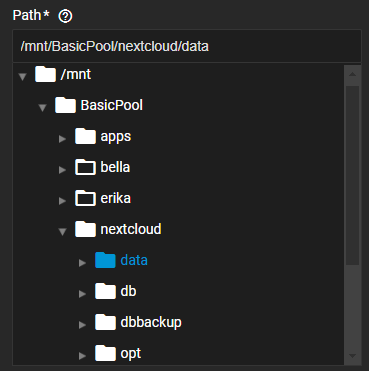
| Parent Dataset | (Required) Shows only on the Add S3 Bucket screen. Select the dataset where TrueNAS creates the bucket dataset. TrueNAS creates a new child dataset named after the bucket. The hint below the field shows the full path of the bucket dataset. You cannot select an existing dataset as the bucket dataset. Objects are stored in the |
| Dataset | Shows only on the Edit S3 Bucket screen. Displays the read-only path of the bucket dataset. |
| Owner | (Required) Select the user account that owns the bucket. The owner has full access to the bucket regardless of the grants, owns the |
| Enabled | Selected by default. Select to serve the bucket to S3 clients. Clear to stop serving the bucket without deleting it. |
The Object Lock settings protect objects from overwrite or deletion for a retention period. Object lock requires versioning, which is a licensed feature. The section shows a Premium tag when the system license does not include it.
Object lock is permanent. After you save a bucket with object lock enabled, you cannot disable object lock or versioning on that bucket.
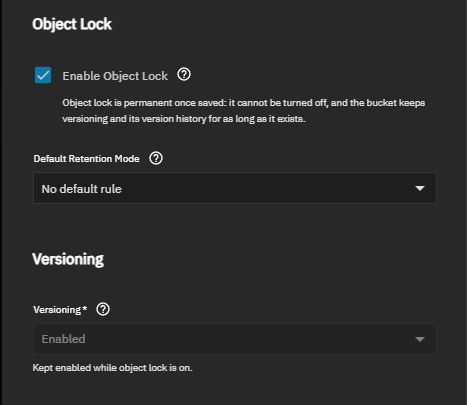
After you save a bucket with object lock enabled, the Edit S3 Bucket screen shows Enable Object Lock as selected and inactive.
Advanced Options shows the versioning, snapshot, access, ETag, and auditing settings.
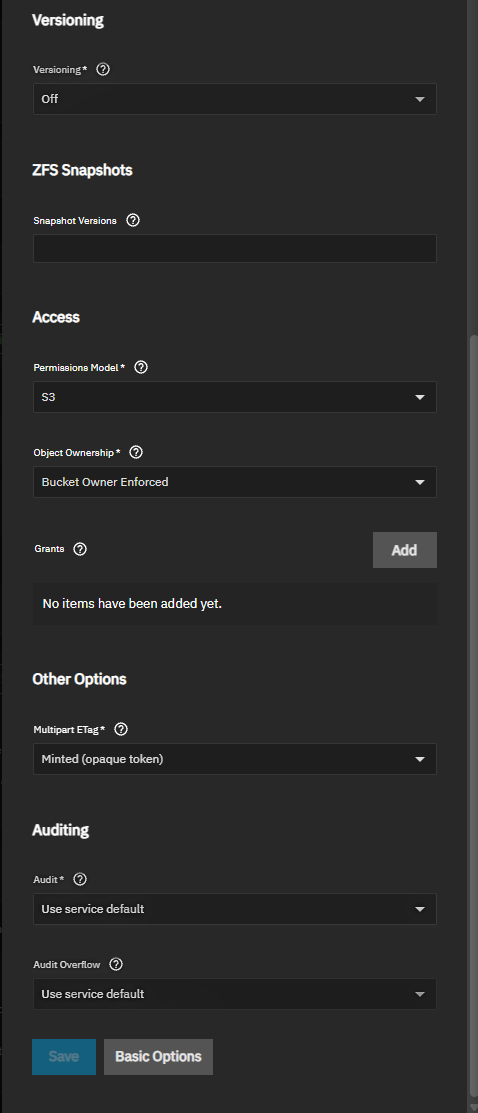
The Versioning settings keep previous versions of objects when clients overwrite or delete them. Versioning is a licensed feature. The section shows a Premium tag when the system license does not include it.
Force Disable Versioning opens a confirmation dialog that sets versioning to Off and destroys the version history of the bucket.
Force disabling versioning permanently destroys every previous version of every object in the bucket, and every delete marker. This cannot be undone.
The dialog explains the result of the action:
- The version history stops being available immediately.
- The S3 service reclaims the space used by previous versions in the background.
- The Snapshot Versions patterns clear, so snapshots stop serving as versions until you set new patterns.
- The S3 service restarts, which briefly interrupts client requests.
ZFS snapshots of the bucket dataset keep the old versions until you delete those snapshots. Turning versioning on again later starts a new version history. It does not restore the destroyed history.
Select I understand that the version history of this bucket will be destroyed. to activate Force Disable. Force Disable applies the change immediately, separate from the rest of the Edit S3 Bucket screen.
The ZFS Snapshots settings make ZFS snapshots of the bucket dataset available to clients as read-only object versions. Clients list these versions and read an object as it existed when TrueNAS took the snapshot.
Snapshot versions work whether versioning is on or off, and do not require a license.
The Access settings control how the S3 service treats filesystem permissions, who owns uploaded objects, and which users and groups can access the bucket.
The Other Options settings set the ETag format for objects uploaded in multiple parts.
The Auditing settings select which S3 operations on the bucket TrueNAS records in the audit log. S3 auditing is a licensed feature. The section shows a Premium tag when the system license does not include it.
Amazon S3 is a trademark of Amazon.com, Inc. or its affiliates.