




TrueNAS Development Documentation
This content follows experimental development changes in TrueNAS 28, a future version of TrueNAS.
Use the Product and Version selectors above to view content specific to a stable software release.
Configuring S3 Object Storage
11 minute read.
S3 object storage lets S3 clients, such as backup applications, store and retrieve data in buckets on the TrueNAS system. Setting up S3 object storage involves these tasks:
- Configure the S3 service.
- Create an S3 access key for each client.
- Add an S3 bucket and start the S3 service.
- Connect the S3 client to the bucket.
To let a client create its own buckets, see Allowing Clients to Create Buckets. To use a bucket as an immutable backup target, see Adding an Object-Locked Bucket for a Backup Target.
Before you configure S3 object storage:
- Create or select a parent dataset for each bucket, for example tank/s3. TrueNAS creates a new child dataset under it for the bucket. Each bucket can use a different parent dataset in any pool.
- Decide which user account owns each bucket and which account each client uses. You can create a dedicated account while you add the access key or bucket. The root account cannot own a bucket or an access key.
- Use versioning or object lock to confirm the system license includes these features. The Add S3 Bucket screen shows a Premium tag on settings the license does not include. See Licensed S3 Features.
- Encrypt client connections by importing or creating a certificate on the Credentials > Certificates screen, or plan to use the TrueNAS web UI certificate.
The default S3 service settings listen on every IP address on port 9000 without encryption. Review the settings before you add buckets, and change them if clients must connect to specific IP addresses or use encrypted connections.
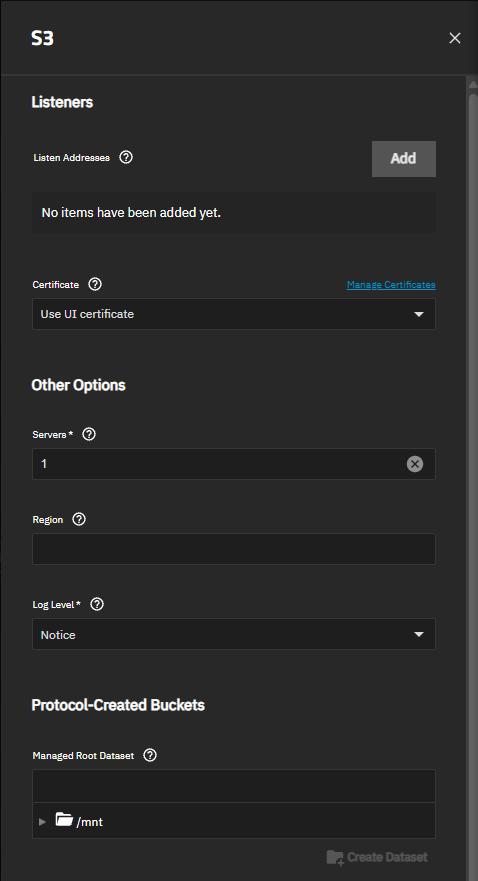
Go to Shares, click the icon on the Object Storage (S3) Buckets card, and then select Config Service. The S3 service configuration screen opens.
(Optional) Add listen addresses to limit where the S3 service accepts connections.
a. Click Add next to Listen Addresses.
b. Select an IP address from the Address dropdown list.
c. Enter the Port, or keep the default 9000.
d. Select TLS to encrypt connections to this address.
Repeat for each IP address and port the service needs.
(Optional) If any listen address uses TLS, select a certificate from the Certificate dropdown list, or keep Use UI certificate.
(Optional) Enter a Region if clients require a specific region name, for example us-east-1. Leave empty to accept any region a client uses.
Click Save.
For more information on these settings, see S3 Service Screen.
Create an access key for each S3 client. The client uses the access key ID and secret access key to sign requests, and the S3 service runs those requests as the user account that owns the key.
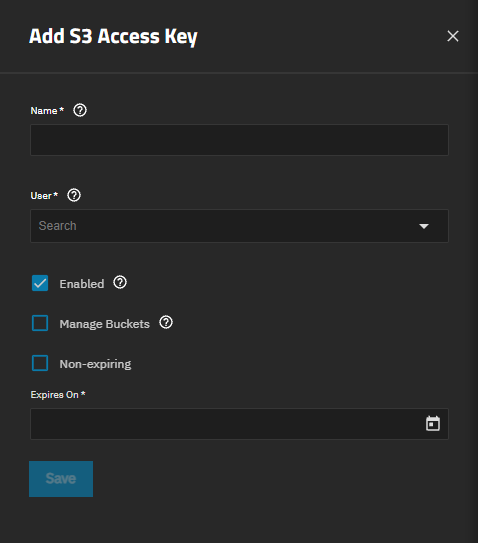
Go to Credentials > S3 Access Keys, and then click Add. The Add S3 Access Key screen opens.
Enter a Name for the access key.
Select the account from the User dropdown list.
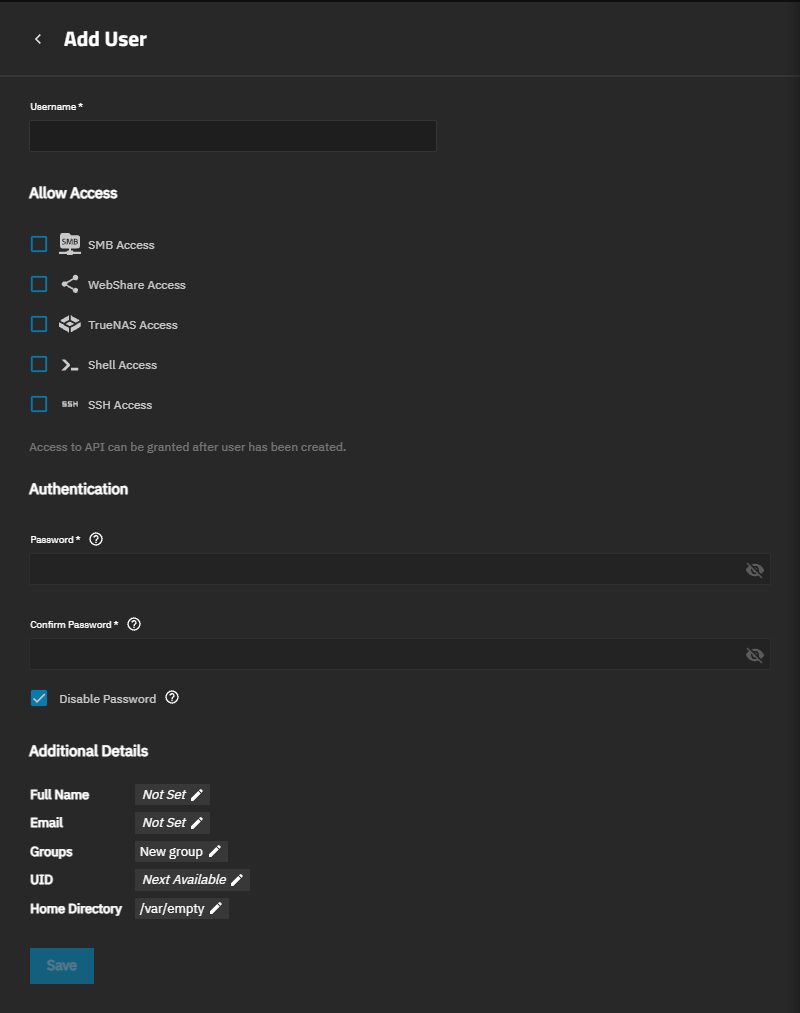
To create a dedicated account, click Add New. The Add User screen opens with SMB Access cleared and Disable Password selected, because the account does not need to sign in. Enter a Username, and then click Save.
Set the expiration for the access key. Select Non-expiring, or select a date in Expires On.
An expired access key stops working, which causes backups or other scheduled client jobs to fail. If you set an expiration date, plan to create a new key and update the client before that date.
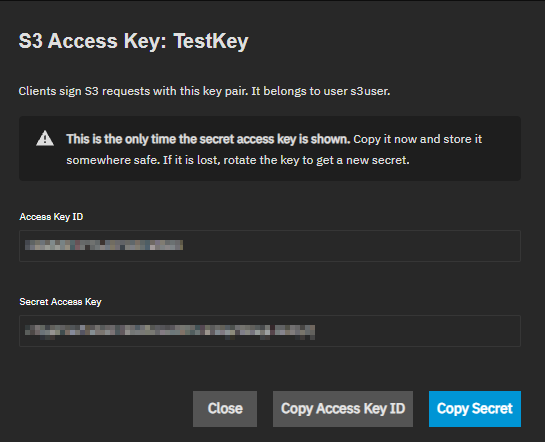
Click Save. The S3 Access Key dialog opens and shows the Access Key ID and Secret Access Key.
Copy the Access Key ID and Secret Access Key and store them in a secure location, and then click Close.
The dialog is the only place the web UI shows the secret access key. If you lose the secret, click on the access key row and select Rotate Secret to create a new one.
Add a bucket for the client to store objects in. TrueNAS creates a new dataset for the bucket under the parent dataset you select.
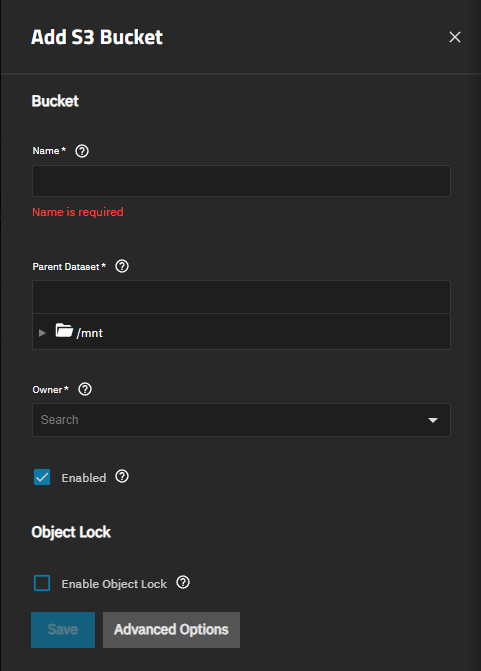
Go to Shares, and then click Add on the Object Storage (S3) Buckets card. The Add S3 Bucket screen opens.
Enter a Name for the bucket. Use 3 to 63 lowercase letters, numbers, periods, and hyphens, starting and ending with a letter or number.
Browse to and select the Parent Dataset. The hint below the field shows the path of the new bucket dataset.
Select the bucket owner from the Owner dropdown list. Select the account that owns the access key the client uses, or click Add New to create an account. The owner has full access to the bucket.
(Optional) Click Advanced Options to change the versioning, snapshot, access, and auditing settings. See S3 Buckets Screens for more information.
Click Save.
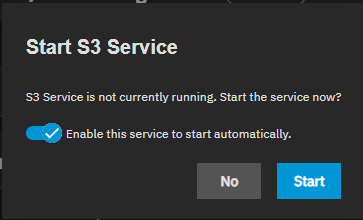
If the S3 service is not running, the Start S3 Service dialog opens.
Select Enable this service to start automatically, and then click Start. The Object Storage (S3) Buckets card shows the S3 service as Running and lists the new bucket.
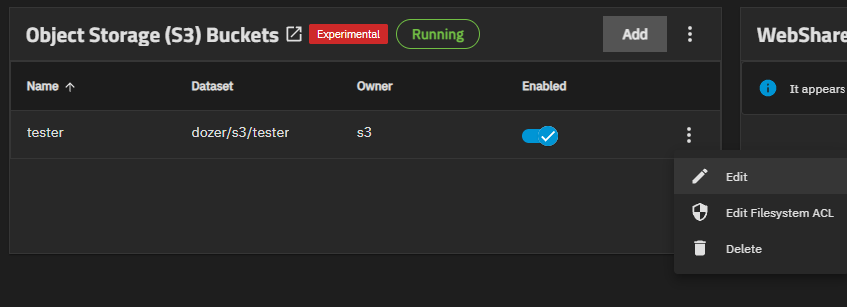
The bucket owner has full access to the bucket. To give other accounts access, add grants to the bucket. Grants apply to the whole bucket and only control access through the S3 protocol.
Click on the bucket row, and then select Edit.
Click Advanced Options.
Click Add next to Grants.
Select the Principal, and then select the User or Group account. Select Everyone to give access to every client with a valid access key.
Select the Access level.
Click Save.
With the default S3 permissions model, the grants control access and filesystem permissions do not apply.
By default, the S3 service refuses requests from clients to create buckets, and you add each bucket from the Shares screen. Some clients create their own buckets, such as backup applications that create a bucket for each backup repository. To allow a client to create and delete buckets, configure three settings:
- A managed root dataset on the S3 service, where TrueNAS creates the dataset for each client-created bucket
- A privilege with the Sharing S3 Write role for the account that owns the access key
- Manage Buckets on the access key the client uses
Go to Shares, click the icon on the Object Storage (S3) Buckets card, and then select Config Service.
Browse to and select the dataset for client-created buckets in Managed Root Dataset, for example tank/s3, and then click Save. The dataset must already exist. To create it, select the parent dataset in the file browser, click Create Dataset, enter a name, and then click Create.
Give the account that owns the access key the Sharing S3 Write role.
a. Go to Credentials > Groups, and then click Privileges.
b. Click Add, and then enter a name for the privilege, for example S3 Bucket Manager.
c. Select the group of the access key account in Local Groups. An account created with Add New has a group with the same name as the account.
d. Select Sharing S3 Write in Roles, and then click Save.
The predefined Sharing Administrator privilege also includes this role, so members of the built-in truenas_sharing_administrators group already have it. That privilege grants access to every share type. Create a privilege with only the Sharing S3 Write role to limit the account to S3.
Go to Credentials > S3 Access Keys, click on the access key row, and then select Edit.
Select Manage Buckets, and then click Save. TrueNAS shows an error if the account does not have the Sharing S3 Write role.
When the client creates a bucket, TrueNAS creates a dataset for it under the managed root dataset, named after the bucket. If a dataset with that name already exists, TrueNAS adds a number to the dataset name, for example tank/s3/backups_1. The new bucket shows on the Object Storage (S3) Buckets card. When the client deletes a bucket, TrueNAS keeps the bucket dataset and its objects. To remove the data, delete the bucket dataset on the Datasets screen.
Manage Buckets only applies to the access key you select. Other access keys that belong to the same account cannot create or delete buckets unless you also select Manage Buckets for them.
Object lock prevents clients from overwriting or deleting objects until a retention period ends. Backup applications such as Veeam Backup & Replication use object lock to protect backups from ransomware and accidental deletion.
Object lock requires a system license that includes S3 versioning.
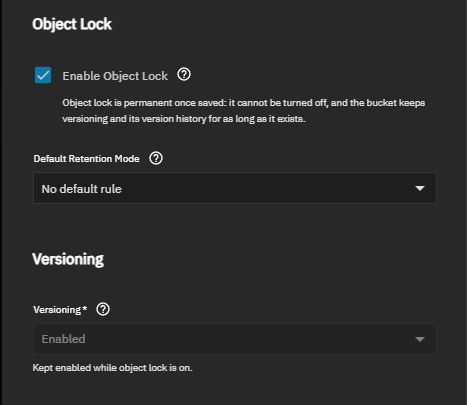
Object lock is permanent. After you save the bucket, you cannot disable object lock or versioning on the bucket. Objects locked in compliance mode cannot be deleted by anyone, including administrators, until the retention period ends.
Go to Shares, and then click Add on the Object Storage (S3) Buckets card.
Enter the Name, select the Parent Dataset, and select the Owner.
Select Enable Object Lock. Versioning changes to Enabled and Default Retention Mode shows.
Select the Default Retention Mode that matches how the client manages retention.
Most backup applications, including Veeam Backup & Replication, set the retention on each object they write and require a bucket without a default retention rule. Selecting Enable Object Lock changes Default Retention Mode to Compliance, so select No default rule for these applications.
To have TrueNAS apply retention to every new object, select Governance or Compliance, and then enter the number of days in Default Retention Days.
Click Save.
After you save the bucket, the Edit S3 Bucket screen shows Enable Object Lock as selected and inactive, and Versioning stays Enabled. Object lock is not available with the Multiprotocol permissions model.
Configure the S3 client with the connection information for the bucket. Client applications use different names for these settings.
| Client Setting | Value |
|---|---|
| Endpoint or service point | The TrueNAS IP address or hostname and the listen port, for example http://192.168.1.10:9000. Use https:// for a listen address with TLS selected. |
| Access key ID | The Access Key ID from the S3 access key. |
| Secret access key | The Secret Access Key from the S3 access key. |
| Region | The Region from the S3 service configuration. If the region is empty, enter any region the client accepts, such as us-east-1. |
| Bucket | The bucket Name. |
| Addressing style | Path-style addressing always works. Virtual-hosted addressing works when the client connects using the TrueNAS host name. |
If the listen address uses a self-signed certificate, the client might show a certificate warning or require you to trust the certificate.
Manage buckets from the Object Storage (S3) Buckets card on the Shares screen, or from the S3 Buckets screen.
Click on the bucket row, and then select Edit to open the Edit S3 Bucket screen. You cannot change the bucket dataset after you create the bucket.
Versioning and object lock only change in one direction:
- After versioning is Enabled or Suspended, you cannot set it to Off. Set it to Suspended to stop creating new versions and keep the existing versions. Force Disable Versioning turns versioning off and permanently destroys the version history.
- After you enable object lock, you cannot disable it.
You can create an SMB or NFS share that gives read-only access to bucket objects. Set the bucket Permissions Model to Multiprotocol so the S3 service enforces the filesystem ACL. Multiprotocol can make permissions management more complex and can reduce S3 performance.
When you add the share:
- Set the share path to the
s3data directory of the bucket dataset, or a directory under it, for example/mnt/tank/s3/mybucket/s3data . TrueNAS does not allow a share of the bucket dataset itself. - Make the share read-only. Select Export Read Only for an SMB share or Read Only for an NFS share. TrueNAS does not allow a share that writes to an S3 bucket.
Only the S3 service can write to a bucket dataset. TrueNAS also refuses other features that write to a bucket dataset, such as cloud sync or rsync tasks that pull data into it.
Click on the bucket row, and then select Delete. Click Delete in the confirmation dialog.
Deleting a bucket stops the S3 service from serving it, but does not delete the bucket dataset or its objects. To remove the data, delete the bucket dataset on the Datasets screen. If you add a new bucket with the same name, TrueNAS creates a new dataset for it and does not reuse the old data.
If you delete a bucket dataset while the bucket exists, TrueNAS removes the bucket.
Amazon S3 is a trademark of Amazon.com, Inc. or its affiliates.