




TrueNAS Development Documentation
This content follows experimental development changes in TrueNAS 28, a future version of TrueNAS.
Use the Product and Version selectors above to view content specific to a stable software release.
Network Interface Screens
7 minute read.
The Interfaces widget on the Network screen shows the configured interface port names and IP addresses, and the MAC addresses associated with network interface cards in your TrueNAS system.
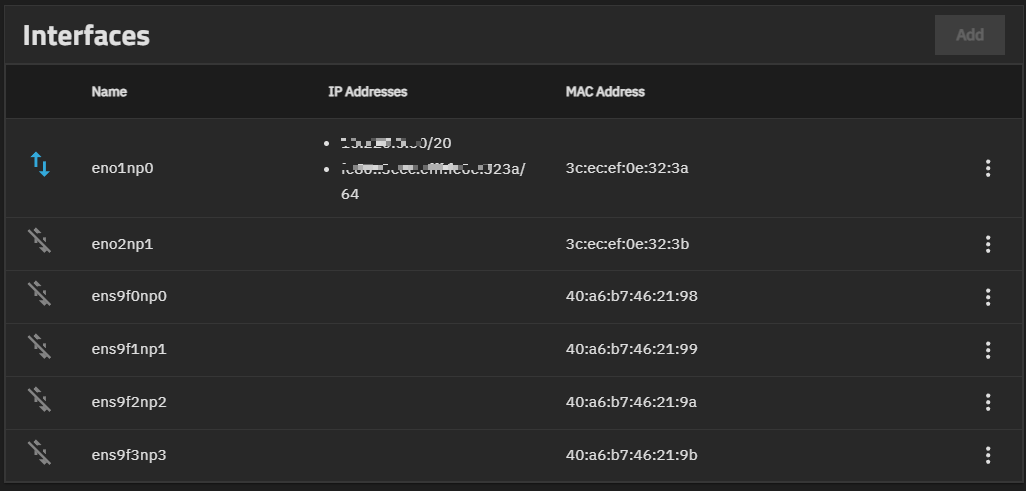
Add opens the Add Interface screen.
The at the right of each interface shows a dropdown list with two options:
- edit Edit - Opens the Edit Interface screen.
- refresh Reset Configuration - Opens the Reset Configuration dialog.
High Availability (HA) Enterprise systems cannot reset or edit interface settings with failover enabled. On systems with HA failover enabled, the refresh Reset Configuration or edit Edit options are disabled. Go to System > Failover to disable failover before attempting to modify interfaces on HA systems.
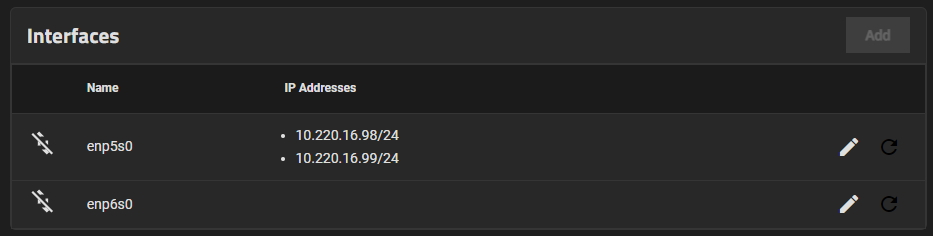
The Reset Configuration dialog allows you to reset the configuration settings for that interface.
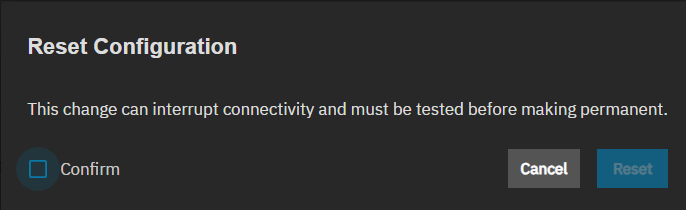
Confirm validates the reset activity and activates the Reset button.
Reset resets the configuration for that interface. Resetting the configuration shows the test change options to prevent losing access to that interface and the TrueNAS system.
The Add Interface screen allows you to configure the settings for a new interface. The Edit Interface screen allows changes to settings for an existing interface. Both screens show the test changes options to validate settings and prevent losing access to the TrueNAS system if the interface is incorrectly configured.
The setting on the Add Interface and Edit Interface screens are almost identical.
Type only shows on the Add Interface screen. It cannot be changed on the Edit Interface screen. Type is a required field. The additional settings show on the Add Interface screen based on the selected type.
Apply saves setting changes, and shows the test changes options.
Interface settings configure the network interface name, type, and IP address assignment. These settings are common to the three interface types.
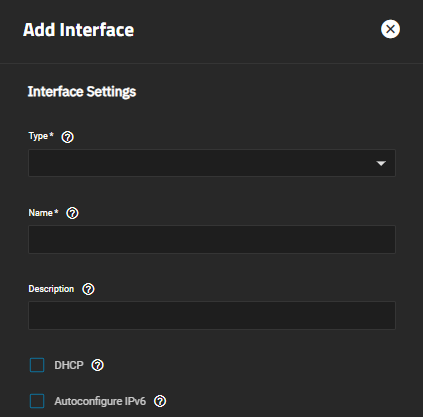
| Setting | Description |
|---|---|
| Type | (Required) Only shows on the Add Interface screen. Sets the type of interface based on the selection on the dropdown list. Options are:
|
| Name | (Required) Accepts manual or copy/paste entry of a name for the interface. Names must use the format bondX for a link aggregation, vlanX for a VLAN, or brX for a bridge, and where X is a number representing a non-parent interface. Assign the first interface of any type the appropriate name plus zero, for example, br0 for the first bridge interface created. You cannot change the interface name after clicking Apply. After saving, Name becomes a read-only field when editing an interface. |
| Description | Accepts manual or copy/paste entry of a description for the interface. Descriptions can provide additional information about how the interface is used or what it connects to. |
| DHCP | Enable DHCP, allowing it to assign IP addresses to the interface. Shows two options: Get IP Address Automatically from DHCP and Define Static IP Addresses. |
| Get IP Address Automatically from DHCP | Allows DHCP to assign the IP address for the interface. Only one interface can be configured using DHCP. |
| Define Static IP Addresses | Allows adding a static IP address to the interface using the Static IP Addresses fields. |
| Static IP Addresses | Shows IP address and netmask (CIDR) fields after clicking Add. Click Add for each static IP address to add to/associate with the interface. |
| Autoconfigure IPv6 | Select to automatically configure the IPv6 address with rtsol(8). Only one interface can be configured this way. |
| MTU | Sets the maximum transmission unit (MTU), which is the largest protocol data unit that can be communicated. The largest workable MTU size varies with network interfaces and equipment. 1500 and 9000 are standard Ethernet MTU sizes. Leaving blank restores the field to the default value of 1500. |
| FEC Mode | (Enterprise only) Sets the Forward Error Correction (FEC) mode for a physical interface. Only shows on the Edit Interface screen for physical interfaces that support FEC. Does not appear for bridges, link aggregations, or VLANs. The available modes depend on the network interface card (NIC) and can include:
|
Bridge settings show after setting Type to Bridge. TrueNAS automatically populates the Name with the default br1. Use Description to further define or clarify how or where the bridge is used.
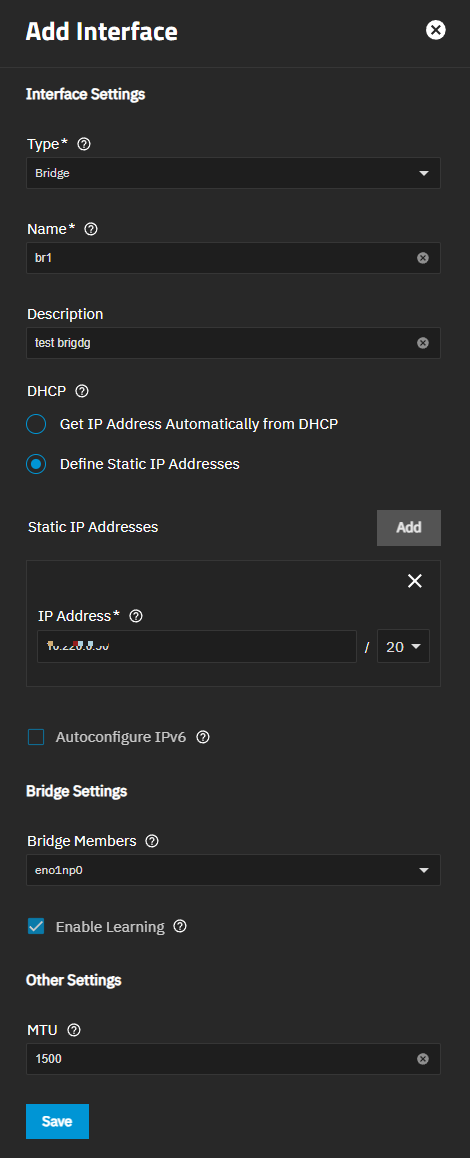
| Setting | Description |
|---|---|
| Bridge Members | (Required) Select the network interfaces to include as members of the bridge. The dropdown lists interfaces eligible for bridging. |
| Enable Learning | Select to enable MAC address learning. With learning enabled, the bridge records the MAC address of each incoming frame along with the member interface it arrived on. The bridge then uses this table to send outbound traffic only to the relevant member instead of flooding it to every member. Selected by default. Disable only in specialized configurations where the default learning behavior conflicts with how the bridge is being used, such as when a bridge member might not be available when the bridge starts. |
Link aggregation (bond) settings show after setting Type to Link Aggregation. TrueNAS automatically populates Name with the default bond1. Use Description to further define or clarify how or where the link aggregation interface is used.
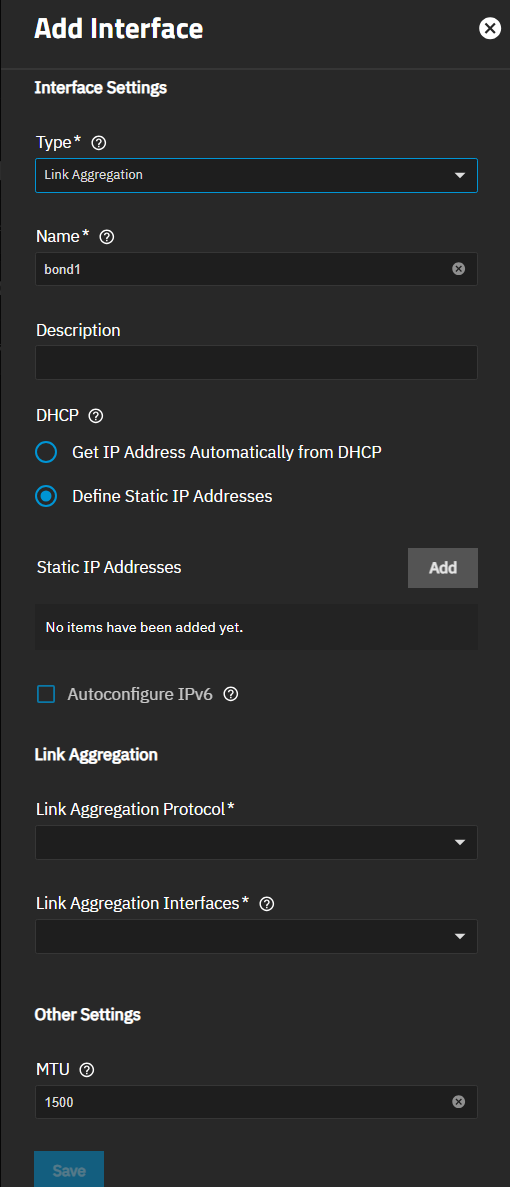
| Setting | Description |
|---|---|
| Link Aggregation Protocol | The protocol determines the outgoing and incoming traffic ports. Shows a dropdown list with three link aggregation protocol options:
|
| Link Aggregation Interfaces | (Required) Shows a dropdown list of interfaces in the system. Select the interfaces to use in the aggregation. Warning! Link Aggregation creation fails if any of the selected interfaces are manually configured!
|
| Transmit Hash Policy | Shows when the protocol is set to LCAP or Loadbalance. Dropdown list shows three hash policy options, LAYER2, LAYER2+3 the default, or LAYER3+4. |
| LACPDU Rate | Shows when the protocol is set to LCAP. Shows a dropdown list with two options: Slow or Fast. |
VLAN settings show after setting Type to VLAN. TrueNAS automatically populates the Name with the default vlan1. Use Description to further define or clarify how or where the bridge is used.
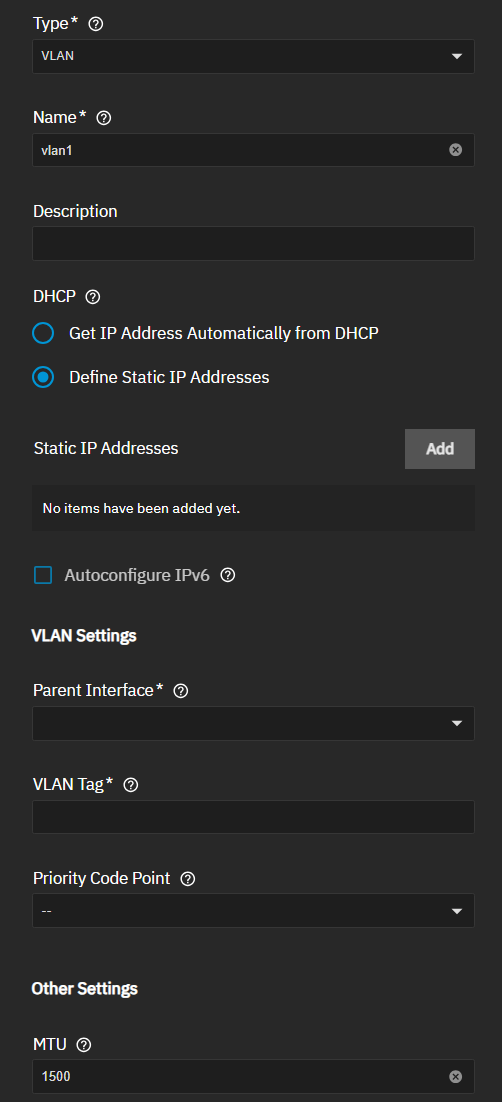
| Setting | Description |
|---|---|
| Parent Interface | Shows a dropdown list of VLAN parent interface options. Options are usually an Ethernet card connected to a switch port configured for the VLAN. New link aggregations are not available until you restart the system. |
| VLAN Tag | (Required) Accepts manual or copy/paste entry of the numeric tag configured in the switched network. Request this tag from your IT department if you are not the network administrator for your systems. |
| Priority Code Point | Shows a dropdown list of the class of service options. The available 802.1p class of service ranges from Best effort (default) to Network control (highest). |
These options show above the Interfaces widget after applying changes to a network interface that can affect access to the UI., and are used to test network changes when creating a new or changing an existing network interface
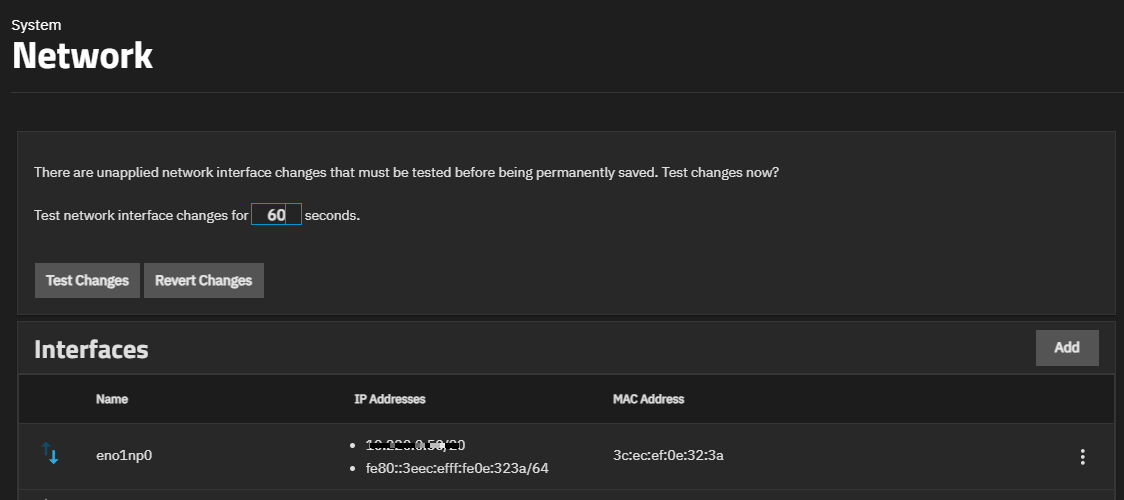
Test Changes starts the 60-second timer.
Revert Changes discards changes made within the 60-second period.
Save Changes shows after logging into the UI in a new browser window. Makes network changes permanent. Shows as the final part of the testing network interface changes process.