





TrueNAS Development Documentation
This content follows experimental development changes in TrueNAS 28, a future version of TrueNAS.
Use the Product and Version selectors above to view content specific to a stable software release.
ACL Screens
9 minute read.
TrueNAS offers two Access Control List (ACL) types: POSIX (the TrueNAS default) and NFSv4. For a more in-depth explanation of ACLs and configurations in TrueNAS, see our ACL Primer.
The Dataset Preset option on the Add Dataset screen sets the ACL type applied for SMB shares, apps, multi-protocol shares, and general-use datasets.
The ACL Type setting in the Advanced Options on both the Add Dataset and Edit Dataset screens determines the ACL presets available on the ACL Select a preset ACL window. It also determines which permissions editor screens you see after you click the edit icon on the Dataset Permissions card.
Set ACL Type to NSFv4 to activate and select the ACL Mode the dataset uses.
While creating an ACL, users can choose to skip an execution check. We only recommend skipping execution checks for users who need to join their Microsoft Active Directory to a TrueNAS system.
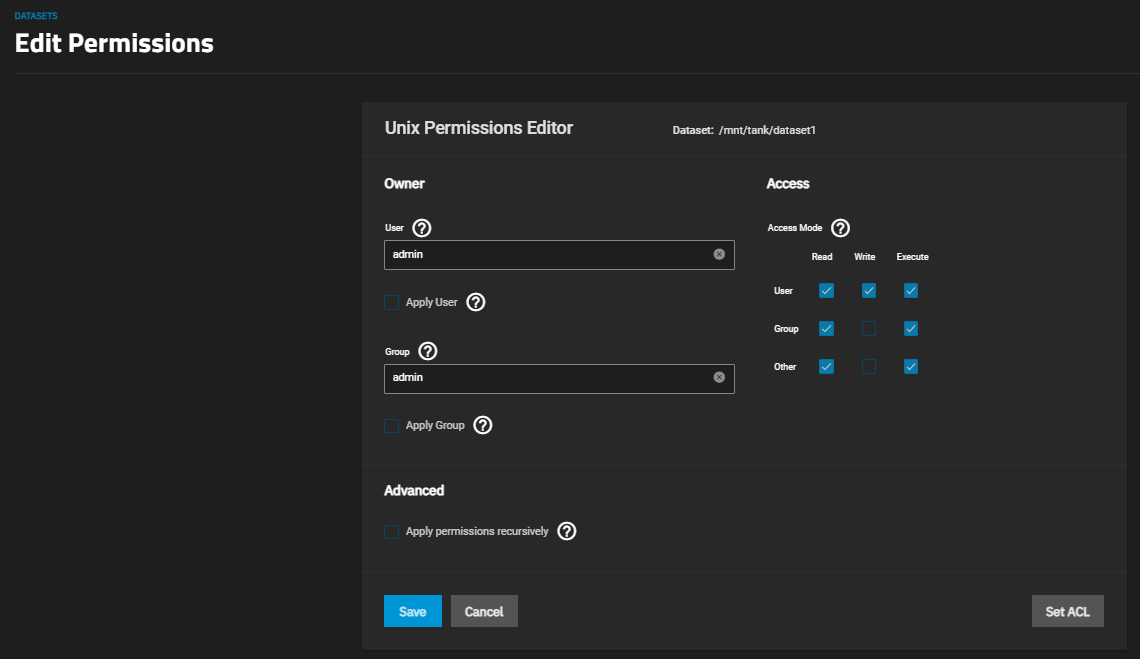
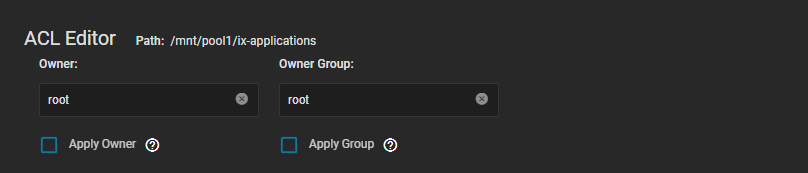
The Unix Permissions Editor opens when editing a dataset with a POSIX ACL. It shows the ACL Owner and Owner Group settings, and allows changing the defaults for each of these settings. The Permissions card shows an at-a-glance view of the POSIX ACL settings associated with the dataset.
Set ACS opens the Select a preset ACL dialog.
Apply Permissions Recursively applies the current ACL or permissions settings to all child datasets and directories. Shows a confirmation dialog before changes are applied, and then shows the Apply permissions to child datasets option.
A common misconfiguration is removing the Execute permission from a dataset that is a parent to other child datasets. Removing this permission results in lost access to the path.
The Access section shows check boxes for the basic Read, Write, and Execute permissions and the User, Group, and Other accounts that might access this dataset.
There are two Select a preset ACL windows. The first shows options to use a preset ACL or customise the ACL. The other, opened by clicking Use Preset on the Edit ACL screen, only shows the Preset dropdown list.
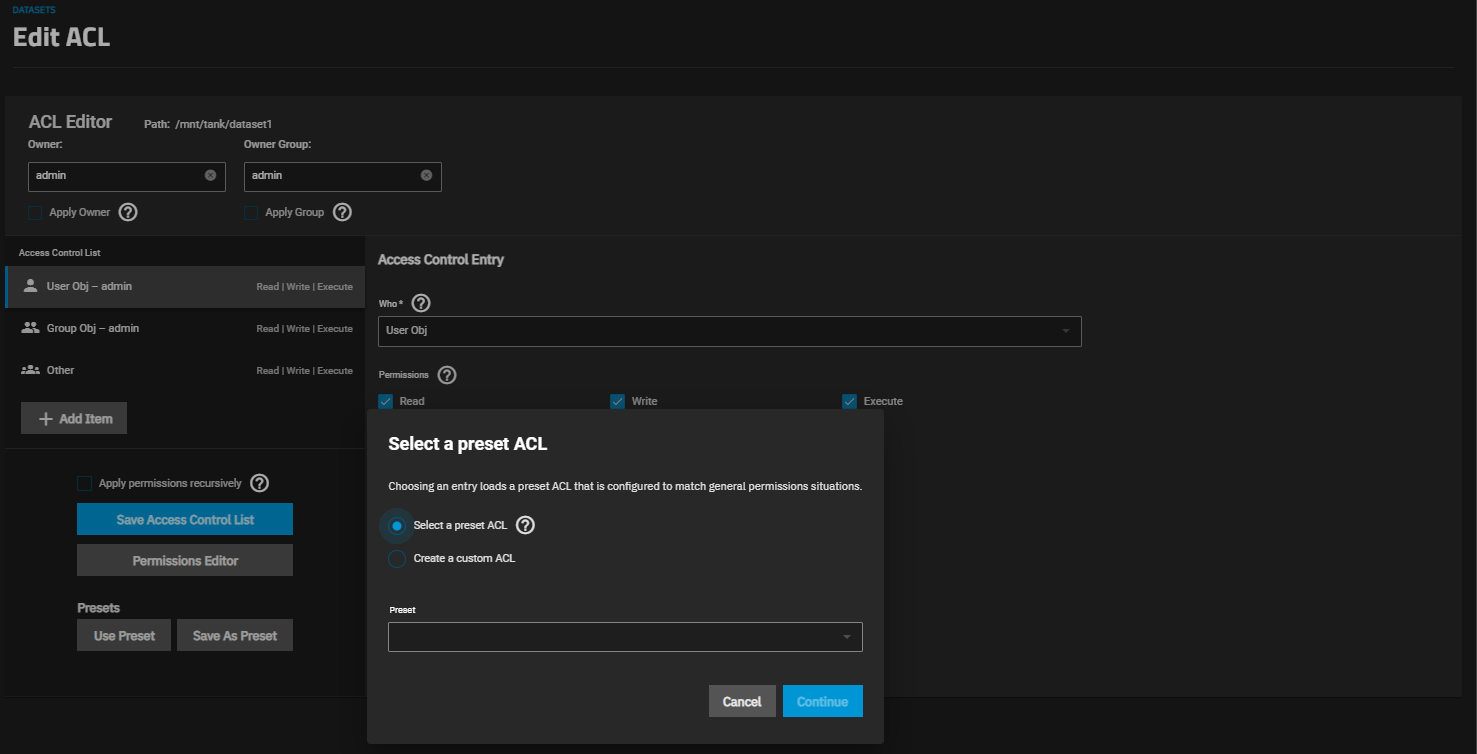
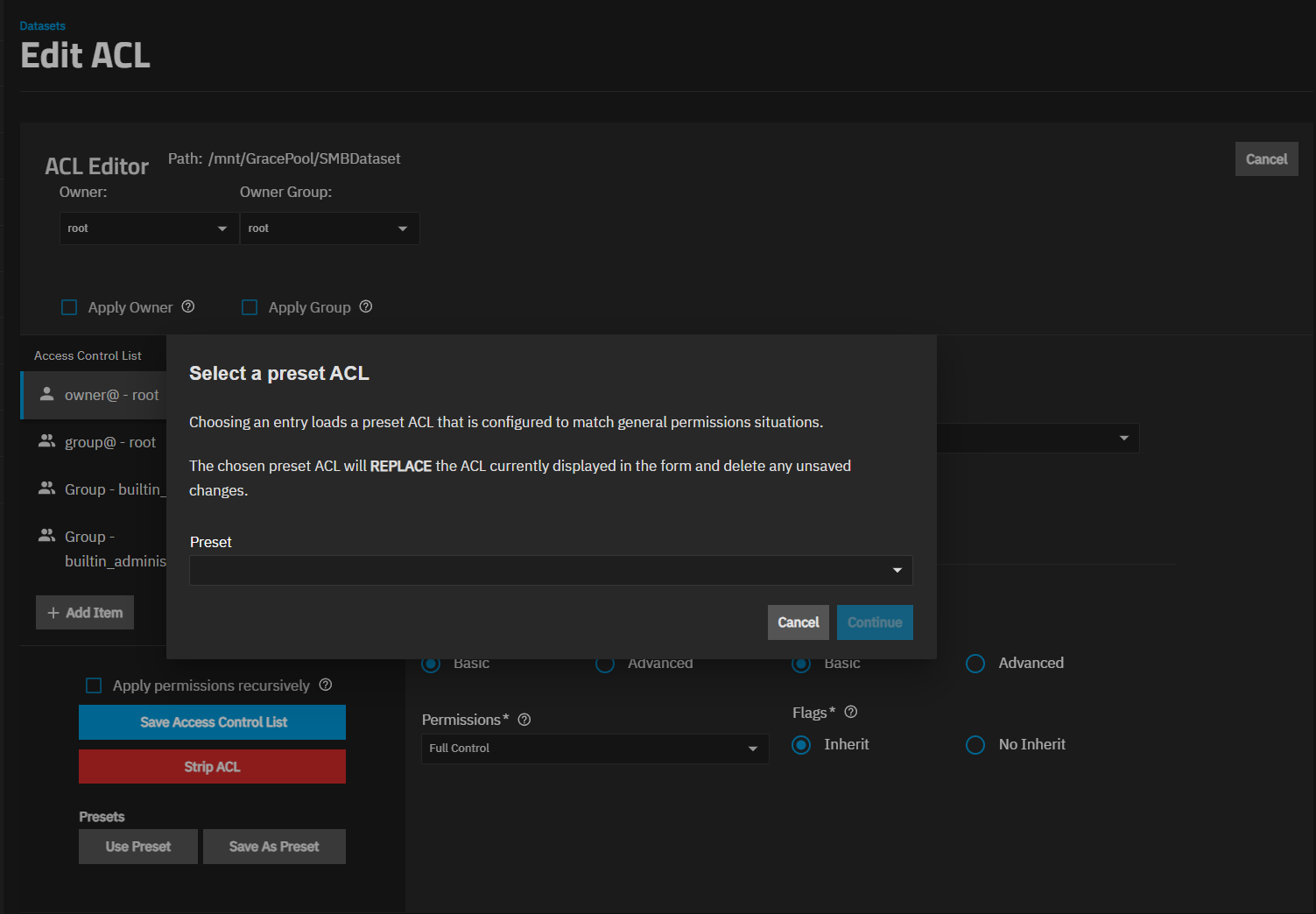
A selected preset replaces the ACL shown on the Edit ACL screen and deletes any unsaved changes.
The POSIX Select a preset ACL window opened with the Set ACL shows two radio button options:
- Select a preset ACL
- Create a custom ACL
Create a custom ACL hides the Preset dropdown list and shows the Continue button that opens the Edit ACL screen for a POSIX ACL.
Use Preset ACL on the Edit ACL screen opens the Select a Preset ACL window showing the Presets dropdown list and a general statement about ACL presets.
The Preset dropdown list shows the preconfigured set of permissions that match general situations.
POSIX preset ACL options are POSIX_OPEN, POSIX_RESTRICTED, POSIX_HOME, and POSIX_ADMIN. NFSv4 present ACL options are NFS4_OPEN, NFS4_RESTRICTED, NFS4_HOME, NFS4_DOMAIN_HOME, and NFS4_ADMIN.
TrueNAS built-in presets automatically include entries for the builtin_users and builtin_administrators groups.
Systems joined to Active Directory also include domain users and domain admins entries. User-created presets are not affected.
The Edit ACL screen shows options based on ACL type (POSIX or NFSv4).
The section below describes the differences between screens for each ACL type.
The Edit ACL shows access control list settings for a POSIX or NFSv4 ACL.
The screen is divided into sections:
- ACL Editor with the Owner and Owner Group settings.
- Access Control List showing all the entries currently in the ACL.
- Access Control Entry showing settings to configure new or change a selected existing ACL entry.
Path shows the mount path to the selected dataset.
The Access Control List section lists items and a permissions summary for each ACL entry (owner, group, etc). The list of items changes based on a selected pre-configured set of permissions.
Add Item adds a new entry, defaulting to User -? until you configure it in the Access Control Entry section of the screen.
Shows settings to configure a new ACL entry. It is partitioned into configuration areas:
- Who
- ACL Type
- Permissions
- Flags
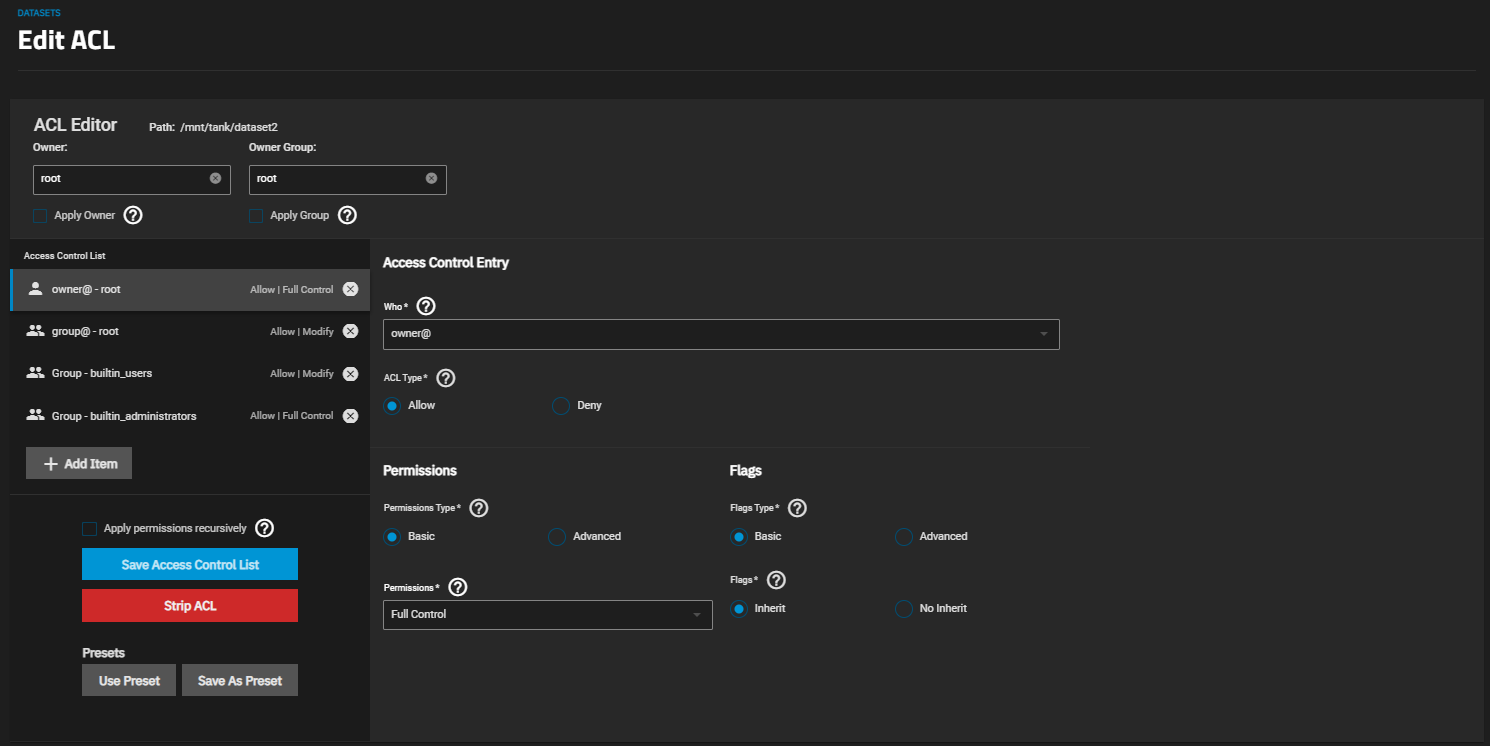
Additional options and buttons are shown under the Access Control List section.
Apply permissions recursively applies all settings or changes on the Edit ACL screen to all child datasets in the path in Dataset.
Save Access Control List saves settings or changes made on the Edit ACL screen.
Strip ACL removes all ACLs from the current dataset and any directories or files contained within this dataset. Stripping the ACL resets dataset permissions and can make data inaccessible until you create new permissions. Only shows for NFSv4 ACLs.
Presets has two buttons: Use Preset and Save as Preset. Use Preset opens the Select a preset ACL window. Presets shown are based on the type of ACL (POSIX or NFSv4). Save as Preset saves changes made to the current access control list as a custom preset and adds it to the Access Control List. Permissions Editor opens the Unix Permissions Editor screen for POSIX ACL types. Only shows for POSIX ACLs.
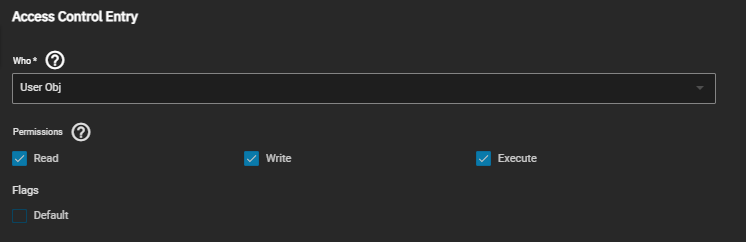
The POSIX Access Control Entry settings include Who, Permissions, and Flags options.
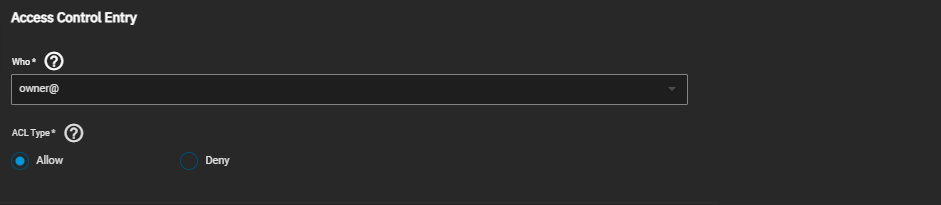
The NFSv4 ACL Type radio buttons change the Permissions and Flags setting options. Allow grants the specified permissions. Deny restricts the permissions for the user or group in Who.
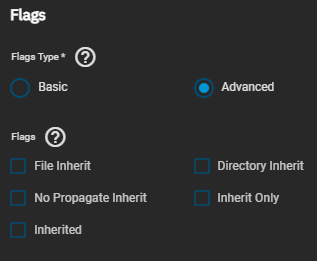
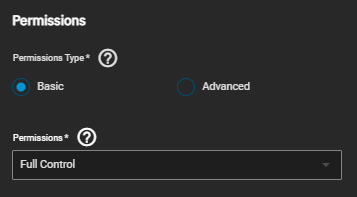
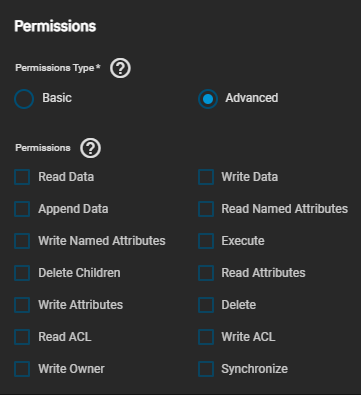
TrueNAS divides permissions and inheritance flags into basic and advanced options. The basic permission options are commonly used groups of advanced options. Basic inheritance flags only enable or disable ACE inheritance. Advanced flags offer finer control for applying an ACE to new files or directories.
NFSv4 ACLs have more permission and flag options than POSIX ACLS.
The Basic radio button shows the Permissions dropdown list of options that apply to the user or group in Who.
The Advanced radio button shows the Permissions options for the user or group in Who.
The Basic radio button shows the flag settings that enable or disable ACE inheritance.
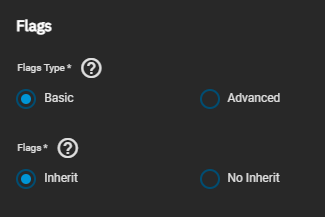
The Advanced radio button shows the flag settings that enable or disable ACE inheritance and offer finer control for applying an ACE to new files or directories.