






TrueNAS Development Documentation
This content follows experimental development changes in TrueNAS 28, a future version of TrueNAS.
Use the Product and Version selectors above to view content specific to a stable software release.
S3 Access Keys Screen
5 minute read.
The Credentials > S3 Access Keys screen shows the access keys S3 clients use to connect to S3 buckets on the TrueNAS system.
An S3 access key is a credential pair made up of an access key ID and a secret access key. S3 clients use the pair to sign each request with AWS Signature Version 4 (SigV4), the standard authentication method for the S3 API. Each access key belongs to a TrueNAS user account, and the S3 service runs requests signed with that key as that user. An S3 access key cannot sign in to the TrueNAS web UI or API.
To open the screen, go to Credentials > S3 Access Keys. You can also select Access Keys from the dropdown list on the Object Storage (S3) Buckets card, or click Access Keys on the S3 Buckets screen.
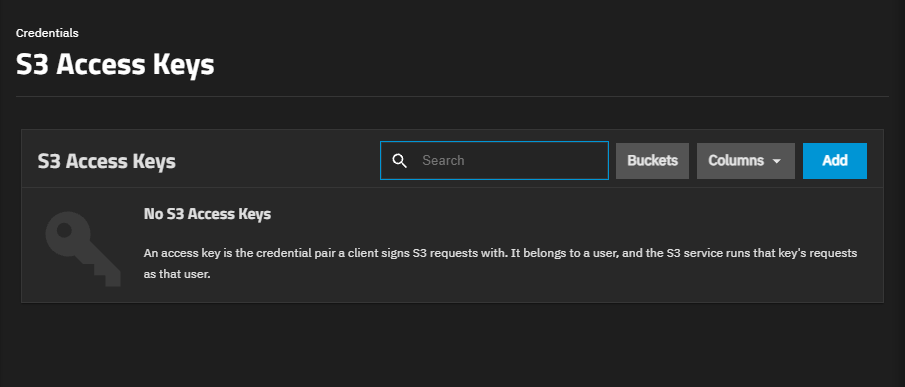
Buckets opens the S3 Buckets screen.
Columns shows options to customize the table view.
Add opens the Add S3 Access Key screen.
After you add an access key, the S3 Access Keys table lists the access keys on the system.
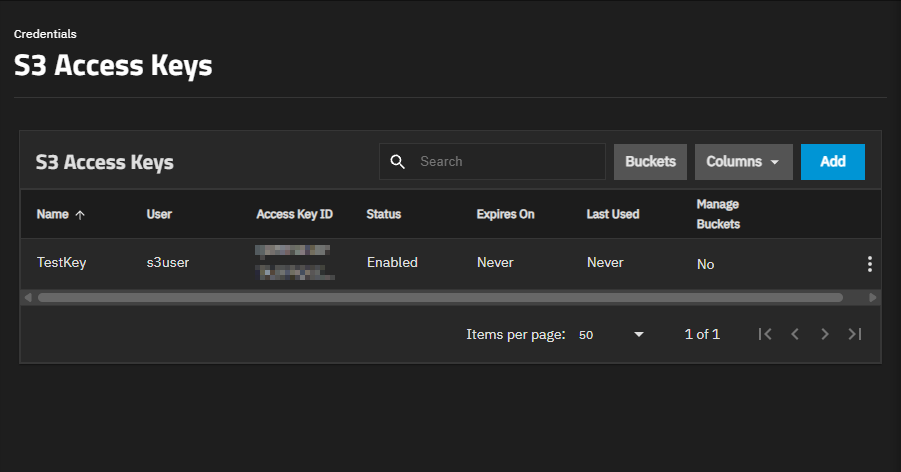
| Column | Description |
|---|---|
| Name | Shows the name of the access key. |
| User | Shows the user account the access key belongs to. Shows Missing if the account no longer exists. |
| Access Key ID | Shows the access key ID that clients use to identify the key. |
| Status | Shows the state of the access key. Only an access key with the Enabled status can sign requests. Statuses are:
|
| Expires On | Shows when the access key expires, or Never for an access key that does not expire. |
| Last Used | Shows when the S3 service last accepted a request signed with the access key, or Never. The S3 service updates this value at intervals, so a recent request might not show immediately. |
| Manage Buckets | Shows Yes if the access key can create and delete buckets through the S3 protocol, or No. When a client creates a bucket, TrueNAS creates a new dataset for the bucket under the Managed Root Dataset set on the S3 service configuration screen. |
| Created | Shows when the access key was created. Hidden by default. |
The icon on an access key row shows these options:
- Edit opens the Edit S3 Access Key screen.
- Rotate Secret opens a confirmation dialog to create a new secret access key for the same access key ID. Clients that use the current secret stop working. The new secret shows one time in the S3 Access Key dialog.
- Delete opens a confirmation dialog to delete the access key. The S3 service refuses requests signed with a deleted key.
Deleting a local user account also deletes the access keys that belong to that account.
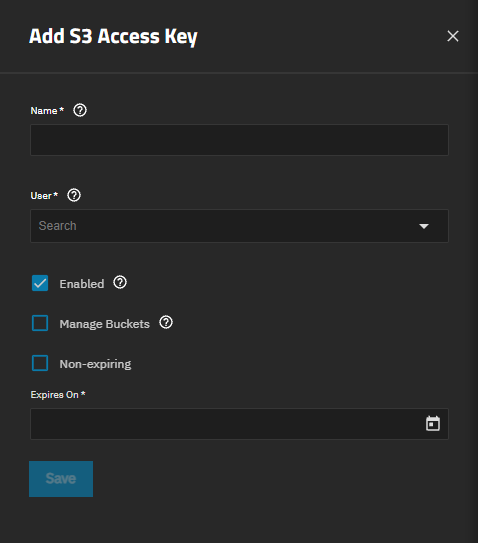
The Add S3 Access Key and Edit S3 Access Key screens show the same settings. On the Edit S3 Access Key screen, User is read-only because you cannot change the account an access key belongs to.
TrueNAS generates the access key ID and secret access key when you save a new access key.
Save creates the access key or saves changes to an existing access key.
| Setting | Description |
|---|---|
| Name | (Required) Enter a unique name for the access key. |
| User | (Required) Select the user account the access key belongs to. The S3 service runs requests signed with this key as that account, so select an account that has access only to the buckets the client needs. The root account cannot own an access key. The list shows non-built-in user accounts. Add New opens the Add User screen with SMB Access cleared and Disable Password selected, because an account created for S3 access does not need to sign in. |
| Enabled | Selected by default. Select to allow clients to use the access key. Clear to disable the access key without deleting it. |
| Manage Buckets | Select to allow clients that sign requests with this key to create and delete buckets through the S3 protocol. The user account must have a privilege that includes the Sharing S3 Write role. Members of the built-in truenas_sharing_administrators group have this role through the Sharing Administrator privilege, which also grants access to every other share type. Creating buckets also requires a Managed Root Dataset on the S3 service configuration screen. This setting does not affect other access keys that belong to the same account. |
| Non-expiring | Select to create an access key that does not expire. Leave cleared to set an expiration date in Expires On. |
| Expires On | (Required) Shows when Non-expiring is cleared. Click the calendar icon to select the date the access key expires. The S3 service refuses requests signed with an expired key. |
The S3 Access Key dialog opens after you create an access key or rotate the secret. It shows the Access Key ID and Secret Access Key values for the key.
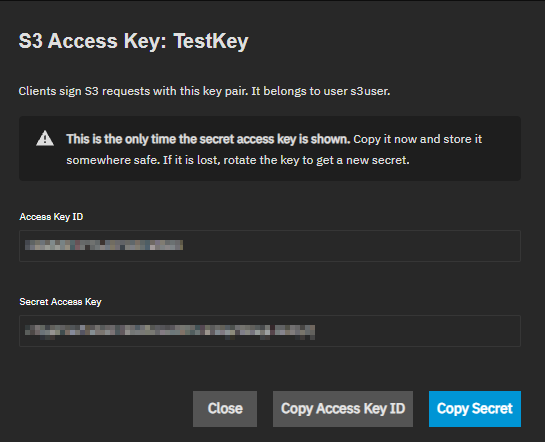
The dialog is the only place the web UI shows the secret access key. Copy the secret access key and store it in a secure location before you close the dialog. If you lose the secret, rotate the key to create a new secret.
Copy Access Key ID copies the access key ID to the clipboard. Copy Secret copies the secret access key to the clipboard. Close closes the dialog.
Amazon S3 is a trademark of Amazon.com, Inc. or its affiliates.