




TrueNAS Development Documentation
This content follows experimental development changes in TrueNAS 28, a future version of TrueNAS.
Use the Product and Version selectors above to view content specific to a stable software release.
Custom App Screens
17 minute read.
The TrueNAS Applications Market is your new resource for the latest details about apps available within TrueNAS. Discover which apps are widely used or recently added, filter the entire catalog to find the perfect app, and learn specifics that can help you deploy an app.
The website updates daily, so you’ll always have the latest info about TrueNAS applications!
Custom App on the Discover screen opens the Install Custom App guided installation wizard. more_vert > Install via YAML opens the Add Custom App screen with an advanced YAML editor for deploying apps using Docker Compose.
The Install Custom App screen allows you to configure third-party applications using Docker settings. Use the wizard to configure applications not included in the official catalog.
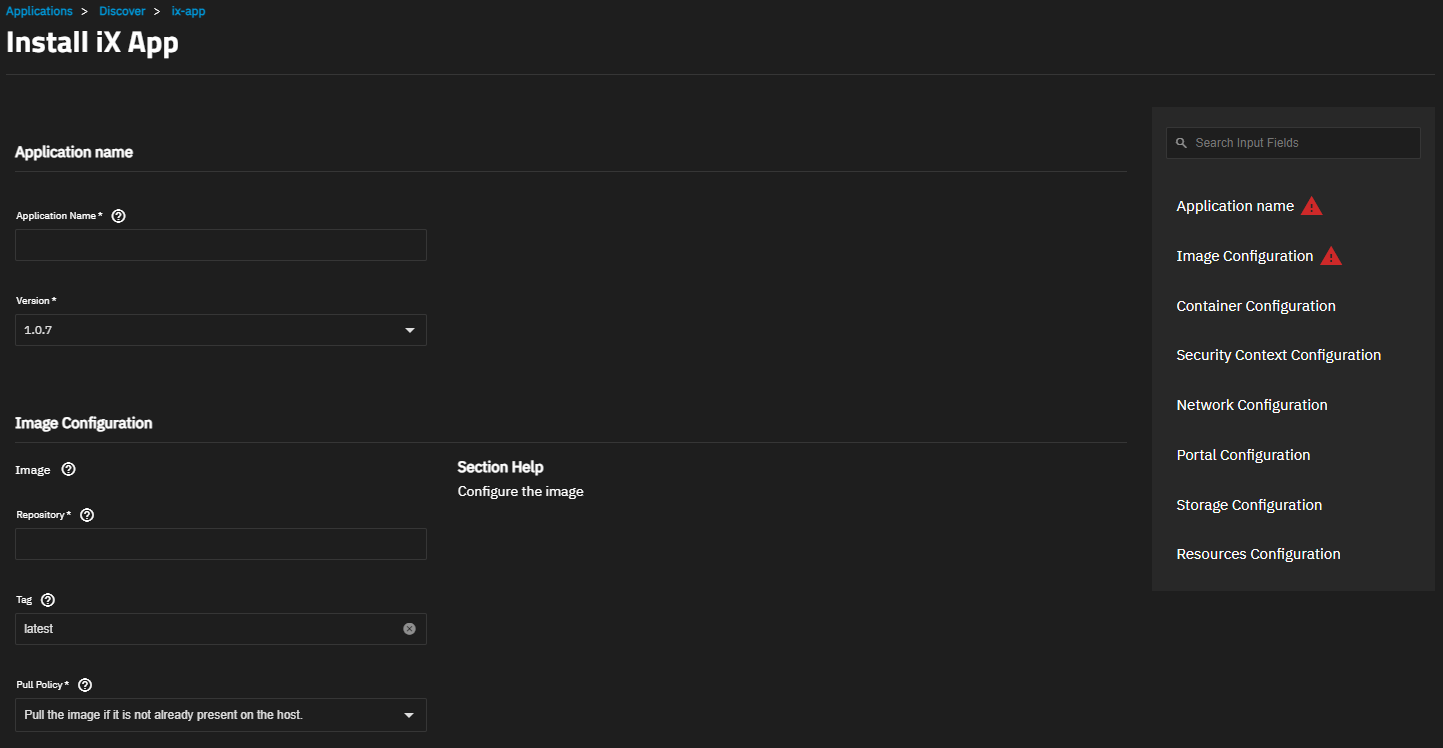
The panel on the right of the screen links to each setting area. Click on a heading or setting to jump to that area of the screen. Click in the Search Input Fields to see a list of setting links.
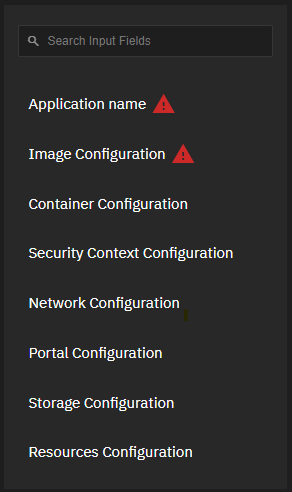
Settings are grouped into Application Name, Image Configuration, Container Configuration, Security Context Configuration, Network Configuration, Portal Configuration, Storage Configuration, and Resources Configuration sections.
Application Name has two required settings: Application Name and version. After completing the installation, these settings are not editable.

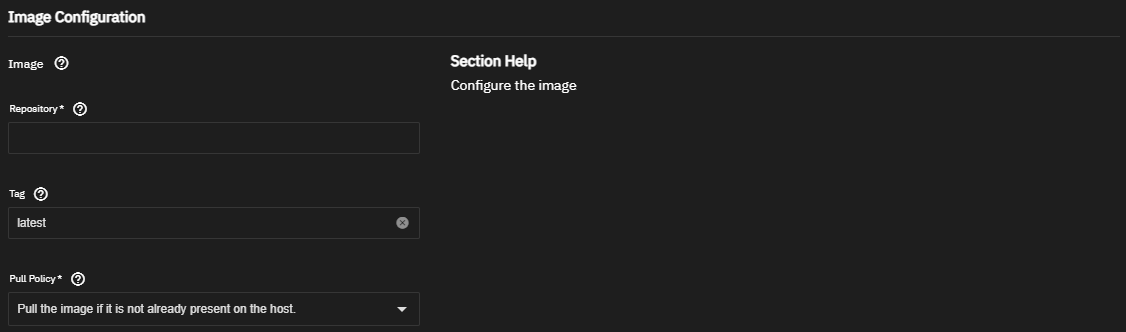
Image Configuration settings specify the container image details. They define the image, tag, and when TrueNAS pulls the image from the remote repository.
Container Configuration settings specify the entrypoint, commands, timezone, environment variables, and restart policy to use for the image. These can override any existing variables stored in the image. Check the documentation for the application you want to install for required entrypoints, commands, or variables.
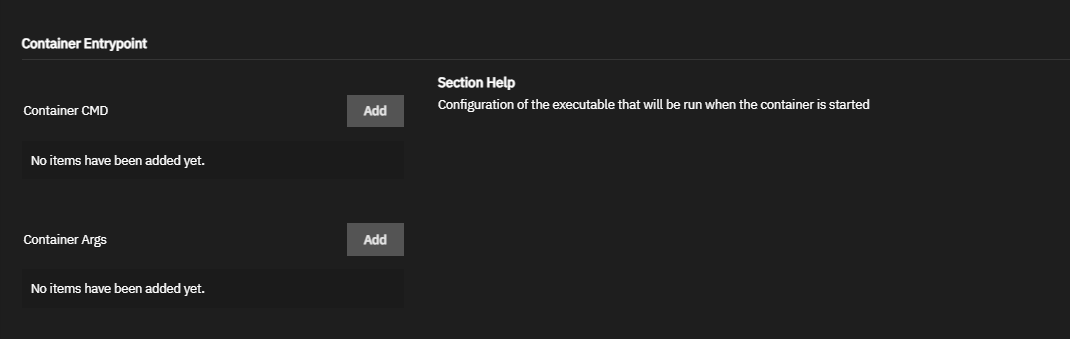
Add to the right of configuration settings such as Entrypoint, Command, Environment Variables, and Devices shows additional setting options. Clicking Add again shows another block of settings.
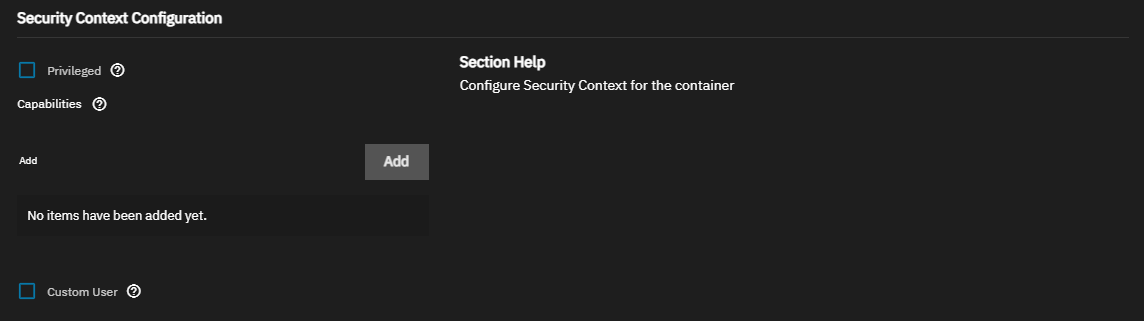
Security Context Configuration settings allow you to run the container in privileged mode, grant the container Linux kernel capabilities, or define a user to run the container.
Network Configuration settings specify network, ports, and DNS servers if the container needs a custom networking configuration.
See the Docker documentation for more details on host networking.
Use port forwarding to reroute container ports that default to the same port number used by another system service or container. See Default Ports for a list of assigned ports in TrueNAS. See the Docker Container Discovery documentation for more on overlaying ports.
By default, containers use the DNS settings from the host system. You can change the DNS policy and define separate nameservers and search domains. See the Docker DNS services documentation for more details.
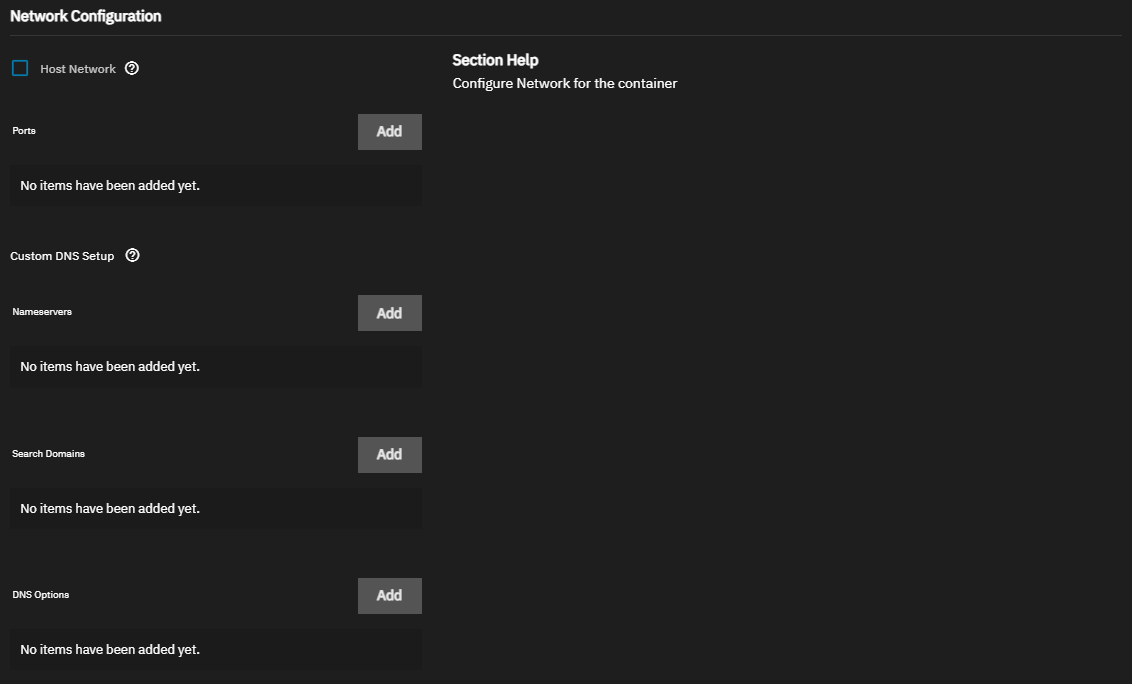
Add to the right of configuration settings such as Ports, Networks, Nameservers, Search Domains, and DNS Options shows additional setting fields to configure these areas. Clicking Add again shows another block of settings.
Network Configuration Settings Information
| Setting | Description |
|---|---|
| Host Network | Binds the container to the TrueNAS host network. When bound to the host network, the container does not have a unique IP-address, so port-mapping is disabled. See Docker host networking documentation for more information. |
| Port | Sets the port number for portal access. Clicking Add to the right of Ports shows a block of port configuration fields to specify the port values and transfer protocol. Click again to add additional port mappings. |
Ports Settings
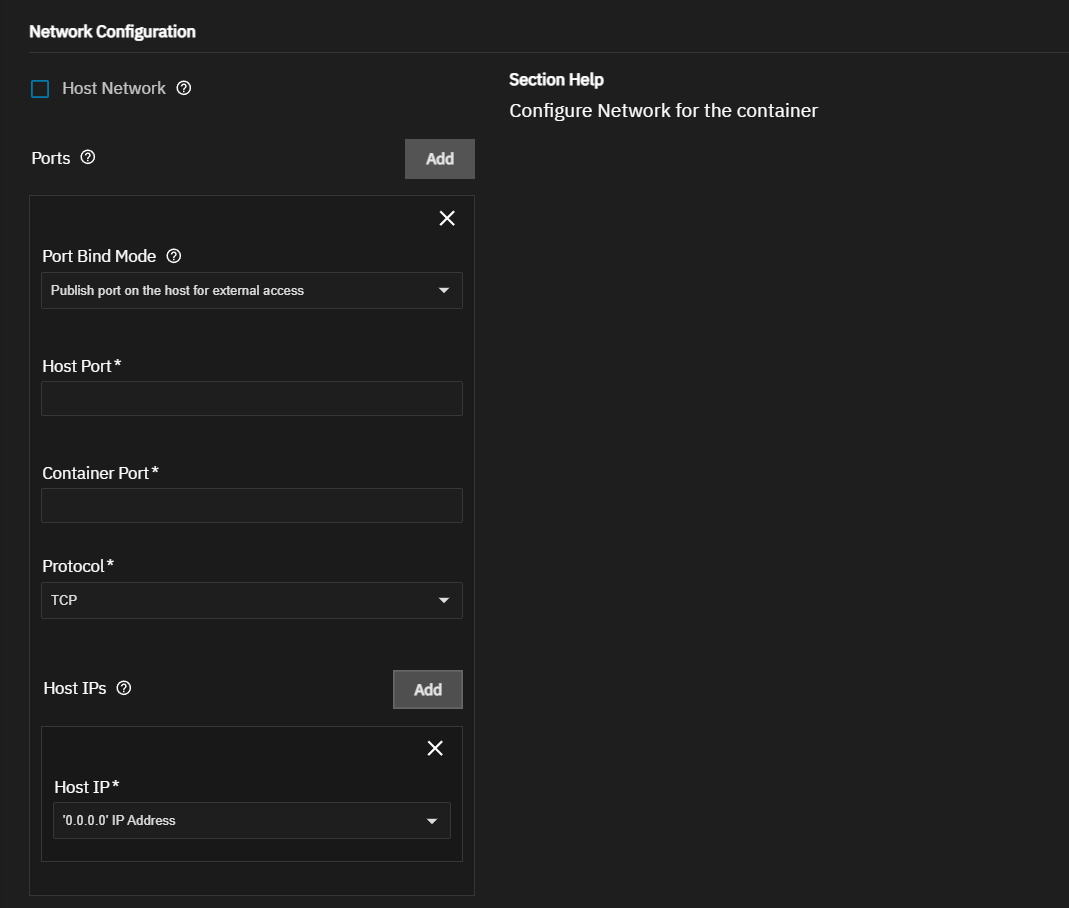
| Setting | Description |
|---|---|
| Port Bind Mode | Sets how the port is exposed. Publish makes the port available on the host for external access. Expose makes the port available for inter-container communication only. |
| Host Port | Specifies an open port number on the TrueNAS host. |
| Container Port | Specifies the port values and transfer protocol in the container. Refer to the application documentation for default port values. |
| Protocol | Sets the transfer protocol for the port mapping. Options are HTTP or HTTPS. |
| Host IPs | Specifies one or more IP addresses on the host to bind the port to when Port Bind Mode is set to Publish. Only shows when Port Bind Mode is set to Publish. Add shows the Host IP field. |
| Host IP | Sets the host IP to the address selected from the dropdown list. |
Networks Settings
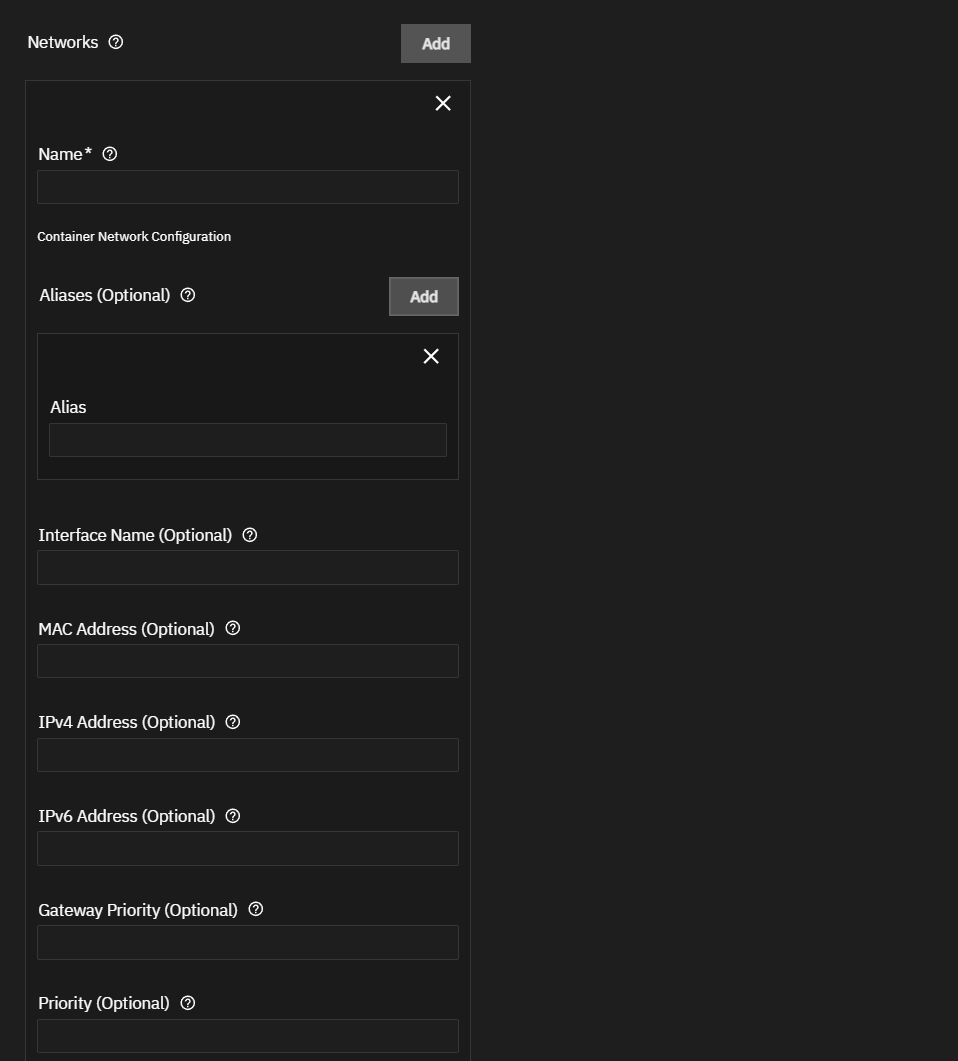
| Setting | Description |
|---|---|
| Name | Specifies the name of an existing Docker network for the container to join. The network must already exist. |
| Aliases (Optional) | Specifies one or more optional network aliases for the container on this network. Clicking Add shows the Alias field. |
| Alias | Specified the optional network alias to add. for the container. Must be on the same network. |
| Interface Name (Optional) | Specifies the optional network interface name to use for this network. |
| MAC Address (Otional) | Specifies the otpional MAC address for the network interface. |
| IPv4 Address (Optional) | Specifies the optional IPv4 address for the network interface. |
| IPv6 Address (Optional) | Specifies the optional IPv6 address for the network interface. |
| Gateway Priority (Optional) | Sets the optional priority of the gateway for this network interface. |
| Prioirty (Optional) | Specifies the order which Compose connects the container services to its networks. |
Custom DNS Setup Settings
The Custom DNS Setup covers adding nameservers, search domains, and DNS options to the container.
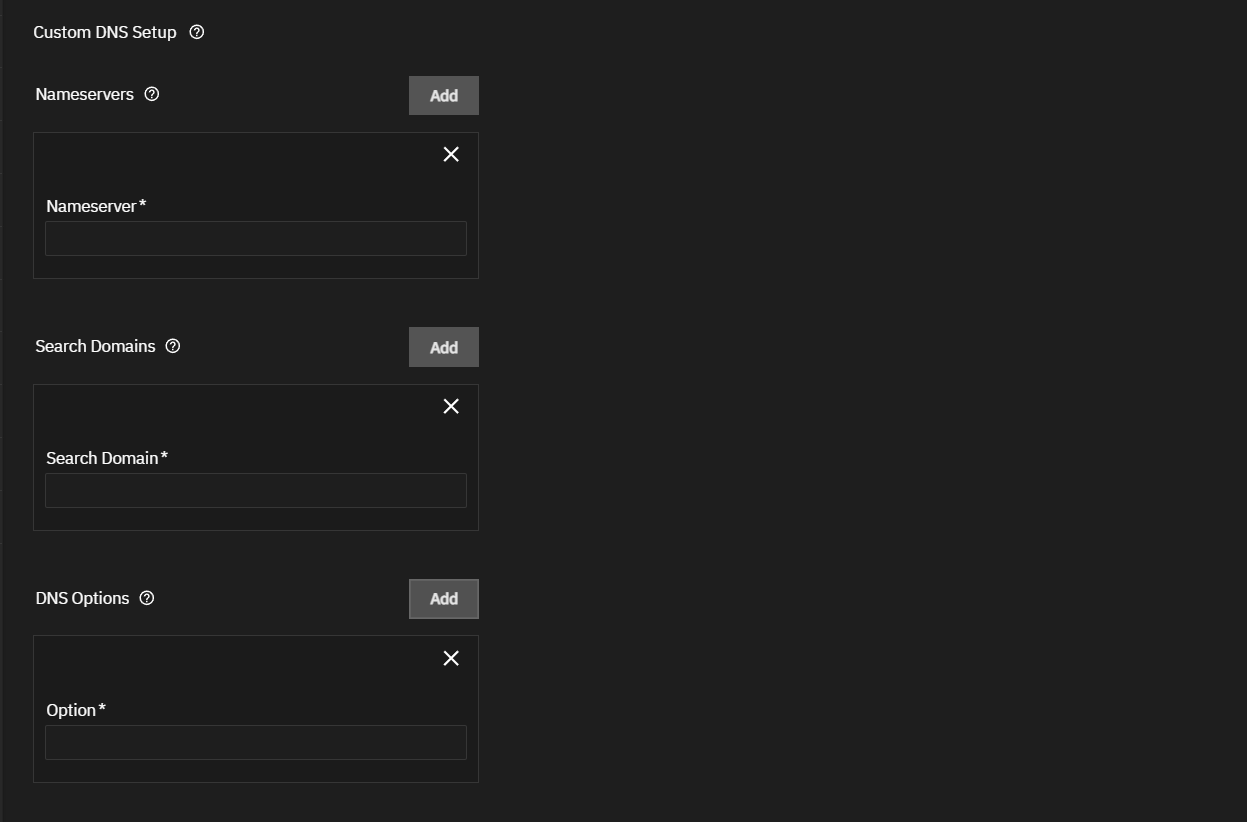
Add shows additional settings. Clicking Add again shows another block of settings.
| Setting | Description |
|---|---|
| Nameservers | Specifies the IP address of the domain name system (DNS) server for the container. Default uses host DNS settings. Clicking Add shows the Nameserver field. |
| Search Domains | Specifies the DNS domain to search for non-fully qualified hostnames, for example, mydomain.com. For example, mydomain.com. See the Linux search documentation for more information. Clicking Search Domains adds shows the Search Domain field. |
| DNS Options | Specifies DNS value pairs to control various aspects of query behavior and DNS resolution.S ee the Linux options documentation for more information. Clicking Add shows the Option field. |
| Option | Specifies a key-value pair representing a DNS option and its value. For example, ndots:2. |
The Portal Configuration settings configure the web UI portal for the container.
Add shows the web portal configuration settings.
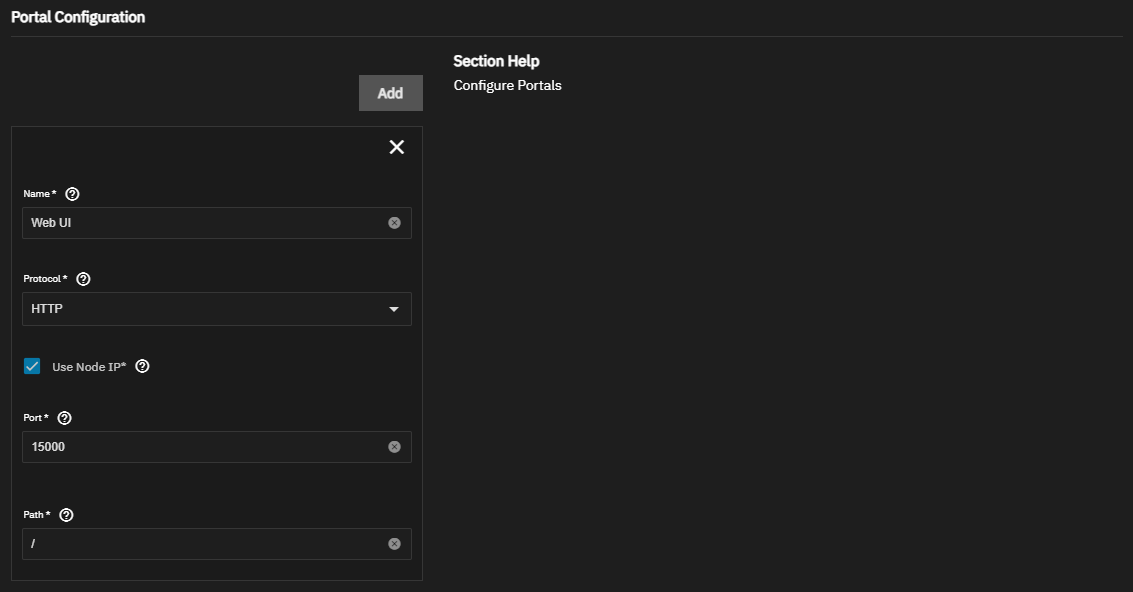
The Storage Configuration settings specify persistent or termporay storage paths and share data claims separate from the lifecycle of the container. For more details, see the Docker storage documentation.
Host path volumes can mount TrueNAS storage locations inside the container. Refer to the Installing Custom Apps tutorial for more information on configuring storage options.
ixVolume allows TrueNAS to create a dataset on the apps storage pool. These are intended for fast test deployments of applications and not for persistent storage.
Both Host Path and ixVolume attach container storage as a bind mount. See Docker Bind Mount documentation for more information.
NFS and SMB share volume claims within the container access the NFS or SMB share. Share volumes consume space from the pool chosen for application management.
Tmpfs allows the container to utilize a temporary directory on the RAM, and are intended of log usage that does not need to persist. See the Docker tmpfs documentation for more information.

Add shows a block of storage configuration settings. Clicking Add again shows another set of storage configuration settings.
Host Path (Path that already exists on the system) Settings
Shows the setting options to configure a persistent host path.
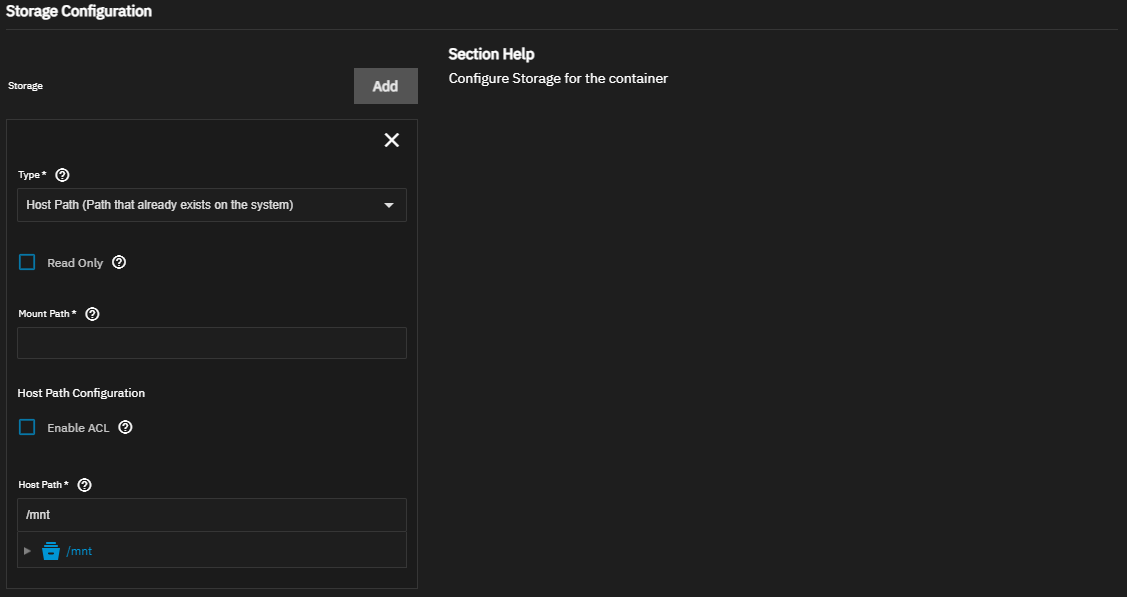
| Setting | Description |
|---|---|
| Type | Sets the storage option used in the container and the settings shown by that type. Options: ixVolume (dataset created automatically by the system), Host Path (Path that already exists on the system), SMB/CIFS Share (Mounts a vlume to a SMB Share), NFS Share (Mounts a volum eto a NFS share), or Tmpfs (Temporary Directory created on the RAM). |
| Read Only | Makes the mount path inside the container read-only and prevent the app from using the path to store data. |
| Mount Path | Sets the required |
Enable ACL Settings
These setting show when Type is set to host path or ixVolume.
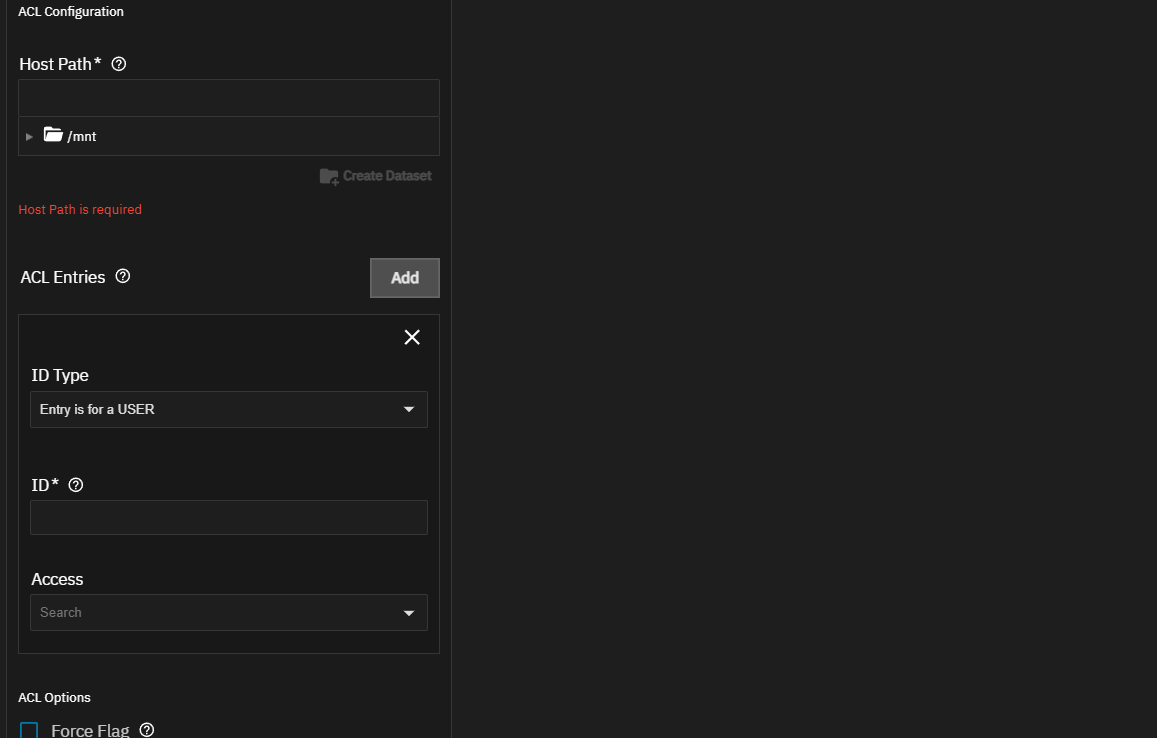
| Setting | Description |
|---|---|
| Enable ACL | Sets up custom Access Control List (ACL) entries for the container mount. It shows the ACL Configuration settings fields. |
| Host Path | Sets the path to the existing dataset, or click to the left of /mnt to browse to the location of the dataset to populate the Host Path. Click on the dataset to select and display it in the Host Path field. After selecting a dataset in the file browser the Create Dataset option becomes available and allows adding a new dataset under the selected dataset. |
| Create Dataset | Opens a dialog that allows you to add a new dataset under the dataseet selected in the apps storage file browser. Activates after selecting a dataset in the file browser. |
| ACL Entries | Shows the ACL settings to create a custom ACL for the storage volume. Shows the ACL Entries option and Add button. Clicking Add shows the ID Type, ID and Access fields that define the ACL entry. |
| ID Type | Sets the type of entry defined. Options are Entry is for a USER or Entry is for a GROUP. Shows after enabling Enable ACL and clicking Add. |
| ID | Specifies the numeric UID or GID, matching the selected ID Type. Shows after enabling Enable ACL and clicking Add. |
| Access | Sets the level of access privileges to assign to the user or group matching the ID. Options are Read Access, Modify Access, or FULL_CONTROL Access. Shows after enabling Enable ACL and clicking Add. |
| Force Flag | Applies the configured ACL settings to a directory containing existing data. Shows after enabling Enable ACL and clicking Add. |
ixVolume (Dataset created automatically by the system)
Use to configure a storage mount for a system-created dataset on the application pool.
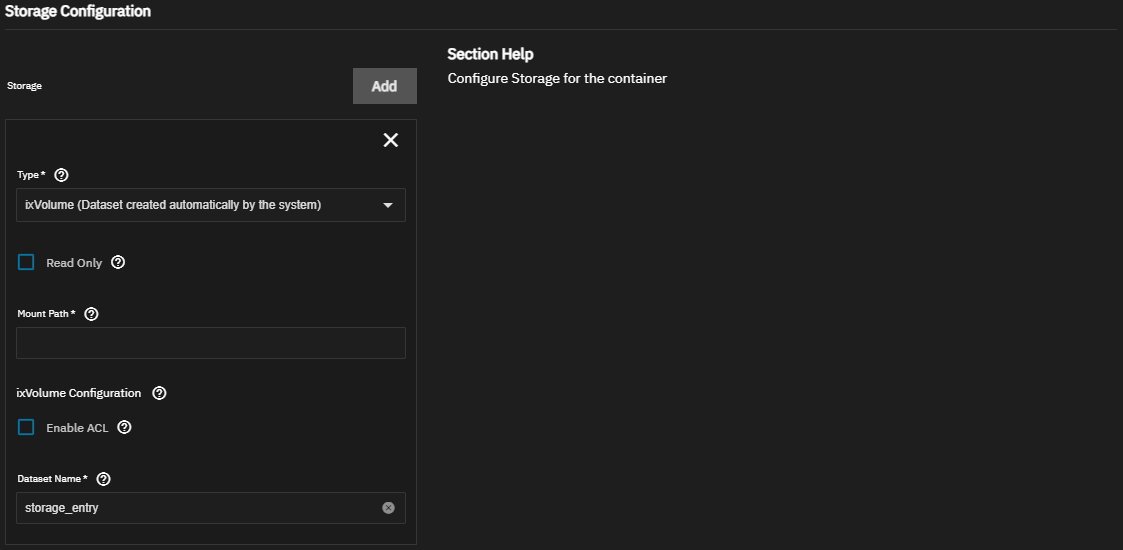
| Setting | Description |
|---|---|
| Read Only | Makes the mount path inside the container read-only and prevent the app from using the path to store data. |
| Mount Path | Sets the required |
| Dataset Name | Specifies the name of the datast to use for storage. The default is storage_entry. to enable custom Access Control List (ACL) entries for the container mount and display ACL settings fields. |
SMB/CIFS Share (Mounts a volume to a SMB share)
Use to mount an SMB share with a Docker volume.
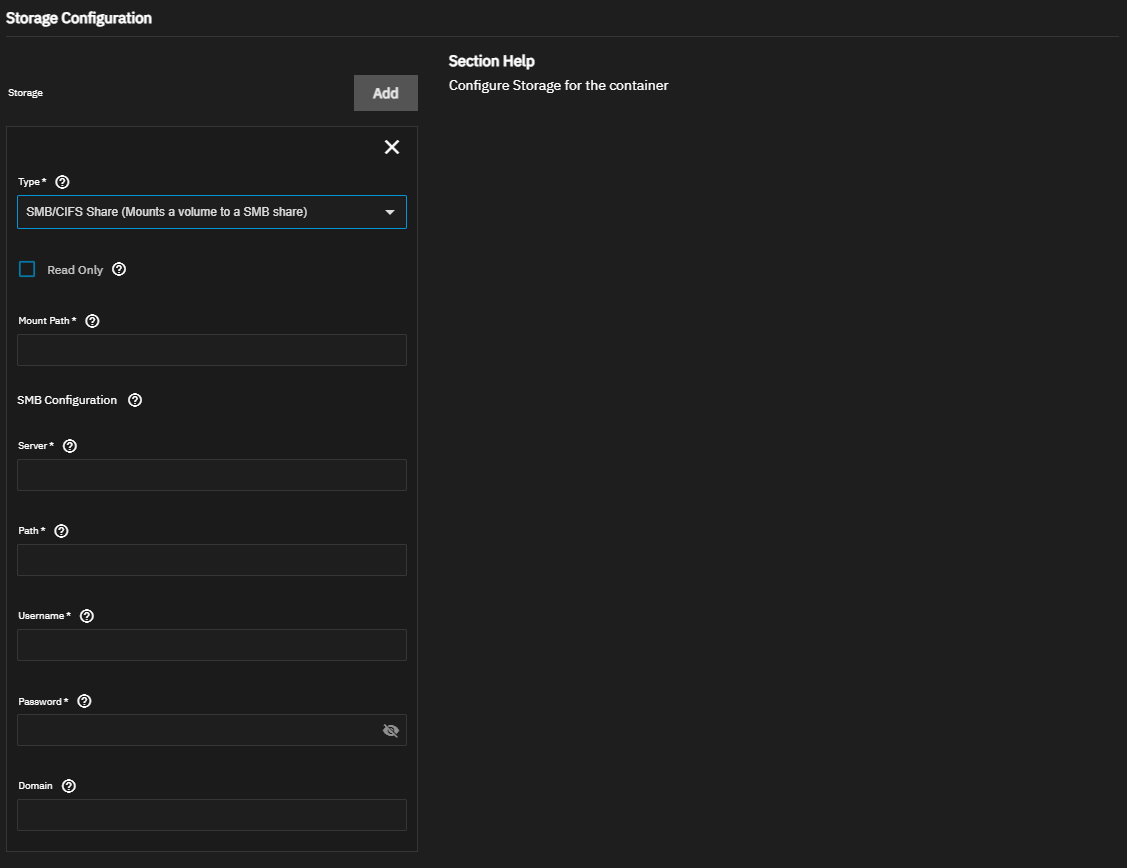
| Setting | Description |
|---|---|
| Read Only | Makes the mount path inside the container read-only and prevent the app from using the path to store data. |
| Mount Path | Specifies the required |
| Server | Specifies the required IP address for the SMB server, for example 192.168.1.100. This can be the TrueNAS host. |
| Path | Specifies the required name of the SMB share, for example my-share. |
| Username | Specifies the required username of an account with permission to access the SMB share. |
| Password | Specifies the required the password for the account in Username. |
| Domain | Specifies the directory services domain. Only required if the domain is something other than the TrueNAS default WORKGROUP, for example on systems with Active Directory configured. |
NFS Share (Mounts a volume to a NFS share)
Use to mount an NFS share with a Docker volume.
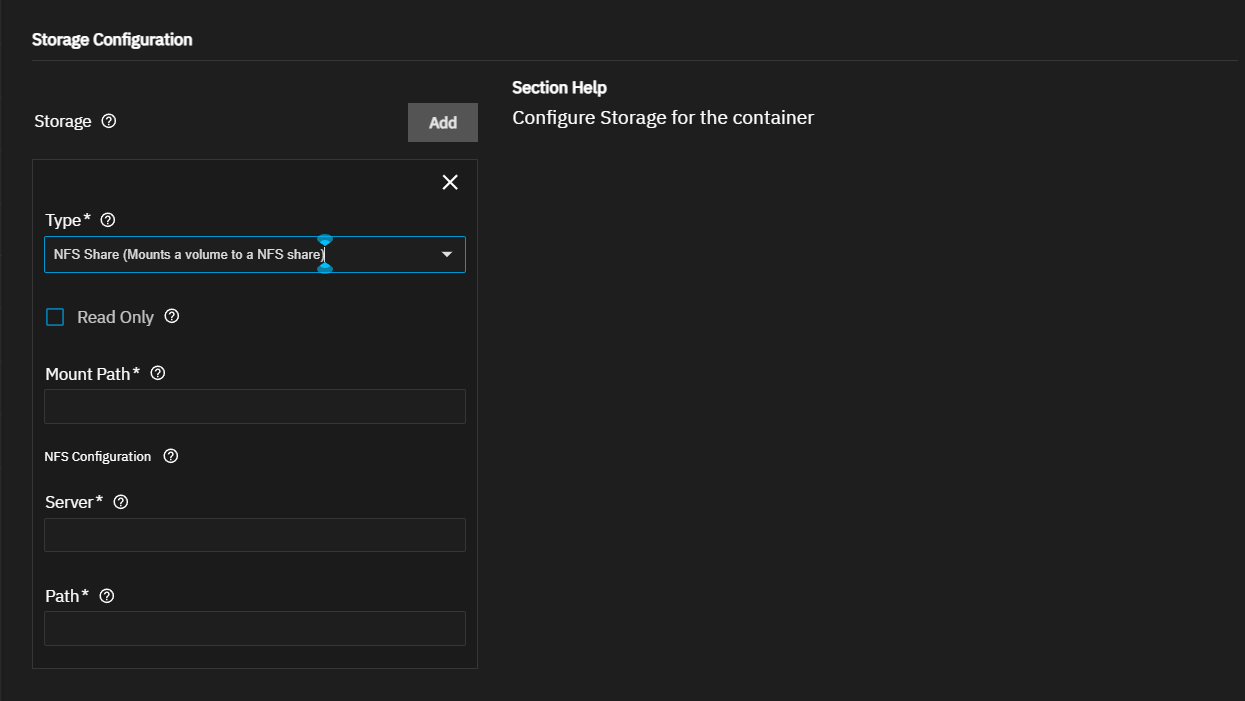
| Setting | Description |
|---|---|
| Read Only | Makes the mount path inside the container read-only and prevent the app from using the path to store data. |
| Mount Path | Specifies the required |
| Server | Specifies the required IP address for the NFS server, for example 192.168.1.100. This can be the TrueNAS host. |
| Path | Specifies the required name of the NFS share, for example my-share. |
Tmpfs (Temporary directory created on the RAM)
Use to configure a memory-backed temporary directory. See the Docker tmpfs documentation for more information.
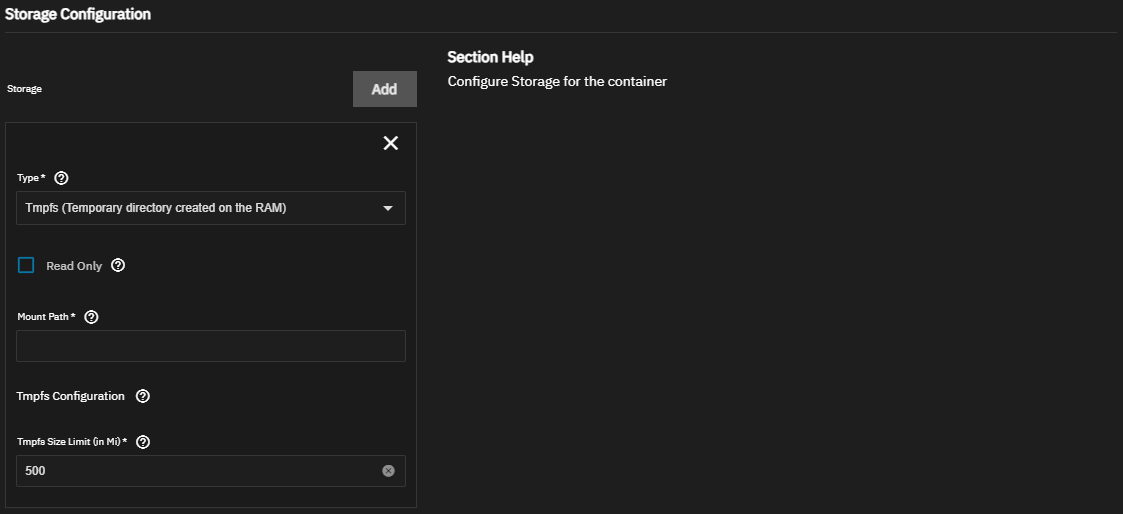
| Setting | Description |
|---|---|
| Read Only | Makes the mount path inside the container read-only and prevent the app from using the path to store data. Not recommended for memory-backed storage. |
| Mount Path | Specifies the required path where the memory-backed directory mounts inside the container. |
| Tmpfs Size Limit (in Mi) | Sets the required maximum size of the temporary directory in mebibytes. Defaults to 500. |
The Label Configuration settings allow creating custom key-falue pairs attached to a container as metadata. Thsee are informational tags used to organize, identify, and filter containers. Common uses include marking which app or environment a container belongs to, noting a version or owner, or letting external tools (monitoring, orchestration, backup scripts) select the containers by label instead of by name or ID.
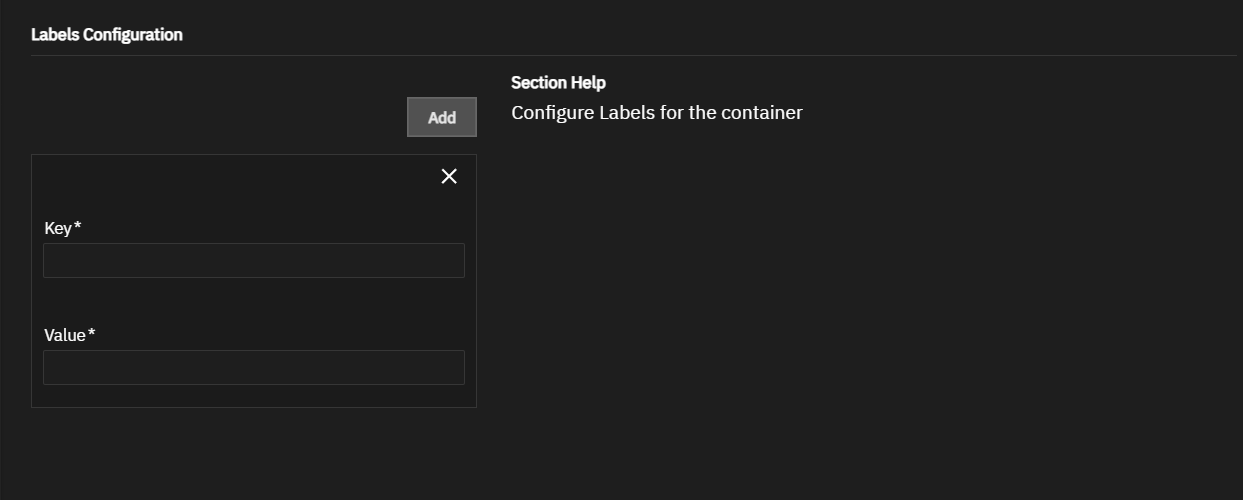
Add shows the label settings.
Key sets the label key for the container.
Value sets the label value paired with the label key.
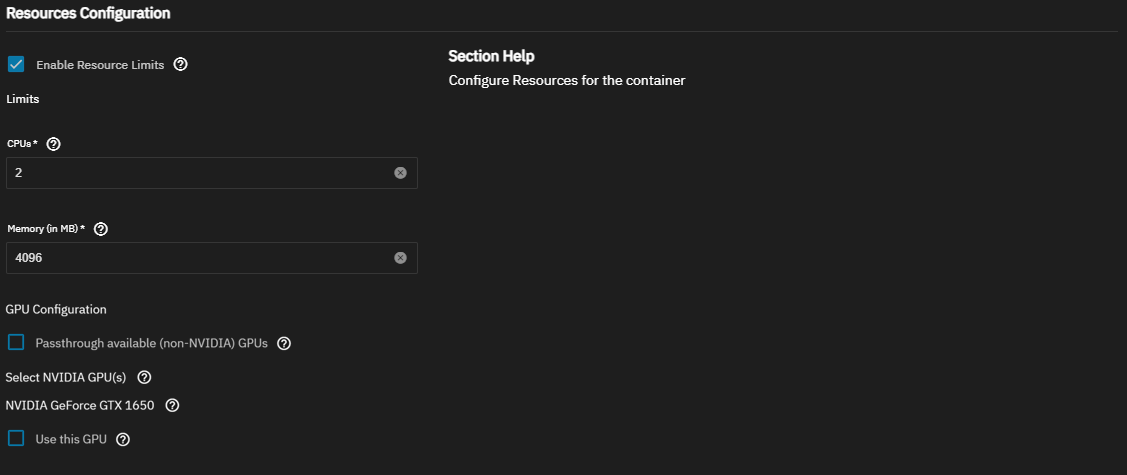
Resources Configuration settings configure resources for the container. Resource limits specify the CPU and memory limits to place on the container.
GPU Configuration settings configure GPU device allocation for application processes. Settings only show if the system detects available GPU device(s). See GPU Passthrough for more information.
The Add Custom App screen allows you to configure third-party applications using Docker Compose YAML syntax. Use the YAML editor to configure applications not included in the official catalog. See the Docker Compose overview from Docker for more information.
Installing custom applications via YAML requires advanced knowledge of Docker Compose and YAML Syntax. Users should be prepared to troubleshoot and debug their own installations. The TrueNAS forums are available for community support.
TrueNAS applies basic YAML syntax validation to custom applications, but does not apply additional validation of configuration parameters before executing the file as written.
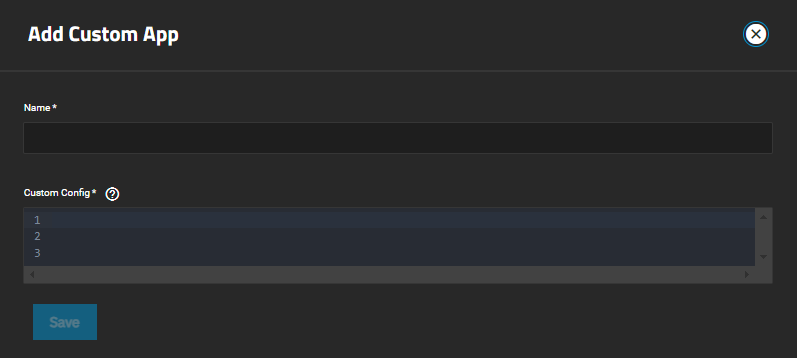
| Setting | Description |
|---|---|
| Name | Specifies a name for the application to be used in the TrueNAS UI. The name must use lowercase alphanumeric characters, start with an alphabetic character, and can end with alphanumeric character. A hyphen (-) is allowed but not as the first or last character, for example abc123, abc, abcd-1232, but not -abcd. |
| Custom Config | Specifies a Docker Compose YAML file for the application. The file must include a services: key or an include: key pointing to an external Compose file that defines services. |
Save initiates app deployment.