




TrueNAS
Products
Support & Resources
Solutions
Company
Sign In
TrueNASTrueNAS Early Release Documentation
This content follows TrueNAS 27 releases.
Use the Product and Version selectors above to view content specific to a stable software release.

Cloud Credentials Screens

These providers are supported for Cloud Sync tasks in TrueNAS:

*TrueCloud backup tasks streamline functionality for Storj iX cloud backups and restoration.

Cloud Credentials Card

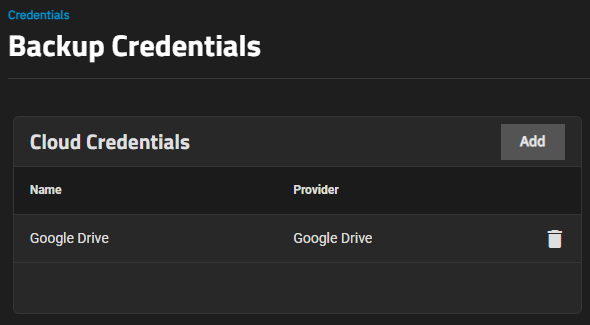
The Cloud Credentials card displays a list of cloud storage credentials configured on the system.
Cloud Credentials Card
Figure 1: Cloud Credentials Card

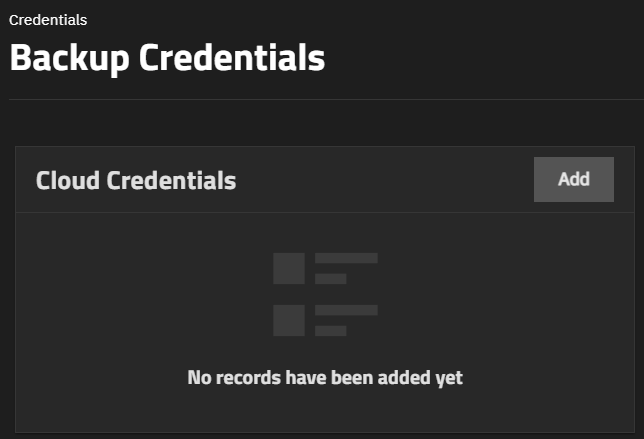
Before adding cloud credentials for a cloud storage provider, the Cloud Credentials card displays No Cloud Credentials configured.
Cloud Credentials Card No Credentials
Figure 2: Cloud Credentials Card No Credentials

Add opens the Cloud Credentials configuration screen.

Cloud Credentials Screen

The Cloud Credentials configuration screen opens pre-populated with Storj-iX as the provider. It shows settings to add or edit cloud credentials TrueNAS uses to integrate with cloud storage providers.
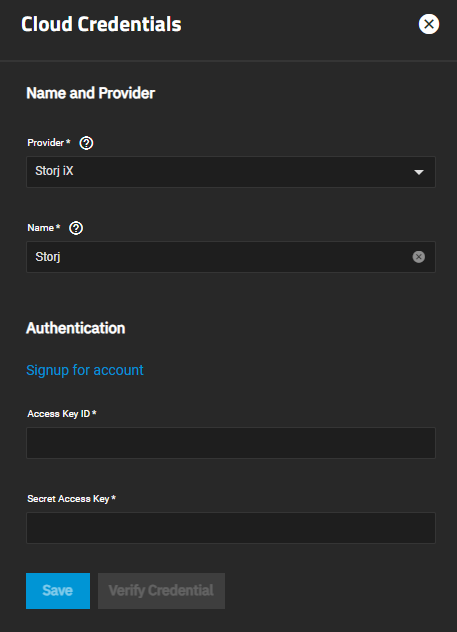
Cloud Credentials Configuration Screen
Figure 3: Cloud Credentials Configuration Screen

Provider shows a list of available providers. Select the name of a cloud provider to populate the configuration screen with credential settings for that provider.

Verify Credentials uses the credentials entered to verify access to the cloud storage provider account.

Name and Provider Settings

The selection in Provider changes the Authentication settings.

SettingDescription
ProviderSets the required service provider. Default is set to Storj. Cloud storage provider options show in the dropdown list.
NameSpecifies a name for this cloud credential. For example, cloud1 or amazon1.

Storj iX Credential

Storj authentication includes going to the Storj iX sign-in screen to either create a new Storj iX account or log into an existing Storj iX account. After configuring the Storj account in the Storj-iX portal, return to TrueNAS to enter the S3 credentials provided by Storj.
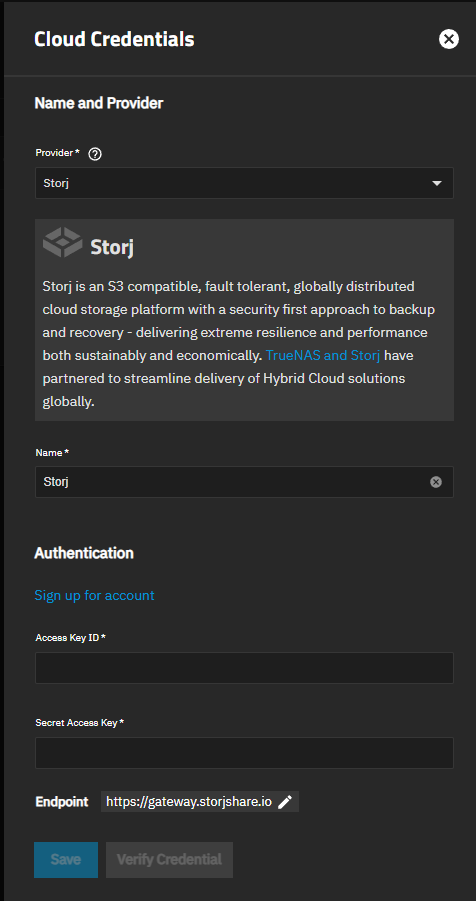
Cloud Credentials Storj iX
Figure 4: Cloud Credentials Storj iX
Storj iX Authentication Settings
SettingDescription
Signup for accountOpens the Storj iX account sign-up page where you either create a new account or sign in to your Storj iX account.
Access Key IDSpecifies the alphanumeric key provided by Storj when you create the S3 account access associated with the storage buckets added in Storj.
Secret Access KeySpecifies the alphanumeric key provided by Storj when you create the S3 account access associated with the storage buckets added in Storj.
EndpointShows an optional custom Storj S3-compatible endpoint to use a specific tier, such as Global or Select. Automatically set to the default.

Amazon S3 Credential

Amazon S3 has basic authentication and advanced authentication settings. This section provides information on the basic authentication settings.
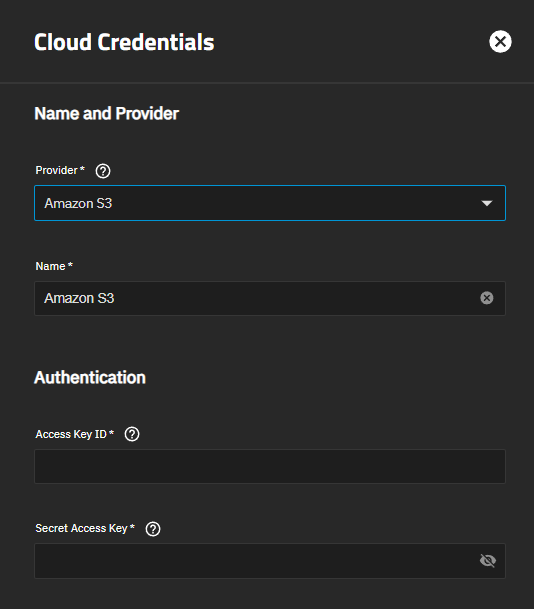
Amazon S3 Authentication Settings
Figure 5: Amazon S3 Authentication Settings
Amazon S3 Authentication Settings
SettingDescription
Access Key IDSpecifies the alphanumeric key that is between five and 20 characters for the Amazon Web Services Key ID. Find this on Amazon AWS by going through My account > Security Credentials > Access Keys (Access Key ID and Secret Access Key).
Secret Access KeySpecifies the alphanumeric key that is between eight and 40 characters for the Amazon Web Services password. If you cannot find the Secret Access Key, go to My Account > Security Credentials > Access Keys and create a new key pair.

Amazon S3 Advanced Authentication Options

This section provides information on Amazon S3 advanced authentication settings for endpoints. The basic authentication settings are required when using the advanced settings.
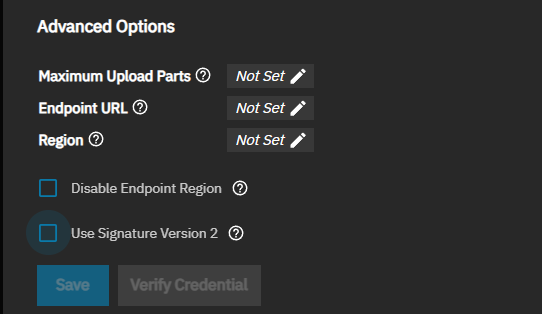
Amazon S3 Advanced Authentication Settings
Figure 6: Amazon S3 Advanced Authentication Settings
Amazon S3 Advanced Authentication Settings
SettingDescription
Maximum Upload PortsSpecifies a value that defines the maximum number of chunks for a multipart upload. Setting a maximum is necessary if a service does not support the 10,000-chunk AWS S3 specification.
Endpoint URLSpecifies an optional S3 API endpoint URL. When using AWS, you can leave the endpoint field empty to use the default endpoint for the region and automatically fetch available buckets, or enter a new endpoint. Refer to the AWS Documentation for a list of Simple Storage Service Website Endpoints.
RegionSpecifies an optional AWS resources in a geographic area. When left empty, it detects the correct public region for the bucket. Entering a private region name allows interacting with Amazon buckets created in that region. For example, enter us-gov-east-1 to discover buckets created in the eastern AWS GovCloud region.
Disable Endpoint RegionPrevents automatic detection of the bucket region. Only select if your AWS provider does not support regions.
Use Signature Version 2Forces using Signature Version 2 to sign API requests. Only select if your AWS provider does not support default version 4 signatures.
Sign Accept-EncodingIncludes the Accept-Encoding header as part of the signature. Disable if your S3 server is behind a proxy that modifies HTTP headers and you are experiencing Signature Does Not Match errors.

BackBlaze B2 Credential

This section provides information on the BackBlaze B2 authentication settings.
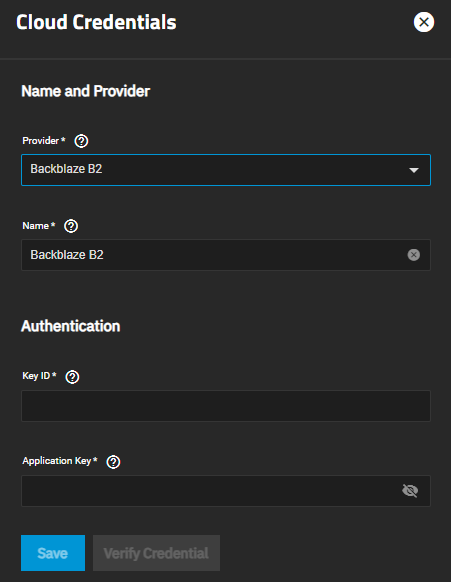
BackBlaze B2 Authentication Settings
Figure 7: BackBlaze B2 Authentication Settings
Backblaze B2 Authentication Settings
SettingDescription
Key IDSpecifies the alphanumeric Backblaze B2 Application Key ID string. If you need to generate a new application key, log in to the Backblaze account, go to the App Keys page, and add a new application key.
Application KeySpecifies the alphanumeric Backblaze B2 Application Key string. If you need to generate a new application key, log in to the Backblaze account, go to the App Keys page, and add a new application key.

OAuth and Access Token Authentication Credentials

Several cloud storage providers use OAuth authentication and a required access token to authenticate the cloud storage account. Providers using these methods are Box, Dropbox, Google Photos, pCloud, and Yandex.
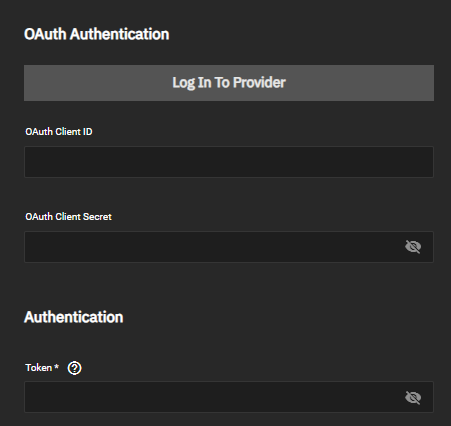
OAuth and Access Token Authentications
Figure 8: OAuth and Access Token Authentication
OAuth and Access Token Authentication Settings

Use Login to Provider to enter the account username and password.

SettingDescription
OAuth Client IDSpecifies the public identifier for the cloud application.
OAuth Client SecretSpecifies the secret phrase known only to the cloud application and the authorization server.
TokenSpecifies a User Access Token for Box. An access token enables Box to verify a request belongs to an authorized session. Example token: T9cE5asGnuyYCCqIZFoWjFHvNbvVqHjl.
Access TokenSpecifies the access token for pCloud. This token can expire and require extension.
HostnameSpecifies the hostname to connect to for the pCloud provider.

FTP and SFTP Credentials

FTP and SFTP cloud storage providers use host name, port, and user credentials to authenticate accounts. SMTP uses SSH hosts, port, and user credentials and also uses a private key.
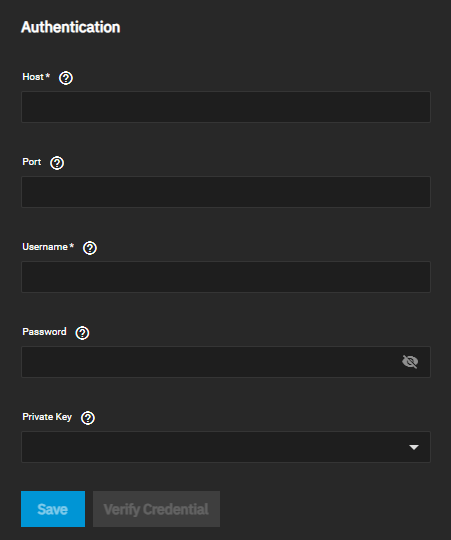
Host, Port User Credentials Authentication
Figure 9: Host, Port User Credentials Authentication
FTP and SFTP Authentication Settings
SettingDescription
HostSpecifies the FTP hostname, or for SFTP, the SSH hostname to connect. For example, ftp.example.com.
PortSpecifies the FTP or, for SFTP, the SSH port number. Leave blank to use the default port 21 for FTP or 22 for SFTP.
UsernameSpecifies a username on the FTP or SFTP host system, the SSJ username. This user must already exist on the host.
PasswordSpecifies the password for the user account.
Private Key ID(SFTP only) Imports the private key from an existing SSH key pair. When key pairs do not exist on the system, add a new SSH key pair.

Google Cloud Storage Credential

Google Cloud Storage authentication uses a Google service account JSON key credential file to authenticate the account.
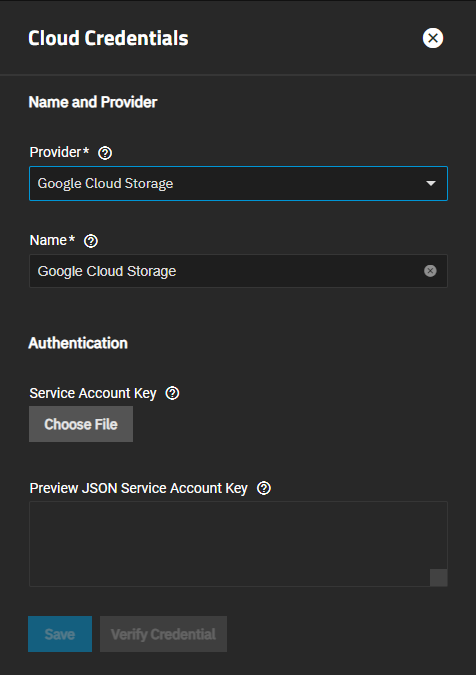
Google Cloud Storage Authentication
Figure 10: Google Cloud Storage Authentication
Google Cloud Storage Authentication Settings
SettingDescription
Service Account KeySpecifies the account key for the service. Choose File allows browsing to the file location on the server in a file browser to select the Google service account key credential file generated by the Google Cloud Platform Console to authenticate the account.
Preview JSON Service Account KeyShows the JSON file downloaded to the system server from Google Cloud Storage and uploaded with Choose File.

Google Drive Credential

Google Drive also uses OAuth authentication, a required access token, and a team drive ID to authenticate accounts. Google Drive adds one additional authentication setting to the general OAuth settings.
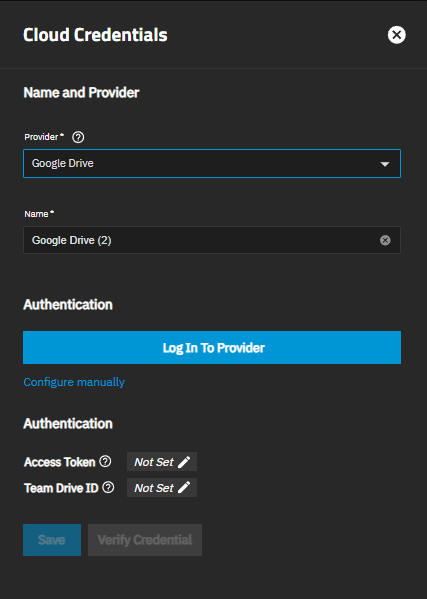
Google Drive Authentication
Figure 11: Google Drive Authentication
Google Drive Authentication Settings

Use Login to Provider to enter the account username and password.

SettingDescription
OAuth Client IDSpecifies the public identifier for the cloud application.
OAuth Client SecretSpecifies the secret phrase known only to the cloud application and the authorization server.
Access TokenSpecifies the required token created with Google Drive. Access Tokens expire periodically, so you must refresh them.
Team Drive IDSpecifies the optional ID of the top-level folder of the team drives in Google Drive. Only required when connecting to a team drive.

HTTP Credential

HTTP uses an HTTP host URL to authenticate account credentials. It is a read-only client that supports directory listings from popular web servers like Apache and Nginx.

Hubic Credential

Hubic uses an access token to authenticate the account. Enter the token generated by a Hubic account into the Access Token field.

Microsoft Azure Blob Storage Credential

Microsoft Azure Blob Storage uses the Microsoft Azure account name and account key to authenticate the account credentials.
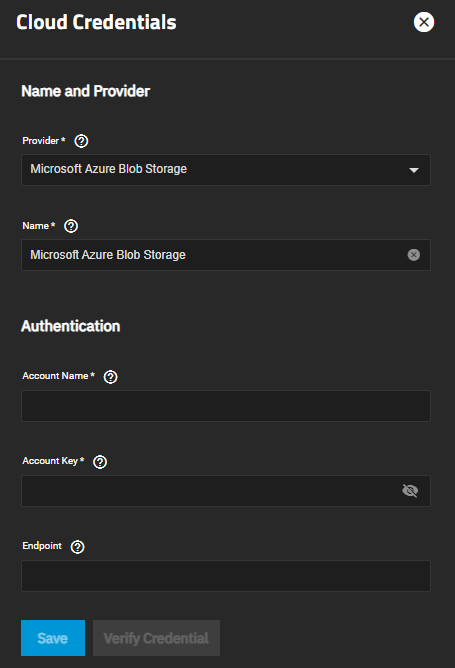
CloudCredentialsMSAzureBlogStorageAuth

Cloud Credentials Card No Credentials
Figure 12: Cloud Credentials Card No Credentials

Microsoft Azure Blob Storage Authentication Settings
SettingDescription
Account NameSpecifies the Microsoft Azure account name.
Account KeySpecifies the base64 encoded key for Azure account.
EndpointSpecfies an endpoint. For example, blob.core.usgovcloudapi.net.

OpenStack Swift Credential

OpenStack Swift uses several required settings to authenticate credential accounts. The AuthVersion setting selection changes the setting options displayed in Advanced Options.
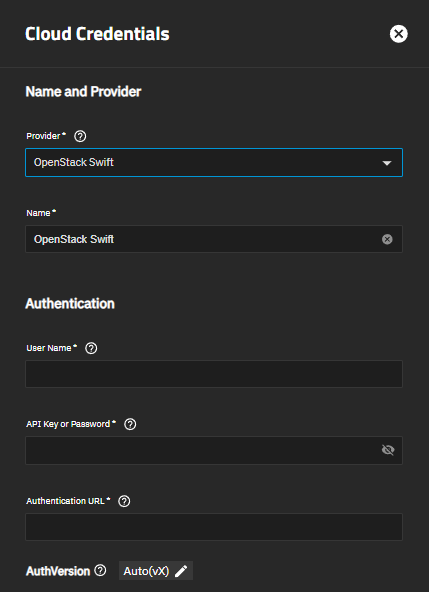
OpenStack Swift Authentication
Figure 13: OpenStack Swift Authentications
OpenStack Swift Authentication Settings
SettingDescription
User NameSpecifies the required OpenStack username (OS_USERNAME) from an OpenStack credentials file.
API Key or PasswordSpecifies the required OpenStack API key or password. This is the OS_PASSWORD from an OpenStack credentials file.
Authentication URLSpecifies the required authentication URL for the server. This is the OS_AUTH_URL from an OpenStack credentials file.
AuthVersionSets the authentication version. Options are Auto(vX), v1, v2, or v3 to specify a different authentication version (rclone documentation).

OpenStack Authentication Advanced Options

The Authentication Advanced Options screen shows different options based on the AuthVersion setting. Auto(vX), v1, and v2 use the same advanced authentication settings.
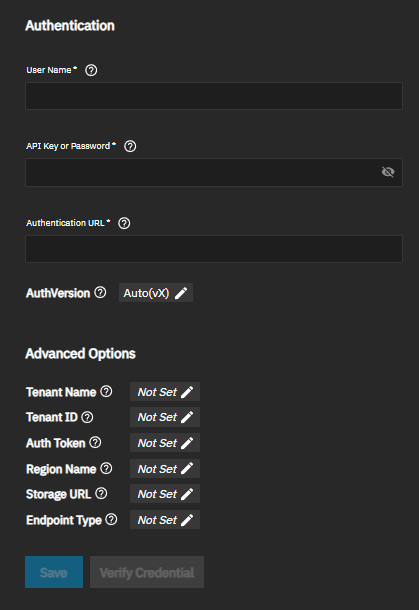
OpenStack Swift Authentication Advanced
Figure 14: OpenStack Swift Authentication Advanced
Auto(vx), V1 and V2 Authentication Settings
SettingDescription
Tenant NameSpecifies the OS_TENANT_NAME from an OpenStack credentials file.
Tenant IDSpecifies the tenant ID. Enter the tenant ID (optional for v1 auth). For more information, see rclone documentation.
Auth TokenSpecifies the optional auth token from alternate authentication. For more information, see rclone documentation.
Region NameSpecifies the optional region name. For more information, see rclone documentation.
Storage URLSpecifies the optional storage URL. For more information, see rclone documentation.
Endpoint TypeSets the service catalog option. Options are Public, Internal and Admin. Public is recommended. For more information, see rclone documentation.
V3 Authentication Settings

Setting AuthVersion to v3 shows additional authentication settings.
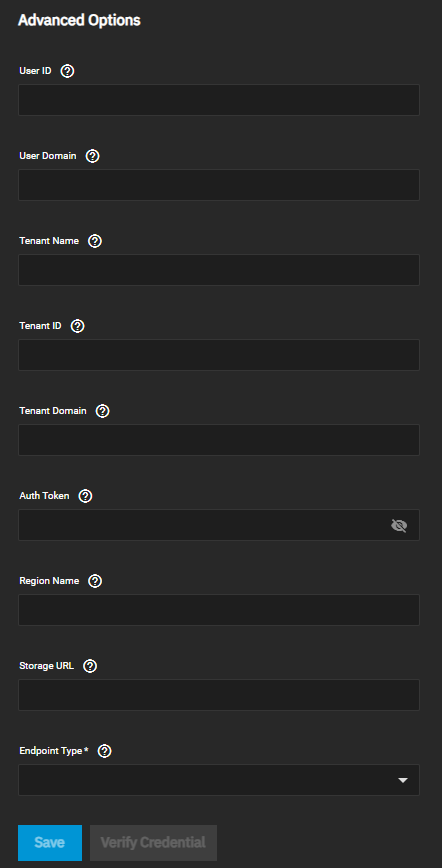
SettingDescription
User ID(Optional) Enter the user ID to log in. To log into most Swift systems, leave this blank. For more information, see rclone documentation.
User DomainSpecifies an optional user domain. For more information, see rclone documentation.
Tenant NameSpecifies the require OS_TENANT_NAME from an OpenStack credentials file.
Tenant IDSpecifies the tenant ID. Required for v2 and v3. For more information, see rclone documentation.
Tenant DomainSpecifies the optional tenant domain. For more information, see rclone documentation.
Auth TokenSpecifies the optional auth token from alternate authentication. For more information, see rclone documentation.
Region NameSpecifies the optional region name. For more information, see rclone documentation.
Storage URLSpecifies the optional storage URL. For more information, see rclone documentation.
Endpoint TypeSpecifies an endpoint from the service catalog. For more information, see rclone documentation.

WebDAV Credential

WebDAV uses a URL, service type, and user credentials to authenticate the cloud account.
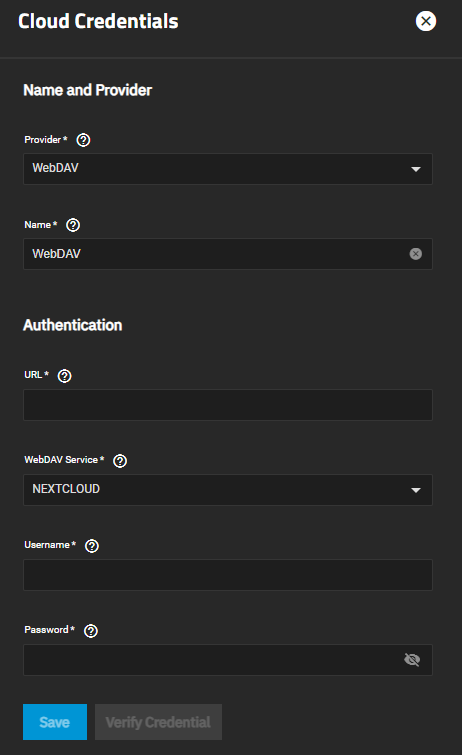
WebDAV Authentication Settings
Figure 16: WebDAV Authentication Settings
WebDAV Authentication Settings
SettingDescription
URLSpecifies the required URL of the HTTP host to connect to.
WebDAV ServiceSets the required name of the WebDAV site, service, or software used from the dropdown list. Options are NEXTCLOUD, OWNCLOUD, SHAREPOINT, or OTHER.
UsernameSpecifies the required WebDAV account username.
PasswordSpecifies the required WebDAV account password.

Microsoft OneDrive Credential

Microsoft OneDrive uses several required settings to authenticate credential accounts.
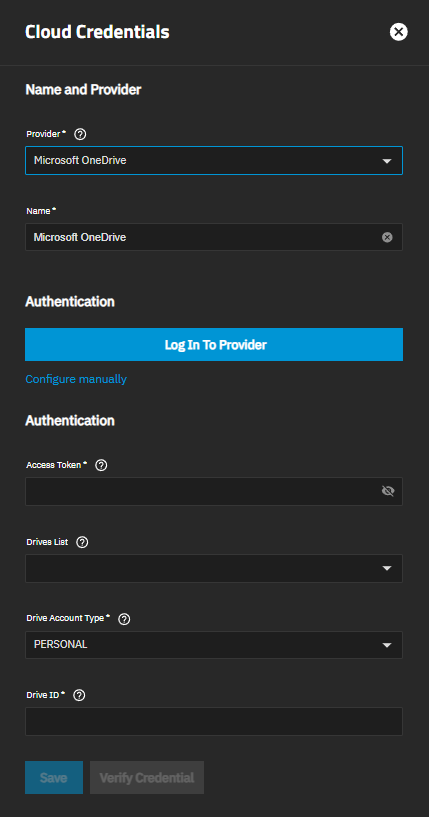
Microsoft OneDrive Cloud Credentials
Figure 17: Microsoft OneDrive Cloud Credentials
Microsoft OneDrive Authentication Settings

Configure manually shows the OAuth Client ID and OAuth Client Secret settings to manually configure OAuth.

SettingDescription
Access TokenSpecifies the required OneDrive access token found in your Microsoft account.
Drives ListSpecifies the drives and IDs registered to your Microsoft account. Entering a value in this field also fills out the Drive ID field.
Drive Account TypeSets the required type of OneDrive account you are authorizing. This is automatically selected when you log in to your Microsoft account.
**Drive ID **Specifies a unique drive identifier or keeps the auto-filled entry that shows after filling out the Drives List field.