





TrueNAS 26 Documentation
TrueNAS 26 is renamed TrueNAS 27.
This content documents the TrueNAS 26 BETA releases.
For TrueNAS 27-RC.1 and later, see the TrueNAS 27 documentation.
General Settings Screen
9 minute read.
The General Settings screen has four cards that show current general system settings and include buttons for related actions and configuration options. The cards are:
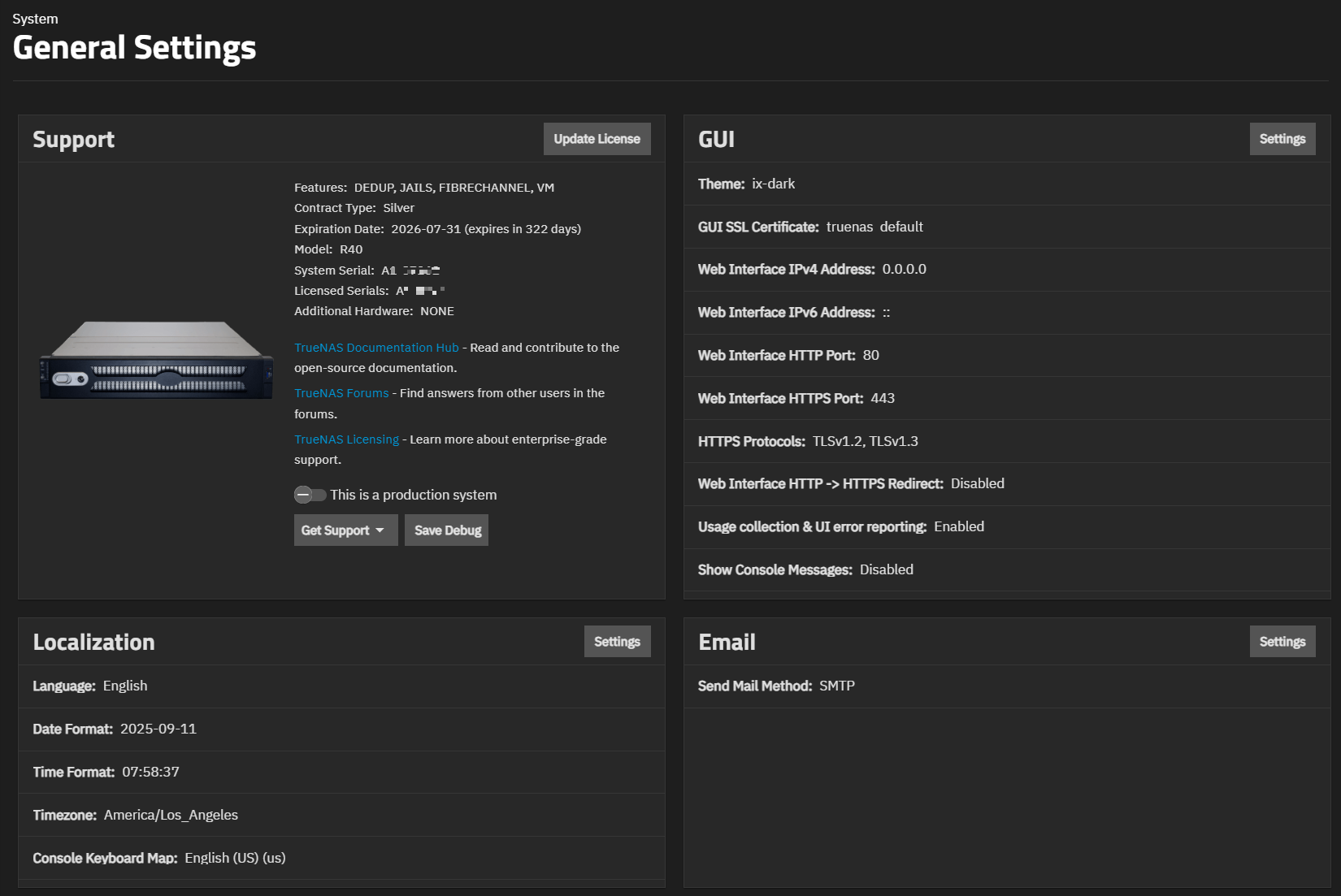
Community systems show the same cards, but are not eligible for Enterprise support options or licenses. Enterprise systems show an image of the system model.
The Support card shows system information and provides access to support resources and actions. All systems show three buttons in the card header:
- File Ticket opens a feedback/report issue window where users can provide feedback or report an issue and save/attach a system debug file.
- Save Debug starts downloading a system debug file to the local machine.
- Add License (or Update License after a license is applied) opens the License screen. Requires Full Admin role.
The Support card for TrueNAS Community Edition shows a banner with a link to the TrueNAS forums for community support, followed by system information including the OS version, system product, CPU model (if detected), memory, and system serial number (if configured).

A links row at the bottom of the card provides quick access to Documentation, Forums, and Licensing information.
The Support card on the General Settings screen for Enterprise systems displays license details including contract type, expiration date, model, system serial, licensed serials, features, and any additional hardware. Licensed systems with recognized hardware display a product image at the top of the card.
The This is a production system toggle, which shows only on TrueNAS Enterprise systems, appears alongside the Model field in the license info list. Enabling it opens the Update Production Status dialog.
The Support card displays a contextual banner depending on the system’s license tier and support configuration:
- Contract expiring soon — Shows when an active support contract expires within 14 days. Displays the number of days remaining and the expiration date, with a Contact Us link to renew.
- Set up Proactive Support — Shows for Silver/Gold tier systems where proactive support is available but not yet enabled. Click Enable to open the Proactive Support configuration screen.
- Need help? Looking for support? (Bronze tier) — Shows for systems where proactive support is not included. Provides an Explore your options link to review available support plans.
When proactive support is active, the license info list includes a Proactive Support: Enabled row with a Manage button to update contact configuration.
The Update Production Status dialog can set a TrueNAS Enterprise system to production status and can send an initial system debug to TrueNAS.
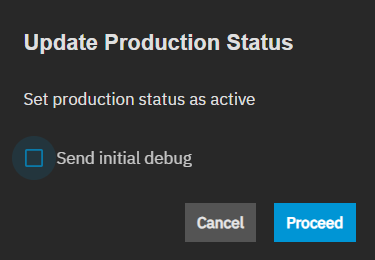
Send initial debug starts the debug download and file transfer to TrueNAS.
Proceed starts the process and sets the system to a production system.
The Send Feedback window shows two options: Rate this page and Report a Bug, which is the default selection after clicking File Ticket. The Rate this page is the default selection after clicking the option to rate a new screen shown in early release with new functional screens or redesigned screens.
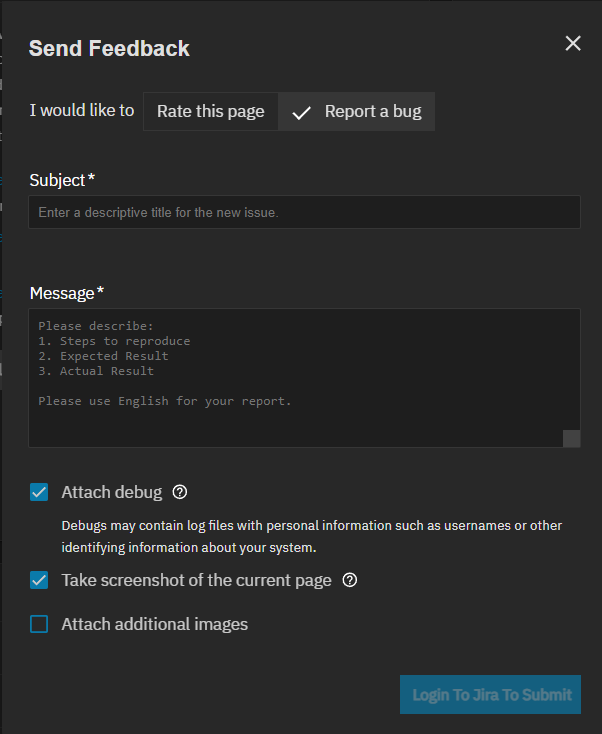
Subject is a text entry field for a brief description of an issue experienced. For example, Traceback received when pressing Save.
Message is a text entry field for a longer description of what steps were taken and the result. The field provides examples of what to enter. This content populates the Jira ticket description field after clicking Login To Jira To Submit.
Attach debug, which is selected by default, downloads and attaches a system debug to the Private Attachment Area TrueNAS provides to secure user confidential data that is part of the debug file.
Take screenshot of the current page, selected by default, takes a screenshot of the current screen.
Attach additional images opens a file browser where you can locate and attach saved logs, screenshots, or video files that help explain the issue reported in the ticket.
Login To Jira To Submit opens a Jira login screen where you enter your Jira credentials so TrueNAS can create the ticket for you using your credentials.
Select the Rate this page to show options to submit review feedback on a UI screen.
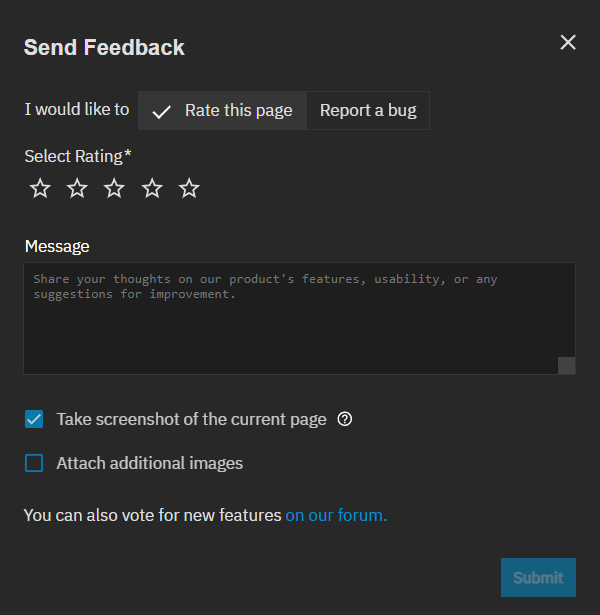
Stars set a rating using one (lowest) to five (best) stars.
Message is a text entry field for comments about the screen you are rating. Include what you like, don’t like, works well, or does not work well, and your experience with the screen.
Take screenshot of the current page, selected by default, takes a screenshot of the current screen.
Attach additional images opens a file browser where you can locate and attach saved screenshots or video files that help explain what you report in the ticket.
The on our forum link opens the TrueNAS Community forum.
Submit sends the report to TrueNAS.
The License screen opens after clicking either Add License or Update License on the Support card on the General Settings screen. It allows pasting a copy of your license into the form and saving it.
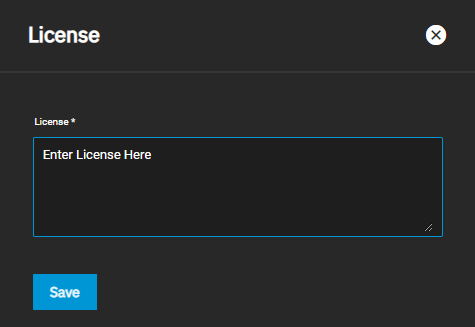
Reload Now reloads the page.
End User License Agreement (EULA) opens a copy of the TrueNAS end user license agreement. I AGREE digitally marks it signed, then closes the screen and updates the Support card with the license and hardware information.
This is a production system indicates the system is used in a production, non-test environment. Proceed sends TrueNAS an email notification that the system is in production.
Silver/Gold coverage customers can enable proactive support. This feature automatically emails TrueNAS when certain conditions occur in a TrueNAS system.
Click Enable in the Set up Proactive Support banner, or Manage in the proactive support row (when already enabled), to open the proactive support configuration screen.
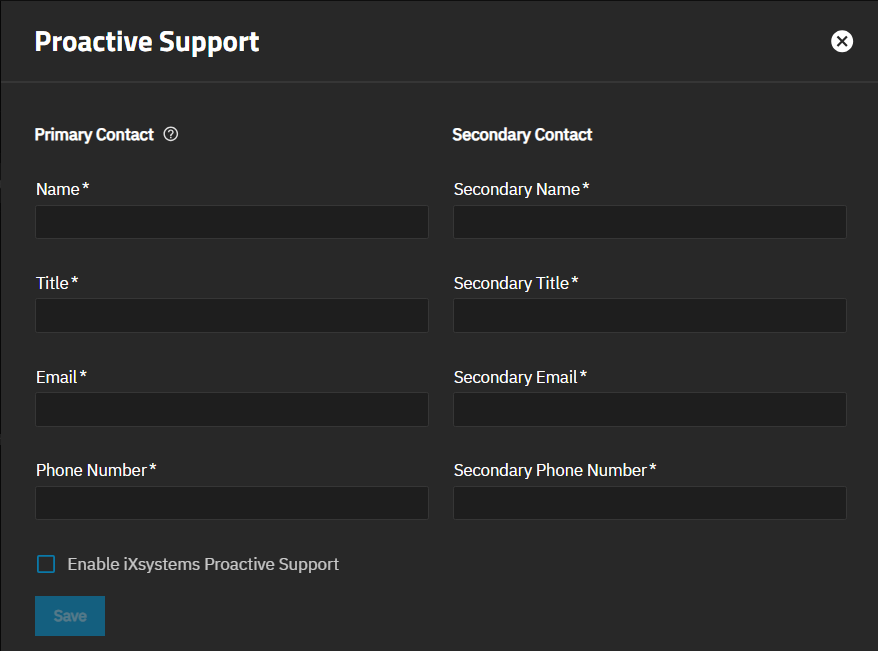
Primary Contact and Secondary Contact fields specify the customer name, title, and contact information.
Enable TrueNAS Proactive Support and Save notifies the TrueNAS team that the system is configured for proactive support.
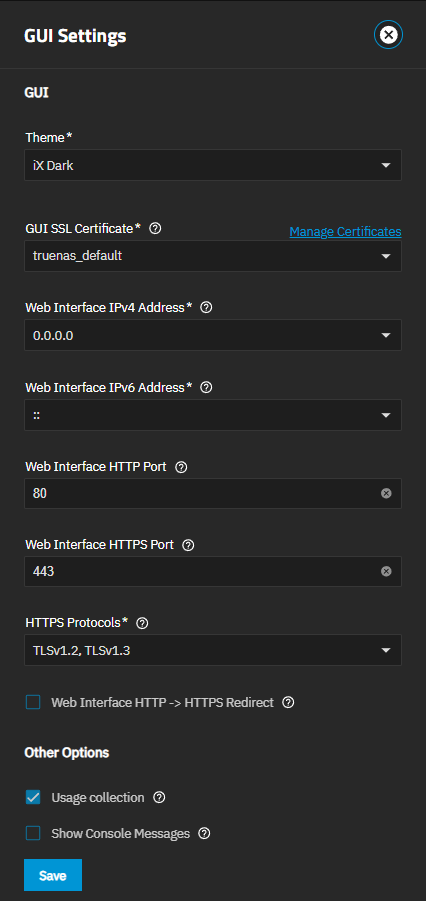
The GUI Settings screen shows configuration settings for the TrueNAS web interface.
The Localization card shows the current time zone and console keyboard map settings for the TrueNAS system. Provides access to a configuration screen to customize settings.
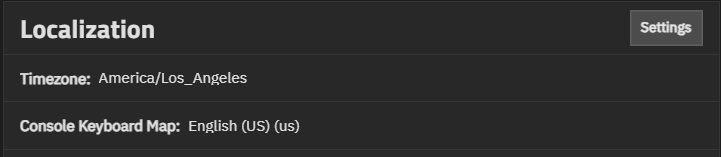
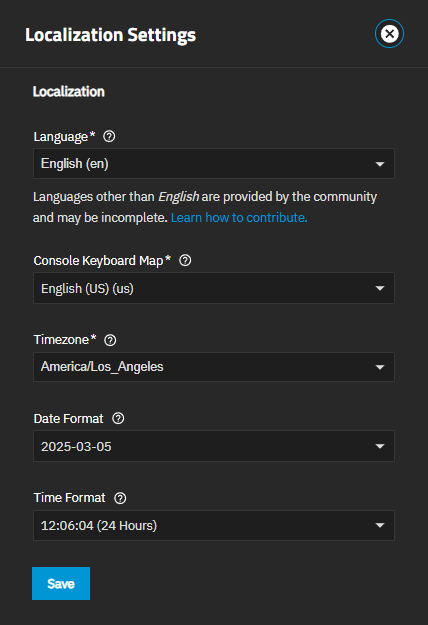
Settings opens the Localization Settings configuration screen.
The Email card shows the email configured on the system. Settings opens the Email Options configuration screen. Setting options change based on the selected send-mail method. Options:
- SMTP shows standard SMTP configuration settings.
- GMail OAuth shows the Gmail configuration options.
- Outlook OAuth shows Outlook configuration options.
The Email Options screen for the SMTP option shows standard email configuration settings.
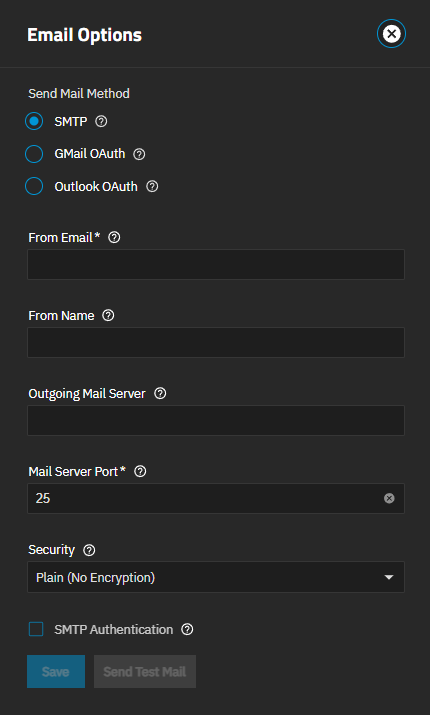
Send Test Mail generates a test email to confirm that the system email settings entered work correctly.
Save stores the email configuration and closes the Email Options screen.
Gmail OAuth and Outlook OAuth options show the From Email and From Name fields and a log-in-to button for the email method selected. GMail OAuth shows Log In To Gmail and Outlook OAuth shows Log In To Outlook. These login methods step through a sequence of login screens for the selected method. For more information, see Setting Up System Email