






TrueNAS 26 Documentation
TrueNAS 26 is renamed TrueNAS 27.
This content documents the TrueNAS 26 BETA releases.
For TrueNAS 27-RC.1 and later, see the TrueNAS 27 documentation.
Directory Services Screens
34 minute read.
The Directory Services screen and widgets provide access to TrueNAS settings to set up access to directory services and advanced authentication systems deployed in user environments.
TrueNAS does not configure Active Directory domain controllers or LDAP directory servers, nor does it configure Kerberos authentication servers or ID mapping systems.
Refer to documentation for these services and systems for information on how to configure each to suit your use case.
The Directory Services screen configuration options set up access to directory servers through domain and account settings, and can set up ID mapping or Kerberos authentication and authorization services.
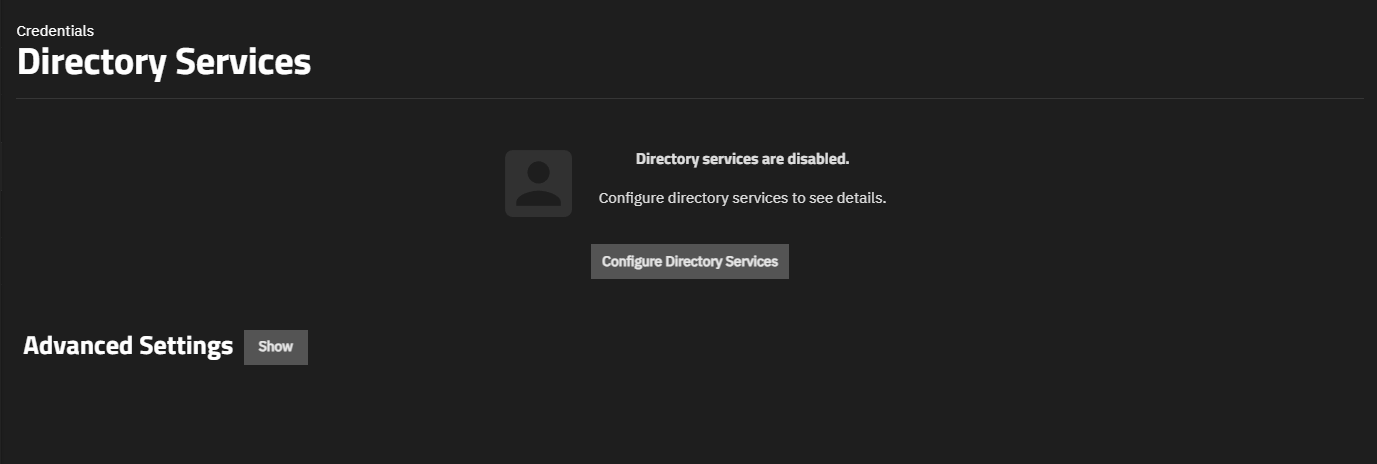
The screen shows the status of directory services when a service is not configured or when it is configured but disabled.
The main option displays:
- Configure Directory Services opens the Directory Services Configuration form where you can set up Active Directory, IPA, or LDAP connections.
- Advanced Settings
After configuring a directory service, the card for it shows a menu with two to three options:
- Settings, which opens the Edit Directory Service screen.
- Rebuild Directory Service Cache, which synchronizes the cache if it gets out of sync or there are fewer users than expected available in the permissions editors.
- Leave, which shows only when the AD server is joined and healthy. This removes the computer account and associated DNS records from Active Directory.
The Directory Services Configuration screen shows common and directory service-specific settings based on the type of directory service selected in Configuration Type.
Common settings:
Directory Service-specific settings:
- Active Directory Configuration
- AD Trusted Domain Configuration
- IDMAP Configuration
- LDAP Configuration
- Auxiliary Parameters (LDAP)
- Search Bases
- Attribute Maps
- IPA Configuration
- SMB Domain Configuration
After configuring a directory service, the Settings option opens the Directory Services Configuration screen showing the editable settings for that directory service screen.
Clear Config clears the current directory service configuration settings. Save retains changes. After using Clear Config, Save removes the cleared directory service configuration from TrueNAS allowing you to configure a new directory service configuration, for example, clearing an LDAP configuration to allow configuring Active Directory.
The Basic Configuration settings show settings common to the three directory services available in TrueNAS: Active Directory, LDAP, and IPA (formerly FreeIPA).
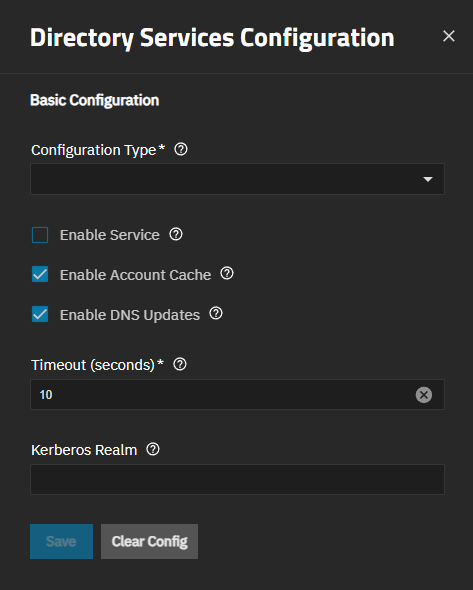
The Credential Type setting changes the authentication settings shown for the directory service no matter which type is selected in Configuration Type. Active Directory, IPA and LDAP all show Kerberos authentication options, but LDAP shows additional settings based on LDAP options.
Credential Type sets the credential used to bind to the specified directory service. Kerberos credentials are required for Active Directory or IPA domains. Generic LDAP environments support various authentication methods. Available methods depend on the remote LDAP server configuration. If Kerberos credentials are selected for LDAP, GSSAPI binds replace plain LDAP binds. Use Kerberos or mutual TLS authentication when possible for better security.
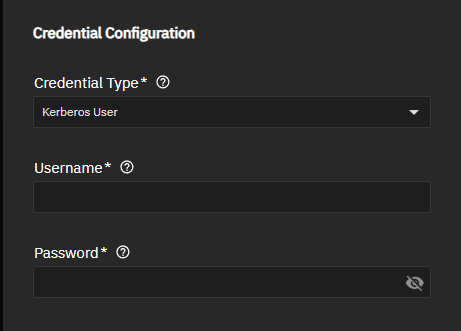
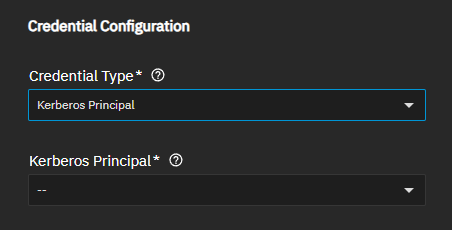
LDAP Credential Configuration Settings
When Configuration Type is set to LDAP, Credential Configuration shows five options to define the authentication method for LDAP access:
- LDAP Plain
- LDAP Anonymous (shows no additional settings)
- LDAP MTLS
- Kerberos Principal
- Kerberous User
Each option shows different settings in Credential Configuration.
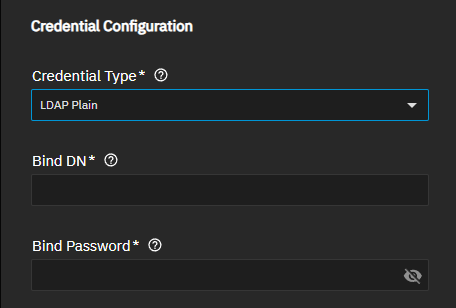
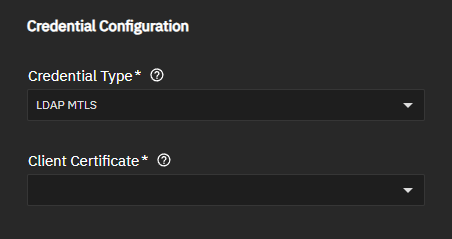
| Setting | Description |
|---|---|
| Bind DN | Specifies the distinguished name to use for authentication. This is the administrative account name for the LDAP server. Shows when LDAP Plain is selected. For example, cn=Manager,dc=test,dc=org. |
| Bind Password | Specifies the password for the Bind DN. Shows when LDAP Plain is selected. |
| Client Certificate | Specifies the client certificate to use for mutual TLS authentication to the remote LDAP server. Shows when Configuration Type is LDAP and Credential Type is LDAP MTLS. |
| Kerberos Principal | Sets the location of the principal in the keytab from Kerberos Keytab. Shows when Credential Type is set to Kerberos Principal. A Kerberos principal is the unique identity, formatted as username@DOMAIN.COM, that Kerberos uses to issue authentication tickets. Kerberos keytabs configured in TrueNAS show on the dropdown list. The specified principal must have a matching entry in a keytab stored on TrueNAS. Keytabs are managed in Directory Services > Advanced Settings > Kerberos Keytabs. If a keytab entry does not exist for the specified principal, authentication fails. |
| Username | Specifies the username of the account to used to create a Kerberos ticket for authentication to directory services. This account must exist on the domain controller. A Kerberos ticket is a time-limited encrypted credential issued by the domain controller that allows TrueNAS to authenticate to domain services without transmitting passwords over the network. Shows when Credential Type is set to Kerberos User. |
| Password | Specifies the password for the bind account that obtains the Kerberos ticket. A Kerberos ticket is a time-limited encrypted credential issued by the domain controller that allows TrueNAS to authenticate to domain services without transmitting passwords over the network. Required for first configuration only. After initial configuration, uses Kerberos Principal. Shows when Credential Type is set to Kerberos User. |
The Active Directory Configuration section settings define the connection parameters and domain-specific options.
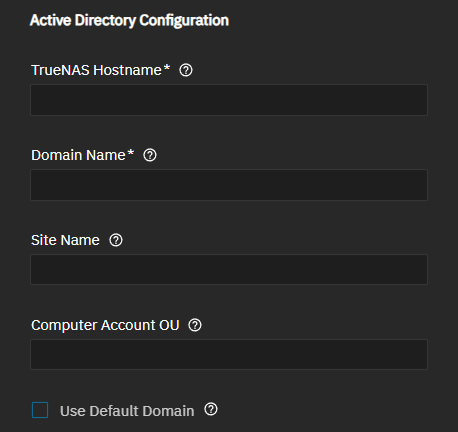
Beginning in TrueNAS 25.10, trusted domains are configured as part of the Active Directory configuration rather than as separate IDmap entries.
The Trusted Domains Configuration section controls access for trusted domains.
Enable Trusted Domains sets the Trusted Domains option that allow clients to access TrueNAS if they are members of domains with a trust relationship. Shows the Trusted Domains option that allow clients to access TrueNAS if they are members of domains with a trust relationship. When enabled, shows the Trusted Domain section and Add button. As of TrueNAS 25.10 and later, configured in directory services vs separate IDMAP entries.
Add shows the Basic Configuration section with the IDMAP Backend options.
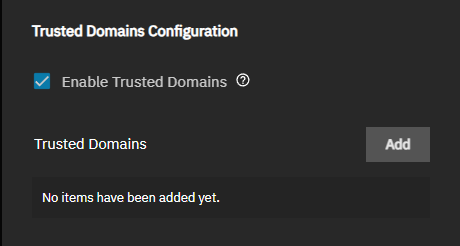
IDMAP Backend defines how domain accounts joined to TrueNAS are mapped to Unix UIDs and GIDs on the TrueNAS server. Most TrueNAS deployments use the RID backend, which algorithmically assigns UIDs and GIDs based on the Active Directory account SID. Another common option is the AD backend, which reads predefined Active Directory LDAP schema attributes that assign explicit UID and GID numbers to accounts. Another common option is the AD backend, which reads predefined Active Directory LDAP schema attributes that assign explicit UID and GID numbers to accounts.
The IDMAP Backend dropdown list shows four options:
- AD (RFC2307/SFU attributes from Active Directory)
- LDAP
- RFC2307 (RFC2307 attributes from a standalone LDAP server)
- RID (Default - algorithmic mapping based on RID values)
Each option shows different settings.
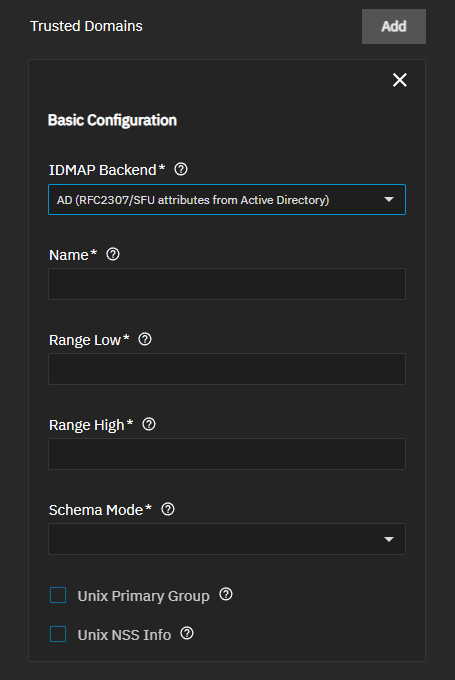
Trusted Domain AD (RFC2307/SFU Attributes from Active Directory) Settings
| Setting | Description |
|---|---|
| Name | Specifies the short name for the domain. This should match the NetBIOS domain name for Active Directory domains. |
| Range Low | Specifies the lowest UID or GID that the IDMAP backend can assign for the trusted domain. Shows for all IDMAP backend types, and when Configuration Type is Active Directory and Enable Trusted Domains is enabled. |
| Range High | Sets the highest UID or GID that the IDMAP backend can assign. UIDs and GIDs outside the range are ignored. Setting shows when Configuration Type is set to Active Directory and Use TrueNAS Server IDMAP Defaults is disabled. |
| Schema Mode | Specifies the schema mode the IDMAP backend uses to query Active Directory for user and group information. The schema mode in the IDMAP backend uses to query Active Directory for user and group information. The RFC2307 schema applies to Windows Server 2003 R2 and newer. The Services for Unix (SFU) schema applies to versions before Windows Server 2003 R2. Shows when Configuration Type is Active Directory, Enable Trusted Domains is enabled, and IDMAP Backend is AD (RFC2307/SFU attributes from Active Directory). |
| Unix Primary Group | Defines if the user’s primary group is fetched from Unix attributes (Services for Unix) or the Active Directory primary group. If enabled, the TrueNAS server uses the gidNumber LDAP attribute. If disabled, it uses the primaryGroupID LDAP attribute. |
| Unix NSS Info | If enabled, the login shell and home directory are retrieved from LDAP attributes (Unix attributes in Active Directory). If disabled, or if the Active Directory LDAP entry lacks Unix attributes, the home directory defaults to /var/empty. |
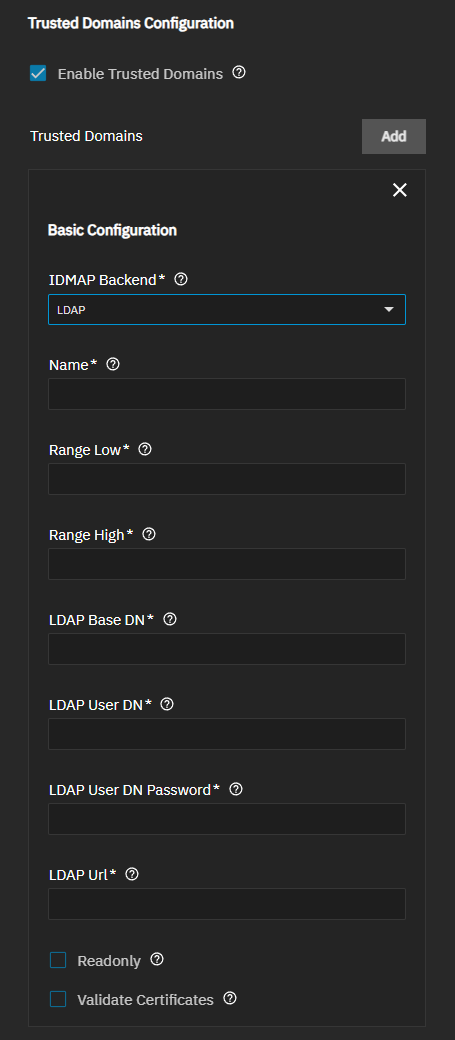
Trusted Domain LDAP Settings
| Setting | Description |
|---|---|
| Name | Specifies the short name for the domain. This should match the NetBIOS domain name for Active Directory domains. |
| Range Low | Specifies the lowest UID or GID that the IDMAP backend can assign for the trusted domain. Shows for all IDMAP backend types, and when Configuration Type is Active Directory and Enable Trusted Domains is enabled. |
| Range High | Sets the highest UID or GID that the IDMAP backend can assign. UIDs and GIDs outside the range are ignored. Setting shows when Configuration Type is set to Active Directory and Use TrueNAS Server IDMAP Defaults is disabled. |
| LDAP Base DN | Sets the directory base suffix to use for mapping UIDs and GIDs to SIDs. Shows when Configuration Type is Active Directory, Enable Trusted Domains is enabled, and IDMAP Backend is LDAP. |
| LDAP User DN | Defines the user DN to be used for authentication to the trusted domain LDAP server. Shows when Configuration Type is Active Directory, Enable Trusted Domains is enabled, and IDMAP Backend is LDAP. |
| LDAP User DN Password | Specifies the secret to use for authenticating the user specified by LDAP User DN to the trusted domain RFC2307 LDAP server. Shows when Configuration Type is Active Directory, Enable Trusted Domains is enabled, and IDMAP Backend is RFC2307 (RFC2307 attributes from a standalone LDAP server). |
| LDAP Url | Specifies the LDAP server to use for the IDMAP entries. Shows when Configuration Type is Active Directory, Enable Trusted Domains is enabled, and IDMAP Backend is RFC2307 (RFC2307 attributes from a standalone LDAP server). |
| Readonly | Prevents TrueNAS from writing new IDMAP entries to the trusted domain LDAP server. Shows when Configuration Type is Active Directory, Enable Trusted Domains is enabled, and IDMAP Backend is LDAP. |
| Validate Certificates | Verify certificate authenticity. |
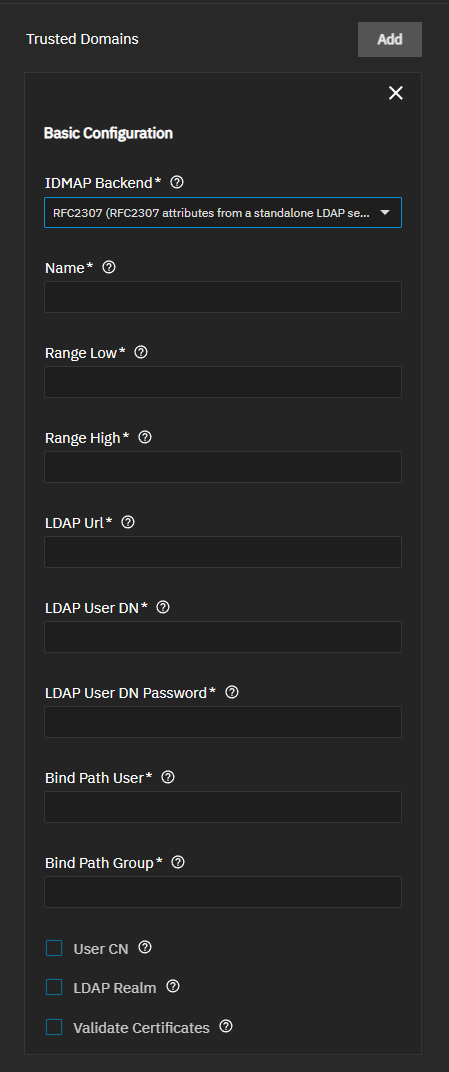
Trusted Domain RFC2307 Attributes from Standalone LDAP Server Settings
| Setting | Description |
|---|---|
| Name | Specifies the short name for the domain. This should match the NetBIOS domain name for Active Directory domains. |
| Range Low | Specifies the lowest UID or GID that the IDMAP backend can assign for the trusted domain. Shows for all IDMAP backend types, and when Configuration Type is Active Directory and Enable Trusted Domains is enabled. |
| Range High | Sets the highest UID or GID that the IDMAP backend can assign. UIDs and GIDs outside the range are ignored. Setting shows when Configuration Type is set to Active Directory and Use TrueNAS Server IDMAP Defaults is disabled. |
| LDAP Url | Specifies the LDAP server to use for the IDMAP entries. Shows when Configuration Type is Active Directory, Enable Trusted Domains is enabled, and IDMAP Backend is RFC2307 (RFC2307 attributes from a standalone LDAP server). |
| LDAP User DN | Defines the user DN used for authentication to the trusted domain RFC2307 LDAP server. Shows when Configuration Type is Active Directory, Enable Trusted Domains is enabled, and IDMAP Backend is RFC2307 (RFC2307 attributes from a standalone LDAP server). |
| LDAP User DN Password | Specifies the secret to use for authenticating the user specified by LDAP User DN to the trusted domain RFC2307 LDAP server. Shows when Configuration Type is Active Directory, Enable Trusted Domains is enabled, and IDMAP Backend is RFC2307 (RFC2307 attributes from a standalone LDAP server). |
| LDAP Url | Specifies the LDAP server to use for the IDMAP entries. Shows when Configuration Type is Active Directory, Enable Trusted Domains is enabled, and IDMAP Backend is RFC2307 (RFC2307 attributes from a standalone LDAP server). |
| Bind Path User | Specifies the search base that contains user objects in the LDAP server. Shows when Configuration Type is Active Directory, Enable Trusted Domains is enabled, and IDMAP Backend is RFC2307 (RFC2307 attributes from a standalone LDAP server). |
| Bind Path Group | Specifies the search base that contains group objects in the LDAP server. Shows when Configuration Type is Active Directory, Enable Trusted Domains is enabled, and IDMAP Backend is RFC2307 (RFC2307 attributes from a standalone LDAP server). |
| User CN | Queries the CN attribute instead of the UID attribute for the user name in LDAP. Shows when Configuration Type is Active Directory, Enable Trusted Domains is enabled, and IDMAP Backend is RFC2307 (RFC2307 attributes from a standalone LDAP server). |
| LDAP Realm | Appends @realm to the CN for groups. Also, append it to users if User CN is specified. Shows when Configuration Type is Active Directory, Enable Trusted Domains is enabled, and IDMAP Backend is RFC2307 (RFC2307 attributes from a standalone LDAP server). |
| Validate Certificate | Verify certificate authenticity. TrueNAS validates the full certificate chain. TrueNAS does not support non-CA certificates when certificate validation is required. When disabled, TrueNAS does not validate certificates from a remote LDAP server. It is better to use valid certificates or import them into the TrueNAS server trusted certificate store. Shows when Configuration Type is Active Directory, Enable Trusted Domains is enabled, and IDMAP Backend is LDAP or RFC2307 (RFC2307 attributes from a standalone LDAP server). |
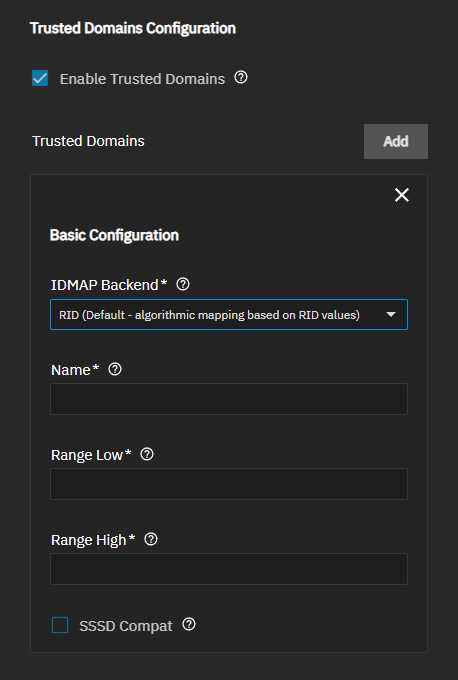
Trusted Domain RID (Default - Algorithmic Mapping Based on RID Values) Settings
| Setting | Description |
|---|---|
| Name | Specifies the short name for the domain. This should match the NetBIOS domain name for Active Directory domains. |
| Range Low | Specifies the lowest UID or GID that the IDMAP backend can assign for the trusted domain. Shows for all IDMAP backend types, and when Configuration Type is Active Directory and Enable Trusted Domains is enabled. |
| Range High | Sets the highest UID or GID that the IDMAP backend can assign. UIDs and GIDs outside the range are ignored. Setting shows when Configuration Type is set to Active Directory and Use TrueNAS Server IDMAP Defaults is disabled. |
| SSSD Compat | Generates an IDMAP low range using the algorithm from SSSD. Use this option if the domain uses only a single SSSD IDMAP slice. Shows when Configuration Type is Active Directory, Enable Trusted Domains is enabled, and IDMAP Backend is RID (Default - algorithmic mapping based on RID values). |
Use Trusted Server IDMAP Defaults is enabled by default. Use the TrueNAS default IDMAP configuration unless you want to customize ID mapping. Defaults are suitable for new deployments without existing support for Unix-like operating systems. The default configuration uses the RID backend with predefined UID/GID ranges (builtin: 90000001-100000000, domain: 100000001-200000000).
When disabled, it shows IDMAP configuration settings to customize ID mapping.
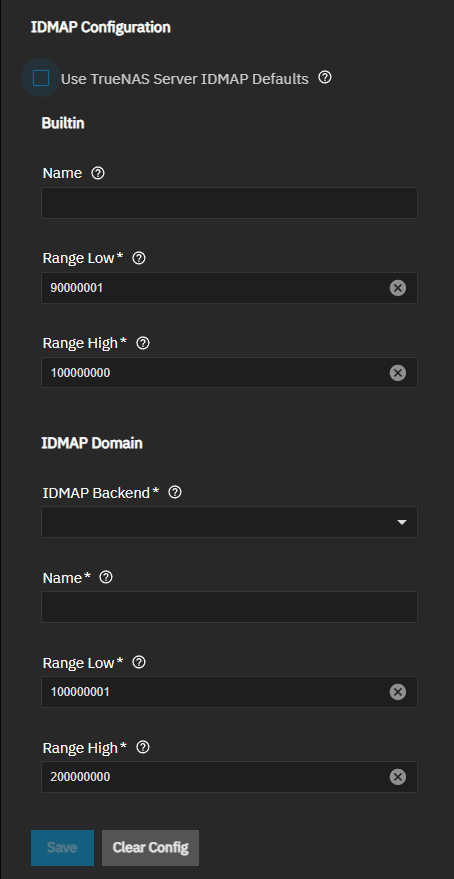
Only administrators experienced with configuring ID mapping should customize IDMAP settings.
The Builtin settings map Windows built-in local groups to Unix GIDs, defining the UID/GID range allocated to Windows built-in local groups, such as Administrators, Users, and Guests. TrueNAS creates this entry automatically when joining a domain. Adjust the range only if it conflicts with existing local UID/GID assignments.
IDMAP Domain settings configure how TrueNAS maps Windows domain users and groups from the joined domain to Unix UIDs and GIDs. The selected backend determines whether mappings are generated algorithmically or read from directory attributes. The UID/GID range defined here must not overlap with local accounts or trusted domain ranges.
The IDMAP Backend configuration defines how domain accounts the domain TrueNAS is joined to are mapped to Unix UIDs and GIDs on the TrueNAS server. Most TrueNAS deployments use the RID backend, which algorithmically assigns UIDs and GIDs based on the Active Directory account SID. Another common option is the AD backend, which reads predefined Active Directory LDAP schema attributes that assign explicit UID and GID numbers to accounts.
The IDMAP Backend dropdown list shows four options:
- AD (RFC2307/SFU attributes from Active Directory)
- LDAP
- RFC2307 (RFC2307 attributes from a standalone LDAP server)
- RID (Default - algorithmic mapping based on RID values)
Each option shows different settings.
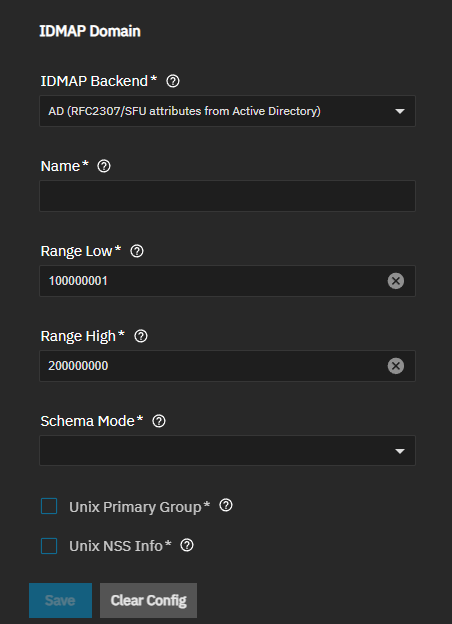
IDMAP Domain AD (RFC2307/SFU Attributes from Active Directory) Settings
| Setting | Description |
|---|---|
| Name | Specifies the short name for the joined domain. Typically matches the NetBIOS domain name. |
| Range Low | Sets the lowest UID or GID that the IDMAP backend can assign. UIDs and GIDs outside the range are ignored. Setting shows when Configuration Type is set to Active Directory and Use TrueNAS Server IDMAP Defaults is disabled. |
| Range High | Sets the highest UID or GID that the IDMAP backend can assign. UIDs and GIDs outside the range are ignored. Setting shows when Configuration Type is set to Active Directory and Use TrueNAS Server IDMAP Defaults is disabled. |
| Schema Mode | Specifies the schema mode the IDMAP backend uses to query Active Directory for user and group information. The schema mode in the IDMAP backend uses to query Active Directory for user and group information. The RFC2307 schema applies to Windows Server 2003 R2 and newer. The Services for Unix (SFU) schema applies to versions before Windows Server 2003 R2. Shows when Configuration Type is Active Directory, Enable Trusted Domains is enabled, and IDMAP Backend is AD (RFC2307/SFU attributes from Active Directory). |
| Unix Primary Group | Defines if the user primary group is fetched from Unix attributes (Services for Unix) or the Active Directory primary group. If enabled, TrueNAS ses the gidNumber LDAP attribute. If disabled, it uses the primaryGroupID LDAP attribute. Shows when Configuration Type is Active Directory, Enable Trusted Domains is enabled, and IDMAP Backend is AD (RFC2307/SFU attributes from Active Directory). |
| Unix NSS Info | Controls whether login shell and home directory are retrieved from LDAP Unix attributes in Active Directory. When disabled, or if the Active Directory LDAP entry lacks Unix attributes, the home directory defaults to |
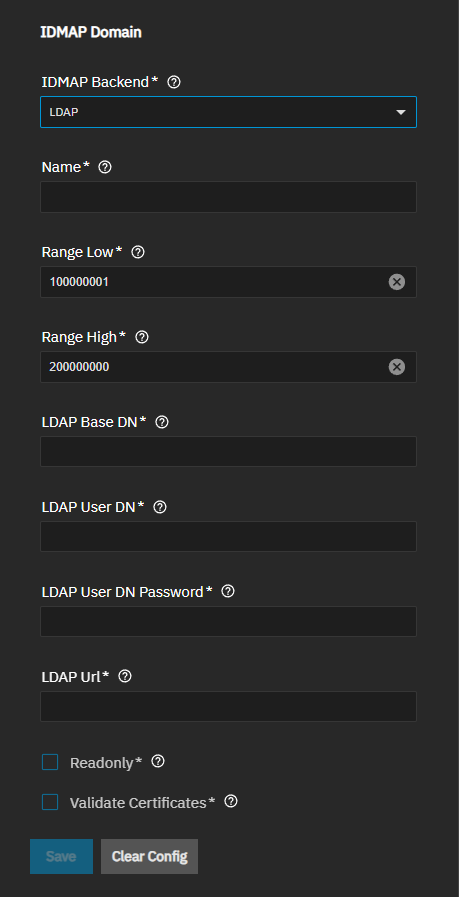
IDMAP Domain LDAP Settings
| Setting | Description |
|---|---|
| Name | Specifies the short name for the joined domain. Typically matches the NetBIOS domain name. |
| Range Low | Sets the lowest UID or GID that the IDMAP backend can assign. UIDs and GIDs outside the range are ignored. Setting shows when Configuration Type is set to Active Directory and Use TrueNAS Server IDMAP Defaults is disabled. |
| Range High | Sets the highest UID or GID that the IDMAP backend can assign. UIDs and GIDs outside the range are ignored. Setting shows when Configuration Type is set to Active Directory and Use TrueNAS Server IDMAP Defaults is disabled. |
| LDAP Base DN | Sets the directory base suffix to use for mapping UIDs and GIDs to SIDs. Shows when Configuration Type is Active Directory, Enable Trusted Domains is enabled, and IDMAP Backend is LDAP. |
| LDAP User DN | Defines the user DN used for authentication to the trusted domain RFC2307 LDAP server. Shows when Configuration Type is Active Directory, Enable Trusted Domains is enabled, and IDMAP Backend is RFC2307 (RFC2307 attributes from a standalone LDAP server). |
| LDAP User DN Password | Specifies the secret to use for authenticating the user specified by ldap_user_dn to the trusted domain LDAP server. Shows when Configuration Type is Active Directory, Enable Trusted Domains is enabled, and IDMAP Backend is LDAP or RFC2307 (RFC2307 attributes from a standalone LDAP server). |
| LDAP Url | LDAP server to use for the IDMAP entries. Shows when Configuration Type is Active Directory, Enable Trusted Domains is enabled, and IDMAP Backend is RFC2307 (RFC2307 attributes from a standalone LDAP server). |
| Readonly | Prevents TrueNAS from writing new IDMAP entries to the trusted domain LDAP server. Shows when Configuration Type is Active Directory, Enable Trusted Domains is enabled, and IDMAP Backend is LDAP. |
| Validate Certificates | Verify certificate authenticity. TrueNAS validates the full certificate chain. TrueNAS does not support non-CA certificates when certificate validation is required. When disabled, TrueNAS does not validate certificates from a remote LDAP server. It is better to use valid certificates or import them into the TrueNAS server trusted certificate store. Shows when Configuration Type is Active Directory, Enable Trusted Domains is enabled, and IDMAP Backend is LDAP or RFC2307 (RFC2307 attributes from a standalone LDAP server). |
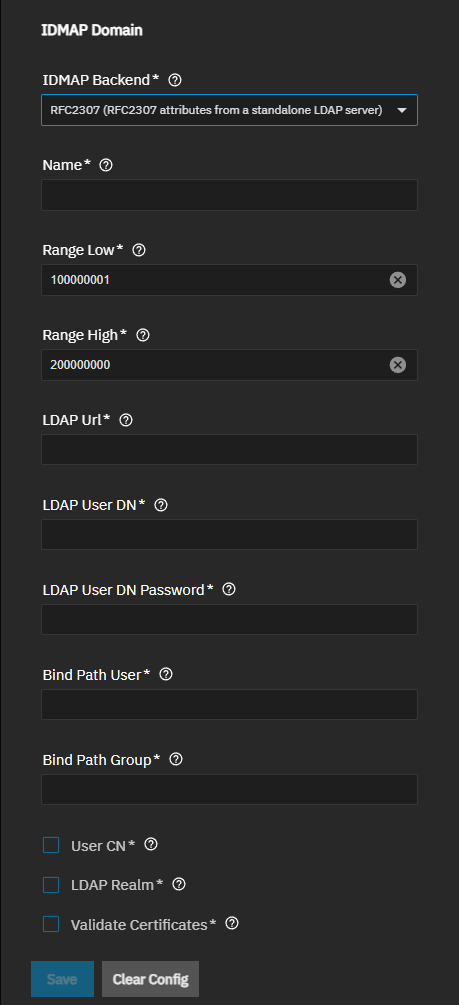
IDMAP Domain RFC2307 Attributes from Standalone LDAP Server Settings
| Setting | Description |
|---|---|
| Name | Specifies the short name for the joined domain. Typically matches the NetBIOS domain name. |
| Range Low | Sets the lowest UID or GID that the IDMAP backend can assign. UIDs and GIDs outside the range are ignored. Setting shows when Configuration Type is set to Active Directory and Use TrueNAS Server IDMAP Defaults is disabled. |
| Range High | Sets the highest UID or GID that the IDMAP backend can assign. UIDs and GIDs outside the range are ignored. Setting shows when Configuration Type is set to Active Directory and Use TrueNAS Server IDMAP Defaults is disabled. |
| LDAP Url | LDAP server to use for the IDMAP entries. Shows when Configuration Type is Active Directory, Enable Trusted Domains is enabled, and IDMAP Backend is RFC2307 (RFC2307 attributes from a standalone LDAP server). |
| LDAP User DN | Defines the user DN used for authentication to the trusted domain RFC2307 LDAP server. Shows when Configuration Type is Active Directory, Enable Trusted Domains is enabled, and IDMAP Backend is RFC2307 (RFC2307 attributes from a standalone LDAP server). |
| LDAP User DN Password | Specifies the secret to use for authenticating the user specified by ldap_user_dn to the trusted domain LDAP server. Shows when Configuration Type is Active Directory, Enable Trusted Domains is enabled, and IDMAP Backend is LDAP or RFC2307 (RFC2307 attributes from a standalone LDAP server). |
| Bind Path User | Specifies the search base that contains user objects in the LDAP server. Shows when Configuration Type is Active Directory, Enable Trusted Domains is enabled, and IDMAP Backend is RFC2307 (RFC2307 attributes from a standalone LDAP server). |
| Bind Path Group | Specifies the search base that contains group objects in the LDAP server. Shows when Configuration Type is Active Directory, Enable Trusted Domains is enabled, and IDMAP Backend is RFC2307 (RFC2307 attributes from a standalone LDAP server). |
| User CN | Queries the CN attribute instead of the UID attribute for the user name in LDAP. Shows when Configuration Type is Active Directory, Enable Trusted Domains is enabled, and IDMAP Backend is RFC2307 (RFC2307 attributes from a standalone LDAP server). |
| LDAP Realm | Appends @realm to the CN for groups. Also, append it to users if User CN is specified. Shows when Configuration Type is Active Directory, Enable Trusted Domains is enabled, and IDMAP Backend is RFC2307 (RFC2307 attributes from a standalone LDAP server). |
| Validate Certificate | Verify certificate authenticity. TrueNAS validates the full certificate chain. TrueNAS does not support non-CA certificates when certificate validation is required. When disabled, TrueNAS does not validate certificates from a remote LDAP server. It is better to use valid certificates or import them into the TrueNAS server trusted certificate store. Shows when Configuration Type is Active Directory, Enable Trusted Domains is enabled, and IDMAP Backend is LDAP or RFC2307 (RFC2307 attributes from a standalone LDAP server). |
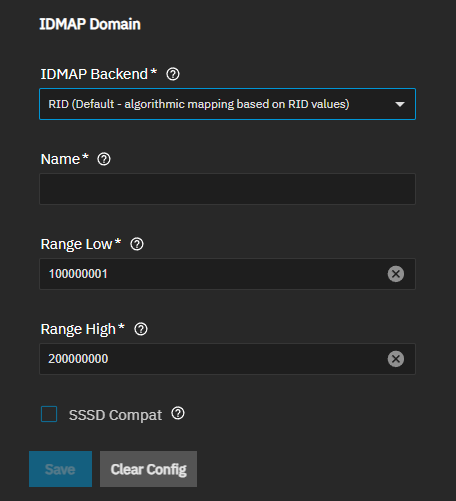
IDMAP Domain RID (Default - Algorithmic Mapping Based on RID Values) Settings
| Setting | Description |
|---|---|
| Name | Specifies the short name for the joined domain. Typically matches the NetBIOS domain name. |
| Range Low | Sets the lowest UID or GID that the IDMAP backend can assign. UIDs and GIDs outside the range are ignored. Setting shows when Configuration Type is set to Active Directory and Use TrueNAS Server IDMAP Defaults is disabled. |
| Range High | Sets the highest UID or GID that the IDMAP backend can assign. UIDs and GIDs outside the range are ignored. Setting shows when Configuration Type is set to Active Directory and Use TrueNAS Server IDMAP Defaults is disabled. |
| SSSD Compat | Generate an IDMAP low range using the algorithm from SSSD. Use this option if the domain uses only a single SSSD IDMAP slice. |
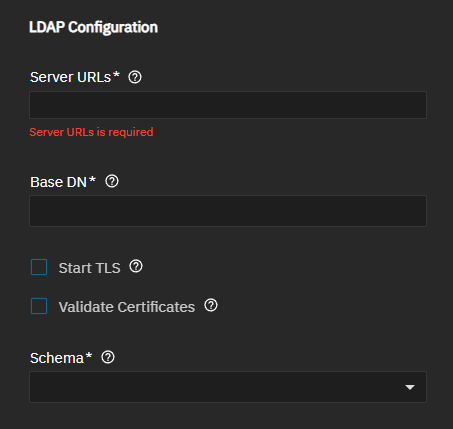
The LDAP Configuration section settings define the connection parameters and validation options.
The Auxiliary Parameters subsection allows customization of auxiliary parameters.
Use Standard Auxiliary Parameters sets the LDAP directory server to use standard auxiliary parameters. Disable to enter custom options for nslcd.conf. Warning! Auxiliary parameters are an unsupported configuration. Parameters entered here are not validated and can cause undefined system behaviors, including data corruption or data loss! Disabled by default.
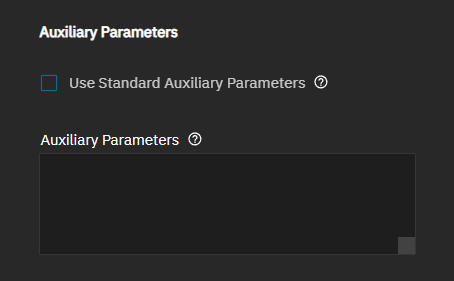
Auxiliary parameters are an unsupported configuration. Parameters entered here are not validated and can cause undefined system behavior, including data corruption or data loss.
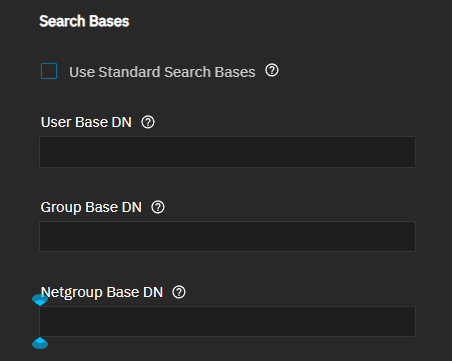
The Search Bases uses standard search bases when enabled. Disable to allows customization of search base DNs. Use the base DN for user, group, and netgroup searches. Disable to specify alternative LDAP search base settings to define where to find user, group, and netgroup entries. Use custom search bases only if the LDAP server uses a non-standard LDAP schema or if you want to limit the accounts available on TrueNAS.
The Attribute Maps settings allow customization of attribute mappings by defining custom LDAP attribute names for user and group account fields. An attribute left blank uses the default attribute name for that field. Only use custom attribute maps if the LDAP server is non-standard, if your LDAP schema uses non-standard attribute names.
Use Standard Attribute Maps is enabled by default, and uses standard RFC2307 or RFC2307BIS attribute mappings. When disabled, the standard LDAP attribute mapping for LDAP servers that do not follow RFC2307 or RFC2307BIS shows to allow for customization.
The screen groups settings into LDAP password attributes, shadow attributes, and group attributes: LDAP Password Attributes, LDAP Shadow Attributes, LDAP Group Attributes, and LDAP Net Group Attributes.
LDAP Password Attribute Settings
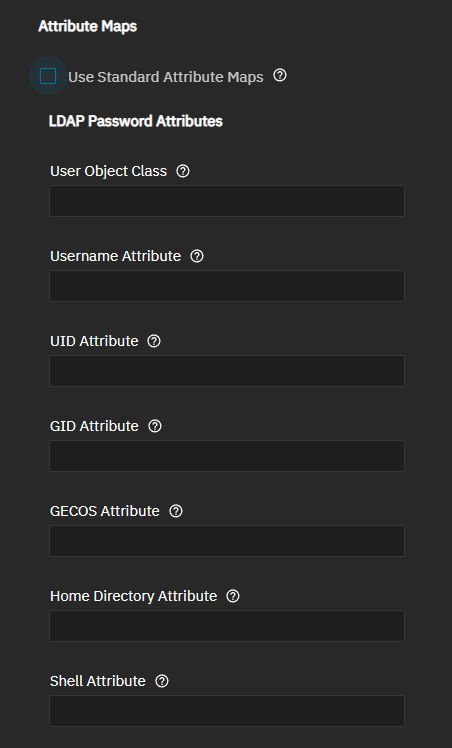
| Setting | Description |
|---|---|
| User Object Class | Specifies the entry object class in LDAP for the user entries. Shows when Configuration Type is LDAP and Use Standard Attribute Maps is disabled. |
| Username Attribute | Specifies the LDAP attribute for the login name for the user. Shows when Configuration Type is LDAP and Use Standard Attribute Maps is disabled. |
| UID Attribute | Specifies the LDAP attribute for the id of the user. Shows when Configuration Type is LDAP and Use Standard Attribute Maps is disabled. |
| GID Attribute | Specifies the LDAP attribute for the primary group id for the user. Shows when Configuration Type is LDAP and Use Standard Attribute Maps is disabled. |
| GECOS Attribute | Specifies the LDAP attribute for the gecos field for the user. Shows when Configuration Type is LDAP and Use Standard Attribute Maps is disabled. |
| Home Directory Attribute | Specifies the LDAP attribute for the home directory for the user. Shows when Configuration Type is LDAP and Use Standard Attribute Maps is disabled. |
| Shell Attribute | Specifies the LDAP attribute for the path to the default shell for the user. Shows when Configuration Type is LDAP and Use Standard Attribute Maps is disabled. |
LDAP Shadow Attribute Settings
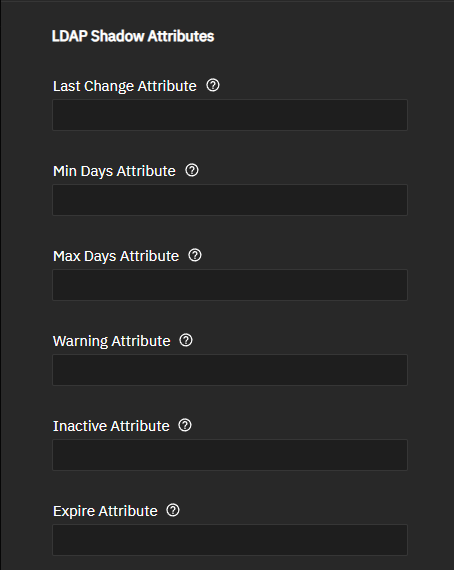
| Setting | Description |
|---|---|
| Last Change Attribute | Specifies the LDAP attribute for password last change date. Shows when Configuration Type is LDAP and Use Standard Attribute Maps is disabled. |
| Min Days Attribute | Specifies the LDAP attribute for minimum password age. Shows when Configuration Type is LDAP and Use Standard Attribute Maps is disabled. |
| Max Days Attribute | Specifies the LDAP attribute for maximum password age. Shows when Configuration Type is LDAP and Use Standard Attribute Maps is disabled. |
| Warning Attribute | Specifies the LDAP attribute for password warning period. Shows when Configuration Type is LDAP and Use Standard Attribute Maps is disabled. |
| Inactive Attribute | Specifies the LDAP attribute for the account inactive period. Shows when Configuration Type is LDAP and Use Standard Attribute Maps is disabled. |
| Expire Attribute | Specifies the LDAP attribute for account expiration. Shows when Configuration Type is LDAP and Use Standard Attribute Maps is disabled. |
LDAP Group Attribute Settings
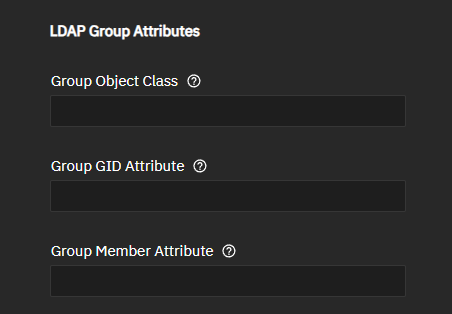
| Setting | Description |
|---|---|
| Group Object Class | Specifies the LDAP object class for groups. Shows when Configuration Type is LDAP and Use Standard Attribute Maps is disabled. |
| Netgroup Member Attribute | Specifies the LDAP attribute for group members. Shows when Configuration Type is LDAP and Use Standard Attribute Mapsis disabled. |
| Netgroup Triple Attribute | Specifies the LDAP attribute for group triples. Shows when Configuration Type is LDAP and Use Standard Attribute Maps is disabled. |
| type: input |
LDAP Net Group Attribute Settings
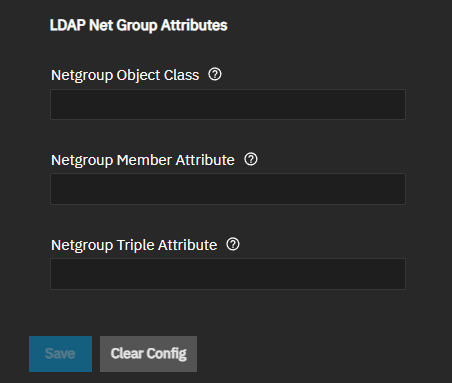
| Setting | Description |
|---|---|
| Netgroup Object Class | Specifies the LDAP object class for netgroup entries. Shows when Configuration Type is LDAP and Use Standard Attribute Maps is disabled. |
| Netgroup Member Attribute | Specifies the LDAP attribute for group members. Shows when Configuration Type is LDAP and Use Standard Attribute Mapsis disabled. |
| Netgroup Triple Attribute | Specifies the LDAP attribute for group triples. Shows when Configuration Type is LDAP and Use Standard Attribute Maps is disabled. |
The IPA Configuration settings define the connection parameters and validation options.
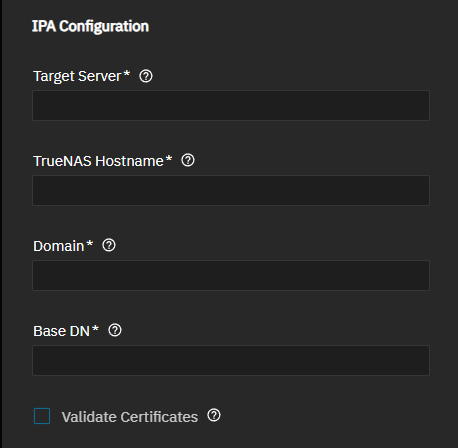
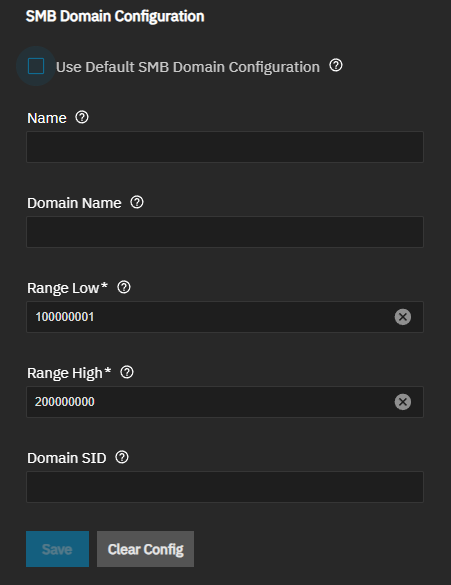
The SMB Domain Configuration settings control SMB integration.
Use Default SMB Domain Configuration is enabled by default, and uses the default SMB domain settings detected during the IPA join. Settings for the IPA SMB domain are automatically detected by TrueNAS during the domain join process. Some IPA domains might not include SMB schema configuration. IPA includes integrated Samba support and can provide user and group information for SMB authentication. Disable to enter custom settings.
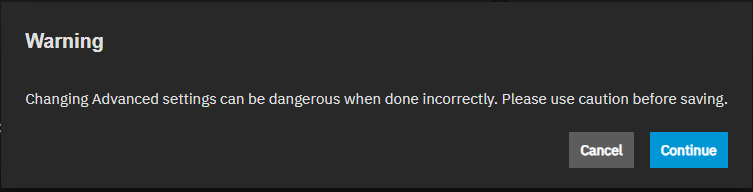
The Show button to the right of Advanced Settings opens a warning dialog stating that incorrectly configuring advanced settings is dangerous. Continue closes the warning dialog.
After closing the warning dialog, the Directory Services screen shows the Kerberos Realm and Kerberos Keytab cards.
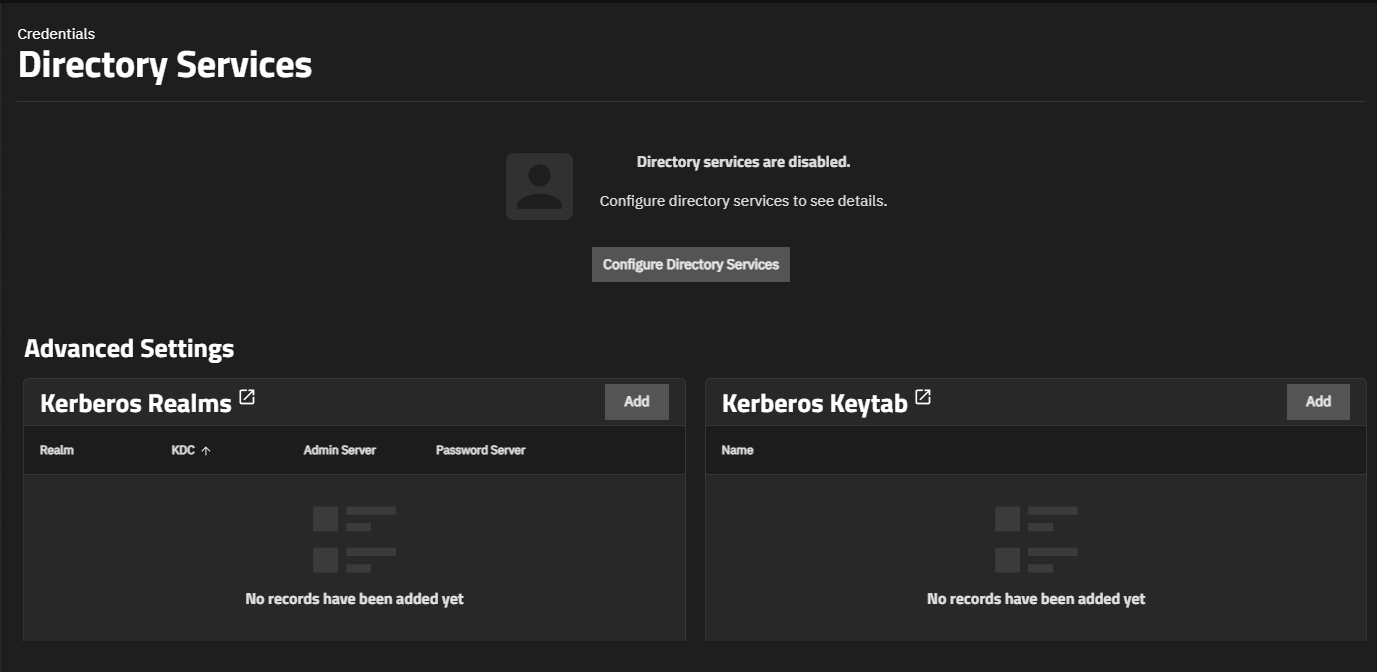
Each Kerberos card shows the realms or keytabs configured in TrueNAS.
Add on the Kerberos cards opens configuration screens for each Kerberos function:
The Add Kerberos Realm screen allows adding a Kerberos realm to the TrueNAS system.
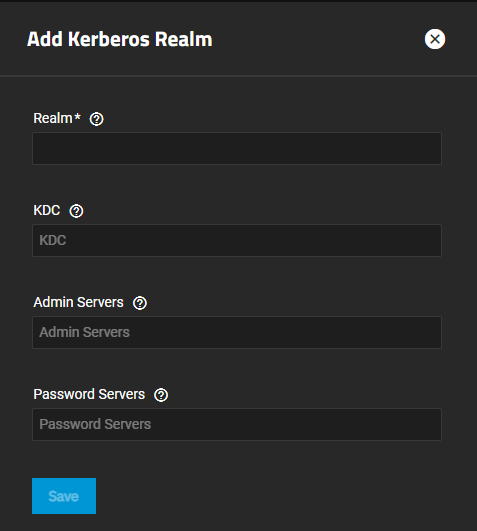
| Setting | Description |
|---|---|
| Realm | Specifies a short name for the Kerberos realm. The Kerberos standard allows upper case characters, DNS rules apply, and does not exceed 253 characters (letters, digits, and/or hyphens). TrueNAS does not enforce naming conventions, but requires entering a name. |
| Primary KDC | Specifies the master Kerberos domain controller KDC (Key Distribution Center) for this realm. It is the one that issues tickets. If you cannot reach it, you cannot authenticate. TrueNAS uses this as a fallback if it cannot get credentials because of an invalid password. This can help in environments where the domain uses a hub-and-spoke topology. Use this setting to reduce credential errors after TrueNAS automatically changes its machine password. |
| KDC | Specifies the name of the Key Distribution Center. Pressing Enter separates multiple values. Use additional/secondary KDC(s) for redundancy. If the primary KDC is unavailable, Kerberos can fall back to these. Environments with hub-and-spoke topology often have multiple KDCs. |
| Admin Server | Defines the server where all changes (adding/modifying principals) to the database are performed. Pressing Enter separates multiple values. Unlike KDC, you can have many KDCs but typically only one admin server. |
| Password Server | Defines the server where all password changes are performed. It is often the same host as the admin server but can be separate. Pressing Enter separates multiple values. |
The Add Kerberos Keytabs allows adding a keytab file using the file browser option and assigning the keytab a name.
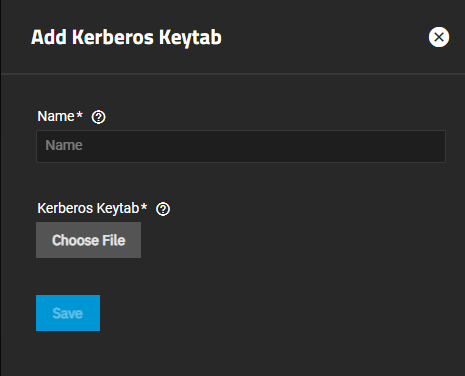
Name specifies a short name for the keytab on the TrueNAS system. Kerberos does not have a name convention for keytab files.
Choose File opens the file browser to locate and upload a keytab file. Kerberos keytab files are binary files in a specific format (MIT Kerberos keytab format). Keytab files can have either the .keytab or .kt extension.