This guide provides step-by-step tutorials to install and configure TrueNAS. An additional guide shows how to apply and configure TrueNAS Enterprise licensed systems.
This section guides you through installing TrueNAS, or migrating from a FreeBSD-based TrueNAS version to a Linux-based TrueNAS version, and using the UI to access and configure TrueNAS.
Configuration includes setting up initial storage, backup, and data sharing, and expanding TrueNAS with different application solutions.
The Evaluation Guide also provides video tutorials for installing and exploring the full potential of TrueNAS.
Contents
⎙ Download or Print: View all TrueNAS Getting Started articles as a single page for download or print.
Feature Deprecations: Notes about TrueNAS features deprecated in the latest nightly releases.
TrueNAS Hardware Guide: Provides information on system hardware and minimum requirements (CPU, memory, etc.). Covers storage considerations, media, controllers, device sizing and cooling, SAS expanders.
Migrating from CORE: Instructions for migrating from FreeBSD TrueNAS CORE to Linux-based TrueNAS versions.
Third-Party Data Migration: Provides data migration instructions for users wanting move data from a third-party NAS solution to the TrueNAS system using the Syncthing Enterprise app.
The TrueNAS team is pleased to release TrueNAS 25.10.7!
Notable changes:
Updates the Linux kernel to the latest 6.12 LTS release (v6.12.105).
Fixes a kernel panic in the NFS server that could occur when a client’s dropped connection caused the same request to arrive twice (NAS-142560).
If an NFSv4.1 client lost its connection twice in quick succession, two copies of the same request could reach the server at the same time. Both were read from the session reply cache, but one thread could also modify that cached entry while the other read it, which caused a NULL pointer dereference and crashed the system. TrueNAS now leaves the cached reply untouched when replaying it.
Fixes a crash that could occur when unregistering an iSCSI target while a peer controller was leaving the cluster (NAS-142264).
On Enterprise HA systems, target unregistration during failover could follow a stale list pointer if another teardown ran at the same time, which crashed the system or corrupted memory. The affected code now restarts its list walk from the beginning after each removal instead of relying on a saved position.
Fixes a crash that could occur when a task management command arrived while an iSCSI session was being reassigned to a new access control group (NAS-142258).
An ABORT_TASK or other task management request received during session reassignment could dereference a pointer that was temporarily cleared, which crashed the task management thread. TrueNAS now keeps the previous access control group installed until the reassignment finishes.
Fixes a crash in the iSER (iSCSI over RDMA) target driver that could occur when a connection closed during active I/O (NAS-142161).
A response posted just before a connection closed could be released twice, and the second release read from memory that had already been reused, which crashed the target. TrueNAS now tracks response ownership correctly so this cannot happen.
Fixes a crash that could occur when a Fibre Channel target driver was unloaded while a target’s enabled state was still being changed (NAS-142126).
A queued request to enable or disable a target could still run after the target began unregistering, which re-armed a port whose driver was already partially torn down and crashed the system. TrueNAS now blocks queued work for a target once it starts unregistering.
Fixes an Enterprise HA networking issue that could let both controllers become active for the same IPv6 virtual IP (NAS-142303).
The VRRP service listened for advertisements on the wrong IPv6 address, so it never received the peer controller’s advertisements and considered itself the primary controller for every IPv6 VIP. TrueNAS now binds the listener to the correct address so failover state is tracked correctly.
Improves resilience to brief Non-Transparent Bridge (NTB) interruptions on Enterprise HA systems (NAS-142152).
A short NTB packet loss event could trigger an unnecessary cluster reset. TrueNAS now waits up to 60 seconds for the NTB link to recover before treating the peer controller as down.
Updates ZFS 2.3 from version 2.3.4 to 2.3.9 (NAS-142153, NAS-142538).
This update includes upstream fixes for silent read corruption after block cloning, data loss during redacted replication send, zvol sync writes that did not reach the ZIL, incomplete dRAID rebuilds, and a permission check gap that let a caller open a device without read access. There is no on-disk format change.
Fixes intermittent “permission denied” errors on NFS shares for users in Active Directory or LDAP environments (NAS-142228).
A brief winbind or SSSD outage could cause the kernel to cache an empty group list for a user. This stripped that user of access to any share that depended on group membership for up to 30 minutes, even after the directory service recovered. TrueNAS no longer treats these empty replies as valid.
Fixes an issue where a single unreachable container registry could stop TrueNAS from checking for app updates (NAS-142192).
If one registry returned an unexpected error, such as a certificate mismatch, the update check stopped for every remaining app. Affected apps could not be upgraded from the web interface until a later check succeeded. TrueNAS now logs the error for the failing image and continues checking the rest.
Reduces unnecessary restarts of the ix-vendor service caused by routine IPv6 network activity (NAS-142227).
Routers that send frequent IPv6 router advertisements could cause TrueNAS to treat each address lifetime refresh as a new address change, restarting the service every few seconds. TrueNAS now recognizes these refreshes and ignores them.
Fixes a serialization error in the reporting API when aggregated data was not requested (NAS-142197).
Calls to reporting.get_data with aggregation disabled failed validation and logged a serialization warning instead of returning a clean result. This affected features, such as Dashboard graphs, that request non-aggregated reporting data.
Fixes an issue where testing an alert service could hide the real reason the test failed (NAS-140259).
A coding error in the alert service test handler raised an unrelated error before the actual failure reason could be reported, so users saw a misleading message instead of the real cause of a failed test.
Fixes Cloud Sync tasks that failed to run when cloud credentials contained certain special characters (NAS-142234).
Some characters in credential values could produce an invalid rclone configuration file, which caused the Cloud Sync task to fail. TrueNAS now escapes these characters when generating the configuration.
Fixes the snapshot task Lifetime field accepting invalid values of 0 and -1 (NAS-142610).
The web interface allowed a snapshot task to be saved with a lifetime of zero or a negative number, neither of which is a valid retention period. The field now rejects these values.
The TrueNAS team is pleased to release TrueNAS 25.10.6!
This release updates the Linux kernel and NVIDIA GPU driver to address security vulnerabilities and maintain driver support. It also fixes Fibre Channel crashes on Enterprise systems, an NFS server hang, false drive self-test alerts, deduplication table pruning errors, and directory services configuration changes.
Notable changes:
Updates the Linux kernel to the latest 6.12 LTS release (v6.12.99) (NAS-142007).
TrueNAS 25.10.6 advances the kernel from v6.12.95 in the previous release to v6.12.99. This update includes fixes for more than 250 upstream CVEs, including several critical issues in components TrueNAS uses: a reference count underflow in the TCP request socket queue (CVE-2026-53260), an NFS server failure to release layout state after an unsuccessful lease request (CVE-2026-53399), out-of-bounds reads in the NVMe target discovery log page and authentication reply handling (CVE-2026-64320 and CVE-2026-64319), unbounded transfer lengths in the siw and rtrs-srv RDMA drivers (CVE-2026-64268 and CVE-2026-64269), a traffic control action handling issue (CVE-2026-64530), a BPF device map issue with fragmented frames (CVE-2026-64355), and an out-of-bounds read in TIPC broadcast acknowledgment handling (CVE-2026-64450).
Updates the NVIDIA GPU driver to version 580.173.02 (NAS-142008).
The 570 driver branch included in earlier releases reached end of life and does not build against the 6.12.99 kernel. TrueNAS now ships the 580 long-term support branch, which NVIDIA supports through June 2028.
Fixes crashes when Fibre Channel target mode starts or stops (NAS-142014, NAS-142018).
If the Fibre Channel target driver detached while the adapter still delivered traffic, an incoming login or abort request could reference memory that was already released and crash the system. TrueNAS now checks for this condition and drops or rejects the request instead. TrueNAS also reports an error and leaves target mode disabled when target registration fails, rather than enabling the port anyway.
Fixes an NFS server hang that could stop the server from expiring clients (NAS-142112).
A leaked callback reference on an NFSv4 delegation could leave client teardown waiting forever. After this happened, no further NFSv4 client cleanup could complete, and the rpc.nfsd process could not be stopped without a system reboot. A brief network interruption on a client that held a write delegation was enough to trigger it. This release includes two upstream kernel fixes that prevent the leak.
Fixes false drive self-test failure alerts and errors when TrueNAS reads drive SMART data (NAS-140652, NAS-141951).
TrueNAS read the oldest NVMe self-test result instead of the newest, so some drives raised a “failed a SMART selftest” alert for a test that did not fail. A drive that returned a self-test entry without a status also produced a KeyError that filled /var/log/middlewared.log with errors and stopped the SMART alert check from completing. TrueNAS now handles both cases so self-test alerts reflect actual drive results.
Fixes several issues with deduplication table (DDT) pruning (NAS-142045).
Pruning could select the wrong entries when the target age matched a histogram boundary, and the youngest age bin did not start at zero, so the age of recent entries could be misjudged. Counters could also overflow on tables with more than two billion entries. Pruning now uses the time the histogram build starts as the age cutoff and handles large tables correctly.
Fixes the Save button that stayed unavailable on the directory services configuration screen (NAS-138641).
After an upgrade from 25.04 to 25.10, the Save button in Credentials > Directory Services could stay greyed out no matter which setting changed, which blocked all directory services configuration changes. The button now becomes available when a setting changes.
Adds the ability to change the ALUA setting when the standby controller is unreachable (NAS-142057).
On Enterprise HA systems, TrueNAS blocked changes to the ALUA setting when it could not reach the standby controller. Administrators can now turn ALUA on or off while the standby controller is down.
Improves failover speed by moving a remote disk scan out of the critical failover path (NAS-141988, NAS-140406).
On Enterprise HA systems, failover asked the other controller to rescan its disks before it imported the pool, which could stall failover for a minute or more while services stayed offline. The request now runs outside the critical failover section and does not wait for a response.
Fixes audit entry parsing that could restart the audit handler (NAS-139610).
A local authentication event could produce an audit message with a hostname value that contained spaces and its own key and value pairs. The audit parser did not expect this format, which raised an exception and forced truenas_audit_handler to restart. The parser now handles these messages correctly.
The TrueNAS team is pleased to release TrueNAS 25.10.5!
This release updates the Linux kernel to address local privilege escalation and other security vulnerabilities. It also fixes a console memory leak, incorrect drive health data, stalled TrueCloud Backup jobs, SSH key handling for replication and cloud credentials, alert email delivery, and share ACL edits.
Notable changes:
Updates the Linux kernel to the latest 6.12 LTS release (v6.12.95) (NAS-141384, NAS-141588, NAS-141696).
TrueNAS 25.10.5 advances the kernel from the previous release through v6.12.93, v6.12.94, and v6.12.95. This update mitigates several kernel vulnerabilities, including the SharedFrag local privilege escalation (CVE-2026-43503) and the PeditCOW local privilege escalation (CVE-2026-46331). The v6.12.95 update adds further high-severity upstream fixes, including an out-of-bounds read in the rxrpc ACK parser (CVE-2026-53151), use-after-free issues in network bonding (CVE-2026-31419 and CVE-2026-52975), a use-after-free in eventpoll (CVE-2026-46242), an IPv6 tunnel network namespace issue (CVE-2026-52909), an SCTP UDP-tunnel handling fix (CVE-2026-53070), and a SELinux overlayfs access-check bypass (CVE-2026-46054), along with additional upstream security and stability fixes.
Fixes a memory leak in the console CLI process that could cause system-wide out-of-memory crashes (NAS-141238).
The CLI process running on the system console (getty@tty1) could leak a large amount of memory over time, eventually exhausting system RAM and triggering out-of-memory (OOM) kills that affected other processes. The leak is fixed so the console CLI no longer consumes excess memory.
Fixes faulty parsing of smartctl output that could produce incorrect drive health information (NAS-141215).
TrueNAS could misread the output of the smartctl utility when collecting SMART data from drives, which could lead to inaccurate disk health reporting. The parsing logic is corrected so SMART attributes are read reliably.
Fixes TrueCloud Backup jobs that could hang indefinitely and hide restic error messages (NAS-141287).
A KeyError while reading restic progress output caused TrueCloud Backup to discard all restic error messages, so failing jobs could appear stuck with no explanation. TrueNAS now handles the progress output correctly and surfaces the underlying restic errors.
Fixes several SSH key handling issues affecting remote replication and cloud credentials (NAS-141677).
Removing an SSH key pair now correctly updates SFTP cloud credentials that used that key. Encrypted SSH private keys are rejected more consistently during validation, and remote SSH semi-automatic setup returns a clear error when the selected key pair is missing or invalid. SSH pairing with TrueNAS 13 systems during remote replication setup now works correctly.
Fixes alert emails that were not RFC 5322 compliant and could be rejected by mail providers (NAS-141699).
Alert notification emails did not conform to RFC 5322, so some providers such as Gmail bounced them and administrators did not receive the alerts. TrueNAS now generates compliant messages so alert emails are delivered reliably.
Fixes an issue that prevented editing a share ACL (NAS-139535).
Attempts to edit the ACL on a share could fail, which blocked permission changes. Editing share ACLs now works as expected.
The TrueNAS team is pleased to release TrueNAS 25.10.4!
This release updates the Linux kernel and Samba to address multiple security vulnerabilities, and includes data integrity, NFS, iSCSI, networking, and Active Directory fixes.
Notable changes:
Updates the Linux kernel to the latest 6.12 LTS release (v6.12.91).
This update mitigates several kernel vulnerabilities, including the Dirty-Frag local privilege escalation (CVE-2026-43284 and CVE-2026-43500), the CIFSwitch local privilege escalation in the CIFS client (CVE-2026-46243), a ptrace privilege issue (CVE-2026-46333), and the related Fragnesia privilege escalation in the ESP-in-TCP path (CVE-2026-46300). It also enables additional CPU side-channel mitigations.
Updates Samba to version 4.22.10 to address multiple security vulnerabilities.
This Samba maintenance release resolves several CVEs, including a missing access check that let read-only users set or delete reparse point attributes (CVE-2026-1933) and a flaw in the WORM (Write Once, Read Many) module that allowed protected files to be overwritten by renaming a new file over them (CVE-2026-2340). See the Samba 2026 security release impact statement for the TrueNAS-specific impact assessment, or the Samba 4.22.10 release notes for the complete upstream list.
Fixes a potential double free when freeing blocks cloned after deduplication table pruning.
Blocks created through block cloning could be freed more than once if their deduplication table (DDT) entries had already been pruned, because the free path did not check the block reference table (BRT) first.
Fixes virtual machines stored on NFSv4.1 datasets failing to power on.
A change introduced in 25.10.2.1 could cause the NFSv4 change cookie to move backward after a file left the cache due to memory pressure, a remount, or a reboot. NFSv4.1 clients that depend on a monotonic change cookie, notably VMware ESXi, rejected the affected files. A virtual machine stored on an NFSv4.1-exported ZFS dataset then failed to power on with the error “The file specified is not a virtual disk.” This release reverts that change while a complete fix is finalized upstream.
Fixes a kernel crash in the iSCSI target layer during SCSI bus or LUN resets.
A use-after-free in the clustered locking path of the iSCSI target could crash the system during a SCSI reset, most often on Enterprise High Availability (HA) systems while a peer controller was leaving the cluster. The target layer now waits for lock teardown to complete before releasing the associated memory.
Improves iSCSI LUN replacement during High Availability failover.
On Enterprise HA systems, cleanup of a replaced LUN could stall during failover while a peer controller was being evicted from the cluster, which blocked later LUN replacements. Cleanup is now held until the cluster coordination it depends on has finished.
Fixes a validation error that blocked static network configuration on some High Availability systems.
On HA-capable systems, saving a static network configuration could incorrectly fail with “Enabling DHCPv4/v6 on HA systems is unsupported” even when DHCP was not being enabled. This affected fresh installs before any interface had a saved configuration. The check now triggers only when DHCP or IPv6 autoconfiguration is explicitly enabled.
Improves Active Directory rejoin, reset, and recovery handling.
This release hardens the Active Directory rejoin and directory services reset operations, improves domain controller selection on systems with more than one available controller, and produces clearer diagnostics when a join or authentication problem occurs.
Fixes ZFS automatic snapshots not being created after a Time Machine backup until the Mac reconnects.
When a Time Machine SMB share has automatic snapshots enabled, recent macOS versions (Tahoe and later) sometimes keep the SMB session open after a backup completes instead of disconnecting, which prevented the post-backup ZFS snapshot from being taken until the client reconnected or restarted. The snapshot logic is updated to handle these persistent Time Machine sessions.
Reduces excessive winbind log messages for failed user and group lookups.
When Active Directory is enabled, looking up a user or group that does not exist (for example through getpwnam or getgrnam) generated a warning for every failed lookup, which could rapidly fill the winbind log. These messages are now logged at informational level instead of as warnings.
The TrueNAS team is pleased to release TrueNAS 25.10.3!
Notable changes:
Fixes read authentication errors caused by block cloning between encrypted ZVOLs with different encryption keys (NAS-140263).
Block cloning between encrypted ZVOLs that did not share compatible encryption keys was allowed, but subsequent reads of the cloned data produced authentication failures. TrueNAS now verifies that encryption keys match before allowing a block clone operation to proceed.
Fixes Active Directory users and groups not found when using the idmap_ad backend with RFC2307 (NAS-140077).
The idmap_ad backend failed when smb.conf was configured to disallow a private krb5.conf, preventing Active Directory users and groups from being resolved. Shares and services that depend on directory service identities were inaccessible on affected systems.
Fixes pool creation errors on systems with a USB boot drive or other disk with a duplicate serial number (NAS-139947).
The disk availability check incorrectly blocked pool creation if any disk on the system had a duplicate serial number, even when that disk was unrelated to the new pool. USB boot drives commonly have blank or duplicate serial numbers and were the most frequent cause. Note that TrueNAS does not recommend USB boot devices. Installing on SATA, SAS, or NVMe flash media is recommended.
Fixes issues with log VDEV removal (NAS-140080).
Resolves errors that could occur when removing a log VDEV from a storage pool. Affected systems encountered failures during the log VDEV removal process.
Fixes link aggregation failover not working out of the box (NAS-136978).
Resolves an issue where the MII polling interval was not correctly configured for bonding interfaces using the FAILOVER protocol. The bonding driver could not monitor slave link status, causing failover to fail silently when an interface lost carrier.
Fixes Netlink socket errors that caused network interface operations to fail (NAS-140041).
Concurrent netlink route operations could collide at the kernel level, producing “Netlink socket busy” (EBUSY) errors. This was most visible as bond status alert failures. The fix serializes netlink route operations to prevent collisions, increases the retry limit, and adds a short delay between retries to reduce the chance of repeated failures.
Fixes NTB transport memory allocation failures during link state changes (NAS-139627).
Non-Transparent Bridge (NTB) transport memory windows were allocated and freed on every link up/down event. Allocating several megabytes of physically contiguous memory on a running system could fail, causing instability. Memory windows are now pre-allocated at boot, avoiding repeated allocation attempts during link changes. This primarily affects TrueNAS Enterprise High Availability (HA) systems.
Fixes stale NFS file handles for ZFS snapshots that could not be recovered without a client reboot (NAS-140474).
When mountd failed to resolve a snapshot’s filesystem ID — such as after failover, snapshot expiration, or an automount failure — it permanently cached a negative response, causing all subsequent file handle lookups to return ESTALE errors. Client-side remounts did not clear the cached state. The fix replaces the permanent negative cache with a 120-second retry window, allowing recovery once the snapshot becomes accessible again.
Documentation improvement: Adds Drive Health Management documentation covering how TrueNAS 25.10 monitors drive health through ZFS real-time failure detection, automated 90-minute SMART polling, and improved alert filtering. Also covers manual SMART test scheduling options available to TrueNAS Community Edition users. See the Drive Health Management tutorial for full details.
The TrueNAS team is pleased to release TrueNAS 25.10.3.1!
This release mitigates CVE-2026-31431, a Linux kernel vulnerability in the AEAD cryptographic socket interface, and includes additional fixes primarily affecting TrueNAS Enterprise systems and users.
Notable changes:
Mitigates CVE-2026-31431, a CVSS 7.8 local privilege escalation vulnerability in the Linux kernel AEAD cryptographic socket interface (CWE-669: Incorrect Resource Transfer Between Spheres).
While the specific attack vector does not directly affect ZFS, TrueNAS integrates the upstream kernel patch as a security best practice. The fix reverts AEAD socket operations to out-of-place mode, eliminating the incorrect resource transfer between memory spheres that the vulnerability exploits.
Fixes Kerberos-secured NFS mounts failing after HA failover or system reboot when the NFS service is not configured to start automatically (NAS-138933).
When the NFS service did not have Start Automatically enabled, gssproxy failed to initialize when the service was started manually after a reboot or failover, causing /proc/net/rpc/use-gss-proxy to return 0. Kerberos-secured NFS mounts (krb5, krb5i, and krb5p) were unavailable as a result. This affected systems joined to both FreeIPA and Active Directory.
Restores SNMP visibility for ZFS filesystem datasets and adds a new MIB table covering the full dataset tree.
A long-standing regression caused the SNMP agent to report only zvols, silently omitting filesystem datasets from network monitoring tools such as Zabbix and Nagios. The SNMP agent now enumerates the complete dataset tree. A new datasetTable MIB entry exposes both filesystems and zvols with index, descriptor, and used, available, and referenced byte counts. The existing zvolTable is unchanged, so monitoring configurations that already poll it continue to work.
The TrueNAS team is pleased to release TrueNAS 25.10.2!
Notable changes:
Fixes critical upgrade failure affecting some systems upgrading from TrueNAS 25.04 to 25.10 (NAS-139541).
Resolves “Could not prepare Boot variable: No space left on device” error that caused affected systems to become unbootable after failed upgrade attempts.
Fixes SMB service startup failure after upgrading from older TrueNAS versions with legacy ACL configurations (NAS-139076).
Systems with legacy SMB share permission strings stored in their configuration database could not start the SMB service after upgrading to 25.10.1. This update automatically converts legacy permission formats to the current binary format during service initialization.
Improves NFS performance for NFSv4 clients (NAS-139128).
This item was included in the 25.10.2 release notes in a clerical error. This improvement is included in TrueNAS 25.10.2.1.
Improves ZFS pool import performance and write operation responsiveness (NAS-138879).
Limits the time async destroy operations can run per transaction group, preventing these operations from blocking pool imports and other write operations. Pool imports that previously took extended time due to prolonged async destroy operations complete more quickly.
Fixes disk replacement validation incorrectly rejecting identical capacity drives (NAS-138678).
Resolves “device is too small” error when attempting to replace failed drives with identical capacity models. The system now correctly validates replacement drive capacity and allows legitimate disk replacements to proceed.
Reduces excessive API calls during user and group selection in the web interface (NAS-139459).
Implements longer debounce period for autocomplete fields to prevent the system from making API requests for every keystroke. This reduces system load and eliminates logs filled with failed requests during routine typing.
Reduces background CPU usage when running containerized applications (NAS-139089).
Optimizes YAML processing and Docker stats collection to reduce asyncio_loop CPU usage caused by repeated container inspection operations holding the Global Interpreter Lock.
Fixes Dashboard storage widget displaying “Unknown” for used and free space (NAS-138705).
Resolves issue where secondary storage pools showed no capacity metrics in the Dashboard widget, preventing visibility into actual storage usage and availability.
Fixes network configuration lockout caused by invalid IPv6 routes (NAS-139575).
Resolves issue where unusual IPv6 route entries in the routing table prevented access to network settings, app management, and bug reporting. The system now gracefully handles invalid route entries instead of becoming unresponsive.
Fixes network bridge creation validation errors (NAS-139196).
Resolves Pydantic validation failures that prevented users from creating network bridges through the standard workflow of removing IPs from an interface, creating a bridge, and reassigning those IPs.
Adds Hosts Allow and Hosts Deny network access controls to SMB shares (NAS-138814).
Provides IP-based access restrictions for SMB shares across all relevant purpose presets. Also adds ability to synchronize Kerberos keytab Service Principal Names (SPNs) with Active Directory updates for improved multiprotocol share management.
Fixes IPv6 address formatting in Kerberos configuration for Active Directory (NAS-139734).
Resolves Active Directory authentication failures when using IPv6 addresses for Kerberos Distribution Centers (KDCs). The system now properly formats IPv6 addresses with square brackets in krb5.conf, preventing “Invalid argument while getting initial credentials” errors.
Improves Users page default filter to include Directory Services users (NAS-139073).
Directory Services users now appear in the default view without requiring manual filter adjustment. This improves discoverability of directory service accounts in the user management interface.
Fixes SSH access removal for user accounts (NAS-139130).
Resolves issue where clearing the SSH Access option appeared to save without error, but the SSH indicator persisted in the user list. Users can now properly disable SSH access through the web interface.
Fixes session expiry settings not being respected (NAS-138467).
Resolves issues where users were logged out unexpectedly during active operations despite configured session timeout settings, and where page refresh (F5) triggered the login screen despite an active session. Session expiration now functions as configured.
Fixes certificate management for certificates with large Distinguished Names (NAS-139056).
Certificates with DNs exceeding 1024 characters (typically those with many Subject Alternative Names) can now be properly imported and managed. Previously, these certificates would upload successfully but fail during subsequent listing operations.
Fixes Cloud Sync tasks becoming invisible after upgrading from TrueNAS CORE to SCALE (NAS-138886).
Resolves data inconsistency where the bwlimit field contained empty objects instead of empty arrays, preventing the UI from displaying cloud sync tasks. Tasks remained functional via command-line but were not visible in the web interface.
Improves S3 endpoint URI validation for Cloud Sync tasks (NAS-138903).
Adds upfront validation to ensure S3 endpoints include the required https:// protocol prefix. Previously, omitting the protocol resulted in an unhelpful “Invalid endpoint” error. The system now provides clearer guidance during configuration.
Fixes iSCSI extent wizard hanging when adding second extent to a target (NAS-138856).
Resolves issue where an unsaved changes popup appeared unexpectedly after saving, followed by duplicate item errors. The wizard pane now closes automatically as expected, though the extent is added successfully despite the confusing error messages.
Fixes error notifications displaying placeholder text (NAS-139010).
Resolves formatting bug where error notifications showed “%(err)s Warning” instead of descriptive error messages.
Improves error dialog usability for long error messages (NAS-138424).
Adds proper scrolling to error dialogs with lengthy content. Previously, users had to zoom out to 50% to see action buttons when error messages (such as those listing numerous dependent clones) extended beyond the visible area.
Restricts root account group membership to preserve system stability.
The system now locks root account group membership to the builtin_administrators group and prevents modification through the UI. This prevents accidental removal of required privileges that could cause scheduled tasks, cloud sync operations, cron jobs, and other system functions to fail. To disable root account access to the TrueNAS UI, use the Disable Password option in Credentials > Local Users instead of modifying group membership.
The TrueNAS team is pleased to release TrueNAS 25.10.2.1!
This is a small maintenance release to fix NIC bonding disruptions and SMB Legacy Share validation errors after the TrueNAS 25.10.2 release, and includes the NFS performance improvement for NFSv4 clients that was originally announced for 25.10.2.
Notable changes:
Improves NFS performance for NFSv4 clients (NAS-139128).
Adds support for STATX_CHANGE_COOKIE to properly surface ZFS sequence numbers to NFS clients via knfsd. The NFS change_info4 structure now accurately tracks directory and file changes, which reduces unnecessary server requests. Client attribute cache invalidation is also improved. Previously, the system synthesized change IDs based on ctime, which could fail to increment consistently due to kernel timer coarseness.
Fixes NIC bonding configuration disrupted after a system update (NAS-139889).
Resolves an issue where network interface bond configurations could break after a TrueNAS 25.10.2 update. Affected systems could lose network connectivity on bonded interfaces.
Fixes SMB Legacy Share validation errors that broke share management UI forms (NAS-139892).
Resolves an issue where SMB shares using the Legacy Share preset with certain path_suffix variable substitutions failed middleware validation. The SMB share configuration forms became unusable in the web interface as a result.
Fixes API result serialization failures caused by unhandled validation errors (NAS-139896).
Resolves an issue where certain Pydantic validation errors were not caught during API result serialization. This caused unexpected errors to appear in the web interface instead of proper error messages.
Fixes SSL certificate connection failure error handling (NAS-139938).
Resolves an AttributeError that occurred when an HTTPS connection failed due to a certificate error. Cloud sync tasks, replication, or other SSL-dependent network operations could surface a secondary AttributeError instead of the original connection failure message.
The TrueNAS team is pleased to release TrueNAS 25.10.1!
Notable changes:
Fixes issue where storage pools appeared offline after upgrading to 25.10.0 (NAS-138236).
Affected systems experienced temporarily missing VDEVs that required a system reboot to restore pool access.
Adds Final Cut Pro Storage Share purpose preset for SMB shares (NAS-138402).
Provides optimized configuration for Final Cut Pro workflows. See Setting Up Final Cut Pro SMB Shares for more information.
Adds automatic validation for SMB share audit logging configurations.
TrueNAS 25.10.1 automatically disables SMB shares when auditing is enabled and watch or ignore lists contain invalid groups (deleted/renamed groups or groups that are no longer SMB-type). This protective measure prevents auditing misconfigurations that could cause security or compliance issues. The system generates alerts identifying affected shares and problematic groups. See Configuring SMB Auditing for configuration details and troubleshooting steps.
Adds REST API usage monitoring alert.
TrueNAS now displays a daily alert when deprecated REST API endpoints are accessed, helping identify integrations that need migration. TrueNAS deprecated the REST API in version 25.04. Full removal is planned for TrueNAS 26. For more information about the JSON-RPC 2.0 over WebSocket API, see the API documentation.
Adds Clear Config button to the directory services configuration form.
This button allows users to easily remove existing directory service configurations. This is useful for troubleshooting, reconfiguration, or switching between directory service types.
Updates Samba from 4.22.5 to 4.22.6 (NAS-138644).
Includes upstream fix for Time Machine backup failures on newer macOS versions. Resolves an issue where Time Machine backups failed on macOS 15.2 (Tahoe) and later due to a Samba 4.22 behavioral change affecting directory rename operations for open files. TrueNAS 25.04 releases are unaffected.
Fixes Windows 11 virtual machine Trusted Platform Module (TPM) persistence (NAS-138165).
Resolves issue where BitLocker PINs and other TPM data reset after every VM restart. Users need to reset their PIN after upgrading, after which persistence functions normally.
Fixes Secure Boot for virtual machines (NAS-137898).
Resolves issue where VMs with Secure Boot enabled failed to boot signed operating systems like Windows 11 due to missing Microsoft keys in OVMF firmware.
Fixes VM image file upload default location (NAS-138502).
Prevents ISO files from being saved to the boot drive /mnt folder when users do not change the default upload location during VM image upload.
Fixes VDI disk import for virtual machines (NAS-137897).
Resolves errors when creating VMs using .vdi disk images.
Improves error handling for legacy FreeNAS dataset properties (NAS-138629).
Users can encounter "aclmode: failed to get property" errors when editing datasets on long-running systems that contain invalid aclmode=discard_chmod property values from legacy FreeNAS versions. This update improves error messaging to help identify affected datasets. If you encounter this error, run zfs set aclmode=passthrough dataset_name via CLI to reset the property to a valid value, then reboot the system.
Improves error messaging for pool operations (NAS-138330).
Provides clearer error messages when attempting to extend VDEVs or replace disks fails due to ZFS checkpoints or other conditions.
Fixes rsync tasks using SSH keychain credentials (NAS-138334).
Resolves UnboundLocalError that prevented saving or running SSH-based rsync tasks after upgrading to 25.10.0.
Improves replication error messages (NAS-138202).
Provides clearer error messages when replication tasks fail due to interrupted SSH connections or network issues.
Fixes email sending error after upgrading to 25.10.0 (NAS-138270).
Resolves 'str' object has no attribute 'decode' error when attempting to send test emails or system notifications.
Restores HDD temperature data via SNMP (NAS-138433).
Resolves issue where SNMP queries for disk temperature (OID .1.3.6.1.4.1.50536.3) returned no data after upgrading to 25.10.0.
Fixes issue disabling SSH and Shell access for user accounts (NAS-138307).
The Save button no longer disables when clearing these access options.
Network: 400GbE interface support and improved DHCP-to-static configuration transitions.
UI/UX Improvements:
Redesigned Updates, Users, Datasets, and Storage Dashboard screens.
Improved password manager compatibility.
Breaking Changes Requiring Action:
NVIDIA GPU Drivers:
TrueNAS 25.10 switches to open GPU kernel drivers supporting Turing and newer (RTX/GTX 16-series+). Pascal, Maxwell, and Volta architectures are no longer supported. See NVIDIA GPU Support for compatibility details.
Active Directory IDMAP:
The Active Directory AUTORID IDMAP backend is removed and auto-migrated to RID to improve consistency across multi-server environments. Users should review their ACLs and permissions after upgrade and might need to reconfigure them in some edge cases.
Certificate Management:
25.10 removes the Certificate Authority (CA) functionality that allowed TrueNAS to create and sign certificates.
Users can continue to manage certificates by creating Certificate Signing Requests (CSRs) to be signed by external certificate authorities or and importing certificates that have been signed by external CAs or directory services.
These alternatives provide the certificate management capabilities most users need while ensuring proper certificate validation through established certificate authorities.
SMART Monitoring:
25.10 removes the built-in SMART test scheduling and monitoring interface. TrueNAS continues automated drive health monitoring through middleware-integrated SMART polling and ZFS failure detection. Existing scheduled SMART tests are automatically migrated to cron tasks during upgrade, and smartmontools binaries remain installed.
See Drive Health Management for more information on disk health monitoring in 25.10 and beyond.
SMB Shares:
In 25.10, SMB share configuration only displays options relevant to each purpose-based preset.
Existing shares that previously used the No Preset option are automatically migrated to the Legacy Share preset during upgrade.
New shares cannot access legacy configuration options.
Legacy Share options include enabling SMB guest access, the SMB recycle bin, home directory export, AFP compatibility shares, and disabling shadow copies.
The SMB recycle bin feature is no longer available for new shares due to security and usability concerns.
For file recovery and versioning, use ZFS snapshots, which provide more reliable and predictable data protection.
For more information, see Legacy Share Settings and the TrueNAS API documentation sharing.smb.create return values for optionsLegacyOpt.
Virtual Machine Startup Changes:
VMs created in TrueNAS 25.04 (pre-25.04.2) and displayed on the Containers screen no longer automatically start on system boot to prevent conflicts with VMs on the Virtual Machines screen.
See Containers and Virtual Machines for more information.
Improves ZFS property handling during dataset replication (NAS-137818).
Resolves issue where the storage page temporarily displayed errors when receiving active replications due to ZFS properties being unavailable while datasets were in an inconsistent state.
Fixes “Failed to load datasets” error on Datasets page (NAS-138034).
Resolves issue where directories with ZFS-incompatible characters (such as [) caused the Datasets page to fail by gracefully handling EZFS_INVALIDNAME errors.
Fixes zvol editing and resizing failures (NAS-137861).
Resolves validation error “inherit_encryption: Extra inputs are not permitted” when attempting to edit or resize VM zvols through the Datasets interface.
Fixes VM disk export failure (NAS-137836).
Resolves KeyError when attempting to export VM disks through the Devices menu, allowing successful disk image exports.
Fixes inability to remove transfer speed limits from SSH replication tasks (NAS-137813).
Resolves validation error “Input should be a valid integer” when attempting to clear the speed limit field, allowing users to successfully remove speed restrictions from existing replication tasks.
Fixes Cloud Sync task bandwidth limit validation (NAS-137922).
Resolves “Input should be a valid integer” error when configuring bandwidth limits by properly handling rclone-compatible bandwidth formats and improving client-side validation.
Fixes NVMe-oF connection failures due to model number length (NAS-138102).
Resolves “failed to connect socket: –111” error by limiting NVMe-oF subsystem model string to 40 characters, preventing kernel errors when enabling NVMe-oF shares.
Fixes application upgrade failures with validation traceback (NAS-137805).
Resolves TypeError “’error’ required in context” during app upgrades by ensuring proper Pydantic validation error handling in schema construction.
Fixes application update failures due to schema validation errors (NAS-137940).
Resolves “argument after ** must be a mapping” exceptions when updating apps by properly handling nested object validation in app schemas.
Fixes application image update checks failing with “Connection closed” error (NAS-137724).
Resolves RuntimeError when checking for app image updates by ensuring network responses are read within the active connection context.
Fixes AMD GPU detection logic (NAS-137792).
Resolves issue where AMD graphics cards were not properly detected due to incorrect kfd_device_exists variable handling.
Fixes API backwards compatibility for configuration methods (NAS-137468).
Resolves issue where certain API endpoints like network.configuration.config were unavailable in the 25.10.0 API, causing “[ENOMETHOD] Method ‘config’ not found” errors when called from scripts or applications using previous API versions.
Fixes console messages display panel not rendering (NAS-137814).
Resolves issue where the console messages panel appeared as a black, unresponsive bar by refactoring the filesystem.file_tail_follow API endpoint to properly handle console message retrieval.
Fixes unwanted “CronTask Run” email notifications (NAS-137472).
Resolves issue where cron tasks were sending emails with subject “CronTask Run” containing only “null” in the message body.
The TrueNAS team is pleased to release TrueNAS 25.10.0.1!
This is a maintenance release that includes fixes to SMB shares, application management, cloud sync operations, and error handling.
Notable changes:
Fixes an SMB2 query directory with SMB_REOPEN flag issue (NAS-138259).
Resolves an issue where client systems connected to TrueNAS 25.10 SMB shares could experience file access issues, including files appearing missing or shares showing as empty when browsing directories, media libraries (Plex, Jellyfin, etc.) losing access to files or removing them from indexes, and files failing to open or save over SMB.
Fixes VFS disconnect handling that prevented Time Machine snapshots (NAS-135813).
Resolves a bug in the io_uring_vfs_disconnect function where walking the Samba VFS stack for smb_vfs_disconnect was terminating early, causing Apple Time Machine snapshots to fail execution. The function now properly traverses the full VFS stack without premature exit.
Fixes Docker service startup failures on systems with slow disk initialization (NAS-138232).
Resolves a timeout issue where Docker initialization on HDD-equipped systems could exceed the default 120-second service timeout. This caused the apps service to be incorrectly marked as FAILED even though Docker eventually started successfully. The service timeout is extended to 960 seconds (16 minutes) to accommodate slower disk scenarios.
Fixes custom application update failures from version 1.2.13 to 1.2.14 (NAS-138230).
Resolves an issue where custom applications failed to update properly, with multiple update attempts yielding no errors but the update notification persisting. The fix ensures that custom app versions are correctly upgraded alongside image updates during the application upgrade process.
Fixes false validation errors for custom app upgrades (NAS-138534).
Resolves an issue where validation errors were incorrectly raised for custom apps during upgrade summaries when only the container image required updating. The system now properly recognizes that custom apps qualify for upgrade availability if either their images are outdated or catalog manifest changes exist.
Fixes cloud sync task validation errors after upgrading to 25.10 (NAS-138281).
Resolves an issue where cloud sync tasks would display no available tasks after upgrade, with validation errors occurring when querying cloud sync tasks. The errors stemmed from Pydantic validation failures where parameters like chunk_size exceeded schema-defined limits.
Fixes a DNS validation typo in directory services (NAS-138364).
Resolves a typo in DNS validation logic where “@” was incorrectly used instead of “.” as the separator between hostname and domain name.
Fixes ZFS error handling for paths with multibyte UTF-8 characters (NAS-138554).
Resolves an issue where ZFS paths containing multibyte characters would generate corrupted error descriptions, causing the Python Unicode decoder to fail. This resulted in simplified error messages instead of detailed ZFS exceptions and misclassification of error codes (EZFS_UNKNOWN instead of EZFS_INVALIDNAME), breaking dataset resolution APIs.
Fixes false temperature alerts for disks with negative threshold values (NAS-138028).
Resolves an issue where disks with invalid or negative temperature thresholds triggered persistent warning alerts in the GUI and automated email notifications. The system now properly filters out disks with negative temperature threshold configurations during alert generation.
Improves NetBIOS naming by expanding permitted identifiers (NAS-138390).
Removes additional blacklist restrictions on NetBIOS names and workgroups, allowing more Microsoft-restricted keywords to be used. This change addresses customer environment needs where previously prohibited network naming identifiers are required.
Known Issue: Apps configured to use SMB or NFS shares as storage can experience an occasional race condition during boot that causes them to show a “crashed” status. The workaround is to restart the affected app after a minute or two. See Known Issues for details. Additional fixes are expected in 25.10.1.
Early releases are intended for testing and feedback purposes.
Do not use early release software for critical tasks.
September 30, 2025
The TrueNAS team is pleased to release TrueNAS 25.10-RC.1!
25.10-RC.1 Notable changes
Enhances remote syslog configuration to support up to two servers (NAS-137315).
Updates the Syslog configuration options in System > Advanced Settings to allow configuring multiple syslog servers with individual transport and TLS certificate options.
Improves NVMeoF target configuration with automatic port defaults (NAS-137394, NAS-137395).
Sets port 4420 as the default for NVMe over Fabric targets, eliminating the need for manual port configuration.
Clarifies VM secure boot configuration as create-only setting (NAS-137397).
Removes secure boot option from VM edit form as this setting can only be configured during initial VM creation.
Fixes upgrade blocking issue for systems without BIOS partition (NAS-137352).
Resolves traceback during 25.10 upgrades on systems originally deployed with TrueNAS CORE that lack a BIOS partition.
Fixes SMB service hanging during Windows client file operations (NAS-137095).
Resolves issue where Windows clients became unresponsive during file moves and editing operations, requiring manual thread termination.
Fixes incorrect disk temperature threshold alerts (NAS-137385).
Resolves issue where critical temperature alerts were triggered incorrectly when threshold was set to 0 degrees Celsius.
Improves password manager compatibility with WebUI login screen (NAS-136335).
Resolves issue where password managers like Bitwarden and Dashlane failed to automatically recognize and fill login credentials.
Consolidates Users page interface (NAS-137443).
Removes legacy Users page and renames Users (WIP) to Users for a cleaner interface experience.
Fixes network usage units display on Applications page (NAS-137428).
Corrects network usage units from lowercase ‘b’ to capital ‘B’ (B/s, kB/s, MB/s) to properly indicate bytes per second.
Fixes UI Bug Reporting feature “FAILED: This TrueNAS build is experimental” error (NAS-137445).
Resolves issue preventing bug report submissions through the UI.
Fixes incorrect time sort for frequency on Cloud Sync Tasks screen (NAS-137096).
Fixes Users page showing “can not retrieve response” error due to invalid email address (NAS-137198).
Fixes Virtual Machines page not refreshing properly (NAS-136973).
Adds VM disk image import and export capabilities (NAS-137334, NAS-137335).
Enables importing disk images (QCOW2, QED, RAW, VDI, VHDX, and VMDK formats) during VM creation and exporting VM disks to portable image formats, streamlining VM migration and setup processes.
Improves Virtual Machine configuration performance (NAS-136937).
Prevents libvirt service from starting automatically when browsing VM creation options, improving system responsiveness.
Enhances session security with improved random number generation (NAS-137318).
Uses SSL-based random number generator for creating session IDs, improving overall cryptographic security.
Fixes an issue where the ACL editor ignored unset “Apply Owner” and “Apply Group” checkboxes and always applied owner/group changes recursively, potentially causing unintended ownership changes (NAS-137378).
The PGP public keys for the TrueNAS Security Team have been renewed and published to the TrueNAS Security Advisories.
Early releases are intended for testing and feedback purposes.
Do not use early release software for critical tasks.
August 28, 2025
The TrueNAS team is pleased to release TrueNAS 25.10-BETA.1!
This first public release version of TrueNAS 25.10 (Goldeye) has software component updates and new features that are in the polishing phase.
Virtual Machines are now “Enterprise ready” with support for TrueNAS Enterprise High Availability (HA) systems and failover (NAS-136509).
Failover moves to the Advanced Settings screen (NAS-135469).
Introduces a redesigned Updates screen that allows users to select an update profile reflecting their risk-tolerance level (NAS-133600). TrueNAS only notifies users of updates recommended for their selected profile level.
Introduces changes to Certificates, Certificate Authorities (CA), and Certificate Signing Requests (CSR) (NAS-135168):
Removes Certificate Authorities (CA) screens and support for CAs, which means you cannot sign CSRs or create self-signed certificates.
Removes Add from Certificates. Users can import a certificate created by an external certificate authority.
Allows adding a certificate using the new Create ACME Certificate screen found under Certificate Signing Requests and an existing DNS authenticator added through the ACME DNS Authenticators screen.
See Preparing to Upgrade for more information.
Introduces a refreshed Users (WIP) screen that provides improved, at-a-glance access to account information and simplified user creation (NAS-134198).
Introduces changes to the Datasets and Storage Dashboard screens (NAS-135362, NAS-135364).
Renames dataset and pool widgets, and changes links to other screens.
Removes Scrub Tasks configuration and scheduling from the Data Protection Tasks screen, but makes it available on the Storage Health widget located on the Storage Dashboard (NAS-135555).
Fixes the NVIDIA GPU-related error “RenderError: Expected [uuid] to be set for GPU in slot” (NAS-134152).
Adds support for directory services authentication via FTP (NAS-135200).
Adds the Enable Secure Boot option to virtual machine configuration screens (NAS-136466).
Allows TrueNAS to automatically migrate existing applications when selecting a new applications pool (NAS-132188).
Adds TrueNAS Apps service support for configuring external container registry mirrors as alternative sources for Docker images (NAS-136553).
Introduces various UI improvements and optimizations to simplify core user experiences (NAS-135159).
Includes critical ZFS stability fixes and performance improvements, including fixed corruptions for plaintext replication of encrypted snapshots, enhanced memory pressure handling, faster pool export operations, improved I/O scaling capabilities, zfs rewrite and Direct I/O support (NAS-135902).
Simplifies and improves robustness of gateway and name server settings when changing from DHCP to static aliases (NAS-136360 and NAS-136360).
Moves Network screen under the System main menu option.
Fixes insufficient memory pressure on ZFS ARC by Virtual Machines to prevent out-of-memory conditions (NAS-135499).
Virtual machines created in 25.04 (pre-25.04.2) and displayed on the Containers screen do not automatically start on system boot to prevent conflicts with VMs on the Virtual Machines screen that might use the same zvols (NAS-136946).
Makes changes to SMB shares:
Enables access-based enumeration for SMB shares with NFSv4 ACL type, so directory listings only show files that users have permission to read (NAS-136499).
Changes SMB share Advanced Options, Purpose, and Other Option settings associated with the preset setting selected (NAS-136499).
Removes the AUTORID IDMAP backend option from Active Directory configuration to improve consistency across multi-server environments (NAS-136630).
Existing configurations using AUTORID are automatically migrated to RID during upgrade.
Users should review their ACLs and permissions after upgrade and might need to reconfigure them in some edge cases.
Completes the transition to the versioned JSON-RPC 2.0 over WebSocket API by migrating all remaining jobs and events from the deprecated REST API (NAS-133984).
Full removal of the REST API is planned for the TrueNAS 26 release.
Removes the built-in SMART test scheduling and monitoring interface to improve user flexibility while maintaining smartmontools binaries for continued third-party script compatibility (NAS-135020).
Existing scheduled SMART tests are automatically migrated to cron tasks during upgrade, and users can install the Scrutiny app for advanced SMART monitoring.
SMART tests functions no longer show on the Data Protections Tasks, Storage Dashboard, or individual disk screens.
See Drive Health Management for more information on the SMART monitoring transition.
Improves drive temperature monitoring efficiency by extending the drivetemp kernel module to include SCSI/SAS disk temperatures.
Fixes an issue affecting drive temperature reporting on the dashboard (NAS-135572).
Fixes a bug to reenable available update notifications for custom apps (NAS-135124).
Fixes contrast issues on some UI theme options (NAS-135519).
These are ongoing issues that can affect multiple versions in the 25.10 series. When resolved, issues move to Notable Changes for the appropriate release.
Current Known Issues
TrueNAS Enterprise
UI login delays during High Availability failover with STIG configuration changes.
When toggling STIG settings in System > Advanced > System Security that require a system reboot, UI login authentication can experience extended delays (over 2 minutes) during failover when one controller is rebooting.
Workaround: Wait 2-3 minutes for authentication timeout to complete.
High Availability STIG configuration changes can cause production downtime if active controller is rebooted prematurely.
When enabling or disabling STIG in System > Advanced > System Security, the system automatically reboots the standby controller in the background. Both controllers must reboot to complete the configuration change.
Workaround: After saving STIG settings, wait until the standby controller is fully online before rebooting the active controller. Rebooting the active controller while the standby is still booting can cause disrupt production.
This issue is resolved in TrueNAS 26.
Apps using SMB/NFS storage can experience race condition during boot.
When apps are configured to use SMB or NFS shares as storage passthroughs, there can be an occasional race condition during TrueNAS boot where the app startup conflicts with the sharing services startup.
This causes affected apps to not fully start and show a “crashed” status.
Workaround: Restart the affected app after a minute or two.
Long-running systems with legacy FreeNAS datasets might encounter dataset editing errors (NAS-138629).
Users might see "aclmode: failed to get property" errors when attempting to edit dataset properties. This affects datasets with invalid aclmode=discard_chmod property values carried over from legacy FreeNAS versions. TrueNAS 25.10.1 improves error messages to help identify affected datasets.
Users encountering this issue should run zfs set aclmode=passthrough dataset_name via CLI for each affected dataset (replacing dataset_name with the actual dataset path), then reboot the system.
NVMe over TCP is incompatible with VMware ESXi environments (NAS-137372).
TrueNAS 25.10 uses the Linux kernel NVMe over TCP target driver, which lacks support for fused commands required by VMware ESXi.
This is an upstream kernel limitation that prevents path initialization in ESXi environments.
Two-Factor Authentication (2FA) can fail during daylight saving time transitions (NAS-138200).
Systems with two-factor authentication configured can experience login failures for approximately one hour during daylight saving time transitions when clocks move backward.
The authentication system resolves automatically once the duplicated hour passes.
Locking encrypted datasets fails when actively shared via iSCSI or SMB.
Attempting to lock an encrypted dataset while it is actively shared via iSCSI or SMB fails with an EBUSY error.
No alert is generated and no email notification is sent when the lock operation fails.
Workaround: Before locking the dataset, disable the share (iSCSI extent or SMB share) in the sharing configuration.
After locking the dataset, you can re-enable the share if needed.
This issue will be resolved in a future TrueNAS release.
Existing SMB sessions cannot connect to shares created after the session was established.
SMB clients with active sessions might be unable to access newly-created shares without first reconnecting to the server.
This is a long-standing behavior that affects all SMB clients, not specific to any operating system.
Workaround: Restart the SMB service in System > Services, or disconnect and reconnect the SMB client (unmount and remount the server).
This issue is resolved in TrueNAS 26.
Fibre Channel iSCSI initiator changes do not apply to the running configuration until the iSCSI service is restarted.
When updating a Fibre Channel initiator on an iSCSI share, SCST updates with the change but the running configuration file does not reflect the update until the iSCSI service is stopped and started.
Workaround: After updating the Fibre Channel initiator, stop and then start the iSCSI service in System > Services to apply the change to the running configuration.
Sorting is unavailable on the Fibre Channel Ports screen, and search does not match every column. The Fibre Channel Ports tab does not provide sortable column headers, unlike the other iSCSI share tabs such as Targets, Extents, and Initiators. Clicking a column header does not reorder the list. The search field also does not match values in every displayed column, so a search for a target name can return no results even when that target shows in the table.
Workaround: None. All configured ports remain listed on the screen.
Switching to the General update profile can display a TypeError on the Update screen (NAS-140736).
When a TrueNAS version is promoted from Early Adopter to General availability, users already running that version who then change their update profile to General can see a TypeError: 'NoneType' object is not subscriptable error on the Update screen. The error persists after refreshing the page or logging out and back in, but clears after a system reboot.
Workaround: Reboot the system after changing the update profile to clear the error message.
This issue is resolved in TrueNAS 26.
The Reload button in the new license confirmation dialog does not reload the web interface (NAS-140931).
After applying a new license, the confirmation dialog appears with a Reload button. Clicking Reload does not trigger a page reload; the license is applied correctly but the web interface continues to display the pre-license state until the page is manually refreshed.
Workaround: After applying a new license, manually refresh the browser page to update the web interface.
See the latest status on Jira for public issues discovered in 25.10 that are being resolved in a future TrueNAS release.
See the Release Notes section of the TrueNAS forum for ongoing updates about known issues, investigations, and statistics about TrueNAS releases.
25.10 (Goldeye) brings many new features and improvements to the TrueNAS experience.
Redesigned Management Interfaces
The Updates screen introduces risk-tolerance profiles for better control over system update notifications, while the refreshed Users screen provides improved account management with streamlined user creation workflows and better at-a-glance access to account information.
Advanced Networking and Storage
TrueNAS 25.10 introduces comprehensive networking enhancements designed for terabit Ethernet performance.
NVMe over Fabric support includes NVMe/TCP for Community Edition and NVMe/RDMA for Enterprise hardware.
RDMA capabilities eliminate TCP overhead and reduce latency for high-performance storage networking on Enterprise systems.
Updated drivers provide 400GbE network interface support, while enhanced network configuration management improves robustness when transitioning between DHCP and static configurations.
Virtual Machine Improvements
TrueNAS 25.10 delivers comprehensive virtual machine enhancements, including Secure Boot support for enhanced security and refined startup behavior to prevent conflicts between container and VM management interfaces.
VM disk import and export capabilities support multiple formats (QCOW2, QED, RAW, VDI, VHDX, VMDK), streamlining VM migration and setup processes.
NVIDIA Open GPU Kernel Module Support
Support for NVIDIA’s open GPU kernel module drivers enables compatibility with the latest graphics cards, including the Blackwell architecture.
Modern GPU acceleration capabilities are available for TrueNAS Apps and container workloads.
See NVIDIA GPU Support for compatibility details.
ZFS Performance and Stability Improvements
Critical ZFS updates include stability fixes for encrypted snapshot replication, enhanced memory pressure handling, faster pool operations, improved I/O scaling, and new Direct I/O support for better performance in virtualized environments.
Application Pool Migration and Registry Mirrors
Automatic migration of existing applications when changing application pools eliminates manual reconfiguration and reduces downtime during pool transitions.
Support for external container registry mirrors provides alternative sources for Docker images, improving reliability.
Flexible Disk Health Monitoring
TrueNAS 25.10 transitions from built-in SMART test scheduling to a more flexible approach with automatic migration of existing tests to cron tasks.
Users can install the Scrutiny app for advanced monitoring or use custom solutions while TrueNAS continues to automatically alert on critical disk health indicators.
See Disk Management for details on the SMART monitoring transition.
Upgrading TrueNAS
Early releases of a major version are intended for testing and feedback purposes only.
Do not use early release software for critical tasks.
TrueNAS is an appliance built from specific Linux packages.
Updating TrueNAS using apt or any method other than the TrueNAS web interface can make the system inoperable.
Modifying the base OS can cause unexpected behavior during upgrades:
Users who manually installed Docker on TrueNAS 24.04 or earlier can experience TrueNAS Apps failure in 24.10 or later.
This occurs due to conflicts between the manually installed and native Docker configurations.
Affected systems can encounter app_lifecycle.compose_action errors, such as: 'group_add[0]' expected type 'string', got unconvertible type 'int', value: '568'
All auxiliary parameters can experience changes between TrueNAS major versions due to security and development changes.
We recommend removing all auxiliary parameters from TrueNAS configurations before upgrading as these settings can result in unexpected behavior such as SMB share failures after an upgrade.
SSH auxiliary parameters are unsupported.
Certain configurations can prevent the SSH service from starting.
After updating, clear the browser cache (CTRL+F5) before logging in to TrueNAS. This ensures stale data doesn’t interfere with loading the TrueNAS UI.
TrueNAS Apps
Application maintenance, including version updates, features, and configuration options, is independent from TrueNAS version release cycles. See documentation and resources at the TrueNAS Apps Market and the truenas/apps repository issues tracker for more information.
The TrueNAS REST API was deprecated in TrueNAS 25.04.
Full removal of the REST API is planned for TrueNAS 26.
Starting with TrueNAS 25.10.1, the system displays alerts when deprecated REST API endpoints are accessed to help identify integrations that require migration to the JSON-RPC 2.0 over WebSocket API.
TrueNAS (25.04 and later) uses a versioned JSON-RPC 2.0 over WebSocket API.
API versions are numbered in conjunction with TrueNAS version releases.
The API documentation provides information about supported API methods and events.
Documentation is included for all API versions supported by the current TrueNAS release and defaults to the latest supported API.
Use the dropdown to view documentation for different supported API versions.
Advanced users can interact with the TrueNAS API to perform management tasks using the TrueNAS API Client as an alternative to the TrueNAS web UI.
This websocket client provides the command line tool midclt and allows users to communicate with middleware using Python by making API calls.
The client can connect to the local TrueNAS instance or to a specified remote socket.
You can access TrueNAS API documentation in the web interface by clicking laptopMy API Keys on the top right toolbar account_circle user settings dropdown menu to open the User API Keys screen.
Click API Docs to view API documentation.
NVIDIA GPU Compatibility: TrueNAS 25.10 switches to open GPU kernel drivers that are incompatible with legacy NVIDIA GPUs (Pascal, Maxwell, Volta architectures).
See NVIDIA GPU Support for compatibility details.
Virtual Machine Startup Changes: VMs created in TrueNAS 25.04 (pre-25.04.2) and displayed on the Containers screen no longer automatically start on system boot to prevent conflicts with VMs on the Virtual Machines screen.
See Containers and Virtual Machines for more information.
Active Directory AUTORID IDMAP Backend Removal: TrueNAS 25.10 removes this option to improve consistency across multi-server environments (NAS-136630).
Existing configurations using AUTORID are automatically migrated to RID during upgrade.
Users should review their ACLs and permissions after upgrade and might need to reconfigure them in some edge cases.
TrueNAS 25.10 removes the built-in SMART test scheduling and monitoring interface. TrueNAS continues automated drive health monitoring through middleware-integrated SMART polling and ZFS failure detection. Existing scheduled SMART tests are automatically migrated to cron tasks during upgrade, and smartmontools binaries remain installed.
See Drive Health Management for more information on the SMART monitoring transition.
TrueNAS 25.10 removes the Certificate Authority (CA) functionality that allowed TrueNAS to create and sign certificates.
Users can continue to manage certificates by creating Certificate Signing Requests (CSRs) to be signed by external certificate authorities or and importing certificates that have been signed by external CAs or directory services.
These alternatives provide the certificate management capabilities most users need while ensuring proper certificate validation through established certificate authorities.
TrueNAS 25.10 improves SMB share configuration by displaying only options relevant to each purpose-based preset.
Existing shares that previously used the “No Preset” option are automatically migrated to the “Legacy Share” preset during upgrade.
New shares cannot access legacy configuration options.
The SMB recycle bin feature is no longer available for new shares due to security and usability concerns.
For file recovery and versioning, use ZFS snapshots, which provide more reliable and predictable data protection.
See Legacy Share Settings for more information.
Pool usage, disk temperature, and related metrics can have a short delay of no more than 10 minutes before displaying. This is typically seen when TrueNAS boots or in situations where the reporting system restarts.
Containers and Virtual Machines
TrueNAS Enterprise
Virtual Machines are now “Enterprise ready” with support for TrueNAS Enterprise High Availability (HA) systems and failover (NAS-136509).
Virtual Machines and Containers in TrueNAS 25.10
TrueNAS 25.04 introduced support for Containers (named Instances in pre-25.04.2 releases), enabling lightweight isolation similar to jails in FreeBSD-based TrueNAS.
In TrueNAS 25.04.2 and later, virtual machines are created and appear on the Virtual Machines screen.
Legacy VMs created in 25.04.0 or 25.04.1 using the instances feature and some VMs migrated to those versions from TrueNAS 24.10 continue to function and appear on the Containers screen.
Legacy VMs on the Containers screen do not autostart in 25.10 or later.
Users with existing VMs on the Containers screen should consider migrating associated zvols to the Virtual Machines screen at this time to ensure compatibility with future TrueNAS releases.
For information on migrating your zvol storage volume to a new VM created in 25.10 or later, see Migrating Legacy VMs to Virtual Machines.
The Enable Secure Boot option is added to virtual machine configuration screens (NAS-136466).
Virtual machines created in 25.04 (pre-25.04.2) and displayed on the Containers screen do not automatically start on system boot to prevent conflicts with VMs on the Virtual Machines screen that might use the same zvols (NAS-136946).
Virtual machines created in 25.04.0 or 25.04.1 using the Instances (now Containers) screen can be migrated to conventional VMs in 25.10 and later using the process described in the Migrating Legacy VMs to Virtual Machines tutorial.
Resolves ZFS ARC memory management conflicts that were causing out-of-memory crashes in Virtual Machines due to memory fragmentation issues (NAS-135499).
TrueNAS Apps
TrueNAS Apps
Application maintenance, including version updates, features, and configuration options, is independent from TrueNAS version release cycles. See documentation and resources at the TrueNAS Apps Market and the truenas/apps repository issues tracker for more information.
TrueNAS 25.10 adds an option to automatically migrate existing applications when changing apps pool locations (NAS-135720).
See Migrating Existing Applications for details.
25.10 supports configuring external container registry mirrors as alternative sources for Docker images (NAS-136553).
See PD-2125 for more information.
TrueNAS 25.10 changes how disk health monitoring works, transitioning from built-in SMART test scheduling to a flexible approach that better serves modern storage environments.
What Changed
In TrueNAS 25.04 and earlier:
SMART test scheduling was built into the TrueNAS UI
Tests were configured through Data Protection Tasks screens
SMART test results appeared on the Storage Dashboard and individual disk screens
In TrueNAS 25.10 and later:
SMART test scheduling UI is removed
TrueNAS continues automated drive health monitoring through middleware-integrated SMART polling and ZFS failure detection
Manual SMART testing can be scheduled via cron jobs or third-party apps
The smartmontools binaries remain installed and functional
Drive temperature monitoring uses the enhanced drivetemp kernel module, extended to include SCSI/SAS disk temperatures
Why This Changed
This transition addresses several limitations:
Modern Storage Realities: Traditional SMART tests (short and long) designed for mechanical hard drives are less relevant for SSDs and NVMe drives, which now represent an increasing percentage of deployments. These devices focus on different health metrics like write endurance rather than mechanical wear patterns.
Flexibility: The previous system was restrictive and difficult to customize for advanced users.
Reliability: The integrated SMART test scheduler had persistent bugs and maintenance challenges. Scheduled tests could produce false positives and were difficult to troubleshoot.
Better Tools Available: Dedicated monitoring applications like Scrutiny provide superior disk health tracking with historical data storage, customizable alerts, and automatic drive detection.
How Drive Health Management Works in 25.10
TrueNAS monitors the condition of installed HDD and SSD drives (SAS, SATA, and NVMe) through three integrated layers:
ZFS detects sudden failures in real time during active read and write operations and marks affected vdevs or disks as faulted immediately.
TrueNAS Middleware polls SMART data from every drive every 90 minutes. When a polled attribute crosses a failure threshold, TrueNAS generates an alert.
Alert logic filters incoming SMART and ZFS data to suppress known-benign attribute fluctuations, reducing false-positive alerts by approximately 50% compared to prior releases.
Drive health status is visible on the Disk Health card on the Storage dashboard. Active alerts appear in the Alerts panel with details on the affected disk and recommended next steps.
Community Edition users can supplement automated monitoring with manual SMART tests run via cron jobs or the smartctl command-line tool. Third-party tools such as Scrutiny are also available from the TrueNAS Apps catalog.
TrueNAS 25.10 introduces support for NVIDIA open GPU kernel module drivers, preparing TrueNAS to support the latest NVIDIA graphics cards including newer architectures like Blackwell.
This driver update ensures TrueNAS Apps and Containers can utilize modern GPU acceleration workloads.
The open GPU kernel drivers are compatible with Turing architecture and later GPUs, which includes GTX 16-series cards and all RTX series cards.
Newer architectures like NVIDIA Blackwell (RTX 50-series, RTX PRO Blackwell) require the nvidia-open driver to function, as this driver leverages the built-in NVIDIA GSP (GPU System Processor).
To verify your GPU is supported, check the installed NVIDIA driver version in Software Component Versions. Click the driver version number to view the NVIDIA release page, which includes a “Supported Products” tab listing all compatible GPUs for that driver version.
Users with compatible hardware can enable TrueNAS to install NVIDIA drivers.
See the TrueNAS Apps Market for installation instructions.
GPUs based on earlier architectures, including Pascal (GTX 10-series, Quadro P-series), Maxwell (GTX 700 and 900-series), and Volta (GTX Titan V) are not supported by the NVIDIA open drivers.
This is because these older GPUs lack the required GSP component.
Users with incompatible legacy cards can still utilize them by deploying a TrueNAS Virtual Machine and isolating the GPU to it.
This approach involves creating a VM, isolating the legacy GPU to that VM, installing the proprietary NVIDIA driver within the VM environment, and running GPU workloads from within the virtual machine.
However, this workaround requires a secondary GPU (such as integrated Intel graphics or an IPMI console) to handle system display duties, as isolating the only GPU in the system would leave TrueNAS without console access.
Upgrade Paths
Early releases of a major version are intended for testing and feedback purposes only.
Do not use early release software for critical tasks.
Upgrading to TrueNAS 25.10 (Goldeye) from an earlier TrueNAS release is primarily done using the web interface update process.
Another upgrade option is to use a TrueNAS .iso file to perform a fresh install on the system and then restore a system configuration file.
Update to the latest maintenance release of the current major version before upgrading to the next major version.
You can then upgrade directly from the latest maintenance release to the latest release of the next major version.
This chart shows the basic upgrade paths between TrueNAS major versions.
Depending on your use case and risk tolerance, you might prefer to delay upgrading to allow additional time for testing and stability.
See the TrueNAS Software Status for version recommendations tailored to different user types from Developer to Mission Critical.
            flowchart LR
              A["11.3-U5"] -->|update| B["12.0-U8.1"]
              B -->|"update / ISO install"| C["13.0-U6.8 / 13.3-U2"]
              C -->|update| G
              C -->|ISO install| J
              D["22.02.4 (Angelfish)"] -->|update| E
              E["22.12.4.2 (Bluefin)"] -->|update| F
              F["23.10.2 (Cobia)"] -->|update| G
              G["24.04.2.5 (Dragonfish)"] -->|update| H
              H["24.10.2.4 (Electric Eel)"] -->|update| I
              I["25.04.2.6 (Fangtooth)"] -->|update| J
              J["25.10.7 (Goldeye)"] -->|"anticipated"| K
              K["TrueNAS 26.0"]
            flowchart LR
              A["11.3-U5"] -->|update| B
              B["12.0-U8.1"] -->|update| C
              C["13.0-U6.8"] -->|ISO install| H
              C -->|update| E
              D["23.10.2 (Cobia)"] -->|update| E
              E["24.04.2.5 (Dragonfish)"]  -->|update| F
              F["24.10.2.4 (Electric Eel)"] -->|update| G
              G["25.04.2.6 (Fangtooth)"] -->|update| H
              H["25.10.7 (Goldeye)"] -->|"anticipated"| I
              I["TrueNAS 26.0"]
Permitted upgrade methods are:
update: Apply updates using the Update screen in the TrueNAS UI or install a manual update file.
Not all upgrade paths support automatic updates (see chart).
ISO install: Save your TrueNAS configuration file, perform a fresh install using an .iso file for the target version, then upload the saved configuration.
You can skip major versions using a fresh installation with configuration file restore.
Before skipping versions, review release notes for each major version to identify service deprecations or significant changes that might affect your configuration.
Consider upgrading incrementally through major versions with significant changes, or be prepared to manually reconfigure any incompatibilities after upgrading directly to the target version.
Migrating from TrueNAS 13.0 or 13.3
Migrating TrueNAS from FreeBSD- to Linux-based versions is a one-way operation.
Attempting to activate or roll back to a FreeBSD-based TrueNAS boot environment can break the system.
Upgrade your FreeBSD-based TrueNAS system to the latest publicly-available release version, 13.0-U6.7 (or 13.3-U1.2 for community users), before attempting to migrate.
See Software Releases for current recommended update paths to make sure you download and migrate to the correct version.
Depending on the specific system configuration, migrating from a FreeBSD-based TrueNAS version can be a straightforward or complicated process.
See the Migration articles for cautions and notes about differences between each software and the migration process.
TrueNAS Enterprise
TrueNAS Enterprise customers with High Availability (HA) or Non-HA TrueNAS Hardware should consult with TrueNAS Enterprise Support for assistance before attempting to migrate.
Customers who purchase TrueNAS hardware or that want additional support must have a support contract to use TrueNAS Support Services.
The TrueNAS Community forums provides free support for users without a TrueNAS Support contract.
*TrueNAS 25.10 and later includes the NVIDIA open GPU kernel module drivers.
These drivers work with Turing and later GPUs.
Earlier architectures (Pascal, Maxwell, Volta) are not compatible.
See NVIDIA GPU Support for more information.
OpenZFS Feature Flags
TrueNAS integrates many features provided by the upstream OpenZFS project.
Any new feature flags introduced since the previous OpenZFS version that was integrated into TrueNAS (OpenZFS 2.3.0) are listed below:
This article tracks any TrueNAS features that are being deprecated in the latest nightly development versions.
Items are added and possibly removed as TrueNAS development continues to evolve.
TrueNAS Hardware Guide
From repurposed systems to highly custom builds, the fundamental freedom of TrueNAS is the ability to run it on almost any x86 computer.
Minimum Hardware Requirements
Processor
Memory
Boot Device
Storage
2-Core Intel 64-Bit or AMD x86_64 processor
8 GB memory
16 GB SSD boot device
Two identically-sized devices for a single storage pool
The TrueNAS installer recommends 8 GB of RAM.
TrueNAS installs, runs, and operates jails (in TrueNAS 13).
It also hosts SMB shares and replicates TBs of data with less.
The TrueNAS team recommends the above for better performance and fewer issues.
You do not need an SSD boot device, but we discourage using a spinner or a USB stick.
We do not recommend installing TrueNAS on a single disk or striped pool unless you have a good reason to do so.
You can install and run TrueNAS without any data devices, but we strongly discourage it.
TrueNAS does not require two cores, as most halfway-modern 64-bit CPUs likely already have at least two.
For help building a system according to your unique performance, storage, and networking requirements, keep reading.
Storage Considerations
The heart of any storage system is the symbiotic pairing of the file system and physical storage devices.
The ZFS file system in TrueNAS provides the best available data protection of any file system at any cost and makes effective use of spinning-disk storage, all-flash storage, or a mix of both.
ZFS is prepared for the eventual failure of storage devices and is highly configurable to achieve the perfect balance of redundancy and performance to meet any storage goal.
A properly configured TrueNAS system can tolerate multiple storage device failures and recreate its boot media with a copy of the configuration file.
Storage Device Quantities
TrueNAS can manage many storage devices as part of a single storage array.
With more enterprise-level tuning, TrueNAS can manage as many as 1,250 drives in a single storage array!
Storage Media
Choosing storage media is the first step in designing the storage system to meet immediate objectives and prepare for future capacity expansion.
Spinning Disks
Until the next scientific breakthrough in storage media, spinning hard disks are here to stay thanks to their balance of capacity and cost.
The arrival of double-digit terabyte consumer and enterprise drives provides more choices to TrueNAS users than ever.
TrueNAS Mini systems ship with Western Digital NAS and NL-SAS by default. Understanding the alternatives explains why.SATA NAS Disks
Serial Advanced Technology Attachment (SATA) is still the de facto standard disk interface found in many desktop/laptop computers, servers, and some non-enterprise storage arrays.
The first SATA disks offered double-digit gigabyte capacities. Newer SATA disks meet many size, reliability, and performance goals.
While consumer desktop SATA disks do not have the overall reliability issues they once had, they are still not designed or warrantied for continuous operation or use in RAID groups.
Enterprise SATA disks address the always-on factor, vibration tolerance, and drive error handling required in storage systems.
However, the price gap between desktop and enterprise SATA drives is so vast that many users push their consumer drives into 24/7 service pursuing cost savings.
Drive vendors, likely tired of honoring warranties for failed desktop drives used in incorrect applications, responded to this gap in the market by producing NAS drives.
NAS drives achieved fame from the original Western Digital (WD) Red™ drives with Conventional Magnetic Recording (CMR) technology (now called WD Red Plus).
Western Digital designed the WD Red™ Plus NAS drives (non-SMR) for systems with up to 8 hard drives, the WD Red™ Pro for systems with up to 16 drives, and the WD UltraStar™ for systems beyond 16 drives.
The TrueNAS Community prefers WD drives for TrueNAS builds due to their exceptional quality and reliability.
All TrueNAS Minis ship with WD Red™ Plus drives unless requested otherwise.
SMR drives offer greater storage density than their CMR equivalents, but slower write and overwrite performance and the potential for instability or data loss during resilver operations make them a poor fit for ZFS.
SMR drives come in three variants, and TrueNAS handles each differently:
Drive-Managed SMR (DM-SMR) and Host-Aware SMR (HA-SMR) drives function poorly with TrueNAS, and the TrueNAS team does not recommend them. Expect degraded write performance and longer, less reliable resilver operations.
Host-Managed SMR (HM-SMR) drives are not supported. ZFS cannot manage the zone semantics these drives require, so they do not work with TrueNAS.
Consult your drive manufacturer, such as Western Digital or Seagate, to determine whether a disk uses CMR or SMR technology and which SMR variant.
Nearline SAS Disks
Nearline SAS (NL-SAS) disks are 7200 RPM enterprise SATA disks with the industry-standard SAS interface in most enterprise storage systems.
SAS stands for serial attached SCSI, with the traditional SCSI disk interface in serial form.
SAS systems, designed for data center storage applications, have accurate, verbose error handling, predictable failure behavior, reliable hot swapping, and the added feature of multipath support.
Multipath access means that each drive has two interfaces and can connect to two storage controllers or one controller over two cables.
This redundancy protects against cable, controller card, or complete system failure in the case of the TrueNAS high-availability architecture in which each controller is an independent server that accesses the same set of NL-SAS drives.
NL-SAS drives are also robust enough to handle the rigors of systems with more than 16 disks.
So, capacity-oriented TrueNAS systems ship with Western Digital UltraStar NL-SAS disks thanks to the all-around perfect balance of capacity, reliability, performance, and flexibility that NL-SAS drives offer.SAS Disks
Enterprise SAS disks, built for the maximum performance and reliability that a spinning platter can provide, are the traditional heavy-lifters of the enterprise storage industry.
SAS disk capacities are low compared to NL-SAS or NAS drives due to the speed at which the platters spin, reaching as high as 15,000 RPMs.
While SAS drives might sound like the ultimate answer for high-performance storage, many consumer and enterprise flash-based options have come onto the market and significantly reduced the competitiveness of SAS drives.
For example, we almost completely replaced enterprise SAS drives discontinued from the TrueNAS product lines with flash drives (SSDs or NVMe) in 2016 due to their superior performance/cost ratio.SATA & SAS Flash Storage SSDs
Flash storage technology has progressed significantly in recent years, leading to a revolution in mobile devices and the rise of flash storage in general-purpose PCs and servers.
Unlike hard disks, flash storage is not sensitive to vibration and can be much faster with comparable reliability.
Flash storage remains more expensive per GB, but is becoming more common in TrueNAS systems as the price gap narrows.
The shortest path for introducing flash storage into the mainstream market was for vendors to use standard SATA/SAS hard disk interfaces and form factors that emulate standard hard disks without moving parts.
For this reason, flash storage Solid State Disks (SSDs) have SATA interfaces and are the size of 2.5" laptop hard disks, allowing using them as drop-in replacements for traditional hard disks.
Flash storage SSDs can replace HDDs for primary storage on a TrueNAS system, resulting in a faster, albeit smaller or more expensive storage solution.
If you plan to go all-flash, buy the highest-quality flash storage SSDs your budget allows, focusing on power, safety, and write endurance that matches your expected write workload.
NVMe
While SSDs pretending to be HDDs made sense for rapid adoption, the Non-Volatile Memory Express (NVMe) standard is a native flash protocol that takes full advantage of the flash storage non-linear, parallel nature.
The main advantage of NVMe is low-latency performance. NVMe is becoming a mainstream option for boot and other tasks.
At first, NVMe only came in expansion-card form factors such as PCIe and M.2.
The new U.2 interface offers a universal solution that includes the 2.5" drive form factor and an externally accessible (but generally not hot-swappable) NVMe interface.
NVMe devices can run quite hot and might need dedicated heat sinks.
Manual S.M.A.R.T. tests on NVMe devices are currently not supported.
USB Hard Disks
Avoid using USB-connected hard disks for primary storage with TrueNAS. You can use USB Hard Disks for very basic backups in a pinch.
While TrueNAS does not automate this process, you can connect a USB HDD, replicate at the command line, and then take it off-site for safekeeping.
Warning: USB-connected media (including SSDs) might report their serial numbers inaccurately, making them indistinguishable.
These storage device media arrange together to create powerful storage solutions.
Storage Solutions
Hybrid Storage & Flash Cache (SLOG/ZIL/L2ARC)
With hard disks providing double-digit terabyte capacities and flash-based options providing even higher performance, a best-of-both-worlds option is available.
With TrueNAS and OpenZFS, you can merge flash and disk to create hybrid storage that makes the most of both types.
Hybrid setups use high-capacity spinning disks to store data, while DRAM and flash perform hyper-fast read and write caching.
The technologies work together with a flash-based separate write log (SLOG). Think of it as a write cache keeping the ZFS-intent log (ZIL) that speeds up writes.
On the read side, flash is a level two adaptive replacement (read) cache (L2ARC) to keep the hottest data sets on the faster flash media.
Workloads with synchronous writes, such as NFS and databases, benefit from SLOG devices, while workloads with frequently-accessed data might benefit from an L2ARC device.
An L2ARC device is not always the best choice because the level one ARC in RAM always provides a faster cache, and the L2ARC table uses some RAM.
SLOG devices do not need a large capacity since they only need to service five seconds of data writes delivered by the network or a local application.
A high-endurance, low-latency device between 8 GB and 32 GB is adequate for most modern networks, and you can strip or mirror several devices for either performance or redundancy.
Pay attention to the published endurance claims for the device since a SLOG acts as the funnel point for most of the writes made to the system.
SLOG devices also need power protection.
The purpose of the ZFS intent log (ZIL), and thus the SLOG, is to keep sync writes safe during a crash or power failure.
If the SLOG is not power-protected and loses data after a power failure, it defeats the purpose of using a SLOG in the first place.
Check the manufacturer specifications for the device to ensure the SLOG device is power-safe or has power loss/failure protection.
The most important quality to look for in an L2ARC device is random read performance.
The device must support more IOPS than the primary storage media it caches.
For example, using a single SSD as an L2ARC is ineffective in front of a pool of 40 SSDs, as the 40 SSDs can handle far more IOPS than the single L2ARC drive.
As for capacity, 5x to 20x more than the RAM size is a good guideline.
High-end TrueNAS systems can have NVMe-based L2ARC in double-digit terabyte sizes.
Remember that for every data block in the L2ARC, the primary ARC needs a 96-byte entry.
Poorly-designed systems can cause an unexpected fill-up in the ARC and reduce performance.
For example, a 480 GB L2ARC filled with 4KiB blocks needs more than 10GiB of metadata storage in the primary ARC.
Self Encrypting Drives
TrueNAS supports two forms of data encryption at rest to achieve privacy and compliance objectives: native ZFS encryption and self-encrypting drives (SEDs).
SEDs do not experience the performance overhead introduced by software partition encryption but are not as readily available as non-SED drives (and thus can cost a little more).Boot Devices
Booting legacy FreeNAS systems from 8 GB or larger USB flash drives was once very popular.
We recommend looking at other options since USB drive quality varies widely, and modern TrueNAS versions perform increased drive writes to the boot pool.
For this reason, all pre-built TrueNAS Systems ship with either M.2 drives or SATA DOMs.
SATA DOMs, or disk-on-modules, offer reliability close to consumer 2.5" SSDs with a smaller form factor that mounts to an internal SATA port and does not use a drive bay.
Because SATA DOMs and motherboards with M.2 slots are not as common as the other storage devices mentioned here, users often boot TrueNAS systems from 2.5" SSDs and HDDs (often mirrored for added redundancy).
The recommended size for the TrueNAS boot volume is 8 GB, but 16 or 32 GB (or a 120 GB 2.5" SATA SSD) provides room for more boot environments.
Hot Swapability
TrueNAS systems come in all shapes and sizes.
Many users want external access to all storage devices for efficient replacement if issues occur.
Most hot-swap drive bays need a proprietary drive tray into which you install each drive.
These bay and tray combinations often include convenient features like activity and identification lights to visualize activity and illuminate a failed drive with sesutil(8) for FreeBSD-based TrueNAS versions or for Linux-based TrueNAS versions.
TrueNAS Mini systems ship with four or more hot-swap bays.
TrueNAS R-Series systems can support dozens of drives in their head units and external expansion shelves.
Pre-owned or repurposed hardware is popular among TrueNAS users. Pay attention to the maximum performance offered by the hot-swap backplanes of a given system.
Aim for at least 6 Gbps SATA III support.
Note that hot-swapping PCIe NVMe devices is not currently supported.
TrueNAS does not officially support T10-DIF drives. Users on our forums have developed a workaround for using T10-DIF drives in TrueNAS, but using unsupported storage devices imposes data-loss risks.
Storage Device Sizing
Pool layout (the organization of LUNs and volumes, in TrueNAS/ZFS parlance) is outside of the scope of this guide.
The availability of double-digit terabyte drives raises a question TrueNAS users now have the luxury of asking: How many should I use to achieve my desired capacity?
You can mirror two 16 TB drives to achieve 16 TB of available capacity, but that does not mean you should.
Mirroring two large drives offers the advantage of redundancy and balancing reads between the two devices, which could lower power draw, but little else.
The write performance of two large drives is similar to that of a single drive.
By contrast, an array of eight 4 TB drives offers a wide range of configurations to optimize performance and redundancy at a lower cost.
If configured as striped mirrors, eight drives can yield four times greater write performance with a similar total capacity.
You might also consider adding a hot-spare drive with any pool configuration, which lets the pool automatically rebuild itself if one of its primary drives fails.
Storage Device Burn-In
Spinning disk hard drives have moving parts that are highly sensitive to shock and vibration and wear out with use.
Consider pre-flighting every storage device before putting it into production, especially:
Start a long HDD self-test (smartctl -t long /dev/). After the test completes (could take 12+ hrs):
Check the results (smartctl -a /dev/)
Check pending sector reallocations (smartctl -a /dev/ | grep Current_Pending_Sector)
Check reallocated sector count (smartctl -a /dev/ | grep Reallocated_Sector_Ct)
Check the UDMA CRC errors (smartctl -a /dev/ | grep UDMA_CRC_Error_Count)
Check HDD and SSD write latency consistency (diskinfo -wS for FreeBSD-based or iostat or fio for Linux-based TrueNAS systems) Unformatted drives only!
Check HDD and SSD hours (smartctl -a /dev/ | grep Power_On_Hours)
Take time to create a pool before deploying the system.
Subject it to as close to a real-world workload as possible to reveal individual drive issues and help determine if an alternative pool layout is better suited to that workload.
Be cautious of used drives, as vendors might not be honest or informed about their age and health.
Verify vendors have not recertified drives by checking the hours using smartctl(8) for all new drives.
A drive vendor might also zero the hours of a drive during recertification, masking the drive age.
The TrueNAS team tests all storage devices it sells for at least 48 hours before shipment.
Storage Controllers
The uncontested most popular storage controllers used with TrueNAS are the 6 and 12 Gbps (Gigabits per second, sometimes expressed as Gb/s) Broadcom (formerly Avago, formerly LSI) SAS host bus adapters (HBA).
Controllers ship embedded on some motherboards but are generally PCIe cards with four or more internal or external SATA/SAS ports.
The 6 Gbps LSI 9211 and rebranded siblings with the LSI SAS2008 chip, such as the IBM M1015 and Dell H200, are legendary among TrueNAS users who build systems using parts from the second-hand market.
Flash using the latest IT or Target Mode firmware to disable the optional RAID functionality found in the IR firmware on Broadcom controllers.
For those with the budget, newer models like the Broadcom 9300/9400 series give 12 Gbps SAS capabilities and even NVMe to SAS translation abilities with the 9400 series.
TrueNAS includes the sas2flash, sas3flash, and storcli commands to flash or perform re-flashing operations on 9200, 9300, and 9400 series cards.
Onboard SATA controllers are popular with smaller builds, but motherboard vendors are better at catering to the needs of NAS users by including more than the traditional four SATA interfaces.
Be aware that many motherboards ship with a mix of 3 Gbps and 6 Gbps onboard SATA interfaces and that choosing the wrong one can impact performance.
If a motherboard includes hardware RAID functionality, do not use or configure it, but note that disabling it in the BIOS might remove some SATA functionality, depending on the motherboard.
Most SATA compatibility-related issues are immediately apparent.
There are countless warnings against using hardware RAID cards with TrueNAS.
ZFS and TrueNAS provide a built-in RAID that protects your data better than any hardware RAID card.
You can use a hardware RAID card if it is all you have, but there are limitations.
First and most importantly, do not use their RAID facility if your hardware RAID card supports HBA mode, also known as passthrough or JBOD mode (there is one caveat in the bullet list below). When used, it allows it to perform indistinguishably from a standard HBA.
If your RAID card does not have this mode, you can configure a RAID0 for every disk in your system.
While not the ideal setup, it works in a pinch.
If repurposing hardware RAID cards with TrueNAS, be aware that some hardware RAID cards can:
Mask disk serial number and S.M.A.R.T. health information
Perform slower than their HBA equivalents
Cause data loss if using a write cache with a dead battery backup unit (BBU)
SAS Expanders
A direct-attached system, where every disk connects to an interface on the controller card, is optimal but not always possible.
A SAS expander (a port multiplier or splitter) enables each SAS port on a controller card to service many disks.
You find SAS expanders only on the drive backplane of servers or JBODs with more than twelve drive bays.
For example, a TrueNAS JBOD that eclipses 90 drives in only four rack units of space is not possible without SAS expanders.
Imagine how many eight-port HBAs you need to access 90 drives without SAS expanders.
While SAS expanders, designed for SAS disks, can often support SATA disks via the SATA Tunneling Protocol or STP, we still prefer SAS disks for reasons mentioned above in the NL-SAS section (SATA disks function on a SAS-based backplane).
Remember that you cannot use a SAS drive in a port designed for SATA drives.
Storage Device Cooling
A much-cited study floating around the Internet asserts that drive temperature has little impact on drive reliability.
The study makes for a great headline or conversation starter, but carefully reading the report indicates that they tested the drives under optimal environmental conditions.
The average temperature that a well-cooled spinning hard disk reaches in production is around 28 °C, and one study found that disks experience twice the number of failures for every 12 °C increase in temperature.
Before adding drive cooling that often comes with added noise (especially on older systems), know that you risk throwing money away by running a server in a data center or closet without noticing that the internal cooling fans are at their lowest setting.
Pay close attention to drive temperature in any chassis that supports 16 or more drives, especially if they are exotic, high-density designs.
Every chassis has certain areas that are warmer for whatever reason. Watch for fan failures and the tendency for some models of 8 TB drives to run hotter than other drive capacities.
In general, try to keep drive temperatures below the drive specification provided by the vendor.
Memory, CPU, and Network Considerations
Memory Sizing
TrueNAS has higher memory requirements than many Network Attached Storage solutions for good reason: it shares dynamic random-access memory (DRAM or simply RAM) between sharing services, jails or apps, virtual machines, and sophisticated read caching.
RAM rarely goes unused on a TrueNAS system, and enough RAM is vital to maintaining peak performance.
You should have 8 GB of RAM for basic TrueNAS operations with up to eight drives. Other use cases each have distinct RAM requirements:
Add 1 GB for each drive added after eight to benefit most use cases.
Add extra RAM (in general) if more clients connect to the TrueNAS system.
A 20 TB pool backing many high-performance VMs over iSCSI might need more RAM than a 200 TB pool storing archival data.
If using iSCSI to back up VMs, plan to use at least 16 GB of RAM for good performance and 32 GB or more for optimal performance.
Add 2 GB of RAM for directory services for the Winbind internal cache.
Add more RAM for plugins and jails, as each has specific application RAM requirements.
Add more RAM for virtual machines with a guest operating system and application RAM requirements.
Add the suggested 5 GB per TB of storage for deduplication that depends on an in-RAM deduplication table.
Add approximately 1 GB of RAM (conservative estimate) for every 50 GB of L2ARC in your pool.
Attaching an L2ARC drive to a pool uses some RAM, too. ZFS needs metadata in ARC to know what data is in L2ARC.
Error Correcting Code Memory
Electrical or magnetic interference inside a computer system can cause a spontaneous flip of a single bit of RAM to the opposite state, resulting in a memory error.
Memory errors can cause security vulnerabilities, crashes, transcription errors, lost transactions, and corrupted or lost data.
So RAM, the temporary data storage location, is one of the most vital areas for preventing data loss.
Error-correcting code or ECC RAM detects and corrects in-memory bit errors as they occur.
If errors are severe enough to be uncorrectable, ECC memory causes the system to hang (become unresponsive) rather than continue with errored bits.
For ZFS and TrueNAS, this behavior virtually eliminates any chances that RAM errors pass to the drives to cause corruption of the ZFS pools or file errors.
To summarize the lengthy, Internet-wide debate on whether to use error-correcting code (ECC) system memory with OpenZFS and TrueNAS, most users strongly recommend ECC RAM as another data integrity defense. However:
Some CPUs or motherboards support ECC RAM but not all
Many TrueNAS systems operate every day without ECC RAM
RAM of any type or grade can fail and cause data loss
RAM failures usually occur in the first three months, so test all RAM before deployment.
Central Processing Unit (CPU) Selection
Choosing ECC RAM limits your CPU and motherboard options, but that can be beneficial.
Intel® limits ECC RAM support to workstation and server motherboards.
The 13th generation of their consumer CPUs, such as the Core i5 and i7, support ECC as long as they are paired with a workstation motherboard chipset, such as the W680.
Refer to Intel ARK for a full list of Intel CPUs with ECC support.
Which CPU to choose can come down to a short list of factors:
An underpowered CPU can create a performance bottleneck because of how OpenZFS compresses and encrypts (optional) data and performs checksums.
A higher-frequency CPU with fewer cores usually performs best for SMB-only workloads because of Samba, the lightly-threaded TrueNAS SMB daemon.
A higher-core-count CPU is better suited for parallel encryption and virtualization.
A CPU with AES-NI encryption acceleration support improves the speed of the file system and network encryption.
A server-class CPU is recommended for power and ECC memory support.
A Xeon E5 CPU (or similar) is recommended for software-encrypted pools.
An Intel Ivy Bridge CPU or later is recommended for virtual machine use.
Watch for VT-d/AMD-Vi device virtualization support on the CPU and motherboard to pass PCIe devices to virtual machines.
Be aware if a given CPU contains a GPU or requires an external one. Also note that many server motherboards include a BMC chip with a built-in GPU. See below for more details on BMCs.
AMD CPUs are becoming more popular thanks to the Ryzen and EPYC (Naples/Rome) lines.
Support for these platforms is limited on FreeBSD and, by extension, TrueNAS 13. However, Linux has more support, and TrueNAS 24.10 should work with AMD CPUs without issue.
SHA Extensions for x86 instruction set architecture
SHA Extensions in the x86 instruction set architecture support Secure Hash Algorithm family hardware acceleration.
Intel Goldmont (and later), Ice Lake (and later), and Rocket Lake (and later), as well as AMD Zen (and later) processors support the SHA instruction set.
Remote Management: IPMI
As a courtesy to further limit the motherboard choices, consider the Intelligent Platform Management Interface or IPMI (a.k.a. baseboard management controller, BMC, iLo, iDrac, and other names depending on the vendor) if you need:
Remote power control and monitoring of remote systems
Remote console shell access for configuration or data recovery
Remote virtual media for TrueNAS installation or reinstallation
TrueNAS relies on its web-based user interface (UI), but you might occasionally need console access to make network configuration changes.
TrueNAS administration and sharing use a single network interface by default, which can be challenging when you upgrade features like LACP aggregated networking.
The ideal solution is to have a dedicated subnet to access the TrueNAS web UI, but not all users have this luxury.
The occasional visit to the hardware console is necessary for global configuration and system recovery.
The latest TrueNAS Mini and R-Series systems ship with full-featured, HTML5-based IPMI support on a dedicated gigabit network interface.
Power Supply Units
The top criteria to consider for a power supply unit (or PSU) on a TrueNAS system are:
Power capacity (in watts) for the motherboard and the number of drives it must support
Reliability
Efficiency rating
Relative noise
Optional redundancy to keep critical systems running if one power supply fails
Select a PSU rated for the initial and a future load placed on it.
Have a PSU with adequate power to migrate from a large-capacity chassis to a fully-populated chassis.
Also, consider a hot-swappable redundant PSU to help guarantee uptime.
Users on a budget can keep a cold spare PSU to limit their potential downtime to hours rather than days.
A good, modern PSU is efficient and integrates into the IPMI management system to provide real-time fan, temperature, and load information.
Most power supplies carry a certified efficiency rating known as an 80 Plus rating.
The 80 plus rating indicates the PSU loses the power drawn from the wall as heat, noise, and vibration instead of powering your components.
If a power supply needs to draw 600 watts from the wall to provide 500 watts of power to your components, it operates at 500/600 = ~83% efficiency.
The other 100 watts get lost as heat, noise, and vibration.
Power supplies with higher ratings are more efficient but also far more expensive.
Do some return-on-investment calculations if you are unsure what efficiency to buy.
For example, if an 80 Plus Platinum PSU costs $50 more than the comparable 80 Plus Gold, it should save you at least $10 per year on your power bill for that investment to pay off over five years.
You can read more about 80 Plus ratings in this post.
Uninterruptible Power Supplies
TrueNAS allows the system to communicate with a battery-backed, uninterruptible power supply (UPS) over a traditional serial or USB connection to coordinate a graceful shutdown in the case of power loss.
TrueNAS works well with APC brand UPS, followed by CyberPower. Consider budgeting for a UPS with pure sine wave output.
Some models of SSD can experience data corruption on power loss.
If several SSDs experience simultaneous power loss, it could cause total pool failure, making a UPS a critical investment.
Ethernet Networking
The network in Network Attached Storage is as important as storage, but the topic has a few key points:
Simplicity - Simplicity is often the secret to reliability with network configurations.
Individual interfaces - Faster individual interfaces such as 10/25/40/100GbE are preferable to aggregating slower interfaces.
Interface support - Intel and Chelsio interfaces are the best-supported options.
Packet fragmentation - Only consider jumbo framesMTU with dedicated connections, such as between servers or video editors and TrueNAS that are unlikely to experience packet fragmentation.
LRO/LSO offload features - Interfaces with LRO and LSO offload features generally alleviates the need for jumbo frames, and their use can result in lower CPU overhead.
High-Speed Interconnects
Higher-band hardware is becoming more accessible as the hardware development pace increases and enterprises upgrade more quickly.
Home labs can now deploy and use 40 GB and higher networking components. Home users are now discovering the same issues and problems with these higher speeds found by Enterprise customers.
Use optical fiber over direct attached copper (DAC) cables for the high-speed interconnects listed below:
10Gb NICs: SFP+ connectors
25Gb NICs: SFP28 connectors
40Gb NICs: QSFP+ connectors
100Gb NICs: QSFP28 connectors
200Gb NICs: QSFP56 connectors
400Gb NICs: QSFP-DD connectors
Use optical fiber for any transceiver form factors mentioned when using fiber channels.
Direct attached copper (DAC) cables can create interoperability issues between the NIC, cable, and switch.
Virtualized TrueNAS
Finally, the ultimate TrueNAS hardware question is whether to use actual hardware or choose a virtualization solution.
At the heart of the TrueNAS design is OpenZFS. OpenZFS works best with physical storage devices. It is aware of their strengths and compensates for their weaknesses.
TrueNAS developers virtualize TrueNAS every day as part of their work, and it is intended only for use as a development environment.
While you can deploy TrueNAS in a virtual environment, we do not recommend doing so for regular deployment of TrueNAS when storing production or critical data.
Virtualizing TrueNAS and using virtual disks for your pool is fine for ad hoc proof-of-concept, but it is not a supported configuration and might result in data corruption.
When the need arises to virtualize TrueNAS (for ad hoc proof-of-concept):
Pass hardware disks or the entire storage controller to the TrueNAS VM if possible (requires VT-d/AMD-Vi support).
Disable automatic scrub pools on virtualized storage such as VMFS, and never scrub a pool while running storage repair tasks on another layer.
Use at least three vdevs to provide adequate metadata redundancy, even with a striped pool.
Provide one or more 8 GB or larger boot devices.
Provide the TrueNAS VM with adequate RAM per its usual requirements.
Consider jumbo frame networking if all devices support it.
Understand that the guest tools in FreeBSD might lack features other guest operating systems have.
Enable MAC address spoofing on virtual interfaces and enable promiscuous mode to use VNET jail and plugins.
Installation Instructions
This section provides instructions for users that are installing TrueNAS the first time on their own system hardware and for users that need to do a clean install of TrueNAS.
TrueNAS Enterprise
TrueNAS Enterprise customers should contact TrueNAS Enterprise Support for assistance with the initial set up and configuration of their systems.
Contacting TrueNAS Enterprise Support
Customers who purchase TrueNAS hardware or that want additional support must have a support contract to use TrueNAS Support Services.
The TrueNAS Community forums provides free support for users without a TrueNAS Support contract.
The installation process covers installing TrueNAS using an iso.
TrueNAS uses DHCP to provide the initial system IP address.
After that, either use the Console setup menu to reconfigure the primary network interface with a static IP address or use the TrueNAS UI to make network changes and complete the initial configuration.
Finally, it covers backing up your system configuration to a file and saving an initial system debug file.
Installing TrueNAS: Provides the TrueNAS iso file installation instructions for physical hardware and virtual machines. Describes the iso verification process using an OpenPGP encryption application.
Installing TrueNAS Enterprise (HA): Provides a sequential process to complete the installation of a TrueNAS Enterprise (HA) dual controller NAS system using an iso file and the TrueNAS UI.
Using the Console Setup Menu: Provides information on using the Console Setup menu after installing TrueNAS from the iso file to configure network settings.
Preparing for TrueNAS UI Configuration
Users installing and configuring TrueNAS on their own servers should follow the instructions in this article to prepare for their deployment.
For support or assistance refer to the TrueNAS community forums, Discord, or the tutorials included in the TrueNAS Documentation Hub.
If you are not the administrator responsible for network access in your company, contact your network administrator for assistance.
If your company obtains network hardware and support from an Internet or cable service provider, contact them for assistance with where to obtain this information.
Physical Access
When in the same location as the hardware designated for the TrueNAS installation, you can connect a monitor and keyboard to the system to do the initial installation and configuration.
An additional USB port is required when using a USB storage device to install TrueNAS from an .iso file.
IPMI Access
Intelligent Platform Management Interface (IPMI) servers provide access to servers and allow remote users to install software and configure or administrate systems at the console level, or as though you are in the room with the server when you are working remotely. Ensure IPMI is properly configured for secure remote management of TrueNAS servers.
To provide for remote administration of your TrueNAS system, assign access through an IPMI server to the TrueNAS server.
To make this possible assign an IP address to use for access and set up administrator credentials (user name and password) to access the TrueNAS IPMI connections.
Network Access
TrueNAS uses DHCP to assign the IP address to the primary system network interface. DHCP only provisions one IP address.
You can use this DHCP-provided address, or you can assign a static IP address.
You must assign an IP address to each network interface card (NIC) installed in your system if you want to communicate over your network using the interfaces.
To configure your TrueNAS server to work with your network, you need:
DHCP broadcast messages enabled on the network or the subnet(s) in your network where TrueNAS is installed.
DNS name sever IP addresses in your network (TrueNAS can accommodate up to three name server IP addresses).
IP address for the Network Time Protocol (NTP) server you use to synchronize time across your servers and network.
Main domain name or the domain name for the portion of your network where the TrueNAS server is deployed.
Host name you want to use if not using the default-assigned host name in TrueNAS (truenas).
IP address for each additional network interface added in your system and connected to your network (static IP not provided by DHCP).
IP address assigned to the controller.
Either allow DHCP to assign the IP address or assign a static IP.
If you obtained network equipment and Internet service access from either an Internet or cable service provider, contact their support departments for assistance with network addresses.
SMTP Access
Simple Mail Transfer Protocol (SMTP) service or servers allow for the transfer of electronic mail across an Internet connection.
TrueNAS uses either SMTP to send mail from TrueNAS to administrator or designated individual email addresses for system alert notifications.
If you do not know this information and do not have a network administrator in your company, or if you are a home user, contact your Internet or cable service provider to obtain the SMTP addresses to allow TrueNAS to send emails from your network.
Directory Service Access
This section does not apply to small companies with very few users or home deployments of TrueNAS.
TrueNAS works with either Active Directory or LDAP directory servers, and it can also work with Kerberos and IDmap.
Active Directory and LDAP configuration settings have similar requirements.
Active Directory
Provide the following information to configure TrueNAS Active Directory access:
Domain name for where the Active Directory server is located
Authentication credentials for access to the Active Directory server (admin user name and password to allow TrueNAS to communicate with the server)
List of trusted domains TrueNAS should allow
LDAP
Provide the following information to configure TrueNAS LDAP access:
Host name where the LDAP sever is located and where TrueNAS accesses it
Base and bind distinguished names (DN) and the bind password which are the authentication credentials
Kerberos realm and keytab information if used in your directory server deployment for TrueNAS to use for authentication
Advanced Directory Services
When configuring Kerberos and/or IDmap, you might need to provide:
Kerberos realm and keytab information
IDmap schema information
Preparing for TrueNAS UI Configuration (Enterprise)
TrueNAS Enterprise
TrueNAS Enterprise customers, or those that purchased systems and service contracts from iXsystems, should use the information in this article to prepare for their TrueNAS system deployments.
The TrueNAS Enterprise Support department provides assistance with the configuration areas documented in this section.
Contacting Support
Customers who purchase TrueNAS hardware or that want additional support must have a support contract to use TrueNAS Support Services.
The TrueNAS Community forums provides free support for users without a TrueNAS Support contract.
Because there are many possible scenarios for network configurations, this section covers the basics of the access and information required to configure TrueNAS to work in your network environment.
If you are the individual tasked with installing and configuring the TrueNAS server but are not responsible for network services in your company, contact your network administrator to request they provision and verify new IP address assignments and provide the other information for access.
Physical Access
When in the same location as the hardware designated for the TrueNAS installation, you can connect a monitor and keyboard to the system to do the initial installation and configuration.
An additional USB port is required when using a USB storage device to install TrueNAS from an .iso file.
IPMI Access
The Intelligent Platform Management Interface (IPMI) provides a way for system administrators to remotely access their TrueNAS system.
Through this remote access, administrators can install software, and configure or administer systems at the console level as though they are in the room with the server.
TrueNAS Enterprise systems sold by iXsystems provide IPMI network ports, but other hardware might not have IPMI ports.
iXsystems requires access through your IPMI server to access the TrueNAS server to provide remote administration support.
To make this possible:
Assign an IP address to the IPMI port of each controller in the TrueNAS array.
If you have a High Availability (HA) system, the server is equipped with two controllers so assign two IP addresses, one for each controller.
Create and provide administrator credentials (user name and password) for access to the TrueNAS IPMI connections.
Configure the administrator credentials to access both IP addresses assigned to the HA system controllers.
Network Access
TrueNAS uses DHCP to assign the IP address to the primary system network interface. DHCP only provisions one IP address.
You can use this DHCP-provided address, or you can assign a static IP address.
You must assign an IP address to each network interface card (NIC) installed in your system if you want to communicate over your network using the interfaces.
To configure your TrueNAS server to work with your network, you need:
DHCP broadcast messages enabled on the network or the subnet(s) in your network where TrueNAS is installed.
DNS name sever IP addresses in your network (TrueNAS can accommodate up to three name server IP addresses).
IP address for the Network Time Protocol (NTP) server you use to synchronize time across your servers and network.
Main domain name or the domain name for the portion of your network where the TrueNAS server is deployed.
Host name you want to use if not using the default-assigned host name in TrueNAS (truenas).
IP address for each additional network interface added in your system and connected to your network (static IP not provided by DHCP).
IP address assigned to the controller.
Either allow DHCP to assign the IP address or assign a static IP.
If you have an HA system with two controllers, you must assign a total of three IP addresses:
A virtual IP for access to the UI when either controller is active
An IP address for the primary network port on controller A
An IP address for the primary network port on controller B
TrueNAS Enterprise Support can assist you with any questions you have with these network requirements.
Provide the information listed to iXsystems when requested to expedite configuring your system network settings.
The failover feature on TrueNAS Enterprise platforms with High Availability (HA) can malfunction in network environments that heavily use the Spanning Tree Protocol (STP).
When configuring or troubleshooting HA failover, if TrueNAS HA failover does not function properly, investigate STP use in the network and consider disabling STP on network switch ports connected to the TrueNAS platform.
SMTP Access
Simple Mail Transfer Protocol (SMTP) service or servers allow for the transfer of electronic mail across an Internet connection.
TrueNAS uses either SMTP to send mail from TrueNAS to administrator or designated individual email addresses for system alert notifications.
Have your network administrators provide the SMTP addresses to allow TrueNAS to send emails from your network.
Directory Service Access
TrueNAS works with either Active Directory or LDAP directory servers, and it can also work with Kerberos and IDmap.
Active Directory and LDAP configuration settings have similar requirements.
Additionally, consider implementing two-factor authentication (2FA) for enhanced security when authenticating users against Active Directory or LDAP directory servers.
Active Directory
Provide the following information to configure TrueNAS Active Directory access:
Domain name for where the Active Directory server is located
Authentication credentials for access to the Active Directory server (admin user name and password to allow TrueNAS to communicate with the server)
List of trusted domains TrueNAS should allow
LDAP
Provide the following information to configure TrueNAS LDAP access:
Host name where the LDAP sever is located and where TrueNAS accesses it
Base and bind distinguished names (DN) and the bind password which are the authentication credentials
Kerberos realm and keytab information if used in your directory server deployment for TrueNAS to use for authentication
Advanced Directory Services
When configuring Kerberos and/or IDmap, you might need to provide:
Kerberos realm and keytab information
IDmap schema information
Preparing for TrueNAS UI Configuration (Home Users)
Users installing and configuring TrueNAS on their home server should follow the instructions in this article to prepare for their deployment.
For support or assistance refer to the TrueNAS community forums, Discord, or the tutorials included in the TrueNAS Documentation Hub.
Physical Access
When in the same location as the hardware designated for the TrueNAS installation, you can connect a monitor and keyboard to the system to do the initial installation and configuration.
An additional USB port is required when using a USB storage device to install TrueNAS from .iso file.
IPMI Access
Intelligent Platform Management Interface (IPMI) servers provide a way for system administrators to remotely access and control systems.
Through this remote access, administrators can install software, and configure or administer systems at the console level as though they are in the room with the server.
Home users with compatible hardware have the option to use an IPMI connection to remotely administer their system over the Internet.
To make this remote access possible you need an IPMI capable system or service:
Assign an IP address to access to the controller in the TrueNAS system.
Set up your administrator credentials (user name and password) for access through the TrueNAS IPMI connections.
Network Access
TrueNAS uses DHCP to assign the IP address to the primary system network interface. DHCP only provisions one IP address.
You can use this DHCP-provided address, or you can assign a static IP address.
You must assign an IP address to each network interface card (NIC) installed in your system if you want to communicate over your network using the interfaces.
To configure your TrueNAS server to work with your network, you need:
DHCP broadcast messages enabled on the network or the subnet(s) in your network where TrueNAS is installed.
DNS name sever IP addresses in your network (TrueNAS can accommodate up to three name server IP addresses).
IP address for the Network Time Protocol (NTP) server you use to synchronize time across your servers and network.
Main domain name or the domain name for the portion of your network where the TrueNAS server is deployed.
Host name you want to use if not using the default-assigned host name in TrueNAS (truenas).
IP address for each additional network interface added in your system and connected to your network (static IP not provided by DHCP).
IP address assigned to the controller.
Either allow DHCP to assign the IP address or assign a static IP.
Home users obtaining network equipment and Internet service access from either an Internet or cable service provider can contact the provider support departments for assistance with network addresses.
SMTP Access
Simple Mail Transfer Protocol (SMTP) service or servers allow for the transfer of electronic mail across an Internet connection.
TrueNAS uses SMTP to send mail from TrueNAS to either the administrator or designated individual email addresses for system alert notifications.
Contact your Internet or cable service provider to obtain the SMTP addresses to allow TrueNAS to send emails from your network.
Consider utilizing two-factor authentication (2FA) for enhanced security when accessing SMTP servers for email delivery from TrueNAS.
Installing TrueNAS
After you download the .iso file, you can start installing TrueNAS!
This article describes verifying the .iso file, then installing TrueNAS using that file, and selecting the type of installation as either on physical hardware or a virtual machine (VM).
TrueNAS Enterprise
TrueNAS Enterprise customers should receive their systems already installed and ready for UI configuration. If any issues require you to install or re-install TrueNAS, contact TrueNAS Enterprise Support for assistance.
Enterprise customers with High Availability (HA) systems should not attempt to re-install their systems on their own. The dual controller install process is complicated and the risk of causing serious network issues is high. Contact TrueNAS Enterprise Support for assistance!
Contacting Support
Customers who purchase TrueNAS hardware or that want additional support must have a support contract to use TrueNAS Support Services.
The TrueNAS Community forums provides free support for users without a TrueNAS Support contract.
The iXsystems Security Team cryptographically signs TrueNAS .iso files so that users can verify the integrity of their downloaded files.
This section demonstrates how to verify an .iso file using the Pretty Good Privacy (PGP) and SHA256 methods.
Performing PGP ISO Verification
You need an OpenPGP encryption application for this method of ISO verification.
Click here for the verification process.
Obtain an OpenPGP encryption application to use.
There are many free applications available. The OpenPGP group provides a list of available software for different operating systems at https://www.openpgp.org/software/.
The examples in this section show verifying the TrueNAS .iso using gnupg2 in a command prompt, but Gpg4win is also a good option for Windows users.
To verify the .iso source, go to https://www.truenas.com/download-tn-scale/, expand the Security option,
and click PGP Signature to download the Gnu Privacy Guard signature file. This file can be a (.gpg) or a (.sig) file.
Open the PGP Public key link and note the address in your browser and Search results for string.
Use one of the OpenPGP encryption tools mentioned above to import the public key and verify the PGP signature.
Go to the .iso and the .iso.gpg or .iso.sig download location and import the public key using the keyserver address and search results string:
user@ubuntu /tmp> gpg --keyserver keys.gnupg.net --recv-keys 0xc8d62def767c1db0dff4e6ec358eaa9112cf7946
gpg: DBG: Using CREATE_BREAKAWAY_FROM_JOB flag
gpg: key 358EAA9112CF7946: public key "IX SecTeam <security-officer@ixsystems.com>" imported
gpg: DBG: Using CREATE_BREAKAWAY_FROM_JOB flag
gpg: Total number processed: 1
gpg:               imported: 1
user@ubuntu /tmp>
Use gpg --verify to compare the .iso and the .iso.gpg or .iso.sig files:
user@ubuntu /tmp>  gpg --verify TrueNAS-SCALE-21.04-ALPHA.1.iso
gpg: Signature made Thu May 27 10:49:02 2021 EDT using RSA key ID 12CF7946
gpg: Good signature from "IX SecTeam <security-officer@ixsystems.com>"
gpg: WARNING: This key is not certified with a trusted signature!
gpg:          There is no indication that the signature belongs to the owner.
Primary key fingerprint: C8D6 2DEF 767C 1DB0 DFF4  E6EC 358E AA91 12CF 7946
user@ubuntu /tmp>
This response means the signature is correct but still untrusted.
Go back to the browser page that has the PGP Public key.
Open and manually confirm that the key is issued for IX SecTeam <security-officer@ixsystems.com> (iX Security Team) on October 15, 2019, and is signed by an iXsystems account.
Using SHA256 Verification
SHA256 verification uses the checksum to validate/verify the file.
The SHA256 checksum file for each TrueNAS release is published alongside the .iso file on the TrueNAS Download page and in the TrueNAS software CDN.
Click here for the verification process.
The command to verify the checksum varies by operating system:
BSD: use command sha256 isofile
Linux: use command sha256sum isofile
Mac: use command shasum -a 256 isofile
Freeware or online checksum utilities are available for Windows users.
The value produced by running the command must match the value in the .iso.sha256 checksum file for your release.
Different checksum values indicate a corrupted installer file that you should not use.
Installing TrueNAS
You can install TrueNAS on either physical hardware or a virtual machine.
Before starting the update process, confirm that the system storage has enough space to handle the update.
The update stops if there is insufficient space to complete.
Installing on Physical Hardware
TrueNAS is flexible and can run on any x86_64 compatible (Intel or AMD) processor.
TrueNAS requires at least 8GB of RAM (more is better) and a 20GB Boot Device.
Preparing the Install File
Physical hardware requires burning the TrueNAS installer to a device, typically a CD or removable USB device.
This device is temporarily attached to the system to install TrueNAS to the system permanent boot device.
Writing the TrueNAS installer to a USB stick on Linux
To write the TrueNAS installer to a USB stick on Linux, plug the USB stick into the system and open a terminal.
Start by making sure the USB stick connection path is correct.
There are many ways to do this in Linux, but a quick option is to enter the command lsblk -po +vendor,model and note the path to the USB stick.
This shows in the NAME column of the lsblk output.
Next, use the dd command to write the installer to the USB stick.
Be very careful when using dd, as choosing the wrong of= device path can result in irretrievable data loss!
Enter this command dd status=progress if=path/to/.iso of=path/to/USB in the CLI.
If this results in a permission denied error, use the command sudo dd with the same parameters and enter the administrator password.
TrueNAS allows using other methods to create boot media such as:
Ventoy for Windows and Linux operating systems
TINU for MacOS Operating systems
DiskMaker X for MacOS
Rufus for Windows and Linux operating systems, or by creating a Windows VM in your Mac
Universal USB Installer (UUI) similar to Rufus
Your Universal Multiboot Installer (YUMI) for multiple operating systems
MultiBootUSB for Windows, Linux operating systems
The following sections provide more information on a few of these options.
Using Ventoy
Ventoy is an open-source tool TrueNAS users can use when creating a bootable USB or other local drive for an ISO image file when installing TrueNAS.
After installing Ventoy on a USB or local drive, users can copy the install media multiple times onto this same device with the Ventoy executable file.
Ventoy provides a directory tree that allows users to browse to or select the iso .
How does Ventoy work?
The Ventoy executable, Ventoy2Disk.exe, is installed on a device such as a USB drive or a local drive.
The Ventoy executable creates partitions formatted with the exFAT file system on the device. It creates a master boot record (MBR) layout on the disk.
The default MBR layout consists of a minimum of three partitions:
Part 1 - Main partition of 32 GB to 33 MB for the ISO or other file types.
Part 2 - EFI system partition (ESP) of 32 MB, for the EFI boot and to hold the Ventoy files.
Part 3 - MBR and gap partition of 1 MB, to hold the bootloader in Legacy BIOS system.
Ventoy 1.0.14, allows preserving 2 GB of space at the bottom of the disk where users can create part 3 or 4 during the Ventoy installation process.
To create this space in Windows, use the Option > Partition Configuration option.
In Linux, use the -r tag with the Ventoy install string.
Ventoy offers several ways to install their executables and to create bootable media. Always use the default method but if you experience issues, try these alternatives to the default mode:
Default Ventoy2Disk.exe, to create bootable media on a USB drive
Alternative methods:
Ventoy LiveCD for Windows
Ventoy Vlnk for Windows and Linux
Ventoy Memdisk mode for Windows and Linux
Ventoy Grub2 mode for Linux
Ventoy2Disk.exe Installations
To install Ventoy on a USB drive, download the installation package.
After extracting the Ventoy2Disk.exe file, run it.
If using Windows GUI mode, select the device and click Install or Update when updating Ventoy on the drive to a later release.
Ventoy allows using Windows CLI to install the executable file. Refer to Ventoy documentation for more information.
After installing Ventoy on the USB drive, copy the TrueNAS iso to the USB.
When updating to a new TrueNAS release or clean-installing from an iso, copy the new iso to the USB with Ventoy installed.
Ventoy writes data to a USB drive during the installation and upgrades to the installed version.
It writes directly to the physical sector and modifies the MBR and partition table.
Because of this, Windows systems might experience failures when using the Ventoy2Disk.exe executable to install Ventoy even after several retry attempts of unplugging and reinserting the USB does not resolve the issue.
Linux systems that use the dd command do not experience the failures instances in Windows installations.
Why does Ventoy fail this way in Windows systems?
Ventoy relies on modifying the MBR and partition table during installation, but Windows restrictions on modifying these components impact this operation.
The process Ventoy uses can be easily affected by other programs such as anti-virus software, system active protection processes, and others.
Ventoy provides two methods to get around the Windows system issue:
Creating a vtsi file
Using LiveCD
Creating a VTSI File
Enable Option > Generate VTSI File and click Install in the Ventoy UI to create a VentoySparseImg.vtsi file instead of writing to the disk.
After creating this file, use Rufus (3.15 or greater) to write the vtsi file to the disk to complete the installation of Ventoy.
This requires only selecting the corresponding disk and the vtsi file and leaving the other options in Rufus set to default values.
Rufus only supports USB or removable HDD with a USB interface. A local HDD is not supported. To use the removable HDD pres Alt+F to show the drive option.
The vtsi file can only be written to the corresponding disk but cannot be written to other disks.
Ventoy LiveCD Installations
Ventoy LiveCD is only for Windows users, and only necessary when the Ventoy2.Disk.exe fails to install or upgrade.
The Ventoy LiveCD option provides several options for installing the Ventoy executable and adding a TrueNAS iso.
Option 1 - Download Rufus and write VentoyLiveCD ISO to the USB drive.
Option 2 - Format the USB drive with FAT32 and extract the LiveCD files to the USB drive
Option 3 - Use VMWare to create a VM and add the USB drive as a disk in the VM
After installing Ventoy LiveCD to a device, copy the TrueNAS iso to the USB drive.
Option 1 requires downloading Rufus, then use Rufus to write the iso to the USB drive. After adding Ventoy LiveCD to the USB drive copy the TrueNAS release iso to the USB drive.
Insert the USB into a USB port on the TrueNAS server as described in the installation instructions.
Option 2 requires formatting the USB drive in FAT32 type by system command or third-party tool.
In Windows systems, USB drives with large capacity might not have a FAT32 formatting option.
In this case, create a small partition using diskpart and specifying a partition size of 4 GB, then format that partition with FAT32.
After formatting the USB drive, extract the Ventoy LiveCD files to the USB drive.
Option 3 is the best option when installing an iso in a VM. It requires VMWare to create a VM with a default configuration, and then delete the default drive before adding the USB drive as a disk for the VM.
VentoyVlnk.exe Installation
Ventoy supports booting image files such as iso files from a local disk through Vlnks.
A VLnk is a file link in Ventoy that is similar to a softlink that creates a pointer or shortcut to the iso location.
Vlnks allow Ventoy to boot an image file such as an iso file stored on a local disk rather than copying that iso to the USB drive with Ventoy installed on it.
This is particularly useful when dealing with large image files where there is limited space on the USB drive. it saves time and space on the USB drive.
Ventoy offers Windows and Linux methods to create Vlnks.
In Windows, Use the VentoyVlnk.exe to generate the Vlnk file by selecting the image on the local disk.
In Linux, run a script like VentoyVlnk.sh with a command like sudo bash VentoyVlnk.sh -vc path/to/image.iso to create the Vlnk file.
Vlnks can be used with Ventoy plugins, or like regular image files.
For TrueNAS, store the iso file on a local disk or network-connected drive apart from the USB drive where the VentoyVlnk.exe is installed.
Using VentoyVlnk.ext installed on a USB drive, create the Vlnk and specify the path to the iso file location.
Ventoy creates the Vlnk shortcut to the file (for example, filename.vlnk.iso) and location on the USB drive.
Ventoy uses the Vlnk to locate and boot from the original image file at the local drive location.
The TrueNAS system needs access to the location specified in the path, the local disk (or network disk) location.
If security requirements do not allow using Vlnks to a network disk, store the iso on a local disk on the TrueNAS server and create the Vlnk on the USB drive where VentoyVlnk.exe is installed.
Create a Vlnk file for the image file stored on a local disk. You can create the link file in the same directory as the VentoyVlnk.exe file.
You cannot specify the name of the vlnk file created by the VentoyVlnk.exe but you can use command-line mode to change it by entering VentoyVlnk.exe -s. A prompt allows you to save the path after selecting the iso.
Or use VentoyVlnk.ex -i filename.iso -o linkname.vlnk.iso to directly generate the Vlnk file; and no other interactions are nessesary.
Next copy the Vlnk file to the Ventoy USB and boot from it. You can put the Vlnk file in the root directory or a subdirectory.
Ventoy Memdisk mode is an alternative to the default Ventoy mode when Legacy BIOS modes have problems.
When booting, Ventoy normal mode only reads the iso file and just the content needed for boot.
Ventoy Memdisk Mode loads the whole ISO image file into memory and boots it.
Activate Ventoy Memdisk mode by pressing Ctrl+d to switch from default to Memdisk mode.
Press Ctrl+d again to return to default mode.
Only iso and some IMG files are supported. ISO file size is limited in Memdisk mode (usually less than 1 GB).
TrueNAS iso files typically fall under the 1 GB upper limit.
To use Memdisk mode, after installing Ventoy2Disk.exe on a USB drive and copying the iso with one of the available methods, press Ctrl+d before selecting the iso file in the Ventoy boot menu.
To return to default mode, press Ctrl+d again.
GRUB2 Installation
Ventoy GRUB2 mode is an alternative for booting Linux iso files, and supports Legacy BIOS and UEFI.
It uses a different mechanism to boot an ISO file. It emulates the iso file as a CDROM to boot it.
Ventoy GRUB2 is like booting a CD with an optical drive except the physical drive is not there.
The system motherboard firmware must support this, especially in UEFI mode.
If the BIOS firmware is non-standard, Ventoy can have problems booting an ios file.
Only use GRUB2 mode if you experience problems with the default Ventoy mode.
Ventoy GRUB2 can only be used to boot Linux iso files that contain a grub2 configuration file.
TrueNAS iso files have a grub2 configuration file for booting that is required to use Ventoy GRUB2 mode.
To enter GRUB2 mode, press Ctrl+r. Press again to return to default mode.
Using Rufus
Rufus is a Windows program that allows you to create a bootable USB drive from an ISO file.
Rufus supports most Linux and Windows operating systems, including TrueNAS. For a list of supported ISO, see the Rufus non-exhaustive list.
How does Rufus work?
Rufus formats and erases all data from the USB drive.
Transfer any files you want to keep off the drive before using Rufus.
Rufus usually auto-detects the USB drive, but you can manually select the drive in the Devices field of the Rufus UI.
In most cases, the USB drive shows as No_Label.
Rufus allows selecting the iso file from a file browser.
To use Rufus on a Mac, create a Windows VM on your Mac, then create the bootable USB drive with Rufus.
TINU is an open-source tool to create bootable MacOS installers.
It creates bootable MacOS installers capable of running Apple MacOS.
The program uses a GU for the createinstallmedia executable found in any MacOS installer app.
This allows you to easily create MacOS install media without using the command line or Disk Utility, and it detects and prevents the most common errors when creating bootable MacOS installers
Follow the instructions provided in the GUI to begin creating the bootable media.
This program works with every MacOS installer app with the creteinstallmedia executable inside its internal resources folder. The program does not require special preparation, requirements are:
A computer that runs MacOS X Yosemite or later
A drive or partition to turn into a MacOS installer, of at least 8 GB (some MacOS releases require 9 GB or 12 Gb)
Launch the program and follow the instructions in the GUI.
Installing From the Device Media
Before you begin:
Locate the hotkey defined by the manufacturer of your motherboard to use in this process.
Disable SecureBoot if your system supports it or set it to Other OS, so you can boot to the install media.
With the installer added to a device (CD or USB), install TrueNAS onto the desired system using the TrueNAS installer.
Insert the install media and restart or boot the system.
At the motherboard splash screen, use the hotkey defined by your motherboard manufacturer to boot into the motherboard UEFI/BIOS.
Choose to boot in UEFI mode or legacy CSM/BIOS mode.
When installing TrueNAS, make the matching choice for the installation.
For Intel chipsets manufactured in 2020 or later, UEFI is likely the only option.
If your system supports SecureBoot, and you have not disabled it or set it to Other OS, do it now, so you can boot the install media.
Select the install device as the boot drive, exit, and restart the system.
If the USB stick is not shown as a boot option, try a different USB slot.
Slots available for boot differ by hardware.
Using the TrueNAS Installer
If you are doing a clean install from the TrueNAS .iso file as part of migrating from a different TrueNAS version, or to recover from a serious issue that requires you to re-install TrueNAS from the .iso, have your network configuration information ready to use after the installation completes.
Also have your TrueNAS system configuration file and data backups handy, so you can recover your system settings and import your data into the recovered TrueNAS clean-install system.
After the system boots into the installer, follow these steps.
Select option 1 Administrative user (truenas_admin) then OK to install TrueNAS and create the truenas_admin user account and password.
TrueNAS has implemented an administrator login as a replacement for the root user login as a security hardening measure.
The system retains root as a fallback, but it is no longer the default.
The truenas_admin account has full control over TrueNAS and is used to log in to the web interface.
Select Yes at the Legacy Boot prompt to allow the system to boot via UEFI, or select No if your system hardware requires legacy BIOS boot.
Press Enter to begin the installation.
Select OK when the Installation Succeeded screen shows and press Enter to exit from the installer.
After following the installation steps, restart the system, and then remove the install media.
Troubleshooting
If the system does not boot into TrueNAS, there are several things you can check to resolve the situation:
Check the system BIOS for an option to change USB emulation from CD/DVD/floppy to hard drive.
After making the change it still does not boot, check to see if the card/drive is UDMA compliant.
Check to see if the system BIOS supports UEFI with BIOS emulation.
If not, check for an option to boot using legacy BIOS mode.
If the system starts to boot but hangs with this repeating error message: run_interrupt_driven_hooks: still waiting after 60 seconds for xpt_config, go into the system BIOS and look for an onboard device configuration for a 1394 Controller.
If present, disable that device and try booting again.
If the burned image fails to boot and you burned the image using a Windows system, wipe the USB stick before trying a second burn using a utility such as Active@ KillDisk.
Otherwise, the second burn attempt fails as Windows does not understand the partition written from the image file.
Be very careful to specify the correct USB stick when using a wipe utility!
Installing on a Virtual Machine
Because TrueNAS is built and provided as an .iso file, it works on all virtual machine solutions (Proxmox, VMware, VirtualBox, Citrix Hypervisor, etc).
This section describes installing on a VM using VMware Workstation Player on Windows.
Minimum Virtual Machine Settings
Regardless of the virtualization application, use these minimum settings:
RAM: at least 8192MB (8GB)
DISKS: two virtual disks with at least 16GB, one for the operating system and boot environments, and at least one additional virtual disk for data storage.
NETWORK: Use NAT, bridged, or host-only depending on your host network configuration.
Networking Checks for VMWare
When installing TrueNAS in a VMWare VM, double-check the virtual switch and VMWare port group.
A misconfigured virtual switch or VMWare port group can cause network connection errors for TrueNAS systems with additional applications installed inside the TrueNAS VM.
Enable MAC spoofing and promiscuous mode on the switch first, and then the port group the VM is using.
If not using static IP addresses, configure your VM to use DHCP to assign IP addresses for seamless network connectivity.
Jail Networking
If you have installed TrueNAS in VMware, you need functional networking to create a jail.
For the jail to have functional networking, you have to change the VMware settings to allow Promiscuous, MAC address changes, and Forged Transmits.
Setting
Description
Promiscuous Mode
When enabled at the virtual switch level, objects defined within all portgroups can receive all incoming traffic on the vSwitch.
MAC Address Changes
When set to Accept, ESXi accepts requests to change the effective MAC address to a different address than the initial MAC address.
Forged Transmits
When set to Accept, ESXi does not compare source and effective MAC addresses.
Installing on a Generic Virtual Machine
The procedure for creating a TrueNAS VM is the same for most hypervisors.
Generic VM Installation Instructions
Create a new virtual machine as usual, taking note of the following:
Point a bootable CD/DVD device in the virtual hardware to the TrueNAS installer image (this is usually an .iso).
Configure the virtual network card to allow your network to reach it.
Bridged mode is optimal, as it treats the network card as if it is plugged into a simple switch on the existing network.
Identify the OS you plan to install on the VM. This is required by some products. The ideal option is Debian 11 64 bit.
If not available, try options like Debian 11, Debian 64 bit, 64 bit OS, or other.
Install in BIOS mode for VMWare hypervisors.
Ensure the VM has sufficient memory and disk space. For TrueNAS set to at least 8 GB RAM and 20 GB disk space.
Not all hypervisors allocate enough memory by default.
Boot the VM and install TrueNAS as usual.
After the installation completes, shut down the VM instead of restarting, and disconnect the CD/DVD from the VM before restarting the VM.
After restarting into TrueNAS, install VM tools if applicable for your VM, and if they exist for Debian 11, or ensure they loaded on boot.
Installing Using VMWare Player 15.5
This example describes installing TrueNAS using VMWare Player 15.5.
Installation Instructions
Open VMware Player and click Create a New Virtual Machine to enter the New Virtual Machine Wizard.
Install the disk image file.
Select the Installer disk image file (.iso) option, click Browse…, and upload the TrueNAS .iso downloaded earlier.
Name the virtual machine.
You can change the virtual machine name and location.
Specify the disk capacity.
Specify the maximum disk size for the initial disk.
The default 20GB is enough for TrueNAS.
Next, select Store virtual disk as a single file.
Review the virtual machine configuration.
Review the virtual machine configuration before proceeding.
By default, VMware Player does not set enough RAM for the virtual machine.
Click Customize Hardware… > Memory.
Drag the slider up to 8GB and click Ok.
Power on the machine after creation if desired. Select Power on this virtual machine after creation.
Adding Virtual Disks
After installing TrueNAS on a virtual machine (VM), add virtual disks to the VM.
You need a minimum of two disks, 16 GB each.
One disk is for the boot environment the other for data storage.
Adding Virtual Disk Instructions
After creating the virtual machine, select it on the virtual machine list and click Edit virtual machine settings.
Click Add… and select Hard Disk. Select SCSI as the virtual disk type.
Select Create a new virtual disk. Specify the maximum size for this additional virtual disk.
This disk stores data in TrueNAS.
If desired, allocate the disk space immediately by setting Allocate all disk space now.
Select Store virtual disk as single file.
Enter a name and choose a location for the new virtual disk.
Repeat this process until enough disks are available for TrueNAS to create ideal storage pools.
This depends on your specific TrueNAS use case.
See Pool Creation for descriptions of the various pool (“vdev”) types and layouts.
Using the TrueNAS Installer
Just as with installing TrueNAS on physical hardware, complete the installation in the VM by booting into the TrueNAS installer.
Using the TrueNAS Installer in a Virtual Machine
Select the virtual machine from the list and click Play virtual machine.
The machine starts and boots into the TrueNAS installer.
Select option 1 Administrative user (truenas_admin) then OK to install TrueNAS and create the truenas_admin user account and password.
TrueNAS has implemented an administrator login as a replacement for the root user login as a security hardening measure.
The system retains root as a fallback, but it is no longer the default.
The truenas_admin account has full control over TrueNAS and is used to log in to the web interface.
Select Yes at the Legacy Boot prompt to allow the system to boot via UEFI, or select No if your system hardware requires legacy BIOS boot.
Press Enter to begin the installation.
Select OK when the Installation Succeeded screen shows and press Enter to exit from the installer.
After the TrueNAS installation completes, reboot the system.
The Console Setup menu displays when the system boots successfully.
Congratulations, TrueNAS is now installed!
The next step is to configure TrueNAS network and general settings.
Experienced users can use the Console Setup Menu to configure network settings, but if you are unfamiliar with the Console setup menu and how network configuration works, we recommend using the TrueNAS UI to configure settings.
TrueNAS uses DHCP to assign an IP address to the primary system interface and displays it at the top of the Console Setup menu screen. Use this IP address to log into the web UI.
Installing TrueNAS Enterprise (HA)
TrueNAS Enterprise
Installing TrueNAS on High Availability (HA) systems is complicated and should be guided by Enterprise-level support.
Contact TrueNAS Enterprise Support for assistance whenever attempting to install TrueNAS on Enterprise HA hardware.
Contacting Support
Customers who purchase TrueNAS hardware or that want additional support must have a support contract to use TrueNAS Support Services.
The TrueNAS Community forums provides free support for users without a TrueNAS Support contract.
Do NOT use Linux or CLI commands to recover or clean-install the TrueNAS iso file or configure any initial configuration settings!
Incorrect use of CLI commands can further disrupt your system access and can potentially do greater damage to your system. Proceed at your own risk.
Installing TrueNAS for an Enterprise (HA) System
This article outlines a procedure to do a clean install of a TrueNAS Enterprise High Availability (HA) systems using an iso file.
HA systems are dual controller systems with the primary controller referred to as controller 1 (sometimes also as controller A) and controller 2 (or controller B).
For best results, we recommend executing this procedure on both controllers at the same time.
You can simultaneously install using two USB flash drives inserted into the USB port for each controller (1 and 2) or by establishing an IPMI connection with each controller in separate browser sessions.
Alternately, install and configure controller 1 while keeping controller 2 powered off.
When controller 1 is completely configured, power on controller 2 to install TrueNAS and restart the controller.
When controller 2 boots after installing, sync the system configuration from controller 1 to controller 2.
TrueNAS includes features and functions to help with completing the configuration process after installing and getting access to the TrueNAS web interface. This includes utilizing numerous high availability (HA) features to ensure data integrity and availability.
Have this information handy to complete this procedure:
All the assigned network addresses and host names (VIP, controller 1 and 2 IP addresses).
Other network information including domain name(s), and DNS server, default gateway, alias, or other static IP addresses.
The IPMI access addresses for each controller and the administration credentials for IPMI access to these addresses.
TrueNAS license file provided by iXsystems.
TrueNAS Storage Controller 1 (A) and 2 (B) serial numbers (refer to contracts or documentation provided with the system or contact TrueNAS Enterprise Support and provide your contract number).
HA system controllers each have serial numbers, the lower number assigned is for controller 1 (e.g. of two controller serial numbers assigned A1-12345 and A1-12346, the A1-12345 is for controller 1 and A1-12346 is for controller 2).
When restoring after a clean install, also have ready:
Storage data backups to import into the Enterprise HA system.
System configuration file from the previous TrueNAS install.
Overview of the Installation Procedure
For best results, we recommend executing this procedure on both controllers at the same time.
You can simultaneously install using two USB flash drives inserted into the USB port for each controller (1 and 2) or by establishing an IPMI connection with each controller in separate browser sessions.
Alternately, install and configure controller 1 while keeping controller 2 powered off.
When controller 1 is completely configured, power on controller 2 to install TrueNAS and restart the controller.
When controller 2 boots after installing, sync the system configuration from controller 1 to controller 2.
There are two ways to install the HA dual controller system to ensure controller 1 comes online as the primary controller:
Install both controllers simultaneously beginning with controller 1, then immediately starting the install on controller 2.
Installing each controller individually to specific points in the installation process.
Simultaneous installation must start with controller 1, so it comes online first.
Installing each controller individually follows a particular method to ensure controller 1 comes online as the primary controller.
The sections in this article cover the primary steps as a simultaneous installation:
Download the iso file from the TrueNAS website and prepare the USB flash drives if not using IPMI for remote access.
Log into your IPMI system using the network address assigned to controller 1, and then establish a second connection with controller 2 in a new browser session.
Install TrueNAS using the iso file and select the Fresh Install option.
Install on controller 1, then immediately begin installing on controller 2 in the other IPMI session to simultaneously install TrueNAS on both controllers.
Disable DHCP, then enter the network settings to controller 1 using the Console Setup Menu.
Enter the IP address and netmask assigned to controller 1, then enter the global network settings for host name, domain name, and nameservers.
Use the TrueNAS UI for system configuration as it has safety mechanisms in place to prevent disrupting network access that could require you to repeat the clean install to access your system.
However, if you are experienced with the Console Setup Menu and are using it to configure network settings you can configure the rest of the controller 1 network settings with the Console setup menu.
Log into the TrueNAS UI for controller 1 to sign the EULA agreement and apply the system HA license.
Disable failover to configure the rest of the network settings and edit the primary network interface on controller 1, and then enable failover.
Complete the minimum storage requirement by adding or importing one pool on controller 1.
Sign in using the Virtual IP (VIP) address.
With controller 2 powered up, on controller 1 sync to peer to complete the install and make controller 2 the standby controller.
The sections that follow describe these steps in detail.
Overview of the Alternative Installation Process
This process of installing each controller sequentially has two methods:
Install and configure controller 1 up to the point where you are ready to sync to controller 2.
When complete, install controller 2 and restart. After the console setup menu displays, switch back to controller 1 and sync to peer.
This synchronizes the completed configuration from controller 1 to controller 2 and keeps controller 1 designated as the primary controller.
Or
Begin installing controller 2 immediately after installing controller 1. When controller 2 finishes installing, power it off and keep it powered down.
When finished configuring controller 1, power up controller 2 and wait for it to finish booting up. Switch back to controller 1 and sync the configuration to controller 2.
This section provides an overview of the alternative method to clean install an HA system with controller 2 powered off while installing and configuring controller 1.
These steps are nearly identical to the section above but controller 2 is either powered off or not installed while you install and configure controller 1.
Use either the prepared USB flash drive inserted into a USB port for controller 1 or log into an IPMI session and install TrueNAS on controller 1.
Finish the installation and allow controller 1 to complete its first boot.
Use either the prepared USB flash drives inserted into a USB port for controller 2 or log into an IPMI session for controller 2 to install TrueNAS.
When the installation finishes, power down controller 2.
Configure the required network settings on controller 1 with the Console setup menu.
Log into controller 1 using the IP address assigned to controller 1.
Apply the HA license, sign the EULA, and complete the UI configuration to the point where you are ready to sync to peer on controller 1, but do not sync yet.
Power up controller 2 and wait for it to complete the boot process.
Log into controller 1, go to System > Failover, and click Sync to Peer.
This synchronizes controller 2 with controller 1 and restarts controller 2. Controller 2 becomes the standby controller when it finishes restarting.
If you are remote to the system and are installing through an IPMI connection you do not need to save the .iso file to a USB flash drive.
If you are physically present with the TrueNAS system, burn the .iso file to a USB flash drive and use that as the install media.
Using IPMI to Install the ISO on a Controller
Use this process to install the iso file on both controller 1 and controller 2. Best practice is to begin the install on controller 1, then immediately begin the install on controller 2.
Installing ISO Steps
Enter the IP address assigned to the controller 1 IPMI port into a web browser and log into your IPMI system with admin credentials.
Select Remote Control > iKVM/HTML5 to open the Console Setup window.
IPMI interfaces can vary but they generally have options for Remote Control and iKVM/HTML5 to open a console session on the platform.
Install the .iso file. Select the Virtual Media > CD-ROM image option in your IPMI system.
a. Enter the IP address of where you downloaded the .iso file into Share Host.
You might need assistance from your Network or IT department to obtain this address.
b. Enter the path to the .iso file.
For example, if you stored the file in an iso folder enter /iso/TrueNAS-SCALE-22.12.1.iso in Path to Image.
c. Click Save, then Mount. You should see the .iso file under Device 1 or the device name your IPMI configures.
Return to the Remote Control > iKVM/HTML5 window opened in step 2. Either use your keyboard or open the keyboard in the window then:
a. Type 8 to restart controller 1 (also repeat for controller 2), and type y to confirm and restart.
b. As the system restarts, be prepared to hit the F11 key when you first see the TrueNAS Open Storage splash screen.
Alternatively, you can start clicking on the F11 key on the online keyboard until you see the TrueNAS Installer screen.
c. Select the UEFI: ATEN Virtual CDROM device from the boot list. The bootstrap loader begins. When it ends the TrueNAS installer opens.
Using the TrueNAS Installer
If you are doing a clean install from the TrueNAS .iso file to recover from an issue that requires you to re-install TrueNAS from the .iso, have your network configuration information ready to use for controller 1 after the installation completes. Do not configure network settings on controller 2.
Also have your TrueNAS system configuration file and data backups handy, so you can recover your system settings and import your data into the recovered TrueNAS clean-install system.
Select option 1 Administrative user (truenas_admin) then OK to install TrueNAS and create the truenas_admin user account and password.
TrueNAS has implemented an administrator login as a replacement for the root user login as a security hardening measure.
The system retains root as a fallback, but it is no longer the default.
The truenas_admin account has full control over TrueNAS and is used to log in to the web interface.
Select Yes at the Legacy Boot prompt to allow the system to boot via UEFI, or select No if your system hardware requires legacy BIOS boot.
Press Enter to begin the installation.
Select OK when the Installation Succeeded screen shows and press Enter to exit from the installer.
Select OK after the The TrueNAS installation on succeeded displays. The Console setup menu screen displays.
Enter 3 to Reboot System and immediately return to the IPMI Virtual Media > CD-ROM image screen to click Unmount. Click Save.
If you fail to unmount the iso image before the system completes the restart, the bootstrap install continues in a boot loop.
After installing the .iso file on both controller 1 and 2 and finishing the TrueNAS Installer process, use the Console setup menu to configure the required network settings on controller 1, so it can access the TrueNAS UI.
TrueNAS single controller systems use the DHCP-assigned IP address for the primary network interface to access the UI to complete the rest of the network and other configuration settings.
However, HA systems with dual controllers must use static IP addresses.
To allow controller 1 to access the UI, you must disable DHCP and add the controller 1 static IP address and netmask as an alias on the primary network interface, and then enter the network settings for host name, domain name, default gateway, and the name servers (1 and 2).
You can configure the rest of the HA global network settings in the TrueNAS web UI.
To use the Console setup menu to configure required network settings on controller 1:
Use either Tab or the arrow keys to select the interface assigned as your primary network interface.
If you have more than one interface installed and wired to your network, the primary interface is typically eno1.
With the interface highlighted, press Enter to open the Update Network Interface screen.
Tab or arrow down to ipv4_dhcp and change it to no.
Tab or arrow down to the aliases setting and enter the static IP address for controller 1.
Tab or arrow down to Save, and then press Enter. A pending network changes notice displays with additional options.
Type a to apply the change, then p to make it persist.
Type q to return to the main Console setup menu.
Type 2 and then press Enter to open the Network Configuration screen.
TrueNAS UI Enterprise customers see the End User License Agreement (EULA) screen the first time they log in.
Sign the agreement to open the main TrueNAS Dashboard.
Apply the system license next.
Go to System > General Settings and click Add License on the Support widget. Copy your license and paste it into the License field, then click Save License.
The Reload dialog opens. Click Reload Now. Controller 1 restarts, and displays the EULA for controller 2. Sign the EULA agreement for controller 2, and add the license.
The controller 1 and 2 (or a and b) serial numbers display on the Support widget on the System > General Settings screen.
Configuring Network Settings
Both controllers must be powered on and ready before you configure network settings.
You must disable the failover service before you can configure network settings!
Only configure network settings on controller 1! When ready, click Sync to Peer to haveTrueNAS apply settings to controller 2.
TrueNAS Enterprise (HA) systems use three static IP addresses for access to the UI:
VIP to provide UI access regardless of which controller is active.
If your system fails over from controller 1 to 2, then fails back over to controller 1 later you might not know which controller is active.
IP for controller 1. Do not use DHCP to assign the IP address! If enabled, DHCP assigns an IP to the primary network interface on non-HA systems.
Disable DHCP, and then manually enter the Controller 1 static IP address your network administrator assigned for this controller.
IP for Controller 2. Manually enter the second IP address assigned for this controller.
Have the list of network addresses, name sever and default gateway IP addresses, and host and domain names ready so you can complete the network configuration without disruption or system timeouts.
TrueNAS safeguards allow a default of 60 seconds to test and save changes to a network interface before reverting changes.
This is to prevent users from breaking their network connection in TrueNAS.
To configure network settings on controller 1:
Disable the failover service.
Go to System > Advanced Settings, scroll down to the Failover widget, then click Configure.
Select Enable Automatic Failover to clear the checkmark, then select Default TruNAS Controller to enable it, and then click Save to disable failover.
Go to System > Network and click Settings to edit the global network settings.
Add the controller and virtual host names and update any other network settings.
Edit the primary network interface to add failover settings.
Click on the more_vert to the right of the the primary interface eno1, and select Edit to open the Edit Interface screen for this interface.
a. Turn DHCP off if it is on by selecting Define Static Ip Addresses. Click Add to show IP address fields for each interface.
Enter the IP address assigned to controller 1 in IP Address (TrueNAS Controller 1), the IP address assigned to controller 2 in IP Address (This Controller), and the IP address assigned as the virtual IP in Virtual IP Address (Failover Address).
If Define Static IP Addresses is already selected, verify the three static IP addresses assigned to the system show in the correct fields.
First, enter the IP address for controller 1 into IP Address (This Controller) and select the netmask (CIDR) number from the dropdown list.
Next, enter the controller 2 IP address into IP Address (TrueNAS Controller 2).
Finally, enter the VIP address into Virtual IP Address (Failover Address).
b. Add the failover settings. Select 1 on the Failover Group dropdown list.
Click Test Changes after editing the interface settings. Open a new browser window and enter the VIP IP address to access the web UI.
Go to System > Network and click Save Changes to make the changes permanent.
You have 60 seconds to test and then save changes before they revert. If this occurs, edit the interface again.
Enable failover. Go to System > Advanced Settings, scroll down to the Failover widget, then click Configure.
Select Enable Automatic Failover to re-enable failover, then click save.
Create or import a storage pool from a backup. You must have at least one storage pool on controller 1.
After saving the storage pool, controller 2 automatically restarts. Wait until it comes back online before syncing controller 1 with controller 2.
For more information on how to create a new pool click here.
For more information on how to import a pool click here.
Syncing Controller 1 and 2
Turn the failover service back on. Go to System > Services locate the Failover service and click edit.
Select Disable Failover to clear the checkmark and turn failover back on, then click Save.
The system might restart. Use IPMI to monitor the status of controller 2 and wait until the controller is back up and running.
Log out of the controller 1 UI, and log in using the VIP address.
Sync controller 1 and 2.
With controller 2 powered on, but not configured, from controller 1 click Sync To Peer.
Select Reboot standby TrueNAS controller and Confirm, then click Proceed to start the sync operation.
This sync controller 2 with controller 1 which adds the network settings and pool to controller 2.
When the system comes back up, log into TrueNAS using the virtual IP address.
The main Dashboard displays two System Information widgets. In standard configurations by iXsystems, Controller 1 shows its serial number and a host name that includes the letter a. Controller 2 is labeled as Standby Controller and shows its serial number and a host name that includes the letter b.
Take note of this information.
The failover feature on TrueNAS Enterprise platforms with High Availability (HA) can malfunction in network environments that heavily use the Spanning Tree Protocol (STP).
When configuring or troubleshooting HA failover, if TrueNAS HA failover does not function properly, investigate STP use in the network and consider disabling STP on network switch ports connected to the TrueNAS platform.
If controller 2 comes online as the primary and controller 1 as the standby, you installed and configured the controllers incorrectly.
Go to System > Failover, clear the Default TrueNAS Controller option, and click Save. The system restarts and fails over to the current standby controller (in this case, to controller 1).
Log back into the UI with the VIP address. Go to System > Failover and select Default TrueNAS Controller to make controller 1 the primary controller.
Select Sync to Peer. TrueNAS makes controller 2 the standby controller and syncs the configuration on controller 1 to controller
Click Save.
Using the Console Setup Menu
The Console Setup menu displays at the end of the iso installation process and after the system boots up.
You can access this menu to administer the TrueNAS system if it has a keyboard and monitor.
By default, TrueNAS does not display the Console Setup menu with SSH or web shell connections.
The admin user, the root user (if enabled), or another user with administrator or root-level permissions can start the Console Setup menu by entering this command:
For network configuration options 1, 2, and 3, we recommend using the TrueNAS UI to configure network interfaces, as it has safeguards to prevent breaking network access to TrueNAS.
1) Configure network interfaces
Use this to configure the primary network interface with a static IP.
This is for switching away from the DHCP-assigned IP address TrueNAS provides when the system boots after installing TrueNAS.
Also, use this to set up other network interfaces or to add alias IP addresses, also referred to as static IP addresses, for the primary interface.
2) Configure network settings
Use this to set up the network default gateway, host name, domain, IPv4 gateway and DNS name servers.
Configured options display in the Global Configuration widget in the web UI Network screen.
3) Configure static routes
Use this to set up static IP routes, but this is not required as part of the initial configuration setup.
4) Change local administrator password
Use to change the administrator user password.
If you selected option 1 on the iso installer menu, you have already configured the truenas_admin user and password.
You can use this to change the admin password before you log into the TrueNAS UI. Note that TrueNAS begins warning all local account types (administrator, full admin, read-only, and sharing-only) seven days before password expiration. After expiration, the account locks and requires administrative action to unlock.
This is not the password for the root user in the CLI or the root user login password for the web UI.
The root user password is disabled by default as part of security hardening.
Activating the root user is not recommended.
5) Create one-time password for “root”
Use to create a one-time password for the root user.
This is intended for quick authentication to the web interface to further set up secure log ins.
Once you generate a one-time password, it remains valid for one login within 24 hours and does not persist
across reboots.
You must set a new password after you log in.
6) Reset configuration to defaults
Use to wipe all system configuration settings and return the system to a fresh install state.
7) Open TrueNAS CLI Shell
Use to start a shell for running TrueNAS commands, or use the TrueNAS UI System Settings > Shell.
Type exit to leave the shell.
8) Open Linux Shell
Use to start a shell window for running Linux CLI commands.
Configuration changes made do not write to the database and reset on each system boot.
We do not recommend using the Linux shell unless you are an advanced user. Type exit to leave the shell.
9) Reboot
Restart the system by powering down and then automatically powering on the system.
10) Shut down
Use to power down the system.
During the first boot, TrueNAS attempts to connect to a DHCP server from all live interfaces.
If it receives an IP address, the Console Setup menu displays it under The web user interface is at: so you can access the TrueNAS web UI.
You might be able to access the web UI using a hostname.domain command at the prompt (default is truenas.local) if your system:
Does not have a monitor.
Is on a network that supports Multicast DNS (mDNS).
Console Setup Menu Network Settings
You can either use TrueNAS UI or the Console Setup menu to configure your network settings for the primary network interface or other interfaces such as a link aggregate (LAGG) or virtual LAN (VLAN), or aliases for an interface, and to configure other network settings such as the default gateway, host name, domain, and the DNS name servers, or add static routes.
We recommend that only experienced administrators familiar with network configuration and the Console setup menu use it and that less experienced and knowledgeable system administrators use the TrueNAS UI to configure your network interfaces and other network configuration settings.
The TrueNAS UI includes safety measures to prevent you from completely disrupting network connectivity for your TrueNAS if you make a mistake with network interface settings.
Enter 1 to display the Configure Network Interfaces screen and select the interface settings.
Follow the instructions on the screen to configure an IP for a network interface.
Type n to open the new interface screen or press Enter to edit the existing interface.
You can enter aliases for an interface when you create a new one or edit an existing interface.
Type q to return to the main Console Setup menu screen.
Enter 2 to display the Network Settings screen to set up the host name, domain, default gateway and name servers. You can also add these settings using the web UI.
TrueNAS uses DHCP to assign the IP address required to access the TrueNAS UI and displays it on the Console Setup Menu screen, and it sets the host name to truenas.
If you do not plan to use the DHCP-assigned network addresses provided by TrueNAS, identify your host and domain names, the static or fixed IP addresses you plan to assign to your network interface card(s), the default gateway, subnet mask(s), and the DNS name servers in your network.
TrueNAS Enterprise
For Enterprise systems, have your network information ready to provide to TrueNAS Support when they guide you through your configuration.
All other users should have their network information ready before starting to configure network settings. This makes the process go faster and reduces the risk of issues when you configure TrueNAS.
To use the Console Setup menu to change the network interface IP address:
Type 1 and then press Enter to open the Configure Network Interfaces screen.
Use either Tab or the arrow keys to select the interface to use as your primary network interface if you have more than one interface installed and wired to your network.
Enter in the IP address, then use either Tab or the arrow keys to move through the menu and down to select Save, and then press Enter.
After saving, enter q to return to the main Console Setup menu.
To configure the default gateway, host name, domain and DNS name severs using the Console Setup menu type 2 and then press Enter to open the Network Settings screen.
To configure network settings in the TrueNAS UI, enter the IP address displayed on the Console Setup menu screen in a browser URL field and press Enter.
Log in with the admin user name and password set for the administration user during the iso installation process, and then go to Network to edit an interface or global network configuration settings.
Configuring Home User Network Settings
Home users have a few options to allow Internet access using TrueNAS:
Use 8.8.8.8 as the DNS nameserver address
Use your ISP provider DNS servers (contact them for assistance with these addresses)
TrueNAS has implemented administrator account logins as replacements for the root user.
The truenas_admin user account is the default account, and the root password is now disabled by default.
If you migrate from FreeBSD- to Linux-based TrueNAS releases and need to upload the previous system configuration file, the root user password is not disabled but you must recreate the truenas_admin (or an admin) user account and disable the root password to comply with FIPS-compliance standards and security hardening practices.
Existing TrueNAS systems migrating from earlier TrueNAS release with the admin user retain this administrator account.
Only a clean install using a TrueNAS 24.10 iso creates the truenas_admin administrator account.
Both the earlier admin and new truenas_admin accounts have the same permissions and privileges.
You can change the admin user password in the UI or from the Console Setup menu.
You can set and enable the root user password in the UI, but for security hardening, we recommend leaving it disabled.
Changing an admin user (or root if you have not created the admin user) password disables 2FA (Two-Factor Authentication).
Disabling a password in the UI prevents the user from logging in with it.
If both the root and local admin user passwords are disabled and the web interface session times out with these passwords disabled, TrueNAS provides a temporary sign-in screen to allow logging into the UI.
Immediately go to the Credentials > Local User screen, select the admin user, click Edit and re-enable the password.
Resetting the System Configuration
Caution!
Resetting the configuration deletes all settings and reverts TrueNAS to default settings.
Before resetting the system, back up all data and encryption keys/passphrases!
After the system resets and restarts, you can go to Storage and click Import Pool to re-import pools.
Enter 5 in the Console Setup menu, then enter y to reset the system configuration. The system restarts and reverts to default settings.
Completing your System Setup
After setting up network requirements, log into the web UI to complete your system setup by:
[Completing network configuration] (/scaletutorials/network/) if not already set up using the Console Setup menu.
On March 20, 2024, the TrueNAS team announced that the FreeBSD-based TrueNAS CORE platform has entered “sustaining engineering phase within the TrueNAS project.”
With this transition, TrueNAS 13.0 continues to receive bug fixes related to stability and security.
New feature development and component improvement continues on Linux-based TrueNAS versions.
TrueNAS 13.3-U1.2, released April 29, 2025, is the final release for the TrueNAS CORE 13.3 software train.
We encourage TrueNAS 13.3 users to explore our newest TrueNAS Community Edition (25.04 or later) solutions.
If any security or data integrity issues do arise in 13,3-U1.2, we will notify the Community of these.
The expected resolution will be in the TrueNAS Community Edition.
Users looking for new feature development can sidegrade to the Linux-based TrueNAS platform at any time, preserving data and essential NAS functionality.
TrueNAS users wanting to migrate from the latest FreeBSD-based 13.0 or 13.3 CORE release to the Linux-based TrueNAS version 24.10 or later can migrate to 24.04 and earlier using the UI update process, but must clean install if migrating to later releases.
Attempting to migrate directly to 24.10 or later using the UI is not supported.
TrueNAS community users can download a copy of the iso for the latest maintenance release of the target major version, then follow the migration instructions in Performing a Clean Install or use the UI update screen or download a manual update file then follow the instructions in Updating to 24.04 to move from the FreeBSD-based to the Linux-based version of TrueNAS.
TrueNAS Enterprise
TrueNAS Enterprise customers with High Availability (HA) or Non-HA TrueNAS Hardware should consult with TrueNAS Enterprise Support for assistance before attempting to migrate.
Contents
Preparing to Migrate: Guides FreeBSD-based TrueNAS users through preparation elements and steps before beginning the one-way FreeBSD- to Linux-based TrueNAS migration process.
Community Migrations: Provides instructions for TrueNAS community users to migrate from FreeBSD- to Linux-based TrueNAS versions. Migration methods include using an ISO or manual update file.
Enterprise Migrations: Instructions for TrueNAS Enterprise users to migrate from FreeBSD- to Linux-based TrueNAS software.
Component Naming: Provides information on disk and interface naming changes related to the change from FreeBSD to Linux-based storage and sharing in TrueNAS.
(obsolete) ZFS Feature Flags Removed: (obsolete) Provides legacy information for users of a deprecated ZFS feature flag merged into TrueNAS 22.02 and removed in 22.12.
Preparing to Migrate
Migrating TrueNAS from FreeBSD- to Linux-based versions is a one-way operation.
Attempting to activate or roll back to a FreeBSD-based TrueNAS boot environment can break the system.
Upgrade your FreeBSD-based TrueNAS system to the latest publicly-available release version, 13.0-U6.7 (or 13.3-U1.2 for community users), before attempting to migrate.
See Software Releases for current recommended update paths to make sure you download and migrate to the correct version.
TrueNAS users wanting to migrate from the latest FreeBSD-based 13.0 or 13.3 CORE release to the Linux-based TrueNAS version 24.10 or later can migrate to 24.04 and earlier using the UI update process, but must clean install if migrating to later releases.
Attempting to migrate directly to 24.10 or later using the UI is not supported.
TrueNAS community users can download a copy of the iso for the latest maintenance release of the target major version, then follow the migration instructions in Performing a Clean Install or use the UI update screen or download a manual update file then follow the instructions in Updating to 24.04 to move from the FreeBSD-based to the Linux-based version of TrueNAS.
TrueNAS Enterprise
TrueNAS Enterprise customers with High Availability (HA) or Non-HA TrueNAS Hardware should consult with TrueNAS Enterprise Support for assistance before attempting to migrate.
What can or cannot migrate?
Although TrueNAS attempts to keep most of your configuration data when migrating, some items do not transfer.
These are the items that do not migrate:
Microsoft OneDrive Cloud Sync credentials and tasks. OneDrive compatibility is not available in TrueNAS.
FreeBSD GELI encryption.
If you have GELI-encrypted pools on your system that you plan to import, you must migrate your data from the GELI pool to a non-GELI encrypted dataset or zvol before migrating.
Malformed certificates.
TrueNAS validates the system certificates when a system migrates.
When a malformed certificate is found, TrueNAS generates a new self-signed certificate to ensure system accessibility.
Plugins and jails.
Save the configuration information for your plugin and back up any stored data.
After migrating, add the equivalent application using the Apps option.
If your plugin is not listed as an available application, use the Custom App option to add it and import data from the backup into a new dataset for the application.
NIS data.
System tunables.
ZFS boot environments.
SMB auxiliary parameters.
As of TrueNAS 23.10 (Cobia), the Auxiliary Parameters option is no longer available in the UI as a configurable option.
We recommend removing any auxiliary parameter settings before migrating.
AFP shares also do not transfer, but migrate into an SMB share with AFP compatibility enabled.
netcli utility.
A new CLI utility is used for the Console Setup Menu and other commands issued in a CLI.
By default, any TrueNAS user account with netcli as the chosen Shell updates to use the nologin option instead. See the Users Screens reference article for descriptions of all Shell options.
SAS multipath is not supported.
TrueNAS 13 account names beginning with a number are not supported in TrueNAS 24.04.
Usernames must begin with a letter or an underscore.
Before attempting migration, review the local user accounts and rename or replace any accounts that begin with a numeric character (0-9).
TrueNAS 13.X and earlier support VMs with UEFI and GRUB bootloaders.
TrueNAS 22.02 and later does not support the GRUB bootloader.
VMs configured with the UEFI bootloader can migrate.
VMs configured with the GRUB bootloader are unable to migrate.
It is important for all users to double-check the VM configuration and network interface settings before starting the VM.
If VMs need to access local NAS storage, you need to create a network bridge and assign it to the VM.
Applications or sandboxes that need access to local storage within the container must use a bridge or mount a local storage location as a host path for the application.
Init/shutdown scripts transfer, but can break. Review them before use.
Preparing for Migration
Read this article before you attempt to migrate your FreeBSD-based system to a Linux-based TrueNAS version.
We strongly recommend not using USB flash drives or USB-attached drives for backups, as these can have issues, including with recovering backed-up files.
For more information on using USB drives and devices in general, read the Hardware Guide.
If you must use a USB-type device, verify you can access files on the device before you migrate.
TrueNAS Enterprise
We strongly encourage Enterprise customers to contact Support for assistance moving from a FreeBSD-based (13.3 or earlier) to a Linux-based (22.12 or newer) TrueNAS version, especially customers with HA systems using iSCSI shares or fibre channel. Enterprise customers should not attempt to migrate their HA systems with iSCSI or fibre channel on their own!
Enterprise systems with iSCSI and fibre channel deployments require complex, special preparation and migration steps executed before and after migration to ensure data integrity.
Please contact Support for assistance!
Upgrade your system to either the latest 13.0 or 13.3 release.
TrueNAS Enterprise-licensed (or community systems that haven’t switched to 13.3) systems on 12.0x or earlier should upgrade to the latest 13.0 release before migration.
Community users with 13.3 installed should update to the latest maintenance release of that version before migration.
Either major version can use the iso upgrade method for migration.
Migrate GELI-encrypted pools to a non-GELI-encrypted pool before upgrading from TrueNAS 12.0x or earlier releases!
If you do not migrate from GELI to ZFS encryption before upgrading to 13.0-U6.2 (or newer) or migrating to TrueNAS 24.04 (or newer), you permanently lose access to the data in the GELI-encrypted pool(s).
Verify the root user is not locked.
Go to Accounts > Users, select the root user, and click Edit to view current settings and confirm Lock User is not selected.
Write down, copy, or take screenshots of settings to duplicate after migrating or use in the event of a post-upgrade/migration issue.
Use the checklist below to guide you through this step:
System dataset - Identify your system dataset. If you want to use the same dataset for the system dataset after migrating, note the pool and system dataset.
When you set up the first required pool after migrating, import this pool first.
VMs - If you have virtual machines configured, write down or screenshot the network, bootloader, and other setting information.
Plugins or jails - Plugins and jails do not migrate. Record settings for each plugin/jail and back up the data associated with each.
CAs, certificates, CSRs - If you added certificate authorities, certificates, or certificate signing requests, they should migrate with the system config file, but as a precaution against possible malformed certificates, copy private and public certificate keys and save each, then copy or screenshot all CA, certificate, and CSR settings. Make sure you have backup copies of certificates used to import or configure after migrating.
Usernames beginning with (0-9) - Review local user account names and rename or replace these with a letter or underscore before migrating.
User-created accounts with UID or GID less than 1000 - The UID/GID range below 1000 is reserved for built-in system accounts. User-created accounts in this ID range can cause conflicts and undefined behavior after migration, including duplicate accounts with the same ID. Recreate any non-builtin accounts in this range to assign an ID of 1000 or higher, then delete the previous account and reconfigure ACLs as needed before migrating.
Tunables - Linux-based TrueNAS (22.12 or newer) does not use Tunables in the same way. Copy script configurations to add on the System > Advanced Settings screen, using the Sysctl widget, after migrating.
Init/shutdown scripts - If using init/shutdown scripts, copy them or take a screenshot to add them after migrating.
Cron jobs - If configured, copy or use screenshots of cron job scripts if you want to add the same jobs after migrating.
Global self-encrypting drive (SED) Password - Unlock these drives before migrating. Write down the SED password to use after migrating.
Credentials - Copy or write down the credentials for SSH connections and keypairs, and any configured cloud service backup providers if you do not have the credential settings saved in other files kept secured outside of TrueNAS.
Data protection tasks - Write down or take screenshots of replication, rsync tasks, periodic snapshots, cloud sync, or other task settings to reconfigure these after migrating.
SNMP v3 service settings - Write down or take a screenshot of the SNMP service V3 settings to use after migrating.
TrueNAS uses SSH connections in data protection tasks, so data protection tasks (especially replication tasks) might require reconfiguration in some cases.
After migrating to 25.10, SSH connections have failed with an authentication error in some cases.
There is no way to update the SSH connection manually, and creating a manual SSH connection might result in an authentication error.
When this occurs, you must set up a new replication task and a new SSH connection between systems on the migrated system (in 25.10).
After migrating and the system is online, check replication and data protection tasks that rely on SSH connections to verify they work as expected.
If you receive an authentication error, use the notes from the CORE system to reconfigure these tasks and the SSH connection between systems.
Community users with iSCSI deployments can migrate their systems without assistance. Note, unlike FreeBSD systems, Linux Debian systems require at least one LUN set to zero.
iSCSI portals in Linux Debian-based systems are defined globally instead of per port.
Enterprise systems with iSCSI shares and/or fibre channel deployments have special requirements, preparation, and migration steps to ensure data integrity and a smooth migration.
Other iSCSI differences only apply to Enterprise High Availability (HA) systems and those with Fibre Channel ports. Enterprise users must contact TrueNAS Customer Support for assistance with their migrations!
Remove all SMB auxiliary parameter settings before migrating.
In TrueNAS 23.10 (Cobia) or newer, the SMB Auxiliary Parameters option is unavailable in the UI.
Attempting to migrate with these settings can result in broken SMB shares post-upgrade that require CLI access to fix.
Write down or take screenshots of your network configuration information.
Capture the global network settings, interfaces (LAGG, VLAN, bridge settings), static IP addresses, and aliases.
FreeBSD and Linux use different nomenclature for network interfaces, bridges, LAGGs, and VLANs.
Because of the difference, network settings can either get lost or not transfer, which means you have no network connectivity.
See Component Naming for more information.
When using a TrueNAS Enterprise system from iXsystems, refer to the network port ID manuals of your TrueNAS Systems to find the network port assignments in TrueNAS.
When using custom hardware for TrueNAS, refer to the manual or documentation provided with your system or locate this information on your server hardware and take note of it.
If there are issues after a clean install from an iso file, or if you are not using DHCP for network and interface configuration, use the recorded information from your previous settings to configure your network settings and reconfigure your static IPs or aliases after migrating.
TrueNAS uses DHCP to assign the IP address to the primary system network interface. DHCP only provisions one IP address.
You can use this DHCP-provided address, or you can assign a static IP address.
You must assign an IP address to each network interface card (NIC) installed in your system if you want to communicate over your network using the interfaces.
To configure your TrueNAS server to work with your network, you need:
DHCP broadcast messages enabled on the network or the subnet(s) in your network where TrueNAS is installed.
DNS name sever IP addresses in your network (TrueNAS can accommodate up to three name server IP addresses).
IP address for the Network Time Protocol (NTP) server you use to synchronize time across your servers and network.
Main domain name or the domain name for the portion of your network where the TrueNAS server is deployed.
Host name you want to use if not using the default-assigned host name in TrueNAS (truenas).
IP address for each additional network interface added in your system and connected to your network (static IP not provided by DHCP).
IP address assigned to the controller.
Either allow DHCP to assign the IP address or assign a static IP.
Offline the deprecated S3 MinIO™ service (if in use).
This might require a manual data backup and restore strategy.
Enterprise customers can contact iX Support to discuss migration and backup strategies.
Back up any critical data.
Verify AD is in a healthy state, if TrueNAS is joined to AD. Migrating with AD healthy and joined should not result in desynchronization issues.
The stored secret should move forward to the upgraded release without issues.
Download your system configuration file and a debug file.
After updating to the latest publicly available release of TrueNAS 13.0 (or 13.3 for community users) and making any changes to user accounts or any other settings, download these files and keep them in a safe place and where you can access them if you need to revert with a clean install using the TrueNAS 13.0 or 13.3 iso file.
TrueNAS Enterprise
Enterprise customers using iSCSI with ALUA or fibre channel ports should contact Support for assistance with migrating their systems.
These features require careful configuration to avoid data corruption or loss of data.
After completing the steps listed above that apply to your existing system, download the latest TrueNAS ISO file and save it to your computer.
See Software Releases for currently recommended update paths to make sure you download and migrate to and from the correct TrueNAS versions.
Burn the iso to a USB drive (see Installing on Physical Hardware) when upgrading a physical system.
Deprecated Services
The built-in services listed in this section are available in 13.0 but deprecated in 22.12.3 (Bluefin) and removed in later TrueNAS releases.
They require attention before attempting to migrate to 24.04 or later.
Each of the sections has information that can help you determine the best steps forward to secure any critical data before attempting to migrate.
They provide details on transitioning from that service to an application with the functionality of the deprecated service.
TrueNAS has apps you can deploy as replacements for these services.
TrueNAS provides the option to force an upgrade without converting deprecated services to apps.
The force option is not recommended for the S3 service as forcing the upgrade results in losing access to and the ability to recover the MinIO S3 data.
Review and write down or take screenshots of your Dynamic DNS service provider, domain, IP address, port number, URL, and credential (username and password) settings to use when you reconfigure in a replacement app.
If establishing a new provider, create the user account before proceeding. Otherwise, use the existing provider details.
To grant access to a specific user (and group) other than using the default admin user UID and GID, add a new non-root administrative user.
Note the UID and GID for this new user to enter in the application configuration screen.
Install a replacement application, such as DDNS-Updater, using the service settings from your notes.
Migrating from OpenVPN Service
Review your OpenVPN client and server service settings.
Take note of all certificates, device type, port, protocol, TLS crypt authentication, and additional parameter settings to use in a replacement app.
A configured certificate should migrate, but as a precaution, record the certificate authority (CA) and certificate settings, and make a copy of the private and public keys the CA and certificate uses.
Install a replacement application, such as WG Easy, using the service settings from your notes.
Migrating from Rsync Service
Review your rsync and module service settings.
Take note of all host path, access mode type, number of simultaneous connections, user and group IDs, allow and deny host addresses, and any auxiliary parameter settings.
Before you configure a new rsync application like Rsyncd, validate that it is needed.
When rsync is configured externally with SSH or using an rsync task in Data Protection > Rsync Tasks, and when Rsync Mode is set to SSH, the deprecated rsync service is not used or necessary for rsync to function.
Install a replacement application such as Rsync Daemon using the 13.0 service settings from your notes.
TrueNAS 24.10 suggests other applications to consider other than the Rsync Daemon application.
Migrating from TFTP Service
Review your TFTP service settings.
Take note of all directory, host, auxiliary parameter, permission, and credential (username and password) settings.
To grant access to a specific user (and group) other than using the default admin user UID and GID, add the new non-root administrative user.
Note the UID and GID for this new user to enter in the application configuration screen.
To use a specific dataset or storage volume for files, create a new dataset before installing the application.
Install the replacement application, such as TFTP Server (TFTP-HPA), using the service settings from your notes.
Migrating from WebDAV Service and Shares
Disable both the WebDAV share and service.
Also, disable the Start Automatically option to prevent the service from re-enabling after a system restart.
Review any existing WebDAV service authentication settings.
Take note of all IP addresses, port numbers, URLs, and credentials (username and password).
Remove any existing WebDAV shares. Go to Shares > WebDAV and use Edit to view any existing configurations.
Take note of the share name, path, and read-only settings. Delete the WebDAV share configuration.
In Bluefin:
To grant access to a specific user (and group) other than using the default admin user UID and GID, add a new non-root administrative user for the share(s).
Note the UID and GID for this new user to enter in the application configuration screen.
After disabling the WebDAV service and clearing any existing share configurations from the Shares > WebDAV screen in Bluefin, install the WebDAV application to recreate your shares using the service settings from your notes. Use the webdav user and group in control, and the UID and GID (666) in the application.
MinIO is a trademark of the MinIO Corporation.
Community Migrations
Migration Overview
This article provides information and instructions for migrating non-Enterprise FreeBSD-based TrueNAS versions (13.0 or 13.3) to Linux-based TrueNAS (22.12 and later).
TrueNAS Enterprise
TrueNAS Enterprise customers with High Availability (HA) or Non-HA TrueNAS Hardware should consult with TrueNAS Enterprise Support for assistance before attempting to migrate.
The process requires an extended maintenance window, requires executing steps in the correct order to prevent issues with system configuration and operation, and additional system review post-migration to catch and correct any configuration issues.
Contacting TrueNAS Enterprise Support
Customers who purchase TrueNAS hardware or that want additional support must have a support contract to use TrueNAS Support Services.
The TrueNAS Community forums provides free support for users without a TrueNAS Support contract.
Review the Migration Preparation article for detailed recommendations and preparation steps before attempting to migrate.
Depending on system configuration, migrating can be more or less complicated.
If your FreeBSD based system is joined to Active Directory, leave AD before migrating to a Debian-based release to avoid desynchronization issues that can result between release types.
Migration Methods
Migrating TrueNAS from FreeBSD- to Linux-based versions is a one-way operation.
Attempting to activate or roll back to a FreeBSD-based TrueNAS boot environment can break the system.
Upgrade your FreeBSD-based TrueNAS system to the latest publicly-available release version, 13.0-U6.7 (or 13.3-U1.2 for community users), before attempting to migrate.
See Software Releases for current recommended update paths to make sure you download and migrate to the correct version.
TrueNAS users wanting to migrate from the latest FreeBSD-based 13.0 or 13.3 CORE release to the Linux-based TrueNAS version 24.10 or later can migrate to 24.04 and earlier using the UI update process, but must clean install if migrating to later releases.
Attempting to migrate directly to 24.10 or later using the UI is not supported.
TrueNAS community users can download a copy of the iso for the latest maintenance release of the target major version, then follow the migration instructions in Performing a Clean Install or use the UI update screen or download a manual update file then follow the instructions in Updating to 24.04 to move from the FreeBSD-based to the Linux-based version of TrueNAS.
TrueNAS Enterprise
TrueNAS Enterprise customers with High Availability (HA) or Non-HA TrueNAS Hardware should consult with TrueNAS Enterprise Support for assistance before attempting to migrate.
For all migration methods, you must upgrade to the latest maintenance release of TrueNAS 13.0 or 13.3 before attempting to migrate.
See Software Releases to confirm the latest version.
Performing a Clean Install
To migrate directly from TrueNAS 13.0 or 13.3 to the latest TrueNAS Community Edition release (24.10 or later), perform a clean install using an iso file for the target version.
After obtaining a file from the Software Releases page or Download TrueNAS Community Edition follow the instructions in Installing TrueNAS to install TrueNAS Community Edition.
You can migrate from TrueNAS 13.0 or 13.3 to 24.04 using either the update train method or a manual update file.
After migrating, you can follow the standard update process to step through each major release until you reach the latest version.
Select Update Train
This method is only available for non-Enterprise community systems.
To migrate to TrueNAS 24.04 using the UI Update screen and Train selector:
Go to System > Update
From the Train dropdown, choose the latest stable TrueNAS release, 24.04 (Dragonfish) or newer.
Review the TrueNAS migrations warning and verify the system is ready to migrate before confirming and continuing.
When the latest update for that chosen TrueNAS release is loaded, click Apply Pending Update or Download Updates to begin the update process documented in Updating TrueNAS.
It is strongly recommended to download the system configuration backup prior to starting the update.
After the system installs the update and restarts, log in and review the system configuration to ensure the migration was successful.
Manual Update
To migrate to TrueNAS 24.04 using the UI Update screen and a TrueNAS 24.04 update file:
If this process fails, retry using the iso file method above.
Confirm that the system is on the latest public release of TrueNAS 13.0 or 13.3.
Select a Temporary Storage Location (either Memory Device or a Pool) for the manual update file.
Click Choose File and select the update file you downloaded.
After gaining access to the UI, sign in with the admin user credentials created during installation.
Go to System > Advanced Settings and upload the system config file.
Uploading a previously-saved system config file migrates your settings, including accounts, directory services, networking, services, shares, storage configuration, system setting, data protection tasks, and more.
The system restarts to apply the uploaded configuration.
After TrueNAS restarts, sign in with the root user credentials from the previous configuration.
Uploading the config file deletes the truenas_admin user account created during a clean install and therefore requires you to recreate an administrative user.
After uploading the config file, review each area of the UI previously configured to validate pools imported and settings migrated correctly. Begin with your network settings.
TrueNAS automatically renames components, such as disks and interfaces, migrated from TrueNAS 13.0 (or 13.3 for community users), but does not modify the component Description.
For example, the Name of an interface identified as igb0 in TrueNAS 13 is updated to eno1 after migration to TrueNAS 24.04, but the Descriptionigb0 is retained.
This difference is purely cosmetic and does not affect functionality.
Use the information gathered during your preparation to migrate to restore settings, tasks, VMs configured using the GRUB bootloader, credentials, etc. not present after uploading the config file.
Do I need to upload a config file?
Uploading a config file after a TrueNAS migration or fresh install makes it easy to migrate most system settings with one click. However, you can choose to manually recreate the previous configuration if desired or if some part of the previous configuration causes conflicts with a later TrueNAS version.
If you choose to manually recreate settings, carefully document your original configuration and ensure each setting is recreated exactly.
For example, re-creating a user account named bob after migration does not restore access to existing datasets for the bob user account unless the new account uses the same UID or you manually update the dataset ACLs to grant access.
Recreating the Admin User Account
Root account logins are deprecated in TrueNAS Bluefin 22.12.0 or newer for security hardening and to comply with Federal Information Processing Standards (FIPS).
All TrueNAS users should create an administrator account with all required permissions and begin using it to access TrueNAS.
When the root user password is disabled, only an administrative user account can log in to the TrueNAS web interface.
TrueNAS plans to permanently disable root account access in a future release.
The default TrueNAS administrator account name changes from admin to truenas_admin in TrueNAS 24.10 (Electric Eel) fresh installations.
Earlier releases of TrueNAS with the admin account retain this account when upgrading to 24.10 through the UI.
To improve security and minimize username discoverability, create one or more administrator accounts with unique usernames and passwords and disable password access for default administrator accounts (root, admin, or truenas_admin).
Configure appropriate administrative privileges for each admin account.
Follow the principle of least privilege (PoLP) and assign the lowest permissions required to perform the administrative tasks expected for that user.
If a task requires SSH login or sudo command permission, temporarily enable these settings then disable when the task is complete.
See Security Recommendations and Allowing Sudo Commands for more information.
After adding the admin user account and group privileges, login to confirm UI access then disable the root and/or default administrator user password(s).
Go to Credentials > Users, click on the user, and select Edit.
Click the Disable Password toggle to disable the password, then click Save.
Reverting Back to FreeBSD-Based Releases
In the event you need to revert to the FreeBSD-based release and you are joined to Active Directory, first leave AD, then clean-install the FreeBSD-based version, and upload the system config file to recover. Rejoin AD. Verify the system is configured as desired, and AD is healthy.
Save a new debug file, then save the system configuration file with the secret seed. Use the procedures above to migrate to the latest Debian-Linux version of TrueNAS.
SNMP v3 Service Migration
It is possible for SNMP v3 service settings to not fully migrate from FreeBSD-based releases to a Debian-Linux version, and then not carry over after upgrading from release 25.10.4 to later releases.
To resolve this, go to System > Services in the Debian-Linux TrueNAS UI:
Stop the SNMP service.
Edit the SNMP service by re-entering the SNMP v3 service values you recorded when Preparing to Migrate, and then click Save.
Toggle the SNMP service Start Automatically to on.
Start the SNMP service.
Enterprise Migrations
TrueNAS Enterprise
TrueNAS Enterprise customers with High Availability (HA) or Non-HA TrueNAS Hardware should consult with TrueNAS Enterprise Support for assistance before attempting to migrate.
The process requires:
Backing up critical data.
An extended maintenance window.
Executing the migration process in a precise order.
Additional system configuration to update network interfaces and add new administrator accounts.
Customers who purchase TrueNAS hardware or that want additional support must have a support contract to use TrueNAS Support Services.
The TrueNAS Community forums provides free support for users without a TrueNAS Support contract.
The Linux-based TrueNAS OS incorporates all the major FreeBSD-based TrueNAS storage and sharing features with a web interface based on Debian GNU/Linux.
Users might notice similarities between the Linux-based TrueNAS UI and the FreeBSD-based TrueNAS UI.
However, the switch from FreeBSD to Linux results in some differences, primarily in component naming.
TrueNAS automatically renames components, such as disks and interfaces, migrated from TrueNAS 13.0 (or 13.3 for community users), but does not modify the component Description.
For example, the Name of an interface identified as igb0 in TrueNAS 13 is updated to eno1 after migration to TrueNAS 24.04, but the Descriptionigb0 is retained.
This difference is purely cosmetic and does not affect functionality.
Disks
TrueNAS 13.3 or earlier utilizes a numerical listing of drives in a system.
TrueNAS 22.12 or newer uses a lettered format for drive identification.
TrueNAS 22.12 or newer still labels NVMe drives with a numeric value.
Interfaces
TrueNAS 13.3 or earlier enumerates interface names using interface drivers, such as igb for Intel devices, followed by a number.
TrueNAS 13.3 or earlier Enterprise systems use ix followed by a number.
TrueNAS 22.12 or newer enumerates interface names using PCI locations. By default, systems identify their network ports with eno or enp followed by a number.
TrueNAS 13.3 or earlier identifies bonded interfaces or link aggregations with lagg followed by a number (lagg1).
TrueNAS 22.12 or newer uses bond followed by a number (bond1).
See the Products section for lists of the default port names for each platform.
(obsolete) ZFS Feature Flags Removed
This content is obsolete and no longer relevant to TrueNAS users.
Please refer to major version release notes for updates concerning ZFS feature flags.
Third-Party Data Migration
Users of TrueNAS 24.04 (Dragonfish) or newer can migrate data from a third-party NAS solution onto TrueNAS using the Syncthing Enterprise application.
The Syncthing Enterprise application can mount remote SMB shares in a manner that preserves relevant metadata.
TrueNAS 24.10 (Electric Eel) also adds migration support for SMB alternate data streams (ADS), used to store application-specific metadata.
Syncthing Overview
TrueNAS Enterprise
Third-party data ingest is available to TrueNAS Enterprise customers with TrueNAS 24.04 (Dragonfish) and newer deployed, as well as the appropriate applications license.
TrueNAS Enterprise Support staff are available to assist with deploying the Syncthing Enterprise Application and migrating data.
Please contact TrueNAS Enterprise Support to learn more and schedule a time to deploy the app and begin migration.
Contacting TrueNAS Enterprise Support
Customers who purchase TrueNAS hardware or that want additional support must have a support contract to use TrueNAS Support Services.
The TrueNAS Community forums provides free support for users without a TrueNAS Support contract.
Data migration from a third-party NAS requires advanced configuration of both the remote source and TrueNAS target.
Ensure the source NAS supports the SMB protocol version 3 or newer.
Older versions of the SMB protocol are not supported.
Plan for one-way migration of data from the source to the TrueNAS target.
Remote shares must be mounted read-only.
Read-write configuration or bidirectional synchronization is not supported.
Configure both source and target systems with directory services and synchronize accounts.
All accounts referenced in NFSv4 ACLs and Windows Security Descriptors must be available on the TrueNAS server.
The remote NAS must not have any security information that references local NAS accounts rather than domain accounts.
Remove ACL entries that reference local accounts or non-domain users and groups before migration.
Mounting a remote NAS for data ingest purposes without a common identity source and agreement in place for handling local accounts is an unsupported configuration.
Process Overview
The process of setting up data migration from an external NAS to TrueNAS consists of:
Installing two instances of the Syncthing Enterprise app, configuring the first instance to ingest data from the external source and the second instance to write data to a local dataset on the target system.
Creating the target dataset for the data ingest on TrueNAS.
Configuring a Syncthing marker folder on the remote source.
Connecting the two Syncthing instances and initiating data sync.
Setting Up Data Migration
Install the first instance of the Syncthing Enterprise app on TrueNAS.
a. Go to Apps > Discover Apps, locate the Syncthing enterprise app widget.
Ensure the widget reflects the Enterprise train version of the app.
If the Enterprise version is not available, add the Enterprise train to the TRUENAS catalog.
Adding Enterprise Train Apps
Click on the widget to open the Syncthing details screen.
Click Install to open the Install Syncthing screen.
b. To avoid name conflicts, use a unique name to indicate this Syncthing instance is mounting the remote share. For example Syncthing-ingest.
c. Accept the defaults in Version, Syncthing Configuration, and User and Group Configuration.
d. Disable Host Network under Network Configuration. Default ports can be used for this Syncthing instance.
e. Select ixVolume (Dataset created automatically by the system) or configure an existing host path for Syncthing Home Storage under Storage Configuration.
f. Select SMB Share (Mounts a persistent volume claim to an SMB share) from the Type dropdown for Additional Storage.
Enter a clear identifying name, such as INGEST, and click Save.
Create a new dataset on TrueNAS to be the target for the data ingest, for example, /mnt/tank/ingest.
This dataset serves as the migration destination for both Syncthing instances.
Click Advanced Options and set ACL Type to SMB/NFSv4.
Set ACL Mode to Restricted.
These ACL settings are required on the migration target dataset. If using an existing dataset, verify these settings are configured before proceeding.
Install the second instance of the Syncthing Enterprise app on TrueNAS.
a. Go to Apps > Discover Apps, locate the Syncthing enterprise app widget.
Ensure the widget reflects the Enterprise train version of the app.
b. To avoid name conflicts, use a unique name to indicate this Syncthing instance is writing to a local dataset. For example Syncthing-migrate.
c. Accept the defaults in Version, Syncthing Configuration, and User and Group Configuration.
d. Disable Host Network under Network Configuration.
Use non-default ports for this Syncthing instance that differ from the configured ports on the first instance.
e. Select ixVolume (Dataset created automatically by the system) or configure an existing host path for Syncthing Home Storage under Storage Configuration.
f. Select Host Path (Path that already exists on the system) from the Type dropdown for Additional Storage.
Enter or browse to select the Host Path for the target dataset created in step 3.
Enter a clear identifying name, such as MIGRATE, and click Save
Configure a Syncthing marker folder on the remote source.
By default, Syncthing places a hidden folder, called .stfolder, on the root of each share.
This folder allows Syncthing to confirm that the volume is properly mounted.
Syncthing cannot sync without a marker folder.
As the remote SMB share is mounted read-only, Syncthing is not be able to create this marker folder.
There are two ways to manually configure a marker folder:
Manually create a hidden folder named .stfolder at the root level of the remote share.
Access the root directory of the remote source from a client that has read-write access to create the folder.
or
Access the Syncthing UI for the ingest instance.
Click Actions in the top toolbar and select Advanced to open the Advanced Configuration screen.
Select the ingest folder and change Marker Name from .stfolder to another folder or file that is present on the remote source.
a. Copy the device ID from the first Syncthing instance UI.
Click Actions in the top toolbar and select Show ID to open the Device Identification screen.
Click Copy.
b. Add a remote device on the UI of the second Syncthing instance.
Click Add Remote Device and paste in the device ID copied from the first instance.
Click Advanced.
Enter the device address and port for the first Syncthing instance, in the format
tcp://ip:port.
The address requires // after tcp:. Entering tcp:*ip*:*port* without the slashes fails with a misleading error.
c. Repeat steps a and b in the opposite direction to add a remote device to the first Syncthing instance using the device ID, IP address, and port of the second instance.
Initiate migration.
Access the Syncthing UI for the first instance.
Click Edit on the remote SMB folder created during step 2.
Click Sharing and select the migrate instance. Click Save.
Syncthing begins syncing data from the remote source to the ingest dataset on TrueNAS.
Configuration Instructions
This section provides instructions for users that are configuring TrueNAS for the first time.
TrueNAS Enterprise
TrueNAS Enterprise customers should contact TrueNAS Enterprise Support for assistance with the initial set up and configuration of their systems.
Contacting TrueNAS Enterprise Support
Customers who purchase TrueNAS hardware or that want additional support must have a support contract to use TrueNAS Support Services.
The TrueNAS Community forums provides free support for users without a TrueNAS Support contract.
After completing the installation process, you can either use the Console setup menu to reconfigure the primary network interface with a static IP address or use the TrueNAS UI to make network changes and complete the initial configuration.
Configuring your system includes:
Setting up your first pool
Setting up data sharing
Setting up backup for the system and your stored data
Configuration Articles
Logging In for the First Time: Describes the web interface, logging in to the TrueNAS web interface for the first time, changing from root to the admin user, and navigating through the UI.
Setting Up Storage: Provides basic instructions for setting up your first storage pool and dataset or zvol.
Setting Up Data Sharing: Provides general information on setting up basic data sharing on TrueNAS.
Backing Up TrueNAS: Provides general information and instructions on setting up data storage backups, saving the system configuration and initial system debug files, and creating a boot environment.
Now that you have installed TrueNAS, or migrated from an earlier version, you can log into the web user interface (UI) to complete your initial system configuration and begin managing data!
Use only the web user interface (UI) to make configuration changes to the system.
By default, using the LINUX shell command-line interface (CLI) to modify the system does not modify the settings database.
After a system restart, changes made in the CLI revert to the original database settings, wiping away any user-made command line changes.
Web Interface Access
TrueNAS automatically creates several ways to access the UI, but you might need to adjust the default settings for your network environment.
By default, a fresh install of TrueNAS provides a default address for logging in to the web interface.
To view the web interface IP address or reconfigure web interface access, either connect a monitor and keyboard to your TrueNAS system or connect with IPMI for out-of-band system management.
When powering on a TrueNAS system, the system attempts to connect to a DHCP server from all live interfaces to access the web UI.
On networks that support Multicast Domain Name Services (mDNS), the system can use a host name and domain to access the TrueNAS web interface.
By default, TrueNAS uses the host name and domain truenas.local.
To change the host name and domain in the web interface, go to Network and click Settings on the Global Configuration widget.
To access the web interface using an IP address, either use the DHCP-assigned IP address displayed at the top of the Console Setup menu after installing TrueNAS or use the static IP address you assigned using the Console Setup menu.
TrueNAS Enterprise
TrueNAS Enterprise (HA) systems have specific network configuration requirements.
Installing TrueNAS on High Availability (HA) systems and configuring networking is complicated and should be guided by Enterprise-level support.
Contact TrueNAS Enterprise Support for assistance whenever attempting to install TrueNAS on Enterprise HA hardware or configure network settings.
Customers who purchase TrueNAS hardware or that want additional support must have a support contract to use TrueNAS Support Services.
The TrueNAS Community forums provides free support for users without a TrueNAS Support contract.
Use a computer with access to the same network as the TrueNAS system.
Enter the host name and domain or IP address assigned to the primary network interface in a web browser to connect to the TrueNAS web interface.
The browser used to access the TrueNAS UI can impact the quality of your user experience. We generally recommend using Firefox, Edge, or Chrome.
Root account logins are deprecated in TrueNAS Bluefin 22.12.0 or newer for security hardening and to comply with Federal Information Processing Standards (FIPS).
All TrueNAS users should create an administrator account with all required permissions and begin using it to access TrueNAS.
When the root user password is disabled, only an administrative user account can log in to the TrueNAS web interface.
TrueNAS plans to permanently disable root account access in a future release.
The default TrueNAS administrator account name changes from admin to truenas_admin in TrueNAS 24.10 (Electric Eel) fresh installations.
Earlier releases of TrueNAS with the admin account retain this account when upgrading to 24.10 through the UI.
To improve security and minimize username discoverability, create one or more administrator accounts with unique usernames and passwords and disable password access for default administrator accounts (root, admin, or truenas_admin).
Configure appropriate administrative privileges for each admin account.
Follow the principle of least privilege (PoLP) and assign the lowest permissions required to perform the administrative tasks expected for that user.
If a task requires SSH login or sudo command permission, temporarily enable these settings then disable when the task is complete.
See Security Recommendations and Allowing Sudo Commands for more information.
After adding the admin user account and group privileges, login to confirm UI access then disable the root and/or default administrator user password(s).
Go to Credentials > Users, click on the user, and select Edit.
Click the Disable Password toggle to disable the password, then click Save.
With the implementation of administrator accounts, the root user is no longer the default administrator username.
Based on the method used to install TrueNAS, you can be presented with different first-time login scenarios, each described below.
Clean Installing TrueNAS
When installing TrueNAS from an iso file, and based on the authentication method selected in step 4 of the TrueNAS installer process, you can see a different sign-in screen for the web UI and need to use different login credentials.
Selecting 1. Administrative user (truenas_admin) opens the standard TrueNAS sign-in screen where you enter the new truenas_admin username and password created during installation.
The root user password is disabled by default. We recommend this option, as it creates the required administrative user and disables the root user password, and which brings the system into compliance with FIPS security hardening standards.
The root user still exists but with the password disabled by default, which means only the truenas_admin user can log into the system.
You can activate the password for the root user for some limited uses, but you should return to a security-hardened operation by disabling the root password immediately after you finish with the limited use.
Selecting 2. Configure using Web UI opens a TrueNAS sign-in screen with two options. Select the option to either create the admin or root user and password.
If creating and logging in as the admin user, after logging in you must immediately disable the root user password to comply with FIPS security hardening standards.
If creating and logging in as the root user, after logging in you must create the admin user and then immediately disable the root user password to comply with FIPS security hardening standards.
The root user still exists but with the password disabled by default, which means only the admin user can log into the system.
You can activate the password for the root user for some limited uses, but you should return to a security-hardened operation by disabling the root password immediately after you finish with the limited use.
Upgrading from TrueNAS Early Releases
Early Linux-based releases of TrueNAS (Angelfish and pre-22.12.3 Bluefin release) use the root user credentials to log into the system.
After upgrading from an earlier release, use the existing root user credentials to log into TrueNAS.
After logging in with the root user credentials, you must immediately create the admin user account and then disable the root user password to comply with FIPS security hardening standards.
The root user still exists but with the password disabled by default.
This means only an administrative user can log into the system.
You can activate the password for the root user for some limited uses, but you should return to a security-hardened operation by disabling the root password immediately after you finish with the limited use.
Migrating/Upgrading from FreeBSD- to Linux-based TrueNAS Versions
TrueNAS Enterprise
Customers with a TrueNAS Enterprise High Availability (HA) system should review Migration Preparation, Enterprise HA Migrations, and consult with TrueNAS Enterprise Support prior to migrating.
For non-HA systems, there are two possible scenarios when migrating:
Clean installing TrueNAS using the iso file and then uploading the previous configuration file.
Using the 13.0 (or 13.3 for community users) Update UI option to upgrade.
If performing a clean install using the TrueNAS iso file, after installing TrueNAS and uploading the configuration file, your network settings get overwritten by the config file, so you cannot use the new IP address and admin user to access to the web UI.
Use the previous address and root credentials to access the UI.
See TrueNAS Migrations for instructions on recovering the new network settings and access to the UI, and recreating the administrator account.
If using the Update UI option, log into TrueNAS with the existing root user credentials.
After logging in with the root user credentials, you must immediately create the admin user account and then disable the root user password to comply with FIPS security hardening standards.
The root user still exists but with the password disabled by default.
This means only an administrative user can log into the system.
You can activate the password for the root user for some limited uses, but you should return to a security-hardened operation by disabling the root password immediately after you finish with the limited use.
Logging In as Truenas_Admin
After setting up the truenas_admin user from one of the scenarios documented above, enter truenas_admin and the password to log in.
To modify user credentials, go to Credentials > Users, click anywhere on the user row, then click Edit.
For more information, see Managing Users.
Logging In as Root
If logging in with the root user credentials, enter root as the user and the root password.
After logging in with the root user credentials, you must immediately create the admin user account and then disable the root user password to comply with FIPS security hardening standards.
The root user still exists but with the password disabled by default.
This means only an administrative user can log into the system.
You can activate the password for the root user for some limited uses, but you should return to a security-hardened operation by disabling the root password immediately after you finish with the limited use.
Follow the directions in Managing Users to create an administration user with all required settings.
For environments requiring specific configurations, such as non-AD environments or those using LDAP, ensure that your admin user is properly set up to manage all aspects of the system.
Creating an Administrator Account at First Log in
If you selected the installation option 2. Configure using Web UI, the sign-in screen shows two authentication methods.
One allows you to log in as root or you can create the administration account.
Select either the Administrative user or Root user (not recommended) option, then enter the password to use with that user.
If you choose Root user (not recommended) as the TrueNAS authentication method, go to the Credentials > Users screen and create the admin account immediately after you enter the UI.
Enter the admin user name and password, make sure the password is enabled, and click Save.
After setting up the admin user, click on the root user and then click Edit. Disable the root user password and then click Save.
This brings the system into compliance with FIPS system security-hardening standards.
Troubleshooting Accessing the Web UI
If you cannot remember the administrator password to log in to the web interface, connect a keyboard and mouse to the TrueNAS system and open the Console Setup menu to reset the administrator account password.
UI is not accessible by IP address
If the user interface is not accessible by IP address from a browser, check the following:
If the browser configuration has proxy settings enabled, disable them and try connecting again.
If the page does not load, ensure a ping reaches the TrueNAS system IP address.
If the IP address is in a private range, you must access it from within that private network.
UI displays but seems unresponsive
If the web interface displays but seems unresponsive or incomplete:
Make sure the browser allows cookies, Javascript, and custom fonts from the TrueNAS system.
Try a different browser. We recommend Firefox, Edge, or Chrome.
If the UI becomes unresponsive after an upgrade or other system operation, clear the site data and refresh the browser (Shift+F5).
Introducing the TrueNAS Dashboard
After logging in for the first time, the main system Dashboard screen displays.
The Dashboard shows different system information cards (widgets) with basic information about the installed version, systems component usage, network traffic, and configured pools or storage usage.
The dashboard includes configurable widgets that include a text-only Custom widget and an Apps widget you can configure to monitor your installed applications.
TrueNAS Enterprise users with an iXsystems-provided server also see an image of the system in the System Information widget.
Click on the system image to open the System > View Enclosure screen.
The Dashboard for non-Enterprise systems displays the TrueNAS logo on the System Information widget.
To customize the dashboard , click Configure to put the Dashboard into configuration mode.
Use the drag bar to move widget groups to new positions on the screen.
Click Add to create new widgets or the Edit option in the widget group to change the look or information included in a widget.
The top row (toolbar) has links to outside resources and buttons to control the system.
The left-hand panel lists the main feature and functional areas and lets users navigate to the various TrueNAS configuration screens.
Top Toolbar
The TrueNAS top navigation top toolbar provides access to functional areas of the UI that you might want to directly access while on other screens in the UI.
Icon buttons provide quick access to dropdown lists of options, dropdown panels with information on system alerts or tasks, and can include access to other information or configuration screens.
It also shows the name of the user currently logged into the system to the left of the Settings icon.
You can also collapse or expand the main function menu on the left side of the screen.
The Search UI global search bar allows users to search for screens and elements within the TrueNAS UI or to redirect search terms to the TrueNAS Documentation Hub.
Searching UI Fields
Click the Search UI bar or type Ctrl + / to select the UI global search.
Global search returns UI screens, widgets, and button names matching the entered query.
Click View More to view additional results, if needed.
Navigating Results
Select a screen result under UI to go to the matching screen within the TrueNAS UI.
For example, select Shares arrow_right_alt SMB to go to the SMB screen.
Select a widget or button result to go to the screen containing the element.
For example, select Shares arrow_right_alt SMB arrow_right_alt Add SMB Share to locate to the Add button on the SMB screen.
TrueNAS indicates the selected element with a glow effect.
Searching TrueNAS Documentation
Click Search Documentation for «query» to redirect the search to the TrueNAS Documentation Hub.
TrueNAS opens a new browser tab to display documentation search results for the query.
Use this option to search for tutorials and UI reference documentation for the feature, or to look for further information when the entered search term does not find any matching UI elements.
TrueNAS
The TrueNAS logo returns to the Dashboard from any other screen.Send Feedback
TrueNAS provides two feedback options, one to rate a UI screen and the other to report a problem encountered with the system.
To send feedback, click the Send Feedback icon on the top toolbar to open the Send Feedback window.
Alternatively, go to System > General Settings and click File Ticket on the Support widget.
Rating a UI Screen
Click Rate this page to send feedback on a UI page.
You can include a screenshot of the current page and/or upload additional images with your comments.
You can also click the link to visit the TrueNAS forum, where you can vote for new features, report problems, or suggest improvements directly to the development team.
Click Report a bug to create an engineering ticket when a TrueNAS screen or feature is not working as intended.
This submits the ticket directly to the TrueNAS development team.
Submitting a bug report requires a free Atlassian account.
Click Report a bug to see the fields to create an engineering ticket for system errors, bugs, or unexpected behavior.
For example, report a bug where a middleware error and traceback occurred while saving a configuration change.
Enter a descriptive summary in the Subject.
For example, if a configuration change does not update after clicking Save and you get an error message or traceback after attempting the change, enter XYZ setting fails to save with a traceback in Subject.
Enter the details of actions taken that resulted in the error or failed action in Message.
With the same example, enter more details on the issue:
I clicked the edit XYZ settings option, modified the XYZ setting, and clicked Save. The operation failed and showed the following traceback message: [include the traceback text]. My system is running TrueNAS 25.10.0.
Keep the details concise and focused on how to reproduce the issue, what you expected from the actions taken, and the actual result.
This helps ensure a speedy ticket resolution.
Include system debug and screenshot files to speed up the issue resolution.
Select Attach debug.
To attach a screenshot of the current page, select Take screenshot of the current page.
Or, before using this form, take screenshots of the screen, traceback or other error message, copy a log into a text file, or create any other file to attach.
Open this form and attach those files by selecting Attach additional images and clicking Choose File to open a File Explorer window where you can browse to select the files you want to attach to the report.
TrueNAS can show a list of existing Jira tickets with similar summaries.
When there is an existing ticket about the issue, consider clicking on that ticket and leaving a comment instead of creating a new one.
Duplicate tickets are closed in favor of consolidating feedback into one report.
Click Login To Jira To Submit to finish and submit the report.
Reporting an Issue - Enterprise Licensed Systems
TrueNAS Enterprise
When an Enterprise license is applied to the system, the Report a bug screen includes additional environment and contact information fields for sending bug reports directly to the TrueNAS team.
TrueNAS displays a message telling users to check their email for verification instructions.
Status of TrueNAS Connect
TrueNAS provides quick access to TrueNAS Connect from the top toolbar in your TrueNAS system.
The Status of TrueNAS Connect icon opens the TrueNAS Connect dialog.
Before you sign up for TrueNAS Connect, the dialog shows it is waiting to connect.
After connecting to TrueNAS Connect and registering the system, the Status of TrueNAS Connect icon shows an active status indicator.
The TrueNAS Connect dialog shows the status of the active connection.
Click Open TrueNAS Connect to open the TrueNAS Connect management interface.
Click cloud_offDisable Service to disconnect the system from TrueNAS Connect.
Click on either service to go to its configuration screen.
Jobs
The Running Jobsassignment icon button opens the Running Jobs window showing a minimized view of all running, waiting, and failed jobs/processes.
Hover the mouse over an error job to view a pop-up window with the error message for that failed job.
Click the minus (-) at the top right corner of any dialog or pop-up window to minimize a job/process.
Click on a running job to open a dialog for that job.
A running job shows a progress bar and a stop_circle button to the right of the job. Click on this to show the Abort dialog.
Click Abort to stop the job and abort the process.
Beginning in 25.04, the Abort option is only available for select jobs. Jobs that are unable to be aborted are listed without the stop_circle button as an option.
Click on Go to Jobs to open the Jobs screen with tabs to screens listing all successful, active, or failed and aborted jobs.
Click on the All, Active, or Failed button at the top of the screen to show the log of jobs that fit that classification.
Click View next to a task to see the log information and error message for that task.
The Alertsnotifications icon displays a list of current alert notifications.
To remove an alert notification click Dismiss below it or use Dismiss All Alerts to remove all notifications from the list.
Use the settings icon to display the Alerts dropdown list with two options: Alert Settings and Email.
Select Alert Settings to add or edit existing system alert services and configure alert options such as the warning level and frequency and how the system notifies you.
See Alerts Settings Screens for more information.
TrueNAS Enterprise
The Alert Settings Screens article includes information about the TrueNAS Enterprise high availability (HA) alert settings.
Select Email to configure the method for the system to send email reports and alerts.
See Setting Up System Email for information about configuring the system email service and alert emails.
Settings
The Settingsaccount_circle icon opens a dropdown list of options to change passwords, modify two-factor authentication settings (when configured), create and manage API keys, access the TrueNAS documentation, and to log out of the TrueNAS UI.
Change Password
Click on the Change Passworddialpad icon button to display the change password dialog where you can enter a new password for the currently logged-in user.
The truenas_admin user and admin users with full control permissions see the Change Password dialog with the New Password and Confirm Password fields.
These users do not need to enter their current password to change the password.
Sharing Admin and Readonly Admin users see the Change Password dialog with the Current Password, New Password, and Confirm Password fields.
These users must enter the current password to validate the user account before changing the password.
Click on the visibility_off icon to display entered passwords.
To stop displaying the password, click on the visibility icon.
My API Keys
Click on My API Keyslaptop to go to the User API Keys screen.
API keys identify an outside resource or application without a principal.
For example, when adding a new system to TrueCommand if you are required to add an API key to authenticate the system.
Use this function to create an API key for this purpose.
Click API Docs to access the API documentation portal with information on TrueNAS API commands.
See API Keys for more information on adding or managing API keys.
See API Keys for more information on adding or managing API keys.
Guide
Click on Guidelibrary_books to open the TrueNAS Documentation Hub in a new tab.
Log Out
Log Out logs the current user out of the TrueNAS UI, but does not power off the system.
The Read-Only Admin and Sharing Admin roles only have access to the Log Out option.Power Options
Click the Powerpower_settings_new button to open the dropdown list of power options.
Restart logs you out of the TrueNAS UI and restarts the server. Shut Down logs you out of the TrueNAS UI and powers off the system as though you pressed the power button on the physical server.
TrueNAS Enterprise
Please consult your specific hardware documentation to find notes about possible hardware-specific controls for power-on or off behaviors.
With the implementation of administrator roles, the power options are locked based on the level of privileges for the administrator role.
The full administrator has access to both power options, but read-only and sharing admin roles do not.
The power options that show a lock icon indicate the function is not permitted.
Managing Sessions
To monitor and manage all active sessions, go to System > Advanced Settings and locate the Access widget.
Next Steps
With access to the TrueNAS web interface and all the management options, you can begin configuring your system!
Configuring TrueNAS Using the UI
TrueNAS Enterprise
TrueNAS Enterprise customers should contact TrueNAS Enterprise Support after their system(s) arrive to receive additional guidance on the next steps.
Contacting Support
Customers who purchase TrueNAS hardware or that want additional support must have a support contract to use TrueNAS Support Services.
The TrueNAS Community forums provides free support for users without a TrueNAS Support contract.
TrueNAS users should follow the instructions provided below to complete the initial system setup and configuration.
Use the information mentioned in the installation preparation instructions article for your TrueNAS installation type (Enterprise, non-Enterprise, or home use) to configure your network, SMTP, or directory service settings.
Root account logins are deprecated in TrueNAS Bluefin 22.12.0 or newer for security hardening and to comply with Federal Information Processing Standards (FIPS).
All TrueNAS users should create an administrator account with all required permissions and begin using it to access TrueNAS.
When the root user password is disabled, only an administrative user account can log in to the TrueNAS web interface.
TrueNAS plans to permanently disable root account access in a future release.
After logging into TrueNAS, you can begin configuring TrueNAS using the web interface.
Enterprise Licenses and Proactive Support
TrueNAS Enterprise
Applying Enterprise Licenses
TrueNAS Enterprise customers should contact Support to obtain their TrueNAS system license information.
To apply the license information, go to the System > General Settings screen and use the Update License option on the Support widget (system information card).
Setting up Proactive Support
TrueNAS Enterprise customers with Silver or Gold Coverage support contracts can configure proactive support.
Customers with appropriate support contracts can configure Proactive Support after they apply their system license, and after acknowledging and signing the End User License Agreement (EULA).
After entering your system license, the Proactive Support option shows on the Support widget on the System > General Settings screen.
Setting Up Networking
TrueNAS uses DHCP to assign the IP address required to access the TrueNAS UI and displays it on the Console Setup Menu screen, and it sets the host name to truenas.
If you do not plan to use the DHCP-assigned network addresses provided by TrueNAS, identify your host and domain names, the static or fixed IP addresses you plan to assign to your network interface card(s), the default gateway, subnet mask(s), and the DNS name servers in your network.
TrueNAS Enterprise
For Enterprise systems, have your network information ready to provide to TrueNAS Support when they guide you through your configuration.
All other users should have their network information ready before starting to configure network settings. This makes the process go faster and reduces the risk of issues when you configure TrueNAS.
We recommend that only experienced administrators familiar with network configuration and the Console setup menu use it and that less experienced and knowledgeable system administrators use the TrueNAS UI to configure your network interfaces and other network configuration settings.
The TrueNAS UI includes safety measures to prevent you from completely disrupting network connectivity for your TrueNAS if you make a mistake with network interface settings.
If you are unfamiliar with network services, devices, or configurations, you can find more information here to help guide you through this important and required configuration area.
TrueNAS Enterprise
You must disable failover in the UI on TrueNAS Enterprise HA systems to add or change any network setting. Complete network changes and test them, then re-enable failover.
Adding Network Interfaces
Multiple interfaces connected to a single TrueNAS system cannot be members of the same subnet but you can combine multiple interfaces with a link aggregation (LAGG) or network bridge.
Alternatively, you can assign multiple static IP addresses to a single interface by configuring aliases.
Multiple NICs on One Subnet
When multiple network interface cards (NICs) connect to the same subnet, users might incorrectly assume that the interfaces automatically load balance.
However, ethernet network topology allows only one interface to communicate at a time.
Additionally, both interfaces must handle broadcast messages since they are listening on the same network.
This configuration adds complexity and significantly reduces network throughput.
If you require multiple NICs on a single network for performance optimization, use a link aggregation (LAGG) configured with Link Aggregation Control Protocol (LACP).
A single LAGG interface with multiple NICs shows as a single connection to the network.
While LACP is beneficial for larger deployments with many active clients, it might not be practical for smaller setups.
LACP provides additional bandwidth or redundancy for critical networking situations, but it is limited because it does not load balance packets.
On the other hand, if you need multiple IP addresses on a single subnet, configure one or more static IP aliases for a single NIC.
We recommend using LACP if you need multiple interfaces on a network.
If you need multiple IP addresses, define aliases. Deviation from these practices might result in unexpected behavior.
For a detailed explanation of ethernet networking concepts and best practices for networking multiple NICs, refer to this discussion from National Instruments.
If your system has more than one network interface card (NIC) connected to your internal network (wired to your router or Internet access point), you can add an interface in TrueNAS.
DHCP is only available for a single interface; all other physical interfaces must be manually configured with static IP addresses.
TrueNAS allows configuring virtual network interfaces such as a bridge, link aggregate (LAGG), or virtual LAN (VLAN) interface.
Static IP addresses and aliases provide support for various network applications.
TrueNAS Enterprise
TrueNAS Enterprise HA systems use a virtual IP (VIP) to maintain access to the UI when the system fails over to the standby controller.
This VIP address might experience a minor blip at failover, but you do not need to log in with the standby controller IP address to gain access to the UI after a failover.
The Add Interface screen allows configuring a network interface with a static IP address or adding an alias IP address.
For more information on when to use an alias or a static IP address, see Managing Interfaces.
Setting Up Storage
TrueNAS requires at least one storage pool.
We recommend creating the required pool, then planning the rest of your storage needs before adding sharing, container applications, virtual machines, or storing data.
When planning your data storage, consider the type of data sharing you want to do, any container applications you might want to deploy, and how you want to organize stored data.
The storage creation process begins with creating a pool, then adding datasets or zvols as needed.
Creating your initial storage is explained here.
Setting the System Dataset
TrueNAS assigns the root (parent) dataset of the first created pool as the system dataset.
If your system has enough disks to add more pools, you can change the system dataset to a root dataset of another pool.
Setting Up Shares
After setting up system storage, configure data sharing using one of the sharing protocols available in TrueNAS.
These articles provide more information on the three built-in share types available in TrueNAS and configuring data sharing:
Set the service to allow SSH login for administration users (admin or, if also enabled, the root user) on all TrueNAS systems.
All TrueNAS systems that need SSH access should enable SSH service as part of the initial UI configuration, but this is an area of security vulnerability.
To security-harden your system, do not enable SSH and leave it activated at all times.
Enable the service when SSH access is needed and then disable it until needed again.
SSH User Validation
Users must have a home directory and shell access to log in with SSH.
Failover service on TrueNAS Enterprise High Availability (HA) systems
The failover service enables an HA system to fail over to the standby system controller after a disruption to the primary controller.
This service is not included in non-Enterprise and non-HA systems.
Enterprise customers should not change failover settings or the service on their own, except when disabling failover to make network settings changes.
Contact TrueNAS Enterprise Support for assistance before making changes to other failover settings.
When adding data sharing, the system prompts you to enable the appropriate sharing service as part of the configuration and setup process.
If your installation includes a UPS, configure and enable the UPS service.
Exiting Configuration Screens Without Saving
TrueNAS allows exiting a configuration screen without saving, but asks if you want to exit without saving before closing it.
After opening a configuration screen and changing or entering a setting, when you click away from the screen or on the X at the top right of the screen, a dialog opens and asks if you are sure you want to exit the screen.
To close without saving, click Yes or No to continue making changes or entering values.
Setting Up Backup Solutions
After completing your initial system configuration and before beginning day-to-day operations, we recommend configuring the system and data storage backup methods.
The best practice for critical data is to use more than one solution or method to back up your data in case one method fails. Recommended minimum system backup options:
Save or create a new boot environment before upgrading the system to create a restore point if system issues cause lost access to the TrueNAS UI.
Download a system debug to capture system information before and after an upgrade or major change for comparison against future debug files.
Downloading System Files
In TrueNAS 25.04 (and later), users must log in as a system administrator with full administrative access to upload or download a system configuration file.
Other users, including restricted admin accounts such as a shares administrator, cannot perform database operations.
See Using Administrator Logins for more information on admin account types.
When downloading the configuration (config) file, select the Export Password Secret Seed option to include the secret seed in the config file.
Downloading the config file allows you to restore the system to a different operating system device where the secret seed is not already present.
Why should I save the secret seed?
The secret seed is the key TrueNAS uses to decrypt encrypted fields in the configuration database.
TrueNAS encrypts these fields because they can contain sensitive information such as cryptographic certificates, service passwords, or weak hashing algorithms (for example, the NT hashes of SMB users).
When you restore a configuration file that does not include the secret seed, TrueNAS generates a new seed and cannot read the encrypted fields.
Services that rely on those fields stop working. Examples are SMB access for local user accounts and apps.
Always select the Export Password Secret Seed option when you download the system config file.
What happens if I do not save the secret seed?
You can still log into the web UI with your existing password.
TrueNAS stores login passwords and API keys as one-way hashes rather than encrypted values, so a missing secret seed does not affect them.
TrueNAS disables SMB authentication for all local user accounts.
To restore SMB access for an account, go to Credentials > Users, edit the user, and set a new password.
TrueNAS requires a new password before it re-enables SMB authentication for that account.
TrueNAS deletes some encrypted items entirely, such as cloud credentials, SSH keychain credentials, and Kerberos keytabs.
It empties the values of others, such as SED passwords, certificate private keys, and service passwords.
Reconfigure these settings after you log in.
After you log in, recheck all system settings to verify the configurations are correct.
Then test the system to verify it works as desired.
When the system operates per the desired configuration, download and save the system configuration with the secret seed option selected, and keep it in a secure location.
Always save the secret seed with the system configuration file after you change the system configuration.
This gives you a current backup copy to use if you need it.
Physically secure the config file with the secret seed, and any encryption key files to decrypt encrypted datasets or pools.
We recommend backing up the system configuration regularly.
Doing so preserves settings when migrating, restoring, or fixing the system if it runs into any issues.
Save the configuration file each time the system configuration changes.
To download the configuration file:
Go to System > Advanced Settings and click on Manage Configuration.
Select Download File.
Select Export Password Secret Seed and then click Save. The system downloads the system configuration.
Keep this file in a safe location on your network where files are regularly backed up.
Keep downloaded system configuration files and initial or interim system debug files in a safe location where important files are regularly backed up.
You can use the boot environment in an SSH session to restore your system to the point where you completed your system configuration, and then import data or pools to recover stored data.
TrueNAS Enterprise
For Enterprise customers with High Availability (HA) systems, the HA restore process requires recovering both controllers.
Contact TrueNAS Enterprise Support for assistance before attempting to recover your system.
If you choose to restore access to the active controller 1 and the TrueNAS UI, contact TrueNAS Enterprise Support for assistance with properly recovering your second standby controller.
Enterprise HA customers should not start issuing CLI commands to recover the system!
Contact TrueNAS Enterprise Support after restoring access to controller 1 to request further assistance and before taking actions that can disrupt or damage system access and might result in a complete reinstall to recover.
Contact TrueNAS Enterprise Support
Customers who purchase TrueNAS hardware or that want additional support must have a support contract to use TrueNAS Support Services.
The TrueNAS Community forums provides free support for users without a TrueNAS Support contract.
After saving system configuration and debug files, we recommend setting up data storage backups using any or all of the following methods:
Taking regular snapshots or creating periodic snapshot tasks
Setting up replication to another system (remote replication)
Adding a cloud storage provider service and setting up a cloud sync task
You can take single snapshots or schedule periodic snapshot tasks to capture changes to stored data without the storage overhead that comes with backing up through data replication, or you can use one of the replication options TrueNAS provides.
Another option is to create a cloud storage service provider account and then let TrueNAS manage the backups to that account.
Use the Backup Credentials screen Cloud Credentials to add authentication credentials for a supported cloud service provider, and go to Data Protection to schedule a Cloud Sync Tasks that regularly backs up your storage data to the cloud.
Having a secondary backup solution for critical data is a best practice!
When backing up critical data to a cloud service provider, consider backing up the data to a remote server or a secondary cloud storage service as a protection against unforeseen failures with the primary backup solution.
Checking System Alert Settings and Services
You can view system alerts, configure an alert service, and enter an email account to receive alerts from TrueNAS from the Alerts screen accessed by clicking the Alerts icon on the top toolbar.
Configuring Alerts
The alert icon on the top toolbar shows a red circle with a number in it if TrueNAS encounters a configuration error or exceeds a threshold that you set (such as a temperature or a usage level).
The number indicates how many new alerts occurred.
Click on the alert icon to open the Alerts panel.
The Alerts panel Settings (gear) icon opens the Alert Settings screen where you configure the alert types and thresholds. The system email option opens a configuration screen where you enter an address to receive messages for a system event triggered by an alert.
Click Alert Settings to configure an alert service such as PagerDuty or customize alert settings such as type and threshold for triggering an alert.
Click Email to assign an email address to receive system alert notifications.
TrueNAS Enterprise
The Alert Settings screen includes access to Enterprise HA setting options that customize HA-related event thresholds that produce alerts or send emails.
Enterprise systems with FIPS and STIG enabled include alert settings to customize the event thresholds that produce alerts or send emails.
Setting Up Directory Services
TrueNAS allows configuring an Active Directory or LDAP server to handle authentication and authorization services, domain, and other account settings.
TrueNAS allows configuring either directory server but not both.
We do not recommend switching between directory services. This can result in configuration issues that can disrupt your system!
However, it is possible to change from one directory service to another.
To migrate from LDAP to Active Directory, first, disable LDAP in TrueNAS, and then remove the current directory server settings.
To change from Active Directory to LDAP, use the Leave Domain option, and then disable the service before attempting to configure and enable LDAP.
TrueNAS Enterprise
TrueNAS Support can assist Enterprise customers with configuring directory service settings in TrueNAS with the information customers provide, but do not configure customer Active Directory system settings.
Non-enterprise users can find support for configuring directory services in the TrueNAS Documentation Hub tutorials or the community forums.
Using Enclosure Management
TrueNAS Enterprise
The TrueNAS main Dashboard displays an image of the TrueNAS system server on the System Information widget for TrueNAS Enterprise customers with compatible hardware.
Click on the image to open the View Enclosure screen, or select the System > Enclosure option on the main menu navigation panel.
The View Enclosure screen provides details on system disks, pool and VDEV disks, disk hardware details, and disk status.
Click on a drive to view disk details.
If the TrueNAS system has an expansion shelf, the Enclosure screen also shows an image of the expansion shelf populated with disks.
If using TrueNAS on hardware not provided by TrueNAS, the System Information widget on the Dashboard displays the TrueNAS logo, and the System > Enclosure option does not exist on the menu navigation panel.
Using Applications in TrueNAS
TrueNAS shows a list of deployable applications on the Apps > Discover screen.
See the TrueNAS Apps Market for information on deploying and managing apps, app catalogs and images, including custom apps, and specific catalog app resources.
Updating TrueNAS
You can update your system with an iso file using the system Console Setup menu or with an update file installed through the TrueNAS UI.
There are a few ways to find available updates for your instance of TrueNAS:
The Software Releases article in the TrueNAS Documentation Hub shows upgrade paths, and provides links to available releases and updates.
The main Dashboard > System Information widget shows when a TrueNAS update is available to download and install.
Click the update option to open the System > Updates screen.
Go to System > Updates to check if an update is available.
For all update options and procedures using the TrueNAS UI see Updating TrueNAS.
Always save a system configuration file and a new boot environment for your current release and configuration before updating to a new incremental or full release.
It is also good practice to download a debug file before and after a system update.
Setting Up Storage
Now that you are logged in to the web interface, it is time to set up TrueNAS storage.
These instructions describe a simple mirrored pool setup, where half the selected disks are used for storage and the other half for data protection.
However, there are many configuration possibilities for your storage environment!
At minimum, the system needs at least two disks of identical size to create a mirrored storage pool.
While a single-disk pool is technically allowed, it is not recommended.
The disk used for the TrueNAS installation does not count toward this minimum.
You can configure data backups in several ways and have different requirements.
Backing data up in the cloud requires a 3rd party cloud storage provider account.
Backing up with replication requires you to have additional storage on the TrueNAS system or (ideally) another TrueNAS system in a different location.
This approach leverages persistent storage for overall data protection.
Setting Up Storage
Your system must have at least one storage pool configured.
After installing TrueNAS, enter the IP address assigned by DHCP (displayed in the Console Setup Menu) into a browser window to access the TrueNAS sign-in splash screen.
Log in to TrueNAS.
Begin by configuring your first storage pool.
See Creating Storage Pools for more information on how to plan for and create pools in TrueNAS.
If you want to create additional pools with other disks not assigned to a pool, you can do that now or as you have a need for them.
Creating a Storage Pool
Click Create Pool to open the Pool Creation Wizard.
Pool Creation Wizard
This wizard screen lets you configure a VDEV using the Automated Disk Selection fields.
To individually find and select disks for a VDEV, click Manual Disk Selection in the Advanced Options area.
Choosing a dRAID VDEV layout removes the Manual Disk Selection button and adds different options to the Automated Disk Selection area.
It also removes the Spare VDEV section from the pool creation wizard and replaces it with the Distributed Hot Spares option in the Data VDEV section.
Designates that each disk is used sequentially in the VDEV.
Requires at least one disk and has no redundancy.
A data VDEV with a stripe layout irretrievably loses all stored data if a single disk in the VDEV fails.
Not recommended for data VDEVs storing critical data.
Mirror
Denotes that each disk in the VDEV stores an exact data copy.
Requires at least two disks in the VDEV.
Storage capacity is the size of a single disk in the VDEV.
RAIDZ and dRAID
Each of these layouts has 1, 2, and 3 options.
The options indicate the number of disks reserved for data parity and the number of disks that can fail in the VDEV without data loss to the pool.
For example, a RAIDZ2 layout reserves two additional disks for parity, and two disks can fail without data loss.
Automated Disk Selection - Stripe, Mirror, and RAIDZ layouts
Select the disk size from the list that displays. The list shows disks by size in GiB and type (SSD or HDD).
Treat Disk Size as Minimum
Select to use disks of the size selected in Disk Size or larger. If not selected, only disks of the size selected in Disk Size are used.
Width
Select the number of disks from the options provided on the dropdown list.
Number of VDEVs
Select the number of VDEVs from the options provided on the dropdown list.
Automated Disk Selection - dRAID layouts
Similar to RAIDZ, dRAID layout numbers (1, 2, or 3) indicate the parity level and how many disks can fail without data loss to the pool.
TrueNAS defaults to allocating 10 disks minimum as dRAID VDEV in Children.
If creating a data VDEV with fewer than 10 disks, using a RAIDZ layout is strongly recommended for better performance and capacity optimization.
Setting
Description
Disk Size
Select the disk size from the list that displays. The list shows disks by size in GiB and type (SSD or HDD).
Treat Disk Size as Minimum
Select to use disks of the size selected in Disk Size or larger. If not selected, only disks of the size selected in Disk Size are used.
Data Devices
Data stripe width for the VDEV. Select the number of disks from the options provided on the dropdown list. TrueNAS recommends that dRAID layouts have data devices allocated in multiples of two.
Distributed Hot Spares
Number of disk areas to actively provide spare capacity to the entire VDEV. These areas are active within the pool and function in of adding a Spare VDEV to the pool. We recommend setting this to at least 1. The Distributed Hot Spares number cannot be modified after the pool is created.
Children
The total number of disks to allocate in the dRAID VDEV. The field selection and options update dynamically based on the chosen dRAID Layout, Disk Size, Data Devices, and Distributed Hot Spares. Increasing the number of Children in the dRAID VDEV can reduce the options for Number of VDEVs.
Number of VDEVs
Select the number of VDEVs from the options provided on the dropdown list. Options are populated dynamically depending on the selections made in all the other fields.
Enclosure Option only shows for TrueNAS Enterprise systems with connected expansion shelves.
You can rename your enclosure on the Enclosure screen to include the rack and U number in the name, which helps identify the physical location while in the pool creation screen.
Enter a name of up to 50 lowercase alpha-numeric characters.
Use only the permitted special characters that conform to ZFS naming conventions.
The pool name contributes to the maximum character length for datasets, so it is limited to 50 characters.
You cannot change the pool name after creation.
(Enterprise systems only) Select the Enclosure Option to apply the dispersal strategy of your choice.
This option only shows for TrueNAS Enterprise systems with connected expansion shelves.
The dispersal strategy sets how the system adds disks by size and type to the pool VDEVs created using the Automated Disk Selection option. Enclosures mentioned in the options below refer to the disk enclosures in the expansion shelves and main system chassis.
No Enclosure Dispersal Strategy does not apply a dispersal strategy, and does not show additional options.
Disks added to the pool VDEVs are assigned in sequence based on disk availability and are not balanced across all enclosures.
Maximum Dispersal Strategy applies a maximum dispersal strategy.
This option balances disk selection across all enclosures and available disks and does not show additional options.
Disks added to the pool VDEVs are spread across all available enclosure disks.
Limit Pool To A Single Enclosure applies a minimum dispersal strategy.
Select the expansion shelf option on the Enclosure dropdown.
Disks added to the pool VDEVs are spread across the enclosure disks that align with the selection in Enclosure.
Select the layout from the Layout dropdown list, then use the Automated Disk Selection fields to select and add the disks, or click Manual Disk Selection to add specific disks to the chosen Layout.
dRAID layouts do not show the Manual Disk Selection button but do show additional Automated Disk Selection fields.
When configuring a dRAID data VDEV, first, choose a Disk Size then select a Data Devices number.
The remaining fields update based on the Data Devices and dRAID layout selections.
ZFS allows groups to span multiple rows, which means it does not require each row to contain a whole number of redundancy groups. This layout has several advantages over requiring whole groups in each row:
Group count - Group count is not a relevant parameter when defining a dRAID layout. ZFS only needs the group width and all groups will have the desired size.
Group widths - ZFS can support all possible group widths (greater than or equal to the physical disk count).
ZFS determines the number of groups by the least common multiple (LCM) of the group width (D+P) and the number of physical drives minus spares (C-S). The logic within dRAID is simplified when the group width is the same for all groups, although some aspects, such as computing permutation numbers and drive offsets, are more complex. This flexible layout ensures even distribution of data and parity while maintaining high performance and resilvering efficiency.
Click Save And Go To Review if not adding other VDEV types to the pool or click Next to move forward to the next wizard screen.
Add optional VDEVs to suit your storage redundancy and performance requirements.
Click Create Pool on the Review wizard screen to add the pool.
The root dataset of the first pool you create automatically becomes the system dataset.
After adding your first pool, you can move on to creating datasets for data sharing, applications you plan to deploy, or other use cases.
Adding Datasets or Zvols
New pools have a root dataset that allows further division into new non-root parent and child datasets or into storage volumes (zvols).
A dataset is a file system that stores data and has specific permissions.
A zvol is a virtual block device (like a virtual disk drive) that has a predefined storage size.
Zvols are generally used with the iSCSI sharing protocol and also virtual machines (VMs) for their data storage needs.
To create a dataset or zvol, you can click Datasets on the main navigation panel or go to Storage and click Manage Datasets on the Usage widget for a specific pool to open the Datasets screen.
To create a basic dataset, go to Datasets.
Default settings include those inherited from the parent dataset.
Select a dataset (root, parent, or child), then click Add Dataset.
Select the Dataset Preset option you want to use. Options are:
Generic for non-SMB share datasets such as iSCSI and NFS share datasets.
Also use for datasets for containers, virtual machines, and other datasets not associated with application storage.
Multiprotocol for datasets optimized for SMB and NFS multi-mode shares or to create a dataset for NFS shares.
SMB for datasets optimized for SMB shares.
Apps for datasets optimized for application storage.
Generic sets ACL permissions equivalent to Unix permissions 755, granting the owner full control and the group and other users read and execute privileges.
SMB, Apps, and Multiprotocol inherit ACL permissions based on the parent dataset.
When no ACL exists to inherit, TrueNAS calculates one that grants full control to the owner@, group@, members of the builtin_administrators group, and domain administrators.
TrueNAS grants modify control to other members of the builtin_users group and directory services domain users.
Apps includes an additional entry granting modify control to group 568 (Apps).
ACL Settings for Dataset Presets
ACL Type
ACL Mode
Case Sensitivity
Enable atime
Generic
POSIX
n/a
Sensitive
Inherit
SMB
NFSv4
Restricted
Insensitive
Inherit
Apps
NFSv4
Passthrough
Sensitive
Off
Multiprotocol
NFSv4
Passthrough
Sensitive
Off
If creating an SMB or multi-protocol (SMB and NFS) share, the dataset name value auto-populates the share name field with the dataset name.
If configuring a pool to deploy applications, the system automatically creates the ix-apps dataset for Docker storage, but we recommend creating separate datasets for application data storage.
If you want to store data by application, create the dataset(s) first, then deploy your application.
When creating a dataset for an application, select Apps as the Dataset Preset. This optimizes the dataset for use by an application.
If you want to configure advanced setting options, click Advanced Options.
For the Sync option, we recommend production systems with critical data use the default Standard choice or increase to Always.
Choosing Disabled is only suitable in situations where data loss from system crashes or power loss is acceptable.
Select either Sensitive or Insensitive from the Case Sensitivity dropdown.
The Case Sensitivity setting in Advanced Options is not editable after you save the dataset.
Click Save.
Review the Dataset Preset and Case Sensitivity under Advanced Options on the Add Dataset screen before clicking Save.
You cannot change these or the Name setting after clicking Save.
Organize the pool with as many datasets or zvols you need according to your access and data sharing requirements before moving data into the pool.
TrueNAS provides the option to create the dataset and share at the same time.
The Add Dataset screen allows you to create the new dataset and use a preset to configure an SMB, NFS, or multi-mode share.
The Shares screen also provides options to add an SMB or NFS share and create the dataset at the same time.
Do not set up sharing on the root dataset!
Creating a share that uses the root dataset causes all types of problems with permissions, and is not a best practice.
Rather, create or select a dataset that is a child of the root dataset and that is specifically created to share.
To create a dataset and share from the Add Dataset screen:
First click on the parent dataset row, then click Add Dataset.
Enter the name for the dataset.
Select the Dataset Preset option to use.
Based on the option selected, for example, selecting SMB, the screen populates the Share Name field with the name give to the dataset.
Click Save. TrueNAS creates the dataset and the share.
Configure permissions for the share. If you have created the share user, set up the share ACL permissions when prompted.
If you are not ready to configure the share permissions, exit to the main Datasets screen.
You can modify share dataset permissions later after adding the share user(s) by either selecting the dataset row, then clicking Edit on the Permissions widget. See Editing Permissions for more information.
You can also set permissions for the share from the Shares screen by selecting the share, then selecting the option to Edit Filesystem ACL for SMB, or set up NFS share permissions from the Add NFS share screen.
To create a dataset while adding the share, see Setting Up Sharing which covers the process of setting up the share and creating the dataset at the same time from the Shares screen.
See Manage SMB Shares or Manage NFS Shares for more information on adding and managing SMB or NFS shares.
Taking the Next Step
After you finish creating your initial pool and the datasets or zvols, you can continue building and organizing your TrueNAS pools and datasets or move on to configuring how the system shares data.
If you do not plan to set up data sharing, you can set up backup solutions for your system and stored data.
Setting Up Data Sharing
After setting up storage on your TrueNAS, it is time to begin sharing data!
There are several sharing solutions available in TrueNAS, but in this article we discuss the options to create the share and dataset from the Shares screens.
When creating a share, do not attempt to set up the root or pool-level dataset for the share.
Instead, create a new dataset under the pool-level dataset for the share.
Setting up a share using the root dataset leads to storage configuration issues.
Sharing Data Methods
TrueNAS provides three types of sharing methods:
SMB for Windows shares
NFS for Unix-like shares
ISCSi block shares
For more information on TrueNAS shares, see the Shares tutorials.
Regardless of what type of share you create, you need to create the user and dataset for the share.
Creating Share Users
Share users have permissions to access the share. You can create the user before or after you create the share.
Administrators can provision SMB share users from Active Directory, or non-SMB share users from LDAP.
The administration user can create a limited administration user with only the ability to manage shares.
See Using Administration Logins for more information on administration roles.
To add non-SMB share users or edit users, go to Credentials > Users to add or edit the user(s).
Click Add to create a new or as many new user accounts as you need.
Enter the values in each required field, verify SMB User is selected for SMB share users, then click Save.
For more information on the fields and adding users, see Creating User Accounts.
By default, all new users are members of a built-in group called builtin_users.
You can use a group to grant access to all users on the server or add more groups to fine-tune permissions for large numbers of users.
This approach is particularly useful for high availability (HA) configurations and efficient data sharing across multiple users.
Why not just allow anonymous access to the share?
Anonymous or guest access to a share is possible, but it is a security vulnerability and not recommended for Enterprise or systems with more than one share administrator account.
Using a guest account also increases the likelihood of unauthorized users gaining access to your data.
After creating the share user account(s), next create the share and dataset.
For iSCSI shares, create the dataset then the share.
You can create an SMB or NFS share while creating the dataset or create the dataset while creating the share.
This article provides instructions on creating the share and adding the dataset from Shares screens.
Setting up SMB Shares for Windows
For more detailed information on adding SMB shares, see Adding SMB Shares.
TrueNAS must be joined to Active Directory or have at least one local SMB user before creating an SMB share. When creating an SMB user, ensure that Samba Authentication is enabled.
You cannot access SMB shares using the root user, TrueNAS built-in user accounts, or those without Samba Authentication selected.
To set up a basic SMB share from the Add SMB screen:
Create the share and dataset.
a. Go to Shares, then click Add on the Windows (SMB) Shares widget to open the Add SMB configuration screen.
b. Populate the Path screen by either selecting the path to an existing dataset mount path, or entering the path to the dataset location.
You can use an existing dataset or create a new dataset.
To browse to the location, click on the to the left of mnt, and then at the pool to expand the options.
Continue expanding until reaching the storage location of the existing dataset or where you want to create a new dataset for the share.
Click on the exiting dataset to populate the field with the full path, or click Create Dataset to enter a name for a new dataset and the share.
Click the arrow to the left of the folder icon to expand that folder and show any child datasets and directories.
A solid folder icon shows for datasets and an outlined folder for directories.
A selected dataset or directory folder and name shows in blue.
Clicking Create Dataset opens the Create Dataset dialog. Enter a name and then click Create.
The system creates the share and dataset, and populates both the Path and share Name fields with the name given the dataset.
The dataset name becomes the share name.
c. (Optional) Customize the share properties.
You can make changes to any share using the Advanced Options option.
For example, to turn on auditing, click Enable to set up audit logging.
d. Click Save. TrueNAS creates the share and the dataset.
e. Start the SMB service when prompted, or select the option to start the service if not prompted.
Edit the SMB share permissions to set the share owner and/or group. You can edit access permissions at the share or dataset level.
a. Click on shareEdit Share ACL icon to open the Edit Share ACL screen.
b. Select either User in Who, then the user name in User, and then set the permission level using Permissions and Type.
c. (Optional) Click Add then select Group, then the group name, and set the group permissions.
d. Click Save.
Edit the dataset for the SMB share permissions to set the share owner and/or group.
You can edit share dataset permissions from either the Shares or Datasets screen. This step covers editing permissions from the Shares screen.
a. Click on shareEdit Filesystem ACL icon to open the Edit ACL screen for the dataset.
b. Select the Owner and Group and click Apply Owner and Apply Group.
With Who set to Owner, set the permission level using Permissions and Type.
c. Click Save. TrueNAS creates the share and the dataset.
As of TrueNAS 22.12 (Bluefin) and later, TrueNAS does not support SMB client operating systems that are labeled by their vendor as End of Life or End of Support.
This means MS-DOS (including Windows 98) clients, among others, cannot connect to TrueNAS SMB servers.
The upstream Samba project that TrueNAS uses for SMB features notes in the 4.11 release that the SMB1 protocol is deprecated and warns portions of the protocol might be further removed in future releases.
Administrators should work to phase out any clients using the SMB1 protocol from their environments.
d. Start the share service when prompted.
Connect to the share. On a Windows 10 or later system, open the File Browsers and then:
a. Enter \\ followed by the TrueNAS system name or IP address in the navigation bar. A login credentials dialog displays.
b. Enter the TrueNAS user account credentials created on the TrueNAS system.
You can create an NFS share from either the Add Dataset screen while creating the dataset, or from the Add NFS share screen. Both options allow creating the dataset and the share at the same time.
To set up NFS sharing from the Add NFS screen:
Add additional packages like nfs-common to any client systems that require them.
Create the NFS share and dataset.
a. Go to Shares, then click Add on the UNIX (NFS) Share Targets to open the Add NFS configuration screen.
b. Populate the Path screen by either selecting the path to an existing dataset mount path, or entering the path to the dataset location.
You can use an existing dataset or create a new dataset.
To browse to the location, click on the to the left of mnt, and then at the pool to expand the options.
Continue expanding until reaching the storage location of the existing dataset or where you want to create a new dataset for the share.
Click on the exiting dataset to populate the field with the full path, or click Create Dataset to enter a name for a new dataset and the share.
Click the arrow to the left of the folder icon to expand that folder and show any child datasets and directories.
A solid folder icon shows for datasets and an outlined folder for directories.
A selected dataset or directory folder and name shows in blue.
Clicking Create Dataset opens the Create Dataset dialog. Enter a name and then click Create.
The system creates the share and dataset, and populates both the Path and share Name fields with the name given the dataset.
The dataset name becomes the share name.
c. (Optional) Customize the share properties.
You can make changes to any share using the Advanced Options option.
For example, mapping users or groups, click Enable to set up audit logging.
d. Click Save. TrueNAS creates the share and the dataset.
e. Start the NFS service when prompted, or select the option to start the service if not prompted.
Access the dataset.
On a Unix-like system, open a command line and enter command showmount -e {IPADDRESS} where {IPADDRESS} is your TrueNAS system IP address.
tmoore@ChimaeraPrime:~$ showmount -e 10.238.15.194
Export list for 10.238.15.194:
/mnt/pool1/testds (everyone)
Make a local directory for the NFS mount. Enter command sudo mkdir nfstemp/.
tmoore@ChimaeraPrime:~$ sudo mkdir nfstemp/
Mount the shared directory.
Enter command sudo mount -t nfs {IPADDRESS:dataset path} where {IPADDRESS} is your system IP address and {:dataset path} is the full path displayed in step 3.b. above.
tmoore@ChimaeraPrime:~$ sudo mount -t nfs 10.238.15.194:/mnt/pool1/testds nfstemp/
From here, cd into the local directory and view or modify the files as needed.
Setting up an iSCSI Block Share
Setting up block sharing is a complicated scenario that requires detailed configuration steps and knowledge of your network environment.
A simple configuration is beyond the scope of this getting started guide, but detailed articles are available in the Tutorials section.
With simple sharing now set up, you can back up your configuration and set up data backup.
Backing Up TrueNAS
After configuring your TrueNAS storage and data sharing or any other function, service, or application, it is time to ensure an effective data backup.
TrueNAS provides several options to set up a data storage backup method, including using a cloud sync provider and a scheduled task or configuring a replication task.
Backing Up the System Configuration
After setting up TrueNAS, first, back up your system configuration by downloading the system configuration file.
In TrueNAS 25.04 (and later), users must log in as a system administrator with full administrative access to upload or download a system configuration file.
Other users, including restricted admin accounts such as a shares administrator, cannot perform database operations.
See Using Administrator Logins for more information on admin account types.
When downloading the configuration (config) file, select the Export Password Secret Seed option to include the secret seed in the config file.
Downloading the config file allows you to restore the system to a different operating system device where the secret seed is not already present.
Why should I save the secret seed?
The secret seed is the key TrueNAS uses to decrypt encrypted fields in the configuration database.
TrueNAS encrypts these fields because they can contain sensitive information such as cryptographic certificates, service passwords, or weak hashing algorithms (for example, the NT hashes of SMB users).
When you restore a configuration file that does not include the secret seed, TrueNAS generates a new seed and cannot read the encrypted fields.
Services that rely on those fields stop working. Examples are SMB access for local user accounts and apps.
Always select the Export Password Secret Seed option when you download the system config file.
What happens if I do not save the secret seed?
You can still log into the web UI with your existing password.
TrueNAS stores login passwords and API keys as one-way hashes rather than encrypted values, so a missing secret seed does not affect them.
TrueNAS disables SMB authentication for all local user accounts.
To restore SMB access for an account, go to Credentials > Users, edit the user, and set a new password.
TrueNAS requires a new password before it re-enables SMB authentication for that account.
TrueNAS deletes some encrypted items entirely, such as cloud credentials, SSH keychain credentials, and Kerberos keytabs.
It empties the values of others, such as SED passwords, certificate private keys, and service passwords.
Reconfigure these settings after you log in.
After you log in, recheck all system settings to verify the configurations are correct.
Then test the system to verify it works as desired.
When the system operates per the desired configuration, download and save the system configuration with the secret seed option selected, and keep it in a secure location.
Always save the secret seed with the system configuration file after you change the system configuration.
This gives you a current backup copy to use if you need it.
Physically secure the config file with the secret seed, and any encryption key files to decrypt encrypted datasets or pools.
We recommend backing up the system configuration regularly.
Doing so preserves settings when migrating, restoring, or fixing the system if it runs into any issues.
Save the configuration file each time the system configuration changes.
To download the configuration file:
Go to System > Advanced Settings and click on Manage Configuration.
Select Download File.
Select Export Password Secret Seed and then click Save. The system downloads the system configuration.
Keep this file in a safe location on your network where files are regularly backed up.
Downloading the Initial System Debug File
After saving the system configuration, save an initial system debug file by going to System > General Settings and clicking Save Debug. After the download completes, save this initial debug file with your system configuration file.
Why download the initial system debug file?
Downloading and storing the initial system debug after completing the system configuration is a recommended best practice to have a point of reference for your system if a problem arises. Save a debug file after a major system upgrade or reconfiguration to provide Support or Engineering if requested.
Create a Boot Environment
After installing and completing your system configuration, create a boot environment to use as a restore point.
If you lose access to the TrueNAS UI, you can establish an SSH session and restore it from the boot environment.
You can clone the boot environment listed after the initial-install environment and rename the clone to something you recognize, such as the release number with date and time.
Backing Up TrueNAS Storage Data
TrueNAS has several options that allow you to back up data:
TrueCloud backup and cloud sync tasks require setting up a cloud service provider account and adding the credentials in TrueNAS before configuring and scheduling the tasks.
Replication requires setting up SSH credentials before configuring and scheduling the task. Rsync tasks can be configured with SSH credentials or set to use a module.
Using TrueCloud Backup or Cloud Sync
Cloud sync requires an account with a cloud storage provider and a storage location created with that provider, like an Amazon S3 bucket.
TrueNAS supports major providers like Storj, Amazon S3, Google Cloud, Box, and Microsoft Azure, along with a variety of other vendors.
These providers can charge fees for data transfer and storage, so please review the policies of your cloud storage provider before transferring your data.
Cloud sync and TrueCloud backup tasks can be configured to send, receive, or synchronize data with a cloud storage provider.
The simplest way to set up a TrueCloud backup task is using a Storj iX account.
See Managing TrueCloud Backup Tasks for a full tutorial.
See Adding Cloud Credentials for information on connecting TrueNAS to other cloud storage providers.
Using Replication
Replication takes a moment-in-time snapshot of data and then copies that snapshot to another location.
Snapshot technology typically uses less storage than full file backups and has more management and snapshot storage options.
Setting Up a Simple Replication Task
To create a simple replication task with the TrueNAS replication wizard:
Replication needs an existing periodic snapshot task** to run before the replication task runs or the replication task fails.
You can define a periodic snapshot before manually configuring the replication task, or let the system create the snapshot task by selecting the replication wizard Replicate Custom Snapshots option. When using the wizard, TrueNAS automatically creates the periodic snapshot task and then runs the replication task.
Create a periodic snapshot task using the replication wizard Replicate Custom Snapshots replication option.
If scheduling a task, TrueNAS creates the periodic snapshot task when it runs the replication task according to the scheduled time.
Create the replication task.
Go to Data Protection, and click Add on the Replication Tasks widget to open the Replication Task Wizard configuration screen.
Select the Source Location and Destination Location using the dropdown list options.
You can back up your data on the same or a different system.
If selecting A different system, you must have an SSH connection to that system. Have your destination and source information ready.
Set the Source and Destination paths, either enter the full path to the data you want to back up or click on the caret to the left of mnt and at the pool and dataset levels to expand the options. Click on the dataset or directory to narrow the backup down to that level.
The task name populates from the values in Source and Destination.
Select Replicate Custom Snapshots.
Click Next.
Define when to run this task.
Select the radio button for Run On a Schedule and select the schedule you want to use. Select Run Once to run the task manually.
When using this option, you must have defined a periodic snapshot task. If running on a schedule, you do not need to pre-defined a snapshot task.
Select the radio button to specify the destination snapshot lifetime.
Click START REPLICATION. The task appears on the Replication Tasks widget with the status PENDING.
You can monitor created backup tasks from the Dashboard widget.
Configuring Virtualization and Apps
Configuring TrueNAS to work with virtualized features, such as virtual machines (VMs) and applications, is part of the setup process that, when optimized, takes advantage of the network storage capabilities that TrueNAS offers.
Before You Begin
This article assumes you have the latest release version of TrueNAS installed on your system.
The following steps are a list of configuration prerequisites you have completed and are familiar with before beginning VM and application installations.
Network Configuration
The primary network interface is configured as part of the installation process.
Go to Network > Global Configuration screen in the TrueNAS web UI to determine if the default gateway, host name, domain, and DNS name servers have been configured correctly.
See Console Setup Menu Configuration for more information on network settings.
If VMs need to access local NAS storage, you need to create a network bridge and assign it to the VM.
Applications or sandboxes that need access to local storage within the container must use a bridge or mount a local storage location as a host path for the application.
VLAN Configuration (Optional)
You can configure a virtual LAN (VLAN) to route traffic for your VMs.
VLAN benefits include the reduction of broadcast traffic and the ability to group resources in different physical locations into a broadcast domain.
VLANs virtually segment a network.
Different VLANs can communicate with each other using layer 3 devices.
See Setting Up a Network VLAN for more information on creating virtual LANs (VLAN).
Storage Configuration
Storage pool creation is part of the initial process of setting up storage.
A TrueNAS dataset is a file system within a data storage pool.
See Setting Up Storage to review storage pool creation and Adding and Managing Datasets for information on dataset configuration.
Shares Configuration
After creating the pool and datasets, set up shares to enable data access and sharing.
Different types of data sharing methods are discussed in Setting Up Data Sharing.
You should investigate more specific coverage of each share based on your use case.
See Adding NFS Shares for information on creating a basic NFS share.
Adjust access permissions using the advanced options.
Directory Services Configuration
Certain directory services must be set up as part of SMB and NFS share configuration.
See Active Directory Screen for a better understanding of how to configure Active Directory and Configuring Kerberos for an outline of required Kerberos information.
For LDAP best practices see Configuring LDAP.
Virtual Machine and Container Configuration
Virtual Machines and Containers in TrueNAS 25.10
TrueNAS 25.04 introduced support for Containers (named Instances in pre-25.04.2 releases), enabling lightweight isolation similar to jails in FreeBSD-based TrueNAS.
In TrueNAS 25.04.2 and later, virtual machines are created and appear on the Virtual Machines screen.
Legacy VMs created in 25.04.0 or 25.04.1 using the instances feature and some VMs migrated to those versions from TrueNAS 24.10 continue to function and appear on the Containers screen.
Legacy VMs on the Containers screen do not autostart in 25.10 or later.
Users with existing VMs on the Containers screen should consider migrating associated zvols to the Virtual Machines screen at this time to ensure compatibility with future TrueNAS releases.
For information on migrating your zvol storage volume to a new VM created in 25.10 or later, see Migrating Legacy VMs to Virtual Machines.
TrueNAS includes built-in virtualization capabilities that enable you to run multiple operating systems and containerized applications on a single system, maximizing hardware utilization and consolidating workloads.
Virtual Machines
Virtual machines provide complete isolation by running full operating systems with dedicated virtualized hardware including network interfaces, storage, graphics adapters, and other components. VMs are ideal for running legacy applications, different operating systems, or services that require dedicated environments.
TrueNAS assigns a portion of system RAM and a new zvol to each VM.
While a VM is running, these resources are not available to the host computer or other VMs.
Virtualization requires:
x86 machine running a recent Linux kernel
Intel processor with VT (Virtualization Technology) extensions, OR
AMD processor with SVM extensions (AMD-V)
Users cannot create VMs unless the host system supports these features.
Users with multiple GPUs who wish to pass a GPU to a VM must first isolate a GPU for VM use.
One GPU is always required by TrueNAS.
Linux containers, powered by LXC, offer lightweight, isolated environments that share the host system kernel while maintaining separate file systems, processes, and network settings. Containers start quickly, use fewer system resources than VMs, and scale efficiently, making them ideal for deploying applications with minimal overhead.
Containers are lightweight and share the host kernel, requiring fewer resources than virtual machines.
However, proper resource allocation ensures optimal performance and system stability.
You can leave CPU and memory settings blank to allow containers access to all available host resources, or configure specific limits based on your needs.
Key considerations for container deployment:
Storage Pool: Containers require a storage pool for volume creation and image storage.
SSD drives provide optimal performance.
CPU: No virtualization extensions required.
Multiple containers run efficiently on fewer resources than equivalent VMs.
Memory: More efficient than VMs with no guest OS overhead.
Memory allocated to containers reduces available memory for TrueNAS ZFS caching.
See Containers for Linux container configuration and management information.
Application Configuration
The first time you open the Applications screen, it displays an Apps Service Not Configured status on the screen header.
Click Settings > Choose Pool to choose a storage pool for Apps.
A storage pool for applications must be chosen before application installation can begin.
Select a pool with enough space for all the application containers you intend to use.
Set up a new dataset before installing your applications if you want to store your application data in a separate location from other storage on your system.
After an Apps storage pool is configured, the status changes to Apps Service Running.
For custom applications, Install Custom App details each field on the Install Custom App screen.
Before beginning a custom application installation, determine the following information:
Container host networking requirements, including host interface
IP address management: DHCP or static IP
DNS policy and nameservers
Container entrypoint (executables run when the container is started): commands or arguments
Container environment variables: names and values
Port forwarding
Storage: host path and mount path configuration
You can find additional options for configuring general network interfaces and IP addresses for application containers in Apps > Settings > Advanced Settings.
Getting Support
About TrueNAS Support
TrueNAS Enterprise
TrueNAS Enterprise hardware customers with support contracts can contact TrueNAS Support using either this Enterprise Support link or through one of the contact options listed below.
Contacting TrueNAS Support
Customers who purchase TrueNAS hardware or that want additional support must have a support contract to use TrueNAS Support Services.
The TrueNAS Community forums provides free support for users without a TrueNAS Support contract.
TrueNAS Community users are also welcome to report bugs in the TrueNAS Jira project instance directly (issue reporting guide).
When reporting an issue, download a system debug file taken immediately following the issue occurrence.
This captures the system configuration information and logs the TrueNAS team needs to help resolve your issues.
How to download a debug file
On TrueNAS systems, go to System > General Settings, then click Save Debug and wait for the file to download to your local system.
Generating the debug file might take a few minutes to complete. After that, it downloads to your system.
If your browser download shows a dialog asking for confirmation, click Keep to continue the download process.
To generate a debug from the TrueNAS CLI, enter system debug > debugname.tgz, replacing debugname with your chosen file name.
You must use SFTP or a similar method to connect to TrueNAS and download the file from the /home/username location, replacing username with the account name that generated the debug.
SFTP Example:
PS C:\Users\tester> sftp admin@exampletruenas.net
Connected to exampletruenas.net.
sftp> cd /home/admin
sftp> get testdebug.tgz
Fetching /home/admin/testdebug.tgz to testdebug.tgz
/home/admin/testdebug.tgz						100% 7110KB	4.1MB/s	00.01
sftp> exit
Upload this debug to the private attachments area using the link provided when you open a Jira ticket.
After uploading the file, link the attachment to the Jira ticket number before you click Save.
Support is also available through the TrueNAS community forums, blog, and Discord.
These options are accessible on the top header of the TrueNAS Documentation Hub website and from the links at the bottom of all articles.
Using the TrueNAS Community Forum
The TrueNAS Community is an active online resource for asking questions, troubleshooting issues, and sharing information with other TrueNAS users.
You must register to post.
Community Resources are user-contributed articles about every facet of using TrueNAS.
They are organized into broad categories and incorporate a community rating system to better highlight content that the whole community has found helpful.
Users can also suggest and vote for new TrueNAS features through the Community Forum!
Using TrueNAS Social Media
You are always welcome to network with other TrueNAS users using the various social media platforms!
We encourage TrueNAS users to report bugs and to vote for or suggest new TrueNAS features in the project Jira instance.
You must have an Atlassian account and join the TrueNAS Jira instance to create a bug ticket.
Signing in to your Atlassian account does not give you access to the TrueNAS instance.
For the steps to join the instance, see Joining the TrueNAS Jira Instance.
If you encounter a bug or other issue while using TrueNAS, you can report issues in one of two ways:
Log into Jira and use Create to open a new ticket details.
Use the Send Feedback icon or File Ticket option on the System > General Settings screen to create a bug report in the TrueNAS Jira Project.
The web interface provides a form to report issues without logging out of TrueNAS.
The form prompts you to provide the information and attachments we need to assist users.
New Jira tickets are publicly viewable so it is possible to search the project first to see if another user already reported the issue.
Each Jira ticket sends a link to a private file attachment area to safeguard user personal and private data.
We encourage users to use the link in the automated report response to keep the debug file secure and restrict access to only those that require the information to diagnose the cause of the issue reported.
If the attached files do not require privacy, attach them to the Jira ticket.
All incoming tickets are triaged.
If private files are attached to a new ticket, the ticket or files can be made private at that time.
System debugs contain log files which can include personal information such as usernames, and other identifying information about your system such as networking configuration, device serial numbers, etc.
Users can use a file archiver utility, such as 7-Zip File Manager, to open compressed debug archives and review log contents.
Redact any personal data you have concerns about sharing and save the debug file before attaching and linking it to a Jira ticket in the TrueNAS project.
Using the Send Feedback Window
TrueNAS provides two feedback options, one to rate a UI screen and the other to report a problem encountered with the system.
To send feedback, click the Send Feedback icon on the top toolbar to open the Send Feedback window.
Alternatively, go to System > General Settings and click File Ticket on the Support widget.
Rating a UI Screen
Click Rate this page to send feedback on a UI page.
You can include a screenshot of the current page and/or upload additional images with your comments.
You can also click the link to visit the TrueNAS forum, where you can vote for new features, report problems, or suggest improvements directly to the development team.
Click Report a bug to create an engineering ticket when a TrueNAS screen or feature is not working as intended.
This submits the ticket directly to the TrueNAS development team.
Submitting a bug report requires a free Atlassian account.
Click Report a bug to see the fields to create an engineering ticket for system errors, bugs, or unexpected behavior.
For example, report a bug where a middleware error and traceback occurred while saving a configuration change.
Enter a descriptive summary in the Subject.
For example, if a configuration change does not update after clicking Save and you get an error message or traceback after attempting the change, enter XYZ setting fails to save with a traceback in Subject.
Enter the details of actions taken that resulted in the error or failed action in Message.
With the same example, enter more details on the issue:
I clicked the edit XYZ settings option, modified the XYZ setting, and clicked Save. The operation failed and showed the following traceback message: [include the traceback text]. My system is running TrueNAS 25.10.0.
Keep the details concise and focused on how to reproduce the issue, what you expected from the actions taken, and the actual result.
This helps ensure a speedy ticket resolution.
Include system debug and screenshot files to speed up the issue resolution.
Select Attach debug.
To attach a screenshot of the current page, select Take screenshot of the current page.
Or, before using this form, take screenshots of the screen, traceback or other error message, copy a log into a text file, or create any other file to attach.
Open this form and attach those files by selecting Attach additional images and clicking Choose File to open a File Explorer window where you can browse to select the files you want to attach to the report.
TrueNAS can show a list of existing Jira tickets with similar summaries.
When there is an existing ticket about the issue, consider clicking on that ticket and leaving a comment instead of creating a new one.
Duplicate tickets are closed in favor of consolidating feedback into one report.
Click Login To Jira To Submit to finish and submit the report.
Reporting an Issue - Enterprise Licensed Systems
TrueNAS Enterprise
When an Enterprise license is applied to the system, the Report a bug screen includes additional environment and contact information fields for sending bug reports directly to the TrueNAS team.
Filling out the entire form with precise details and accurate contact information ensures a prompt response from the TrueNAS Customer Support team.
Making Feature Suggestions
Want to see a new feature added to TrueNAS?
You can see and vote for community-proposed features in the TrueNAS Community Forum Feature Requests category.
This is the place to suggest improvements and feature functionality to be considered for addition to the TrueNAS development roadmap.
Submitting and Voting for Requests
A TrueNAS forums account is required to submit or vote for feature suggestions.
To submit a new feature request, click New Topic in the top right of any forum screen
Enter a title that describes the requested improvement or new functionality.
Change the category tag to Feature Requests.
The body of the post populates a template.
Describe the Problem/Justification, Impact, and provide User Story for your request.
Click Create Topic to submit the request.
Each forum user can cast a limited number of votes for items at any given time.
The higher your trust level, the more votes you can cast.
The number of votes based on trust level is as follows:
Trust Level
Votes
0
2
1
4
2
6
3
8
4
10
Votes on a topic are kept until either you remove the vote manually or the topic is closed.
Topics are closed periodically after they are reviewed and either accepted or rejected based on their merit and feasibility.
What is a good feature request?
Before creating a new feature request, it is important to take some time to think through the implementation and user story.
A good feature request includes details about the functionality requested, if it involves a UI component, and a detailed user story describing how a TrueNAS user might interact with the proposed feature.
What is a bad feature request?
Items which are completely unrealistic (i.e. Can you base TrueNAS on Windows) or feature requests which are outside of the scope of typical NAS functionality (i.e. I want a full desktop with Gnome on TrueNAS).
PLEASE CAREFULLY READ THIS END USER LICENSE AGREEMENT (EULA) BEFORE CLICKING THE AGREE BUTTON. THIS AGREEMENT SERVES AS A LEGALLY BINDING DOCUMENT BETWEEN YOU AND IXSYSTEMS, INC. BY CLICKING THE AGREE BUTTON, DOWNLOADING, INSTALLING, OR OTHERWISE USING TRUENAS SCALE SOFTWARE, YOU AGREE TO BE BOUND BY THE TERMS AND CONDITIONS OF THIS AGREEMENT). IF YOU DO NOT AGREE TO THE TERMS AND CONDITIONS IN THIS AGREEMENT, DO NOT USE OR INSTALL TRUENAS SCALE SOFTWARE.
This agreement is provided in accordance with the Commercial Arbitration Rules of the American Arbitration Association (the “AAA Rules”) under confidential binding arbitration held in Santa Clara County, California. To the fullest extent permitted by applicable law, no arbitration under this EULA will be joined to an arbitration involving any other party subject to this EULA, whether through class arbitration proceedings or otherwise. Any litigation relating to this EULA shall be subject to the jurisdiction of the Federal Courts of the Northern District of California and the state courts of the State of California, with venue lying in Santa Clara County, California. All matters arising out of or relating to this agreement shall be governed by and construed in accordance with the internal laws of the State of California without giving effect to any choice or conflict of law provision or rule.
1.0 Definitions
1.1 “Company”, “iXsystems” and “iX” means iXsystems, Inc., on behalf of themselves, subsidiaries, and affiliates under common control.
1.2 “TrueNAS SCALE Software” means the TrueNAS SCALE storage management software.
1.3 “TrueNAS Device” means the TrueNAS storage appliances and peripheral equipment provided by iXsystems or a third party.
1.4 “Product” means, individually and collectively, the TrueNAS SCALE Software and the TrueNAS Device provided by iXsystems.
1.5 “Open Source Software” means various open source software components licensed under the terms of applicable open source license agreements, each of which has its own copyright and its own applicable license terms.
1.6 “Licensee”, “You” and “Your” refers to the person, organization, or entity that has agreed to be bound by this EULA including any employees, affiliates, and third party contractors that provide services to You.
1.7 “Agreement” refers to this document, the TrueNAS End User License Agreement.
2.0 License
Subject to the terms set forth in this Agreement, iXsystems grants You a non-exclusive, non-transferable, perpetual, limited license without the option to sublicense, to use TrueNAS SCALE Software on Your TrueNAS Device(s). This use includes but is not limited to using or viewing the instructions, specifications, and documentation provided with the Product.
TrueNAS SCALE software is made available as Open Source Software, subject to the license conditions contained within that Open Source Software.
3.0 License Restrictions
TrueNAS SCALE Software is authorized for use on any TrueNAS Device. TrueNAS Devices can include hardware provided by iXsystems or third parties. TrueNAS Devices may also include virtual machines and cloud instances. TrueNAS SCALE software may not be commercially distributed or sold without an addendum license agreement and express written consent from iXsystems. .
The TrueNAS SCALE Software is protected by copyright laws and international treaties, as well as other intellectual property laws, statutes, and treaties. The TrueNAS SCALE Software is licensed, not sold to You, the end user. You do not acquire any ownership interest in the TrueNAS SCALE Software, or any other rights to the TrueNAS SCALE Software, other than to use the TrueNAS SCALE Software in accordance with the license granted under this Agreement, subject to all terms, conditions, and restrictions. iXsystems reserves and shall retain its entire right, title, and interest in and to the TrueNAS SCALE Software, and all intellectual property rights arising out of or relating to the TrueNAS SCALE Software, subject to the license expressly granted to You in this Agreement.
The TrueNAS SCALE Software may contain iXsystems’ proprietary trademarks and collateral. By agreeing to this license agreement for TrueNAS SCALE, You agree to use reasonable efforts to safeguard iXsystems’ intellectual property and hereby agree to not use or distribute iXsystems’ proprietary intellectual property and collateral commercially without the express written consent of iXsystems. Official iXsystems Channel Partners are authorized to use and distribute iXsystems’ intellectual property through an addendum to this license agreement.
By accepting this Agreement, You are responsible and liable for all uses of the Product through access thereto provided by You, directly or indirectly.
The TrueNAS SCALE software includes Open Source components and some proprietary extensions which are available through additional licences You agree to not alter the source code to take advantage of the proprietary extensions without a license to those proprietary extensions, including the TrueNAS Enterprise features sets.
4.0 General
4.1 Entire Agreement - This Agreement, together with any associated purchase order, service level agreement, and all other documents and policies referenced herein, constitutes the entire and only agreement between You and iXsystems for use of the TrueNAS SCALE Software and all other prior negotiations, representations, agreements, and understandings are superseded hereby. No agreements altering or supplementing the terms hereof may be made except by means of a written document signed by Your duly authorized representatives and those of iXsystems.
4.2 Waiver and Modification - No failure of either party to exercise or enforce any of its rights under this EULA will act as a waiver of those rights. This EULA may only be modified, or any rights under it waived, by a written document executed by the party against which it is asserted.
4.3. Severability - If any provision of this EULA is found illegal or unenforceable, it will be enforced to the maximum extent permissible, and the legality and enforceability of the other provisions of this EULA will not be affected.
4.4 United States Government End Users - For any TrueNAS SCALE Software licensed directly or indirectly on behalf of a unit or agency of the United States Government, this paragraph applies. Company’s proprietary software embodied in the Product: (a) was developed at private expense and is in all respects Company’s proprietary information; (b) was not developed with government funds; (c) is Company’s trade secret for all purposes of the Freedom of Information Act; (d) is a commercial item and thus, pursuant to Section 12.212 of the Federal Acquisition Regulations (FAR) and DFAR Supplement Section 227.7202, Government’s use, duplication or disclosure of such software is subject to the restrictions set forth by the Company and Licensee shall receive only those rights with respect to the Product as are granted to all other end users.
4.5 Title - iXsystems retains all rights, titles, and interest in TrueNAS SCALE Software and all related copyrights, trade secrets, patents, trademarks, and any other intellectual and industrial property and proprietary rights, including registrations, applications, registration keys, renewals, and extensions of such rights.
Contact Information - If You have any questions about this Agreement, or if You want to contact iXsystems for any reason, please email legal@ixsystems.com.
4.6 Maintenance and Support - You may be entitled to support services from iXsystems after purchasing a Product or a support contract. iXsystems will provide these support services based on the length of time of the purchased support contract. This maintenance and support is only valid for the length of time that You have purchased with Your Product. iXsystems may from time to time and at their sole discretion vary the terms and conditions of the maintenance and support agreement based on different business environmental and personnel factors. Any variations will be notified via email and the support portal. For more information on our Maintenance and Support contract, refer to https://www.ixsystems.com/support/.
4.7 Force Majeure - iXsystems will not be deemed to be in default of any of the provisions of this Agreement or be liable for any delay or failure in performance due to Force Majeure, which shall include without limitation acts of God, earthquake, weather conditions, labor disputes, changes in law, regulation or government policy, riots, war, fire, epidemics, acts or omissions of vendors or suppliers, equipment failures, transportation difficulties, malicious or criminal acts of third parties, or other occurrences which are beyond iXsystems’ reasonable control.
4.8 Termination - iXsystems may cease any and all support, services, or maintenance under this Agreement without prior notice, or liability, and for any reason whatsoever, without limitation, if any of the terms and conditions of this Agreement are breached. Other provisions of this Agreement will survive termination including, without limitation, ownership provisions, warranty disclaimers, indemnity, and limitations of liability.
4.9 Open Source Software Components - iXsystems uses Open Source Software components in the development of the TrueNAS SCALE Software. Open Source Software components that are used in the TrueNAS SCALE Software are composed of separate components each having their own trademarks, copyrights, and license conditions.
4.10 Assignment - Licensee shall not assign or otherwise transfer any of its rights, or delegate or otherwise transfer any of its obligations or performance, under this Agreement, in each case whether voluntarily, involuntarily, by operation of law, or otherwise, without iXsystems’ prior written consent. No delegation or other transfer will relieve Licensee of any of its obligations or performance under this Agreement. Any purported assignment, delegation, or transfer in violation of this Section is void. iXsystems may freely assign or otherwise transfer all or any of its rights, or delegate or otherwise transfer all or any of its obligations or performance, under this Agreement without Licensee’s consent. This Agreement is binding upon and inures to the benefit of the parties hereto and their respective permitted successors and assigns.
5.0 Export Control Regulations
“The Product may be subject to export control laws. You shall not, directly or indirectly, export, re-export, or release the Product to, or make the Product accessible from, any jurisdiction or country to which export, re-export, or release is prohibited by law, rule, or regulation. You shall comply with all applicable laws, regulations, and rules, and complete all required undertakings (including obtaining any necessary export license or other governmental approval).”
6.0 Data Collection and Privacy
TrueNAS SCALE Software may collect non-sensitive system information relating to Your use of the Product, including information that has been provided directly or indirectly through automated means. Usage of TrueNAS SCALE Software, device status and system configuration are allowed according to iXsystems’ privacy policy.
TrueNAS SCALE Software will not collect sensitive User information including email addresses, names of systems, pools, datasets, folders, files, credentials.
By accepting this Agreement and continuing to use the Product, you agree that iXsystems may use any information provided through direct or indirect means in accordance with our privacy policy and as permitted by applicable law, for purposes relating to management, compliance, marketing, support, security, update delivery, and product improvement.
7.0 Limitation of Liability and Disclaimer of Warranty
THE PRODUCT IS PROVIDED “AS IS” AND WITH ALL FAULTS AND DEFECTS WITHOUT WARRANTY OF ANY KIND. TO THE MAXIMUM EXTENT PERMITTED UNDER APPLICABLE LAW, IXSYSTEMS, ON ITS OWN BEHALF AND ON BEHALF OF ITS AFFILIATES AND ITS AND THEIR RESPECTIVE LICENSORS AND SERVICE PROVIDERS, EXPRESSLY DISCLAIMS ALL WARRANTIES, WHETHER EXPRESS, IMPLIED, STATUTORY, OR OTHERWISE, WITH RESPECT TO THE PRODUCT, INCLUDING ALL IMPLIED WARRANTIES OF MERCHANTABILITY, FITNESS FOR A PARTICULAR PURPOSE, TITLE, AND NON-INFRINGEMENT, AND WARRANTIES THAT MAY ARISE OUT OF COURSE OF DEALING, COURSE OF PERFORMANCE, USAGE, OR TRADE PRACTICE. WITHOUT LIMITATION TO THE FOREGOING, IXSYSTEMS PROVIDES NO WARRANTY OR UNDERTAKING, AND MAKES NO REPRESENTATION OF ANY KIND THAT THE PRODUCT WILL MEET THE LICENSEE’S REQUIREMENTS, ACHIEVE ANY INTENDED RESULTS, BE COMPATIBLE, OR WORK WITH ANY OTHER SOFTWARE, APPLICATIONS, SYSTEMS, OR SERVICES, OPERATE WITHOUT INTERRUPTION, MEET ANY PERFORMANCE OR RELIABILITY STANDARDS OR BE ERROR FREE, OR THAT ANY ERRORS OR DEFECTS CAN OR WILL BE CORRECTED.
TO THE FULLEST EXTENT PERMITTED UNDER APPLICABLE LAW: (A) IN NO EVENT WILL IXSYSTEMS OR ITS AFFILIATES, OR ANY OF ITS OR THEIR RESPECTIVE LICENSORS OR SERVICE PROVIDERS, BE LIABLE TO LICENSEE, LICENSEE’S AFFILIATES, OR ANY THIRD PARTY FOR ANY USE, INTERRUPTION, DELAY, OR INABILITY TO USE THE PRODUCT; LOST REVENUES OR PROFITS; DELAYS, INTERRUPTION, OR LOSS OF SERVICES, BUSINESS, OR GOODWILL; LOSS OR CORRUPTION OF DATA; LOSS RESULTING FROM SYSTEM OR SYSTEM SERVICE FAILURE, MALFUNCTION, OR SHUTDOWN; FAILURE TO ACCURATELY TRANSFER, READ, OR TRANSMIT INFORMATION; FAILURE TO UPDATE OR PROVIDE CORRECT INFORMATION; SYSTEM INCOMPATIBILITY OR PROVISION OF INCORRECT COMPATIBILITY INFORMATION; OR BREACHES IN SYSTEM SECURITY; OR FOR ANY CONSEQUENTIAL, INCIDENTAL, INDIRECT, EXEMPLARY, SPECIAL, OR PUNITIVE DAMAGES, WHETHER ARISING OUT OF OR IN CONNECTION WITH THIS AGREEMENT, BREACH OF CONTRACT, TORT (INCLUDING NEGLIGENCE), OR OTHERWISE, REGARDLESS OF WHETHER SUCH DAMAGES WERE FORESEEABLE AND WHETHER OR NOT IXSYSTEMS WAS ADVISED OF THE POSSIBILITY OF SUCH DAMAGES; (B) IN NO EVENT WILL IXSYSTEMS’ AND ITS AFFILIATES’, INCLUDING ANY OF ITS OR THEIR RESPECTIVE LICENSORS’ AND SERVICE PROVIDERS’, COLLECTIVE AGGREGATE LIABILITY UNDER OR IN CONNECTION WITH THIS AGREEMENT OR ITS SUBJECT MATTER, UNDER ANY LEGAL OR EQUITABLE THEORY, INCLUDING BREACH OF CONTRACT, TORT (INCLUDING NEGLIGENCE), STRICT LIABILITY, AND OTHERWISE, EXCEED THE TOTAL AMOUNT PAID TO IXSYSTEMS PURSUANT TO THIS AGREEMENT FOR THE PRODUCT THAT IS THE SUBJECT OF THE CLAIM; (C) THE LIMITATIONS SET FORTH IN THIS SECTION SHALL APPLY EVEN IF THE LICENSEE’S REMEDIES UNDER THIS AGREEMENT FAIL OF THEIR ESSENTIAL PURPOSE.
You hereby acknowledge that you have read and understand this Agreement and voluntarily accept the duties and obligations set forth herein by clicking accept on this Agreement.
Software Development Life Cycle
The TrueNAS Software Development Life Cycle (SDLC) is the process of planning, creating, testing, deploying, and maintaining TrueNAS releases.
Determine the objectives, nature, and scope of future versions of the software.
This involves gathering feedback and interpreting customer needs and requirements, diagnosing existing problems, and weighing the pros and cons of potential solutions.
The end result is a list of recommended improvements to be integrated into a future TrueNAS version.
Required and planned changes are investigated in detail and development steps are determined.
Proposed alterations are reviewed by peers for completeness, correctness, and proper coding style.
TrueNAS developers then begin implementing proposed TrueNAS changes.
Code is integrated into the existing TrueNAS source tree, then built and tested by multiple TrueNAS teams and those Community users willing to experiment with early development TrueNAS builds.
TrueNAS documentation contributors also begin evaluating these early builds and write public-facing content about the changes to TrueNAS in the new version.
These teams verify all requirements and objectives are properly met and the updated software is reliable and fault-tolerant, according to the predetermined requirements.
If issues are found, TrueNAS features are reworked to meet the development requirements.
Simultaneously, a security evaluation of the TrueNAS code is completed, with any discovered issues sent to the TrueNAS development team for resolution.
Any security notices, errata, or best practices are also drafted for inclusion on the TrueNAS Security website.
The new release of TrueNAS is evaluated to determine further feature development, bug fixes, or security vulnerability patches.
During this stage, security patches and software erratum are corrected, updated versions of existing branches are pushed, and feedback is solicited for future versions of the software.
This life cycle is generally applied to TrueNAS major versions released to the Community.
For Enterprise customers, releases are evaluated for Enterprise deployment suitability according to different criteria of internal testing on commercial hardware, security topics, upgradability, and general software stability as derived from Community usage.
A formal software End of Life (EoL) is not defined, as TrueNAS releases can be used in a stable manner for extended lengths of time, depending on use case and security risk factors.
However, general guidance advises users to evaluate the latest major version point release against your usage mindset.
The TrueNAS Team provides TrueNAS Software Status for specific recommendations on which software version to use, according to generalized user mindsets.
TrueNAS Data Collection Statement
TrueNAS collects non-sensitive system data and relays the data to a collector managed by the TrueNAS team.
This system data collection is enabled by default and can be disabled in the web interface under System > General > GUI > Usage collection & UI error reporting.
The protocol for system data collection uses the same TCP ports as HTTPS (443) and passes through most firewalls as an outgoing web connection.
If a firewall blocks the data collection or the data collection is disabled, there is no adverse impact to the TrueNAS system.
When Usage collection & UI error reporting is disabled, anonymous usage statistics consisting only of the software version and total system capacity (e.g. TrueNAS 24.04.0, 55 TB) are still collected.
Information about system configuration and usage is not collected.
When enabled, anonymous usage statistics and WebUI errors are reported to TrueNAS engineering team. No personally identifiable information is collected.
TrueNAS collects this data and uses it to identify the quality and operational trends in the fleet of TrueNAS systems used by the entire community, to identify issues, plan for new features, and determine where to invest resources for future software enhancements.
The non-sensitive system data collected is clearly differentiated from sensitive user data that is explicitly not collected by TrueNAS.
This table describes the differences:
Sensitive User Data (NOT COLLECTED)
Non-Sensitive System Data (Optionally Collected)
Description
Any data that includes user identity or business information
Data that only includes information about the TrueNAS system and its operation
Frequency
NEVER
Daily
Examples
Usernames, passwords, email addresses
Anonymous hardware inventory, faults, statistics, Pool configuration
User-created System and dataset names
Software versions, firmware versions
Directory, files names, user data
Services and features enabled, Usage and Performance statistics, WebUI errors
Reviewing Usage Collection
To review system usage data collected by TrueNAS, access the system shell via SSH or the console and enter midclt call usage.gather.
This command returns the same statistics that are transmitted to the TrueNAS team when Usage collection is enabled.
TrueNAS does not collect any user-defined names for servers, pools, datasets, shares, files, applications/jails, processes, and similar.
Applications do transmit chart release names for deployed applications (e.g. “minio/2.0.6”) but not user-defined names.
While usage collection gathers only non-sensitive system data, sensitive user data is included in a TrueNAS-generated debug file, such as those requested for a bug report, feature request, or other troubleshooting.
Always store debug files in a secure location.
Please review debugs and redact any sensitive information before sharing with external entities.
The TrueNAS Privacy Policy contains a detailed statement of our commitment to data privacy.

 TrueNAS Apps




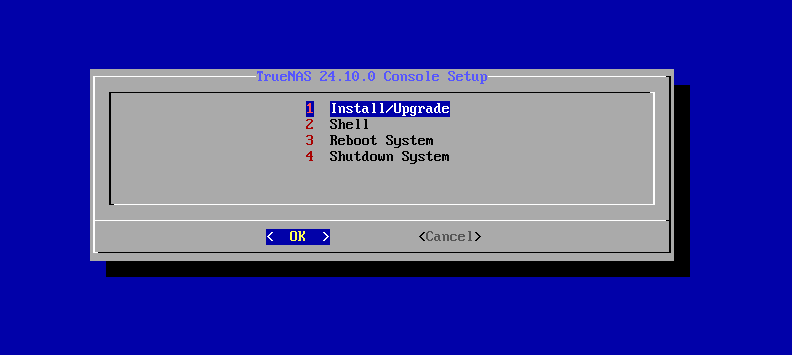
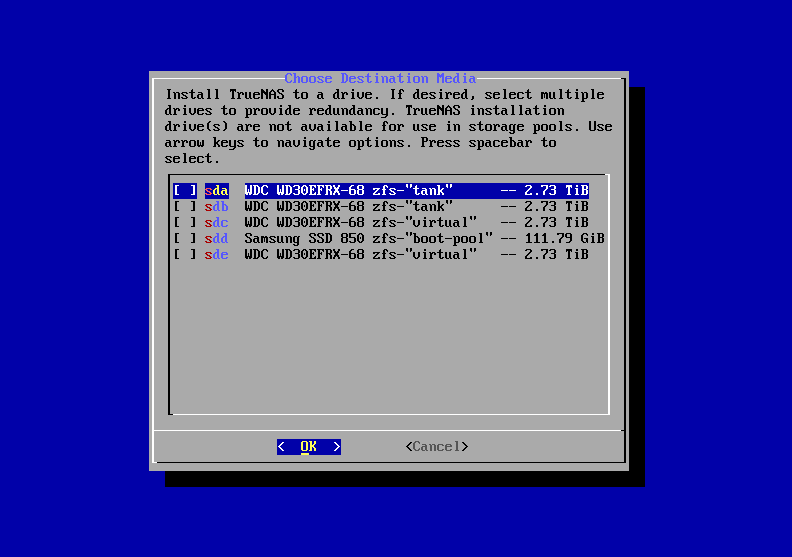
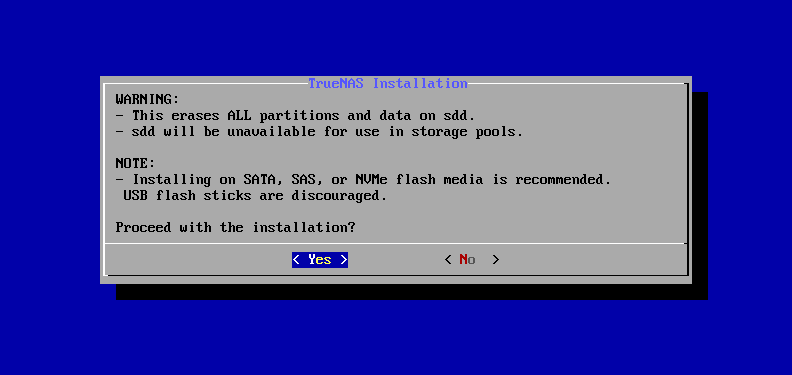
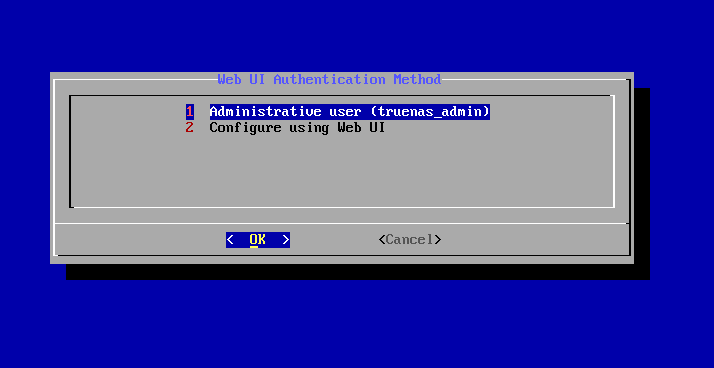
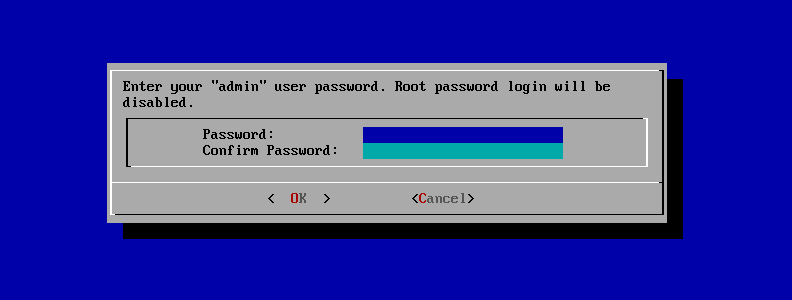
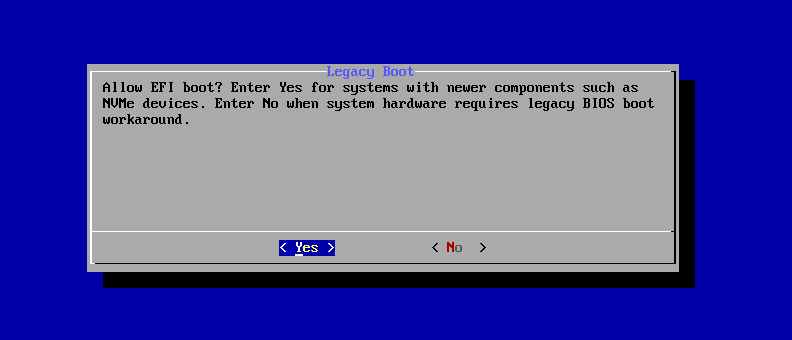
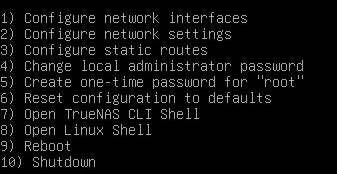
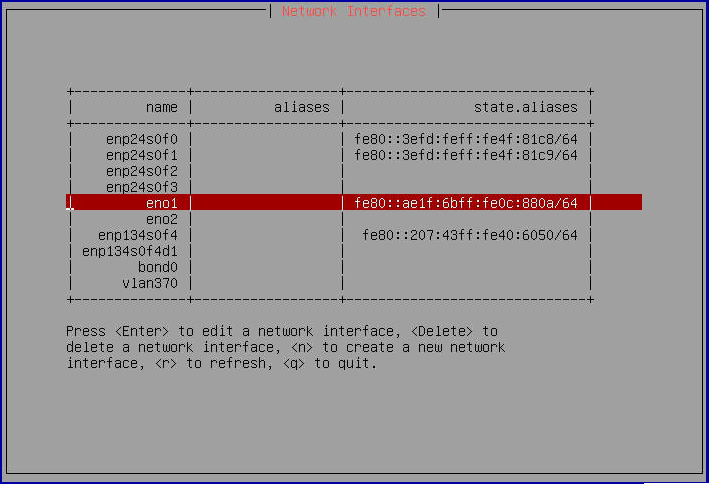
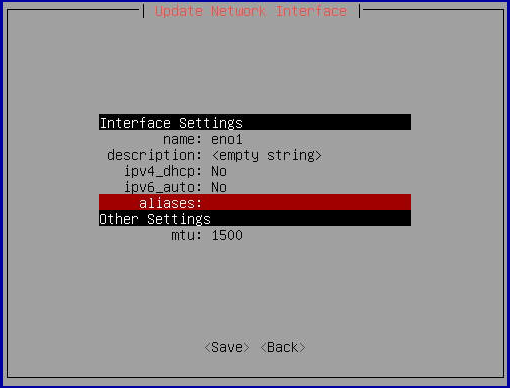
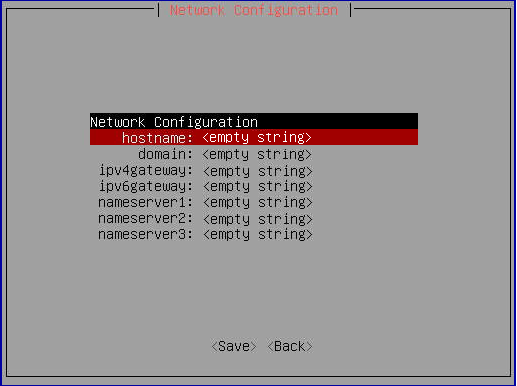
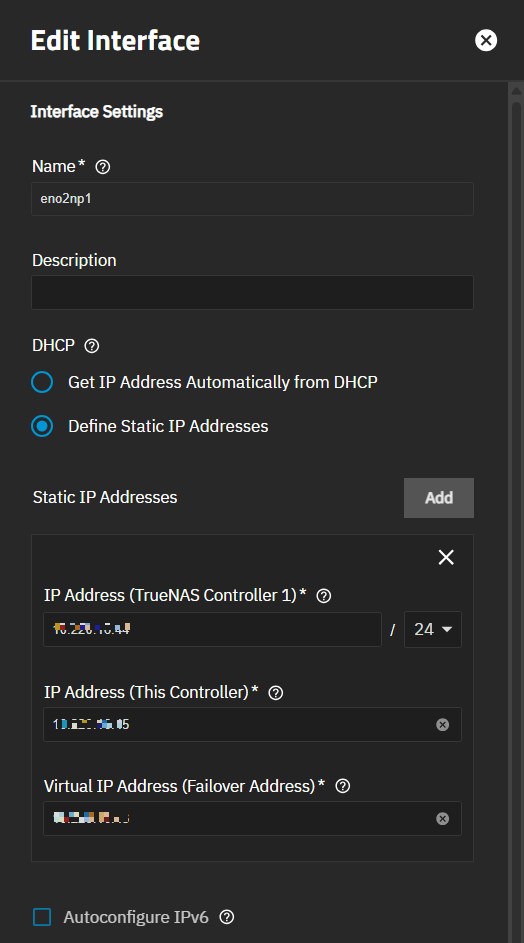
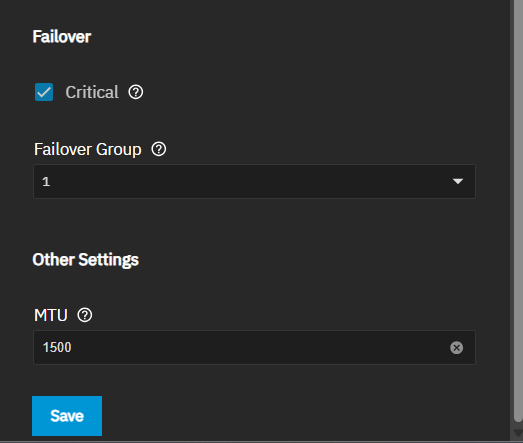
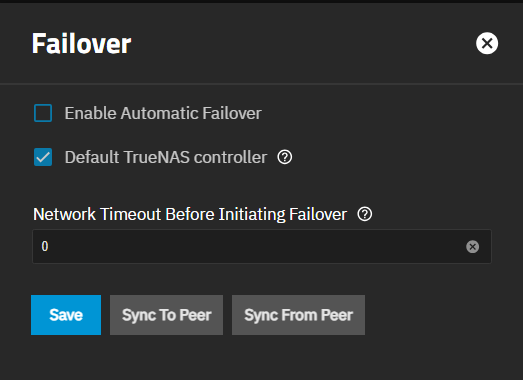
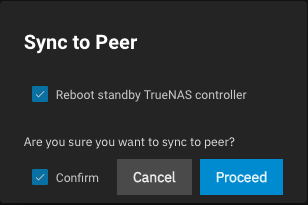
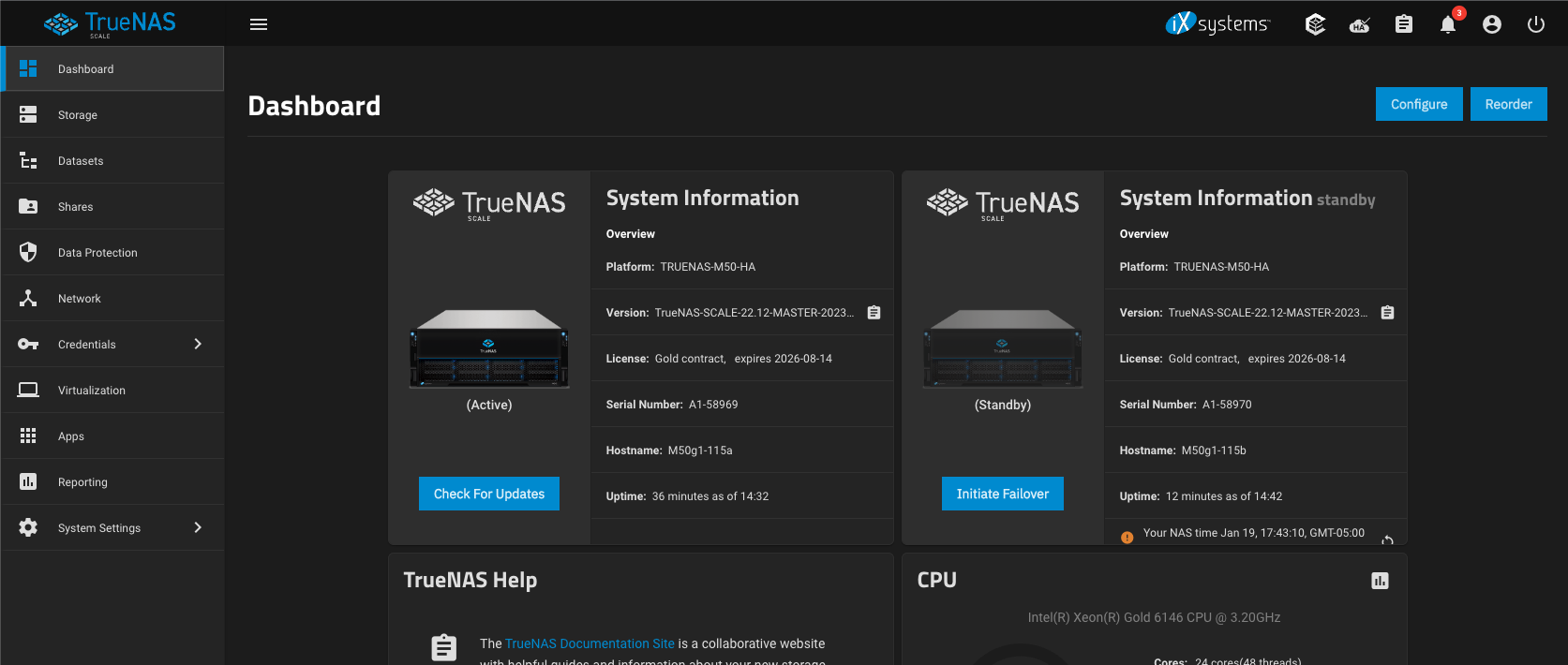
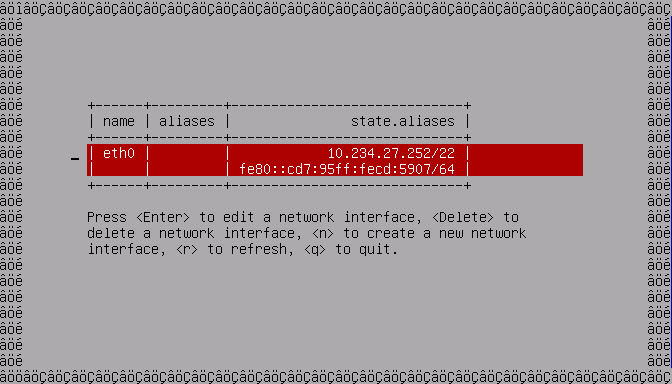
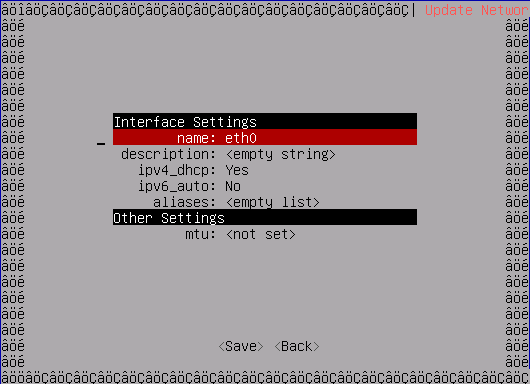
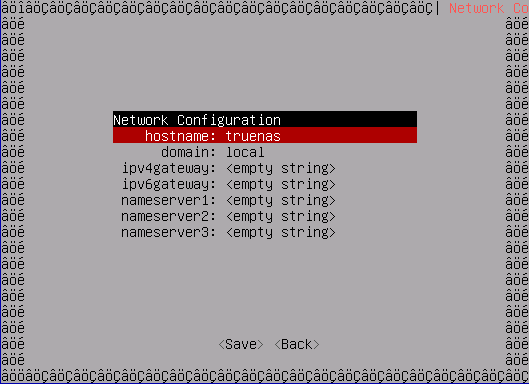
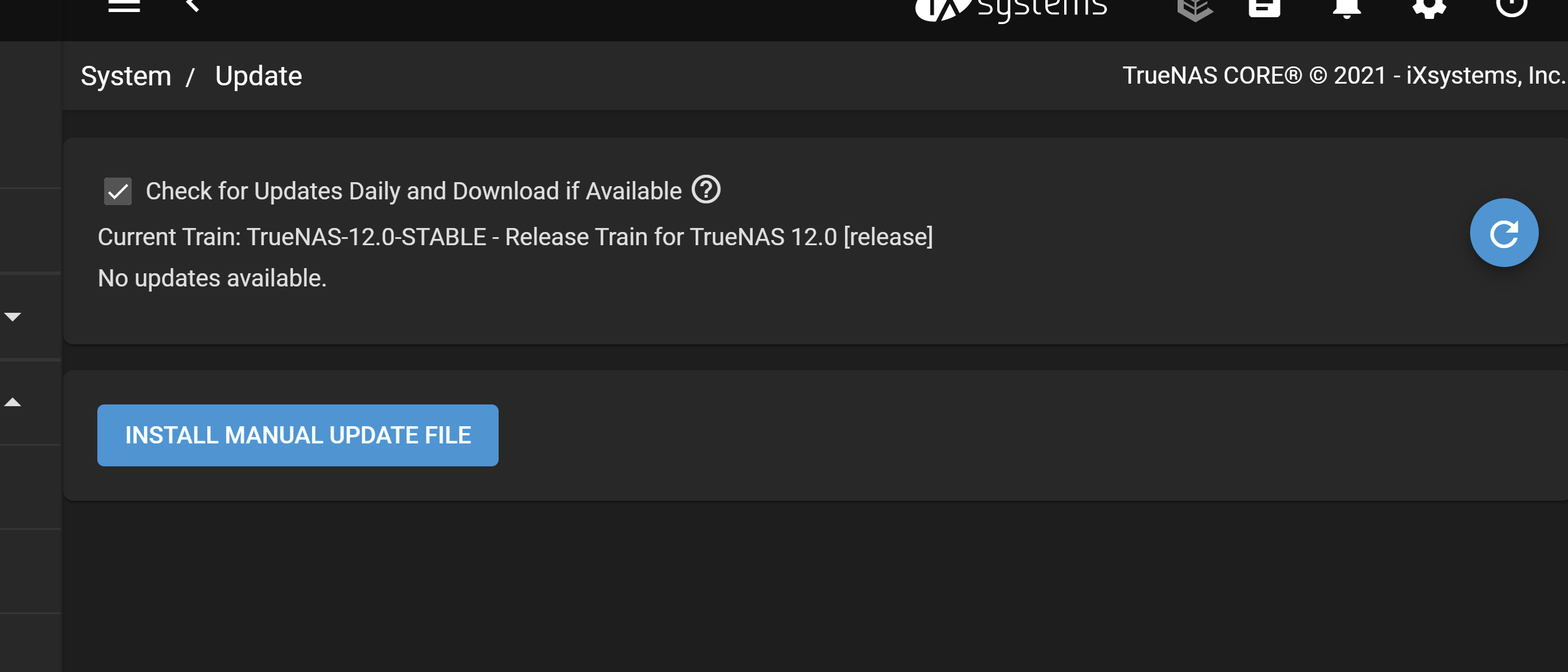
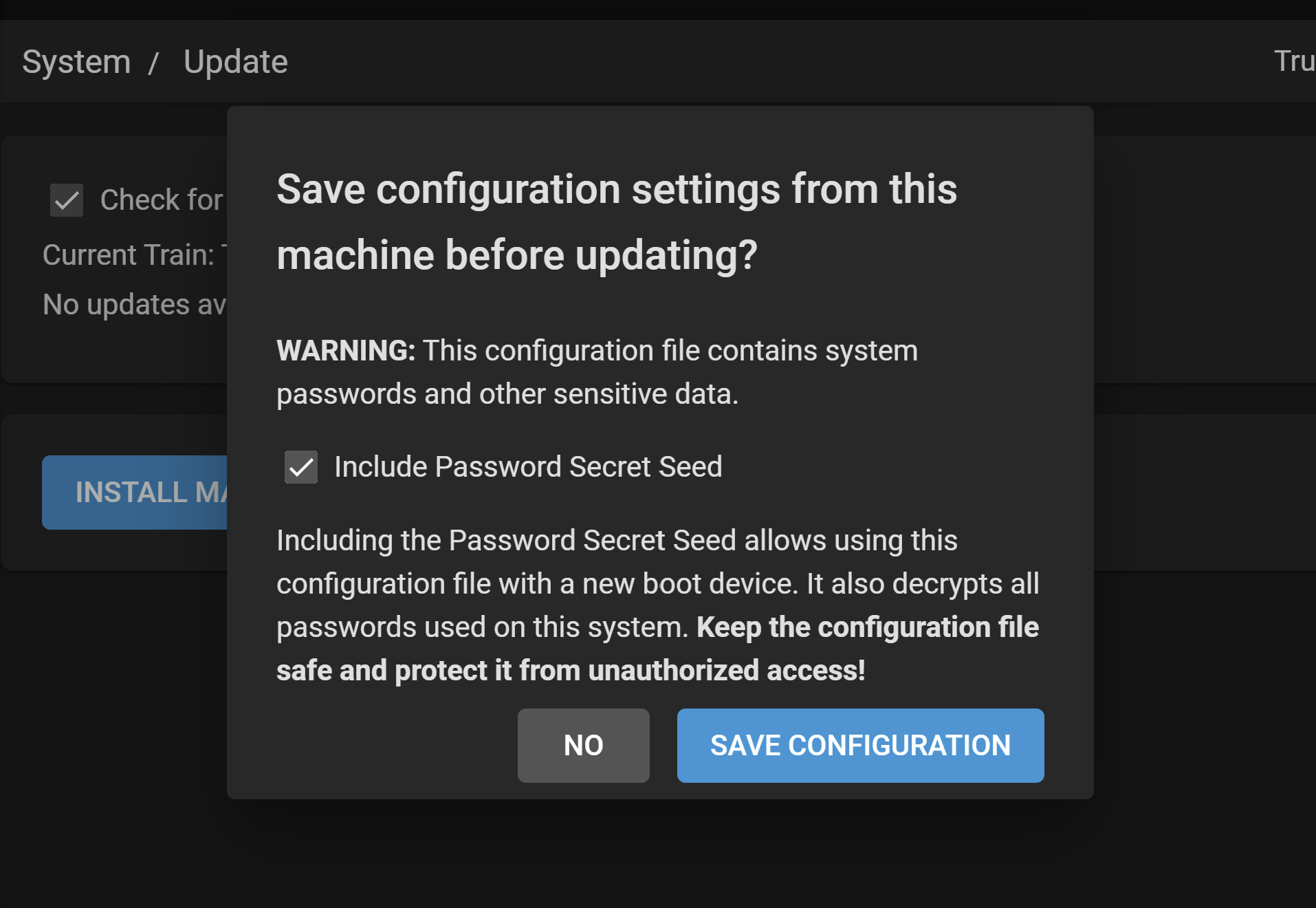
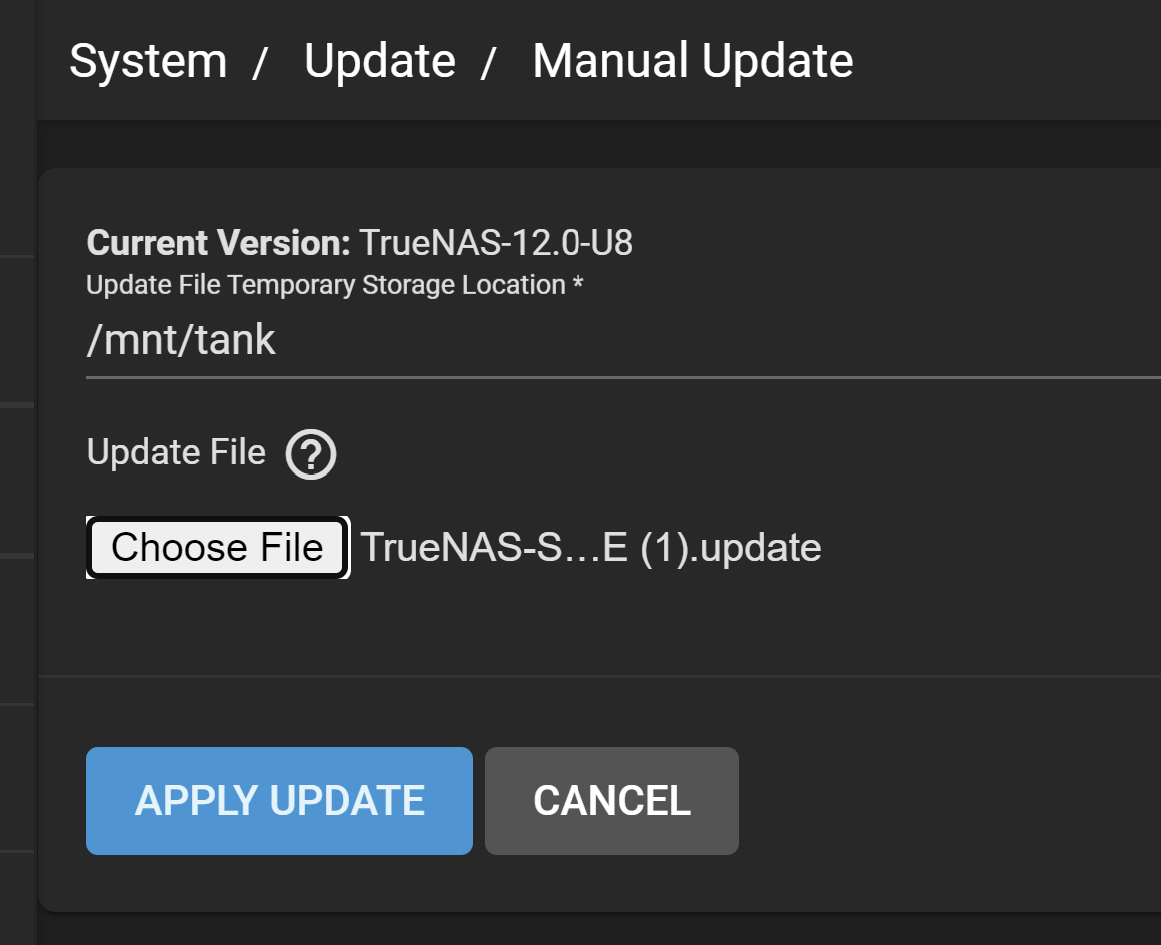
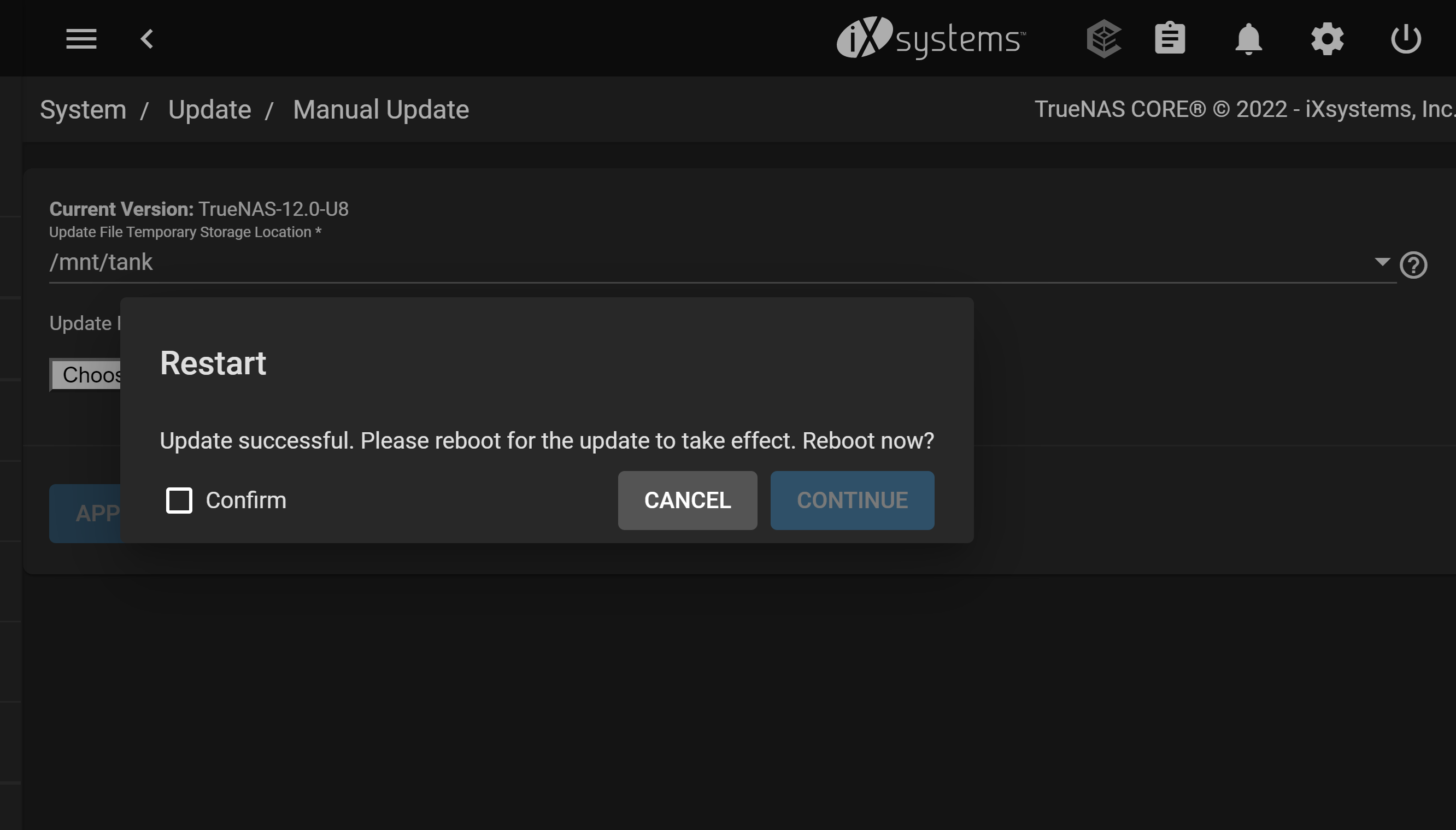
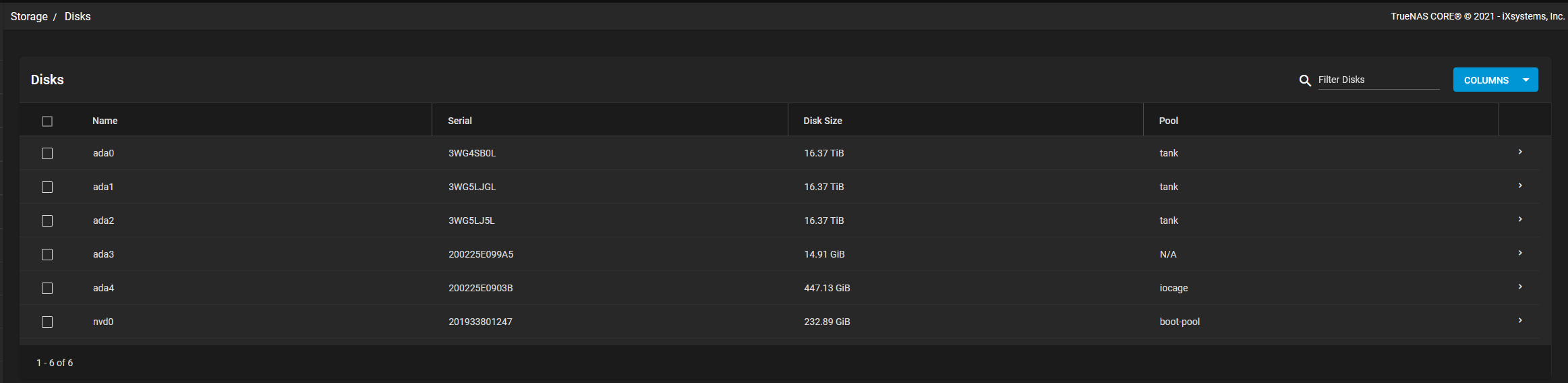
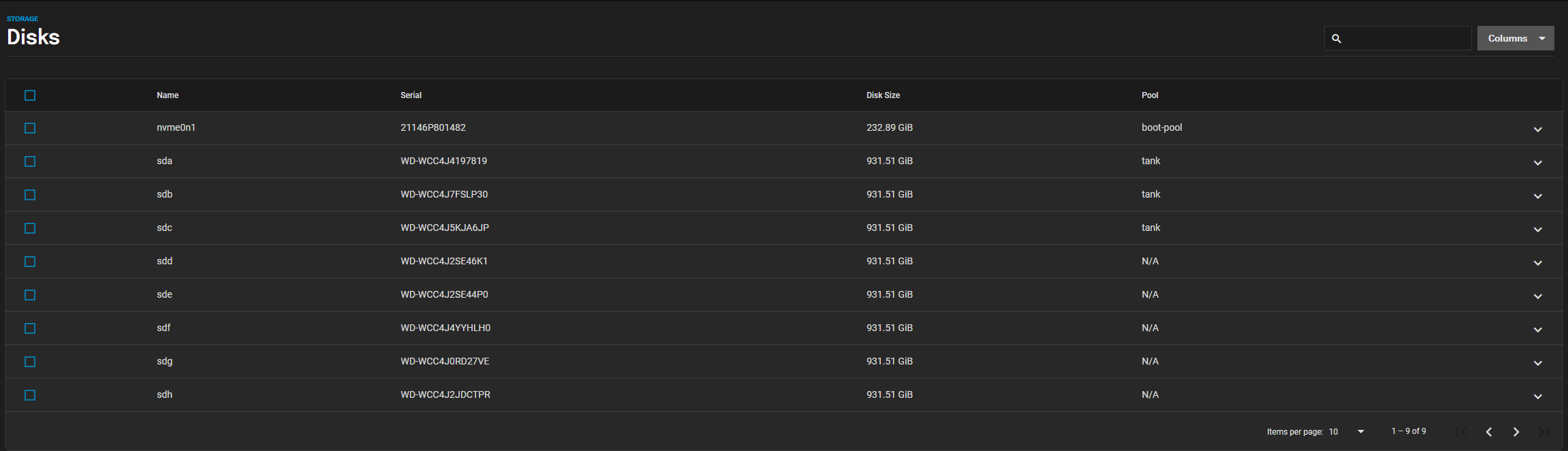
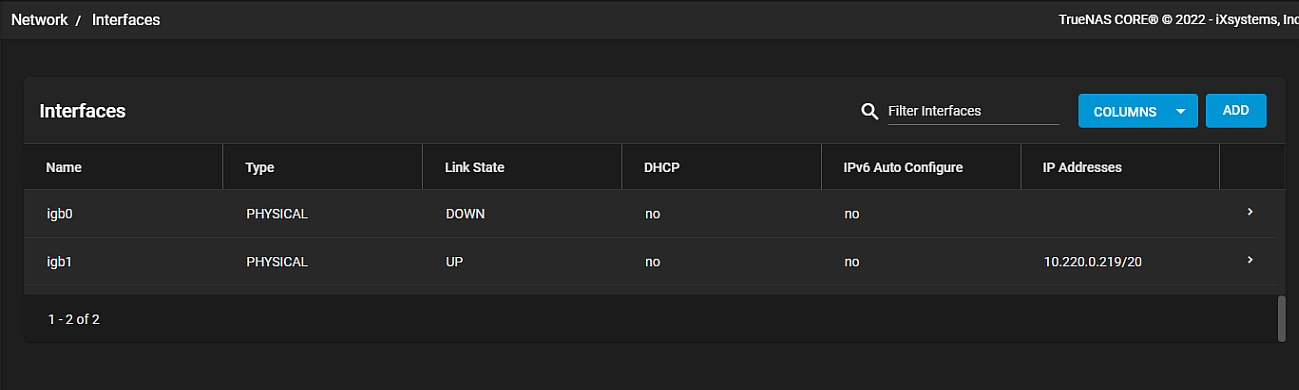
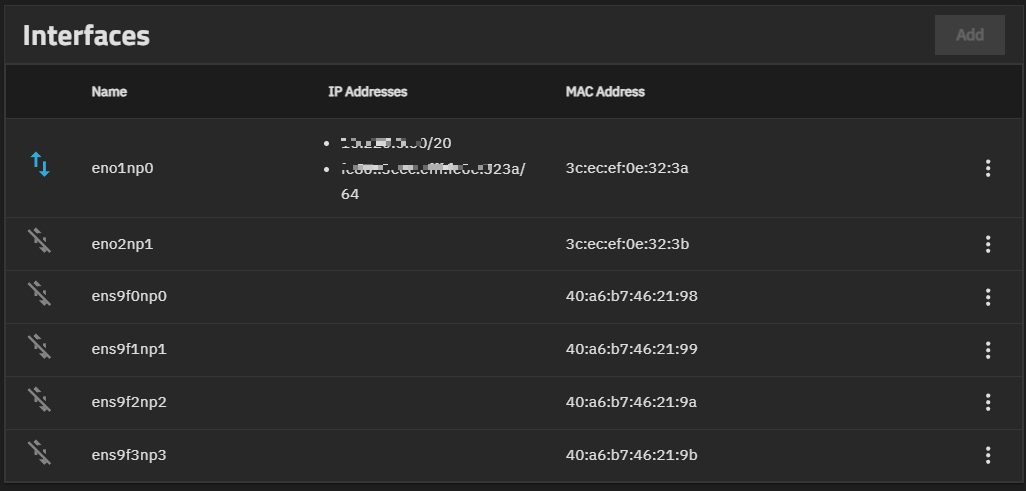


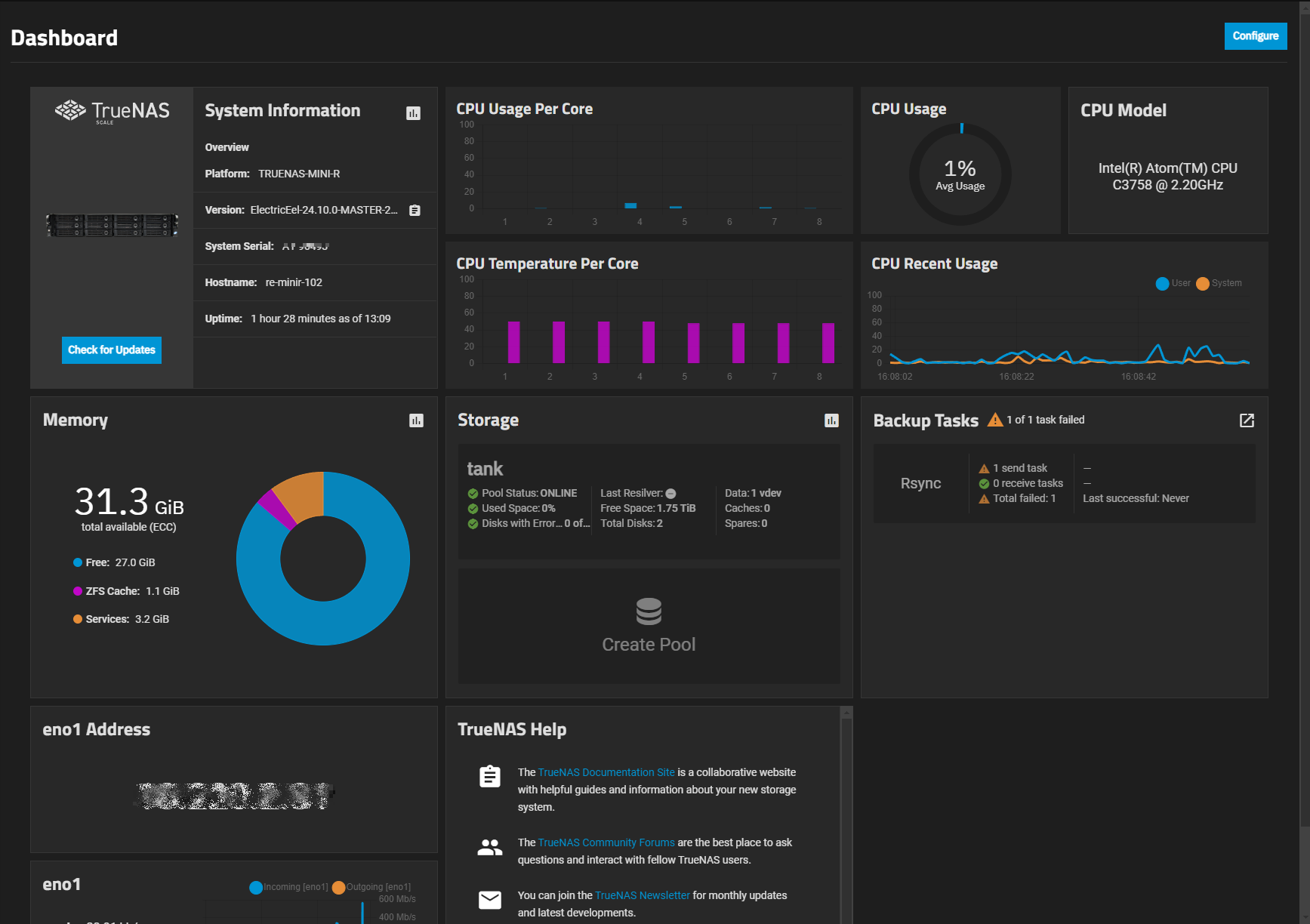
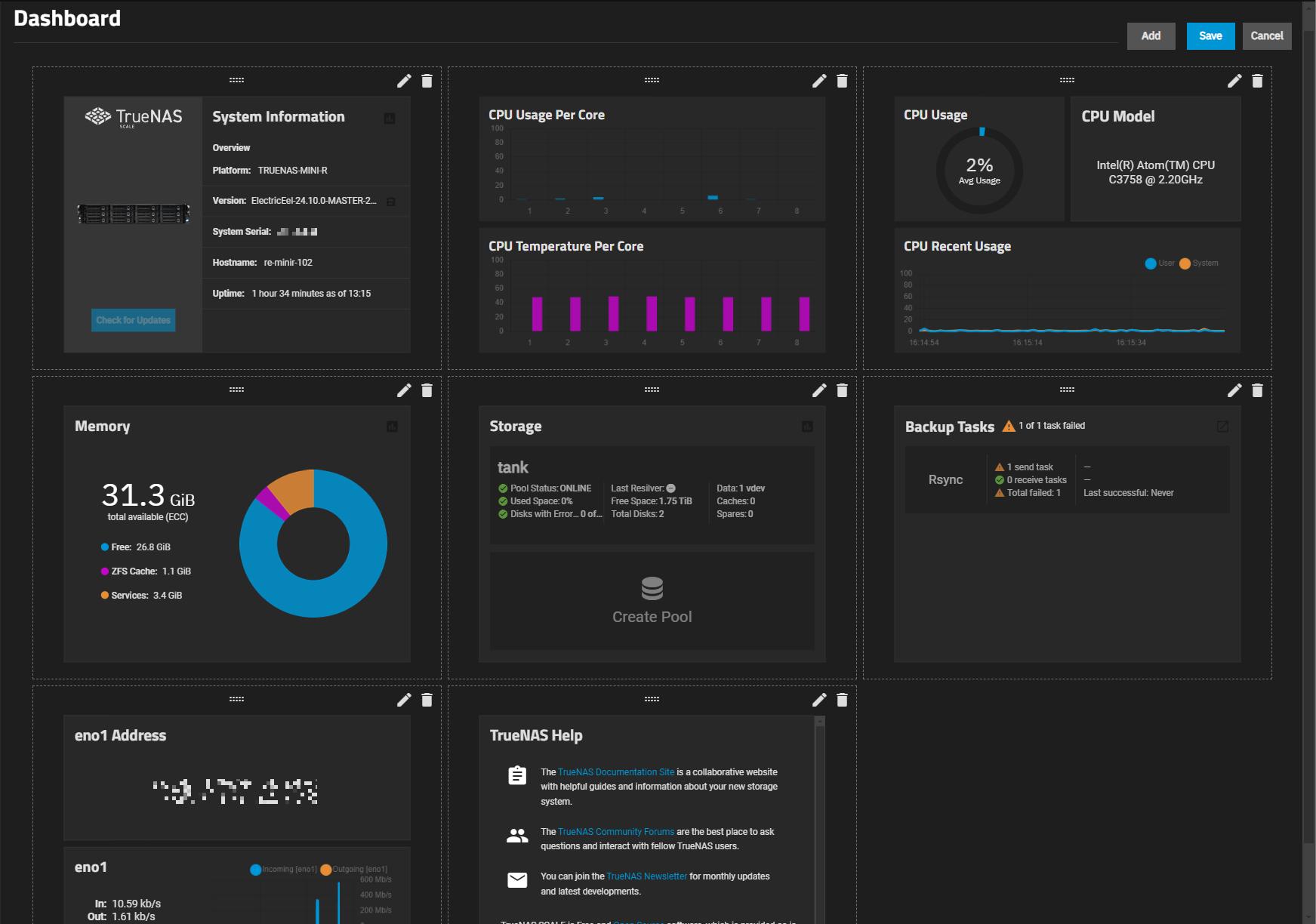


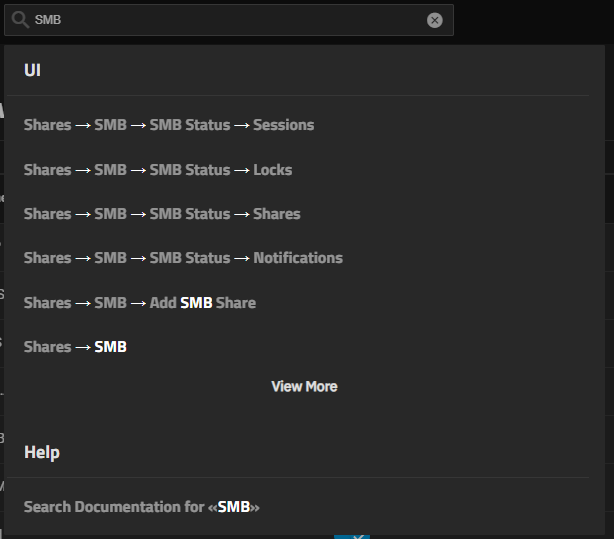
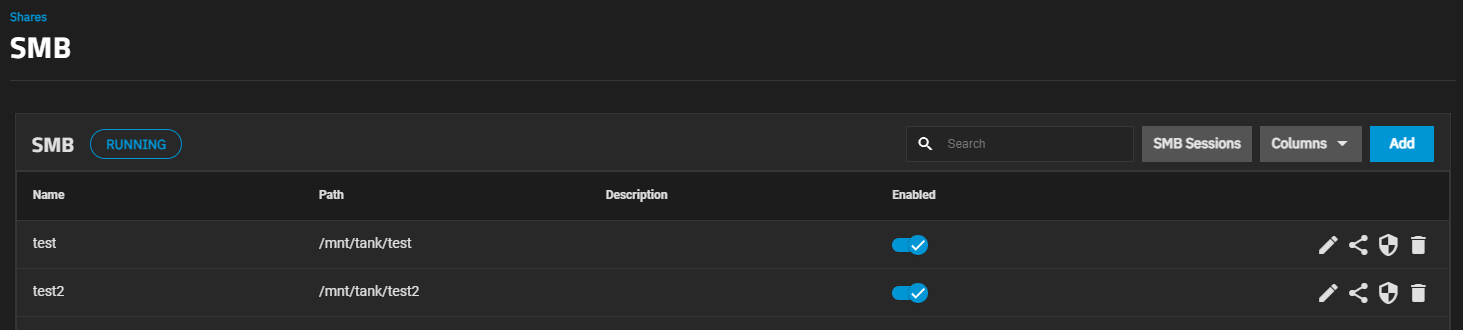
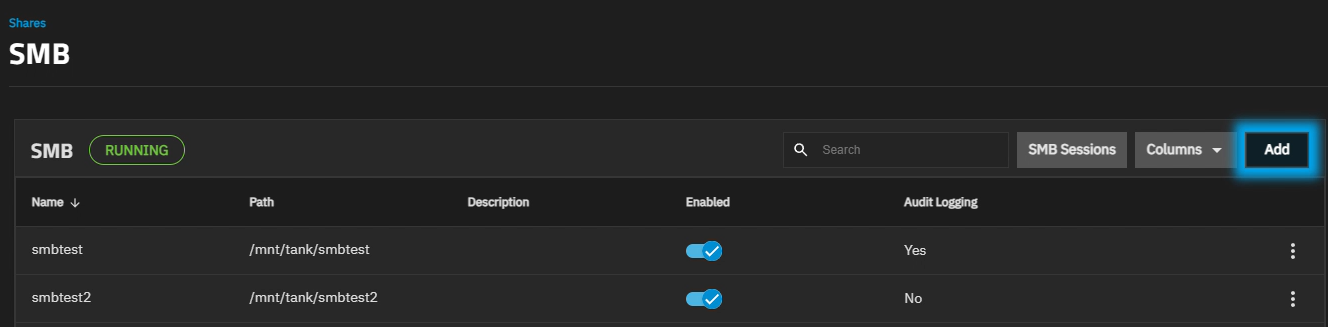
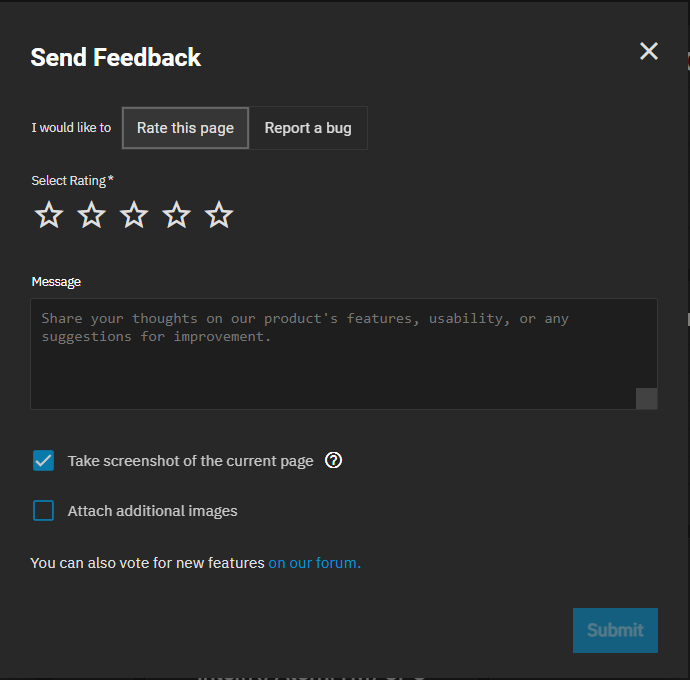
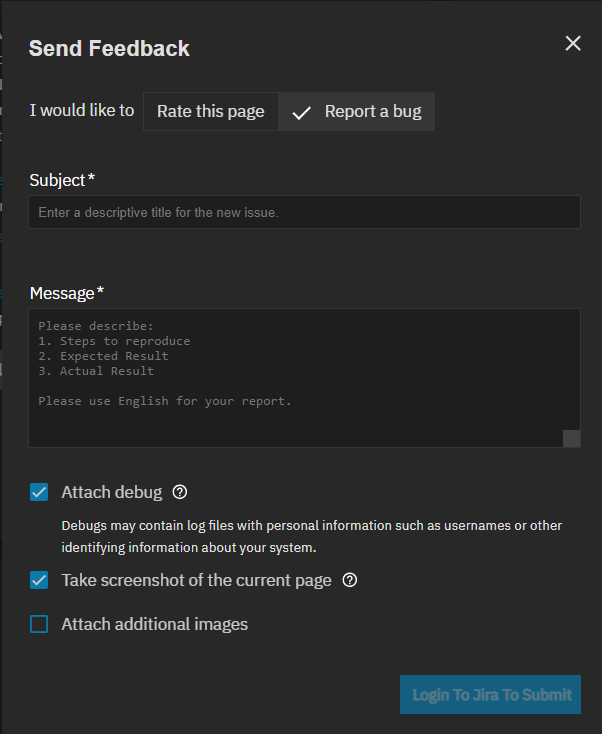
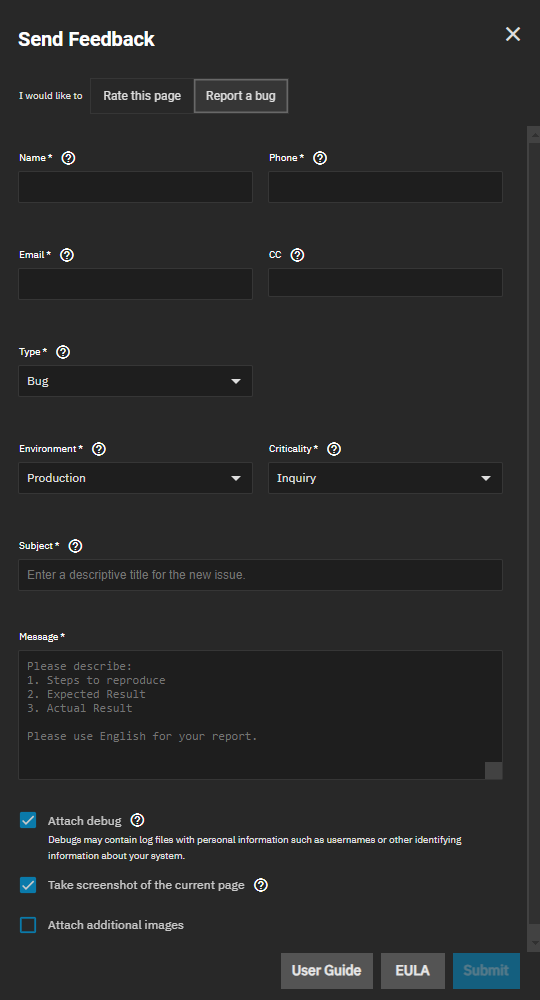
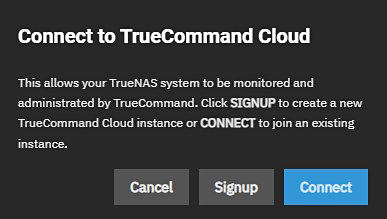
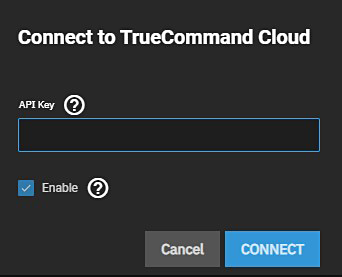

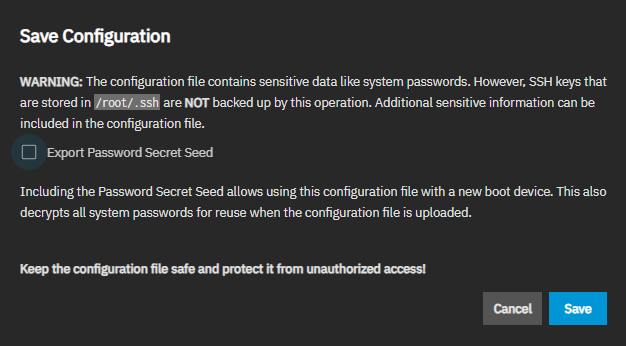
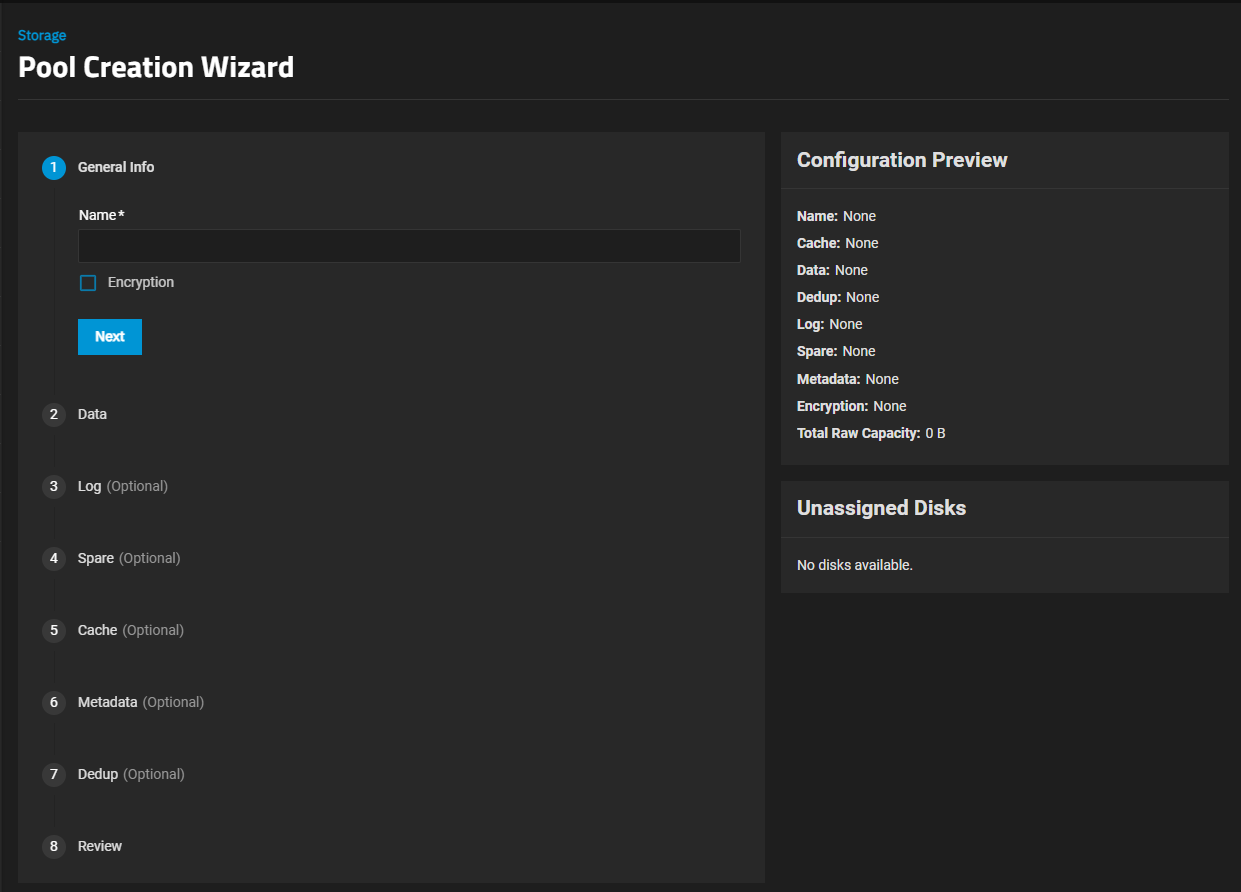
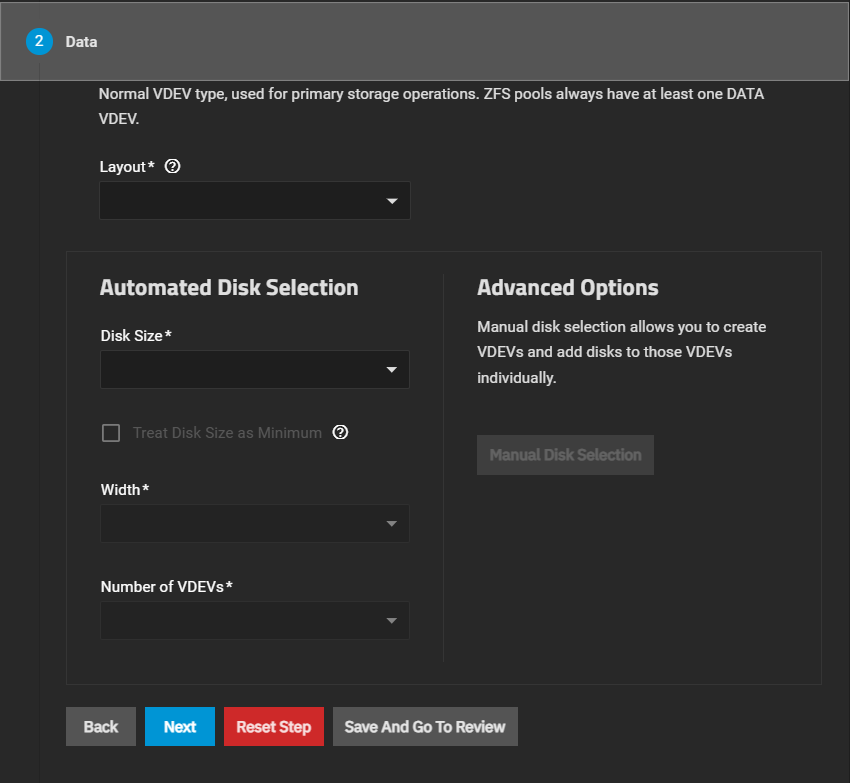
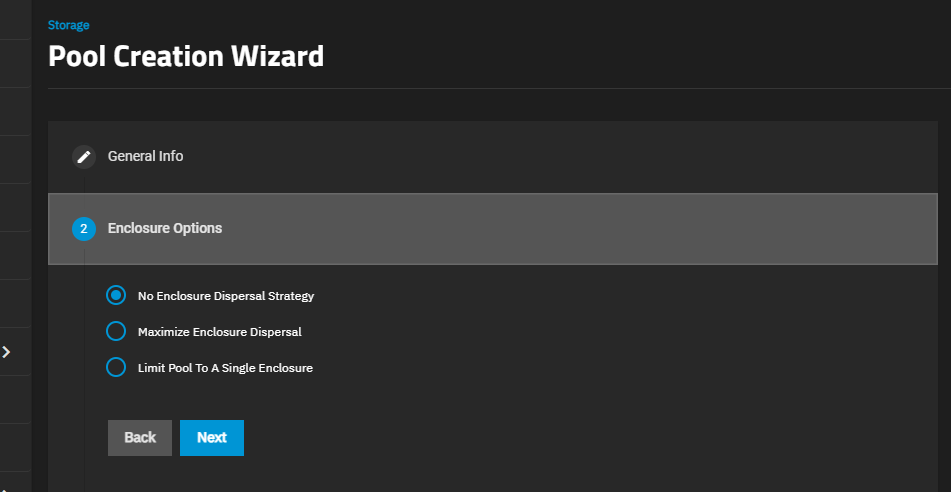
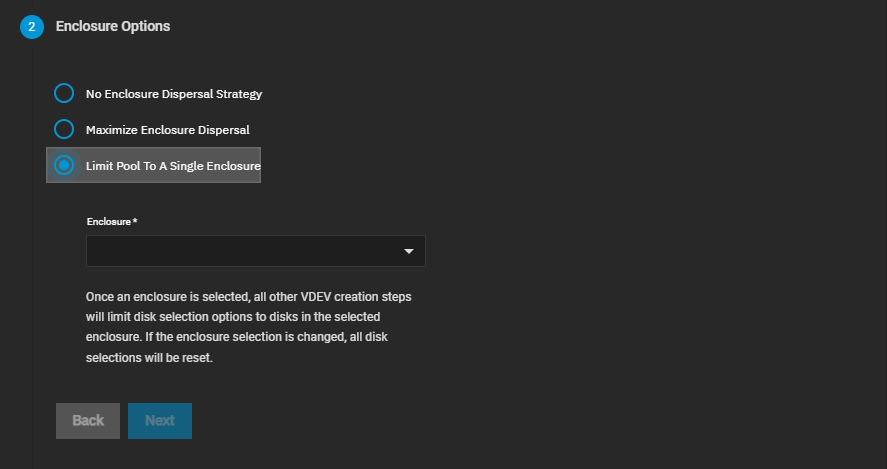
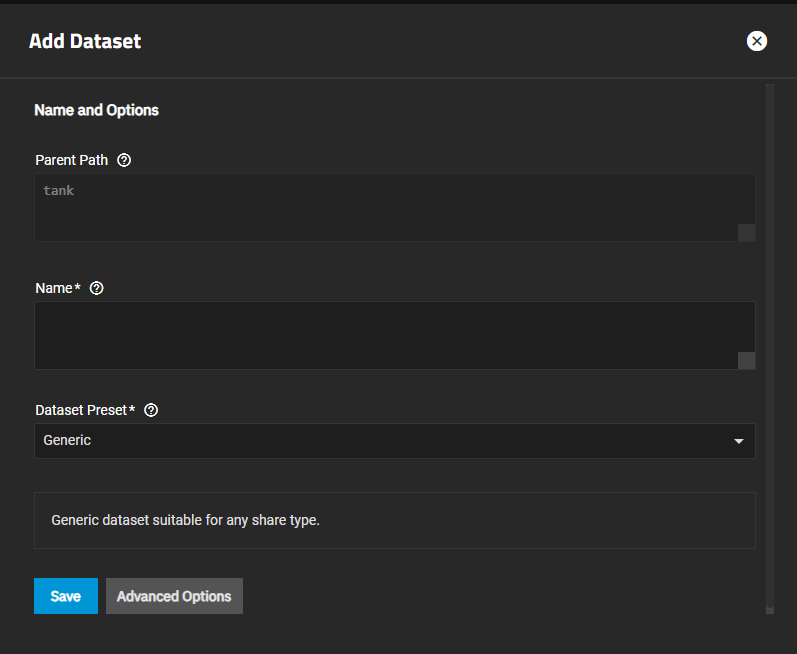
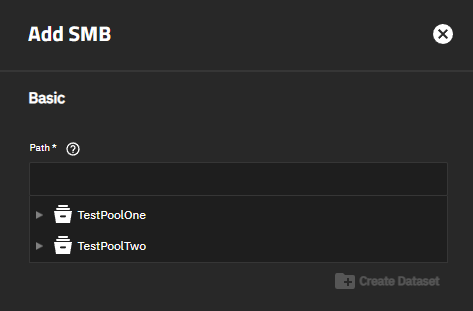
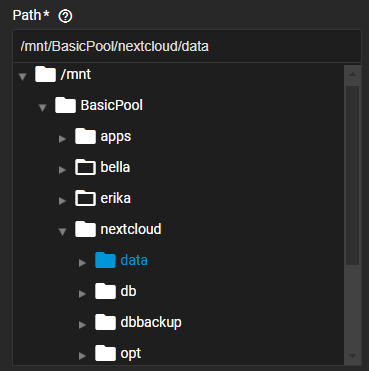
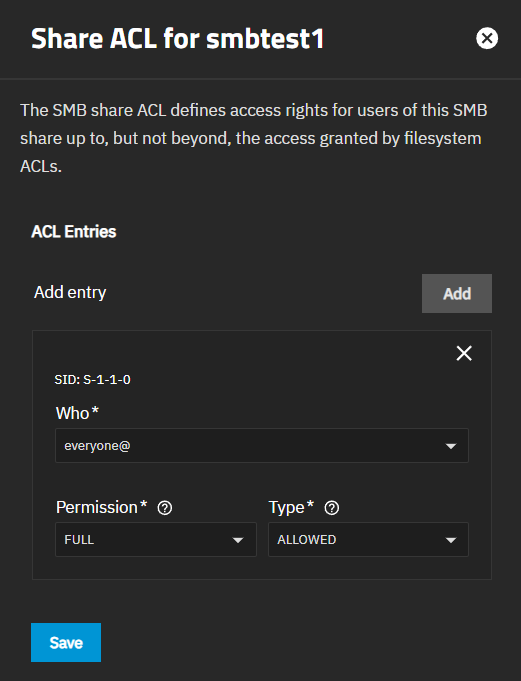
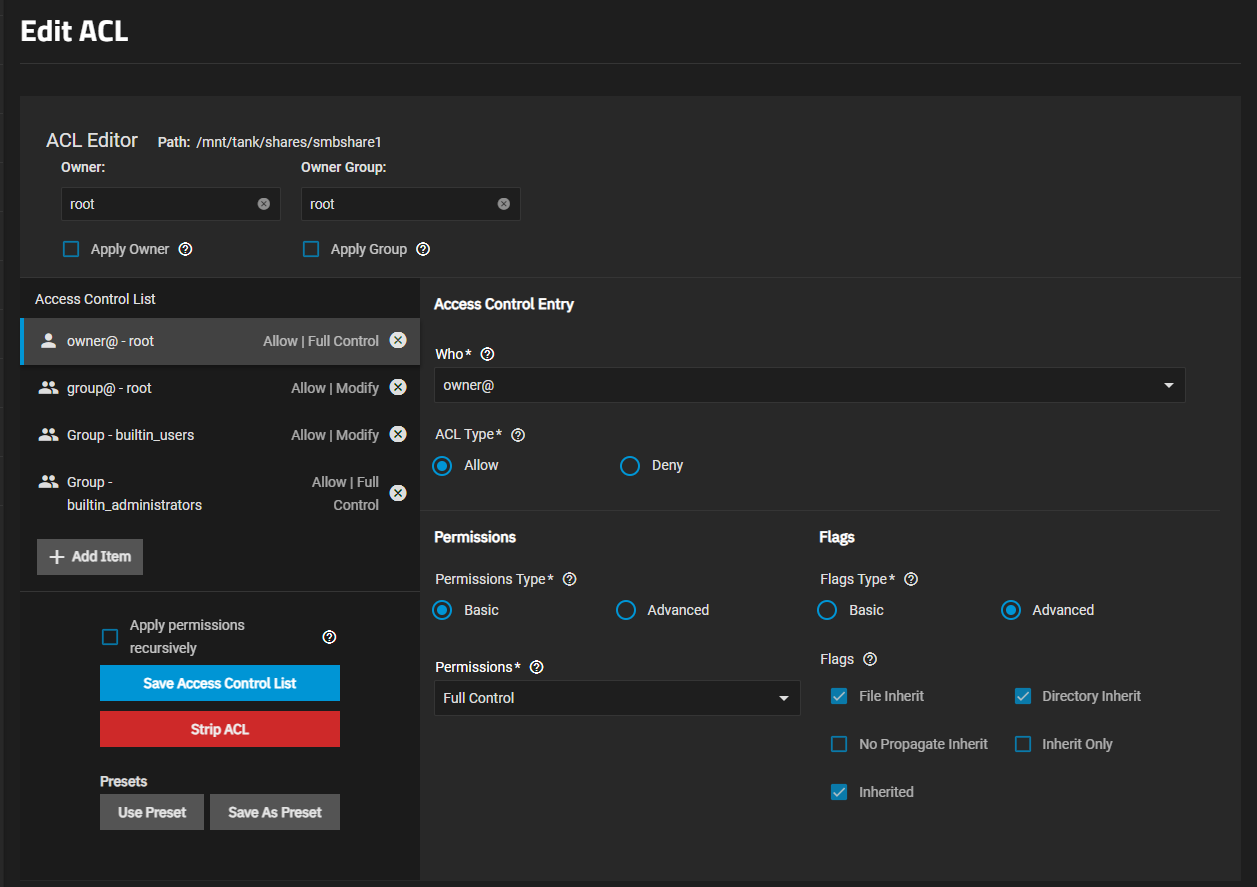
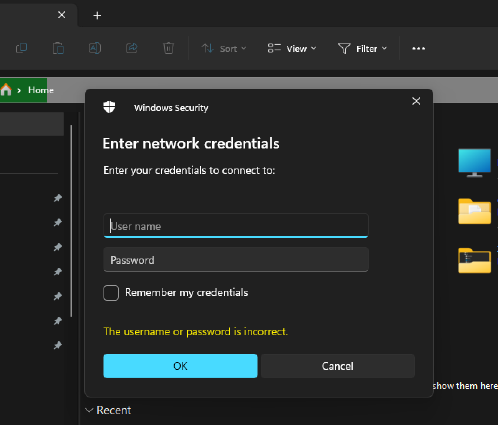
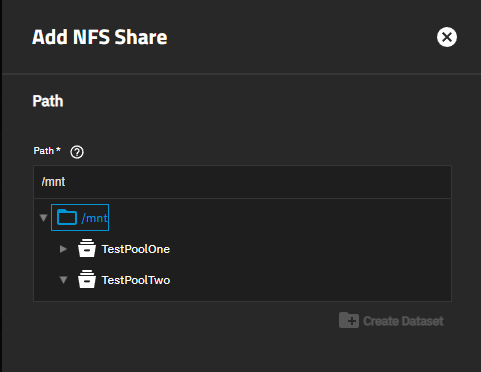
 icon or File Ticket option on the System > General Settings screen to create a bug report in the