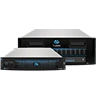
Review Storage Needs Creating a Pool TrueNAS uses ZFS data storage pools to efficiently store and protect data.
What's a pool? expand Storage pools attach drives organized into virtual devices called VDEVs. ZFS and TrueNAS periodically review and heal when discovering a bad block in a pool. Drives arranged inside VDEVs provide varying amounts of redundancy and performance. ZFS and VDEVs combined create high-performance pools that maximize data lifetime. Review Storage Needs We strongly recommend that you review your available system resources and plan your storage use case before creating a storage pool.
Creating a Dataset Setting Dataset Compression Levels Setting Dataset Quotas Changing Dataset Inherited Values Setting Datasets Access Controls Creating a Dataset for a Fusion Pool Managing Datasets Editing a Dataset Editing Dataset Permissions Deleting a Dataset A TrueNAS dataset is a file system within a data storage pool. Datasets can contain files, directories (child datasets), and have individual permissions or flags. Datasets can also be encrypted, either using the encryption created with the pool or with a separate encryption configuration.
Adding a Zvol Managing Zvols Cloning a Zvol from a Snapshot A ZFS Volume (zvol) is a dataset that represents a block device or virtual disk drive. TrueNAS requires a zvol when configuring iSCSI Shares. Adding a virtual machine also creates a zvol to use for storage.
Storage space you allocate to a zvol is only used by that volume, it does not get reallocated back to the total storage capacity of the pool or dataset where you create the zvol if it goes unused.
Disks Screen - Expanded Disk Batch Operations Bulk Edit Disks Manual S.M.A.R.T. Test Dialog S.M.A.R.T. Test Results if diskname Screen Wipe Disk Dialogs Edit Disk Screen The Disks screen displays a list of the physical drives (disks) installed in the system. The list includes the names, serial numbers, sizes, and pools for each system disk.
Use the Columns dropdown list to select options to customize disk the information displayed. Options are Select All, Serial (the disk serial number), Disk Size, Pool (where the disk is in use), Disk Type, Description, Model, Transfer Mode, Rotation Rate (RPM), HDD Standby, Adv.
From repurposed systems to highly custom builds, the fundamental freedom of TrueNAS is the ability to run it on almost any x86 computer.
Minimum Hardware Requirements Our recommended system requirements to install TrueNAS:
Processor Memory Boot Device Storage 2-Core Intel 64-Bit or AMD x86_64 processor 8 GB Memory 16 GB SSD boot device Two identically-sized devices for a single storage pool The TrueNAS installer recommends 8 GB of RAM. TrueNAS installs, runs, and operates jails.
Zvol Widgets Zvol Details Widget Delete Zvol Zvol Space Management Widget ZFS Encryption Widget Data Protection Widget Add Zvol Screen Basic Options Settings Advanced Options Settings Data Compression Algorithms Encryption Options The zvol screens and widgets, accessed from the Datasets screen, allow you to add or edit a zvol and manage the volume storage. Like datasets, zvols are listed on the Datasets screen tree table.
The tree table includes storage space used and available for that zvol (or dataset), encryption status (locked, unlocked, or unencrypted), and the role of that zvol or dataset or what service uses it (i.
Fusion Pools are also known as ZFS allocation classes, ZFS special vdevs, and metadata vdevs (Metadata vdev type on the Pool Manager screen.).
What's a special VDEV? expand A special VDEV can store metadata such as file locations and allocation tables. The allocations in the special class are dedicated to specific block types. By default, this includes all metadata, the indirect blocks of user data, and any deduplication tables. The class can also be provisioned to accept small file blocks.
Pool Creation Wizard General Info Data Log (Optional) Spare (Optional) Cache (Optional) Metadata (Optional) Dedup (Optional) Advanced Options Review The Pool Creation Wizard includes the wizard configuration screens, a configuration preview, and an inventory list of disks available on the system.
The Create Pool button at the top right of the Storage Dashboard screen opens the Pool Creation Wizard.
Figure 1: Pool Creation Wizard The Configuration Preview displays a list of Pool and VDEV settings that dynamically update as you configure settings in the wizard.
No Pools Screen Storage Dashboard Storage Dashboard Widgets Pool Status Upgrade Dialog Section Contents The Storage Dashboard screen, allows users configure and manage storage resources such as pools (VDEVs), datasets, and disks, and to keep the pool healthy (scrub). The dashboard widgets organize functions related to storage resources.
No Pools Screen The No Pools screen displays before you add the first pool.
Figure 1: Storage Dashboard without Pools The Create Pool button in the center of the screen opens the Pool Manager screen.
Configuring User Quotas Configuring Group Quotas TrueNAS allows setting data or object quotas for user accounts and groups cached on or connected to the system. You can use the quota settings on the Add Dataset or Edit Dataset configuration screens in the Advanced Options settings to set up alarms and set aside more space in a dataset. See Adding and Managing Datasets for more information.
To manage the dataset overall capacity, use Edit on the Dataset Space Management widget to open the Capacity Settings screen.