Dashboard Configuration Panel System Information CPU Memory Network and Interfaces Storage and Pools Help The Dashboard screen displays the first time you log into the SCALE web interface. To display the Dashboard screen again click Dashboard on the left side panel.
The Dashboard displays basic information about your TrueNAS system in widgets or information cards that group information about your TrueNAS by type. For example, CPU information appears in the CPU widget.
TrueNAS Enterprise This procedure only applies to SCALE Enterprise (HA) systems. If attempting to migrate from CORE to SCALE, see Migrating from TrueNAS CORE. Updating Enterprise (HA) Systems If the system does not have an administrative user account, create the admin user as part of this procedure.
Take a screenshot of the license information found on the Support widget on the System Settings > General screen. You use this to verify the license after the update.
Web Interface Access Logging Into the SCALE UI Logging In as Admin Logging In as Root Creating an Administrator Account at First Log in Troubleshooting Accessing the Web UI Introducing the Main SCALE Dashboard Introducing SCALE Navigation Options Top Toolbar Managing Sessions Next Steps Now that you have installed TrueNAS SCALE or migrated from TrueNAS CORE to SCALE, you can log into the SCALE web user interface (UI) to complete your initial system configuration and then begin managing data!
TrueNAS Enterprise The instructions in the article only apply to SCALE Enterprise (HA) systems. SCALE Enterprise (HA) systems use three static IP addresses for access to the UI:
VIP to provide UI access regardless of which controller is active. If your system fails over from controller 1 to 2, then fails over back to controller 1 later you might not know which controller is active. IP for controller 1. If enabled on your network, DHCP assigns only the Controller 1 IP address.
TrueNAS Enterprise This article only applies to SCALE Enterprise (HA) systems. The System Settings > Failover screen displays settings used on SCALE Enterprise (HA) systems to turn the failover function on or off, sync the primary and standby controllers, and allow administrator users to configure failover. The main menu option and screen only display on Enterprise (HA) systems with the correct license applied.
Setting Description Disable Failover Select to turn failover off.
The SCALE CLI guide is a work in progress! New namespace and command documentation is continually added and maintained, so check back here often to see what is new! Related CLI System Articles ACME Advanced Alert Boot Bootenv Certificate Config Core Device Related Failover Articles Managing Network Settings (Enterprise HA) Failover Screen
TrueNAS Enterprise KMIP is only available for TrueNAS SCALE Enterprise licensed systems. Contact the iXsystems Sales Team to inquire about purchasing TrueNAS Enterprise licenses. Connecting TrueNAS to a KMIP Server Configuring KMIP in TrueNAS The Key Management Interoperability Protocol (KMIP) is an extensible client/server communication protocol for storing and maintaining keys, certificates, and secret objects. KMIP on TrueNAS SCALE Enterprise integrates the system within an existing centralized key management infrastructure and uses a single trusted source for creating, using, and destroying SED passwords and ZFS encryption keys.
The SCALE CLI guide is a work in progress! New namespace and command documentation is continually added and maintained, so check back here often to see what is new! Related CLI System Articles ACME Advanced Alert Boot Bootenv Certificate Config Core Device Failover Related KMIP Articles Configuring KMIP KMIP Screen Related Enterprise Articles Main Dashboard Updating SCALE Enterprise HA First Time Login Managing Network Settings (Enterprise HA) Failover Screen Failover Configuring KMIP KMIP Screen View Enclosure Screen (Enterprise Only)
TrueNAS Enterprise KMIP on TrueNAS SCALE Enterprise is used to integrate the system within an existing centralized key management infrastructure and use a single trusted source for creating, using, and destroying SED passwords and ZFS encryption keys. The KMIP screen has two areas, KMIP Key Status that displays keys synced between a KMIP server and TrueNAS database and KMIP Server with the KMIP configuration settings.
Figure 1: KMIP Screen KMIP Key Status The KMIP Key Status area of the KMIP screen lists ZFS/SED keys synced between a KMIP server and the TrueNAS database.
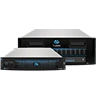
View Enclosure Screen Elements Options System Image Screens Disk Image Screens Mini Enclosure Screen Example R20 Enclosure Screen Example M40 and Expansion Shelf Enclosure Screen Examples TrueNAS Enterprise The View Enclosure screen only displays on TrueNAS SCALE Enterprise systems with compatible hardware. The UI options to select System Settings > Enclosure is not present on incompatible non-Enterprise systems. The System Information widget on the main Dashboard displays an image of the specific TrueNAS system.