Synchronizing System and SCALE Time: Provides instructions on synchronizing the system server and TrueNAS SCALE time when both are out of alignment with each other.
Dashboard Configuration Panel System Information CPU Memory Network and Interfaces Storage and Pools Help The Dashboard screen displays the first time you log into the SCALE web interface. To display the Dashboard screen again click Dashboard on the left side panel.
The Dashboard displays basic information about your TrueNAS system in widgets or information cards that group information about your TrueNAS by type. For example, CPU information appears in the CPU widget.
Web Interface Access Logging Into the SCALE UI Logging In as Admin Logging In as Root Creating an Administrator Account at First Log in Troubleshooting Accessing the Web UI Introducing the Main SCALE Dashboard Introducing SCALE Navigation Options Top Toolbar Managing Sessions Next Steps Now that you have installed TrueNAS SCALE or migrated from TrueNAS CORE to SCALE, you can log into the SCALE web user interface (UI) to complete your initial system configuration and then begin managing data!
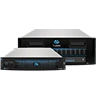
View Enclosure Screen Elements Options System Image Screens Disk Image Screens Mini Enclosure Screen Example R20 Enclosure Screen Example M40 and Expansion Shelf Enclosure Screen Examples TrueNAS Enterprise The View Enclosure screen only displays on TrueNAS SCALE Enterprise systems with compatible hardware. The UI options to select System Settings > Enclosure is not present on incompatible non-Enterprise systems. The System Information widget on the main Dashboard displays an image of the specific TrueNAS system.