This document shows and describes each screen and configurable option contained within the TrueNAS web interface.
The document is arranged in a parallel manner to the TrueNAS web interface, beginning with the top panel and then descending through each option displayed in the web interface left side menu.
To display this document in a linear HTML format, export it to PDF, or physically print it, please select ⎙ Download or Print.
SCALE UI Reference Guide Sections
⎙ Download or Print: View the TrueNAS SCALE UI Reference Guide as a single page for download or print.
Main Dashboard: Provides information on the main Dashboard information cards (widgets). It includes basic instructions on synchronizing system server and SCALE time and on customizing the display by moving, adding, or removing widgets.
Top Toolbar Options: All the icons and options contained in the TrueNAS SCALE top toolbar.
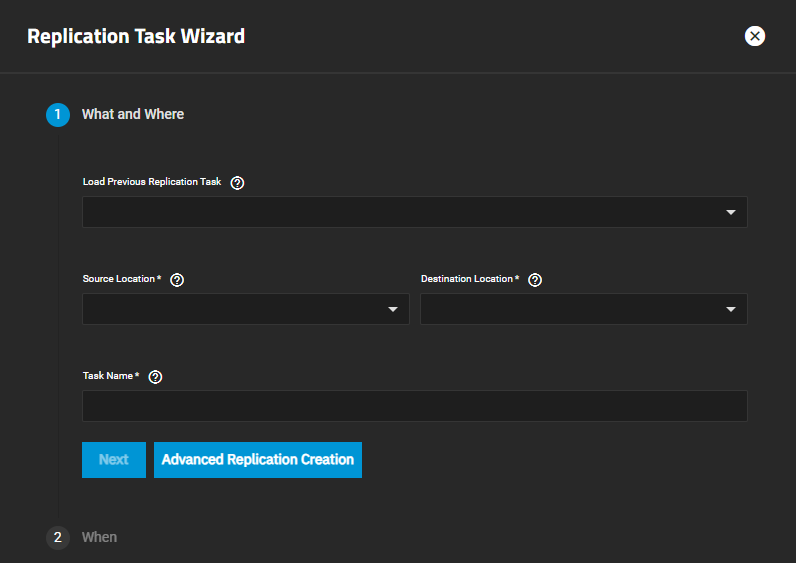
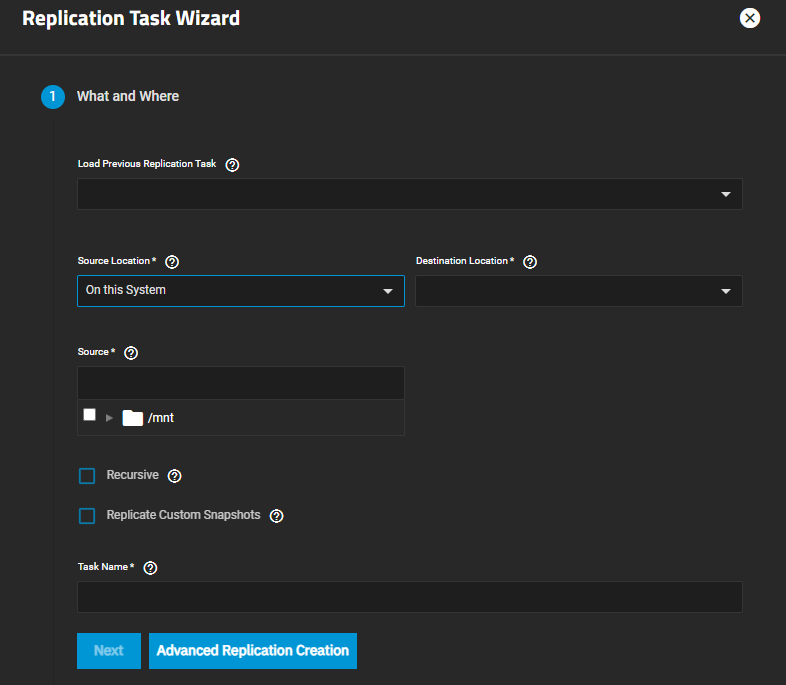
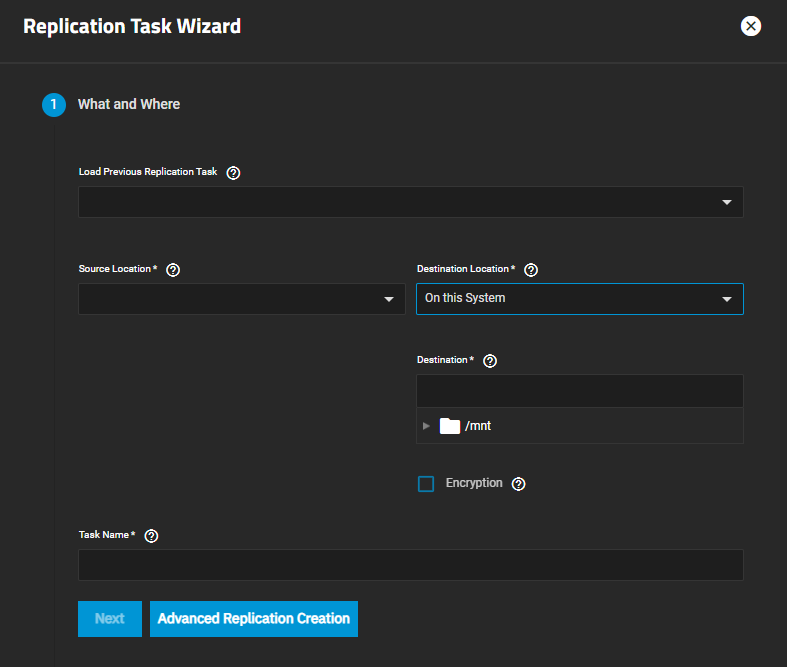
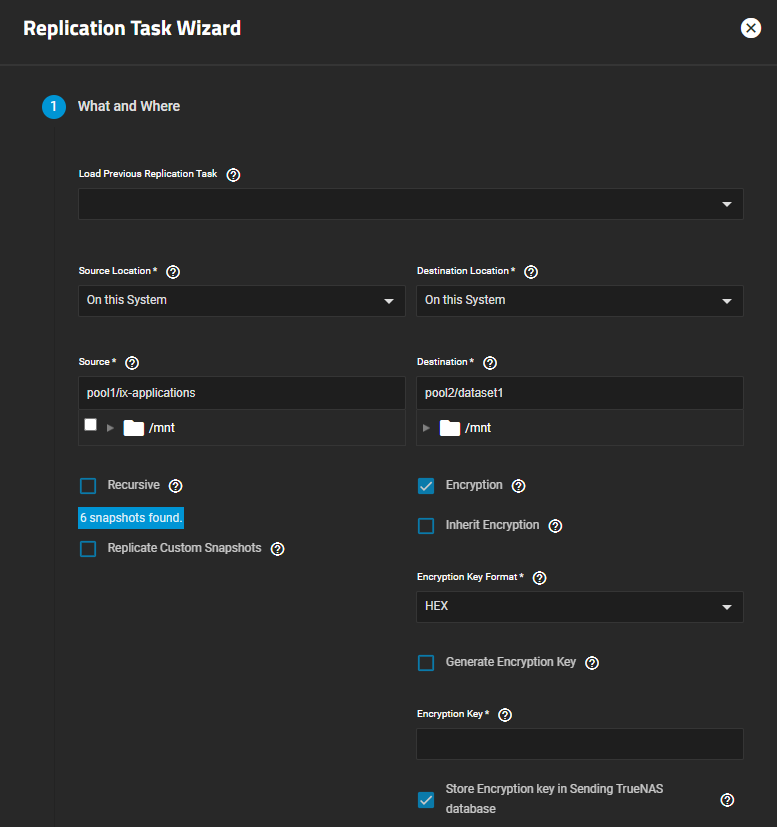
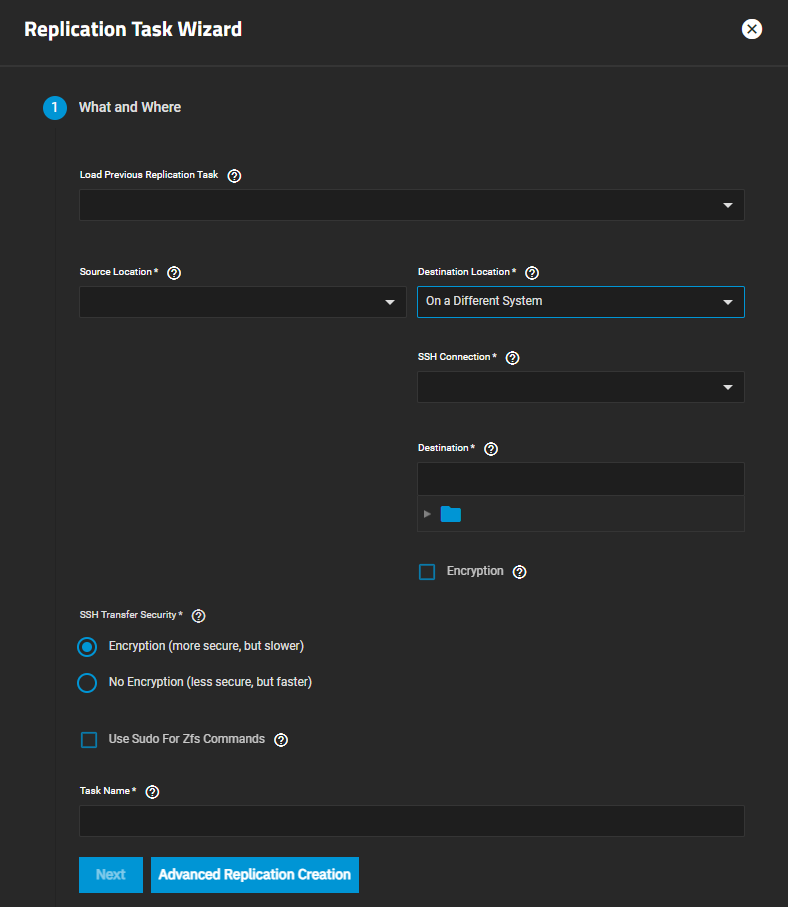
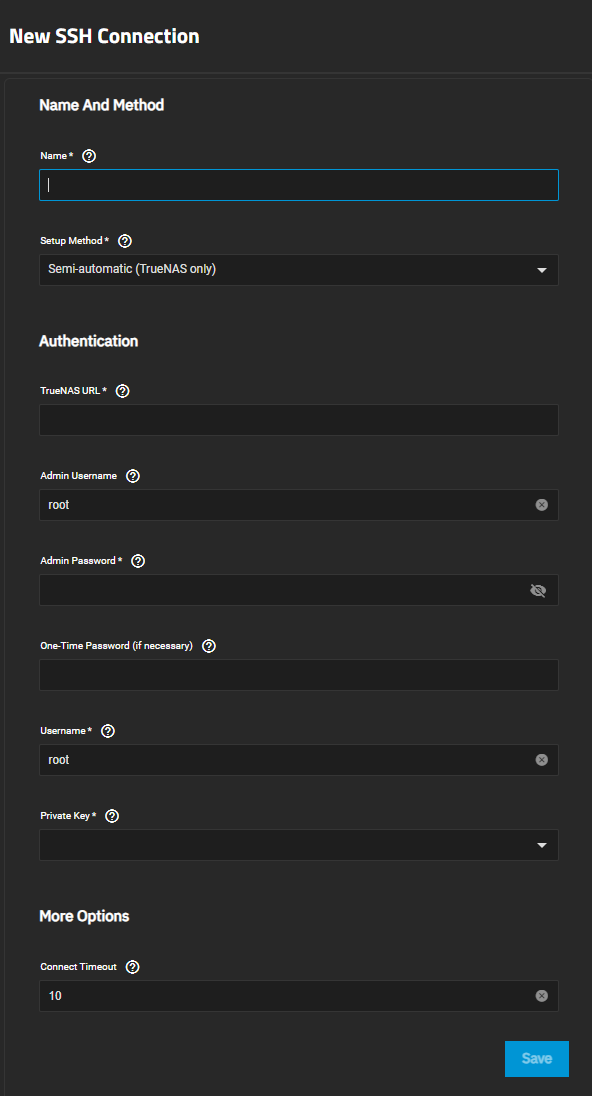
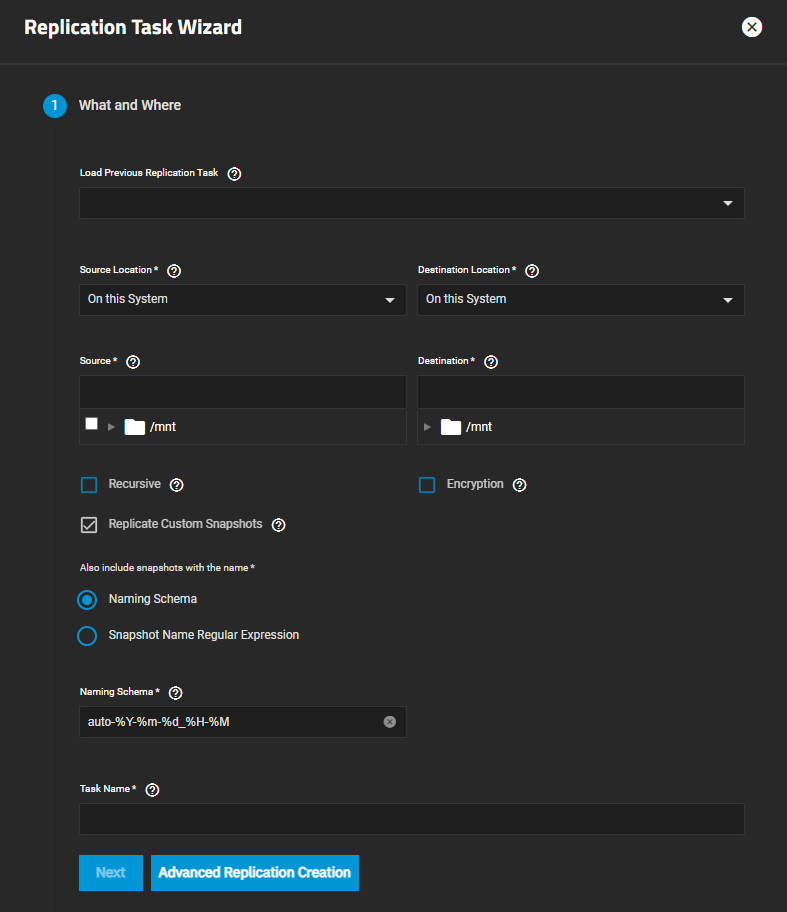
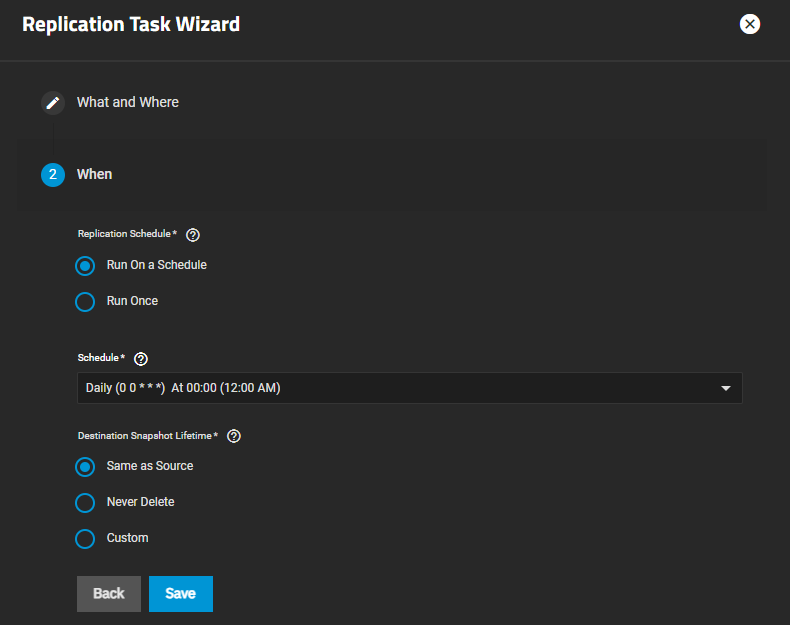
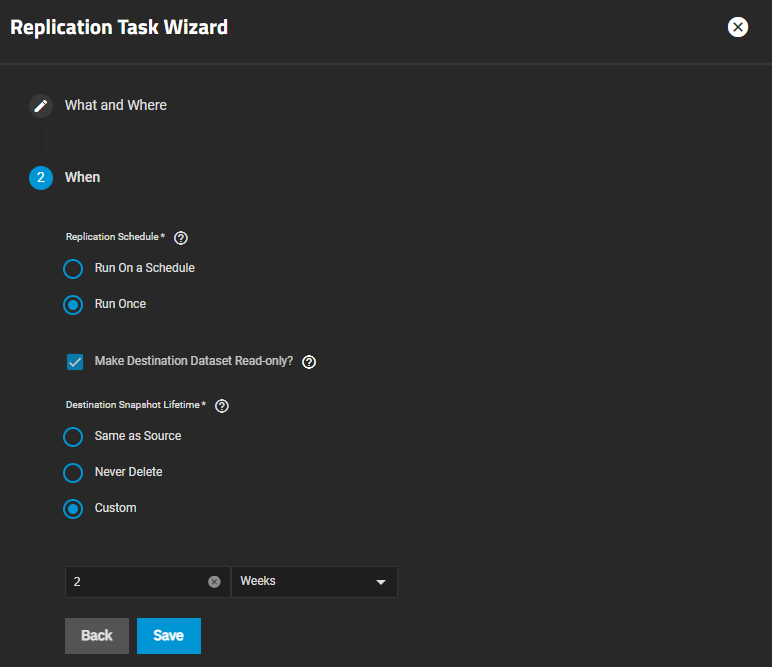
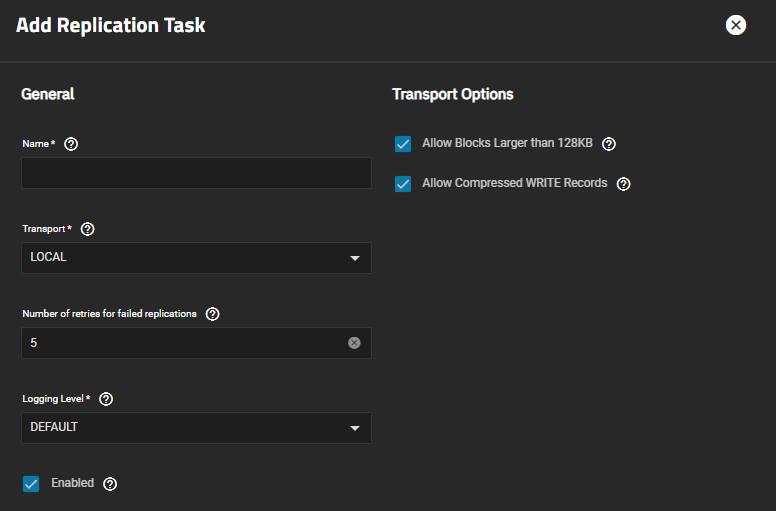
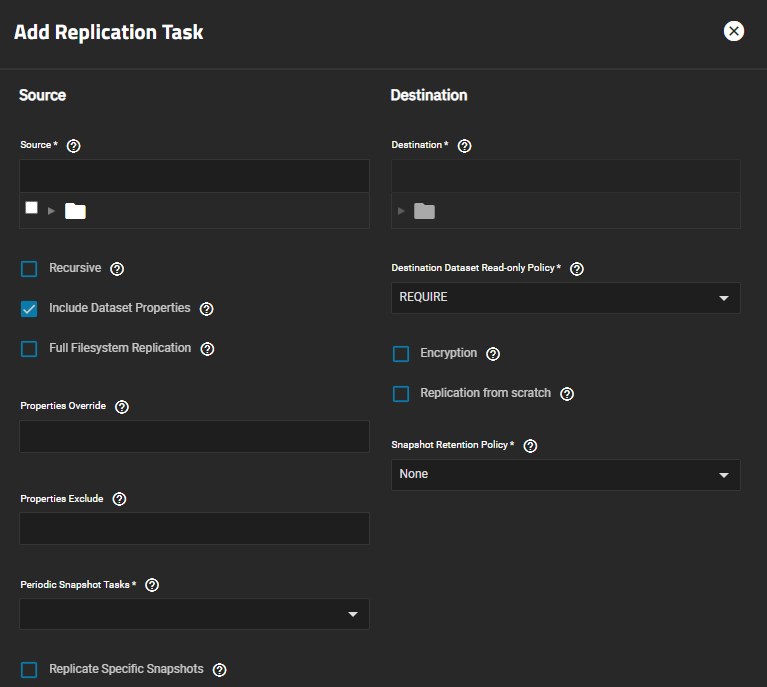
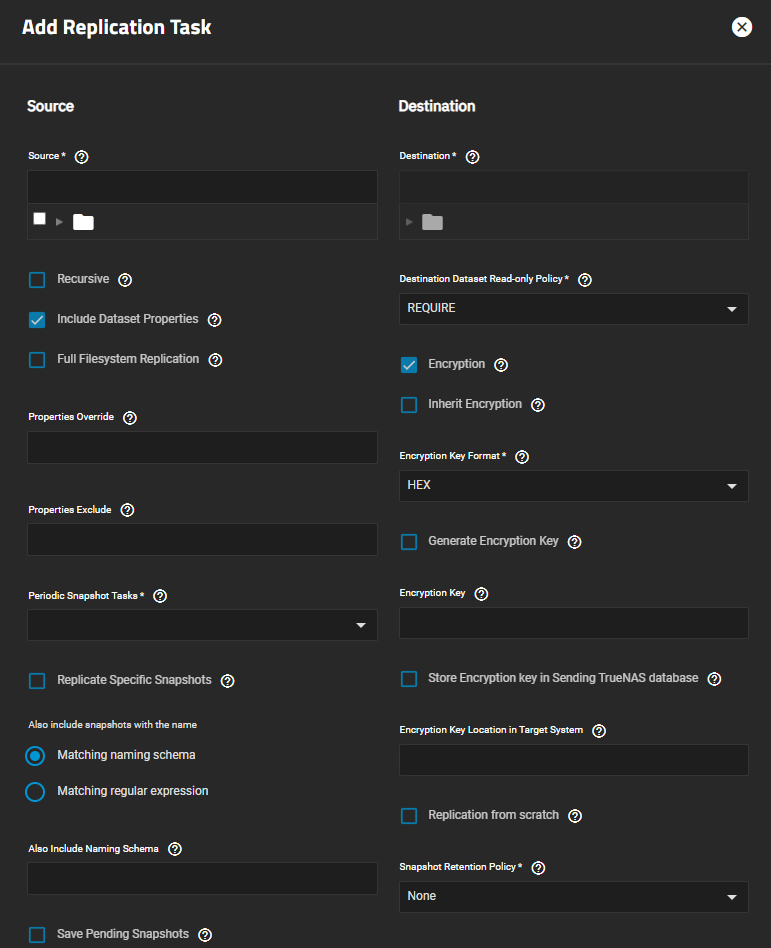
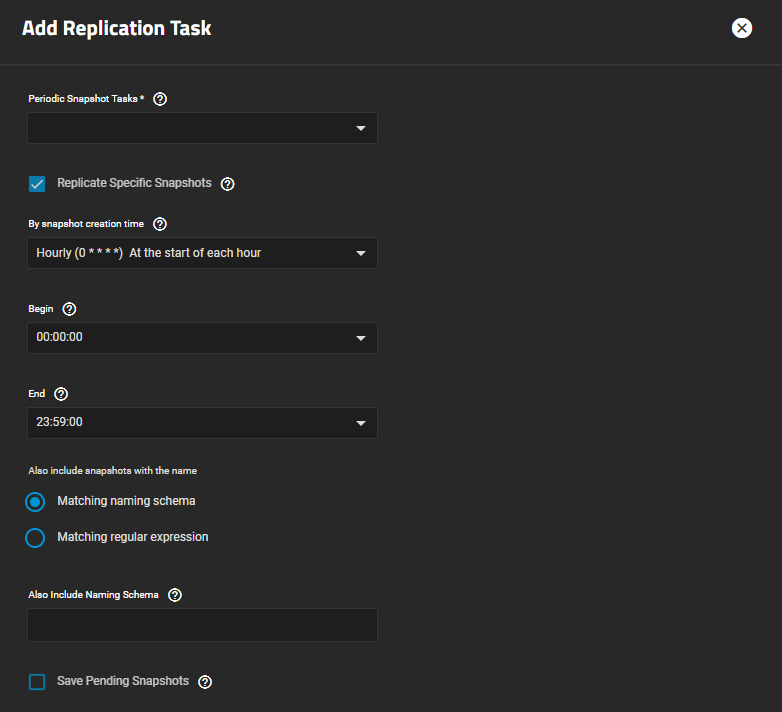
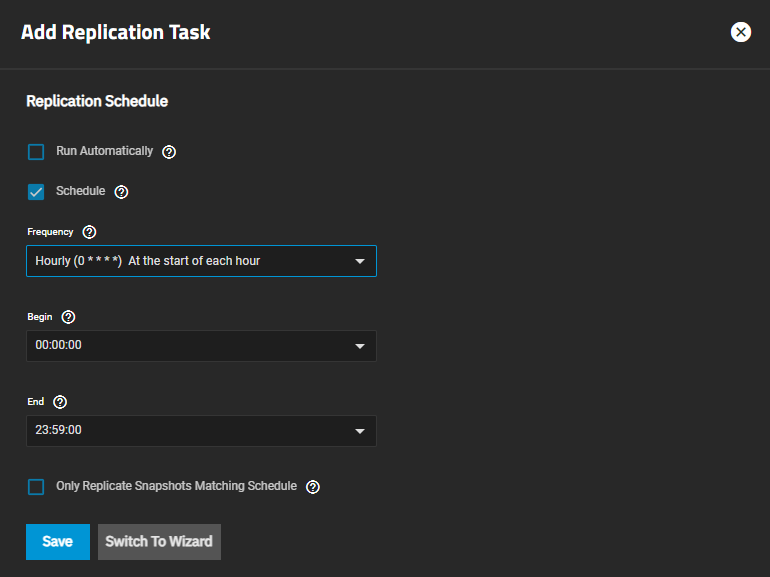
Replication Task Screens: Provides information on the Replication screens, wizard, and settings to add or edit replication tasks.
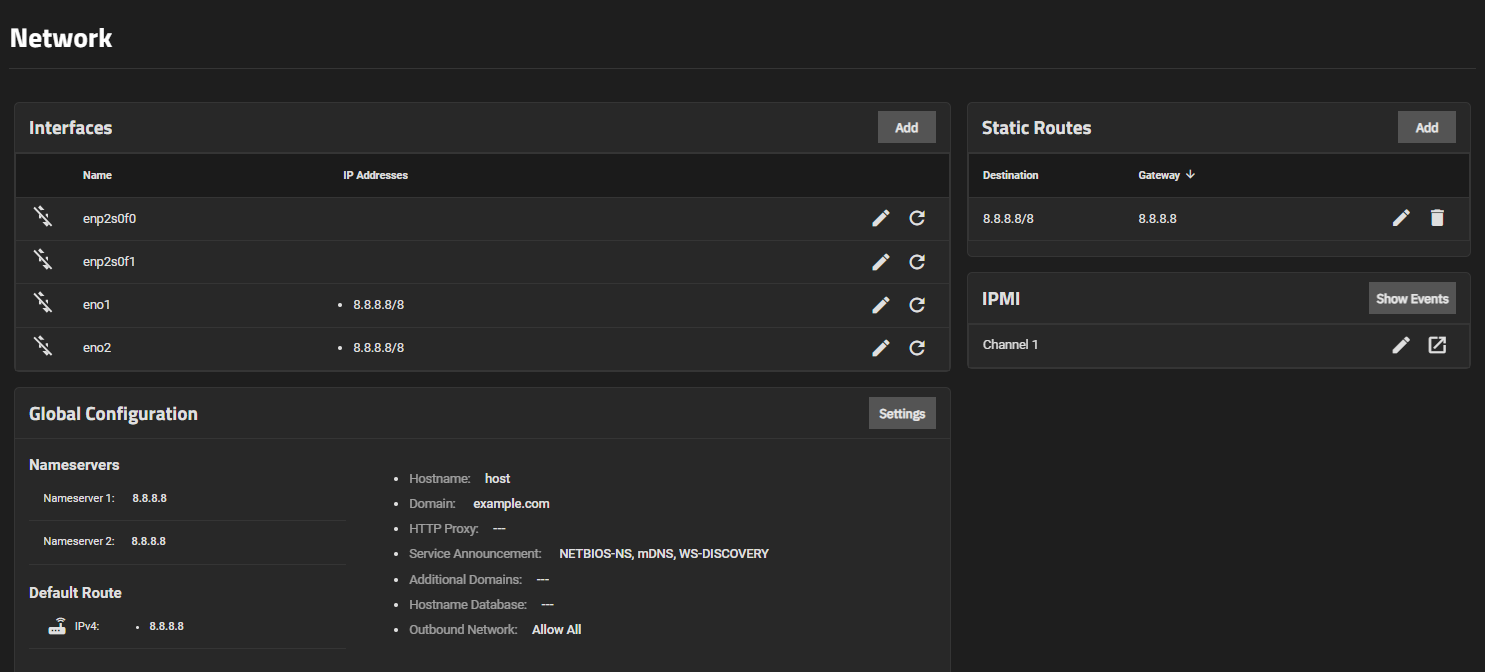
Network: Describes the screens and fields in the TrueNAS SCALE Network section.
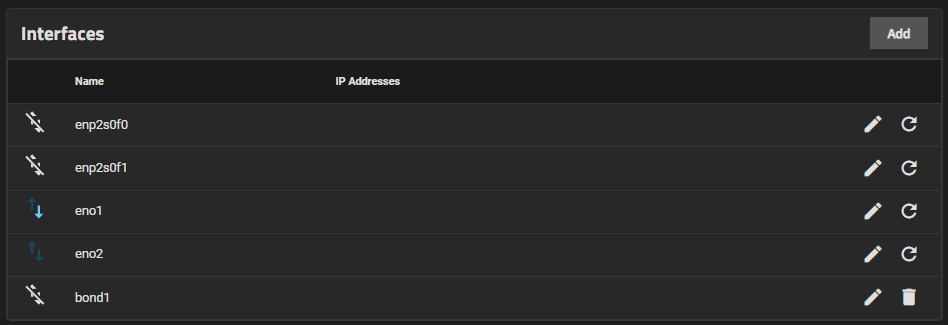
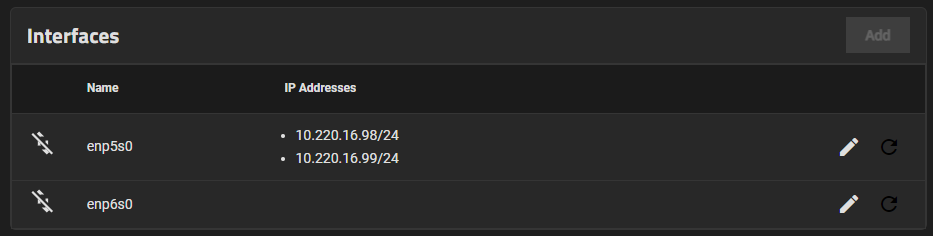
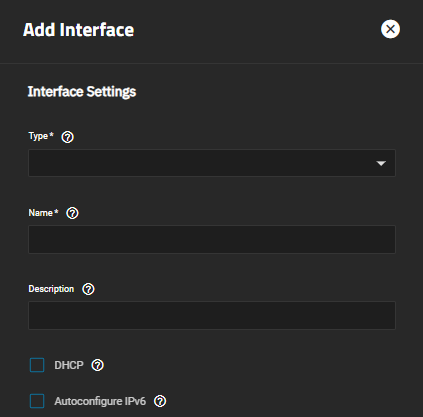
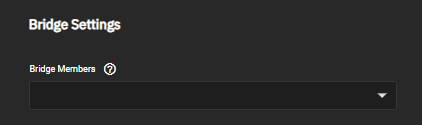
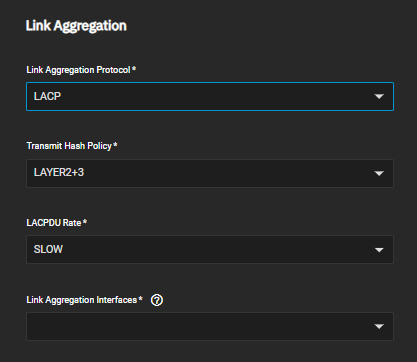
Network Interface Screens: Provides information on the Network screen Interfaces widget and configuration screens.
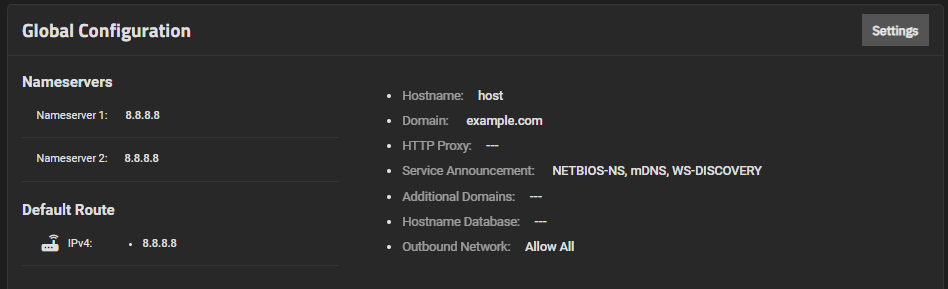
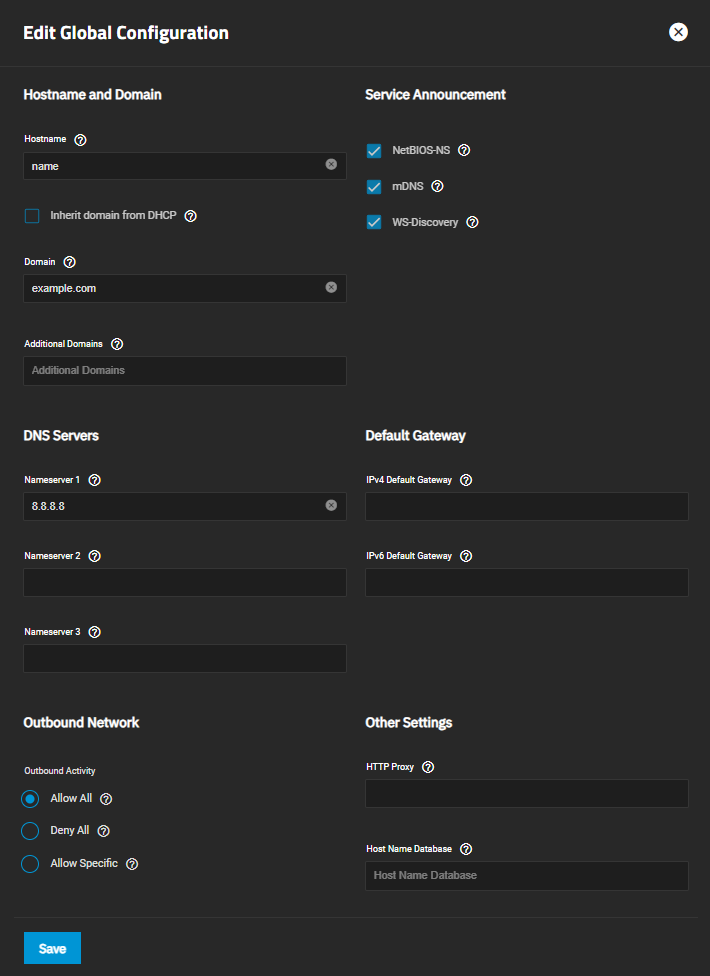
Global Configuration Screens: The Global Configuratio* widget displays the general TrueNAS SCALE network settings not specific to any interface.
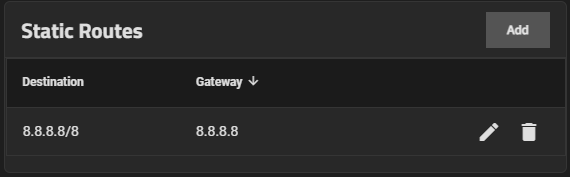
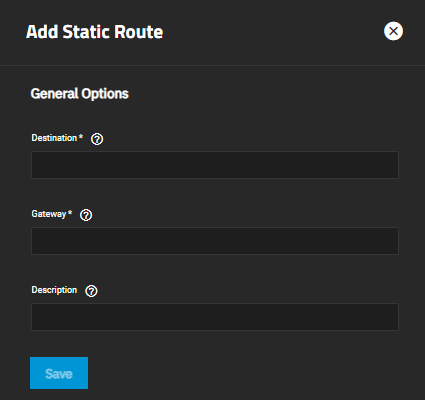
Static Routes Widget: The Static Routes widget displays existing static routes or sets up new ones.
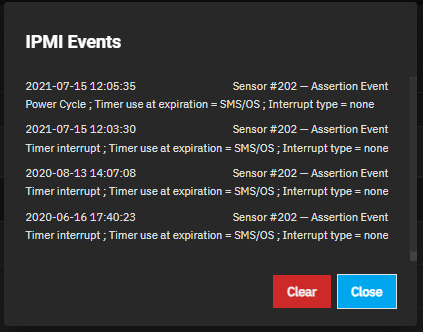
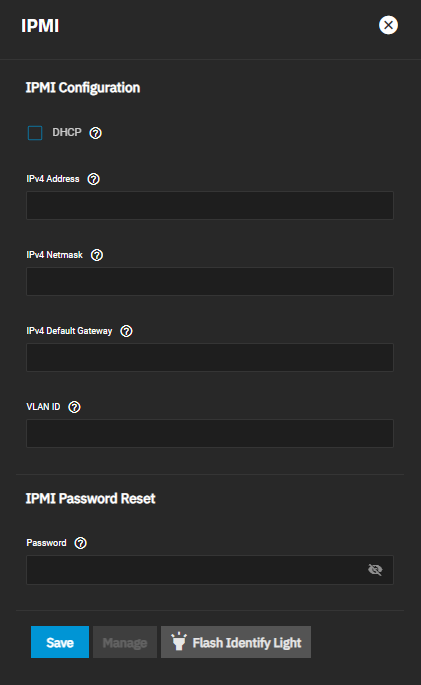
IPMI Screens: Provides information on the Network screen IPMI widget and configuration screen.
Credentials: Describes the screens and fields in the TrueNAS SCALE Credentials section.
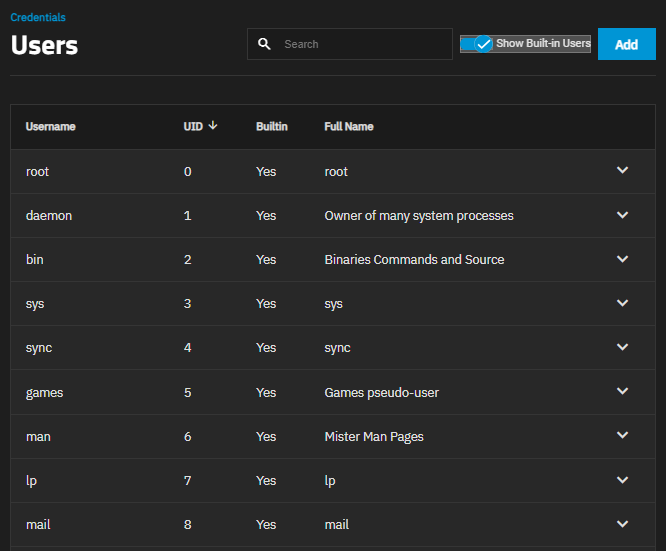
Local Users Screens: Provides information on the Users screens and settings and information on settings for the TrueNAS SCALE Shell screen.
Local Groups Screens: Provides information on the Local Groups screens and settings.
Directory Services Screens: Describes the screens and fields in the TrueNAS SCALE Directory Services section.
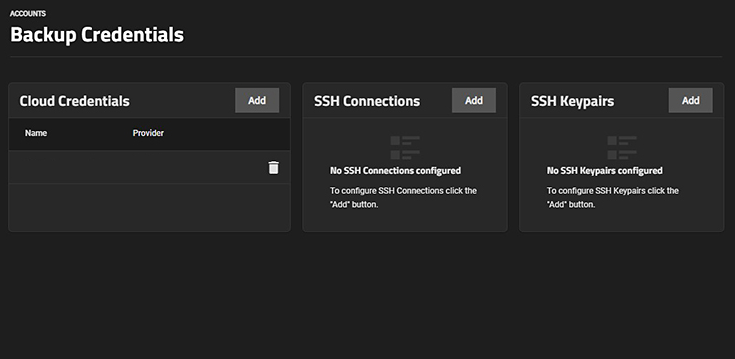
Backup Credentials: Information on backup credential screens and settings to integrate TrueNAS SCALE with cloud storage providers by setting up SSH connections and keypairs.
Certificates: Information about the Certificates screen and widgets.
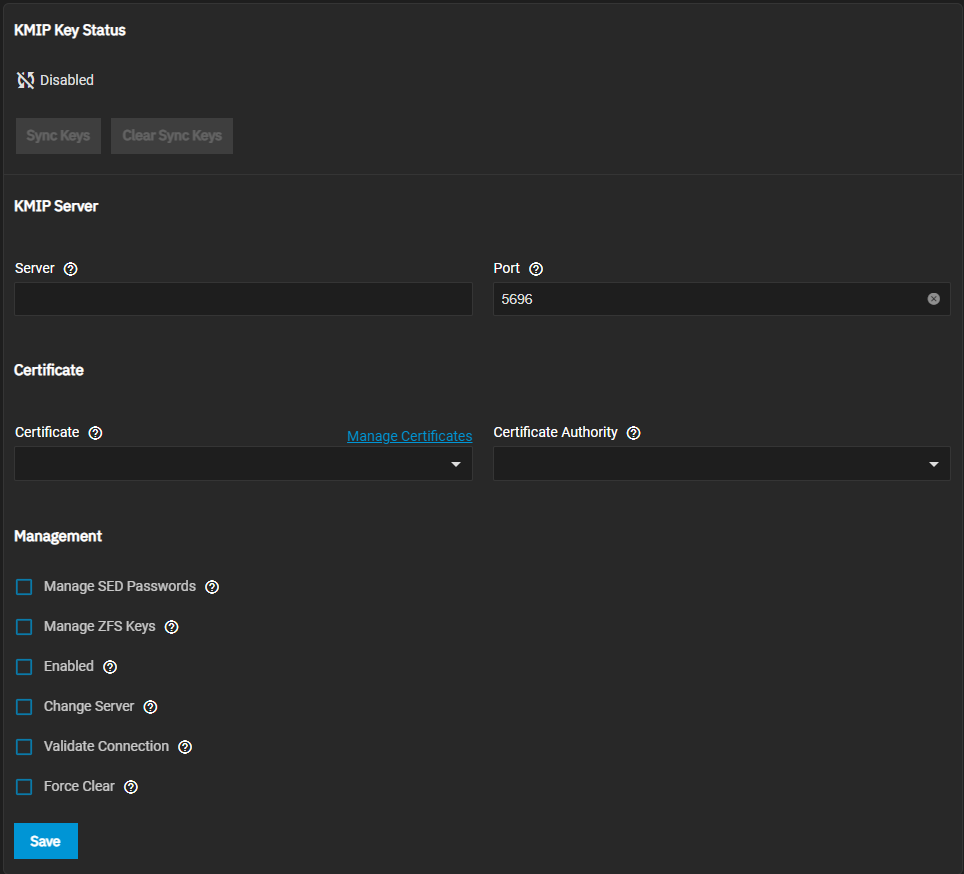
KMIP Screen: Describes the fields in the KMIP Key Status screen on TrueNAS SCALE Enterprise.
Virtualization Screens: Provides information on the screens and settings to add virtual machines (VMs) and devices to your TrueNAS SCALE system.
Apps: Articles describing the TrueNAS SCALE Apps screens and fields.
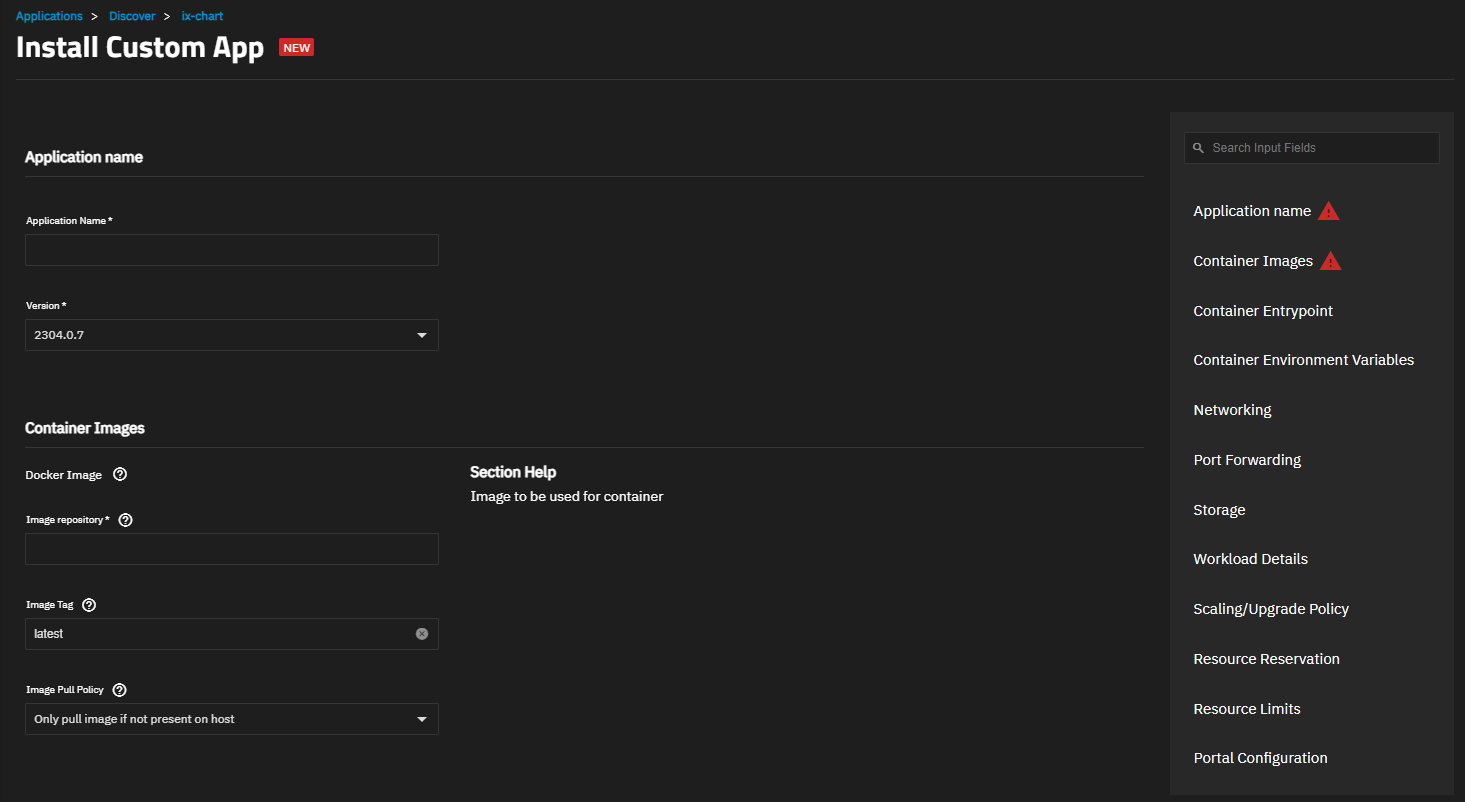
Install Custom App Screen: Provides information on the Install Custom App screen and configuration settings.
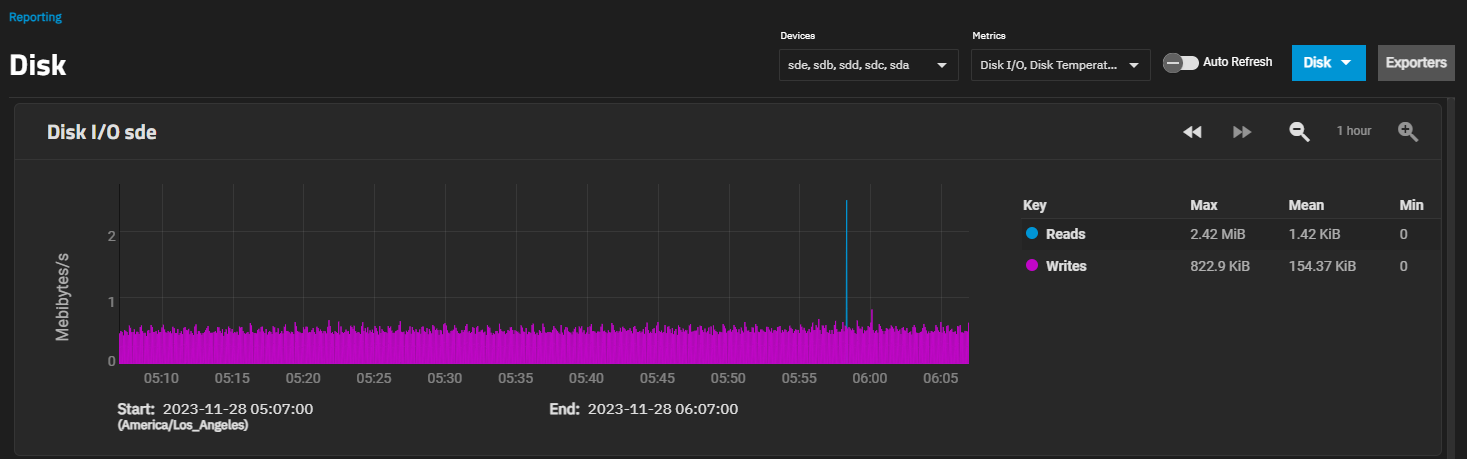
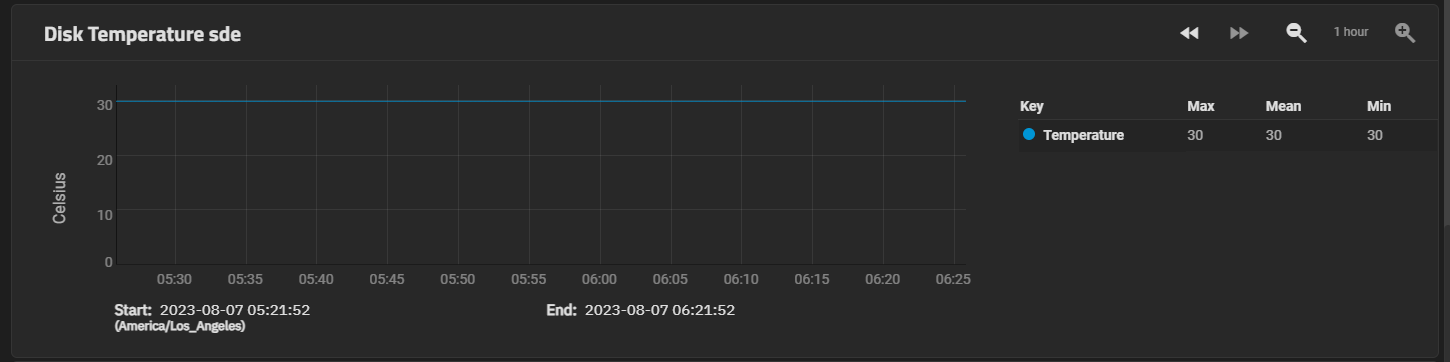
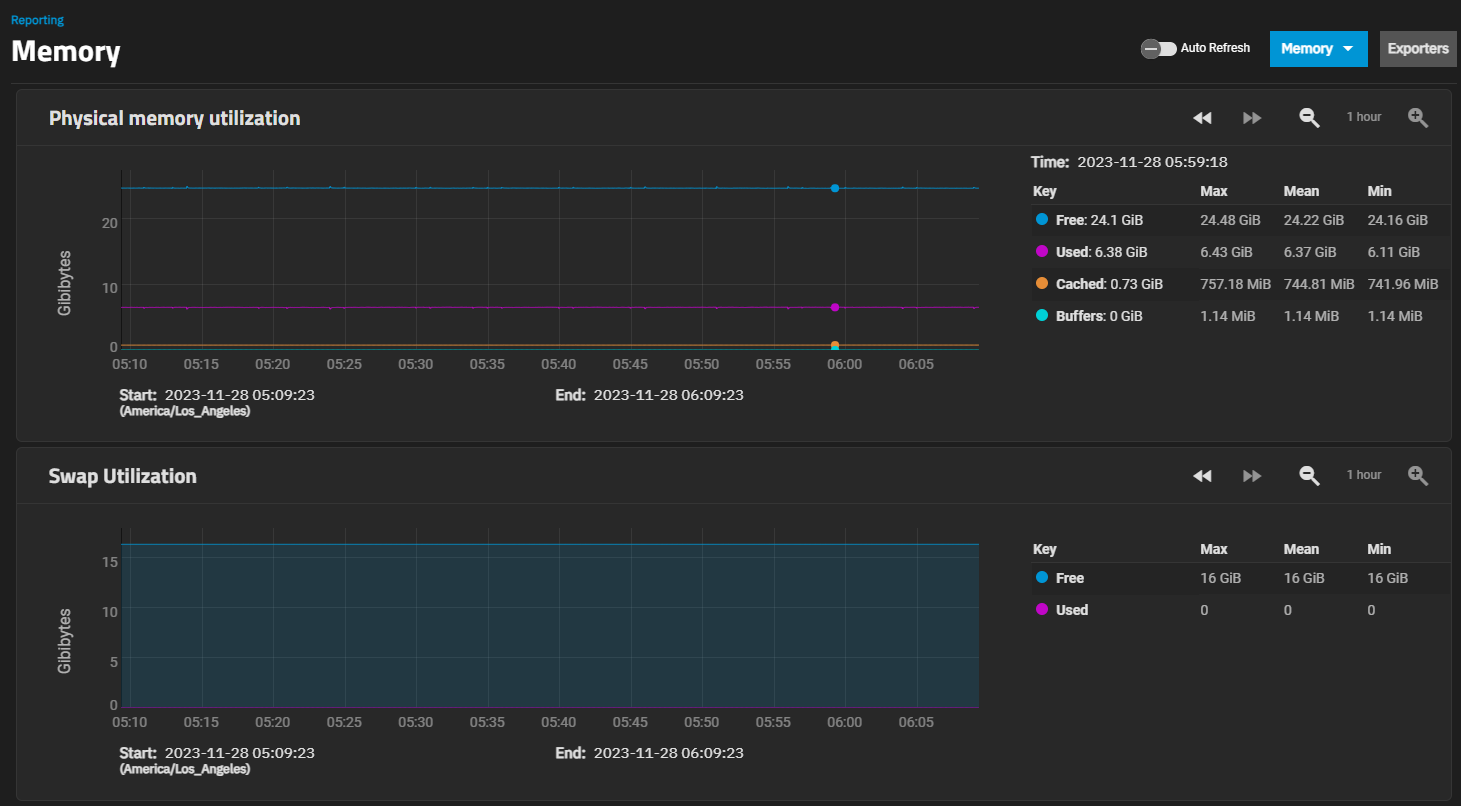
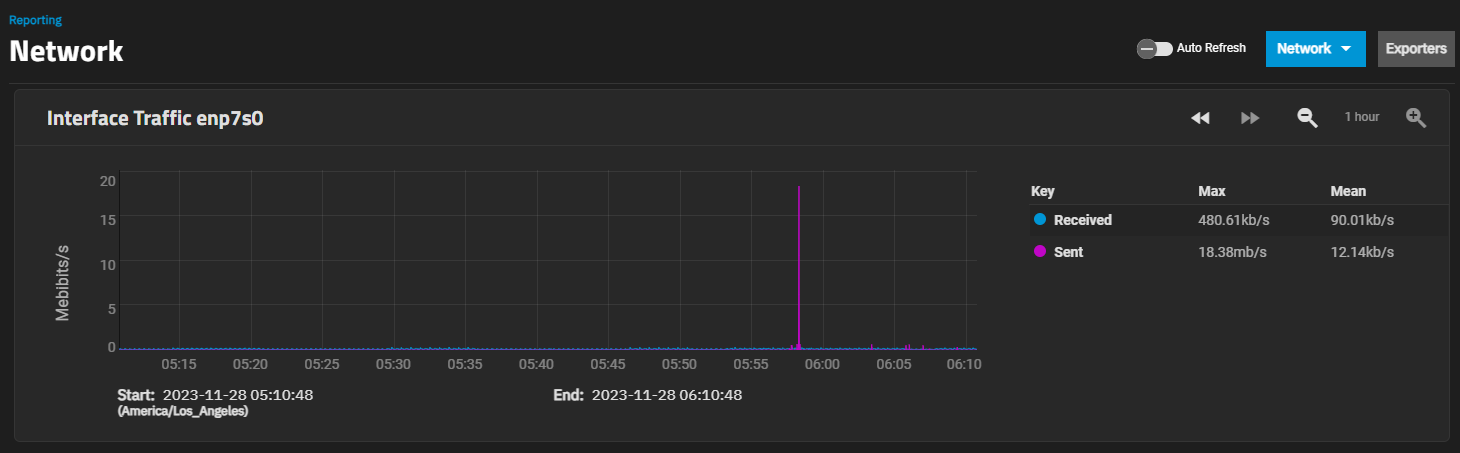
Reporting Screens: Provides information on TrueNAS SCALE reporting graph screens and settings.
System Settings: Articles describing the various screens and fields contained within the TrueNAS SCALE System Settings section.
Update Screens: Provides information on functions and fields on the TrueNAS SCALE Update screens.
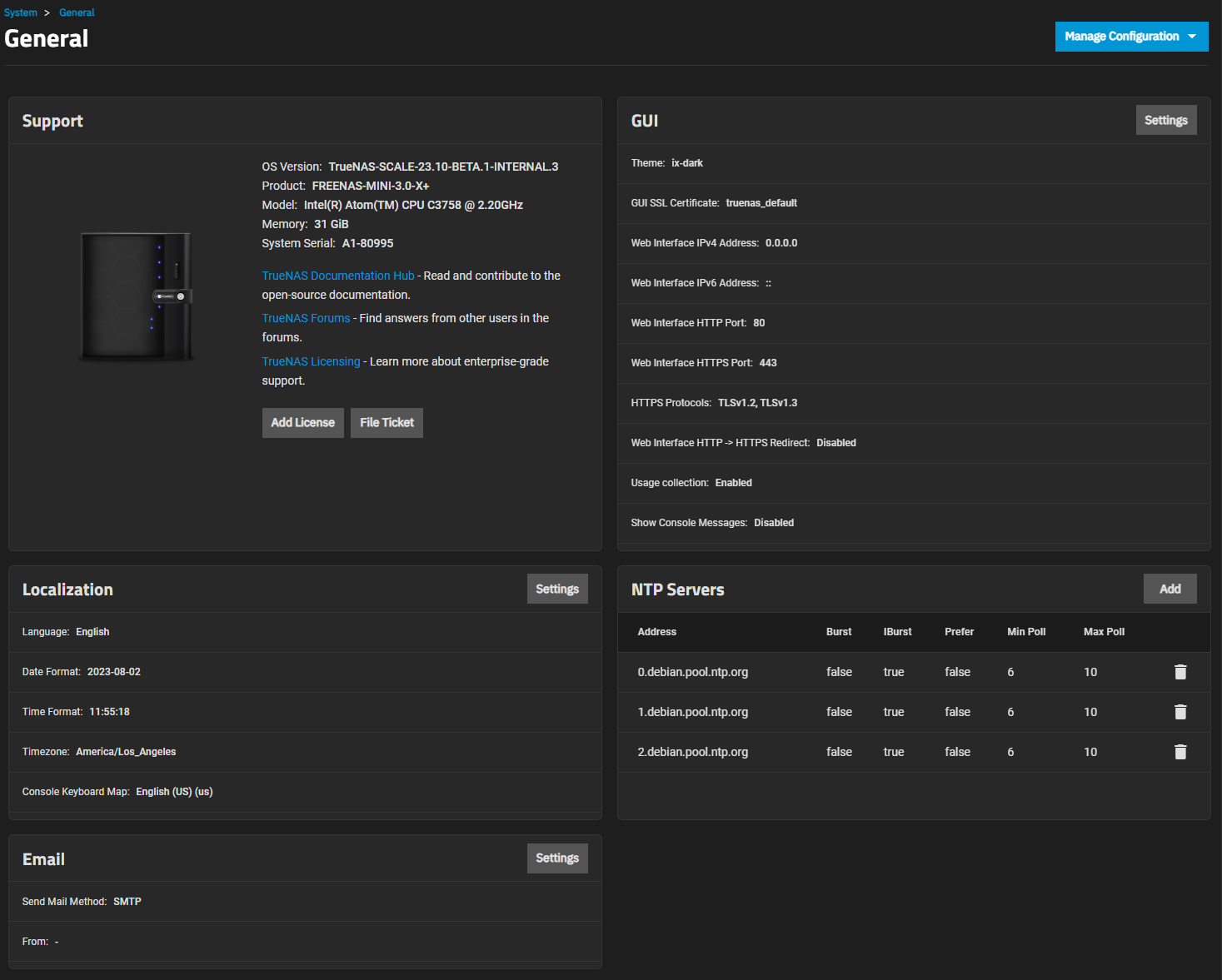
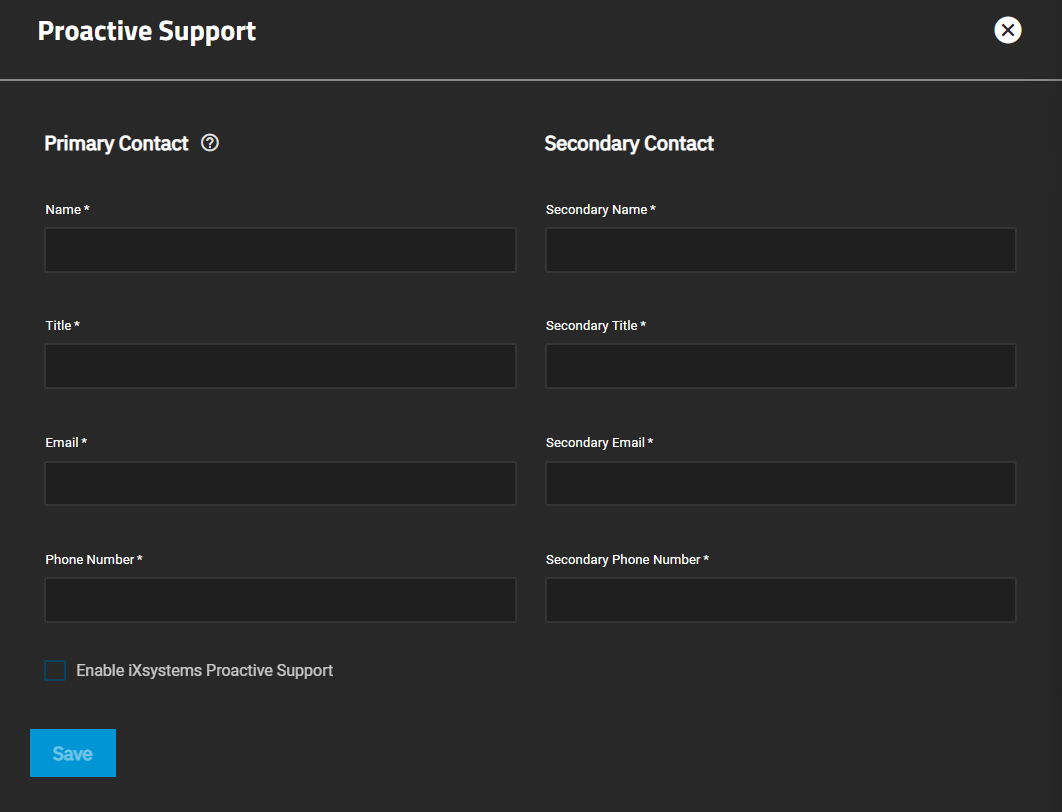
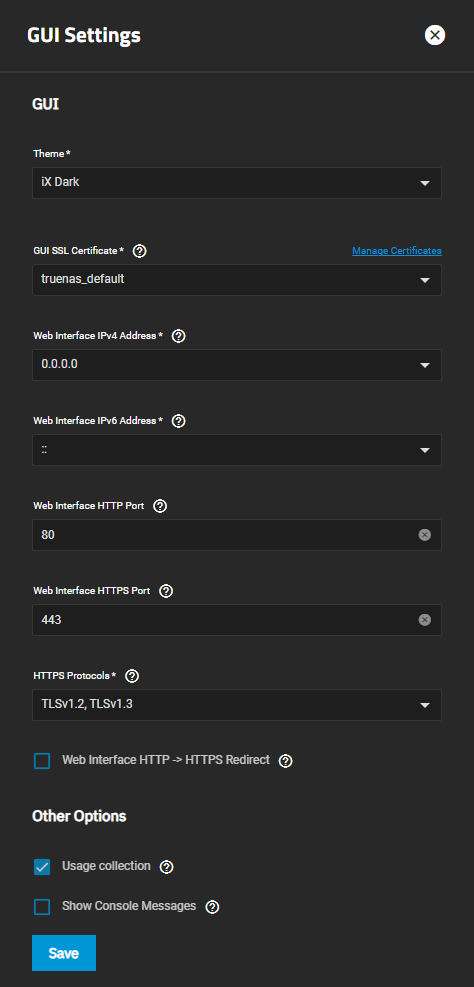
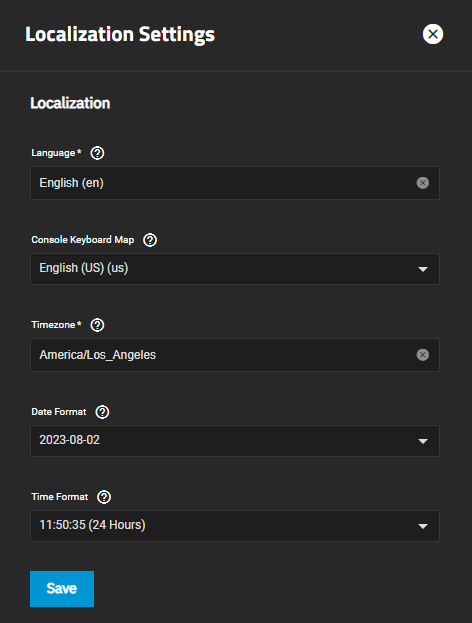
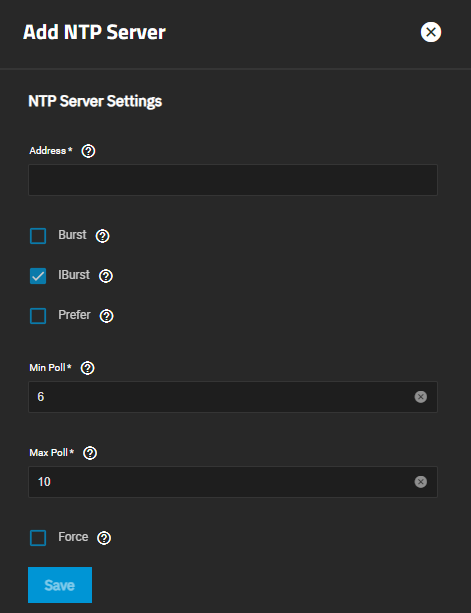
General Settings Screen: Provides information on General system setting screen, widgets, and settings for getting support, changing console or the GUI, localization and keyboard setups, and adding NTP servers.
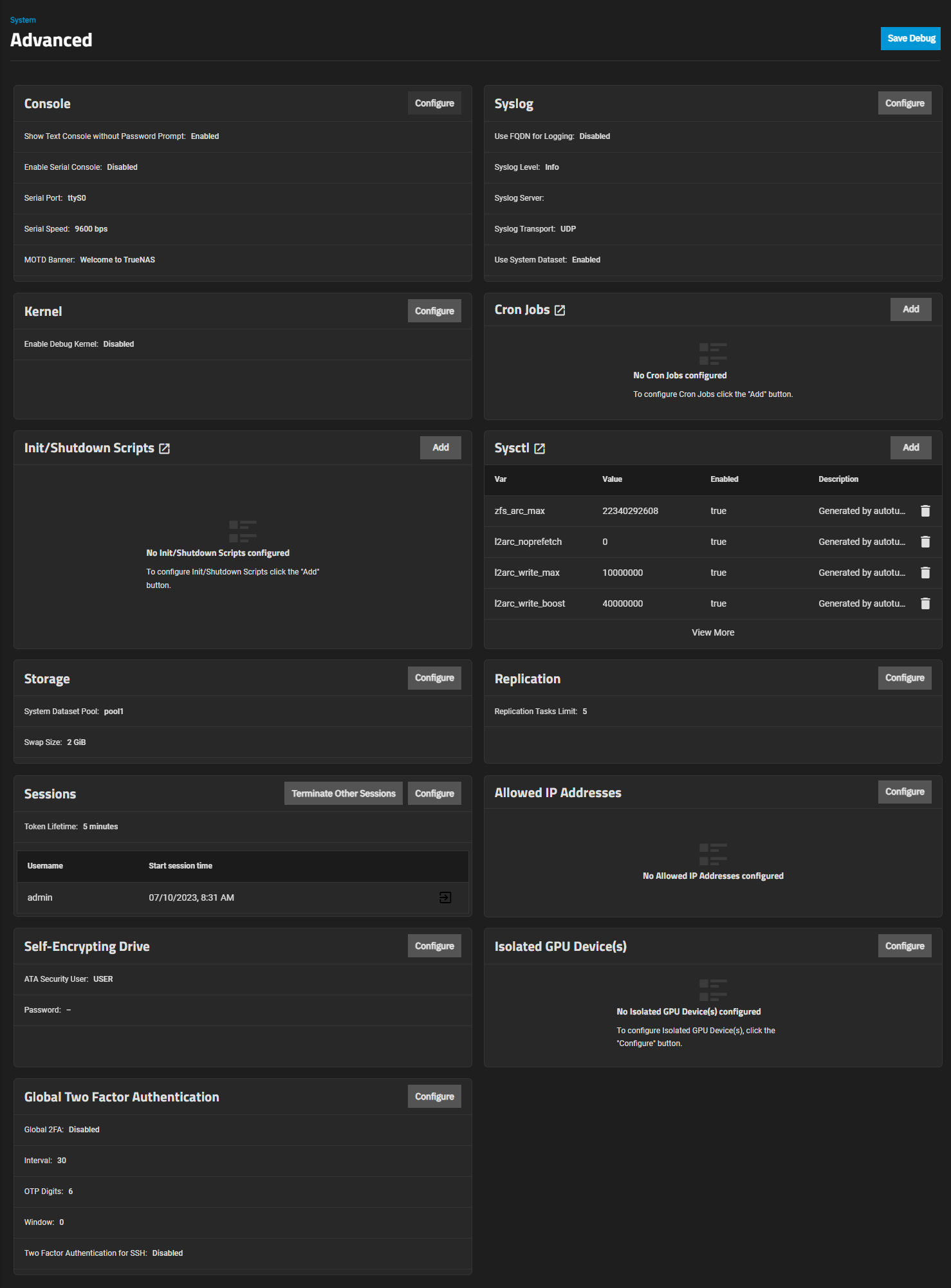
Advanced Settings Screen: Provides information on the System > Advanced screen, widgets, and configuration screen settings.
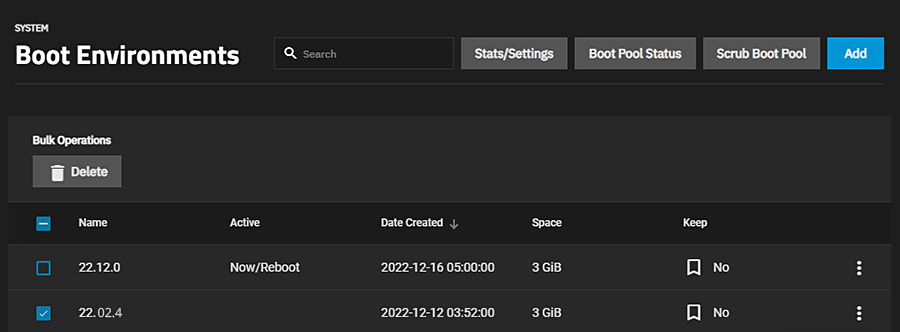
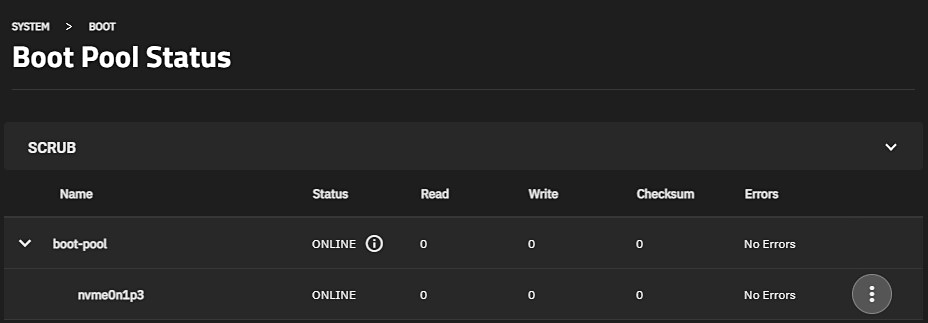
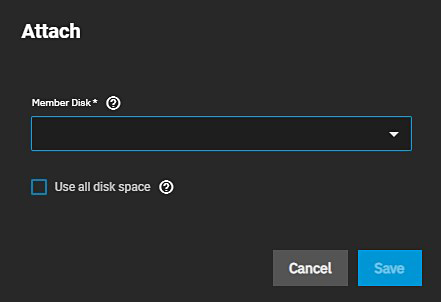
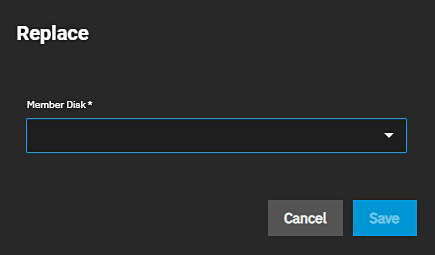
System Boot Screens: Provides information on the boot environment screens and settings.
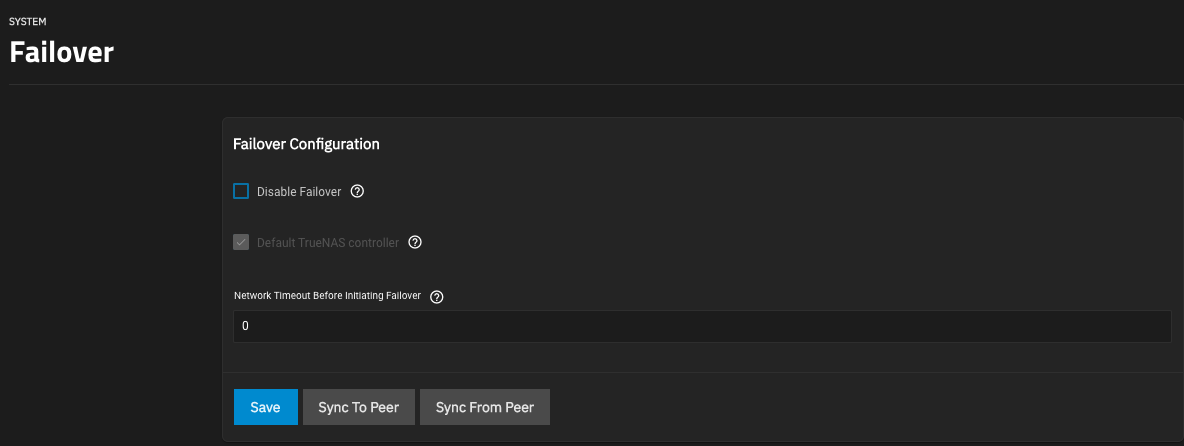
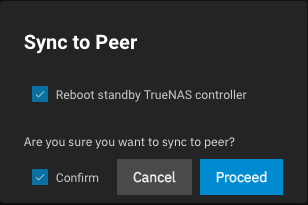
Failover Screen: Provides information on the Failover screen settings and functions.
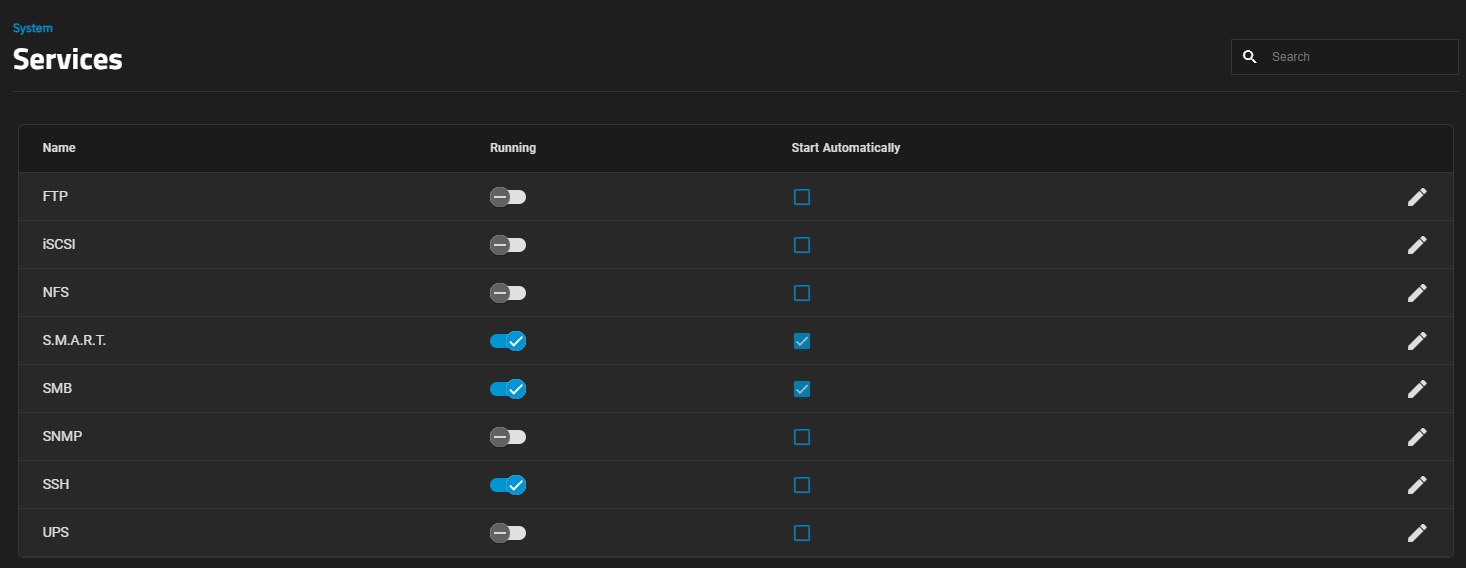
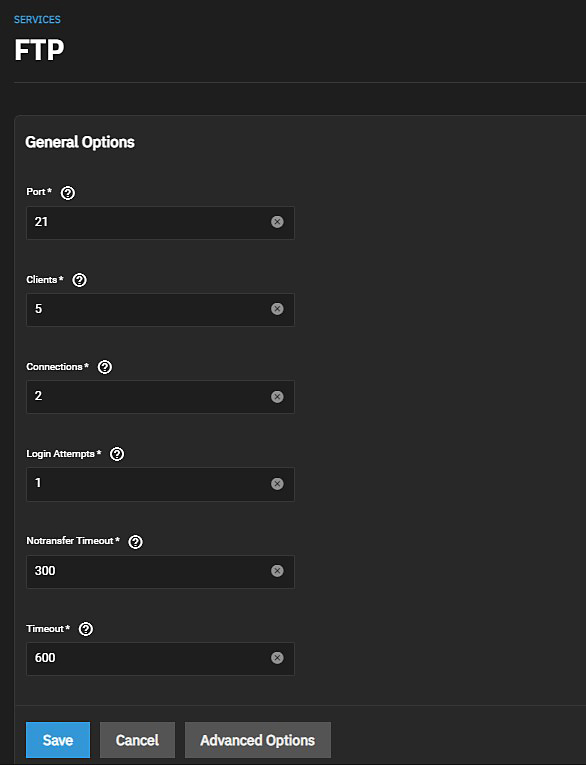
Services: Information on the Services screen and individual service articles in the Services area.
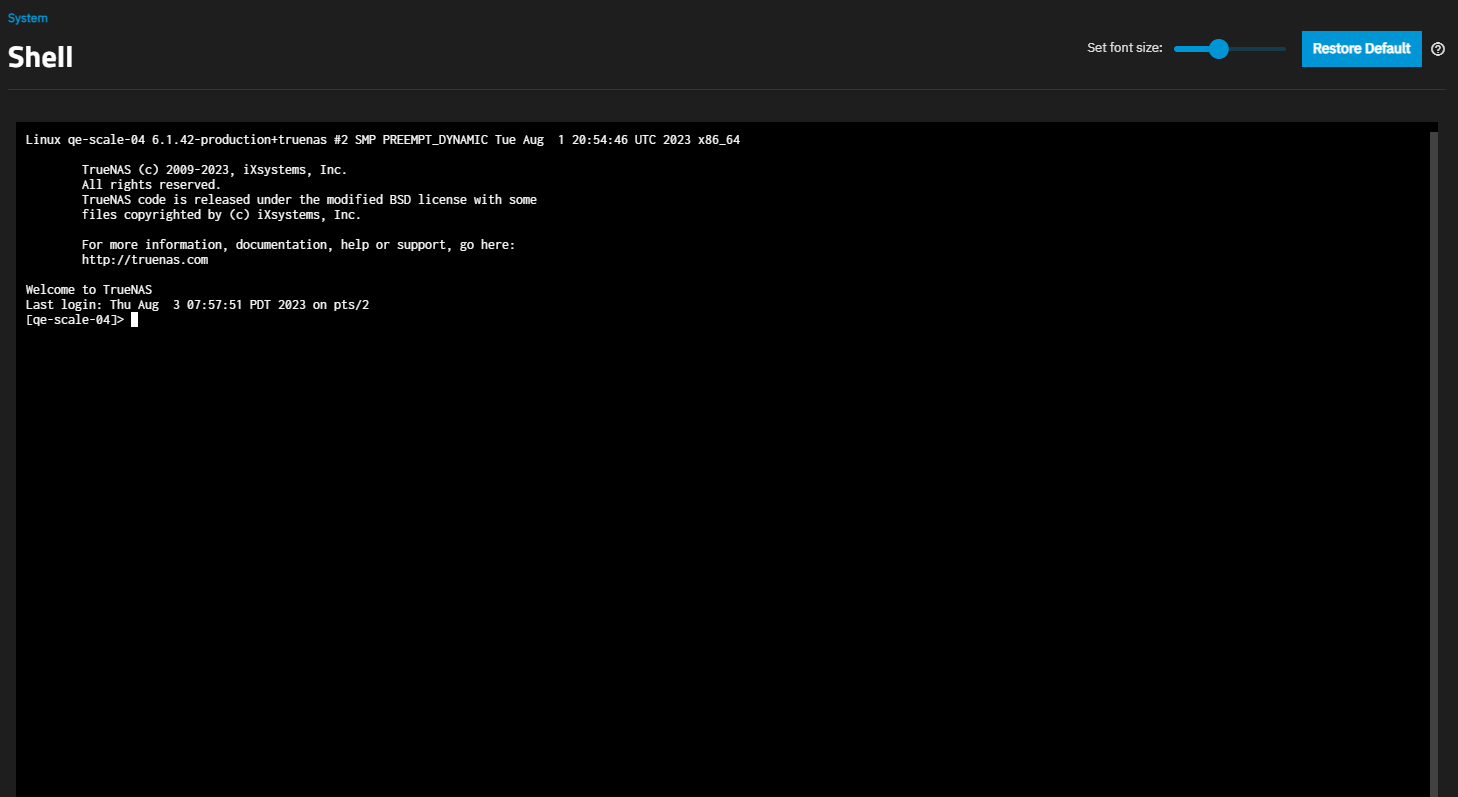
Shell Screen: Provides information on the TrueNAS SCALE Shell screen, buttons, and slider.
Alert Settings Screen: Provides information on Alert Settings service screen settings.
Provides information on the main Dashboard information cards (widgets). It includes basic instructions on synchronizing system server and SCALE time and on customizing the display by moving, adding, or removing widgets.
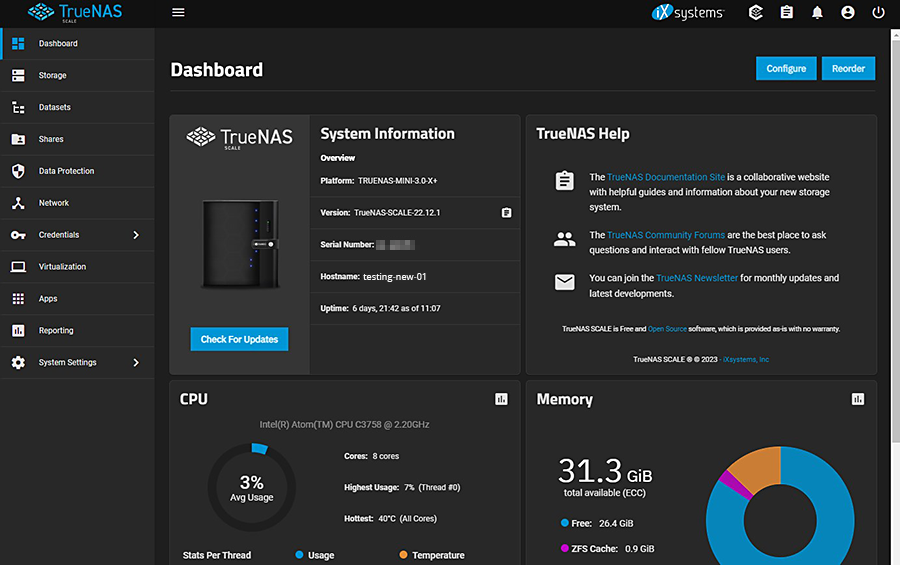
The Dashboard screen displays the first time you log into the SCALE web interface.
To display the Dashboard screen again click Dashboard on the left side panel.
The Dashboard displays basic information about your TrueNAS system in widgets or information cards that group information about your TrueNAS by type. For example, CPU information appears in the CPU widget.
These widgets display in a default layout that you can change.
Use the Reorder button to change the layout of the various widgets to suit your preference.
Use Configure turn the widget display on or off. When on, the widget displays on the dashboard.
Dashboard Configuration Panel
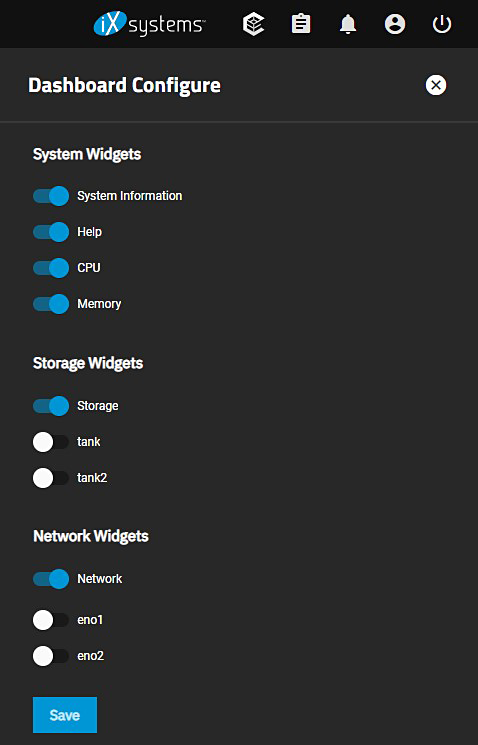
The Dashboard Configuration panel allows you to turn widget displays on or off.
There are three widget group types: System Widgets, Storage Widgets and Network Widgets.
Storage and network widgets vary based on the pools and network interfaces configured on your TrueNAS.
Click on the slider to turn the information display on or off.
System Widgets control the display of the System Information, Help, CPU and Memory widgets.
Storage Widgets control the display of the Storage widget and individual widgets for each pool configured on your TrueNAS.
Network Widgets control the display of the Network widget and any individual interfaces configured on your TrueNAS.
Use Save to retain any setting changes you make. Click on the X or on any part of the UI screen away from the Dashboard Configure panel to close it without saving changes.
Click on the assessment icon to display the report screen that corresponds to that widget. For example, clicking the assessment icon on the CPU widget opens the Reporting > CPU screen.
System Information
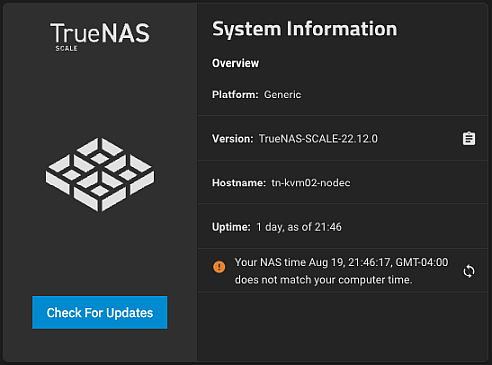
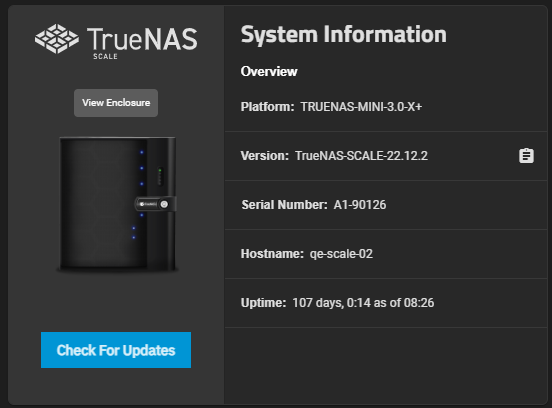
The System Information widget displays general information about the SCALE system. It includes an option to synchronize the system server time with TrueNAS SCALE time if they get out of sync.
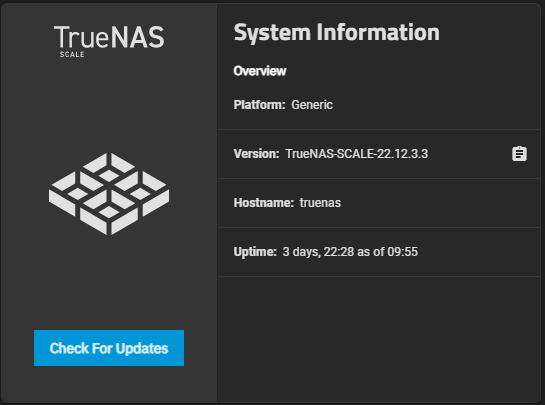
If installed on customer-provided servers the widget displays a generic TrueNAS image.
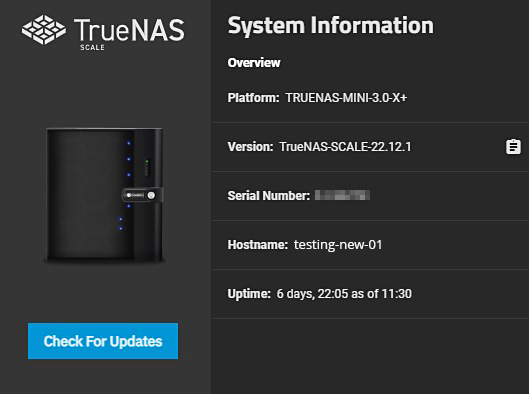
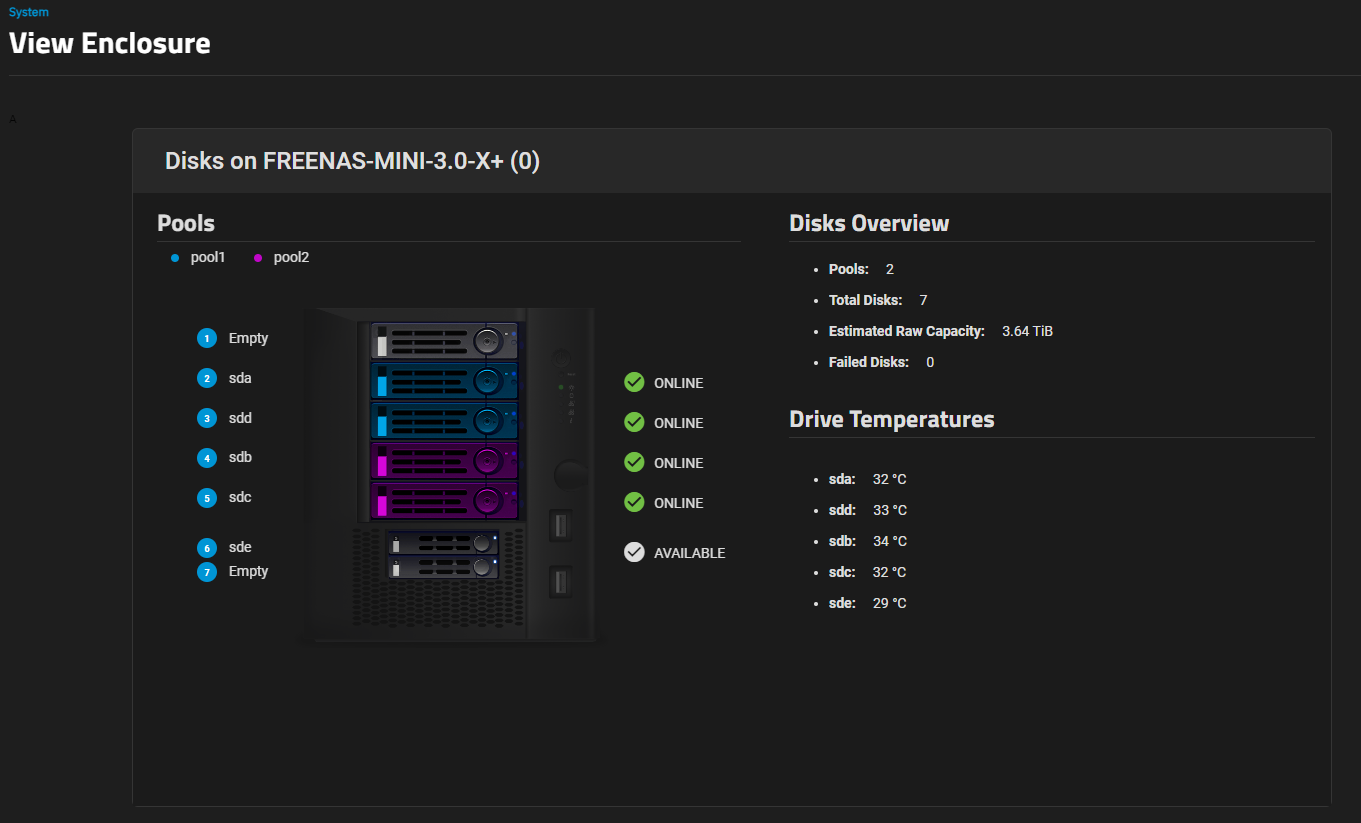
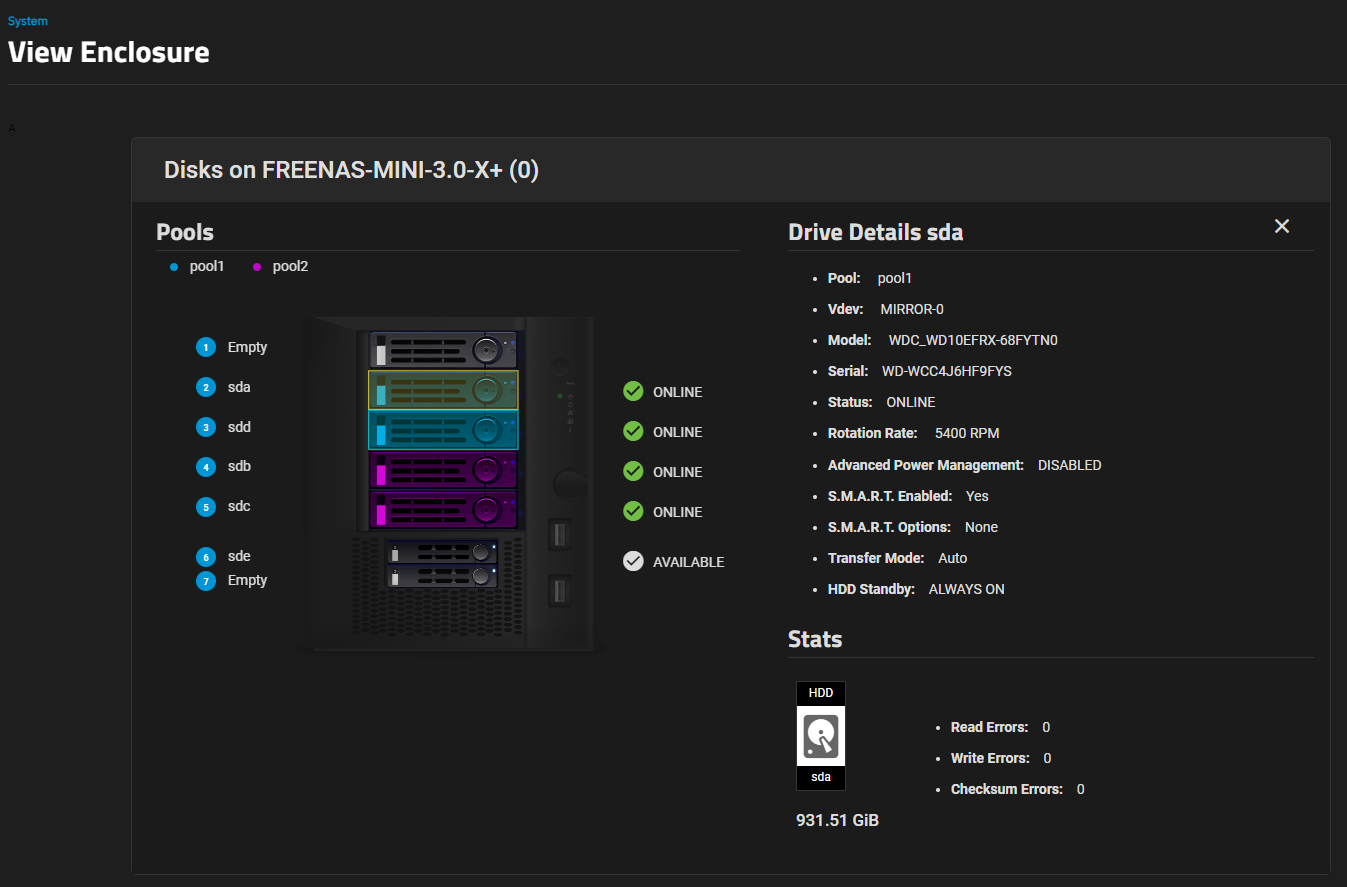
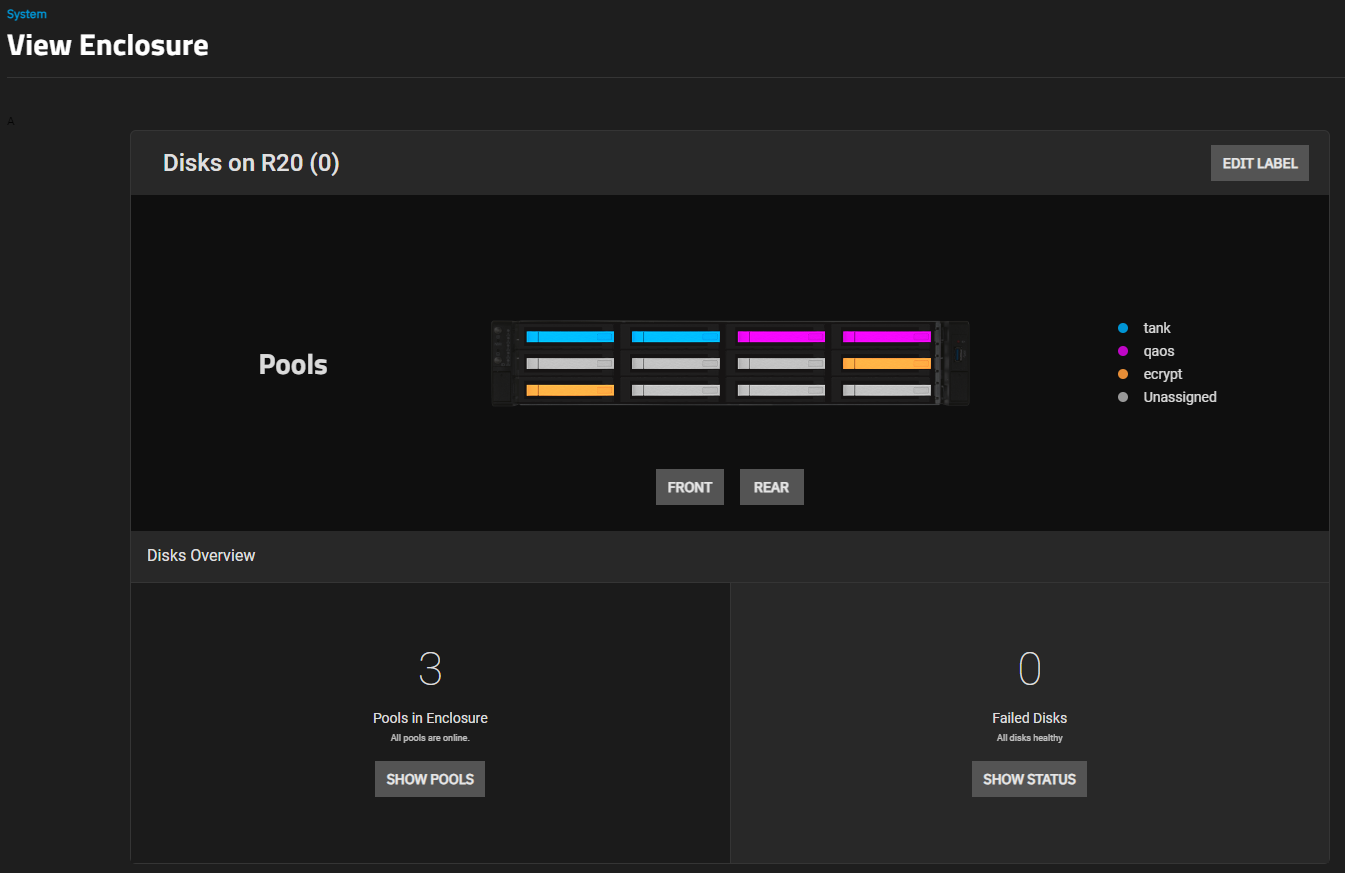
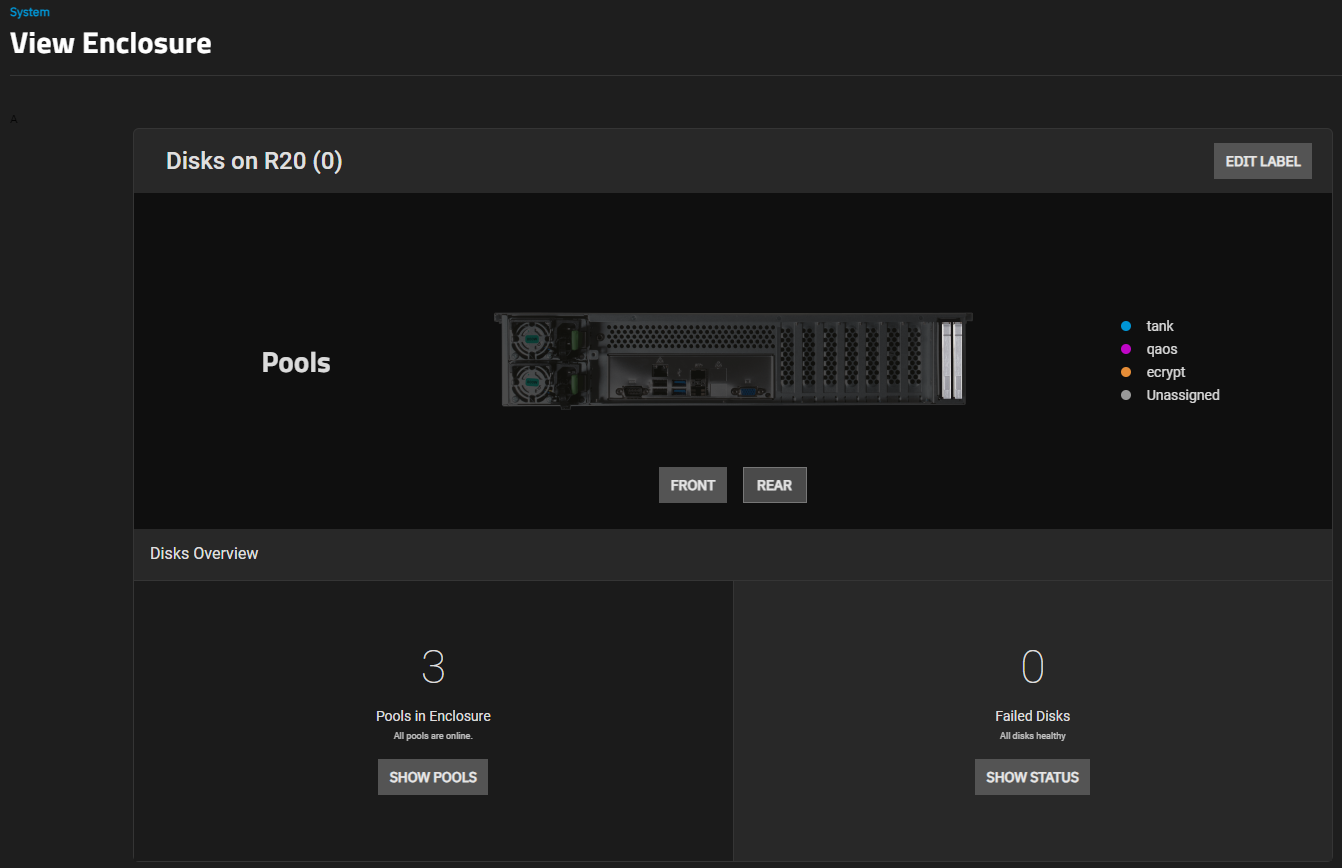
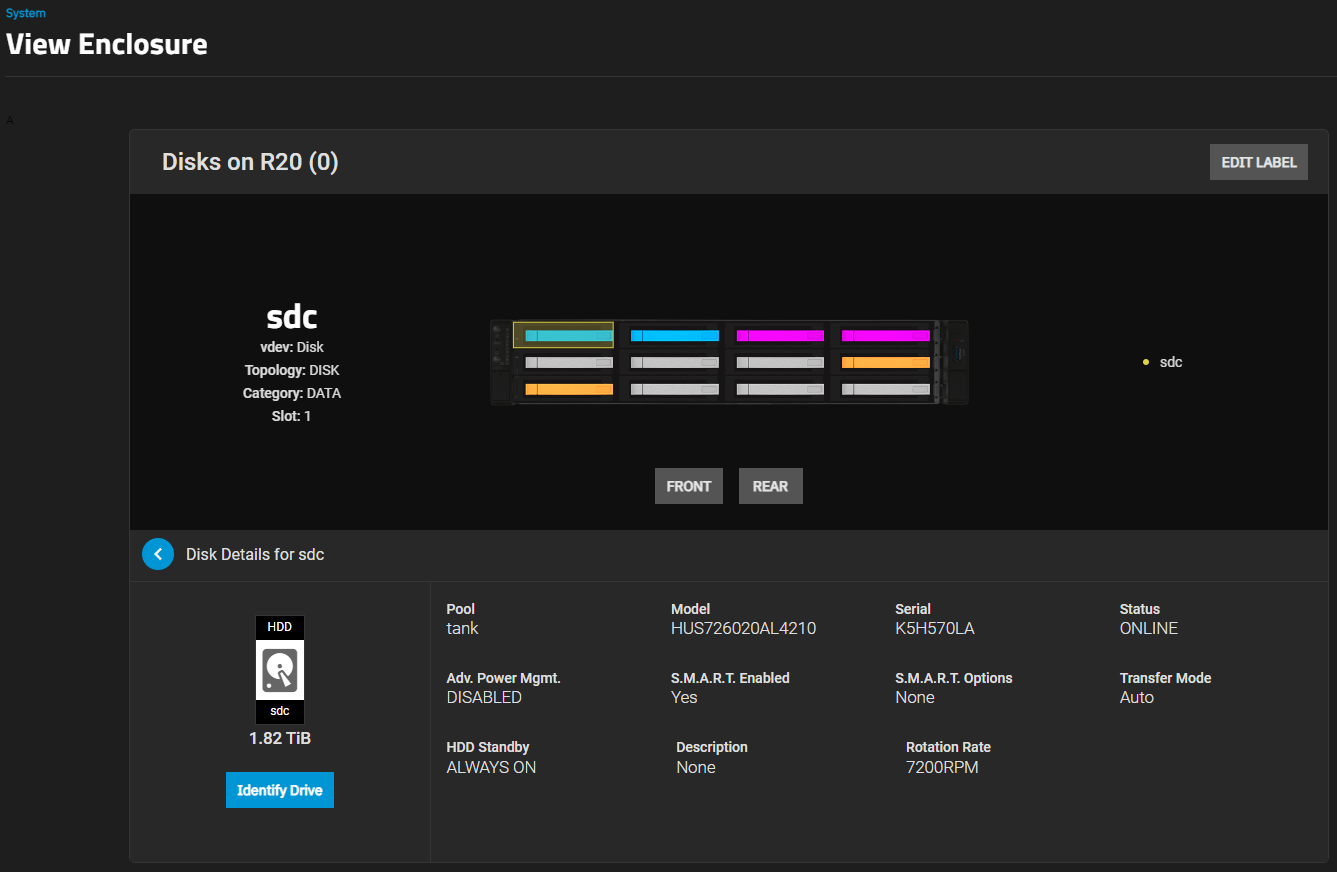
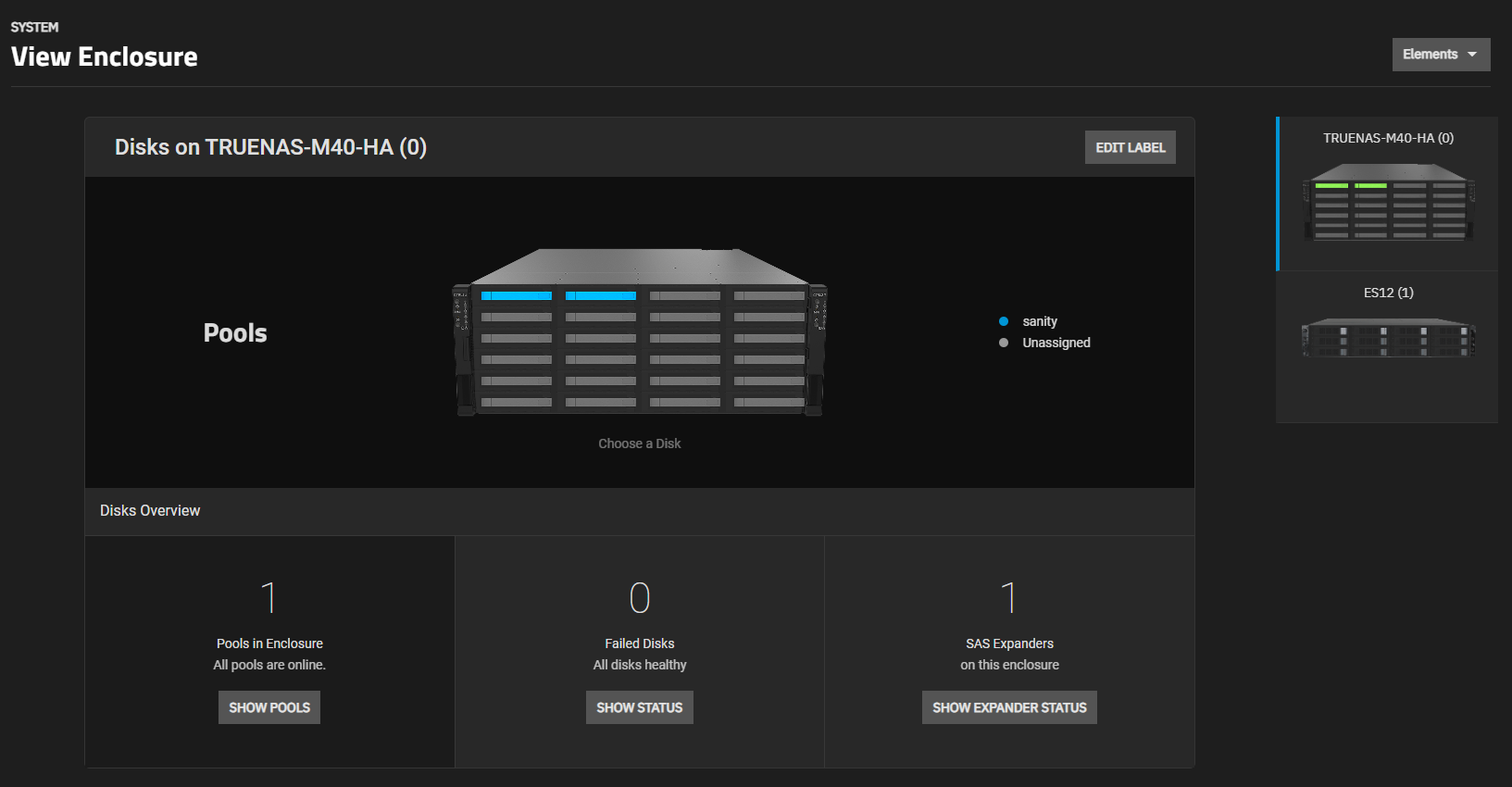
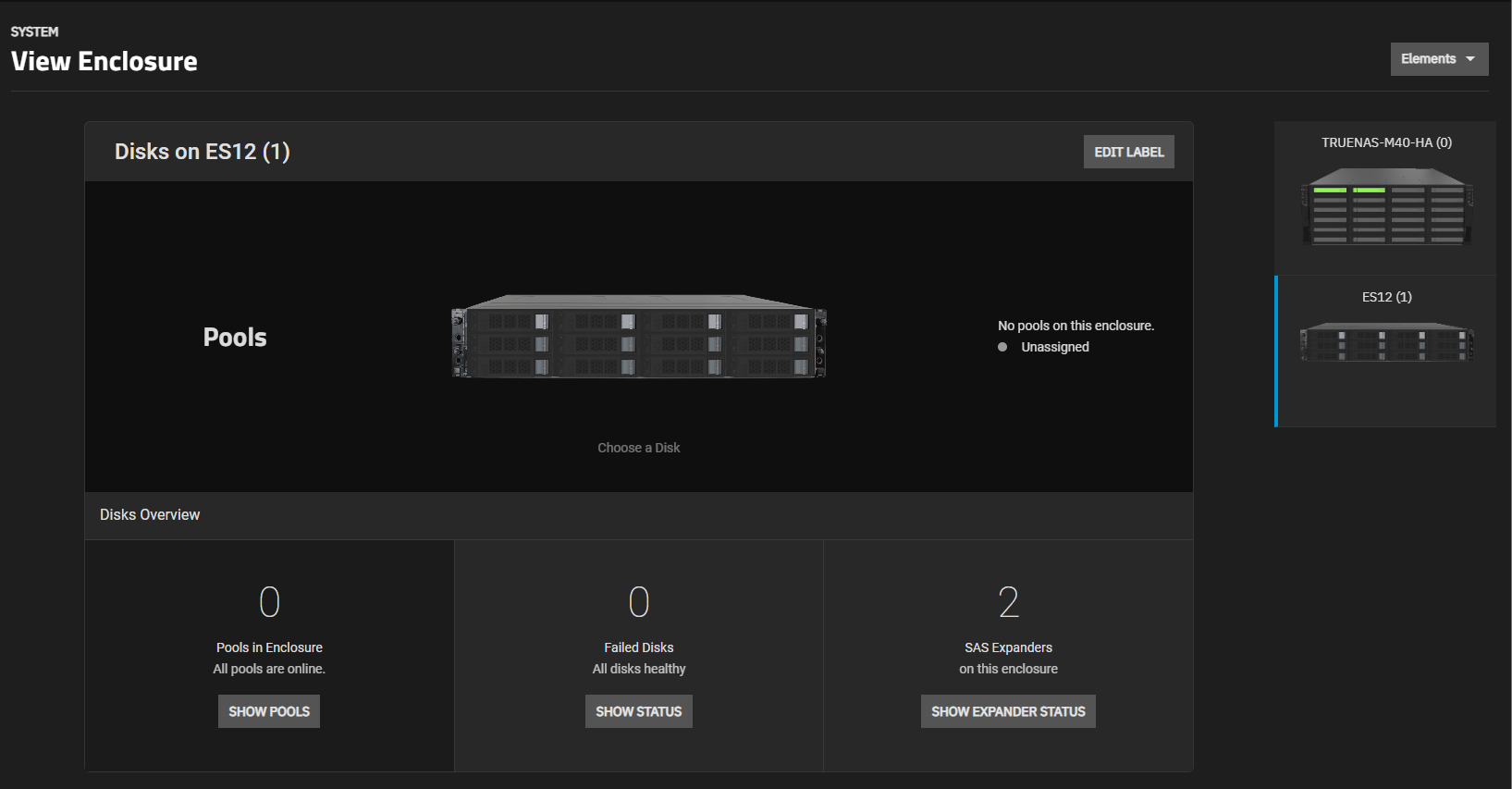
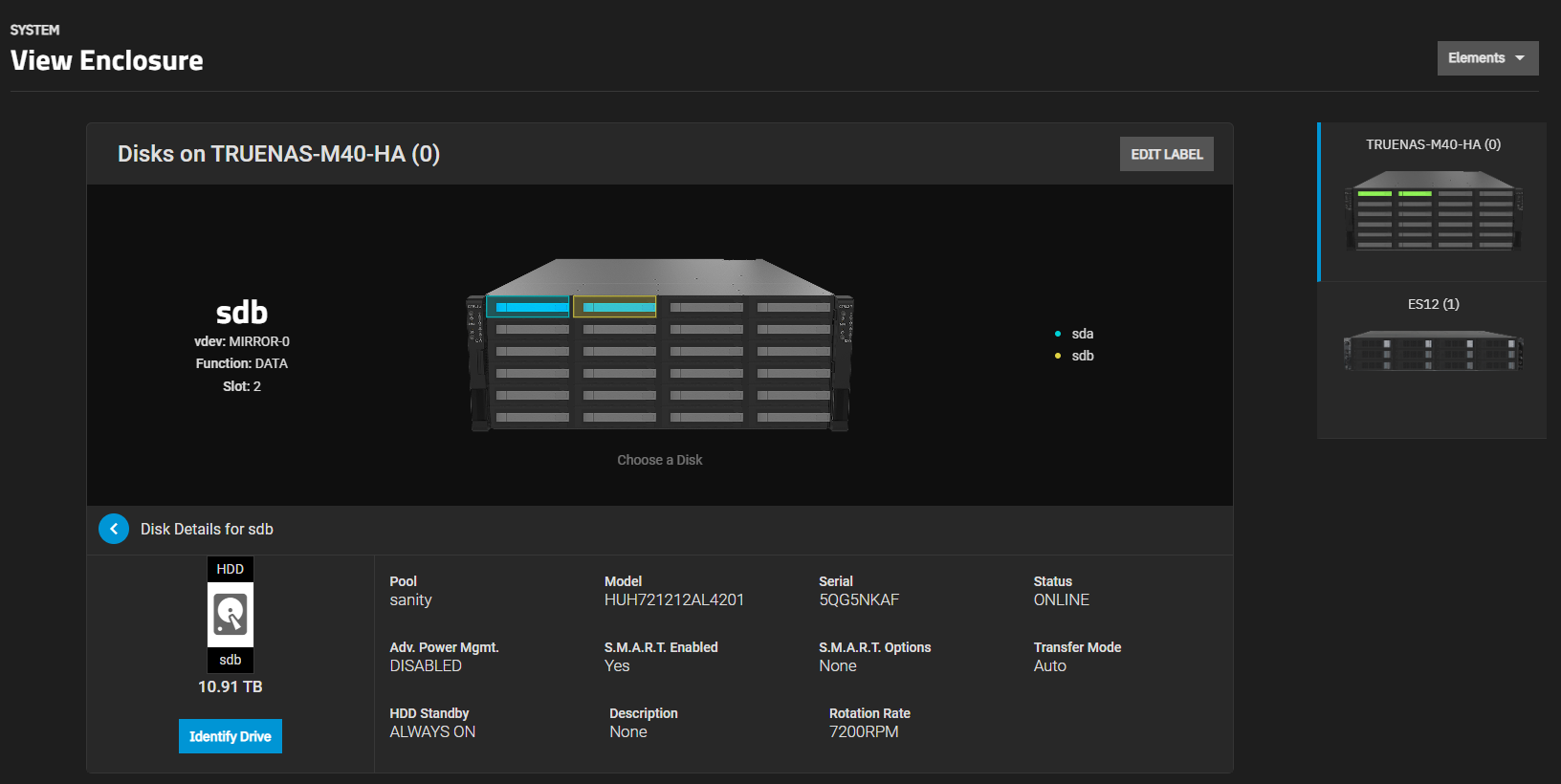
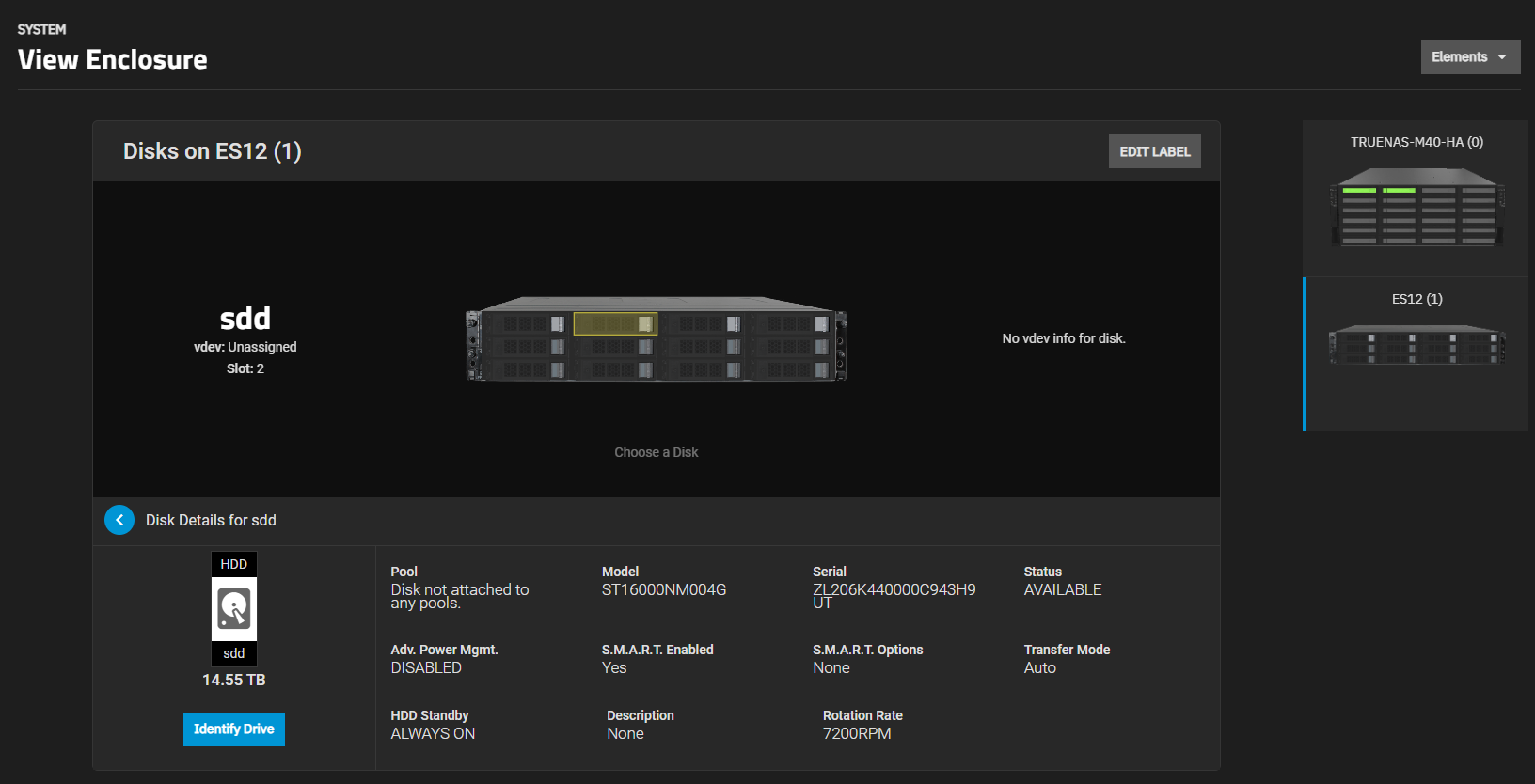
If installed on iXsystems-provided hardware, a picture of the iXsystems hardware displays on the card above the Check For Updates button. Click on the image to display the View Enclosure screen.
If TrueNAS SCALE time gets out of sync with the system server time, the System Information widget displays a message and provides a Synchronize Time link that executes a time-synchronization operation.
Field
Description
Platform
Displays Generic for customer-provided server and hardware, and a TrueNAS logo displays to the left of the System Information fields. Displays the TrueNAS model number for the iXsystems-provided server and hardware, and a picture of the server displays in the area to the left of the fields.
Version
Displays the currently-installed software release of TrueNAS SCALE. Use the clipboard assignment icon to display the full name of the release installed and to copy the version to the clipboard.
Hostname
Displays the host name for the TrueNAS system. Configure the host name on the Network > Global Configuration screen.
Uptime
Displays the number of consecutive days and the number of hours and minutes the system has run since the last reboot.
Check For Updates
Click to display the System Update screen. You can also display the System Update screen by selecting System Settings > Update on the main menu panel on the left side of the screen.
Synchronize Timeloop
Executes a time-synchronization operation to bring the system server and TrueNAS SCALE time into alignment when time gets out of sync. This operation is not designed to correct time that is weeks out of sync, and only displays when the system and SCALE time are out of sync.
CPU
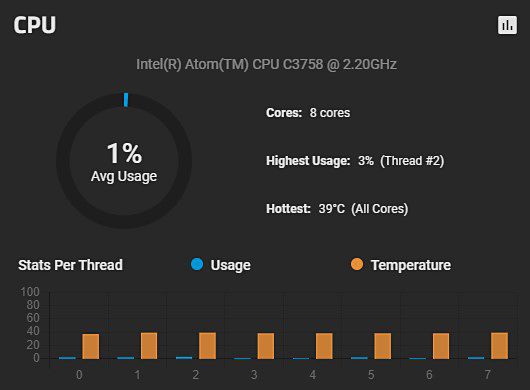
The CPU widget displays information on the system CPU.
The widget includes an Avg Usage dynamic spinner that displays the percentage of usage at that moment on the CPU.
The Stats Per Thread bar graph displays Usage in blue and Temperature in orange with the x axis with the number threads and the y axis the percent usage in 20 increment counts.
It also details the number Cores as x cores (y threads), the Highest Usage as x% (y threads at x%), and the Hottest temperature as x°C (y cores at x°C).
Memory
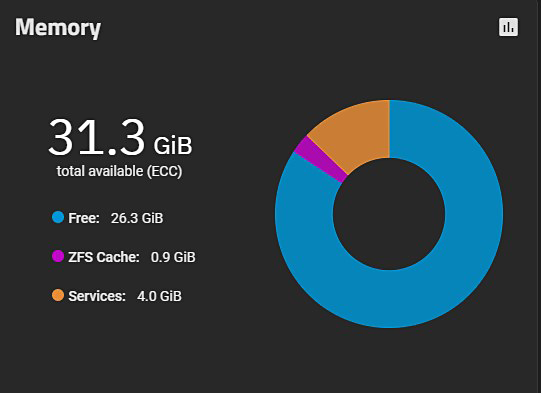
The Memory widget displays information on the system memory.
The widget displays a spinner showing the GiB Free in blue, ZFS Cache in fuchsia pink, and Services in orange.
Network and Interfaces
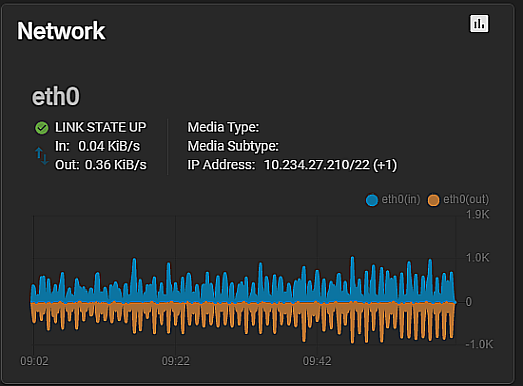
The Network widget displays network the status of the system interfaces, I/O stats, link status and the system IP address and port number.
The Network widget displays a dynamic graph of input (blue) and output (orange) I/O activity over the primary system interface.
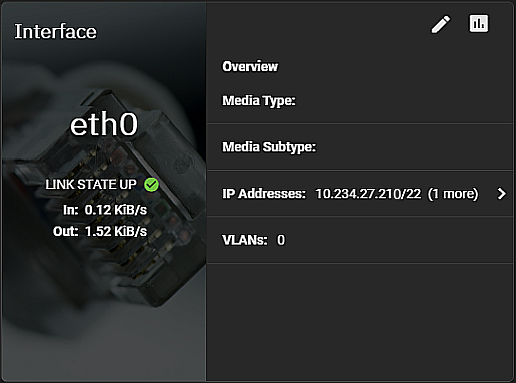
The Interface widgets display I/O stats and link status, and provides more information on that interface media type and subtype, any VLANS and the IP Address and port number.
If more than one interface is configured on your TrueNAS you can use the Dashboard Configuration panel to add an interface widget for each interface. The Interface card displays the information for that interface.
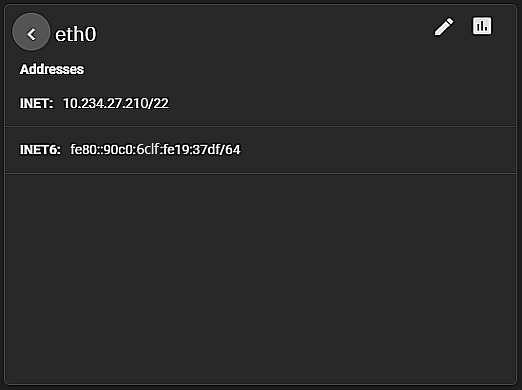
Click on the > to display the Addresses widget for that interface.
Click the edit icon to display the Network screen where you can select the interface to open the Edit Interface panel.
Storage and Pools
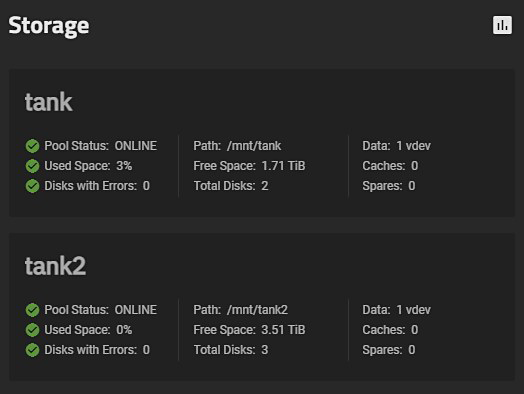
The Storage widget displays information on the root and other storage pools configured on your system.
The Storage widget displays the root pool status, path, and the number of VDEVs configured. It also displays the percentage of used space, free space and any caches.
It reports on the number disks with errors, the total number of disks the root pool uses, and if a spare exists.
The individual pool information displayed in this widget includes the same information as the root pool.
All the icons and options contained in the TrueNAS SCALE top toolbar.
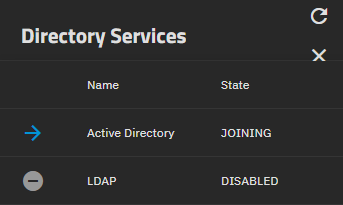
The top toolbar icon buttons provide access to the iXsystems website, displays the status of TrueCommand and directory services configured on your system, and displays other configuration menu options.
Click to expand or collapse the main menu panel on the left side of the screen.
iXsystems
Opens the iXsystems home page website where users can find information about storage and server systems. Users can also use the iXsystems home page to access their customer portal and community section for support.
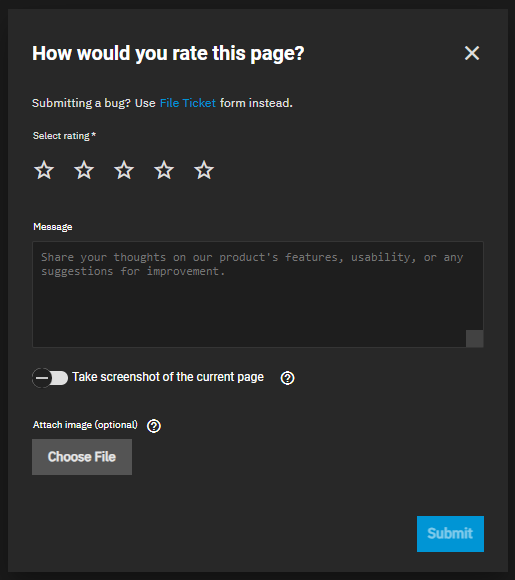
How would you rate this page?
Opens the How would you rate this page? feedback window in prerelease versions of TrueNAS SCALE.
Use this window to submit a star rating and comments or suggestions for the current page.
The feedback window allows users to submit their general user-experience feedback.
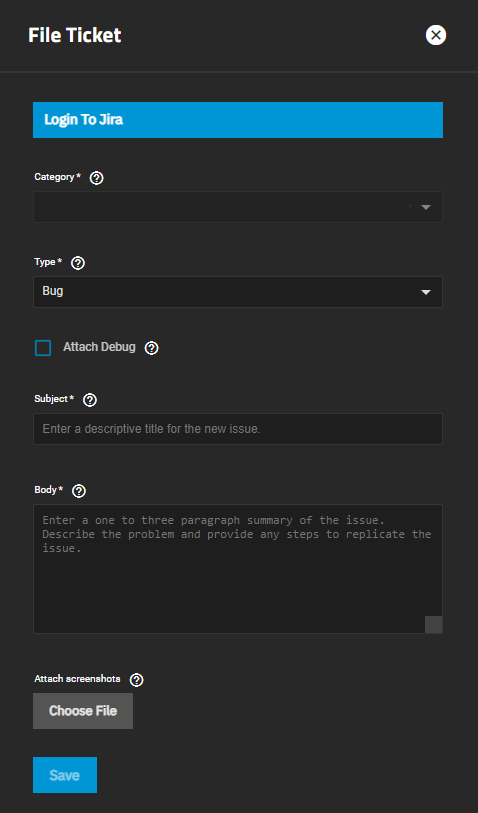
Submit bug tickets through the File Ticket link that opens the File Ticket form, also accessed from the System Settings > General screen File Ticket button. See Filing an Issue Ticket in SCALE for further instructions.
The Take screenshot of the current page toggle is on by default. When on, TrueNAS SCALE automatically creates and attaches a screenshot.
Turn off the toggle to submit feedback without an image.
When off, the window displays Attach image (optional) as an alternative.
Click Choose File to attach an existing screenshot.
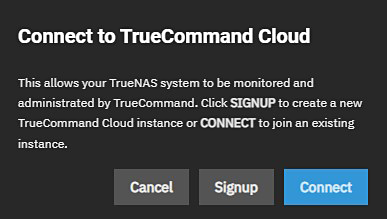
Status of TrueCommand
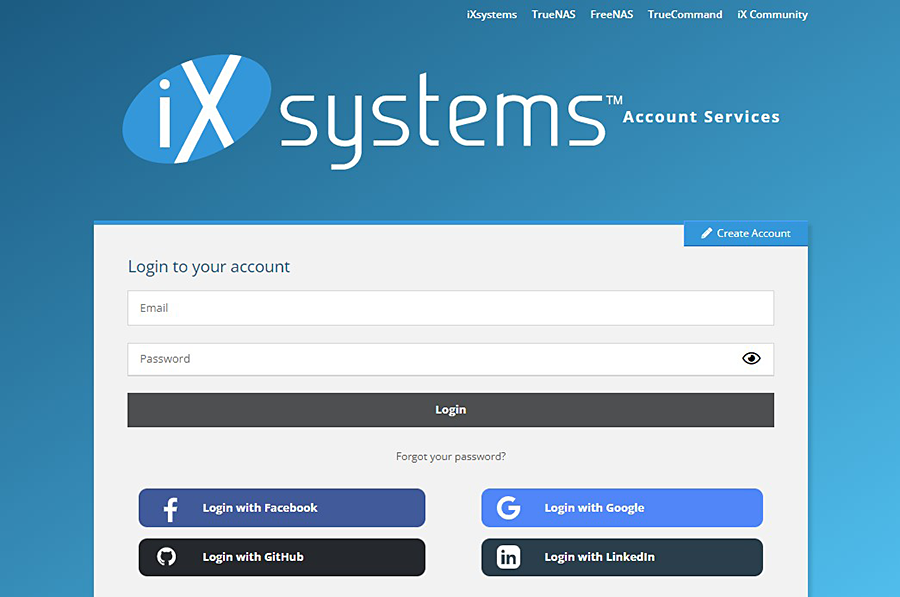
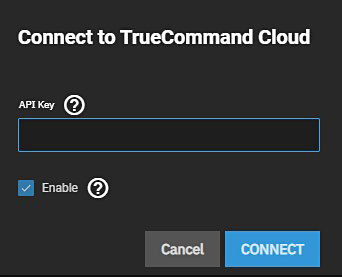
The Status of TrueCommand icon lets users sign up with and connect to TrueCommand Cloud.
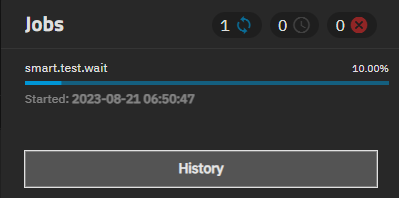
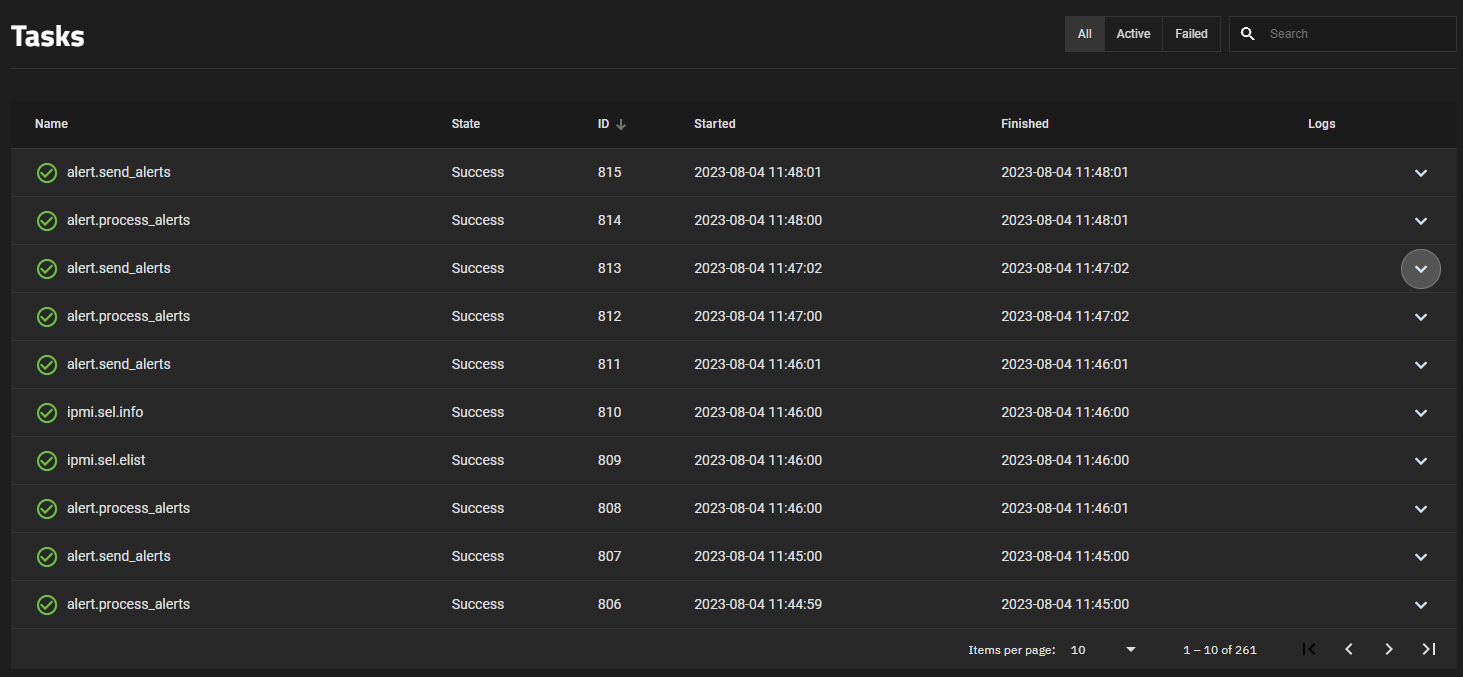
Click the History button to open the Tasks screen.
Tasks lists all successful, active, and failed jobs.
Users can also click View next to a task to view its log information and error message.
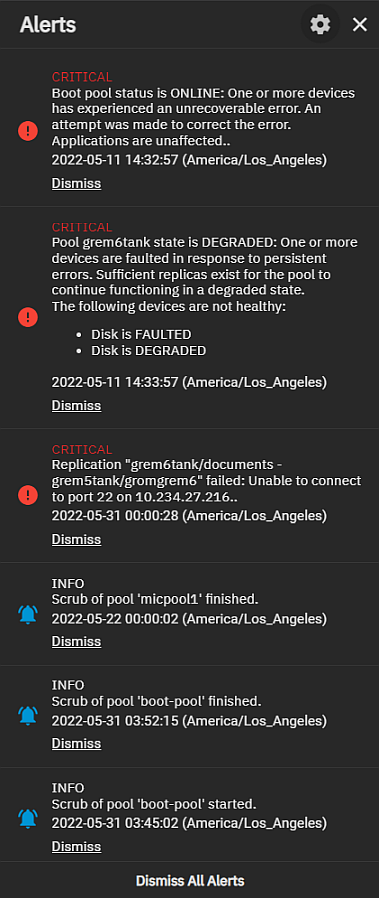
The Alertsnotifications icon displays a list of current alert notifications.
To remove an alert notification click Dismiss below it or use Dismiss All Alerts to remove all notifications from the list.
Use the settings icon to display the Alerts dropdown list with two options: Alert Settings and Email.
Select Alert Settings to add or edit existing system alert services and configure alert options such as the warning level and frequency and how the system notifies you.
See Alerts Settings Screens for more information.
TrueNAS Enterprise
The Alert Settings Screens article includes information about the SCALE Enterprise high availability (HA) alert settings.
Select Email to configure the method for the system to send email reports and alerts.
See Setting Up System Email for information about configuring the system email service and alert emails.
Settings
The account_circleSettings icon button displays a menu of general system settings options.
The options are Change Password, Two-Factor Authentication, Preferences, API Keys, Guide and About.
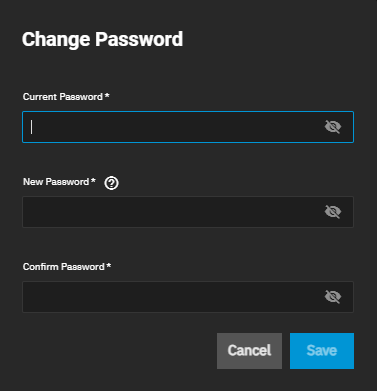
The dialpadChange Password icon button displays a dialog where you can change the login password for the currently logged-in administrator password.
The laptopAPI Keys icon button displays the API Keys screen that lists current API keys and where you can add or manage API keys that identify outside resources and applications without a principal.
The library_booksGuide icon button opens the TrueNAS Documentation Hub website in a new browser tab.
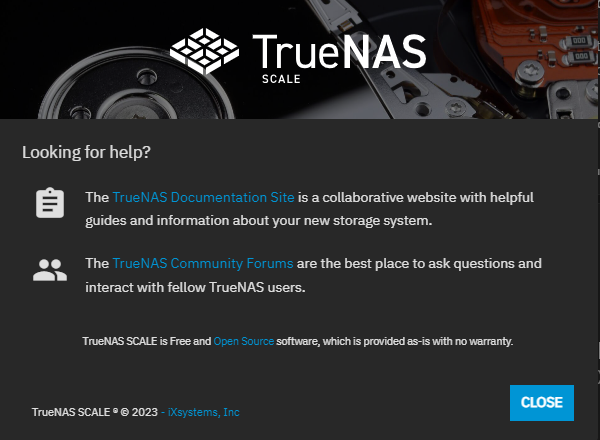
The infoAbout icon button displays a window with links to the TrueNAS Documentation Hub, the TrueNAS Community Forums, the FreeNAS Open Source Storage Appliance GitHub repository, and the iXsystems home page. Use the Close button to close the window.
Alert Settings Screens: The Alert Settings screen allows users to set the warning levels and frequency of alerts.
Email Screens: Provides information on the email configuration screens for SMTP and GMail OAuth.
Settings Options: Describes the top-level Settings options in TrueNAS SCALE.
API Keys Screen: Describes how the API keys screen in TrueNAS SCALE.
Tasks Screens: Describes the TrueNAS SCALE task manager and how to use the task manager to view failed jobs and task logs.
2.1 - Alerts
Describes the TrueNAS SCALE alert system.
The Alertsnotifications icon displays a list of current alert notifications.
To remove an alert notification click Dismiss below it or use Dismiss All Alerts to remove all notifications from the list.
Use the settings icon to display the Alerts dropdown list with two options: Alert Settings and Email.
Select Alert Settings to add or edit existing system alert services and configure alert options such as the warning level and frequency and how the system notifies you.
See Alerts Settings Screens for more information.
TrueNAS Enterprise
The Alert Settings Screens article includes information about the SCALE Enterprise high availability (HA) alert settings.
Select Email to configure the method for the system to send email reports and alerts.
See Setting Up System Email for information about configuring the system email service and alert emails.
Contents
Alert Settings Screens: The Alert Settings screen allows users to set the warning levels and frequency of alerts.
Email Screens: Provides information on the email configuration screens for SMTP and GMail OAuth.
2.1.1 - Alert Settings Screens
The Alert Settings screen allows users to set the warning levels and frequency of alerts.
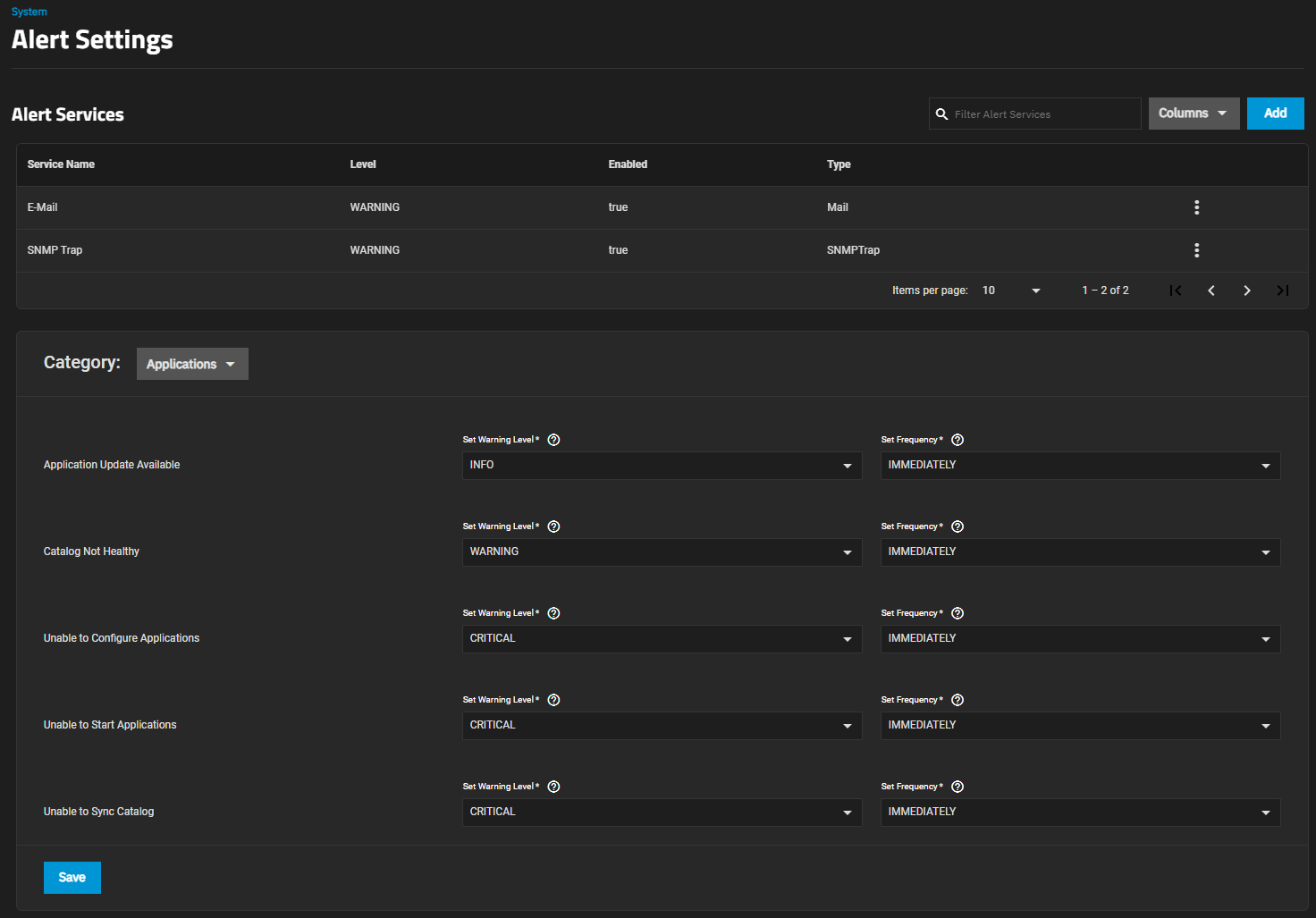
The Alert Settings screen displays options to create and edit alert services and to configure warning levels and frequencies.
To access this screen, click the notifications icon, then click the settings icon and select Alert Settings on the dropdown list.
Use Columns to change the information displayed in the list of alert services. Options are Unselect All, Type, Level, Enabled and Reset to Defaults.
Add/Edit Alert Service Screen
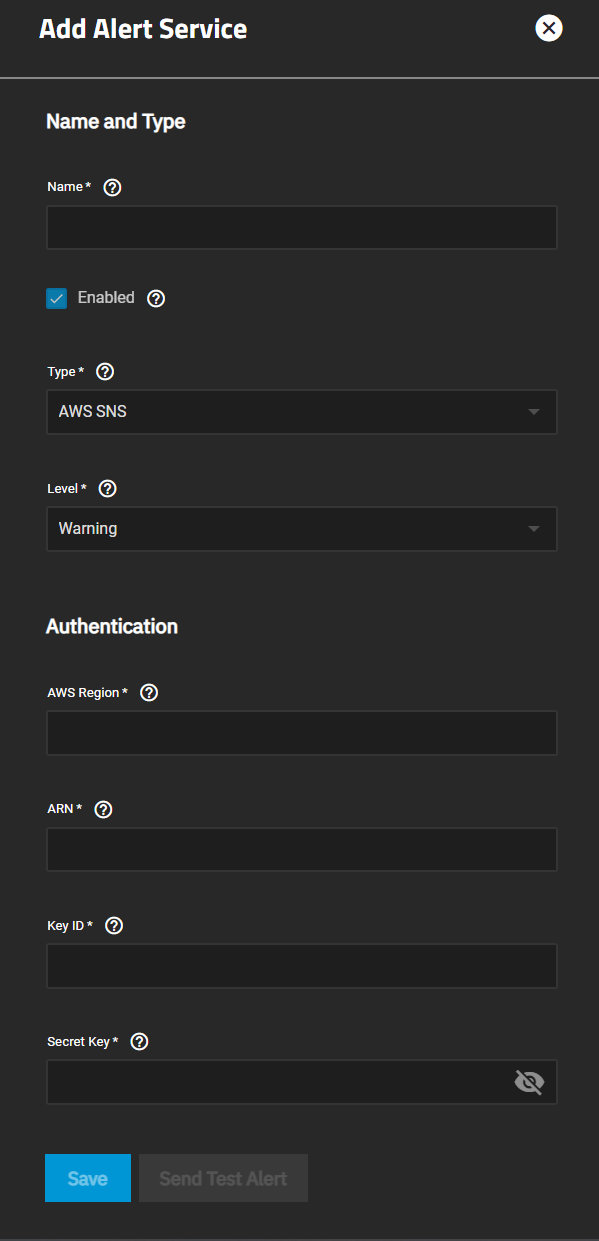
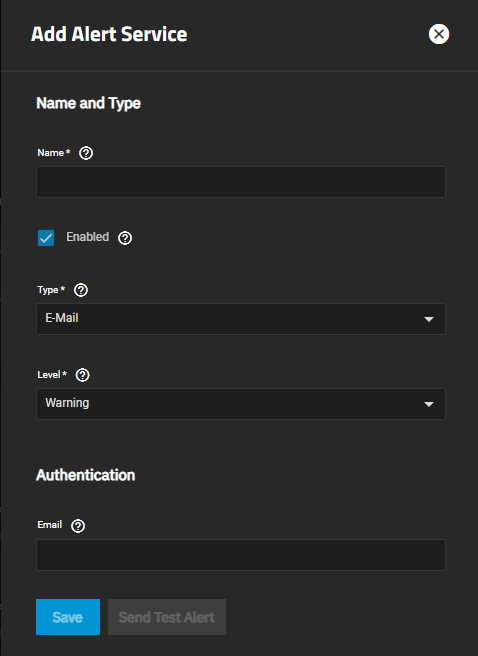
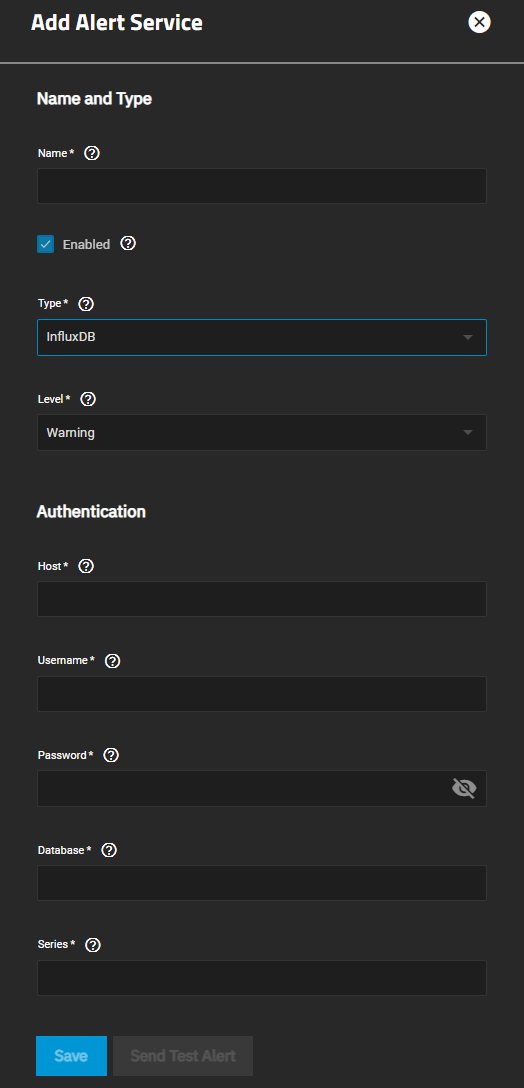
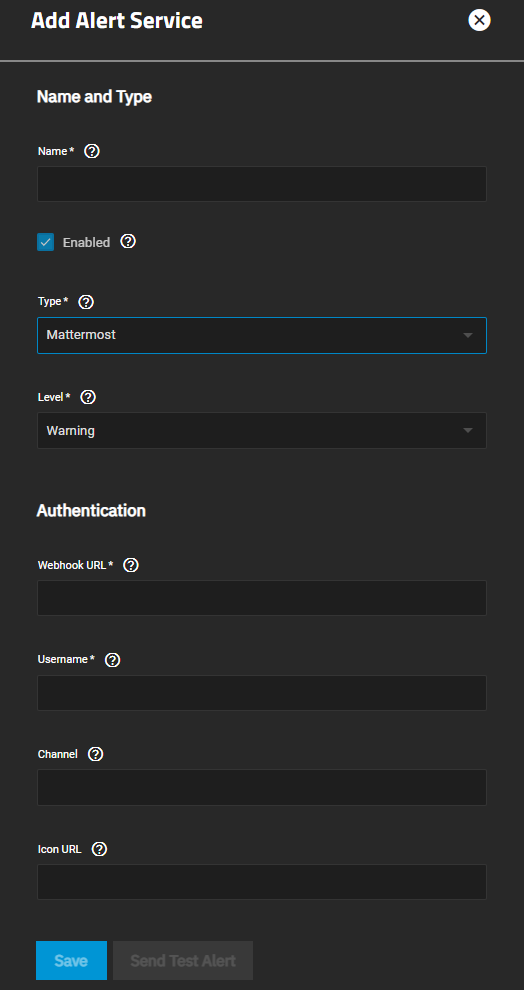
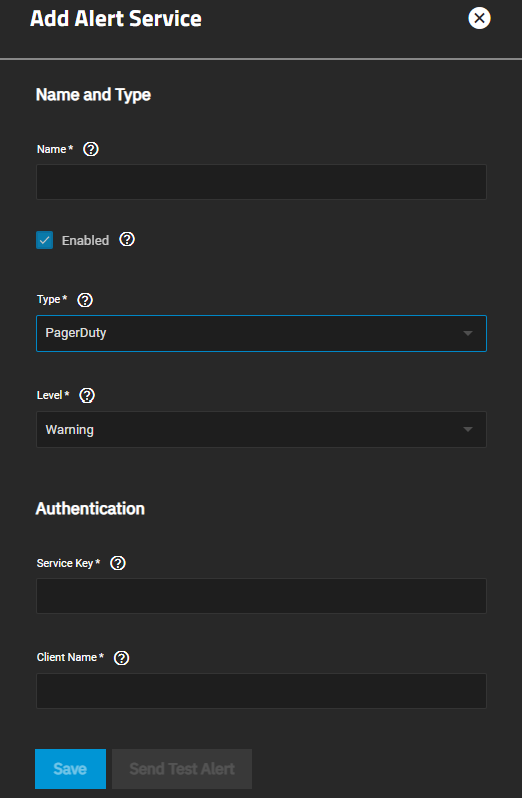
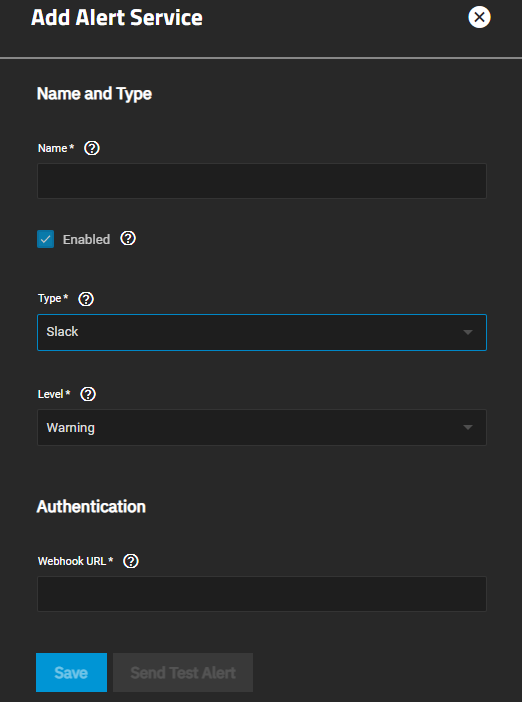
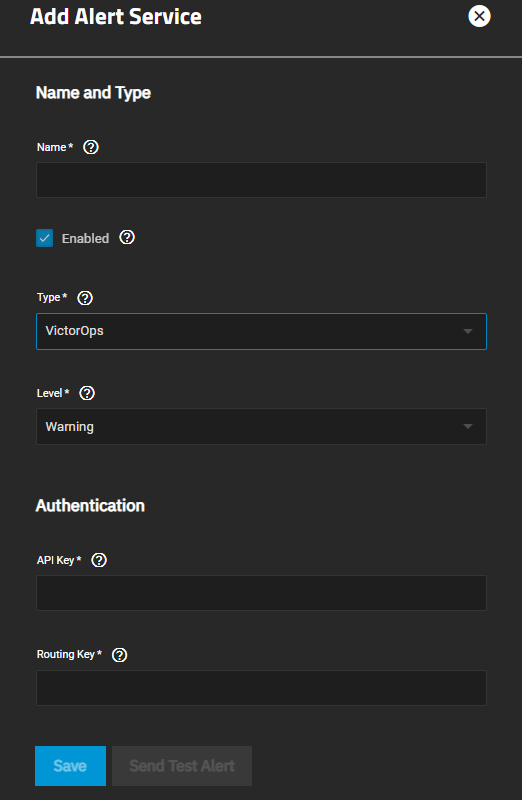
The Add Alert Service and Edit Alert Service screens show the same settings.
Use Add to create a new alert service using the Add Alert Service screen. The Type settings for AWS SNS display by default.
To add an alert service for another option, use the Type dropdown list. Only the Authentication Settings change for each option.
Use the Edit Alert Service screen to modify settings for a service. Select the more_vert icon for the service, and then click Edit to display the Edit Alert Service screen.
Name and Type Settings
Setting
Description
Name
Enter a name for the new alert service.
Enabled
Clear the checkmark to disable this service without deleting it.
Type
Select an option from the dropdown list for an alert service to display options for that service. Options are AWS SNS which is the default type displayed, E-Mail, InfluxDB, Mattermost, OpsGenie, PagerDuty, Slack, SNMP Trap, Telegram or VictorOPS.
Level
Select the severity from the dropdown list. Options are Info, Notice, Warning, Error, Critical, Alert or Emergency.
Use SEND TEST ALERT to generate a test alert to confirm the alert service works.
Click Cancel to exit the Alert Services screen without saving.
Use Save to add the new service with the settings you specify to the list of alert services.
Alert Service Types
AWS SNS
Select AWS SNS from the Type dropdown list to display AWS SNS authentication settings.
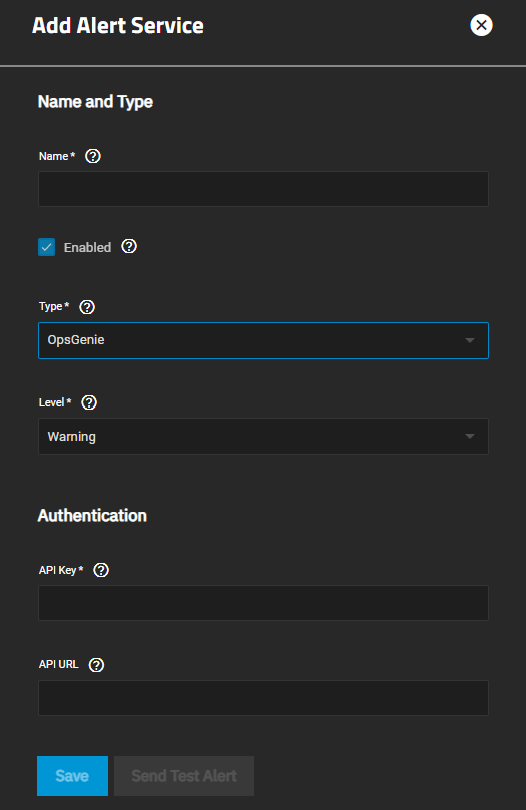
Select OpsGenie from the Type dropdown list to display OpsGenie authentication settings.
Authentication Settings
Setting
Description
API Key
Enter the API key. Find the API key by signing into the OpsGenie web interface and going to Integrations/Configured Integrations. Click the desired integration, Settings, and read the API Key field.
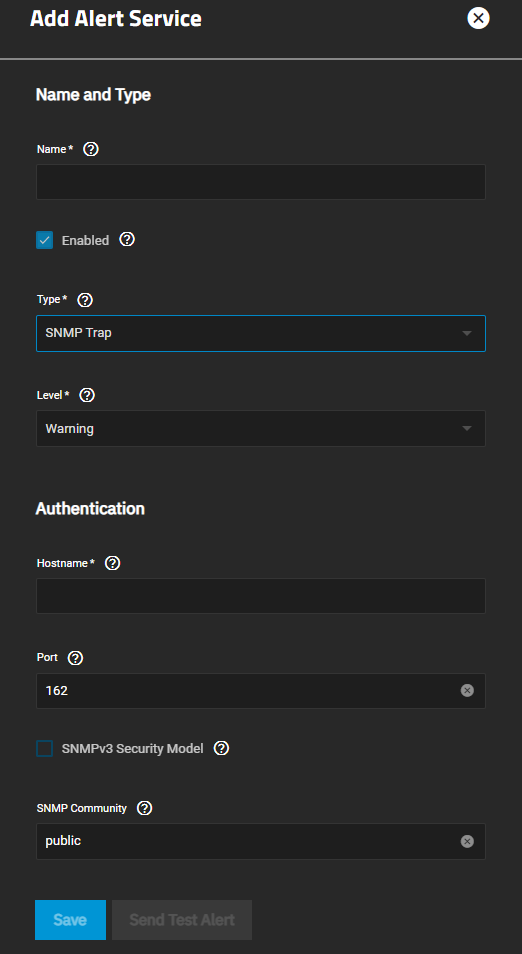
Select SNMP Trap from the Type dropdown list to display SNMP trap authentication settings.
Authentication Settings
Setting
Description
Hostname
Enter the hostname or IP address of the system to receive SNMP trap notifications.
Port
Enter the UDP port number on the system receiving SNMP trap notifications. The default is 162.
SNMPv3 Security Model
Select to enable the SNMPv3 security model.
SNMP Community
Enter the network community string. The community string acts like a user ID or password. A user with the correct community string can access network information. The default is public. For more information, see What is an SNMP Community String?.
Telegram
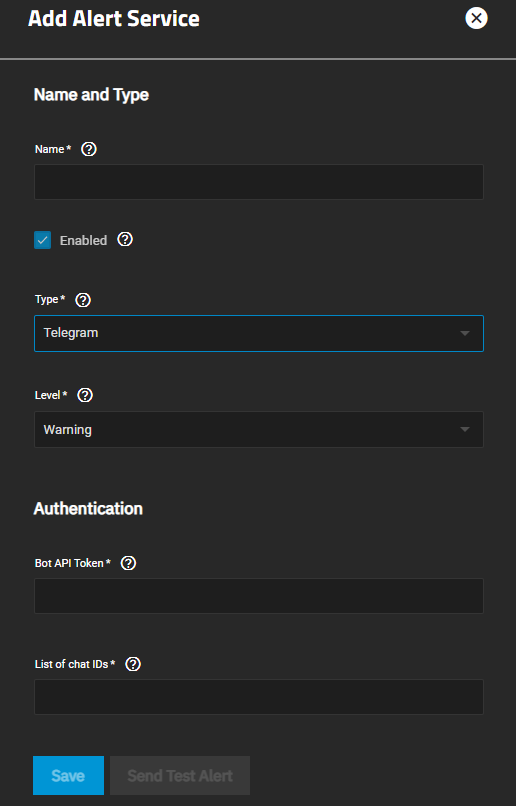
Select Telegram from the Type dropdown list to display Telegram authentication settings.
Enter a list of chat IDs separated by a space ( ), comma (,), or semicolon (;). To find your chat ID, send a message to the bot, group, or channel and visit https://core.telegram.org/bots/api#getting-updates.
VictorOPS
Select VictorOps from the Type dropdown list to display VictorOps authentication settings.
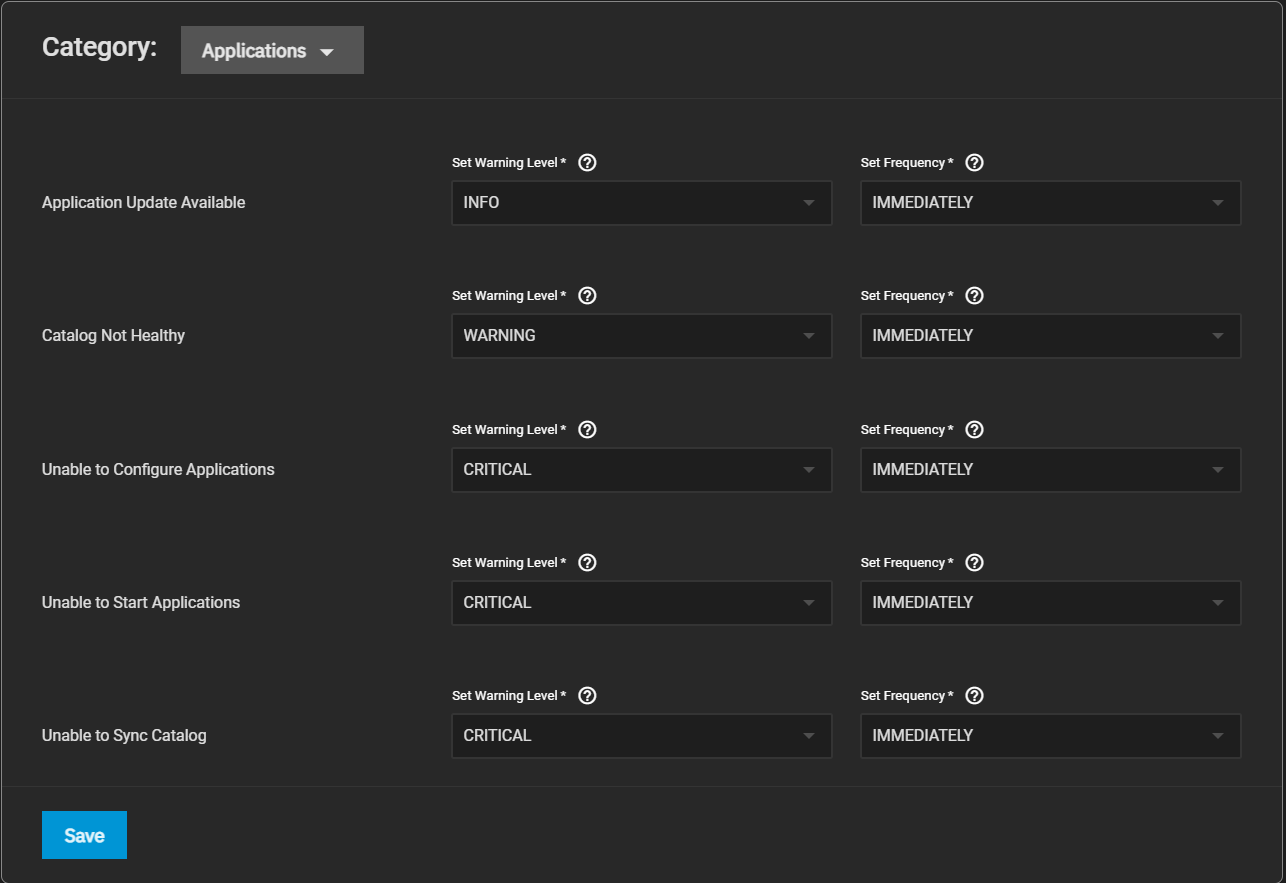
Use the Category dropdown list to display alert settings for each category.
Applications
Applications alert settings display by default. These alerts apply to the third-party applications you deploy on your TrueNAS system.
You can customize alert settings for when available applications have updates, catalog is not healthy, the system cannot configure or start applications, and the system cannot sync the catalog.
Certificates
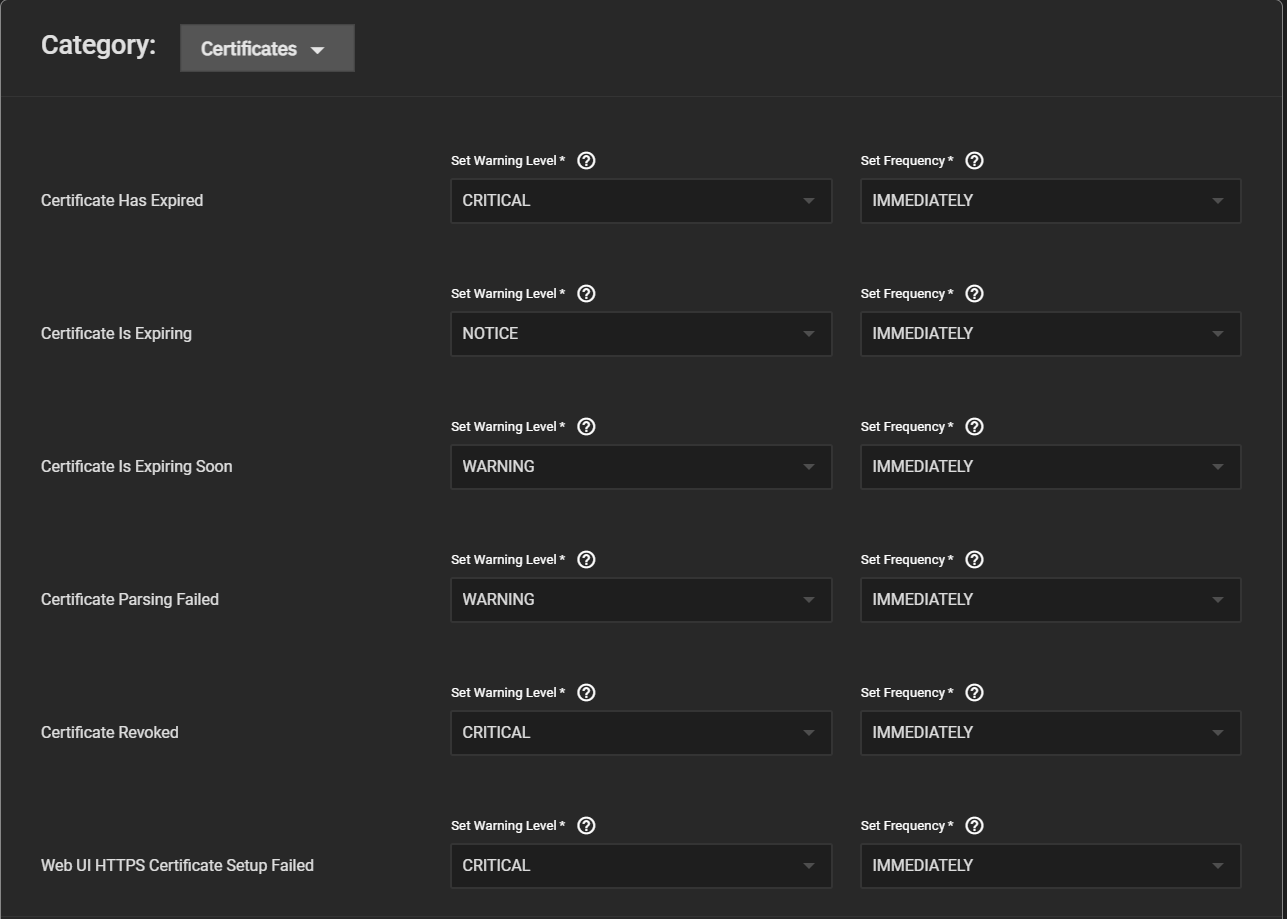
Certificates alert settings apply to certificates you add through the Credentials > Certificates screen.
You can customize alert settings for when a certificate expires, a certificate parsing fails, a certificate revokes, and the web UI HTTPS certificate setup fails.
Clustering
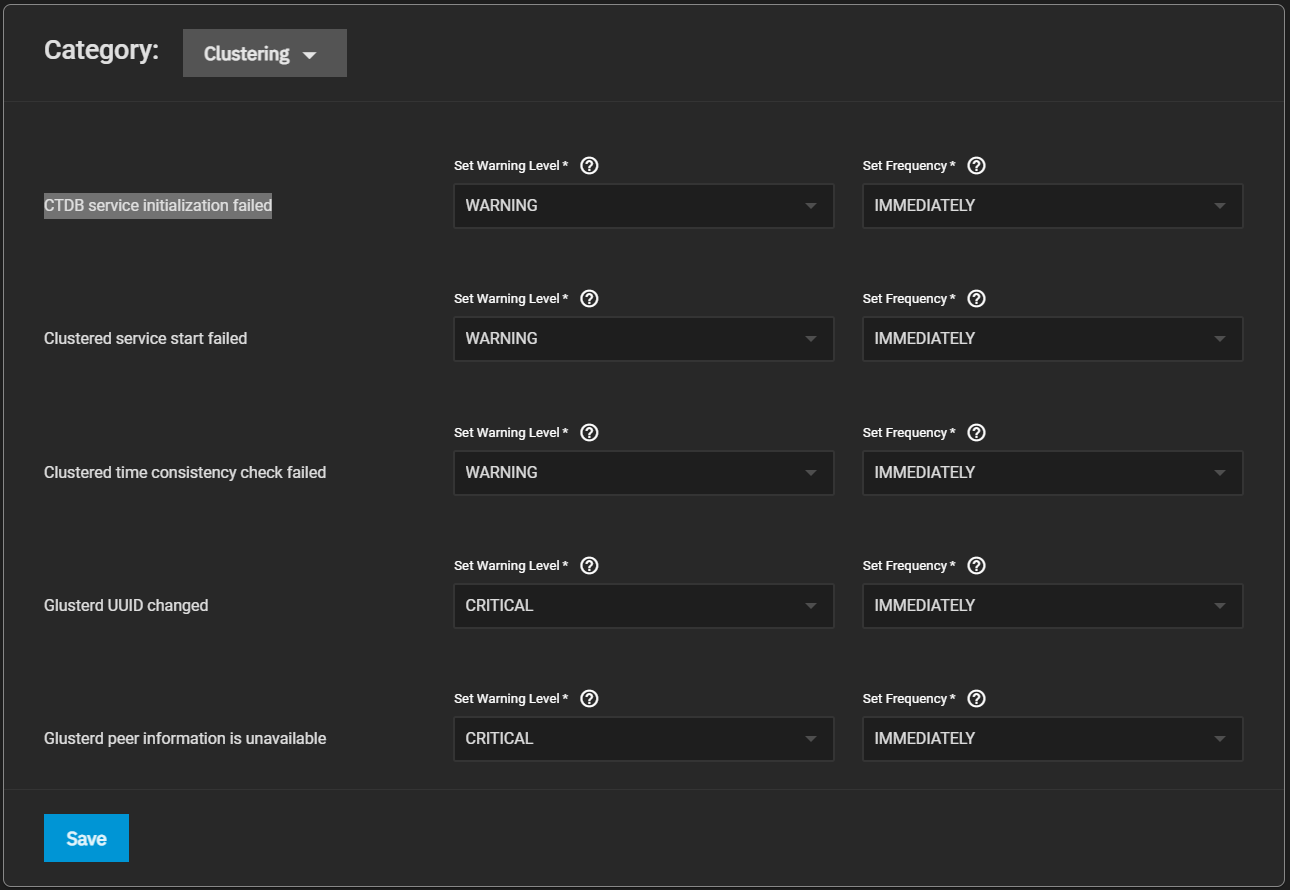
Clustering alert settings apply to TrueNAS SCALE clusters you create in TrueCommand.
You can customize alert settings for when the CTDB (clustered trivial database) and clustered services fail to initialize, clustered time consistency check fails, the universally unique identifier of a clustered system (glusterd UUID) changes, and glusterd peer (a server in the cluster) information becomes unavailable.
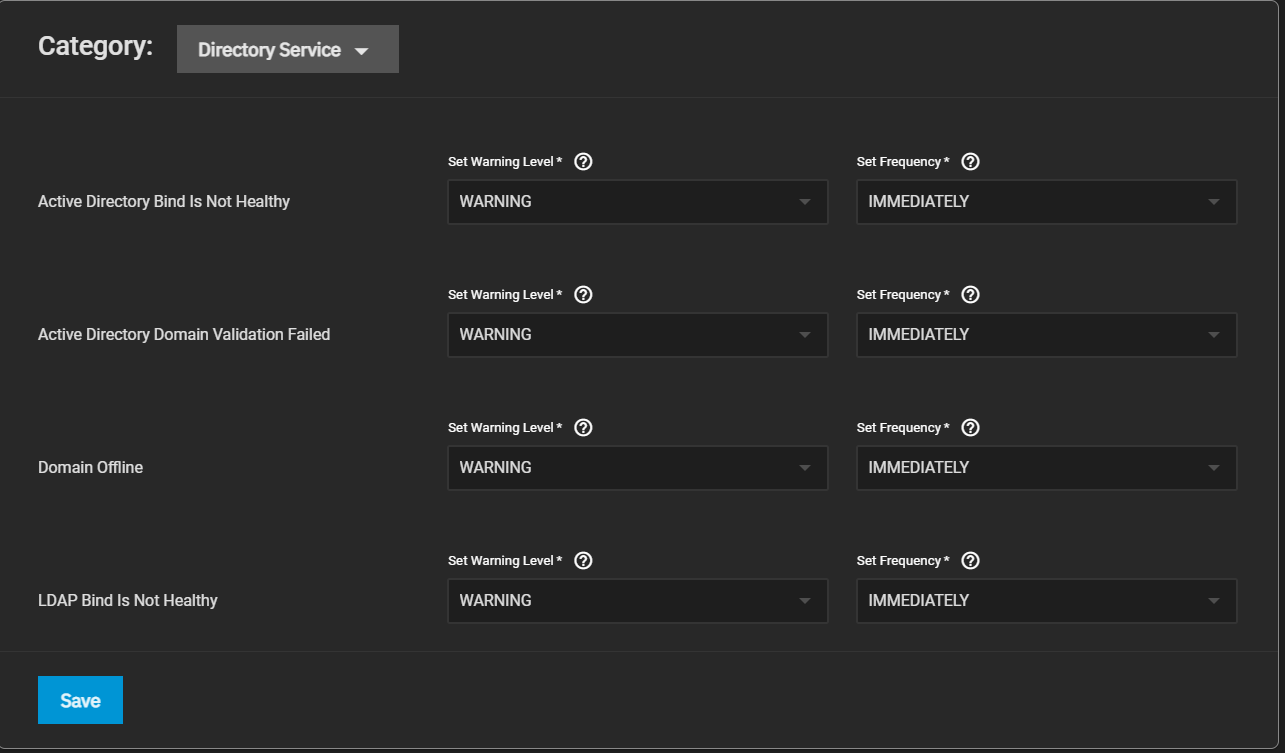
Directory Service
Directory Service alert settings apply to the Active Directory and LDAP servers configured on your TrueNAS.
You can customize alert settings for when the Active Directory bind is unhealthy, Active Directory domain validation fails, the domain is offline, and the LDAP bind bind is unhealthy.
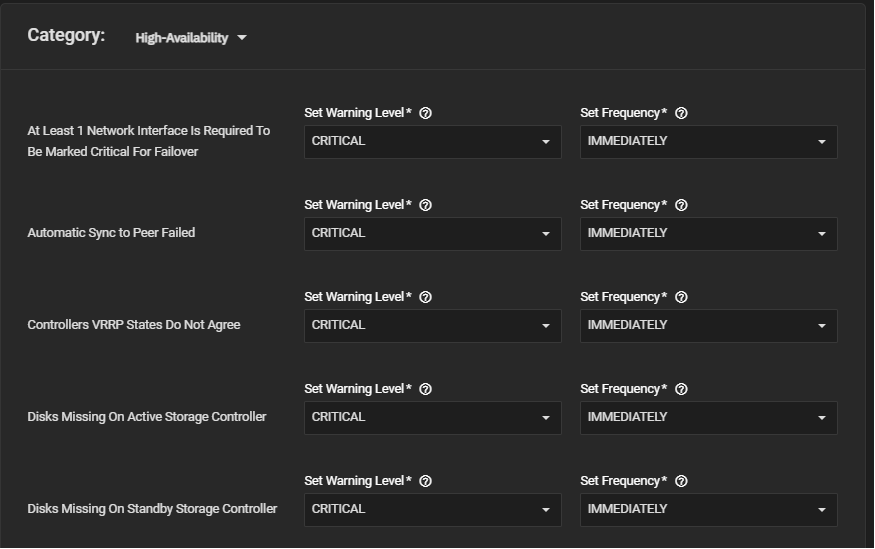
High Availability Settings
TrueNAS Enterprise
This section only applies to TrueNAS Enterprise hardware.
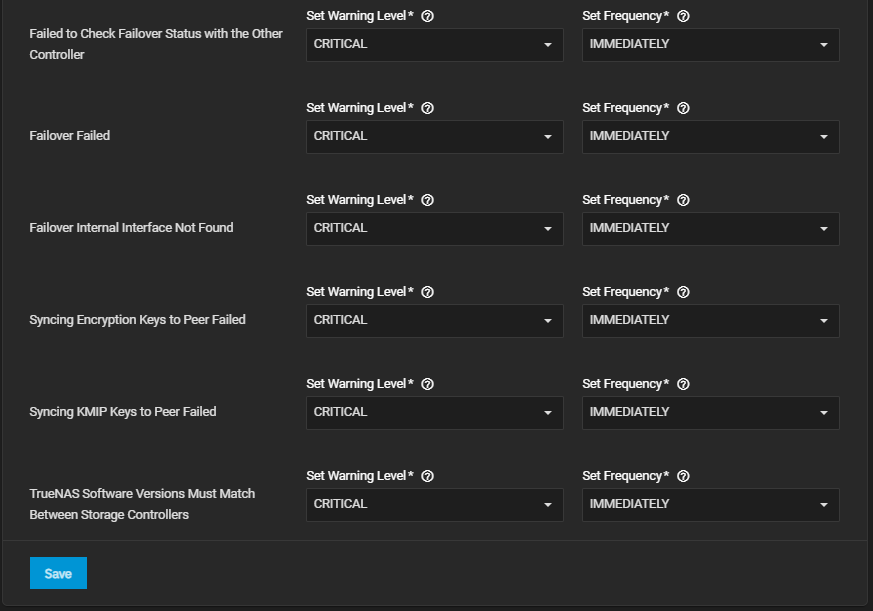
High Availability alert settings apply to TrueNAS Enterprise HA systems and only displays on the list of alerts for dual-controller High-Availability systems with an Enterprise license applied.
You can customize alert settings for when an automatic sync to peer fails, disks are missing on the active and/or standby controller, the system fails to check failover status with the other controller, syncing operations fail such as encryption keys to peer and KMIP keys to peer, the failover interface is not found, and when a failover action fails.
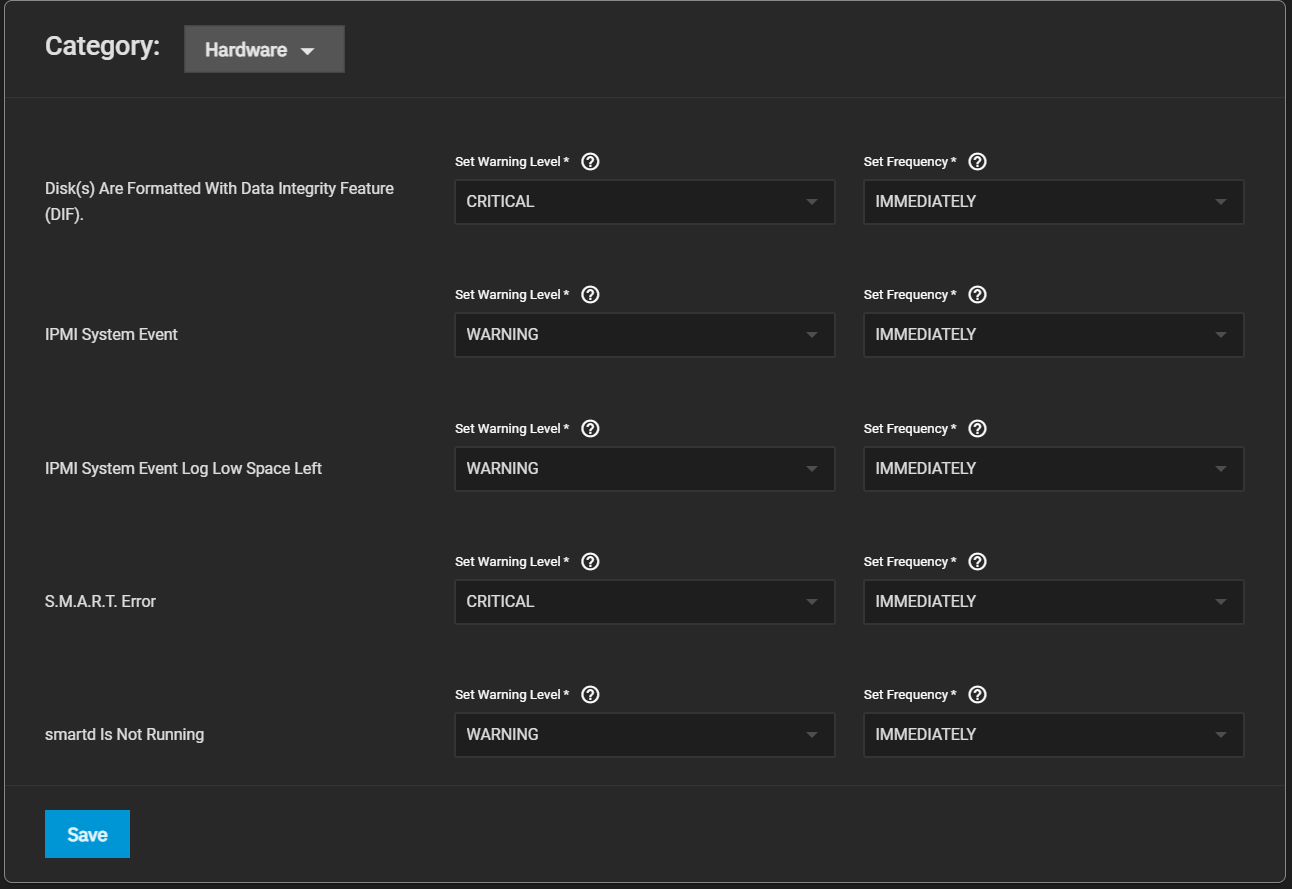
Hardware
Hardware alert settings apply to the IPMI network connections, and S.M.A.R.T. and smartd that monitors the hard drives installed on your TrueNAS system.
You can customize alert settings for when disk(s) format with the data integrity feature, IPMI has system events, the IPMI system event log space is low, S.M.A.R.T. has an error, and smartd is not running.
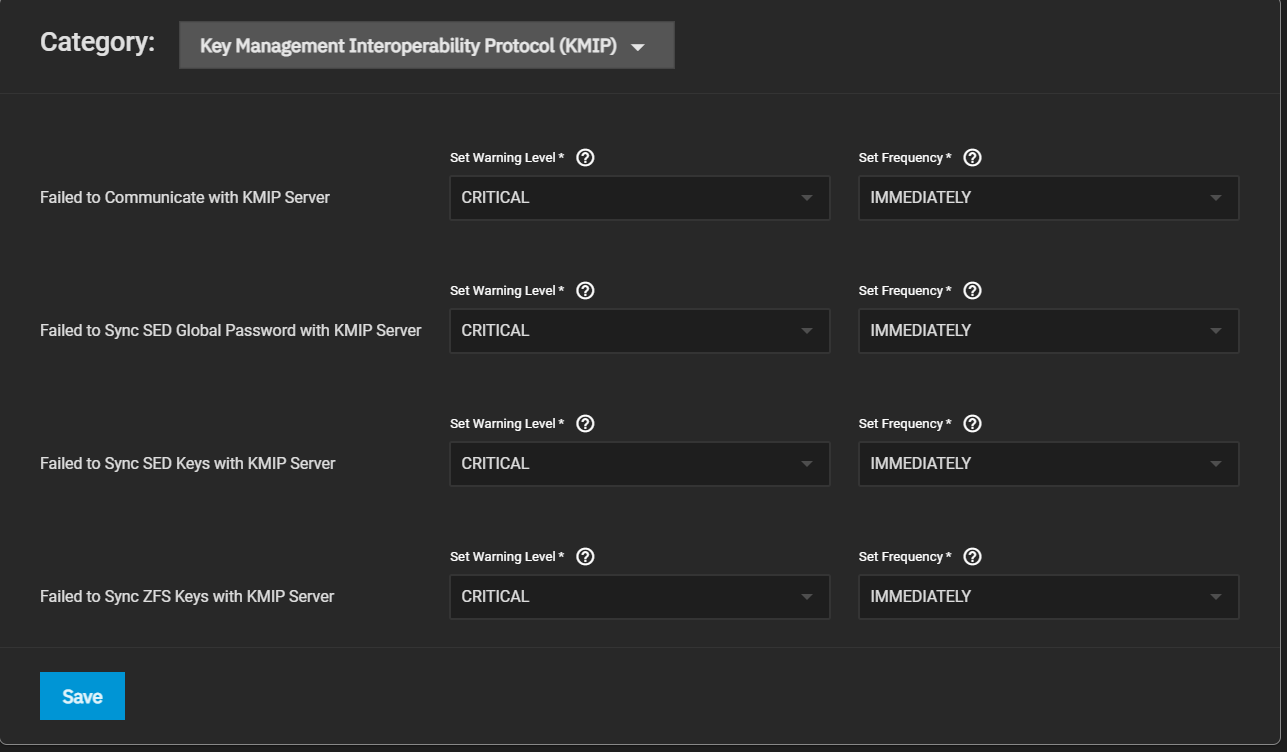
Key Management Interoperability Protocol (KMIP)
Key Management Interoperability Protocol (KMIP) alert settings only apply to KMIP configured on a TrueNAS Enterprise system.
You can customize alert settings for when the system fails to communicate, sync the SED global password, and sync keys with the KMIP server.
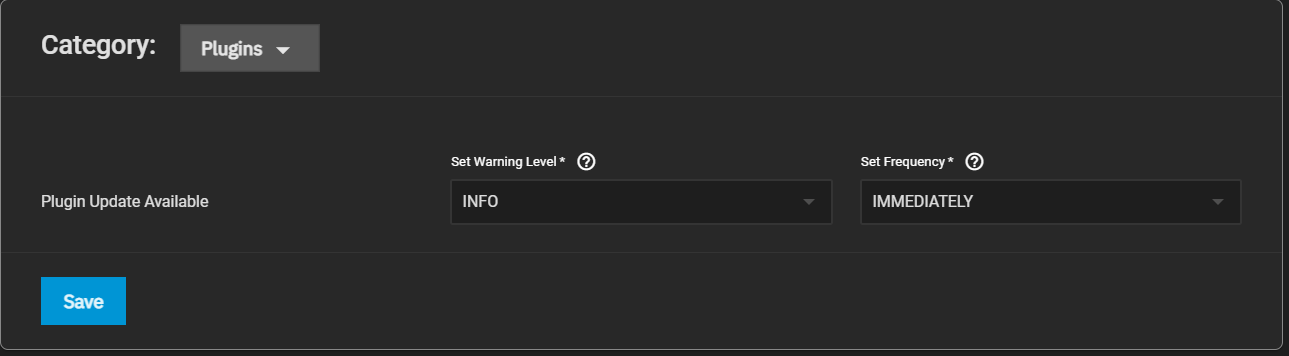
Plugins
Plugins alert settings apply to plugins installed on your TrueNAS.
You can customize the alert setting for when plugin updates are available.
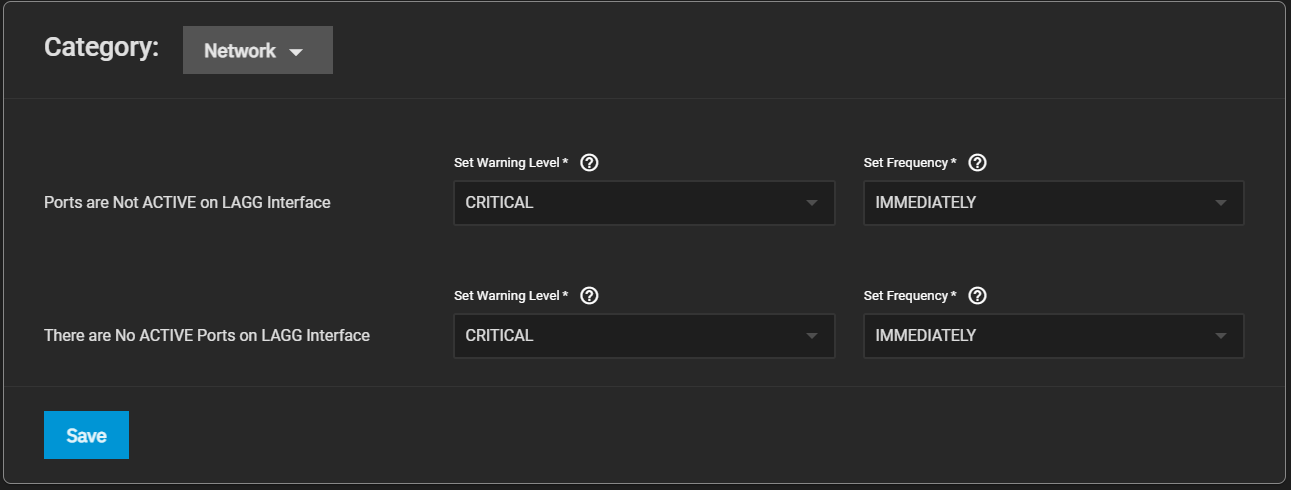
Network
Network alert settings apply to network interfaces configured on your TrueNAS.
You can customize alert settings for when ports are not active on the LAGG interface and when the LAGG interface has no active ports.
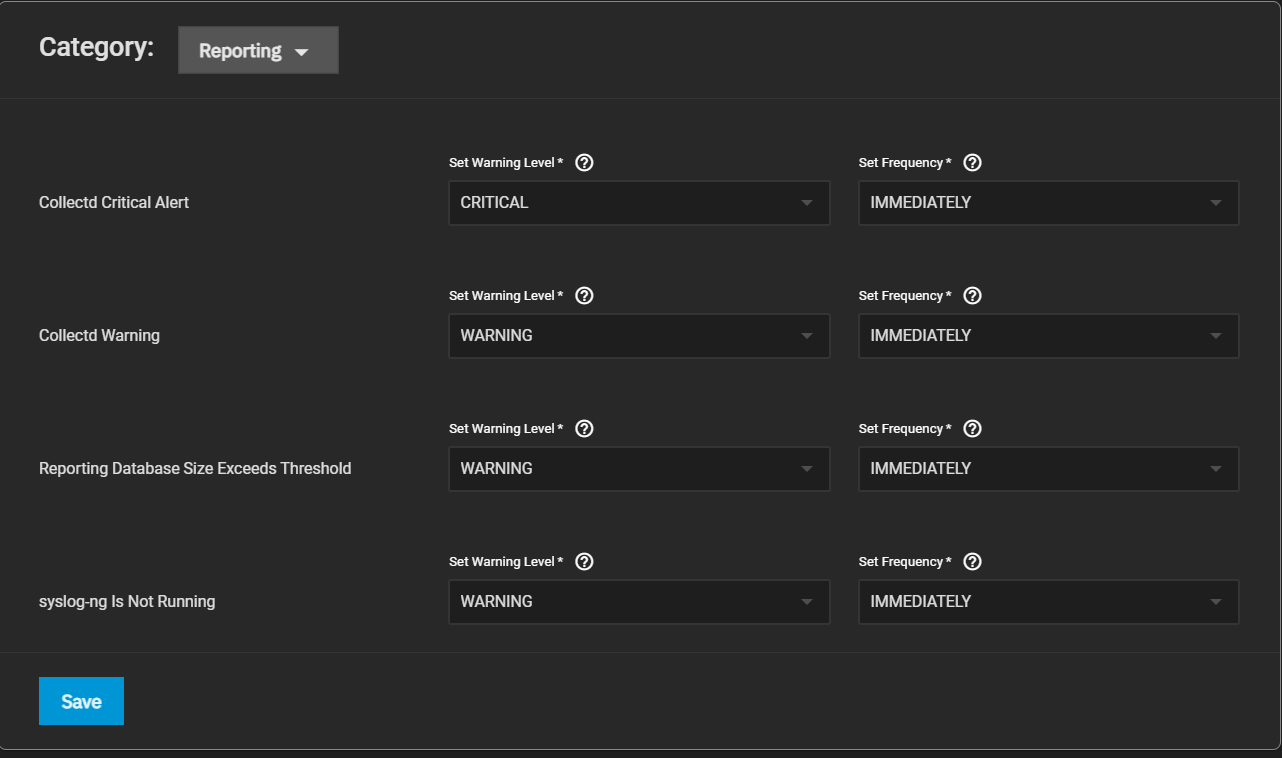
Reporting
Reporting alert settings apply to netdata, database size threshold, and syslog processes on your TrueNAS.
You can customize alert settings for when netdata has critical alerts and warnings, the reporting database size exceeds the threshold, and syslog-ng is not running.
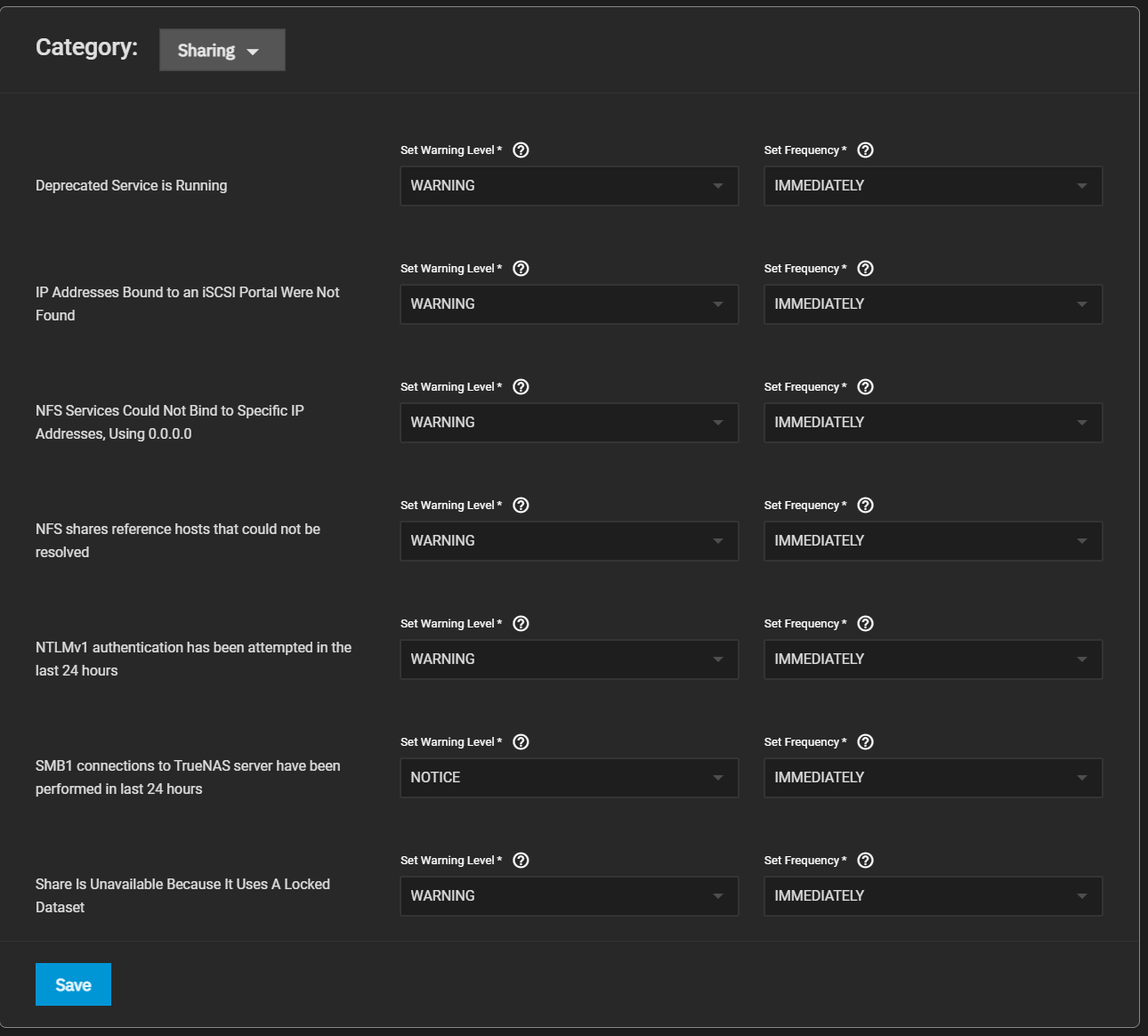
Sharing
Sharing alert settings apply to iSCSI, NFS, or SMB shares and connections configured on your TrueNAS.
You can customize alert settings for when a deprecated service is running, IP addresses bound to an iSCSI portal are not found, NFS services cannot bind to specific IP addresses using 0.0.0.0, and the system cannot resolve NFS share references hosts.
You can also customize alerts for when NTLMv1 attempts authentication in the last 24 hours, SMB1 connections to TrueNAS server are performed in the last 24 hours, and a share is unavailable because it uses a locked dataset.
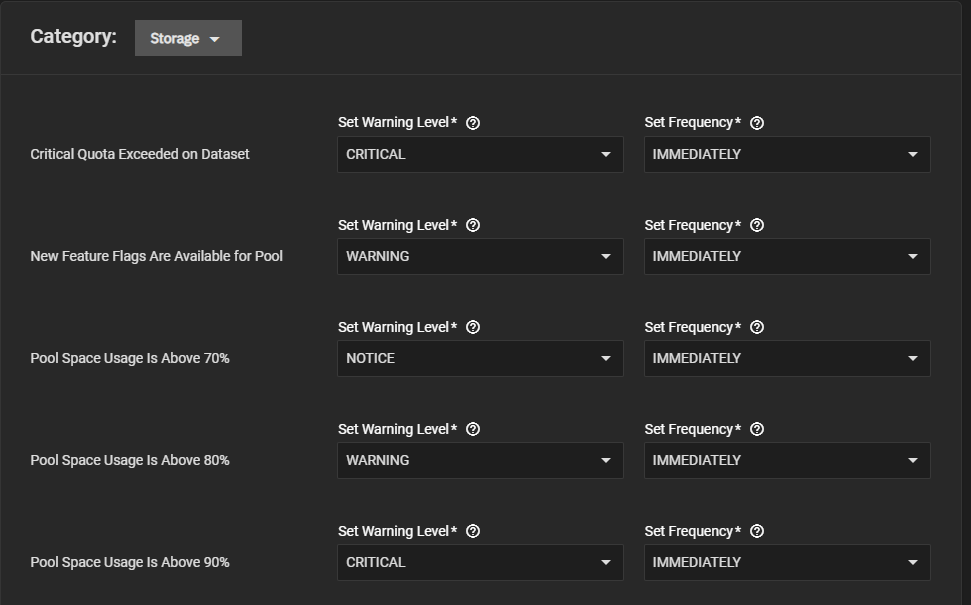
Storage
Storage alert settings apply to quotas, pools, snapshots, and scrub processes on your TrueNAS.
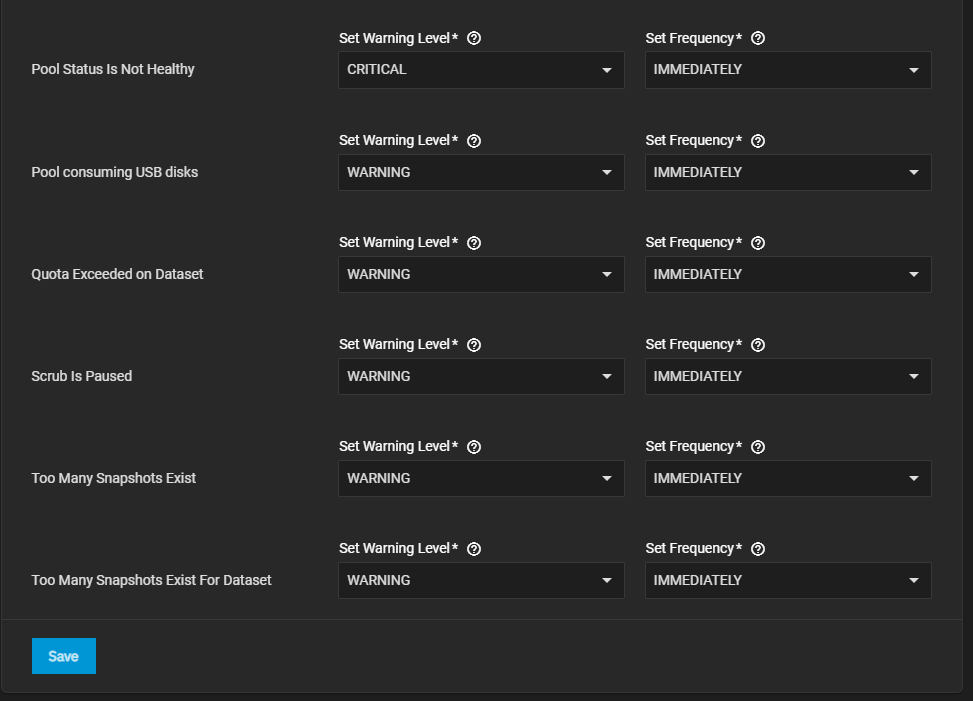
You can customize alert settings for when a dataset exceeds standard and critical quotas, a pool has new available feature flags, pool space usage exceeds 70, 80, or 90 percent, and pool status is not healthy.
You can change alert settings for when a pool consumes USB disks, a scrub pauses, and too many snapshots exist.
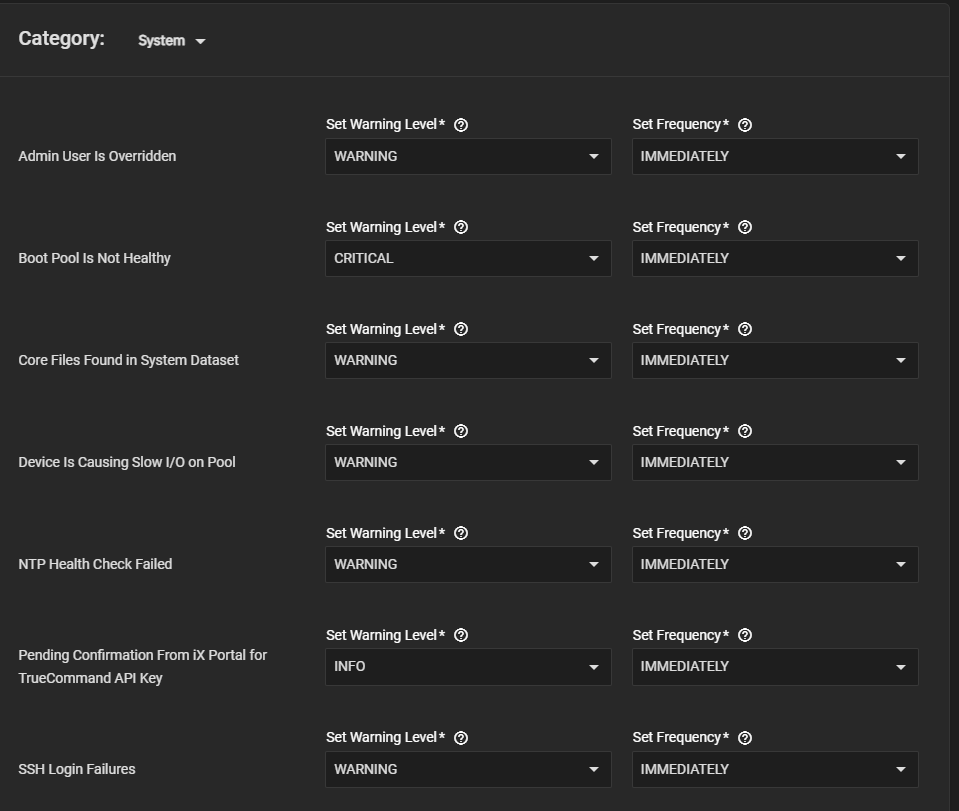
System
System alert settings apply to system processes, the system dataset, TrueCommand API Key, SSH logins, system reboots, updates, and the web interface.
You can customize alert settings for when the admin user is overridden, the boot pool is unhealthy, the system dataset has core files, a device slows down pool I/O, NTP health checks fail, and TrueCommand API keys are disabled or need confirmation.
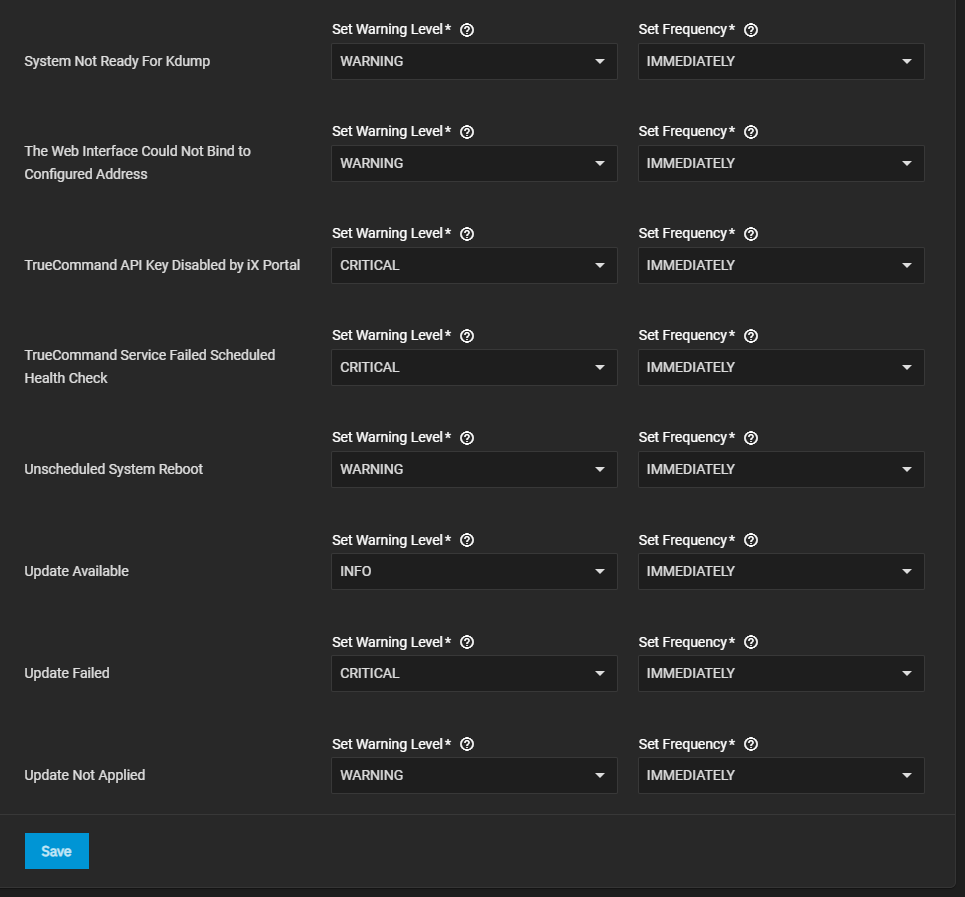
You can also change alert settings for when SSH logins fail, the system is not ready for Kdump, the web UI cannot bind to a configured address, TrueCommand fails health checks, the system reboots off schedule, and update are available, failed, or not applied.
Tasks
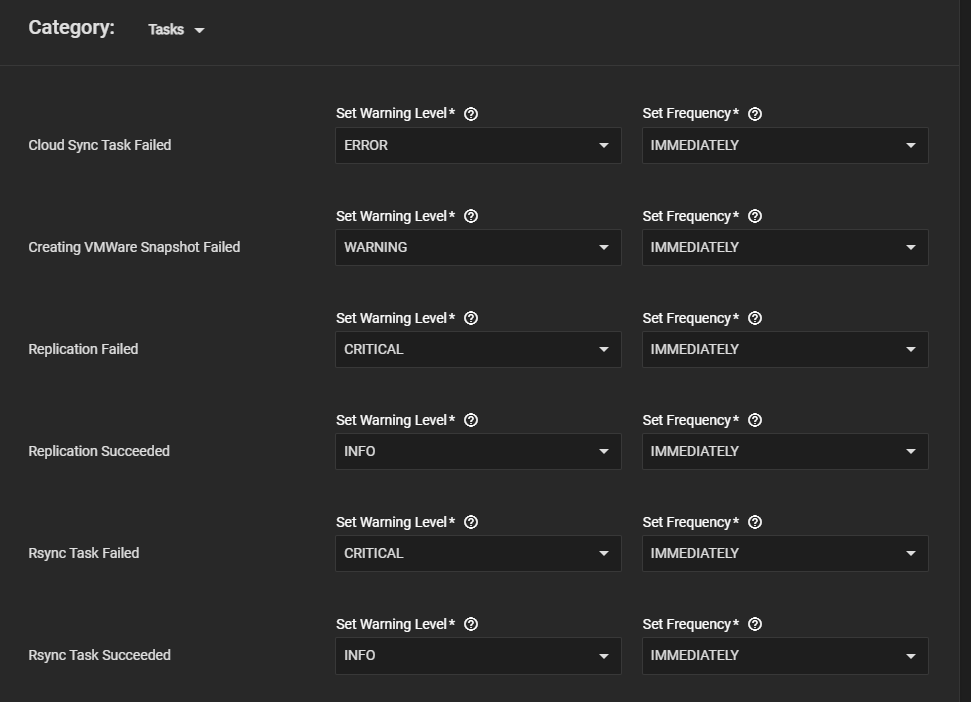
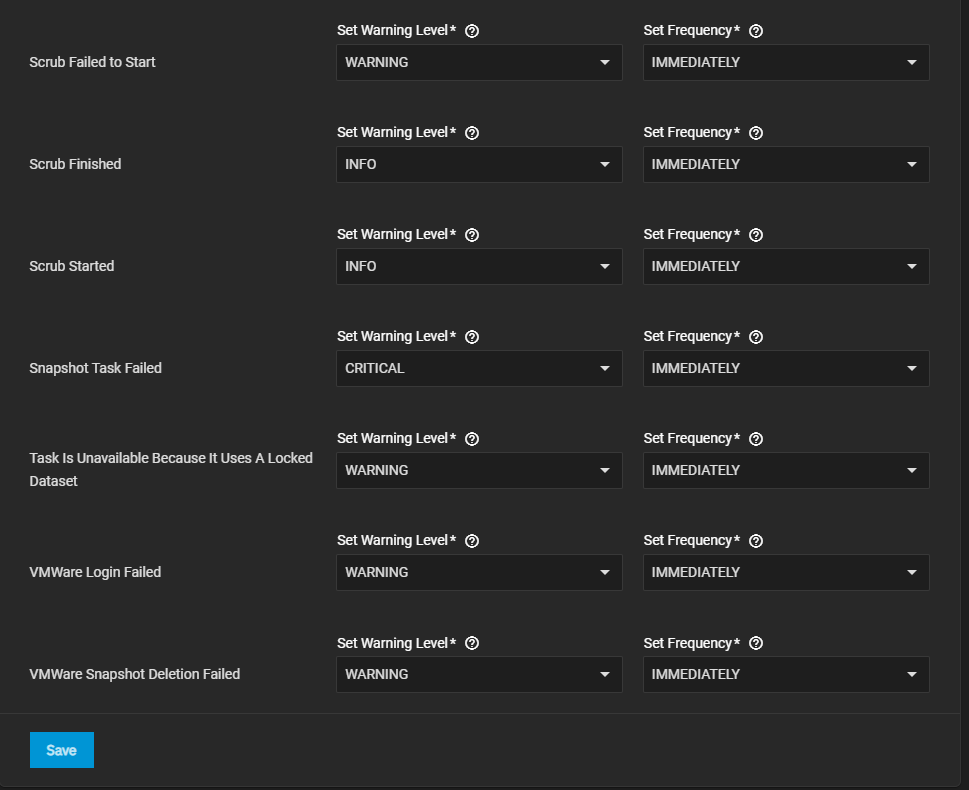
Tasks alert settings apply to cloud sync, VMWare snapshots, replication, rsync, scrub and snapshot tasks scheduled on your TrueNAS.
You can customize alert settings for when cloud sync tasks, VMWare snapshot creation, login, and deletion, replication, rsync tasks, scrubs, and snapshot tasks fail in general or due to locked datasets.
You can also change alert settings for when replication, rsync tasks, and scrubs succeed.
UPS
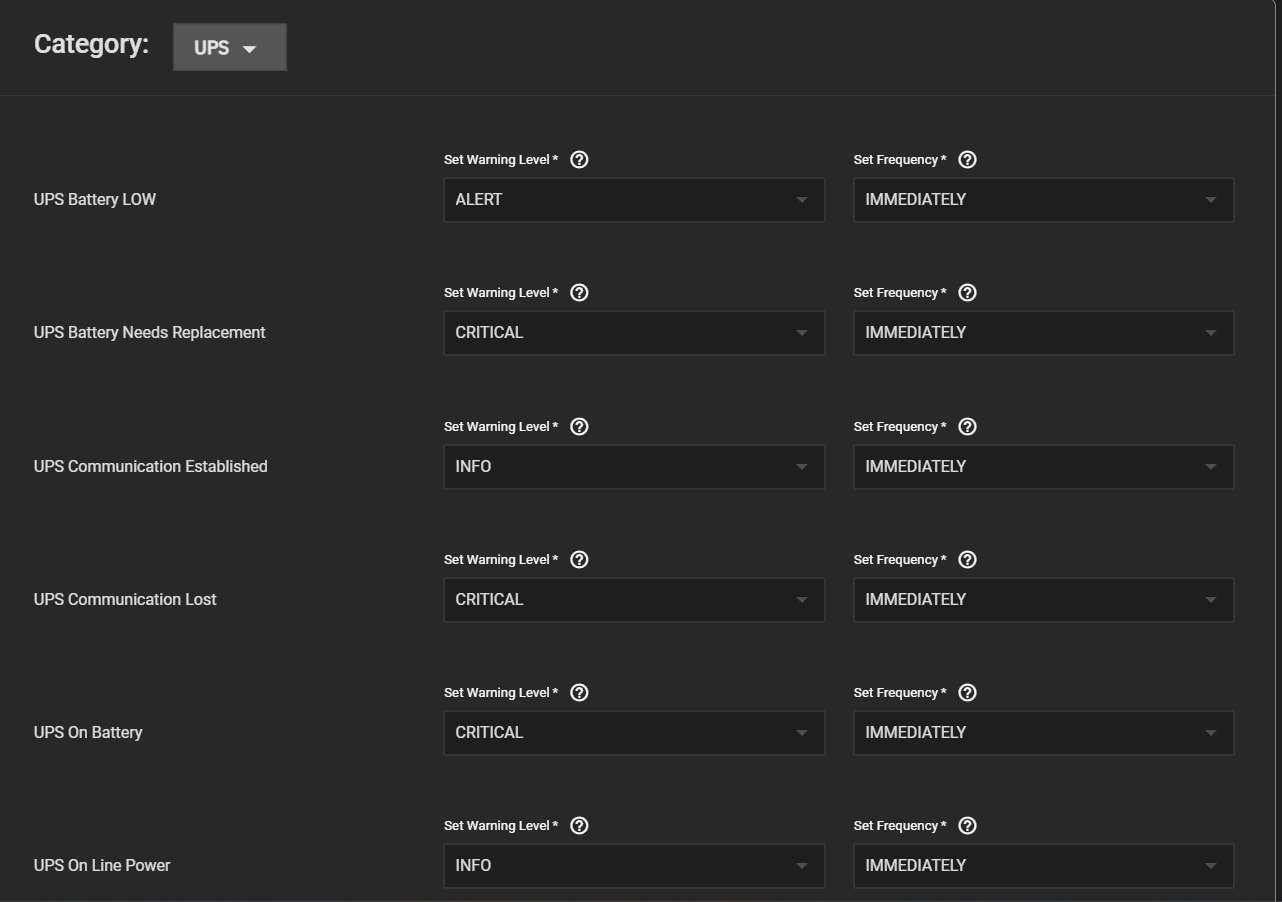
UPS alert settings apply to a UPS connected to your TrueNAS.
You can customize alert settings for when the UPS battery is low or needs replacement, the UPS establishes or loses communication, and the UPS is on battery or line power.
Alert Warning Levels
Use the Set Warning Level dropdown list to customize alert importance. Each warning level has an icon and color to express the level of urgency.
To make the system email you when alerts with a specific warning level trigger, set up an email alert service with that warning level.
Level
Icon
Alert Notification?
INFO
No
NOTICE
Yes
WARNING
Yes
ERROR
Yes
CRITICAL
Yes
ALERT
Yes
EMERGENCY
Yes
Alert Frequency
Use the Set Frequency dropdown list to adjust how often the system sends or displays alert notifications.
Alert frequency options are Immediately (Default), Hourly, Daily or Never. Setting the Frequency to Never prevents that alert from displaying in the Alerts Notification dialog, but it still pops up in the web UI if triggered.
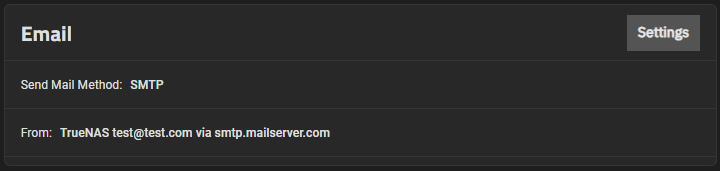
Settings opens the Email Options screen that allows users to configure the system email send method.
Email Options Screen
An automatic script sends a nightly email to the administrator account containing important information such as the health of the disks.
Users must first configure an email address for the admin account or another administrative user in Credentials > Local Users.
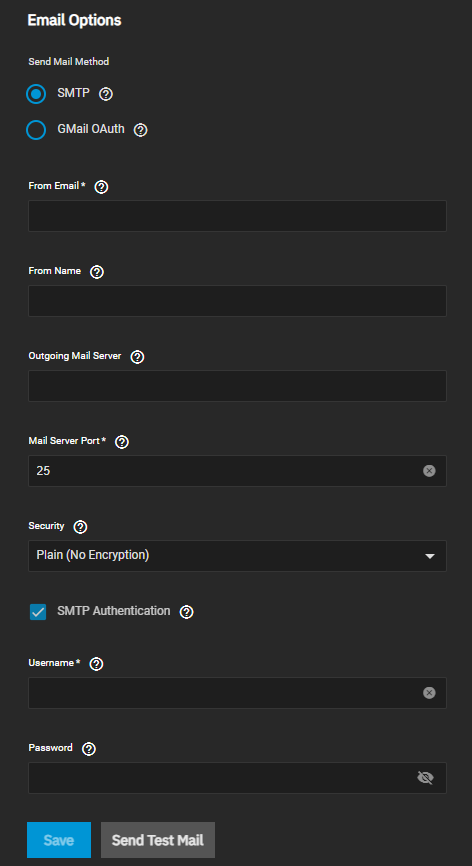
The Email Options screen offers two options to set up email.
Select either SMTP or GMail OAuth.
The configuration settings change based on the selected radio button.
SMTP
If SMTP is selected, the screen displays the SMTP configuration fields.
The name to show in front of the sending email address, for example: TrueNAS.
Outgoing Mail Server
Host name or IP address of SMTP server to use for sending emails.
Mail Server Port
SMTP port number. Typically 25, 465 (secure SMTP), or 587 (submission).
Security
Select the security option from the dropdown list. Options are Plain (No Encryption), SSL (Implicit TLS), or TLS (STARTTLS). See email encryption for more information on types.
SMTP Authentication
Select to enable SMTP AUTH using PLAIN SASL. Requires a valid user name and password.
Username
Displays when SMTP Authentication is selected. The user name for the sending email account, typically the full email address.
Password
Displays when SMTP Authentication is selected. The password for the sending email account.
Send Test Mail generates a test email to confirm the system email works correctly.
Save stores the email configuration and closes the Email Options screen.
Gmail OAuth
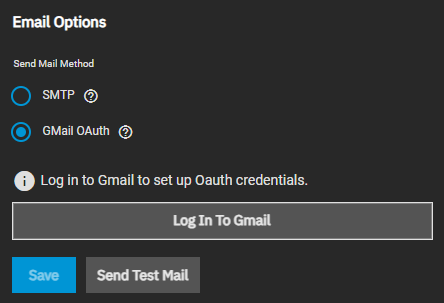
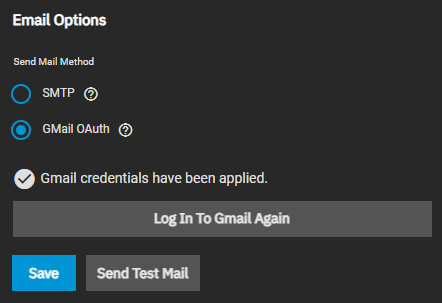
If GMail OAuth is selected, the screen displays Log in to Gmail to set up Oauth Credentials and the Log In To Gmail button.
Describes the top-level Settings options in TrueNAS SCALE.
The account_circleSettings icon button displays a menu of general system settings options.
The options are Change Password, Two-Factor Authentication, API Keys, Guide and About.
Change Password
Click on the Change Passworddialpad icon button to display the change password dialog where you can enter a new password for the currently logged-in user.
Click on the visibility_off icon to display entered passwords.
To stop displaying the password, click on the visibility icon.
Two-Factor Authentication
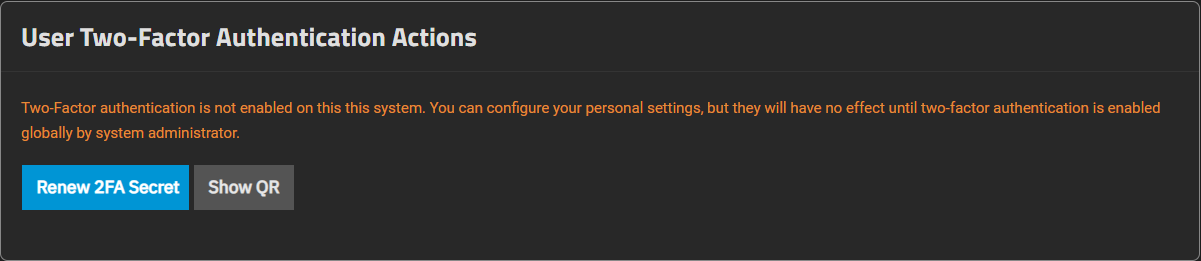
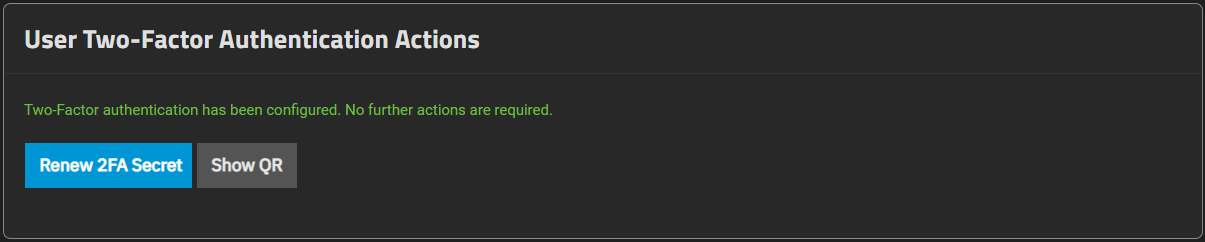
Click on Two-Factor Authentication to see the Two-Factor Authentication screen.
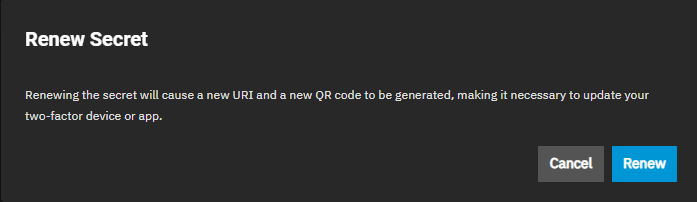
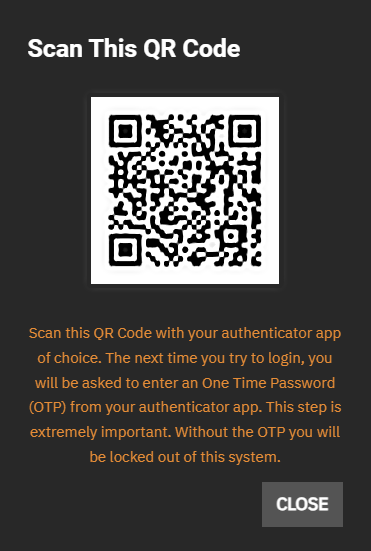
You can see the current 2FA configuration status, configure 2FA authentication, or show the current 2FA QR code.
API Keys
Click on laptopAPI Keys to display the API Keys screen where you can add new or manage existing API keys on your system.
Guide
Click on library_booksGuide to display the TrueNAS Documentation Hub in a new tab.
About
Click on About to display the information window links to the TrueNAS Documentation Hub, TrueNAS Community Forums, FreeNAS Open Source Storage Appliance GitHub repository, and iXsystems home page.
Contents
API Keys Screen: Describes how the API keys screen in TrueNAS SCALE.
2.2.1 - API Keys Screen
Describes how the API keys screen in TrueNAS SCALE.
The API Keys option on the top toolbar Settings dropdown menu displays the API Keys screen.
This screen displays a list of TrueNAS SCALE API keys on your system and allows you to add, edit, or delete keys.
Provides information on the Storage Dashboard widgets and options for pools, devices, datasets, and disks listed on this screen.
The Storage Dashboard screen, allows users configure and manage storage resources such as pools (VDEVs), datasets, and disks, and to keep the pool healthy (scrub).
The dashboard widgets organize functions related to storage resources.
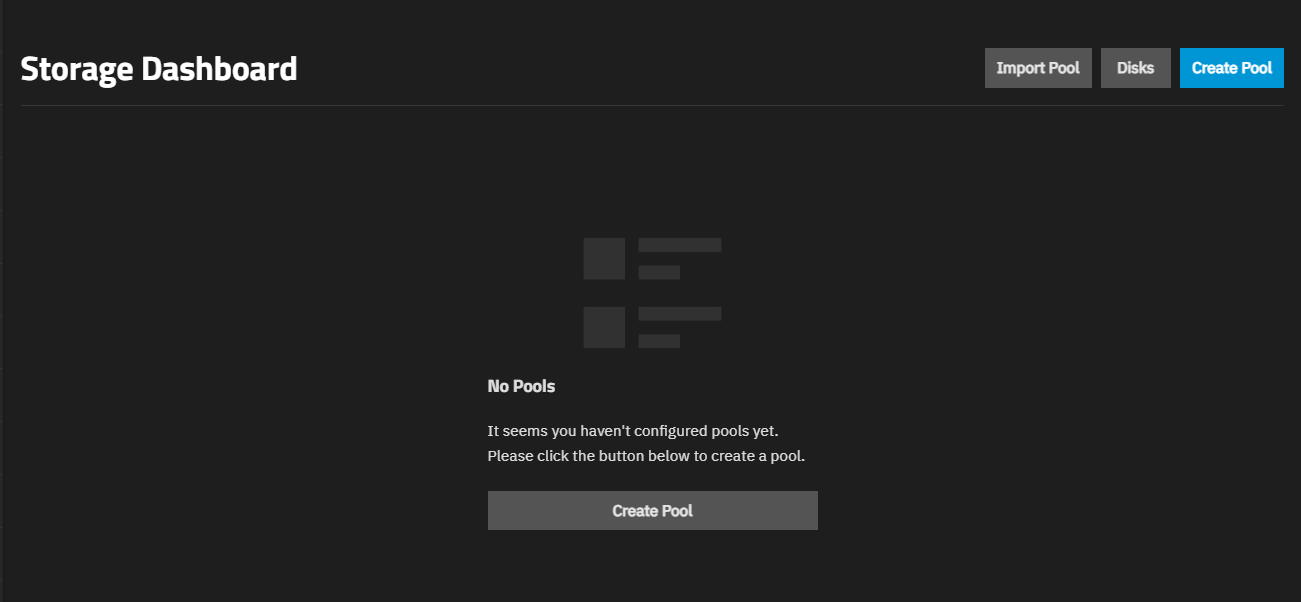
No Pools Screen
The No Pools screen displays before you add the first pool.
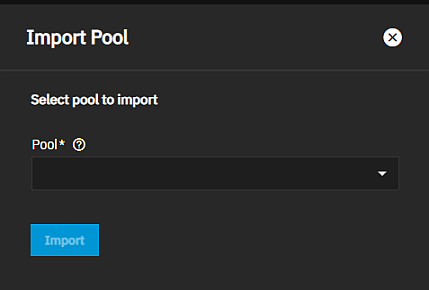
Select a pool from the Pool dropdown list. These are pools that TrueNAS detects as present on the system but not yet connected in TrueNAS.
Import starts the process to connect the pool in TrueNAS and bring it into SCALE.
Import also reconnects pools after users reinstall or upgrade their TrueNAS system.
Disks opens the Disks screen with options to manage individual disks connected to the TrueNAS storage array.
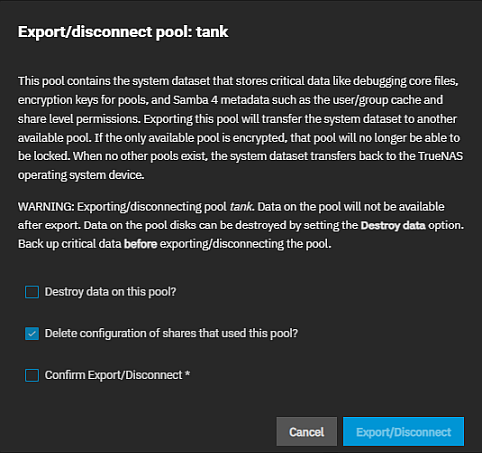
Export/Disconnect opens the Export/disconnect pool: poolname window that allows users to export, disconnect, or delete a pool.
The Export/disconnect pool window includes a warning that states data becomes unavailable after an export and that selecting Destroy Data on this pool destroys data on the pool disks.
Exporting/disconnecting can be a destructive process!
Back up all data before performing this operation. You might not be able to recover data lost through this operation.
This window displays the share type (for example, SMB share, etc.) affected by the export/disconnect operation if a share uses the pool.
Disks in an exported pool become available to use in a new pool but remain marked as used by an exported pool.
If you select a disk used by an exported pool to use in a new pool, the system displays a warning message about the disk.
Setting
Description
Destroy data on this pool?
Select to erase all data on the pool. A field displays where you type the name of the pool to confirm the operation before the Export/Disconnect button activates.
Delete configuration of shares that use this pool
Enabled by default to remove the share connection to this pool. Exporting or disconnecting the pool deletes the configuration of shares using this pool. You must reconfigure the shares affected by this operation.
Confirm Export/Disconnect
(Required) Select to confirm the operation and accept the warnings displayed. Activates the Export/Disconnect button.
Export/Disconnect executes the process and begins the pool export or disconnect.
A status window displays with progress. When complete, a final dialog displays stating the export/disconnect completed successfully.
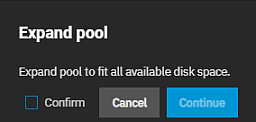
Select Expand Pool to increase the pool size to match all available disk space.
Users with pools using virtual disks use this option to resize these virtual disks apart from TrueNAS.
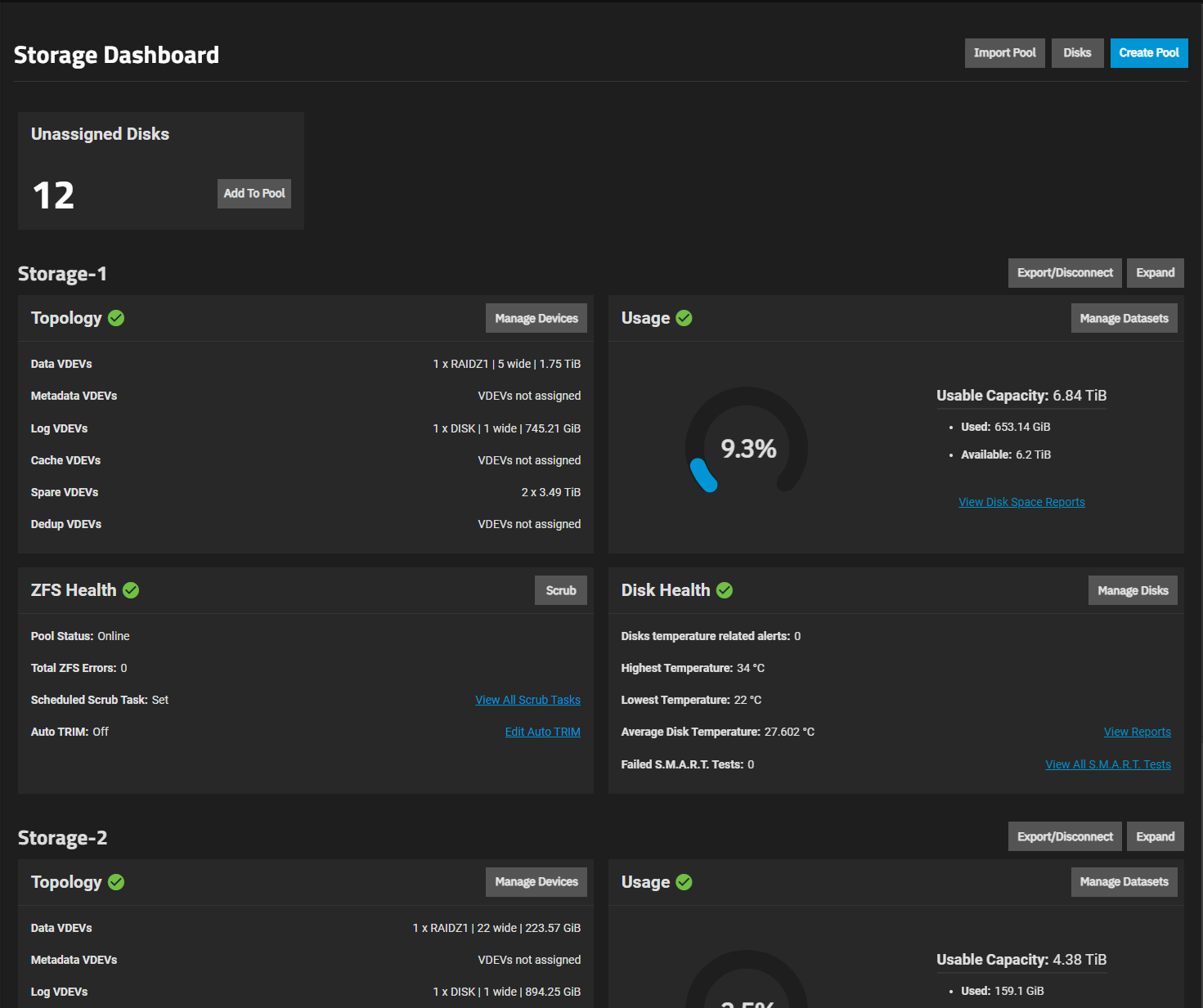
After adding a pool, the screen displays five widgets.
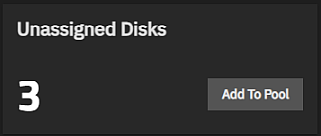
The Unassigned Disks widget remains at the top of the dashboard if the system has disks not added to a pool.
The other four widgets are a set that displays for each pool created on the system.
The Unassigned Disks widget displays the number of disks available on your system to use in pools.
The disk count includes disks assigned in an exported pool.
If you attempt to use a disk assigned in an exported pool, a warning message displays that prompts you to select a different disk.
To see information on each disk on the system, click Manage Disks on the Disk health widget.
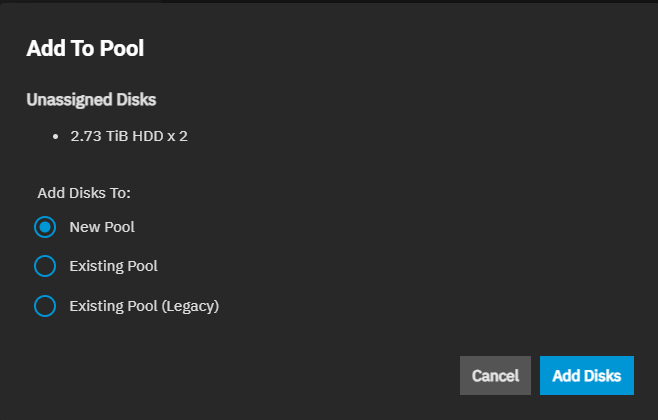
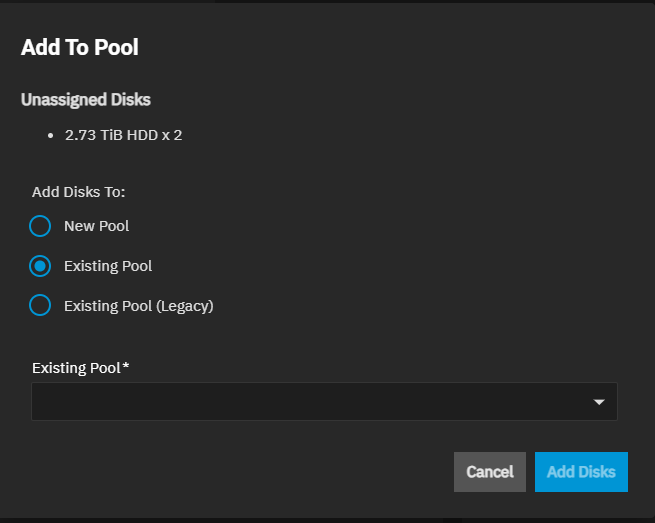
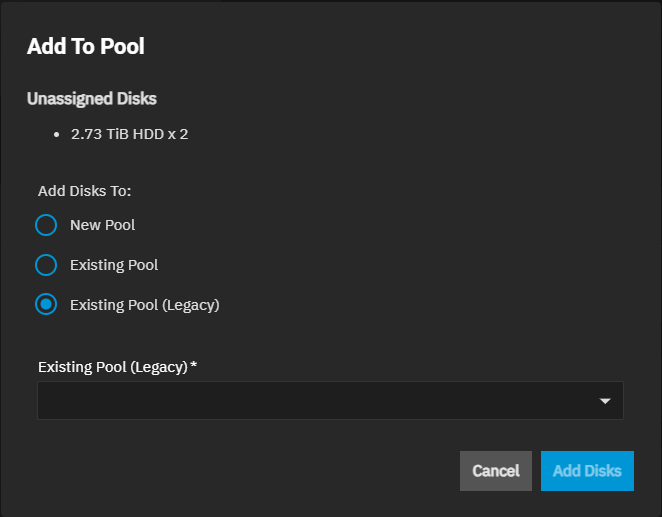
The Unassigned Disks widget Add to Pool window displays the number of unassigned disks and provides the option to assign disks to a new or existing pool.
The Unassigned Disks area displays the number of unassigned disks, the size and type of disks, and indicates any disks associated with an previous pool.
After selecting Existing Pool, the Add Disks opens the Pool Manager screen if the existing pool was created with the Pool Manager.
If the pool was created with the Pool Creation Wizard, Add Disks opens the Pool Creation Wizard.
If you select New Pool, Add Disks opens the Pool Creation Wizard screen.
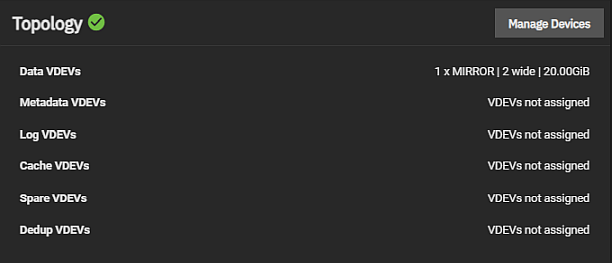
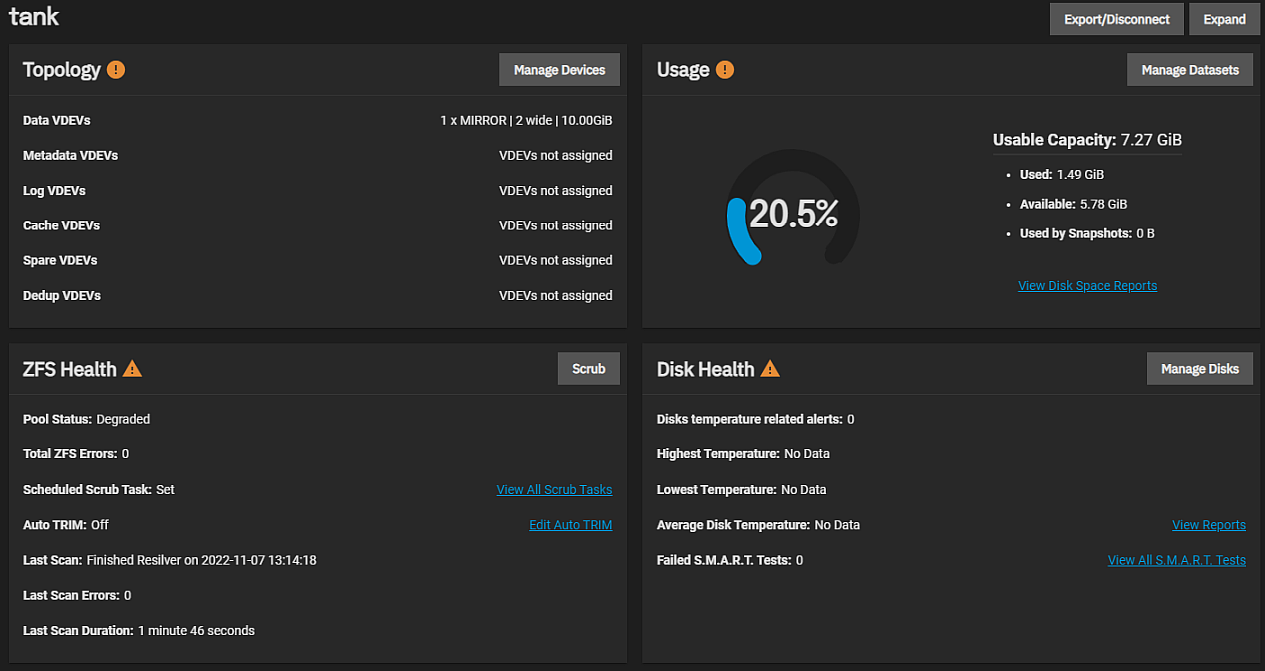
The Topology widget provides information on the VDEVs configured on the system and the status of the pool.
The widget lists each VDEV type (data, metadata, log, cache, spare, and dedup).
A Data VDEV includes the data type (stripe, mirror, RAID, or mixed configuration), the number of disks (wide), and the storage capacity of that VDEV.
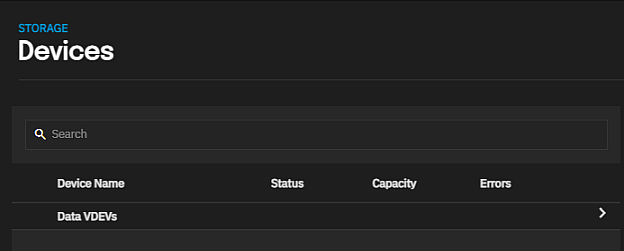
Manage Devices opens the Devices screen where you can add or manage existing VDEVs.
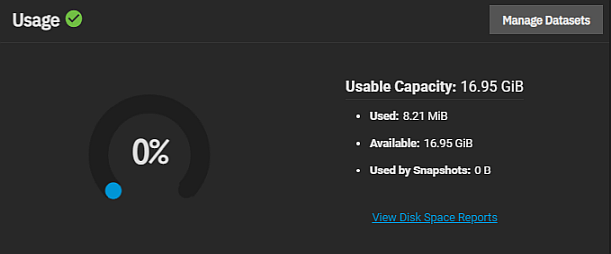
The Usage widget provides information on the space datasets use and the status of pool usage.
The widget includes a color-coded donut chart that illustrates the percentage of space the pool uses.
Blue indicates space usage in the 0-80% range and red indicates anything above 80%.
A warning displays below the donut graph when usage exceeds 80%.
Usable Capacity details pool space statistics by Used, Available, and Used by Snapshots.
View Disk Space Reports opens the pool usage reports for the selected pool.
Large (>1 petabyte) systems could report storage numbers inaccurately.
Storage configurations with more than 9,007,199,254,740,992 bytes round the last 4 digits.
For example, a system with 18,446,744,073,709,551,615 bytes reports the number as 18,446,744,073,709,552,000 bytes.
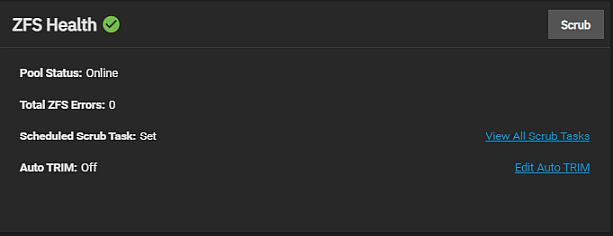
View all Scrub Tasks opens the Data Protections > Scrub Tasks details screen.
This lists all scheduled scrub tasks and allows you to add a new task or edit an existing task.
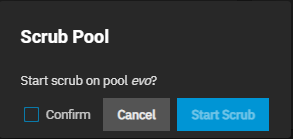
Clicking the Scrub button from the ZFS Health widget initiates a check on pool data integrity.
The Scrub Pool dialog allows you to perform an unscheduled scrub task.
If TrueNAS detects problems during the scrub, it either corrects them automatically or generates an alert in the web interface.
By default, TrueNAS automatically checks every pool to verify it is on a reoccurring scrub schedule.
To schedule a single or a regular pool scrub operation, click View All Scrub Tasks to open the Data Protections > Scrub Tasks details screen and add or manage scrub tasks configured on your system.
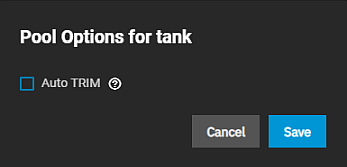
When enabled, Auto TRIM allows TrueNAS to periodically review data blocks and identify which empty blocks of obsolete blocks it can delete.
Leave unselected to incorporate day block overwrites when a device write is started (default).
Select Confirm to activate Save.
For more details about TRIM in ZFS, see the autotrim property description in zpool.8.
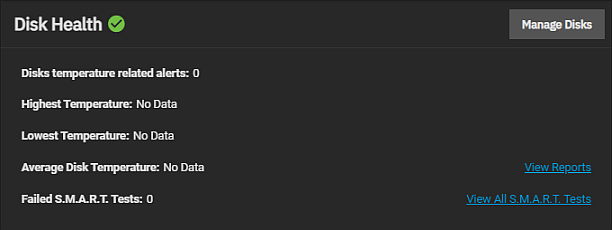
The Disk Health widget provides information on the health of the disks in a pool.
The details on the widget include the non-dismissed disk temperature alerts for highest, lowest, and average temperature, and failed S.M.A.R.T. tests.
View Reports opens the Report screen for the disks in the selected pool.
View all S.M.A.R.T. Tests opens the Data Protection > S.M.A.R.T. Tests screen.
Each set of pool widgets provides access to screens for disks, datasets, VDEVs, snapshots, quotas, and pool ZFS functions for the pool.
For example, Manage Devices on the Topology widget opens the Devices screen with the VDEVs configured for only that pool.
Pool Status
Each widget in the set of four pool widgets includes a color-coded icon just to the right of the header.
This icon indicates the status of the pool as healthy (green checkmark), offline (orange triangle), or in a warning state (purple warning sign).
This same information displays on both the Storage widget and a pool widget you can add to the Dashboard.
Upgrade Dialog
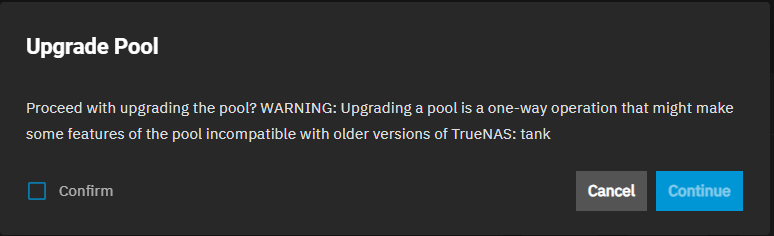
The Upgrade button displays on the Storage Dashboard for existing pools after an upgrade to a new TrueNAS release includes new OpenZFS feature flags.
Newly created pools are always up to date with the OpenZFS feature flags available in the installed TrueNAS release.
Storage pool upgrades are typically not required unless the new OpenZFS feature flags are deemed necessary for required or improved system operation.
Do not do a pool-wide ZFS upgrade until you are ready to commit to this SCALE major version and lose the ability to roll back to an earlier major version!
Consider these factors before upgrading a storage pool to the latest OpenZFS feature flags.
Upgrading can affect data.
Before performing any operation that affects data on a storage disk, always back up data first and verify the backup integrity.
New OpenZFS feature flags are permanently applied to the upgraded pool.
An upgraded pool cannot be reverted or downgraded to an earlier OpenZFS version.
A storage pool with the latest feature flags cannot import into another operating system that does not support those feature flags.
Upgrading a ZFS pool is optional.
Do not upgrade the pool when reverting to an earlier TrueNAS version or repurposing the disks in another operating system that supports ZFS is a requirement.
The upgrade itself only takes a few seconds and is non-disruptive.
It is not necessary to stop any sharing services to upgrade the pool.
However, it is best to upgrade when the pool is not in heavy use.
The upgrade process suspends I/O for a short period, but is nearly instantaneous on a quiet pool.
Section Contents
Pools: Describes the ZFS storage pool configuration screens in TrueNAS SCALE.
Disks: Describes UI screens and dialogs related to disk operations.
Pool Creation Wizard: Descriptions for settings and functions found in the Pool Creation Wizard.
Devices Screens: Provides information on settings and functions found on the Devices screens and widget.
Datasets: Describes the various ZFS dataset screens in TrueNAS SCALE.
Datasets Screen: Provides information on the settings and functions found on the Datasets screen and widgets.
Zvol Screens: Provides information on the settings and functions found on the Zvol screens and widgets.
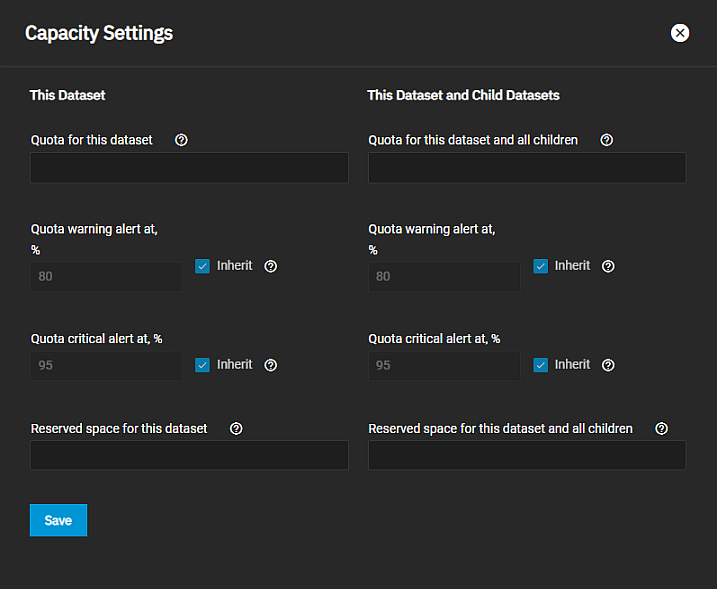
Capacity Settings Screen: Provides information on the quota settings and functions found on the Capacity Settings screen.
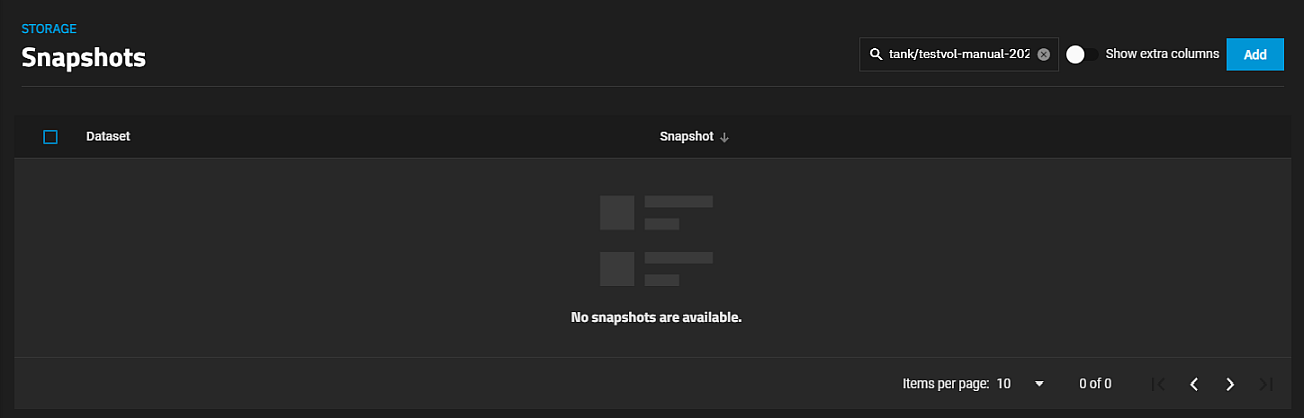
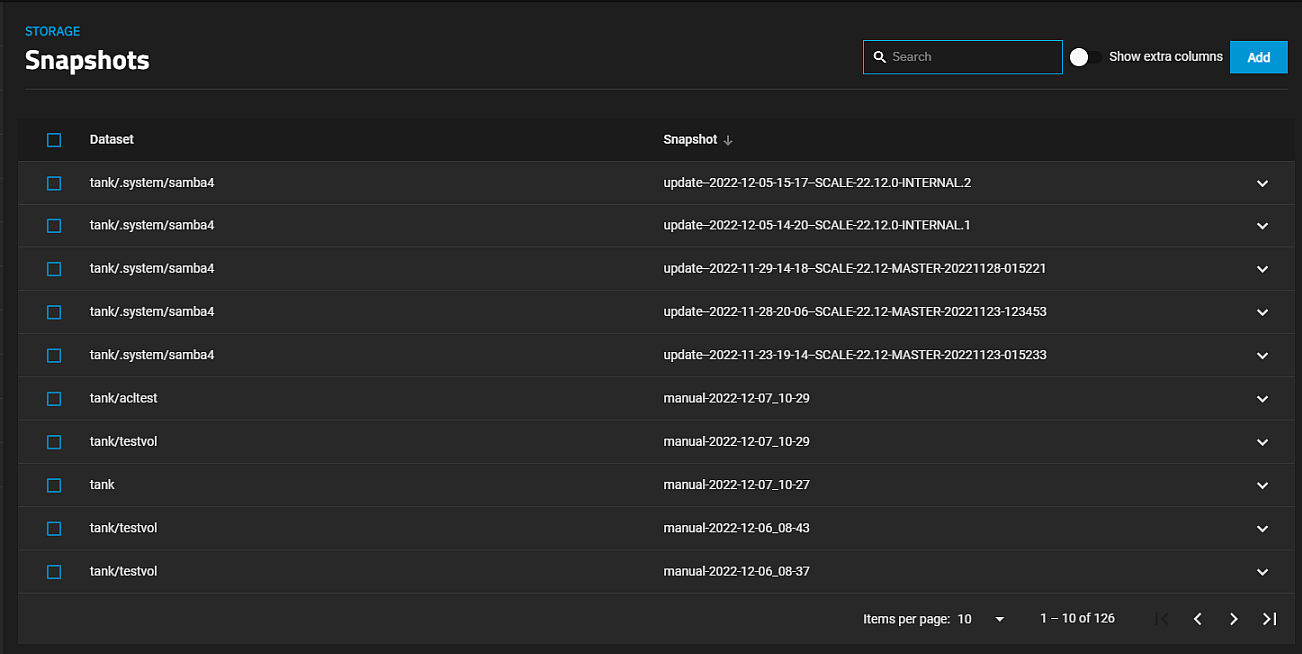
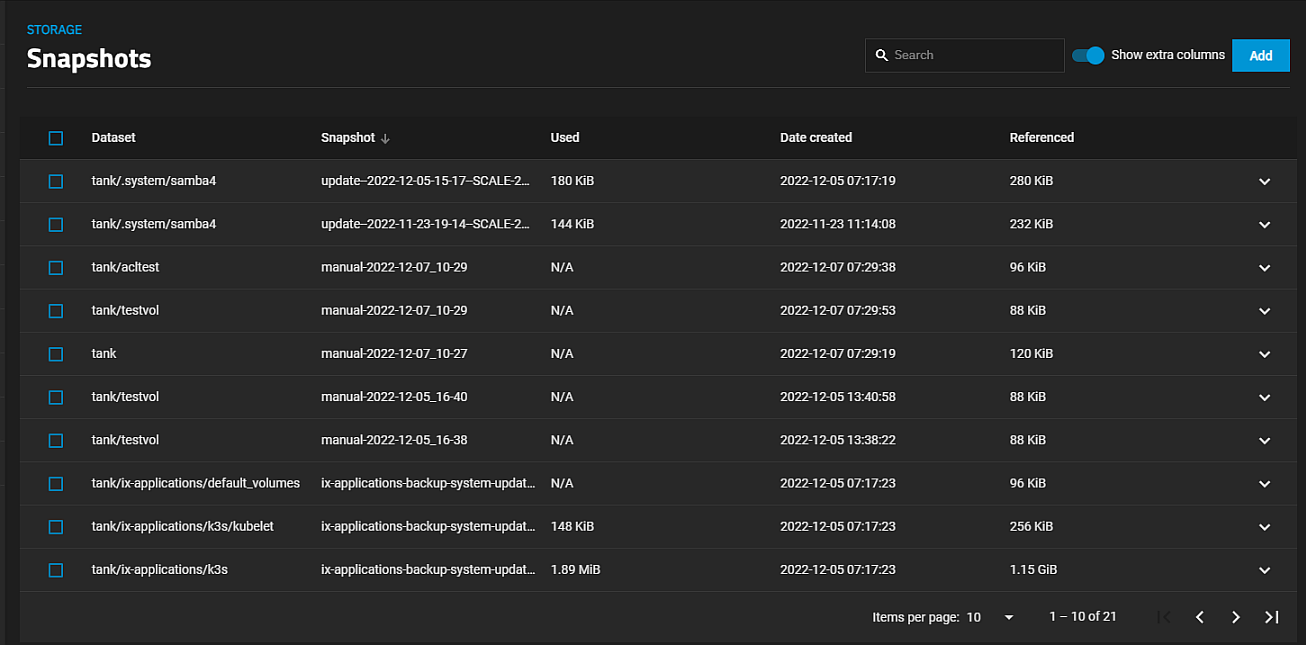
Snapshots Screen: Provides information on the settings and functions found on the Snapshots screen.
User and Group Quota Screens : Provides information on the settings and functions found on the User and Group Quota screens.
Encryption Settings: Provides information on the settings and functions found on the SCALE storage encryption screens.
Edit ACL Screens: Describes the ACL permissions screens, settings for POSIX and NFSv4 ACLs, and the conditions that result in additional setting options.
Describes the ZFS storage pool configuration screens in TrueNAS SCALE.
TrueNAS uses ZFS data storage pools to efficiently store and protect data.
Storage pools are attached drives organized into virtual devices (vdevs).
ZFS and TrueNAS periodically review and heal when discovering a bad block in a pool.
Drives are arranged inside vdevs to provide varying amounts of redundancy and performance.
Combined, ZFS and vdevs combined create high-performance pools, pools that maximize data lifetime, and all situations in between.
We strongly recommend users review the available system resources and plan the storage use case before creating a storage pool.
Allocating more drives to a pool increases redundancy when storing critical information.
Maximizing total available storage at the expense of redundancy or performance entails allocating large-volume disks and configuring a pool for minimal redundancy.
Maximizing pool performance entails installing and allocating high-speed SSD drives to a pool.
Determining your specific storage requirements is a critical step before creating a pool.
Contents
Disks: Describes UI screens and dialogs related to disk operations.
Pool Creation Wizard: Descriptions for settings and functions found in the Pool Creation Wizard.
Devices Screens: Provides information on settings and functions found on the Devices screens and widget.
3.1.1 - Disks
Describes UI screens and dialogs related to disk operations.
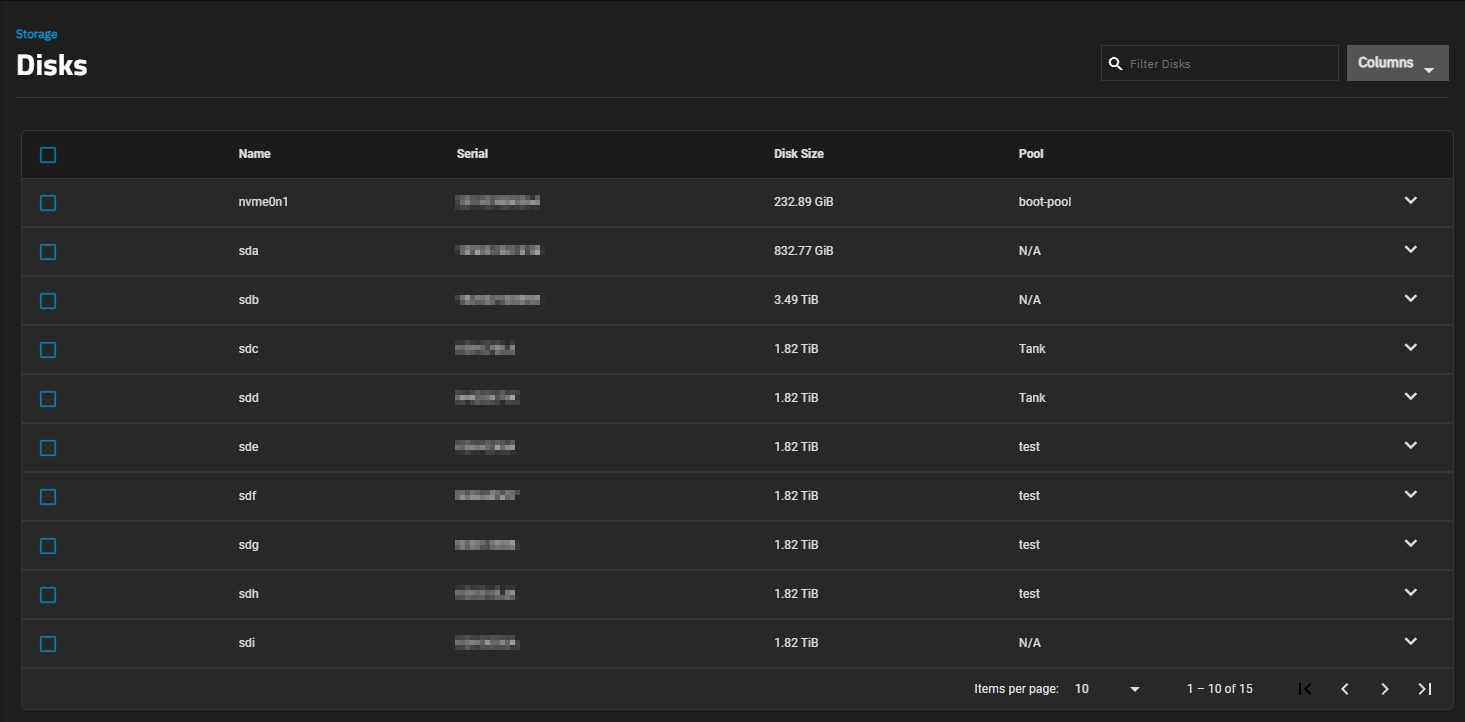
The Disks screen displays a list of the physical drives (disks) installed in the system.
The list includes the names, serial numbers, sizes, and pools for each system disk.
Use the Columns dropdown list to select options to customize disk the information displayed.
Options are Select All, Serial (the disk serial number), Disk Size, Pool (where the disk is in use), Disk Type, Description, Model, Transfer Mode, Rotation Rate (RPM), HDD Standby, Adv. Power Management, Enable S.M.A.R.T., S.M.A.R.T. extra options, and Reset to Defaults.
Each option displays the information you enter in the Edit Disk screen or when you install the disk.
Selecting the checkbox to the left of the disk displays the Batch Operations options.
The checkbox at the top of the table selects all disks in the system. Select again to clear the checkboxes.
Storage at the top of the screen to return to the Storage Dashboard.
Disks Screen - Expanded Disk
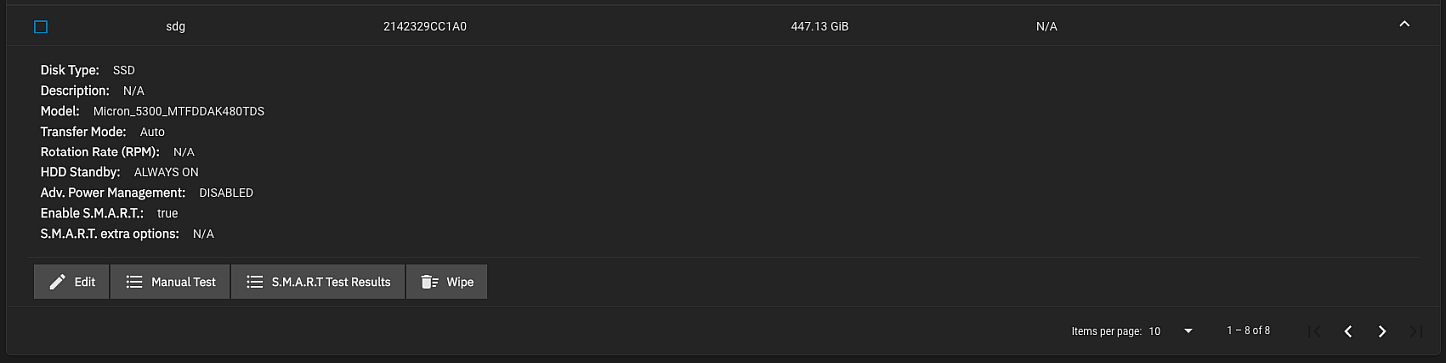
Click anywhere on a disk row to expand it and show the traits specific to that disk and available option.
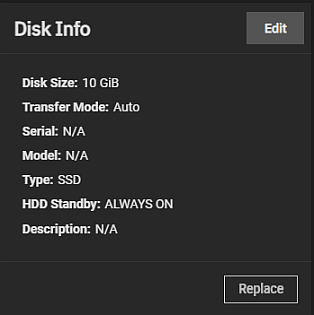
The expanded view of a disk includes details for the disk and options to edit disk properties, run SMART test and view the test results, and in some instances the ability to wipe the disk.
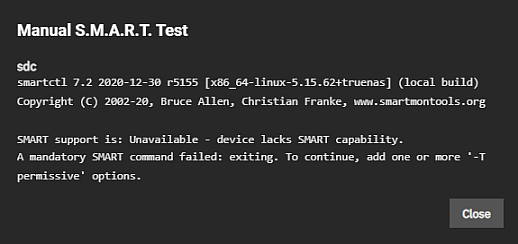
Manual Test opens the Manual SMART Test dialog with a list of the disk(s) selected.
Bulk Edit Disks
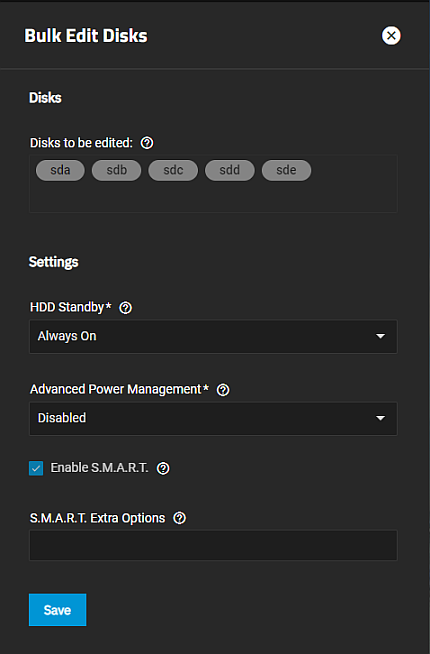
The Bulk Edits Disks screen allows you to make changes to disk settings for multiple disks at the same time.
The screen lists the device names for each selected disk in the Disks to be edited section.
Setting
Description
HDD Standby
Select the minutes of inactivity before the drive enters standby mode from the dropdown list. Options are Always On or 5, 10, 20, 30, 60, 120, 240, 300, and 330. For more information read this [forum post
Advanced Power Management
Select the power management profile from the dropdown list. Options are Disabled, Level 1 - Minimum power usage with Standby (spindown), Level 64 - Intermediate power usage with Standby, Level 127 - Maximum power usage with Standby, Level 128 - Minimum power usage without Standby (no spindown), Level 192 - Intermediate power usage without Standby, and Level 254 - Maximum performance, maximum power usage.
Enable S.M.A.R.T.
Select to enable and allow the system to conduct periodic S.M.A.R.T. tests.
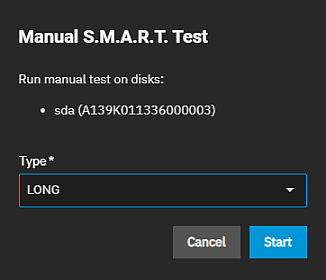
The Manual S.M.A.R.T. Test dialog displays the name of the selected disk(s) and the option to specify the type of test you want to run outside of a scheduled S.M.A.R.T. test.
Setting
Description
Long
Runs SMART Extended Self Test. This scans the entire disk surface and can take many hours on large-volume disks.
Short
Runs SMART Short Self Test (usually under ten minutes). These are basic disk tests that vary by manufacturer.
Conveyance
Runs a SMART Conveyance Self Test. This self-test routine is intended to identify damage incurred during transporting of the device. This self-test routine requires only minutes to complete.
Offline
Runs SMART Immediate Offline Test. The effects of this test are visible only in that it updates the SMART Attribute values, and if the test finds errors, they appear in the SMART error log.
Start begins the test. Depending on the test type selected, the test can take some time to complete. TrueNAS generates alerts when tests discover issues.
For information on automated S.M.A.R.T. testing, see the S.M.A.R.T. tests article.
S.M.A.R.T. Test Results if diskname Screen
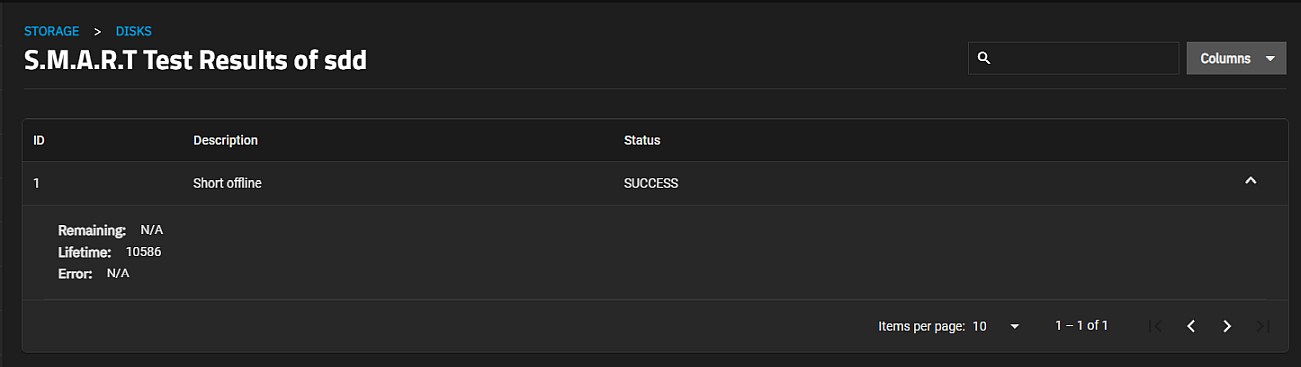
The S.M.A.R.T. Test Results if diskname lists test results for the selected disk.
The Storage and Disks breadcrumbs return to other storage pages.
Storage opens the Storage Dashboard and Disks opens the Disks screen.
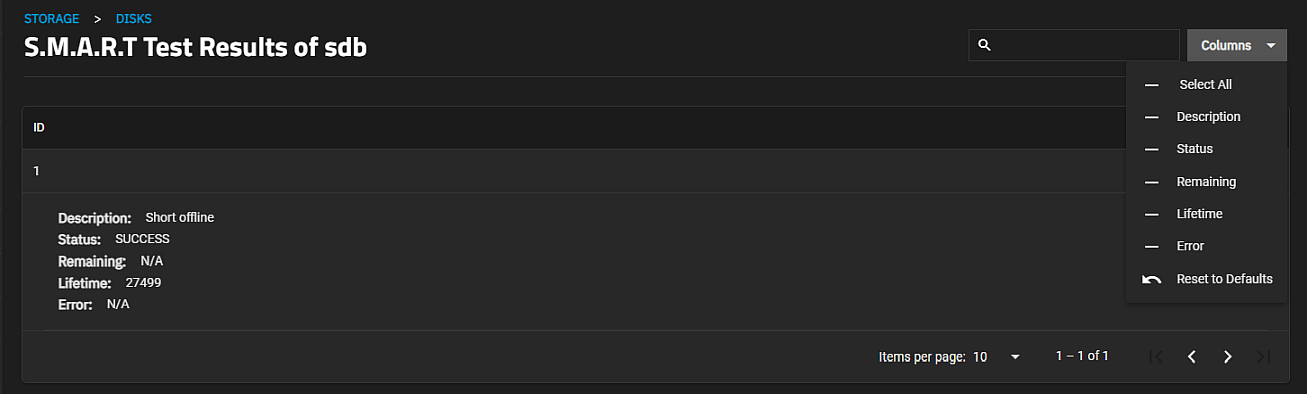
Customize the information displayed with the Columns option.
Options are Unselect All (toggles to Select All), Description, Status, Remaining, Lifetime, Error, and Reset to Defaults.
Unselect All removes all information except the ID number.
Expand the row to see the Description, Status, Remaining, Lifetime, and Error information for the test ID.
The Select All option displays all information on the table view and eliminates the expand function for the tests listed.
SMART Test Result Information
These options, except the ID, appear on the Columns dropdown list.
Option
Description
ID
The test identification number assigned by the system.
Description
Type of test run and the status of the system. For example, Short offline indicating the test type is Short while the system is offline when the test ran.
Status
Lists the test status. Options are Success or Fail.
Remaining
How much of the test is left to perform. If the test encounters an error, the field shows at what point in the test the error occurs. A value of 0 means the test completed and with no errors encountered.
Lifetime
The age of the disk when the test ran.
Error
Displays details about any error encountered during the test. Displays N/A if no error was encountered during the test.
Wipe Disk Dialogs
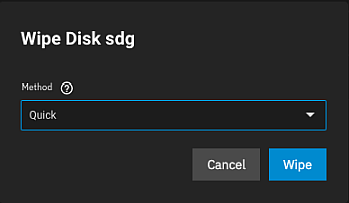
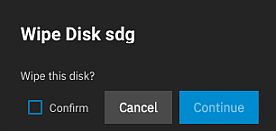
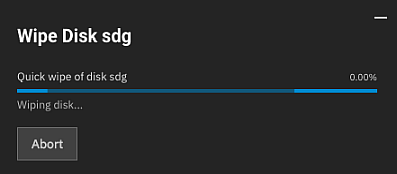
The option to wipe a disk only displays when a disk is unused by a pool. Wipe opens three dialogs, one to select the method, a confirmation dialog, and a progress dialog that includes the option to abort the process.
The Wipe Disk diskname opens after clicking Wipe on the expanded view of a disk on the Disks screen.
Method provides options for how you want the system to wipe the disk. Options are Quick, Full with zeros, or Full with random data.
See Wiping Disks for more information.
Wipe opens the wipe disk confirmation dialog.
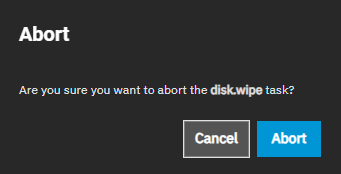
Confirm activates Continue, and Continue starts the disk wipe process and opens a progress dialog with the Abort button.
Abort stops the disk wipe process. At the end of the disk wipe process a success dialog displays. Close closes the dialog and returns you to the Disks screen.
Edit Disk Screen
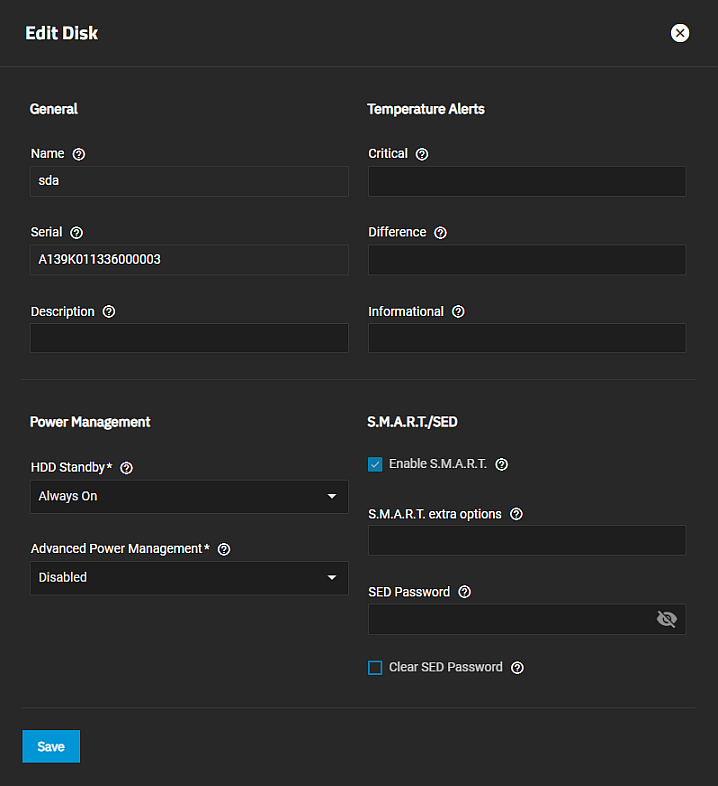
The Edit Disk screen allows users to configure general disk, power management, temperature alert, S.M.A.R.T., and SED settings for system disks not assigned to a pool.
The Edit Disk screen, accessed from the Devices screen, displays the same settings found on the Edit Disk.
General Settings
Setting
Description
Name
Displays the current name of the disk. To change, enter a Linux disk device name.
Serial
Displays the serial number for the selected disk. To change, enter the disk serial number.
Description
Enter notes about this disk.
Power Management Settings
Setting
Description
HDD Standby
Select a value from the dropdown list of options or leave set to the default Always On. This specifies the minutes of inactivity before the drive enters standby mode. This forum post describes identifying spun down drives. Temperature monitoring is disabled for standby disks.
Advanced Power Management
Select a power management profile from the dropdown list of options that include Disabled (the default setting), Level 1 - Minimum power usage with Standby (spindown), Level 64 - Intermediate power usage with Standby, Level 127 - Maximum power usage with Standby, Level 128 - Minimum power usage without Standby (no spindown), Level 192 - Intermediate power usage without Standby, or Level 254 - Maximum performance, maximum power usage.
Temperature Alerts Settings
Setting
Description
Critical
Enter a threshold temperature in Celsius. If the drive temperature is higher than this value, it creates a LOG_CRIT level log entry and sends an email to the address entered in the Alerts. Enter 0 to disable this check.
Difference
Enter a value in degrees Celsius that triggers a report if the temperature of a drive changes by this value since the last report. Enter 0 to disable this check.
Informational
Enter a value in degrees Celsius that triggers a report if drive temperature is at or above this temperature. Enter 0 to disable this check.
S.M.A.R.T./SED Settings
Setting
Description
Enable S.M.A.R.T.
Select to enable the system to conduct periodic S.M.A.R.T. tests.
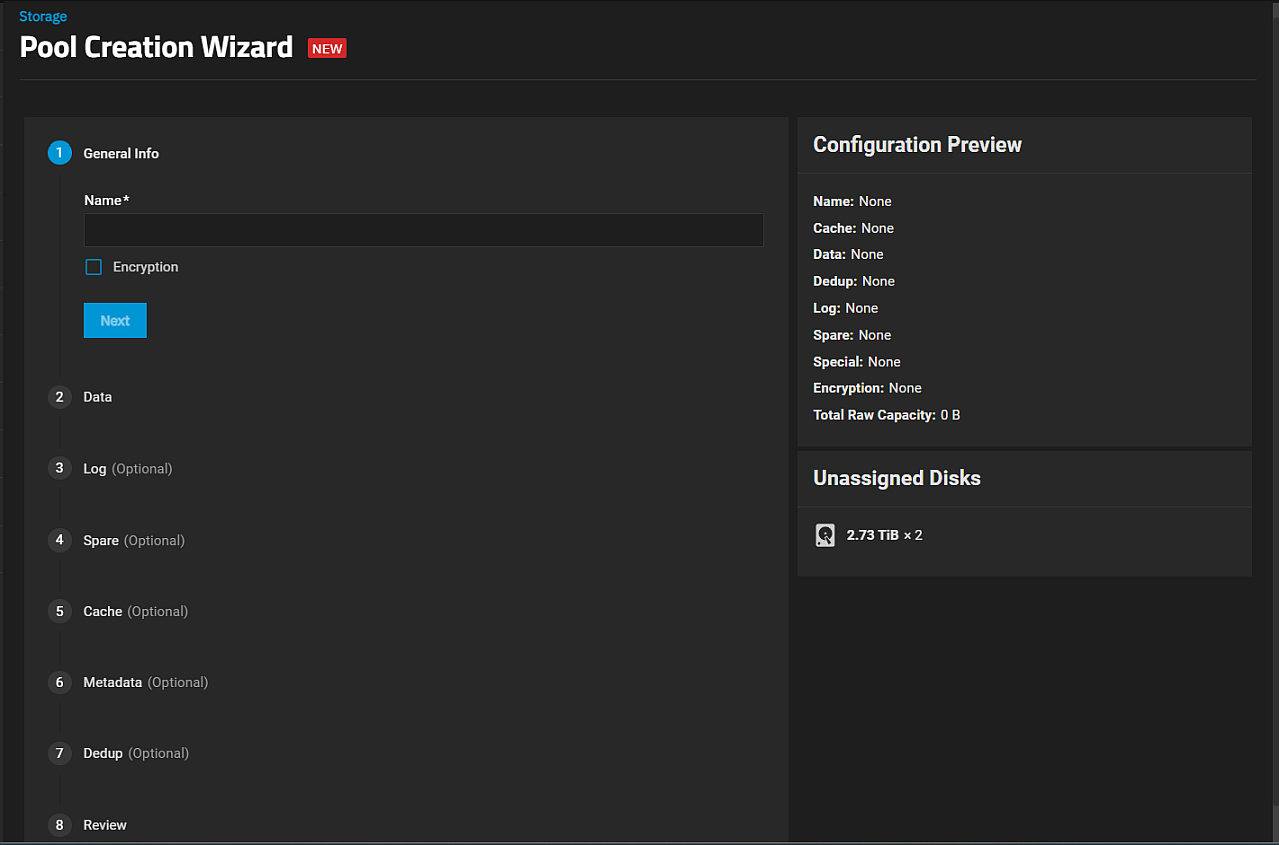
The Configuration Preview displays a list of Pool and VDEV settings that dynamically update as you configure settings in the wizard.
The Inventory area displays the number of available disks by size on the system.
This list dynamically updates as disks move to VDEVs added in the wizard.
Pool Creation Wizard
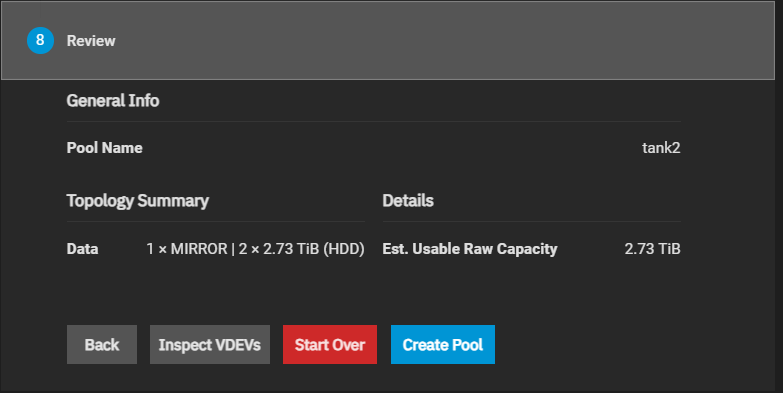
The Pool Creation Wizard has seven configuration screens, numbered in sequence, to create a pool with VDEVs.
Each wizard VDEV configuration screen includes the Automated Disk Selection and Advanced Options areas.
Click Manual Disk Selection to open the Manual Selection screen.
Back and Next move to either the previous or next wizard configuration screen.
Reset Step clears the VDEV settings for the VDEV type selected. For example, Data VDEV configuration.
Save And Go To Review saves the current selections and goes directly to the Review wizard screen.
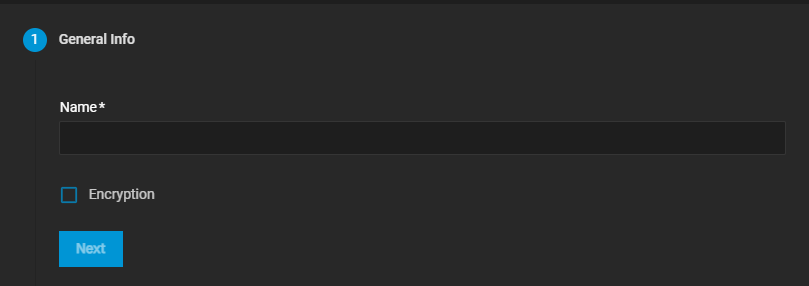
General Info
The General Info screen includes two default settings, Name and Encryption.
Name is a required field.
Enter a name for the pool of up to 50 characters in length that follows ZFS naming conventions.
Use lower-case alpha characters to avoid potential problems with sharing protocols.
Names can include numbers and special characters such as underscore (_), hyphen (-), colon (:), or a period (.).
Encryption applies key type encryption to the pool.
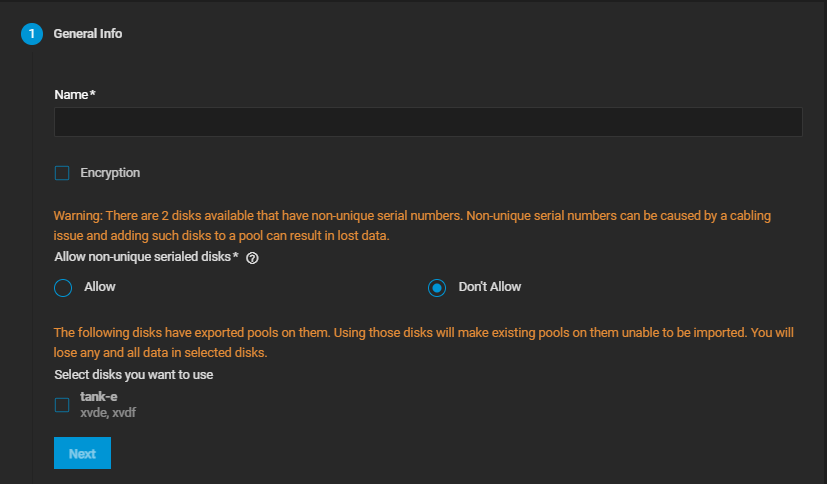
Select to enable ZFS encryption for this pool and all datasets (or zvols) created within the pool.
See Storage Encryption for more information on using SCALE storage encryption. An encryption warning dialog displays with a Confirm checkbox. Select to enable the I Understand button. I Understand allows you to continue adding the pool with encryption applied.
Applying encryption at the pool level also encrypts all datasets (and zvols) within the pool.
Keep the encryption key file in a safe location where you perform regular backups. Losing the encryption key file results in lost data you cannot recover.
If system disks have data exported from pools on them, a warning displays with a checkbox for the pool name.
Allow non-unique serialed disks has two radio buttons, Allow and Don’t Allow.
Allow permits using disks with non-unique serial numbers, such as those that can occur on virtual disks, and displays them as available disks on the Data wizard screen.
Don’t Allow does not permit using disks with non-unique serial numbers.
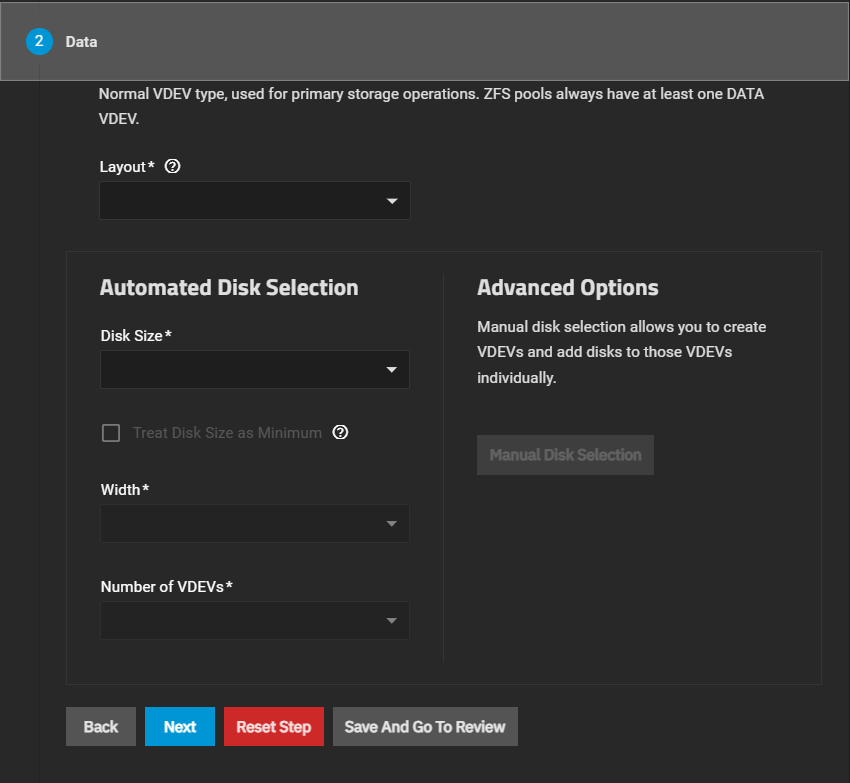
Data
The Data wizard screen provides the option to automatically or manually add disks to the data VDEV.
You must add a data VDEV before adding other types of VDEVs to the pool.
Layout displays a dropdown list of VDEV layouts (Stripe, Mirror, RAIDZ1, RAIDZ2, RAIDZ3, dRAID1, dRAID2, dRAID3).
This wizard screen provides the option to configure a VDEV using the Automated Disk Selection fields.
To individually find and select disks for a VDEV, click Manual Disk Selection in the Advanced Options area.
Choosing a dRAID VDEV layout removes the Manual Disk Selection button and adds different options to the Automated Disk Selection area.
It also removes the Spare VDEV section from the pool creation wizard and replaces it with the Distributed Hot Spares option in the Data VDEV section.
VDEV Layouts
A Stripe designates that each disk is used sequentially in the VDEV.
Requires at least one disk and has no redundancy.
A data VDEV with a stripe layout irretrievably loses all stored data if a single disk in the VDEV fails.
Not recommended for data VDEVs storing critical data.
A Mirror denotes that each disk in the VDEV stores an exact data copy.
Requires at least 2 disks in the VDEV.
Storage capacity is the size of a single disk in the VDEV.
RAIDZ and dRAID layouts each have 1, 2, and 3 options.
These indicate the number of disks reserved for data parity and also the number of disks that can fail in the VDEV without data loss to the pool.
For example, a RAIDZ2 layout reserves two additional disks for parity and two disks can fail without data loss.
Automated Disk Selection - Stripe, Mirror, and RAIDZ layouts
Setting
Description
Disk Size
Select the disk size from the list that displays. The list shows disks by size in GiB and type (SSD or HDD).
Treat Disk Size as Minimum
Select to use disks of the size selected in Disk Size or larger. If not selected, only disks of the size selected in Disk Size are used.
Width
Select the number of disks from the options provided on the dropdown list.
Number of VDEVs
Select the number of VDEVs from the options provided on the dropdown list.
Automated Disk Selection - dRAID layouts
Similar to RAIDZ, dRAID layout numbers (1, 2, or 3) indicate the parity level and how many disks can fail without data loss to the pool.
TrueNAS defaults to allocating 10 disks minimum as dRAID VDEV in Children.
If creating a data VDEV with fewer than 10 disks, using a RAIDZ layout is strongly recommended for better performance and capacity optimization.
Setting
Description
Disk Size
Select the disk size from the list that displays. The list shows disks by size in GiB and type (SSD or HDD).
Treat Disk Size as Minimum
Select to use disks of the size selected in Disk Size or larger. If not selected, only disks of the size selected in Disk Size are used.
Data Devices
Data stripe width for the VDEV. Select the number of disks from the options provided on the dropdown list. TrueNAS recommends dRAID layouts have data devices allocated in multiples of 2.
Distributed Hot Spares
Number of disk areas to actively provide spare capacity to the entire VDEV. These areas are active within the pool and function in of adding a Spare VDEV to the pool. It is recommended to set this to at least 1. The Distributed Hot Spares number cannot be modified after the pool is created.
Children
The total number of disks to allocate in the dRAID VDEV. The field selection and options update dynamically based on the chosen dRAID Layout, Disk Size, Data Devices, and Distributed Hot Spares. Increasing the number of Children in the dRAID VDEV can reduce the options for Number of VDEVs.
Number of VDEVs
Select the number of VDEVs from the options provided on the dropdown list. Options are populated dynamically depending on the selections made in all the other fields.
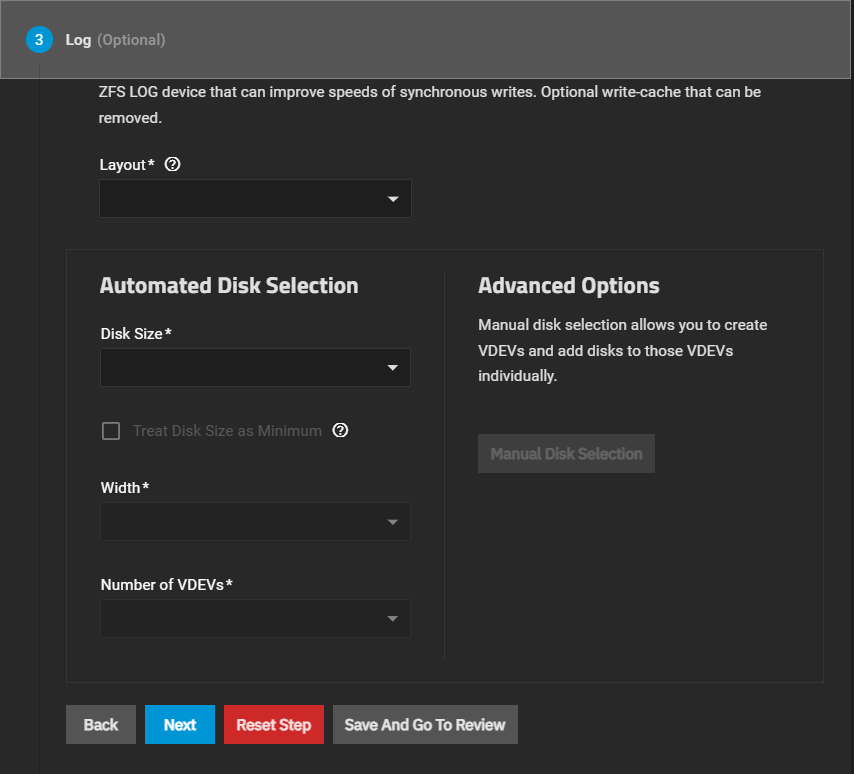
Log (Optional)
The wizard Log screen provides the option to configure a log VDEV. ZFS log devices can improve speeds of synchronous writes.
Layout displays a dropdown list of VDEV layouts (Stripe or Mirror).
This wizard screen provides the option to configure a VDEV using the Automated Disk Selection fields.
To individually find and select disks for a VDEV, click Manual Disk Selection in the Advanced Options area.
Choosing a dRAID VDEV layout removes the Manual Disk Selection button and adds different options to the Automated Disk Selection area.
It also removes the Spare VDEV section from the pool creation wizard and replaces it with the Distributed Hot Spares option in the Data VDEV section.
VDEV Layouts
A Stripe designates that each disk is used sequentially in the VDEV.
Requires at least one disk and has no redundancy.
A data VDEV with a stripe layout irretrievably loses all stored data if a single disk in the VDEV fails.
Not recommended for data VDEVs storing critical data.
A Mirror denotes that each disk in the VDEV stores an exact data copy.
Requires at least 2 disks in the VDEV.
Storage capacity is the size of a single disk in the VDEV.
RAIDZ and dRAID layouts each have 1, 2, and 3 options.
These indicate the number of disks reserved for data parity and also the number of disks that can fail in the VDEV without data loss to the pool.
For example, a RAIDZ2 layout reserves two additional disks for parity and two disks can fail without data loss.
Automated Disk Selection - Stripe, Mirror, and RAIDZ layouts
Setting
Description
Disk Size
Select the disk size from the list that displays. The list shows disks by size in GiB and type (SSD or HDD).
Treat Disk Size as Minimum
Select to use disks of the size selected in Disk Size or larger. If not selected, only disks of the size selected in Disk Size are used.
Width
Select the number of disks from the options provided on the dropdown list.
Number of VDEVs
Select the number of VDEVs from the options provided on the dropdown list.
Automated Disk Selection - dRAID layouts
Similar to RAIDZ, dRAID layout numbers (1, 2, or 3) indicate the parity level and how many disks can fail without data loss to the pool.
TrueNAS defaults to allocating 10 disks minimum as dRAID VDEV in Children.
If creating a data VDEV with fewer than 10 disks, using a RAIDZ layout is strongly recommended for better performance and capacity optimization.
Setting
Description
Disk Size
Select the disk size from the list that displays. The list shows disks by size in GiB and type (SSD or HDD).
Treat Disk Size as Minimum
Select to use disks of the size selected in Disk Size or larger. If not selected, only disks of the size selected in Disk Size are used.
Data Devices
Data stripe width for the VDEV. Select the number of disks from the options provided on the dropdown list. TrueNAS recommends dRAID layouts have data devices allocated in multiples of 2.
Distributed Hot Spares
Number of disk areas to actively provide spare capacity to the entire VDEV. These areas are active within the pool and function in of adding a Spare VDEV to the pool. It is recommended to set this to at least 1. The Distributed Hot Spares number cannot be modified after the pool is created.
Children
The total number of disks to allocate in the dRAID VDEV. The field selection and options update dynamically based on the chosen dRAID Layout, Disk Size, Data Devices, and Distributed Hot Spares. Increasing the number of Children in the dRAID VDEV can reduce the options for Number of VDEVs.
Number of VDEVs
Select the number of VDEVs from the options provided on the dropdown list. Options are populated dynamically depending on the selections made in all the other fields.
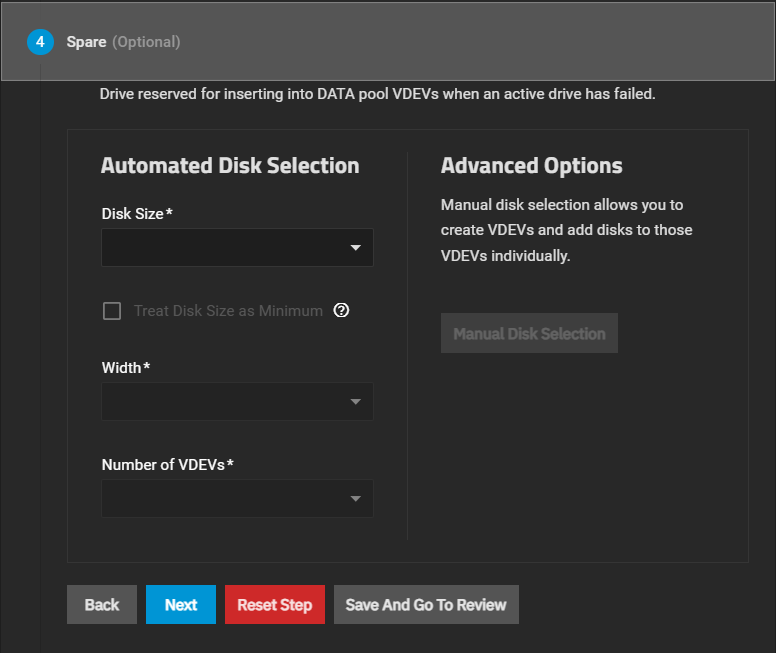
Spare (Optional)
The Spare wizard screen provides the option to configure a hot spare for a drive in a data VDEV.
This wizard screen provides the option to configure a VDEV using the Automated Disk Selection fields.
To individually find and select disks for a VDEV, click Manual Disk Selection in the Advanced Options area.
Choosing a dRAID VDEV layout removes the Manual Disk Selection button and adds different options to the Automated Disk Selection area.
It also removes the Spare VDEV section from the pool creation wizard and replaces it with the Distributed Hot Spares option in the Data VDEV section.
VDEV Layouts
A Stripe designates that each disk is used sequentially in the VDEV.
Requires at least one disk and has no redundancy.
A data VDEV with a stripe layout irretrievably loses all stored data if a single disk in the VDEV fails.
Not recommended for data VDEVs storing critical data.
A Mirror denotes that each disk in the VDEV stores an exact data copy.
Requires at least 2 disks in the VDEV.
Storage capacity is the size of a single disk in the VDEV.
RAIDZ and dRAID layouts each have 1, 2, and 3 options.
These indicate the number of disks reserved for data parity and also the number of disks that can fail in the VDEV without data loss to the pool.
For example, a RAIDZ2 layout reserves two additional disks for parity and two disks can fail without data loss.
Automated Disk Selection - Stripe, Mirror, and RAIDZ layouts
Setting
Description
Disk Size
Select the disk size from the list that displays. The list shows disks by size in GiB and type (SSD or HDD).
Treat Disk Size as Minimum
Select to use disks of the size selected in Disk Size or larger. If not selected, only disks of the size selected in Disk Size are used.
Width
Select the number of disks from the options provided on the dropdown list.
Number of VDEVs
Select the number of VDEVs from the options provided on the dropdown list.
Automated Disk Selection - dRAID layouts
Similar to RAIDZ, dRAID layout numbers (1, 2, or 3) indicate the parity level and how many disks can fail without data loss to the pool.
TrueNAS defaults to allocating 10 disks minimum as dRAID VDEV in Children.
If creating a data VDEV with fewer than 10 disks, using a RAIDZ layout is strongly recommended for better performance and capacity optimization.
Setting
Description
Disk Size
Select the disk size from the list that displays. The list shows disks by size in GiB and type (SSD or HDD).
Treat Disk Size as Minimum
Select to use disks of the size selected in Disk Size or larger. If not selected, only disks of the size selected in Disk Size are used.
Data Devices
Data stripe width for the VDEV. Select the number of disks from the options provided on the dropdown list. TrueNAS recommends dRAID layouts have data devices allocated in multiples of 2.
Distributed Hot Spares
Number of disk areas to actively provide spare capacity to the entire VDEV. These areas are active within the pool and function in of adding a Spare VDEV to the pool. It is recommended to set this to at least 1. The Distributed Hot Spares number cannot be modified after the pool is created.
Children
The total number of disks to allocate in the dRAID VDEV. The field selection and options update dynamically based on the chosen dRAID Layout, Disk Size, Data Devices, and Distributed Hot Spares. Increasing the number of Children in the dRAID VDEV can reduce the options for Number of VDEVs.
Number of VDEVs
Select the number of VDEVs from the options provided on the dropdown list. Options are populated dynamically depending on the selections made in all the other fields.
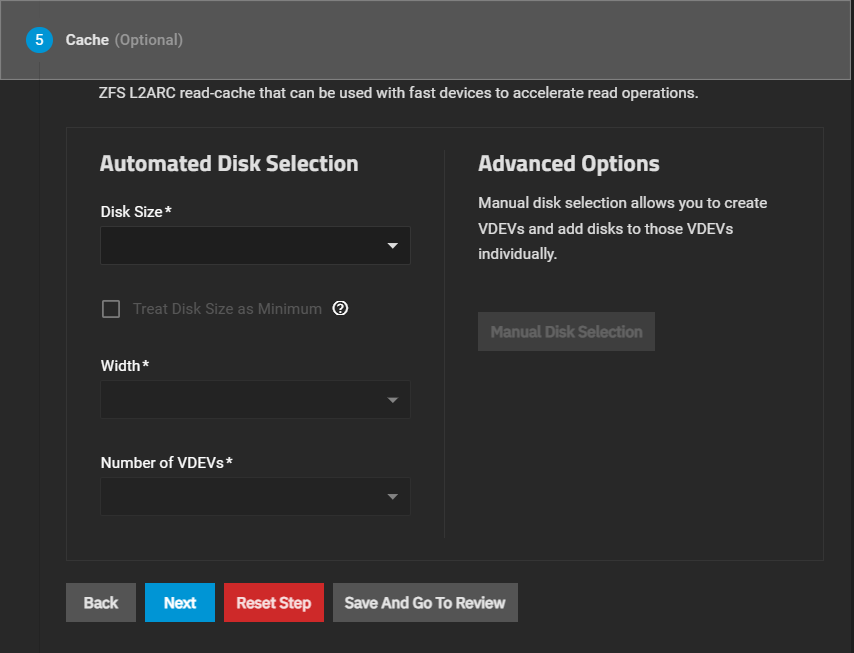
Cache (Optional)
The Cache wizard screen provides the option to configure a ZFS L2ARC read-cache VDEV.
This wizard screen provides the option to configure a VDEV using the Automated Disk Selection fields.
To individually find and select disks for a VDEV, click Manual Disk Selection in the Advanced Options area.
Choosing a dRAID VDEV layout removes the Manual Disk Selection button and adds different options to the Automated Disk Selection area.
It also removes the Spare VDEV section from the pool creation wizard and replaces it with the Distributed Hot Spares option in the Data VDEV section.
VDEV Layouts
A Stripe designates that each disk is used sequentially in the VDEV.
Requires at least one disk and has no redundancy.
A data VDEV with a stripe layout irretrievably loses all stored data if a single disk in the VDEV fails.
Not recommended for data VDEVs storing critical data.
A Mirror denotes that each disk in the VDEV stores an exact data copy.
Requires at least 2 disks in the VDEV.
Storage capacity is the size of a single disk in the VDEV.
RAIDZ and dRAID layouts each have 1, 2, and 3 options.
These indicate the number of disks reserved for data parity and also the number of disks that can fail in the VDEV without data loss to the pool.
For example, a RAIDZ2 layout reserves two additional disks for parity and two disks can fail without data loss.
Automated Disk Selection - Stripe, Mirror, and RAIDZ layouts
Setting
Description
Disk Size
Select the disk size from the list that displays. The list shows disks by size in GiB and type (SSD or HDD).
Treat Disk Size as Minimum
Select to use disks of the size selected in Disk Size or larger. If not selected, only disks of the size selected in Disk Size are used.
Width
Select the number of disks from the options provided on the dropdown list.
Number of VDEVs
Select the number of VDEVs from the options provided on the dropdown list.
Automated Disk Selection - dRAID layouts
Similar to RAIDZ, dRAID layout numbers (1, 2, or 3) indicate the parity level and how many disks can fail without data loss to the pool.
TrueNAS defaults to allocating 10 disks minimum as dRAID VDEV in Children.
If creating a data VDEV with fewer than 10 disks, using a RAIDZ layout is strongly recommended for better performance and capacity optimization.
Setting
Description
Disk Size
Select the disk size from the list that displays. The list shows disks by size in GiB and type (SSD or HDD).
Treat Disk Size as Minimum
Select to use disks of the size selected in Disk Size or larger. If not selected, only disks of the size selected in Disk Size are used.
Data Devices
Data stripe width for the VDEV. Select the number of disks from the options provided on the dropdown list. TrueNAS recommends dRAID layouts have data devices allocated in multiples of 2.
Distributed Hot Spares
Number of disk areas to actively provide spare capacity to the entire VDEV. These areas are active within the pool and function in of adding a Spare VDEV to the pool. It is recommended to set this to at least 1. The Distributed Hot Spares number cannot be modified after the pool is created.
Children
The total number of disks to allocate in the dRAID VDEV. The field selection and options update dynamically based on the chosen dRAID Layout, Disk Size, Data Devices, and Distributed Hot Spares. Increasing the number of Children in the dRAID VDEV can reduce the options for Number of VDEVs.
Number of VDEVs
Select the number of VDEVs from the options provided on the dropdown list. Options are populated dynamically depending on the selections made in all the other fields.
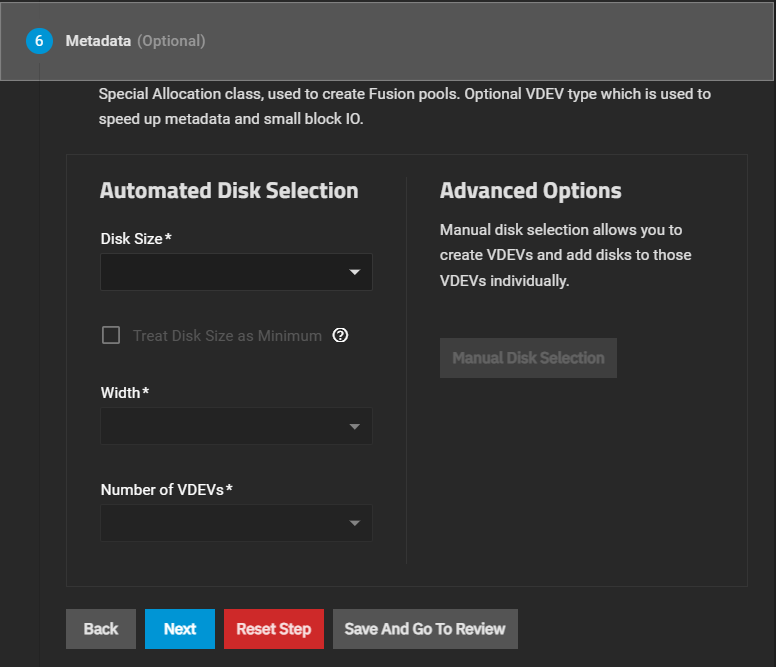
Metadata (Optional)
The Metadata wizard screen provides the option to configure a special allocation class VDEV, for use when creating a fusion pool. This VDEV type is used to speed up metadata and small block IO.
This wizard screen provides the option to configure a VDEV using the Automated Disk Selection fields.
To individually find and select disks for a VDEV, click Manual Disk Selection in the Advanced Options area.
Choosing a dRAID VDEV layout removes the Manual Disk Selection button and adds different options to the Automated Disk Selection area.
It also removes the Spare VDEV section from the pool creation wizard and replaces it with the Distributed Hot Spares option in the Data VDEV section.
VDEV Layouts
A Stripe designates that each disk is used sequentially in the VDEV.
Requires at least one disk and has no redundancy.
A data VDEV with a stripe layout irretrievably loses all stored data if a single disk in the VDEV fails.
Not recommended for data VDEVs storing critical data.
A Mirror denotes that each disk in the VDEV stores an exact data copy.
Requires at least 2 disks in the VDEV.
Storage capacity is the size of a single disk in the VDEV.
RAIDZ and dRAID layouts each have 1, 2, and 3 options.
These indicate the number of disks reserved for data parity and also the number of disks that can fail in the VDEV without data loss to the pool.
For example, a RAIDZ2 layout reserves two additional disks for parity and two disks can fail without data loss.
Automated Disk Selection - Stripe, Mirror, and RAIDZ layouts
Setting
Description
Disk Size
Select the disk size from the list that displays. The list shows disks by size in GiB and type (SSD or HDD).
Treat Disk Size as Minimum
Select to use disks of the size selected in Disk Size or larger. If not selected, only disks of the size selected in Disk Size are used.
Width
Select the number of disks from the options provided on the dropdown list.
Number of VDEVs
Select the number of VDEVs from the options provided on the dropdown list.
Automated Disk Selection - dRAID layouts
Similar to RAIDZ, dRAID layout numbers (1, 2, or 3) indicate the parity level and how many disks can fail without data loss to the pool.
TrueNAS defaults to allocating 10 disks minimum as dRAID VDEV in Children.
If creating a data VDEV with fewer than 10 disks, using a RAIDZ layout is strongly recommended for better performance and capacity optimization.
Setting
Description
Disk Size
Select the disk size from the list that displays. The list shows disks by size in GiB and type (SSD or HDD).
Treat Disk Size as Minimum
Select to use disks of the size selected in Disk Size or larger. If not selected, only disks of the size selected in Disk Size are used.
Data Devices
Data stripe width for the VDEV. Select the number of disks from the options provided on the dropdown list. TrueNAS recommends dRAID layouts have data devices allocated in multiples of 2.
Distributed Hot Spares
Number of disk areas to actively provide spare capacity to the entire VDEV. These areas are active within the pool and function in of adding a Spare VDEV to the pool. It is recommended to set this to at least 1. The Distributed Hot Spares number cannot be modified after the pool is created.
Children
The total number of disks to allocate in the dRAID VDEV. The field selection and options update dynamically based on the chosen dRAID Layout, Disk Size, Data Devices, and Distributed Hot Spares. Increasing the number of Children in the dRAID VDEV can reduce the options for Number of VDEVs.
Number of VDEVs
Select the number of VDEVs from the options provided on the dropdown list. Options are populated dynamically depending on the selections made in all the other fields.
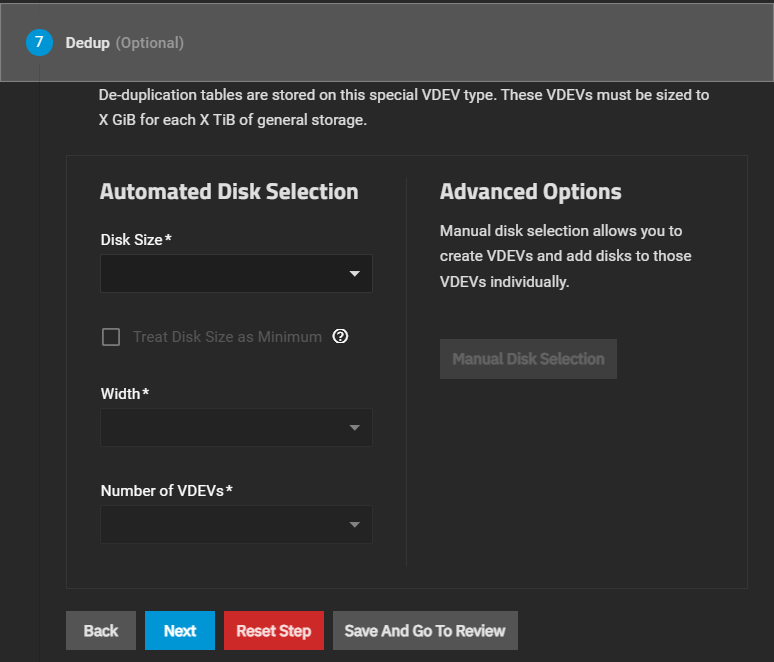
Dedup (Optional)
The Dedup wizard screen provides the option to configure a VDEV to use for storing de-duplication tables.
Size dedup VDEVs as x GiB for each x TiB of general storage.
This wizard screen provides the option to configure a VDEV using the Automated Disk Selection fields.
To individually find and select disks for a VDEV, click Manual Disk Selection in the Advanced Options area.
Choosing a dRAID VDEV layout removes the Manual Disk Selection button and adds different options to the Automated Disk Selection area.
It also removes the Spare VDEV section from the pool creation wizard and replaces it with the Distributed Hot Spares option in the Data VDEV section.
VDEV Layouts
A Stripe designates that each disk is used sequentially in the VDEV.
Requires at least one disk and has no redundancy.
A data VDEV with a stripe layout irretrievably loses all stored data if a single disk in the VDEV fails.
Not recommended for data VDEVs storing critical data.
A Mirror denotes that each disk in the VDEV stores an exact data copy.
Requires at least 2 disks in the VDEV.
Storage capacity is the size of a single disk in the VDEV.
RAIDZ and dRAID layouts each have 1, 2, and 3 options.
These indicate the number of disks reserved for data parity and also the number of disks that can fail in the VDEV without data loss to the pool.
For example, a RAIDZ2 layout reserves two additional disks for parity and two disks can fail without data loss.
Automated Disk Selection - Stripe, Mirror, and RAIDZ layouts
Setting
Description
Disk Size
Select the disk size from the list that displays. The list shows disks by size in GiB and type (SSD or HDD).
Treat Disk Size as Minimum
Select to use disks of the size selected in Disk Size or larger. If not selected, only disks of the size selected in Disk Size are used.
Width
Select the number of disks from the options provided on the dropdown list.
Number of VDEVs
Select the number of VDEVs from the options provided on the dropdown list.
Automated Disk Selection - dRAID layouts
Similar to RAIDZ, dRAID layout numbers (1, 2, or 3) indicate the parity level and how many disks can fail without data loss to the pool.
TrueNAS defaults to allocating 10 disks minimum as dRAID VDEV in Children.
If creating a data VDEV with fewer than 10 disks, using a RAIDZ layout is strongly recommended for better performance and capacity optimization.
Setting
Description
Disk Size
Select the disk size from the list that displays. The list shows disks by size in GiB and type (SSD or HDD).
Treat Disk Size as Minimum
Select to use disks of the size selected in Disk Size or larger. If not selected, only disks of the size selected in Disk Size are used.
Data Devices
Data stripe width for the VDEV. Select the number of disks from the options provided on the dropdown list. TrueNAS recommends dRAID layouts have data devices allocated in multiples of 2.
Distributed Hot Spares
Number of disk areas to actively provide spare capacity to the entire VDEV. These areas are active within the pool and function in of adding a Spare VDEV to the pool. It is recommended to set this to at least 1. The Distributed Hot Spares number cannot be modified after the pool is created.
Children
The total number of disks to allocate in the dRAID VDEV. The field selection and options update dynamically based on the chosen dRAID Layout, Disk Size, Data Devices, and Distributed Hot Spares. Increasing the number of Children in the dRAID VDEV can reduce the options for Number of VDEVs.
Number of VDEVs
Select the number of VDEVs from the options provided on the dropdown list. Options are populated dynamically depending on the selections made in all the other fields.
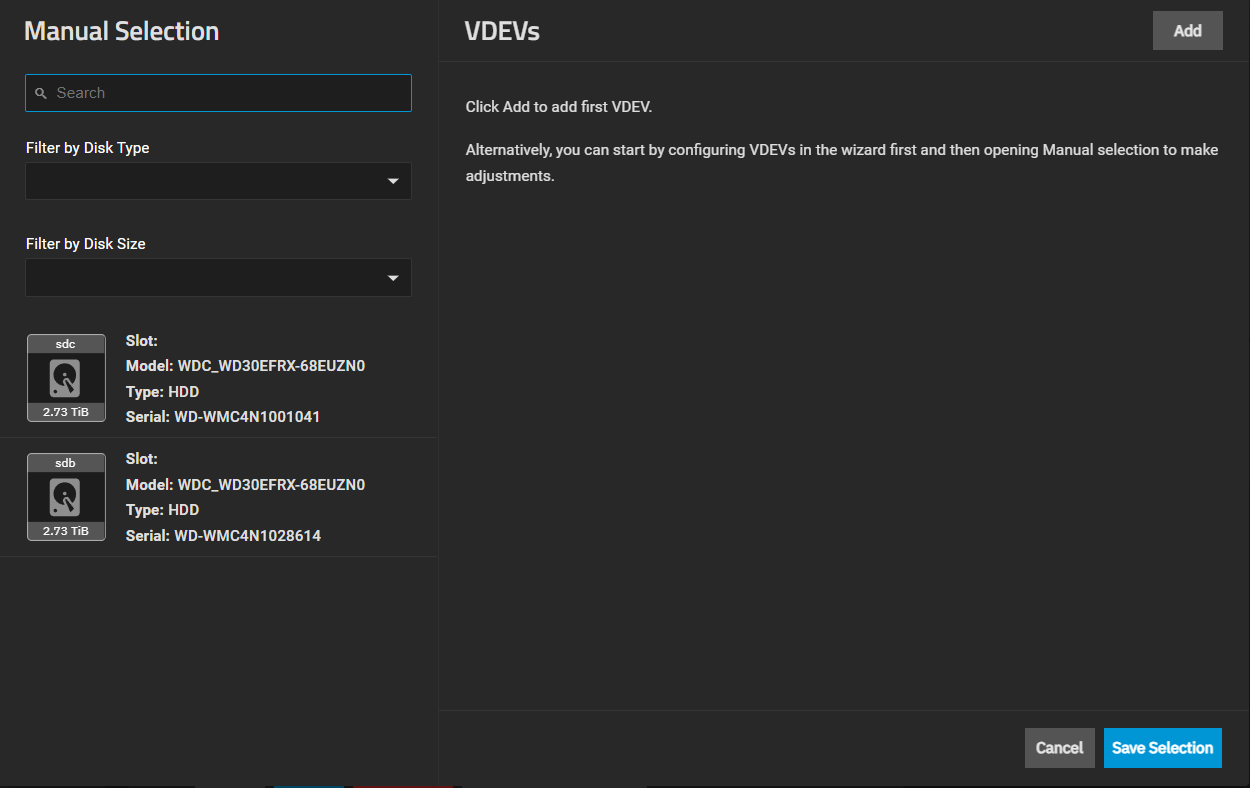
Advanced Options
The Manual Selection screen allows adding a Stripe or the Data VDEV Layout and then selecting individual disks to add to the new VDEV.
You can filter disks by type or size.
Add places a VDEV area to populate with individual disks.
The screen shows disk icons for available disks, or click on the system field to expand the dropdown list to show a list of available system disks.
The disk filters can be used separately or together to find disks of the same type and size.
Drag disks to the VDEV to add them.
Save Selection creates the VDEV and closes the window.
Add VDEV opens the Add a VDEVs to Pool screen with the Pool Manager for the selected pool.
For example, find the Topology widget for a pool and click Manage Devices.
This opens the Pool Creation Wizard with tank prepopulated and uneditable.
ZFS Info Widget (VDEV)
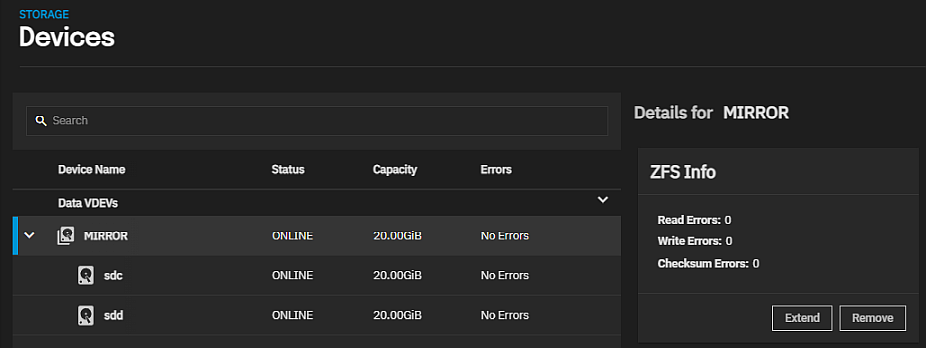
There are two versions of the ZFS Info widget, one for the VDEV and the other for each drive in the VDEV.
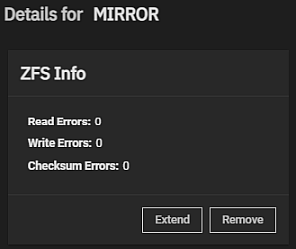
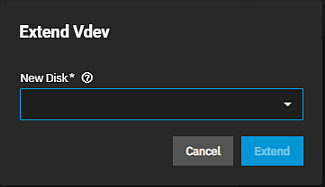
The ZFS Info widget for the VDEV displays a count of read, write and checksum errors for that VDEV, and the Extend and Remove options.
Remove opens the Remove device dialog where you confirm you want to remove the selected VDEV.
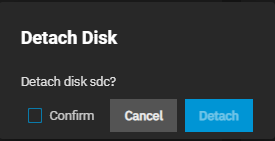
To remove a drive from the VDEV, select the drive then select Detach on the ZFS Info widget to remove the drive from the VDEV (pool).
Disk Widgets
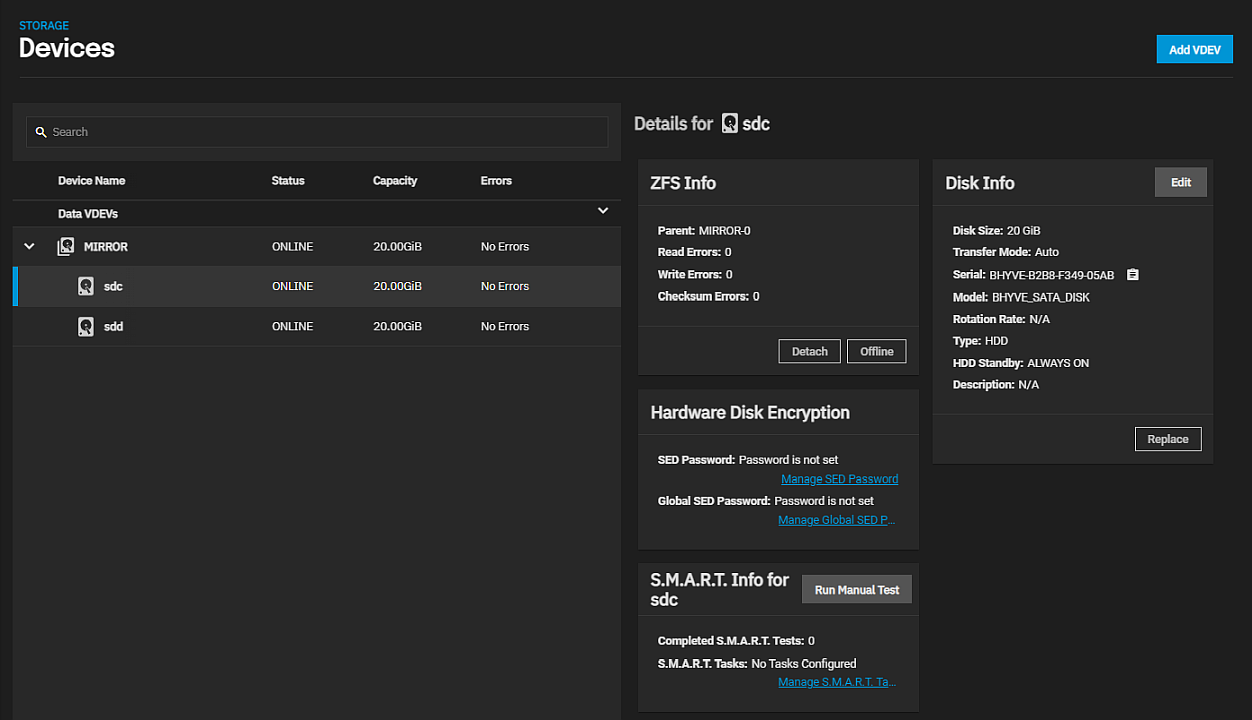
Each disk in a VDEV has a set of four widgets that provide information on that disk.
After selecting a disk the widgets display on the right side of the screen in the Details for diskname area of the screen.
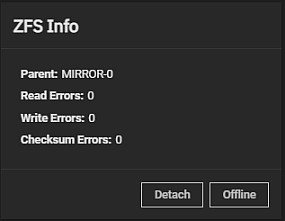
The ZFS Info widget for each device (disk drive) in the VDEV displays the name of the VDEV (Parent) the read, write, and checksum errors for that drive, and the Detach and Offline options.
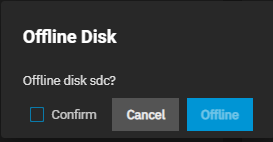
Offline opens a confirmation dialog and takes the selected drive to an offline state. After taking a drive offline you can remove or replace the physical drive.
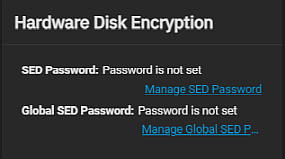
The Hardware Disk Encryption widget provides information on the drive SED password status (set, not set).
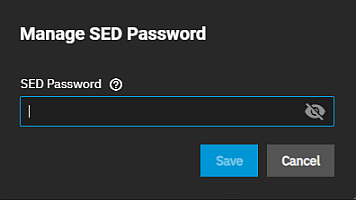
The widget allows you to set the disk encryption password through the Manage SED Password link that opens a Manage SED Password dialog where you can enter an SED password for the drive.
The widget allows you to set the disk encryption password through the Manage SED Password link that opens a Manage SED Password dialog where you can enter an SED password for the drive.
The widget also provides the status of the Global SED Password (set or not set) and the Manage Global SED Password link that opens the System Settings > Advanced screen where you can change the global SED password that overrides the disk passwords.
S.M.A.R.T. Info for Devicename Widget
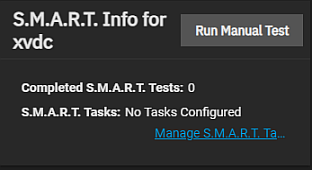
The S.M.A.R.T. Info for devicename widget, where devicename is the name of the disk, provides the number of Completed S.M.A.R.T. Tests and the number of S.M.A.R.T. Tests configured on the system.
The Manage SMART Tasks link opens the Data Protection > SMART Tests details screen where you find the list of SMART tests configured on your system.
Run Manual Test opens the Manual S.M.A.R.T. Test dialog if the disk is compatible with SMART tests or opens an information dialog if it is not.
The Type dropdown list includes the LONG, SHORT, CONVEYANCE, and OFFLINE options, and the Cancel and Start buttons.
Disk Info Widget
The Disk Info widget displays information on the Disk Size, Transfer Mode, the Serial and Model numbers for the drive, the Type of drive it is, the HDD Standby setting, and any Description associated with the selected drive.
Select the new disk for the pool from the Member Disk dropdown list.
The system prevents losing existing data by stopping the add operation for the new disk if the disk is already in use or has partitions present.
Force overrides the safety check and adds the disk to the pool. Selecting this option erases any data stored on the disk!
Describes the various ZFS dataset screens in TrueNAS SCALE.
Contents
Datasets Screen: Provides information on the settings and functions found on the Datasets screen and widgets.
Zvol Screens: Provides information on the settings and functions found on the Zvol screens and widgets.
Capacity Settings Screen: Provides information on the quota settings and functions found on the Capacity Settings screen.
Snapshots Screen: Provides information on the settings and functions found on the Snapshots screen.
User and Group Quota Screens : Provides information on the settings and functions found on the User and Group Quota screens.
Encryption Settings: Provides information on the settings and functions found on the SCALE storage encryption screens.
Edit ACL Screens: Describes the ACL permissions screens, settings for POSIX and NFSv4 ACLs, and the conditions that result in additional setting options.
3.2.1 - Datasets Screen
Provides information on the settings and functions found on the Datasets screen and widgets.
The Datasets screen and widgets display information about datasets, provide access to data management functions, indicate the dataset roles, list the services using the dataset, show the encryption status and the permissions the dataset has in place.
The screen focus is on managing data storage including user and group quotas, snapshots, and other data protection measures.
The Datasets screen displays No Datasets with a Create Pool button in the center of the screen until you add a pool and the first root dataset.
After creating a dataset, the left side of the screen displays a tree table that lists parent or child datasets (or Zvols). The Details for datasetname area on the right side of the screen displays a set of dataset widgets.
Large petabyte systems might report storage numbers inaccurately. Storage configurations with more than 9,007,199,254,740,992 bytes round the last 4 digits.
For example, a system with 18,446,744,073,709,551,615 bytes reports the number as 18,446,744,073,709,552,000 bytes.
The datasets tree table lists datasets in an expandable hierarchical structure with the root dataset first, then each direct child or non-root parent dataset follows and with their child datasets nested under them.
Click on any root or non-root parent dataset to expand the tree table.
Click on any dataset to select it and display the dataset widgets for that dataset.
The table includes used and available storage space for that dataset, encryption status (locked, unlocked, or unencrypted), the role of that dataset, and what service uses it (i.e., the system dataset, a share, virtual machine, or application).
Tree Table Encryption
The Datasets tree table includes lock icons and descriptions that indicate the encryption state of datasets.
Icon
State
Description
Locked
Displays for locked encrypted root, non-root parent and child datasets.
Unlocked
Displays for unlocked encrypted root, non-root parent and child datasets.
Locked by ancestor
Displays for locked datasets that inherit encryption properties from the parent.
Unlocked by ancestor
Displays for unlocked datasets that inherit encryption properties from the parent.
Tree Table Roles
Dataset tree table roles are represented by icons. Hover over the icons to view the description or icon label.
Roles in the dataset tree correspond to the Roles widget.
A dataset with an active task include an activity spinner when that task is in progress.
Role
Icon
Description
System dataset
Indicates the parent (root) dataset designated as the system dataset. To change the system dataset go to System Settings > Advanced Settings and edit the System Dataset Pool.
Share
Indicates the dataset is used by a share or that child datasets of the parent are used by shares.
SMB share
Indicates the dataset is used by an SMB share.
VM
Indicates the dataset is used by a virtual machine (VM).
Apps
Indicates this dataset is used by applications and stores Kubernetes configuration and container related data.
Dataset Widgets
Each dataset has a set of information cards (widgets) that display in the Details for datasetname area of the screen.
These widgets provide information grouped by functional areas.
The set of widgets for a root or parent dataset differs from child datasets or datasets used by another service or with encryption.
The Dataset Details widget lists information on dataset type, and the sync, compression level, case sensitivity, Atime and ZFS deduplication settings. Path displays the full path for the selected dataset.
Edit opens the Edit Dataset screen for the selected dataset.
Promote appears on the Dataset Details widget when you select a cloned snapshot on the dataset tree table.
This option promotes the cloned child dataset and allows users to delete the parent volume that created the clone.
Otherwise, you cannot delete a clone while the original volume still exists. See zfs-promote.8.
Non-root parent and child dataset versions of the card include the Delete option.
To delete a root dataset, use the Disconnect/Export option on the Storage Dashboard screen.
Delete Dataset
The Delete button on the Dataset Details widget opens a window that includes information about other options or services that use the dataset, for example a parent to other datasets and the services the child datasets of a parent dataset uses.
Non-root parent and child datasets include the Delete button.
The Delete window for a parent dataset (non-root) includes information about snapshots, shares or other services such as Kubernetes or VMs that use the dataset.
If it is a parent to other datasets, the window includes the services a child dataset of this parent dataset uses.
The window includes field where you type the path for the dataset and a Confirm option you must select to activate the Delete Dataset button.
Dataset Space Management Widget
The Dataset Space Management widget displays space allocation (reserved, used, available) for all datasets.
The widget displays after unlocking encrypted datasets.
The widget donut graph provides at-a-glance information and numeric values for the space allocated and used in the selected dataset.
This includes data written and space allocated to child datasets of this dataset.
It provides access to quota configuration options for the parent dataset and the child dataset of the parent, and for users and groups with access to the dataset.
The Data Protection widget displays for all datasets.
It displays the number snapshots and other data protection related scheduled tasks (replication, cloud sync, rsync and snapshots) configured on the system.
The Data Protection widget links to the tasks found on the Data Protection screen.
Manage Snapshots opens the Snapshots screen list view where you can manage snapshots.
Manage Snapshot Tasks opens the Data Protection > Periodic Snapshot Tasks screen list view where you can manage scheduled periodic snapshot tasks.
Manage Replication Tasks opens the Data Protection > Replications Tasks screen list view where you can manage scheduled replication tasks.
Manage Cloud Sync Tasks opens the Data Protection > Cloud Sync Tasks screen list view where you can manage scheduled cloud sync tasks.
Manage Rsync Tasks opens the Data Protection > Rsync Tasks screen list view where you can manage scheduled rsync tasks.
The Snapshot counter shows the number of snapshots taken.
The Snapshot Tasks counter shows the number of scheduled snapshot tasks.
The Replication Tasks counter shows the number of scheduled replication tasks.
The Cloud Sync Tasks and Rsync Task counters show shows the number of schedule push tasks. These tasks protect or back up data, where pull sync tasks do not and are not included in the task count.
Permissions Widget
The Permissions widget displays for all datasets.
It indicates the type of ACL as either NFSv4 or Unix Permissions (POSIX) and lists access control items and the owner and group for the dataset.
Root dataset permissions are not editable.
Permission screen and widget options vary based on the ACL type.
If the ACL type is NFSv4 (the default ACL type) the widget turns the items listed on the Permissions widget into buttons that open a configuration are where you can edit the item from the Permissions widget.
The expanded item configuration area has both Permissions Advanced and Flags Advanced check-buttons you can select or deselect common NFSv4 permission options for each item type.
A dataset with a POSIX ACL type, such as the ix-applications dataset, is only editable using the Edit button.
Edit opens the permission edit screen for ACL based on the type.
Roles Widget
The Roles widget displays the dataset role or the service that uses it (i.e., a share, application, virtual machine, or the system dataset).
A parent dataset displays information on child datasets that a service uses.
The Roles widget displays information about the service using the dataset and provides a link to manage whatever that service is.
The widget roles information corresponds to the roles information in the dataset tree table.
Displays the name of the VM using the dataset(Zvol). Select it on the Virtual Machines screen to edit it.
ZFS Encryption Widget
The ZFS Encryption widget displays for datasets configured with encryption but the options in the widget vary based on the type of dataset (root, non-root parent, or child dataset).
It includes the current state of the dataset encryption, the encryption root, type and algorithm used.
The ZFS Encryption widget displays the Lock or Unlock options are not available on the root dataset or a child dataset of a non-root parent it inherits encryption settings from.
The root dataset ZFS Encryption widget includes the Export All Keys and the Export Key options, and the Edit option to change encryption settings.
Child dataset ZFS Encryption widgets include the Go to Encryption Root when you select Inherit as its Encryption Options setting. The non-root parent dataset controls the state of the child dataset.
For more details on encryption windows and functions see Encryption Settings.
Add and Edit Dataset Screens
The Add Dataset and Edit Dataset screens include the same settings but you cannot change the dataset Name, Share Type or Case Sensitivity settings after you click Save on the Add Dataset screen.
After adding a dataset, to edit encryption options use the Edit button on the ZFS Encryption widget.
There are two screen options, Basic Options and Advanced Options.
The Advanced Options screen include all the settings found on the Basic Options screen.
The Advanced Options settings include quotas management tools for This Dataset and This Dataset and Child Datasets, and includes more Other Options settings not available on the Basic Options screen.
Name and Options Settings
These settings are common to both the Basic Options and Advanced Options screens.
Setting include name, path and other general settings.
Read-only field that displays the dataset path for the dataset. The root dataset path includes the only the name of the root dataset. Child datasets created from a child of root include the root dataset/parent dataset in the path.
Name
Enter a unique identifier for the dataset. You cannot change the dataset name after clicking Save. TrueNAS does not allow dataset names to have trailing spaces.
Comments
Enter notes about the dataset.
Sync
Select the sync setting option from the dropdown list. Standard uses the sync settings requested by the client software. Always waits for data writes to complete, and Disabled never waits for writes to complete.
Compression level
Select the compression algorithm to use from the dropdown list. Options encode information in less space than the original data occupies. We recommend cchoosing a compression algorithm that balances disk performance with the amount of space saved. LZ4 is generally recommended as it maximizes performance and dynamically identifies the best files to compress. ZSTD is the Zstandard compression algorithm with several options for balancing speed and compression. Gzip options range from 1 for least compression with best performance, through 9 for maximum compression with greatest performance impact. ZLE is a fast algorithm that only eliminates runs of zeroes. LZJB is a legacy algorithm that is not recommended for use.
Enable Atime
Select the access time for files option from the dropdown list. Access time can result in significant performance gains. Inherit uses the access time setting of the parent or the root dataset. On updates the access time for files when they are read. Off disables creating log traffic when reading files to maximize performance.
Data Compression Algorithms
Select the compression algorithm that best suits your needs from the Compression dropdown list of options.
LZ4 maximizes performance and dynamically identifies the best files to compress. LZ4 provides lightning-fast compression/decompression speeds and comes coupled with a high-speed decoder. This makes it one of the best Linux compression tools for enterprise customers.
ZSTD offers highly configurable compression speeds, with a very fast decoder.
Gzip is a standard UNIX compression tool widely used for Linux. It is compatible with every GNU software which makes it a good tool for remote engineers and seasoned Linux users. It offers the maximum compression with the greatest performance impact. The higher the compression level implemented the greater the impact on CPU usage levels. Use with caution especially at higher levels.
ZLE or Zero Length Encoding, leaves normal data alone but only compresses continuous runs of zeros.
LZJB compresses crash dumps and data in ZFS. LZJB is optimized for performance while providing decent compression. LZ4 compresses roughly 50% faster than LZJB when operating on compressible data, and is greater than three times faster for uncompressible data. LZJB was the original algorithm used by ZFS but it is now deprecated.
Encryption Options Settings
The encryption setting options are the same on the Basic Options and Advanced Options screens. Encryption Options only display on the Add Dataset screen.
To change encryption settings use the Edit button on the ZFS Encryption widget.
The default setting is Inherit selected. Clearing the checkbox displays the key encryption options.
Clear the Inherit(non-encrypted) checkbox to display additional settings.
Selecting other options changes the settings displayed.
Setting
Description
Inherit (non-encrypted)
Select to clear the checkmark to display more encryption settings.
Encryption
Select to clear the checkmark and remove the encryption settings from the Add Dataset screen. If the root dataset is not encrypted, leaving Inherit (non-encrypted) selected is the same as clearing the Encryption checkbox.
Edit Encryption Settings
Setting
Description
Encryption Type
Select the option for the type of encryption to secure the dataset from the dropdown list. Select Key to use key-based encryption and display the Generate Key option. Select Passphrase to enter a user-defined passphrase to secure the dataset. This displays two additional Passphrase fields to enter and confirm the passphrase and the pbkdf2iters field.
Generate key
Selected by default to have the system randomly generate an encryption key for securing this dataset. Clearing the checkbox displays the Key field and requires you to enter an encryption key you define. Warning! The encryption key is the only means to decrypt the information stored in this dataset. Store encryption keys in a secure location! Creating a new key file invalidates any previously downloaded key file for this dataset. Delete any previous key file backups and back up the new key file.
Key
Enter or paste a string to use as the encryption key for this dataset.
Algorithm
Displays for both key and passphrase encryption types. Select the mathematical instruction set that determines how plaintext converts into ciphertext from the dropdown list of options. See Advanced Encryption Standard (AES) for more details.
Passphrase Confirm Passphrase
Enter the alpha-numeric string or phrase you want to use to secure the dataset.
pbkdf2iters
Enter the number of password-based key deviation function 2 (PBKDF2) iterations to use for reducing vulnerability to brute-force attacks. Entering a number larger than 100000 is required. See PBKDF2 for more details.
See the list of Related Encryption Articles at the bottom of this article for more on encryption.
Other Options Settings - Basic Options
The Other Options help tune the dataset for specific data sharing protocols, but the Basic Options settings only includes a small subset of the settings found on the Advanced Options screen.
Select the option from the dropdown list to transparently reuse a single copy of duplicated data to save space. Options are Inherit to use the parent or root dataset settings, On to use deduplication, Off to not use deduplication, or Verify to do a byte-to-byte comparison when two blocks have the same signature to verify the block contents are identical. Deduplication can improve storage capacity, but is RAM intensive. Compressing data is recommended before using deduplication. Deduplicating data is a one-way process. You cannot undo deduplicated data!
Case Sensitivity
Select the option from the dropdown list. Sensitive assumes file names are case sensitive. Insensitive assumes file names are not case sensitive. You cannot change case sensitivity after the saving the dataset.
Share Type
Select the option from the dropdown list to define the type of data sharing the dataset uses to optimize the dataset for that sharing protocol. Select SMB if using with an SMB share and to optimize it for SMB shares. Select Generic for all other share types. Select Apps if creating a dataset to work an application and to optimize the dataset for use by any application. If you plan to deploy container applications, the system automatically creates the ix-applications dataset but this is not used for application data storage. You cannot change this setting after saving the dataset.
Quota Management Settings - Advanced Options
The This Dataset and This Dataset and Child Datasets sections include the same setting options.
These settings also display on the Capacity Settings screen.
To apply the settings to only the parent dataset you are creating, enter settings in the This Dataset fields.
To apply settings to both the parent dataset and any new child datasets you create from this dataset, enter settings in the This Dataset and Child Datasets section.
Setting a quota defines the maximum allowed space for the dataset or the dataset and child datasets.
You can also reserve a defined amount of pool space to prevent automatically generated data like system logs from consuming all of the dataset space.
You can configure quotas for only the new dataset or include all child datasets.
Setting
Description
Quota for this dataset Quota for this dataset and all children
Enter a value to define the maximum allowed space for the dataset. 0 disables quotas.
Quota warning alert at, %
Enter a percentage value to generate a warning level alert when consumed space reaches the defined level. By default, the dataset inherits this value from the parent dataset. Clear the Inherit checkbox to change the value.
Quota critical alert at, %
Enter a percentage value to generate a critical level alert when consumed space reaches the defined level. By default, the dataset inherits this value from the parent dataset. Clear the Inherit checkbox to change the value.
Reserved space for this dataset Reserved space for this dataset and all children
Enter a value to reserve additional space for datasets that contain logs which could eventually take up all the available free space. 0 is unlimited.
Other Option Settings - Advanced Options
Many of the Other Options settings inherit their values from the parent dataset.
The Basic Options screen shares the ZFS Deduplication, Case Sensitivity and Share Type settings. All other settings in this section are unique to the Advanced Options screen.
Select the option from the dropdown list. Options are Inherit (off), on, verify, and off. Transparently reuse a single copy of duplicated data to save space. Deduplication can improve storage capacity, but is RAM intensive. Compressing data is generally recommended before using deduplication. Deduplicating data is a one-way process. Deduplicated data cannot be undeduplicated!
Checksum
Select the checksum option from the dropdown list. Select Inherit to use the parent setting; On to use checksum without specifying the variant; FLETCHER2 (deprecated) or FLETCHER4 to use a position-dependent checksum that uses two checksums to determine single-bit errors in messages transmitted over network channels or ZFS streams; SHA256 (default for dedupted datasets) or SHA512 to use a sequence of numbers and letters to check the copy of a downloaded update file is identical to the original; SKEIN which is not supported for a file system on boot pools; or EDNOR which is not supported for file systems on boot pools and Edon-R requires verification when used with dedup so it automatically uses verify.
Read-only
Select the option to allow or prevent dataset modification from the dropdown list. On prevents modifying the dataset. Off allows users accessing the dataset to modify its contents.
Exec
Select the option for executing processes from within the dataset from the dropdown list. On allows executing processes from within this dataset. Off prevents executing processes from with the dataset. We recommend setting it to On.
Snapshot directory
Select the option to controls visibility of the .zfs directory on the dataset from the dropdown list. Select either Visible or Invisible.
Snapdev
Select the option that controls whether the volume snapshot devices under /dev/zvol/poolname are hidden or visible from the dropdown list. Options are Inherit (hidden), Visible and Hidden (default value).
Select the number of duplicate of ZFS user data stored on this dataset from the dropdown list. Select between 1, 2, or 3 redundant data copies. This can improve data protection and retention, but is not a substitute for storage pools with disk redundancy.
Record Size
Select the logical block size in the dataset from the dropdown list of options. Matching the fixed size of data, as in a database, can result in better performance.
ACL Type
Select the access control list type from the dropdown list of options. Inherit preserves ACL type from the parent dataset. Off to use neither NFSv4 or POSIX protocols. NFSv4 is used to cleanly migrate Windows-style ACLs across Active Directory domains (or stand-alone servers) that use ACL models richer than POSIX. Since POSIX ACLs are a Linux-specific ZFS feature, administrators should use NFSv4 to maintain compatibility with TrueNAS Core, FreeBSD, or other non-Linux ZFS implementations. POSIX use when an organization data backup target does not support native NFSv4 ACLs. Since the Linux platform used POSIX for a long time, many backup products that access the server outside the SMB protocol cannot understand or preserve native NFSv4 ACLs. All datasets within an SMB share path must have identical ACL types. For a more in-depth explanation of ACLs and configurations in TrueNAS SCALE, see our ACL Primer.
ACL Mode
Select the option that determines how chmod behaves when adjusting file ACLs from the dropdown list. See the zfs(8)aclmode property. Passthrough only updates ACL entries that are related to the file or directory mode. Restricted does not allow chmod to make changes to files or directories with a non-trivial ACL. An ACL is trivial if it can be fully expressed as a file mode without losing any access rules. Set the ACL Mode to restricted to optimize a dataset for SMB sharing, but it can require further optimizations. For example, configuring an rsync task with this dataset could require adding --no-perms in the task Auxiliary Parameters field.
Case Sensitivity
Select the option that sets whether filenames are case sensitive. Select Sensitive to assume filenames are case sensitive, or Insensitive to assume filenames are not case sensitive. Noted: The Mixed option no longer exists.
Metadata (Special) Small Block Size
Enter a threshold block size for including small file blocks into the special allocation class (fusion pools). Blocks smaller than or equal to this value are assigned to the special allocation class while greater blocks are assigned to the regular class. Valid values are zero or a power of two from 512B up to 1M. The default size 0 means no small file blocks are allocated in the special class. Before setting this property, you must add a special class VDEV to the pool.
Share Type
Select the option from the dropdown list to define the type of data sharing the dataset uses to optimize the dataset for that sharing protocol. Select SMB if using with an SMB share and to optimize it for SMB shares. Select Generic for all other share types. Select Apps if creating a dataset to work an application and to optimize the dataset for use by any application. If you plan to deploy container applications, the system automatically creates the ix-applications dataset but this is not used for application data storage. You cannot change this setting after saving the dataset.
Provides information on the settings and functions found on the Zvol screens and widgets.
The zvol screens and widgets, accessed from the Datasets screen, allow you to add or edit a zvol and manage the volume storage.
Like datasets, zvols are listed on the Datasets screen tree table.
The tree table includes storage space used and available for that zvol (or dataset), encryption status (locked, unlocked, or unencrypted), and the role of that zvol or dataset or what service uses it (i.e., the system dataset, a share, virtual machine, or application).
Add Zvol displays after you select a root, non-root parent, or child dataset. It does not display if you select an existing zvol. Click on any root or non-root parent dataset to expand the tree table.
Click on any zvol to select it and display the widgets for that zvol.
Zvol Widgets
Each zvol has a set of information cards (widgets) that display in the Details for zvolname area of the screen and provide information grouped by functional areas.
Add Zvol opens the Add Zvol screen.
Dataset widgets are:
The Zvol Details widget lists information on volume type, and the sync, compression level, case sensitivity, Atime, and ZFS deduplication settings. Path displays the full path for the selected zvol.
Edit opens the Edit Zvol screen for the selected zvol.
The Delete button on the Zvol Details widget opens a window that includes information about other options or services that use the zvol. For example, a parent to other datasets and the services the child datasets of a parent dataset uses.
Non-root parent and child datasets include the Delete button.
The Delete window for a parent dataset (non-root) includes information about snapshots, shares, or other services such as Kubernetes or VMs that use the dataset.
If it is a parent to other datasets, the window includes the services a child dataset of this parent dataset uses.
If a zvol uses services, the window displays them.
If a zvol is not used by a service, it does not display a service.
The window includes a field where you type the path for the zvol, and a Confirm option you must select to activate the Delete Dataset button.
Zvol Space Management Widget
The Zvol Space Management widget displays space allocation (reserved, used, available) for the zvol.
The widget displays after unlocking encrypted zvols.
The widget donut graph provides at-a-glance information and numeric values for the space allocated and used in the selected zvol.
This includes data written and space allocated to child datasets of this dataset.
It provides access to quota configuration options for the parent dataset and the child dataset of the parent, and for users and groups with access to the dataset.
Edit opens the Capacity Settings screen where you can set quotas for the zvol.
The widget displays quotas set for users or groups.
ZFS Encryption Widget
The ZFS Encryption widget displays for zvols configured with encryption.
It includes the current state of the encryption, the encryption root, type, and algorithm used.
The ZFS Encryption widget displays the Lock or Unlock options. If it uses key encryption instead passphrase
The Export Key option displays if the zvol uses key encryption.
For more details on encryption windows and functions see Encryption Settings.
Data Protection Widget
The Data Protection widget displays for all datasets or zvols.
This widget provides information on the number of snapshots and other data protection-related scheduled tasks (replication, cloud sync, rsync, and snapshots) configured on the system.
It provides access to the tasks found on the Data Protection screen through links.
Manage Snapshots opens the Snapshots screen list view where you can manage snapshots.
Manage Snapshot Tasks opens the Data Protection > Periodic Snapshot Tasks screen list view where you can manage scheduled periodic snapshot tasks.
Manage Replication Tasks opens the Data Protection > Replications Tasks screen list view where you can manage scheduled replication tasks.
Manage Cloud Sync Tasks opens the Data Protection > Cloud Sync Tasks screen list view where you can manage scheduled cloud sync tasks.
Manage Rsync Tasks opens the Data Protection > Rsync Tasks screen list view where you can manage scheduled rsync tasks.
Add Zvol Screen
The Add Zvol screen has two screen options, Basic Options and Advanced Options.
The Advanced Options screen include all the settings found on the Basic Options screen.
The basic options display by default. Click Advanced Options to expand the settings that includes block size.
Basic Options Settings
The Basic Options settings on the Add Zvol screen are the same as those on the Advanced Options screen and the Edit Zvol screen.
To open the Edit Zvol screen, click Edit on the Zvol Details widget.
The Name setting cannot be changed after saving the zvol.
Setting
Description
Zvol name
Required setting. Enter a short name for the zvol. Using a zvol name longer than 63-characters can prevent accessing zvols as devices. For example, you cannot use a zvol with a 70-character file name or path as an iSCSI extent.
Comments
Enter any notes about this zvol.
Size for this zvol
Specify size and value. You can include units like t as in TiB, and G. You can increase the size of the zvol later, but you cannot reduce size. If the size is more than 80% of the available capacity, the creation fails with an out-of-space error unless you select Force size.
Force size
Select to enable the system to create a zvol where the size is over 80% capacity. By default, the system does not create a zvol of this size. While not recommended, enabling this option forces the creation of the zvol.
Setting
Description
Sync
Select the data write synchronization option from the dropdown list. Inherit gets the sync settings from the parent dataset. Standard uses the sync settings requested by the client software. Always waits for data writes to complete. Disabled never waits for writes to complete.
Compression level
Select the option from the dropdown list for the type of data compression to use or encoding information in less space than the original data occupies. Select the algorithm that balances disk performance with the amount space saved. See below for the options.
ZFS Deduplication
Do not change this setting unless instructed to do so by your iXsystems support engineer. Select to transparently reuse a single copy of duplicated data to save space. Deduplication can improve storage capacity, but it is RAM intensive. Compressing data is recommended before using deduplication. Deduplicating data is a one-way process. You cannot un-deduplicate deduplicated data!
Sparse
Used to provide thin provisioning. Use with caution as writes fail when space is low on a pool.
Read-only
Select the option to use to prevent modifying the zvol. Options are Inherit (off), On or Off.
Snapdev
Select the option that controls whether the volume snapshot devices under /dev/zvol/poolname are hidden or visible from the dropdown list. Options are Inherit (hidden), Visible and Hidden (default value).
Encryption options do not display unless you create the zvol from dataset using encryption.
Advanced Options Settings
The Advanced Options adds the Block Size setting to the Add Zvol screen.
Setting
Description
Block size
Select the size option from the dropdown list. The default is Inherit, other options include, 4KiB, 8KiB, 16KiB, 32KiB, 64KiB, 128KiB.
TrueNAS recommends a space-efficient block size for new zvols.
This table shows the minimum recommended volume block size values by configuration (mirror or RAIDz type).
Use this table to change the Block size value.
Configuration
Number of Drives
Optimal Block Size
Mirror
N/A
16k
Raidz-1
3
16k
Raidz-1
4/5
32k
Raidz-1
6/7/8/9
64k
Raidz-1
10+
128k
Raidz-2
4
16k
Raidz-2
5/6
32k
Raidz-2
7/8/9/10
64k
Raidz-2
11+
128k
Raidz-3
5
16k
Raidz-3
6/7
32k
Raidz-3
8/9/10/11
64k
Raidz-3
12+
128k
Depending on their workload, zvols can require additional tuning for optimal performance.
See the OpenZFS handbook workload tuning chapter for more information.
Data Compression Algorithms
Select the compression algorithm that best suits your needs from the Compression dropdown list of options.
LZ4 maximizes performance and dynamically identifies the best files to compress. LZ4 provides lightning-fast compression/decompression speeds and comes coupled with a high-speed decoder. This makes it one of the best Linux compression tools for enterprise customers.
ZSTD offers highly configurable compression speeds, with a very fast decoder.
Gzip is a standard UNIX compression tool widely used for Linux. It is compatible with every GNU software which makes it a good tool for remote engineers and seasoned Linux users. It offers the maximum compression with the greatest performance impact. The higher the compression level implemented the greater the impact on CPU usage levels. Use with caution especially at higher levels.
ZLE or Zero Length Encoding, leaves normal data alone but only compresses continuous runs of zeros.
LZJB compresses crash dumps and data in ZFS. LZJB is optimized for performance while providing decent compression. LZ4 compresses roughly 50% faster than LZJB when operating on compressible data, and is greater than three times faster for uncompressible data. LZJB was the original algorithm used by ZFS but it is now deprecated.
Encryption Options
Encryption options are the same on both the Basic Options and Advanced Options screens.
Encryption Options only display on the Add Zvol screen.
To change encryption settings, use the Edit button on the ZFS Encryption widget.
The default setting is Inherit. Clearing the checkbox displays the key encryption options.
Clear the Inherit(non-encrypted) checkbox to display additional settings.
Selecting other options changes the settings displayed.
Setting
Description
Inherit (non-encrypted)
Select to clear the checkmark to display more encryption settings.
Encryption
Select to clear the checkmark and remove the encryption settings from the Add Zvol screen. If the root dataset is not encrypted, leaving Inherit (non-encrypted) selected is the same as clearing the Encryption checkbox.
Edit Encryption Settings
Setting
Description
Encryption Type
Select the option for the type of encryption to secure the dataset from the dropdown list. Select Key to use key-based encryption and display the Generate Key option. Select Passphrase to enter a user-defined passphrase to secure the dataset. This displays two additional Passphrase fields to enter and confirm the passphrase and the pbkdf2iters field.
Generate key
Selected by default to have the system randomly generate an encryption key for securing this dataset. Clearing the checkbox displays the Key field and requires you to enter an encryption key you define. Warning! The encryption key is the only means to decrypt the information stored in this dataset. Store encryption keys in a secure location! Creating a new key file invalidates any previously downloaded key file for this dataset. Delete any previous key file backups and back up the new key file.
Key
Enter or paste a string to use as the encryption key for this dataset.
Algorithm
Displays for both key and passphrase encryption types. Select the mathematical instruction set that determines how plaintext converts into ciphertext from the dropdown list of options. See Advanced Encryption Standard (AES) for more details.
Passphrase Confirm Passphrase
Enter the alpha-numeric string or phrase you want to use to secure the dataset.
pbkdf2iters
Enter the number of password-based key deviation function 2 (PBKDF2) iterations to use for reducing vulnerability to brute-force attacks. Entering a number larger than 100000 is required. See PBKDF2 for more details.
See the list of Related Encryption Articles at the bottom of this article for more on encryption.
Provides information on the quota settings and functions found on the Capacity Settings screen.
The Capacity Settings screen allows users to set quotas for the selected dataset and for the selected dataset and any of the child datasets for the selected dataset apart from the dataset creation process.
The settings on the Capacity Settings screen are the same as those in the quota management section on the Add Dataset > Advanced Options screen.
Setting
Description
Quota for this dataset Quota for this dataset and all children
Enter a value to define the maximum allowed space for the dataset. 0 disables quotas.
Quota warning alert at, %
Enter a percentage value to generate a warning level alert when consumed space reaches the defined level. By default, the dataset inherits this value from the parent dataset. Clear the Inherit checkbox to change the value.
Quota critical alert at, %
Enter a percentage value to generate a critical level alert when consumed space reaches the defined level. By default, the dataset inherits this value from the parent dataset. Clear the Inherit checkbox to change the value.
Reserved space for this dataset Reserved space for this dataset and all children
Enter a value to reserve additional space for datasets that contain logs which could eventually take up all the available free space. 0 is unlimited.
Provides information on the settings and functions found on the Snapshots screen.
The Snapshots screen, accessed from the Datasets screen by clicking Manage Snapshots on the Data Protection widget, provides a list of existing snapshots filtered for the snapshot you selected, allows you to add new or manage existing snapshots.
The Snapshots screen also opens when you click Snapshots on the Periodic Snapshot Tasks widget found on the Data Protection screen.
Snapshots Screen
If the selected snapshot does not have snapshots the screen displays No Snapshots are Available.
To check for snapshots for other datasets, clear the search filter of the dataset path.
If your Snapshots screen does not display a list of snapshots and you know you added snapshots, clear the dataset path in the search field to show all dataset and zvol snapshots on the system.
Click the Show Extra Columns toggle to add extra information columns to the list of snapshots. This opens the Show Extra Columns dialog.
Show adds the extra columns to the list of snapshots. These columns add the space used (Used), the snapshot creation date, and the amount of data the dataset can access (Referenced).
Click the toggle again to open the Hide Extra Columns dialog. Hide to return to the default view with only the Dataset and Snapshot columns.
Snapshot Details Screen
Click anywhere on a snapshot to expand it and view more information and options for that snapshot.
Select the checkbox to the left of each snapshot to select multiple snapshots and display the Batch Operations option to Delete the selected snapshots.
Setting
Description
Delete
Opens a Delete confirmation dialog for the selected snapshot(s). Select Confirm to activate the Delete button.
Clone to New Dataset
Opens the Clone to New Dataset) window where you enter a new name or clone with the default value in the Dataset Name field.
Select to prevent the snapshot from being deleted. If selected and you batch-operation delete datasets, this opens an error displays with the name of the dataset and prevents the delete operation from continuing.
Dataset Rollback from Snapshot Window
The snapshot Rollback option replaces the data in the selected dataset with the information saved in the snapshot.
WARNING: Rolling the dataset back destroys data on the dataset and can destroy additional snapshots that are related to the dataset.
This can result in permanent data loss!
Do not roll back until all desired data and snapshots are backed up.
There are three Stop Rollback if Snapshot Exists radio button options that impose safety levels on the rollback operation.
When the safety check finds additional snapshots that are directly related to the dataset you are rolling back it cancels the rollback.
Setting
Description
Newer Intermediate, Child, and clone
Select to stop rollback when the safety check finds any related intermediate, child dataset, or clone snapshots that are newer than the rollback snapshots.
Newer Clone
Select to stop rollback when the safety check finds any related clone snapshots that are newer than the rollback snapshot.
No Safety Check (CAUTION)
Select to stop rollback if snapshot exists. The rollback destroys any related intermediate, child dataset, and cloned snapshots that are newer than the rollback snapshot.
Confirm
Select to confirm the selection and activate the Rollback button.
Clone Snapshot and Promote Dataset
Cloning to New Dataset
The Clone to New Dataset button creates a clone of the snapshot. The clone appears directly beneath the parent dataset in the dataset tree table on the Datasets screen. Clicking the Clone to New Dataset button opens a clone confirmation dialog.
The snapshot Delete option opens a window that lists the snapshot(s) you select.
Confirm activates the Delete button.
Batch Operations - Delete
To delete more than one snapshot in one operation, select the checkbox beside the datasets you want to delete and to display the Batch Operations Delete option.
Batch Operations Delete opens a window listing all selected snapshots.
Confirm activates the Delete button. If a snaphot has the Hold option selected, an error displays to prevent you from deleting that snapshot.
Add Snapshot Screen
The Add Snapshots screen allows you to create a snapshot while on the Snapshots screen. It also opens when you click Create Snapshot on the Dataset Protection widget on the Datasets screen.
Create Snapshot on the Dataset Protection widget opens the Add Snapshot screen. The Dataset field is prepopulated with the name of the dataset you selected on the Datasets screen. If you open it using Add on the Snapshots screen you select the value in the Dataset field.
Setting
Description
Dataset
Select the dataset or zvol from the dropdown list. The snapshot created is from this dataset or zvol.
Name
TrueNAS populates this with a name but you can override the name with any string of your choice. You cannot use Name and Naming Schema for the same snapshot.
Naming Schema
Select an option from the dropdown list or leave this blank to use the system-populated name in the Name field. This generates a name for the snapshot using the naming schema from a previously-entered periodic snapshot. This allows replication of the snapshot. You cannot use Naming Schema with Name. Selecting a schema option overwrites the value in Name.
Recursive
Select to include child datasets or zvols in the snapshot.
Save retains the settings and returns to the Snapshots screen.
Provides information on the settings and functions found on the User and Group Quota screens.
TrueNAS allows setting data or object quotas for user accounts and groups cached on or connected to the system.
User Quotas Screen
Select User Quotas on the Dataset Actions list of options to display the User Quotas screen.
The User Quotas screen displays the names and quota data of any user accounts cached on or connected to the system. If no users exist, the screen displays No User Quotas in the center of the screen.
The Show All Users toggle button displays all users or hides built-in users. Add displays the Set User Quotas screen.
If you have a number of user quotas set up, the Actions options include Set Quotas (Bulk).
Click on the name of the user to display the Edit User window.
Edit User Configuration Window
The Edit User Quota window allows you to modify the user data quota and user object quota values for an individual user.
Settings
Description
User
Displays the name of the selected user.
User Data Quota (Examples: 500KiB, 500M, 2 TB)
Enter the amount of disk space the selected user can use. Entering 0 allows the user to use all disk space. You can enter human-readable values such as 50 GiB, 500M, 2 TB, etc. If units are not specified, the value defaults to bytes.
User Object Quota
Enter the number of objects the selected user can own. Entering 0 allows unlimited objects.
Click Save to save changes or click on the “X” to close the window without saving.
Set User Quotas Screen
To display the Set User Quotas screen click the Add button.
Set Quotas Settings
Settings
Description
User Data Quota (Examples: 500KiB, 500M, 2 TB)
Enter the amount of disk space the selected user can use. Entering 0 allows the user to use all disk space. You can enter human-readable values such as 50 GiB, 500M, 2 TB, etc. If units are not specified, the value defaults to bytes.
User Object Quota
Enter the number of objects the selected user can own. Entering 0 allows unlimited objects.
Apply Quotas to Selected Users Settings
Settings
Description
Apply To Users
Select the users from the dropdown list of options.
Click Save to set the quotas or click the “X” to exit without saving.
Group Quotas Screens
Select Group Quotas on the Dataset Actions list of options to display the Group Quotas screen.
The Group Quotas screen displays the names and quota data of any groups cached on or connected to the system. If no groups exist, the screen displays No Group Quotas in the center of the screen.
The Show All Groups toggle button displays all groups or hides built-in groups. Add displays the Set Group Quotas screen.
If you have a number of group quotas set up, the Actions options include Set Quotas (Bulk).
Click on the name of the group to display the Edit Group window.
Edit Group Configuration Window
The Edit Group window allows you to modify the group data quota and group object quota values for an individual group.
Settings
Description
Group
Displays the name of the selected group(s).
Group Data Quota (Examples: 500KiB, 500M, 2 TB)
Enter the amount of disk space the selected group can use. Entering 0 allows the group to use all disk space. You can enter human-readable values such as 50 GiB, 500M, 2 TB, etc. If units are not specified, the value defaults to bytes.
Group Object Quota
Enter the number of objects the selected group can own or use. Entering 0 allows unlimited objects.
Click Save to set the quotas or click the “X” to exit without saving.
Set Group Quotas Screen
To display the Set Group Quotas screen, click the Add button.
Set Quotas Settings
Settings
Description
Group Data Quota (Examples: 500KiB, 500M, 2 TB)
Enter the amount of disk space the selected group can use. Entering 0 allows the group to use all disk space. You can enter human-readable values such as 50 GiB, 500M, 2 TB, etc. If units are not specified, the value defaults to bytes.
Group Object Quota
Enter the number of objects the selected group can own or use. Entering 0 allows unlimited objects.
Apply Quotas to Selected Groups Settings
Settings
Description
Apply To Groups
Select groups from the dropdown list of options.
Click Save to set the quotas or click the “X” to exit without saving.
Provides information on the settings and functions found on the SCALE storage encryption screens.
Datasets, root, non-root parent, and child, or zvols with encryption include the ZFS Encryption widget in the set of dataset widgets displayed on the Datasets screen.
The Datasets tree table includes lock icons and descriptions that indicate the encryption state of datasets.
Icon
State
Description
Locked
Displays for locked encrypted root, non-root parent and child datasets.
Unlocked
Displays for unlocked encrypted root, non-root parent and child datasets.
Locked by ancestor
Displays for locked datasets that inherit encryption properties from the parent.
Unlocked by ancestor
Displays for unlocked datasets that inherit encryption properties from the parent.
Pool Encryption
The Encryption option on the Pool Manager screen sets encryption for the pool and root dataset.
The Download Encryption Key warning window displays when you create the pool.
It downloads a JSON file to your downloads folder.
The ZFS Encryption widget for root datasets with encryption includes the Export All Keys and Export Key options but does not include the Lock option.
If a dataset is encrypted using a key, the ZFS Encryption widget for that dataset includes the Export Key option.
Export All Keys Dialog
Export All Keys opens a confirmation dialog with the Download Keys option that exports a JSON file of all encryption keys to the system download folder.
Export Key opens a dialog with the key for the selected dataset and the Download Key option that exports a JSON file with the encryption key to your system download folder.
Encryption type and options are set for a dataset when it is first created and are inherited from the root dataset.
The Edit Encryption Options for datasetname displays the current encryption option settings for the selected encrypted dataset.
Use to change the encryption type from or to key or passphrase, and the related settings.
The Edit Encryption Options for datasetname window opens with the current dataset encryption settings displayed.
The encryption setting options are the same as those found on Add Dataset > Encryption Options.
Select the option for the type of encryption to secure the dataset from the dropdown list. Select Key to use key-based encryption and display the Generate Key option. Select Passphrase to enter a user-defined passphrase to secure the dataset. This displays two additional Passphrase fields to enter and confirm the passphrase and the pbkdf2iters field.
Generate key
Selected by default to have the system randomly generate an encryption key for securing this dataset. Clearing the checkbox displays the Key field and requires you to enter an encryption key you define. Warning! The encryption key is the only means to decrypt the information stored in this dataset. Store encryption keys in a secure location! Creating a new key file invalidates any previously downloaded key file for this dataset. Delete any previous key file backups and back up the new key file.
Key
Enter or paste a string to use as the encryption key for this dataset.
Algorithm
Displays for both key and passphrase encryption types. Select the mathematical instruction set that determines how plaintext converts into ciphertext from the dropdown list of options. See Advanced Encryption Standard (AES) for more details.
Passphrase Confirm Passphrase
Enter the alpha-numeric string or phrase you want to use to secure the dataset.
pbkdf2iters
Enter the number of password-based key deviation function 2 (PBKDF2) iterations to use for reducing vulnerability to brute-force attacks. Entering a number larger than 100000 is required. See PBKDF2 for more details.
Lock Dataset Dialog
Lock displays on encrypted non-root parent or child datasets ZFS Encryption widgets.
An encrypted child that inherits encryption from a non-root parent does not see the Lock option on its ZFS Encryption widget because the lock state is controlled by the parent dataset for that child dataset.
The locked icon for child datasets that inherit encryption is the locked by ancestor icon.
Lock opens the Lock Dataset confirmation dialog with the option to Force unmount and Lock the dataset.
Force unmount disconnects any client system that is accessing the dataset via sharing protocol. Do not select this option unless you are certain the dataset is not used or accessed by a share, application, or other system services.
After locking a dataset, the ZFS Encryption screen displays Locked as the Current State and adds the Unlock option.
Unlock Datasets Screen
Unlock on the ZFS Encryption widget displays for locked datasets that are not child datasets that inherit encryption from the parent dataset.
Unlock opens the Unlock Datasets screen that allows you to unlock the selected dataset, and the child datasets at the same time.
If you select a non-root parent dataset, the unlock screen includes two Dataset Passphrase fields for two datasets, the non-root parent and the child of that non-root parent, and the option to Unlock Child Encrypted Roots pre-selected.
If you select a child dataset of the root dataset or of a non-root parent, the screen includes only the one Dataset Passphrase field, and the option to Unlock Child Encrypted Roots pre-selected.
Select to inlock any encrypted dataset stored within this dataset.
Dataset Passphrase Dataset Key
Enter the user-defined string (passphrase) or system-generated or user-created alpha-numeric key you entered at the time you created the dataset.
Force
Select to add a force flag to the operation. In some cases it is possible that the provided key/passphrase is valid but the path where the dataset is supposed to be mounted after being unlocked already exists and is not empty. In this case, unlock operation fails. Adding the force flag can override this and when selected, the system renames the existing dataset mount directory/file path and it unlocks the dataset.
Save
Starts the unlock process, fetch data, and displays the Unlock Datasets dialog with the dataset mount path. Click Continue to unlock the dataset.
Describes the ACL permissions screens, settings for POSIX and NFSv4 ACLs, and the conditions that result in additional setting options.
TrueNAS SCALE offers two ACL types: POSIX (the SCALE default) and NFSv4.
For a more in-depth explanation of ACLs and configurations in TrueNAS SCALE, see our ACL Primer.
The ACL Type setting, found in the Advanced Options of both the Add Dataset and Edit Dataset screens, determines the ACL presets available on the Select a preset ACL window and also determines which permissions editor screens you see after you click the edit edit icon on the Dataset Permissions widget.
If ACL Type is set to NSFv4, you can select the ACL Mode you want to use.
NFSv4 is an access control list (ACL) type not related to the share type you might use (SMB or NFS).
Unix Permissions Editor Screen
If you selected POSIX or Inherit as your ACL type, the first screen you see after you click edit on the Dataset Permissions widget is the Storage > Edit Permissions screen with the Unix Permissions Editor basic ACL configuration settings.
Use the settings on this screen to configure basic ACL permissions.
Owner Settings
The Owner section controls which TrueNAS user and group has full control of this dataset.
Setting
Description
User
Enter or select a user to control the dataset. Users created manually or imported from a directory service appear in the menu.
Apply User
Select to confirm user changes. To prevent errors, TrueNAS only submits changes only after you select this option.
Group
Enter or select the group to control the dataset. Groups created manually or imported from a directory service appear in the menu.
Apply Group
Select to confirm group changes. To prevent errors, TrueNAS only submits changes only after you select this option.
Access Settings
The Access section lets users define the basic Read, Write, and Execute permissions for the User, Group, and Other accounts that might access this dataset.
A common misconfiguration is removing the Execute permission from a dataset that is a parent to other child datasets.
Removing this permission results in lost access to the path.
Advanced Settings
The Advanced section lets users Apply Permissions Recursively to all directories, files, and child datasets within the current dataset.
To access advanced POSIX ACL settings, click Add ACL on the Unix Permissions Editor. The Select a preset ACL window displays with two radio buttons.
Select A Preset ACL
Selecting a preset replaces the ACL currently displayed on the Edit ACL screen and deletes any unsaved changes.
There are two different Select a preset ACL windows.
If using POSIX or Inherit as the ACL Type setting, the window with three setting options displays before you see the Edit ACL screen.
These setting options allow you to select and use a pre-configured set of permissions that match general permissions situations or to create a custom set of permissions.
You can add to a pre-configured ACL preset on the Edit ACL screen.
If using NFSv4 as the ACL Type setting, you access the NFS4 Select a Preset ACL window from the Edit ACL screen by clicking Use Preset ACL.
The ACL Type setting determines the pre-configured options presented on the Default ACL Options dropdown list on each of these windows.
For POSIX, the options are POSIX_OPEN, POSIX_RESTRICTED, or POSIX_HOME. For NFSv4, the options are NFS4_OPEN, NFS4_RESTRICTED, NFS4_HOME, and NFS4_DOMAIN_HOME.
Setting
Description
Select a preset ACL
Click this radio button to populate the Default ACL Options dropdown list with a set of pre-configured POSIX permissions.
Create a custom ACL
Click this radio button to display the Edit ACL screen with no default permissions, users, or groups to configure your own set of permissions after you click Continue.
Click Continue to display the Edit ACL screen.
Edit ACL Screen
The Edit ACL screen displays different options based on the ACL Type setting on the Add Dataset or Edit Dataset screen in the Advanced Options section.
The section below describes the differences between screens for each ACL type.
ACL Editor Settings - POSIX and NFSv4
Select any user account or group manually entered or imported from a directory service in the Owner or Owner Group. The value entered or selected in each field displays in the Access Control List below these fields.
Dataset displays the dataset path (name) you selected to edit.
Access Control List - POSIX and NFS4
The Access Control List section displays the items and a permissions summary for the owner@, group@, and everyone@ for both POSIX and NSFv4 ACL types. The list of items changes based on a selected pre-configured set of permissions.
To add a new item to the ACL, click Add Item, define Who the Access Control Entry (ACE) applies to, and configure permissions and inheritance flags for the ACE.
Edit ACL Functions - POSIX and NFS4
These functions display on the Edit ACL screen for both POSIX and NSFv4 ACL types except for Strip ACL, which only displays for NSFv4 types.
Setting
Description
Add Item
Adds a new ACE to the Access Control List.
Apply permissions recursively
Select to apply all settings or changes on the Edit ACL screen to all child datasets in the path in Dataset.
Save Access Control List
Saves settings or changes made on the Edit ACL screen.
Strip ACL
(NSFv4 only) Remove all ACLs from the current dataset and any directories or files contained within this dataset. Stripping the ACL resets dataset permissions and can make data inaccessible until you create new permissions.
Permissions Editor
(POSIX only) Displays the Unix Permissions Editor screen for POSIX ACL types.
Use Preset
Displays the Select a preset ACL window. If the ACL Type setting, found in the Advanced Options of both the Add Dataset and Edit Dataset screens, is POSIX or Inherit, the Default ACL Options dropdown displays POSIX pre-configured options. If set to NFSv4, the preset options displayed are pre-configured NSFv4 options.
Save As Preset
Saves the current access control list as a custom preset and adds it to the Access Control List.
POSIX Access Control Entry Settings
The POSIX Access Control Entry settings include Who, Permissions, and Flags options.
Setting
Description
Who
Select the user or group from the dropdown list the permissions apply to.
User denotes access rights for users identified by the entry qualifier. Group denotes access rights for the filegroup. Other denotes access rights for processes that do not match any other entry in the ACL. Group Obj denotes access rights for the filegroup. User Obj denotes access rights for the file owner. Mask denotes the maximum access rights User, Group Obj, or Group type entries can grant.
Permissions
Select the checkbox for each permission type (Read, Write and Execute) to apply to the user or group in Who.
Flags
Select the Default option to include a flag setting for the user or group in Who.
NFS4 Access Control Entry Settings
There are two Access Control Entry settings, Who and ACL Type.
The NFSv4 ACL Type radio buttons change the Permissions and Flags setting options. Select Allow to grant the specified permissions or Deny to restrict the permissions for the user or group in Who.
User denotes access rights for users identified by the qualifier. Group denotes access rights for groups identified by the qualifier. owner@ applies this entry to the user that owns the dataset. group@ applies this entry to the group that owns the dataset. everyone@ applies this entry to all users and groups.
ACL Type
Determines how the Permissions apply to the chosen Who. Choose Allow to grant the specified permissions and Deny to restrict the specified permissions.
NFS4 Permissions and Flags
TrueNAS divides permissions and inheritance flags into basic and advanced options. The basic permissions options are commonly-used groups of advanced options.
Basic inheritance flags only enable or disable ACE inheritance. Advanced flags offer finer control for applying an ACE to new files or directories.
Permissions Settings - Basic
Click the Basic radio button to display the Permissions dropdown list of options that applies to the user or group in Who.
Permission
CLI Command
Description
Read
r-x---a-R-c---
View file or directory contents, attributes, named attributes, and ACL.
Modify
rwxpDdaARWc--s
Adjust file or directory contents, attributes, and named attributes. Create new files or subdirectories. Includes the Traverse permission.
Traverse
--x---a-R-c---
Execute a file or move through a directory.
Full Control
rwxpDdaARWcCos
Apply all permissions.
Permissions Settings - Advanced
Click the Advanced radio button to display the Permissions options for the user or group in Who.
Permission
CLI Command
Description
Read Data
r
View file contents or list directory contents.
Write Data
w
Create new files or modify any part of a file.
Append Data
p
Add new data to the end of a file.
Read Named Attributes
R
View the named attributes directory.
Write Named Attributes
W
Create a named attribute directory. Must be paired with the Read Named Attributes permission.
Execute
x
Execute a file, move through, or search a directory.
Delete Children
D
Delete files or subdirectories from inside a directory.
Read Attributes
a
View file or directory non-ACL attributes.
Write Attributes
A
Change file or directory non-ACL attributes.
Delete
d
Remove the file or directory.
Read ACL
c
View the ACL.
Write ACL
C
Change the ACL and the ACL mode.
Write Owner
o
Change the user and group owners of the file or directory.
Synchronize
s
Synchronous file read/write with the server. This permission does not apply to FreeBSD clients.
Flag Settings - Basic
Click the Basic radio button to display the flag settings that enable or disable ACE inheritance.
Flag
CLI Command
Description
Inherit
fd-----
Enable ACE inheritance.
No Inherit
-------
Disable ACE inheritance.
Flag Settings - Advanced
Click the Advanced radio button to display the flag settings that enable or disable ACE inheritance and offer finer control for applying an ACE to new files or directories.
Flag
CLI Command
Description
File Inherit
f
The ACE is inherited with subdirectories and files. It applies to new files.
Directory Inherit
d
New subdirectories inherit the full ACE.
No Propagate Inherit
n
The ACE can only be inherited once.
Inherit Only
i
Remove the ACE from permission checks but allow new files or subdirectories to inherit it. Inherit Only is removed from these new objects.
Inherited
I
Set when this dataset inherits the ACE from another dataset.
Describes the various storage sharing screens in TrueNAS SCALE.
File sharing is one of the primary benefits of a NAS. TrueNAS helps foster collaboration between users through network shares. TrueNAS SCALE allows users to create and configure Windows SMB shares, Unix (NFS) shares, and block (iSCSI) shares targets.
Click Shares on the main navigation panel to display the Sharing screen, which displays options to access SMB, NFS, and iSCSI shares.
Click Shares on the main navigation panel to display the Sharing screen, which displays options to access SMB, NFS, and iSCSI shares.
Provides information on SMB share screens and settings.
The first SMB share screen to display after you click Shares is the Sharing screen with the service widgets for the four supported share types.
Sharing SMB Screen
If you have not added SMB shares to the system, clicking the Windows (SMB) Shares option on the Sharing screen displays the No SMB Shares have been configured yet screen with the Add SMB Share button in the center of the screen.
Use this button or the Add button at the top right of the screen to configure your first SMB share.
After adding the first SMB share, the Sharing SMB screen displays.
If you return to the Share option (click Shares on the main navigation panel), the Windows (SMB) Shares launch widget displays. It includes the current service status and a list of the SMB shares below it.
Windows (SMB) Shares Widget
The Windows (SMB) Shares launch widget updates after adding SMB shares. It also updates when you click Shares on the main navigation panel to return to the Sharing screen.
Each SMB share toggle provides quick access to enable or disable the share.
The share Edit Share ACL icon displays the Edit Share ACL screen.
The Windows (SMB) Shares launch toolbar displays the status of the SMB service as either STOPPED (red) or RUNNING (blue).
Before adding the first share, the STOPPED status displays in the default color.
Both Windows (SMB) Shares and View Details at the bottom of the widget display the Sharing > SMB details screen.
The Add button displays the Add SMB share configuration screen.
The more_vert displays options to turn the SMB service on or off. Turn Off Service displays if the service is running, otherwise, Turn On Service displays. The Config Service option displays the System Settings > SMB configuration screen.
Delete SMB Share Dialog
The delete trash can icon displays the Delete dialog.
Select Confirm to activate the Delete button.
Sharing SMB Details Screen
Windows SMB Share launch displays The Sharing >SMB details screen. From this screen, you can add or edit an SMB share on the list.
Add displays the Add SMB configuration screen.
The Columns button displays a set of options to customize the list view. Options include Unselect All, Path, Description, Enabled and Reset to Defaults.
The Enabled checkbox provides the share status. If selected, it indicates the share path is available when the SMB service is active. If cleared, it disables but does not delete the share.
The more_vert displays a dropdown list of options for each share. The Edit displays the Edit SMB screen, Edit Share ACL displays the Edit Share ACL screen, Edit Filesystem ACL opens the Edit Filesystem ACL screen, and Delete displays the Delete dialog.
Add and Edit SMB Screens
The two SMB share configuration screens, Add SMB and Edit SMB, display the same setting options.
Click Save to create the share (or save an existing one) and add it to the Shares > Windows (SMB) Shares and Sharing SMB details lists.
Basic Options Settings
The Basic Options settings in this section display on the Advanced Options settings screen.
Setting
Description
Path
Enter the path or use the arrow_right icon to the left of folder/mnt to locate the dataset and populate the path. Path is the directory tree on the local file system that TrueNAS exports over the SMB protocol.
folder/mnt
Click the arrow_right icon to expand the path at each dataset until you get to the SMB share dataset you want to use. This populates the Path.
Name
Enter a name for this share that is less than or equal to 80 characters. Because of how the SMB protocol uses the name, the name must not exceed 80 characters. The name cannot have invalid characters as specified in Microsoft documentation MS-FSCC section 2.1.6. If not supplied, the share name becomes the last component of the path. This forms part of the full share path name when SMB clients perform and SMB tree connect. If you change the name, follow the naming conventions for files and directories or share names.
Purpose
Select a preset option from the dropdown list. The option applies predetermined settings (presets) and disables changing some share setting options.
Description
Enter a brief description or notes on how you use this share.
Enabled
Selected by default to enable sharing the path when the SMB service is activated. Clear to disable this SMB share without deleting it.
Purpose Setting Options
This table details the options found on the Purpose dropdown list.
Setting
Description
No presets
Select to retain control over all Advanced Options settings.
Default parameters for cluster share
Select when setting up an SMB cluster share.
Default share parameters
The default option when you open the Add SMB screen and to use for any basic SMB share.
Basic time machine share
Select to set up a basic time machine share.
Multi-User time machine
Select to set up a multi-user time machine share.
Multi-Protocol (NFSv3/SMB) shares
Select for multi-protocol (NFSv3/SMB) shares.
Private SMB Datasets and Shares
Select to use private SMB datasets and shares.
SMB WORM. Files become read-only via SMB after 5 minutes
The SMB WORM preset only impacts writes over the SMB protocol. Before deploying this option in a production environment, the user should determine whether the feature meets their requirements.
Advanced Options Settings
Click Advanced Options to display settings made available or locked based on the option selected in Purpose.
Access Settings
The Access settings let you customize access to the share and files. They also let you specify allow or deny access for host names or IP addresses.
Setting
Description
Enable ACL
Select to enable ACL support for the SMB share. A warning displays if you clear this option and the SMB dataset has an ACL, and you are required to strip the ACL from the dataset prior to creating the SMB share.
Export Read-Only
Select to prohibit writes to the share.
Browsable to Network Clients
Select to determine whether this share name is included when browsing shares. Home shares are only visible to the owner regardless of this setting. Enabled by default.
Allow Guest Access
Select to enable. Privileges are the same as the guest account. Guest access is disabled by default in Windows 10 version 1709 and Windows Server version 1903. Additional client-side configuration is required to provide guest access to these clients.
MacOS clients: Attempting to connect as a user that does not exist in FreeNAS does not automatically connect as the guest account. You must specifically select the Connect As: Guest option in macOS to log in as the guest account. See the Apple documentation for more details.
Access Based Share Enumeration
Select to restrict share visibility to users with read or write access to the share. See the smb.conf manual page.
Hosts Allow
Enter a list of allowed host names or IP addresses. Separate entries by pressing Enter. You can find a more detailed description with examples here.
Hosts Deny
Enter a list of denied host names or IP addresses. Separate entries by pressing Enter.
Other Settings
The Other Options settings are for improving Apple software compatibility, ZFS snapshot features, and other advanced features.
Setting
Description
Use as Home Share
Select to allow the share to host user home directories. Each user has a personal home directory they use when connecting to the share that is not accessible by other users. Home Shares allow for personal, dynamic shares. You can only use one share as the home share. See Adding an SMB Home Share for more information.
Time Machine
Enables Apple Time Machine backups on this share. This option requires SMB2/3 protocol extension support. You can enable this in the general SMB server configuration.
Legacy AFP Compatibility
Select to enable the share to behave like the deprecated Apple Filing Protocol (AFP). Leave cleared for the share to behave like a normal SMB share. This option controls how the SMB share reads and writes data. Only enable this when this share originated as an AFP sharing configuration. You do not need legacy compatibility for pure SMB shares or macOS SMB clients. This option requires SMB2/3 protocol extension support. You can enable this in the general SMB server configuration.
Enable Shadow Copies
Select to export ZFS snapshots as Shadow Copies for Microsoft Volume Shadow Copy Service (VSS) clients.
Export Recycle Bin
Select to enable. Deleted files from the same dataset move to a Recycle Bin in that dataset and do not take any additional space.
Use Apple-style Character Encoding
Select to convert NTFS illegal characters in the same manner as macOS SMB clients. By default, Samba uses a hashing algorithm for NTFS illegal characters.
Enable Alternate Data Streams
Select to allow multiple NTFS data streams. Disabling this option causes macOS to write streams to files on the file system.
Enable SMB2/3 Durable Handles
Select to allow using open file handles that can withstand short disconnections. Support for POSIX byte-range locks in Samba is also disabled. We don’t recommend this option when configuring multi-protocol or local access to files.
Enable FSRVP
Select to enable support for the File Server Remote VSS Protocol (FSVRP). This protocol allows remote procedure call (RPC) clients to manage snapshots for a specific SMB share. The share path must be a dataset mount point. Snapshots have the prefix fss- followed by a snapshot creation timestamp. A snapshot must have this prefix for an RPC user to delete it.
Path Suffix
Appends a suffix to the share connection path. Use this to provide individualized shares on a per-user, per-computer, or per-IP address basis. Suffixes can contain a macro. See the smb.conf manual page for a list of supported macros. The connect path must be preset before a client connects.
Advanced Options Presets
The Purpose setting you select in the Basic Options affects which Advanced Options settings (presets) you can select. Some presets are available or locked based on your choice.
The expandable below provides a comparison table that lists these presets and shows whether the option is available or locked.
The following table shows the preset options for the different Purpose options and if those are locked. A check_box indicates the option is enabled while check_box_outline_blank means the option is disabled. [ ] indicates empty text fields, and [%U] indicates the option the preset created.
The SMB Share ACL screen displays when you click Edit Share ACL from the more_vert options list on the Sharing SMB details screen.
These settings configure new ACL entries for the selected SMB share and apply them at the entire SMB share level. It is separate from file system permissions.
ACL Entries Settings
ACL Entries are listed as a block of settings. Click Add to add a new entry.
Setting
Description
SID
Shows the SID trustee value (who) this ACL entry (ACE) applies to. SID is a unique value of variable length that identifies the trustee. Shown as a Windows Security Identifier. Click Save and re-open Edit Share ACL to update.
Who
Select the domain for account(s) (who) this ACL entry applies to. Options are User, Group, and everyone@.
User
Enter or select from the dropdown a user (who) this ACL entry applies to, shown as a user name. Available when Who is set to User.
Group
Enter or select from the dropdown a group (who) this ACL entry applies to, shown as a group name. Available when Who is set to Group.
Permission
Select predefined permission combinations from the dropdown list. Select FULL to grant read access, execute permission, write access, delete objects, change permissions, and take ownership (RXWDPO) permissions. Select CHANGE to grant read access, execute permission, write access, and delete object (RXWD) permissions. Select READ to grant read access and execute permission on the object (RX). For more details, see smbacls(1).
Type
Select the option from the dropdown list that specifies how TrueNAS applies permissions to the share. Select ALLOWED to deny all permissions by default, except manually defined permissions. Select DENIED to allow all permissions by default, except manually defined permissions.
Save stores the share ACL and immediately applies it to the share.
Edit Filesystem ACL Screen
Edit Filesystem ACL opens Datasets > Edit ACL screen for the shared dataset.
The ACL editor screen lets you set permissions for the shared dataset.
See Edit ACL Screens or Permissions for more information on configuring permissions.
Provides information on NFS Shares screens and settings.
The Sharing screen opens after you click Shares on the main navigation panel.
Unix (NFS) Share Widget
The Unix (NFS) Share launch widget includes the widget toolbar that displays the status of the NFS service and the Add button.
After adding NFS shares, the widget displays a list of the shares below the toolbar.
Enable Service turns the NFS service on and changes the toolbar status to Running.
If you added shares of other types, the widget occupies a quarter of the screen.
The Enable toggle for each share shows the current status of the share. When disabled, it disables the share but does not delete the configuration from the system.
The delete delete icon displays a delete confirmation dialog that removes the share from the system.
The more_vert on the toolbar displays options to turn the NFS service on or off. Turn Off Service displays if the service is running. Turn On Service displays if the service stops. The Config Service option opens the Services > NFS configuration screen.
The toolbar displays the STOPPED service status in red before you start the service or click Enable Service when the dialog displays. When service starts, it displays RUNNING in blue.
Sharing NFS Details Screen
The Sharing > NFS details screen displays the same list of NFS shares as the Unix (NFS) Share widget.
Customize the information using the Columns dropdown list. Select from the Unselect All,Description, Enabled, and Reset to Defaults options.
The more_vert displays a list of options for the share.
Edit opens the Edit NFS configuration screen.
Delete opens an Unshare path confirmation dialog.
Select Confirm and then UNSHARE to remove the share without affecting the data in the shared dataset.
Add and Edit NFS Screens
The Add NFS and Edit NFS display the same Basic Options and Advanced Options settings.
The UDP protocol is deprecated and not supported with NFS. It is disabled by default in the Linux kernel.
Using UDP over NFS on modern networks (1Gb+) can lead to data corruption caused by fragmentation during high loads.
Click Add to display the Add paths settings. Enter the path or use the arrow_right icon to the left of folder/mnt to locate the dataset and populate the path. Path is the directory tree on the local file system that TrueNAS exports over the NFS protocol. Click Add for each path you want to add.
Description
Enter any notes or reminders about the share.
Enabled
Select to enable this NFS share. Clear the checkbox to disable this NFS share without deleting the configuration.
Add networks
Click Add to display the Authorized Networks IP address and CIDR fields. Enter an allowed network IP and select the mask CIDR notation. Click Add for each network address and CIDR you want to define as an authorized network. Defining an authorized network restricts access to all other networks. Leave empty to allow all networks.
Add hosts
Click Add to display the Authorized Hosts and IP addresses field. Enter a host name or IP address to allow that system access to the NFS share. Click Add for each allowed system you want to define. Defining authorized systems restricts access to all other systems. Leave the field empty to allow all systems access to the share.
Advanced Options Settings
Advanced Options settings tune the share access permissions and define authorized networks.
Advanced Options includes these Basic Options settings. Only the Access settings display on the Advanced Options screen.
Provides information on Block (iSCSI) Share Targets screens and settings.
The Sharing screen opens after you click Shares on the main navigation panel.
Block (iSCSI) Shares Targets Widget
The Block (iSCSI) Shares Targets widget displays the widget toolbar with the status of the iSCSI service and two buttons, Configure and Add. After adding a block share, the widget displays shares below the toolbar.
After adding an iSCSI target or share, the widget toolbar displays the STOPPED service status in red and includes the share below.
Before you add your first iSCSI block share, click anywhere on Block (iSCSI) Shares Targets launch to open the Sharing > iSCSI screen with the Targets iSCSI configuration tab displayed.
The No Targets screen opens only when the system does not have an iSCSI target configured on the system.
Add Targets and the Add button on the toolbar opens the Add ISCSI Target screen.
Configure on the widget toolbar opens the Sharing > iSCSI screen with the configuration tabs displayed.
Target Global Configuration displays the first time you click Configure.
The more_vert on the toolbar displays options to turn the iSCSI service on or off. Turn Off Service displays if the service is running. Otherwise, Turn On Service displays. The Config Service option opens the configuration tabs Target Global Configuration screen.
If you have other share types added to your TrueNAS system, the widget displays as a card on the Sharing screen.
View Details also opens the iSCSI configuration tabs. Each tab includes details on the block shares added to the system.
Basic Info Settings
Setting
Description
Target Name
Required. Enter a name using lowercase alphanumeric characters. Allowed characters are plus dot (.), dash (-), and colon (:). A name longer than 63 characters can prevent access to the block. See the “Constructing iSCSI names using the iqn.format” section of RFC3721. The base name is automatically prepended if the target name does not start with iqn.
Target Alias
Enter an optional user-friendly name.
iSCSI Group Settings
To display the iSCSI Group settings, click Add.
Setting
Description
Portal Group ID
Required. Select the number of the existing portal to use or leave it empty.
Initiator Group ID
Select the existing initiator group ID that has access to the target from the dropdown list of options. None, 1(init1), or 3(ALL initiators Allowed).
Authentication Method
Select the method from the dropdown list of options. None, CHAP or Mutual Chap. iSCSI supports multiple authentication methods that targets can use to discover valid devices. None allows anonymous discovery. If set to None you can leave Discovery Authentication Group set to None or empty. If set to CHAP or Mutual CHAP you must enter or create a new group in Discovery Authentication Group.
Authentication Group Number
Select the option from the dropdown list. This is the group ID created in Authorized Access. Required when the Discovery Authentication Method is set to CHAP or Mutual CHAP. Select None or the value representing the number of the existing authorized accesses.
iSCSI Configuration Screens
The iSCSI configuration screens display seven tabs, one for each of the share configuration areas.
The Add button at the top of the Sharing > iSCSI screen works with the currently selected tab or screen. For example, if Portals is the current tab/screen, the Add button opens the Add Portal screen.
The more_vert on configure tab screens with list views display the Edit and Delete options. Edit opens the Edit screen for the selected tab screen. For example, when on the Portals tab/screen, the Sharing > iSCSI > Portals > Edit screen opens.
The Delete option opens the delete dialog for the screen currently selected.
The Add and Edit screens display the same settings.
Target Global Configuration Screen
The Target Global Configuration displays configuration settings that apply to all iSCSI shares.
There are no add, edit, or delete options for this screen.
It opens after you click Configure on the Block (iSCSI) Share Target widget on the Sharing screen. It also opens when you click Config Service.
The System Settings > Services > iSCSI displays the Target Global Configuration and all the other configuration screens after you click the iSCSI Config option on the Services screen.
Setting
Description
Base Name
Enter a name using lowercase alphanumeric characters. Allowed characters include the dot (.), dash (-), and colon (:). See the “Constructing iSCSI names using the iqn.format” section of RFC3721.
ISNS Servers
Enter host names or IP addresses of the ISNS servers to register with the iSCSI targets and portals of the system. Separate entries by pressing Enter.
Pool Available Space Threshold (%)
Enters a value for the threshold percentage that generates an alert when the pool has this percent space remaining. This is typically configured at the pool level when using zvols or at the extent level for both file and device-based extents.
iSCSI listen port
The TCP port number that the controller uses to listen for iSCSI logins from host iSCSI initiators.
Portals Screens
The configuration tabs Portals screen displays a list of portal ID groups on the TrueNAS system.
The more_vert next to the portal displays the Edit and Delete options.
Delete opens the Delete dialog for the selected portal ID. Click Confirm and then Delete to delete the selected portal.
Add opens the Add Portal screen. Edit opens the Edit Portal screen. Both screens have the same setting options.
Basic Info Settings
Setting
Description
Description
Enter an optional description. Portals are automatically assigned a numeric group.
Authentication Method and Group Settings
Setting
Description
Discovery Authentication Method
Select the discovery method you want to use for authentication from the dropdown list. iSCSI supports multiple authentication methods that targets can use to discover valid devices. None allows anonymous discovery. If set to None, you can leave Discovery Authentication Group set to None or empty. If set to CHAP or Mutual CHAP, you must enter or create a new group in Discovery Authentication Group.
Discovery Authentication Group
Select the discovery authentication group you want to use from the dropdown list. This is the group ID created in Authorized Access. Required when the Discovery Authentication Method is CHAP or Mutual CHAP. Select None or Create New. Create New displays additional setting options.
IP Address Settings
Setting
Description
IP Address
Select the IP addresses the portal listens to. Click Add to add IP addresses with a different network port. 0.0.0.0 listens on all IPv4 addresses, and :: listens on all IPv6 addresses.
Port
TCP port used to access the iSCSI target. The default is 3260.
Add
Adds another IP address row.
Initiators Groups Screen
The Initiators Groups screen display settings to create new authorized access client groups or edit existing ones in the list.
The more_vert next to the initiator group displays the Edit and Delete options.
Delete opens the Delete dialog for the selected group ID. Click Confirm and then Delete to delete the selected portal.
Add opens the Sharing > iSCSI > Initiators > Add screen. Edit opens the Sharing > iSCSI > Initiators > Edit screen. Both screens have the same setting options.
Setting
Description
Allow All Initiators
Select to allows all initiators.
Allowed Initiators (IQN)
Enter initiators allowed access to this system. Enter an iSCSI Qualified Name (IQN) and click + to add it to the list. Example: iqn.1994-09.org.freebsd:freenas.local.
Description
Enter any notes about the initiators.
Authorized Access Screen
The Authorized Access screen displays settings to create new authorized access networks or edit existing ones in the list.
If you have not set up authorized access yet, the No Authorized Access screen displays with the Add Authorized Access button in the center of the screen. Add Authorized Access or Add at the top of the screen opens the Add Authorized Access screen.
After adding authorized access to the system, the Authorized Access screen displays a list of users.
Add opens the Add Authorized Access screen.
The more_vert next to each entry displays two options, Edit and Delete. Edit opens the Edit Authorized Access screen, and Delete opens a dialog to delete the authorized access for the selected user.
The Add and Edit screens display the same settings.
Group Settings
Setting
Description
Group ID
Enter a number. This allows configuring different groups with different authentication profiles. Example: all users with a group ID of 1 inherit the authentication profile associated with Group 1.
User Settings
Setting
Description
User
User account to create CHAP authentication with the user on the remote system. Many initiators use the initiator name as the user name.
Secret
Enter the user password. Secret must be at least 12 and no more than 16 characters long. The screen displays a “password does not match” error until you enter the same password in Secret (Confirm).
Secret (Confirm)
Enter the same password to confirm the user password.
Peer User Settings
Setting
Description
Peer User
Optional. Enter only when configuring mutual CHAP. Usually the same value as User.
Peer Secret
Enter the mutual secret password. Required if entering a Peer User. Must be a different password than the password in Secret.
Peer Secret (Confirm)
Enter the same password to confirm the mutual secret password.
Targets Screen
The Targets screen displays settings to create new TrueNAS storage resources or edit existing ones in the list.
Add opens the Add iSCSI Targets screen.
The more_vert next to each entry displays two options, Edit and Delete. Edit opens the Edit iSCSI Targets screen, and Delete opens a dialog to delete the select target.
The Add iSCSI Targets and Edit iSCSI Targets screens display the same settings.
Add and Edit iSCSI Target Screens
The Add iSCSI Target and Edit iSCSI Target screens display the same settings, but the current settings populate the Edit iSCSI Target screen settings for the selected share.
To access the Add iSCSI Target screen from the Sharing > iSCSI screen, while on the Targets tab, click Add at the top of the screen.
To access the Edit iSCSI Target screen from the Sharing > iSCSI screen, while on the Targets tab, click more_vert next to the share and then click Edit.
Extents Screen
The Extents screen displays settings to create new shared storage units or edit existing ones in the list.
Add opens the Add Extent screen.
The more_vert next to each entry opens two options, Edit and Delete. Edit opens the Edit Extent screen, and Delete opens a dialog to delete the extents for the selected user.
The Add and Edit screens display the same settings.
Basic Info Settings
Setting
Description
Name
Enter a name for the extent. An Extent where the size is not 0, cannot be an existing file within the pool or dataset.
Description
Enter any notes about this extent.
Enabled
Select to enable the iSCSI extent.
Type Settings
Setting
Description
Extent Type
Select the extent (zvol) option from the dropdown list. Device provides virtual storage access to zvols, zvol snapshots, or physical devices. File provides virtual storage access to a single file. Device provides virtual storage access to zvols, zvol snapshots, or physical devices. File provides virtual storage access to a single file.
Device
Required. Displays if Extent Type is set to Device. Select the unformatted disk, controller, or zvol snapshot.
Path to the Extent
Displays when Extent Type is set to File. Click the play_arrow to browse an existing file. Create a new file by browsing to a dataset and appending /{filename.ext} to the path. Users cannot create extents inside a jail root directory.
Filesize
Only appears if File is selected. Entering 0 uses the actual file size and requires that the file already exists. Otherwise, specify the file size for the new file.
Logical Block Size
Enter a new value or leave it at the default of 512 unless the initiator requires a different block size.
Disable Physical Block Size Reporting
Select if the initiator does not support physical block size values over 4K (MS SQL).
Compatibility Settings
Setting
Description
Enable TPC
Select to allow an initiator to bypass normal access control and access any scannable target. This allows xcopy operations that are otherwise blocked by access control.
Xen initiator compat mode
Select when using Xen as the iSCSI initiator.
LUN RPM
Select the option from the dropdown list. Options are UNKNOWN, 5400, 7200, 10000 or 15000. Do not change this setting when using Windows as the initiator. Only change LUN RPM in large environments where the number of systems using a specific RPM is needed for accurate reporting statistics.
Read-only
Select to prevent the initiator from initializing this LUN.
Associated Targets Screen
The Associated Targets screen displays settings to create new associated TrueNAS storage resources or edit existing ones in the list.
Add opens the Add Associated Target screen.
The more_vert next to each entry displays two options, Edit and Delete. Edit opens the Edit Associated Target screen, and Delete opens a dialog to delete the associated targets for the selected user.
The Add and Edit screens display the same settings.
Setting
Description
Target
Required. Select an existing target.
LUN ID
Select the value or enter a value between 0 and 1023. Some initiators expect a value below 256. Leave this field blank to automatically assign the next available ID.
Describes the screens and options contained within the Data Protection section in TrueNAS SCALE.
The Data Protection screen allows users to set up multiple redundant tasks that protect and/or backup data in case of drive failure.
Scrub tasks and S.M.A.R.T. (Self-Monitoring, Analysis and Reporting Technology) tests can provide early disk failure alerts by identifying data integrity problems and detecting various indicators of drive reliability.
Cloud sync, periodic snapshot, rsync, and replication tasks provide backup storage for data and allow users to revert the system to a previous configuration or point in time.
Contents
Scrub Tasks Screens: Provides information on data protection Scrub Task screens and settings.
Replication Task Screens: Provides information on the Replication screens, wizard, and settings to add or edit replication tasks.
5.1 - Scrub Tasks Screens
Provides information on data protection Scrub Task screens and settings.
The Data Protection screen Scrub Task widget displays a list of scrub tasks configured on the system. Scrubs identify data integrity problems, detect silent data corruptions caused by transient hardware issues, and provide early disk failure alerts.
TrueNAS generates a default scrub task when you create a new pool and sets it to run every Sunday at 12:00 AM.
Add opens the Add Scrub Task screen.
Each task is a link that opens the Edit Scrub Task Screen.
The delete icon opens a delete confirmation dialog.
Add and Edit Scrub Task Screen
The Add Scrub Task and Edit Scrub Task screens display the same settings that specify the pool, threshold, and schedule for when to run the ZFS scan on the data in a pool.
Setting
Description
Pool
Select the pool to scrub from the dropdown list.
Threshold days
Enter the number of days before a completed scrub is allowed to run again. This controls the task schedule. For example, scheduling a scrub to run daily with Threshold days set to 7 means the scrub attempts to run daily. When the scrub succeeds, it continues to check daily but does not run again until seven days elapse. Using a multiple of seven ensures the scrub always occurs on the same weekday.
Schedule
Select a preset from the dropdown list that runs the scrub task according to that schedule time. Select Custom to use the advanced scheduler.
Enabled
Select to enable the scrub task to run. Leave checkbox clear to disable the task without deleting it.
Choosing a Presets option populates in the rest of the fields.
To customize a schedule, enter crontab values for the Minutes/Hours/Days.
These fields accept standard cron values.
The simplest option is to enter a single number in the field.
The task runs when the time value matches that number.
For example, entering 10 means that the job runs when the time is ten minutes past the hour.
An asterisk (*) means match all values.
You can set specific time ranges by entering hyphenated number values.
For example, entering 30-35 in the Minutes field sets the task to run at minutes 30, 31, 32, 33, 34, and 35.
You can also enter lists of values.
Enter individual values separated by a comma (,).
For example, entering 1,14 in the Hours field means the task runs at 1:00 AM (0100) and 2:00 PM (1400).
A slash (/) designates a step value.
For example, entering * in Days runs the task every day of the month. Entering */2 runs it every other day.
Combining the above examples creates a schedule running a task each minute from 1:30-1:35 AM and 2:30-2:35 PM every other day.
TrueNAS has an option to select which Months the task runs.
Leaving each month unset is the same as selecting every month.
The Days of Week schedules the task to run on specific days in addition to any listed days.
For example, entering 1 in Days and setting Wed for Days of Week creates a schedule that starts a task on the first day of the month and every Wednesday of the month.
The Schedule Preview displays when the current settings mean the task runs.
Examples of CRON syntax
Syntax
Meaning
Examples
*
Every item.
* (minutes) = every minute of the hour. * (days) = every day.
*/N
Every Nth item.
*/15 (minutes) = every 15th minute of the hour. */3 (days) = every 3rd day. */3 (months) = every 3rd month.
Comma and hyphen/dash
Each stated item (comma) Each item in a range (hyphen/dash).
1,31 (minutes) = on the 1st and 31st minute of the hour. 1-3,31 (minutes) = on the 1st to 3rd minutes inclusive, and the 31st minute, of the hour. mon-fri (days) = every Monday to Friday inclusive (every weekday). mar,jun,sep,dec (months) = every March, June, September, December.
You can specify days of the month or days of the week.
TrueNAS lets users create flexible schedules using the available options. The table below has some examples:
Desired schedule
Values to enter
3 times a day (at midnight, 08:00 and 16:00)
months=*; days=*; hours=0/8 or 0,8,16; minutes=0 (Meaning: every day of every month, when hours=0/8/16 and minutes=0)
Every Monday/Wednesday/Friday, at 8.30 pm
months=*; days=mon,wed,fri; hours=20; minutes=30
1st and 15th day of the month, during October to June, at 00:01 am
Every 15 minutes during the working week, which is 8am - 7pm (08:00 - 19:00) Monday to Friday
Note that this requires two tasks to achieve: (1) months=*; days=mon-fri; hours=8-18; minutes=*/15 (2) months=*; days=mon-fri; hours=19; minutes=0 We need the second scheduled item, to execute at 19:00, otherwise we would stop at 18:45. Another workaround would be to stop at 18:45 or 19:45 rather than 19:00.
Scrub/Resilver Priority Screen
The settings specify times when new resilver tasks can start, and run, at a higher priority or when a resilver task cannot run at a lower priority.
Setting
Description
Enabled
Select to run resilver tasks between the configured times.
Begin
Select the hour and minute when a resilver task can start from the dropdown list. The resilver process can run at a higher priority.
End
Select the hour and minute when new resilver tasks are not allowed to start. This does not affect active resilver tasks. The resilver process returns to running at a lower priority. A resilver process running after this time can take much longer to complete, and runs at a lower priority compared to other disk and CPU activities, such as replications, SMB transfers, NFS transfers, Rsync transfers, S.M.A.R.T. tests, pool scrubs, user activity, etc.
Days of the Week
Select the days to run resilver tasks from the dropdown list. Select day(s) when demands on system I/O processing and activity is at a lower levels.
Provides information on the Cloud Sync task screens and settings.
The Cloud Sync Tasks widget on the Data Protection screen provides access to cloud sync tasks configured on SCALE and to configuration screens with settings to add single-time or scheduled recurring transfers between TrueNAS SCALE and a cloud storage provider.
They are an effective method to back up data to a remote location.
These providers are supported for Cloud Sync tasks in TrueNAS SCALE:
Add opens the Add Cloud Sync Task screen.
Each task listed is a link that opens the Edit Cloud Sync Task screen populated with with the settings for that task. Click on the Description, Frequency or Next Run column entry to open the edit task screen.
State displays the status of the next cloud sync task. Click on the state for the cloud sync task to display a Logs dialog for that task.
Download Logs saves a copy of the current task logs.
The play_arrowRun Now icon starts the cloud sync, running outside of the time scheduled in the saved configuration. When doing a dry run, you can close the window and monitor the task using the Jobs option on the top toolbar.
The loopDry Run icon performs the same function as the Dry Run button on the add and edit configuration screens. It performs a test of the configured settings.
The restoreRestore icon creates a new cloud sync task from an existing task that uses the same options but reverses the data transfer.
Select a direction option from the dropdown list. PUSH sends data to cloud storage. PULL receives data from cloud storage and is the default setting.
Transfer Mode
Select the transfer mode type from the dropdown list. To keep all files identical between the two storage locations, select SYNC. This changes files on the destination to match those on the source. If a file does not exist on the source, it is also deleted from the destination. To duplicate each source file into the destination and overwrite destination files using the same source select COPY. This copies files from the source to the destination. If files with the same names are present on the destination, they are overwritten. To transfer files from the source to the destination and delete source files select MOVE. If first copies files from the source to the destination and then deletes them from the source. Files with the same names on the destination are overwritten.
Directory/Files
Enter or click the arrow_right arrow to the left of folder/mnt and at each dataset until you locate the dataset, directory location you want to send to the cloud for push syncs, or the destination to write to for pull syncs. Be cautious with pull destinations to avoid overwriting existing files. Click the arrow_right arrow to the left of folder/mnt again to collapse the directory tree.
Remote Settings
The option selected in Credential changes settings displayed in the Remote settings area.
Use the Manage Credentials link to open the Backup Credentials screen where you can add a new provider credential using the Cloud Credentials widget.
Settings
Description
Credential
Select an exiting backup cloud storage provider credential from the dropdown list. A Bucket setting displays after selecting a credential that uses S3, like Amazon S3. TrueNAS automatically validates the selected credential.
Bucket
Select the pre-defined bucket S3 to use.
Folder
Enter or click the arrow_right arrow to the left of the folder icon and at each directory or folder to reach the storage location to uses for this task.
Control Settings
Control settings establish when the cloud sync task occurs.
Select a schedule preset or choose Custom to open the advanced scheduler.
Enabled
Select to enable this Cloud Sync Task. To disable this cloud sync task without deleting it and make the configuration available without allowing the specified schedule to run the task, clear the checkbox. You can use the Enable column on the Cloud Sync Tasks widget to enable or disable the task.
Advanced Options Settings
Advanced Options settings include settings for advanced users. Selecting Push in Direction adds the Take Snapshot option in Advanced Options.
Settings
Description
Take Snapshot
Displays if Direction is set to Push. Select to take a snapshot before transfering data to the cloud storage provider.
Create empty source dirs on destination after sync
Select to create an empty source directory in the cloud storage provider folder when pushing data to the cloud provider location, or in TrueNAS if pulling data from the cloud storage provider.
Follow Symlinks
Select to follow symlinks and copy the items to which they link.
Pre-Script
For advanced users. Enter a script to execute before running sync. See the Cloud Sync tutorial for more information.
Post-Script
For advanced user. Enter a script to execute after running sync. See the Cloud Sync tutorial for more information.
Exclude
Enter a list of files and directories to exclude from sync. Separate entries by pressing Enter. Examples of proper syntax used to exclude files/directories are:
photos</code> excludes a file named photos
/photos> excludes a file named photos from root directory (but not subdirectories)
photos/ excludes a directory named *photos
/photos/ excludes a directory named photos from root directory (but not subdirectories).
See rclone filtering for more details about the --exclude option.
Advanced Remote Options
Advanced Remote Options configure settings related to the remote system.
Select to use rclone crypt encryption during pull and push transfers. Selecting PUSH in Direction encrypts files before transfer and stores the encrypted files on the remote system. Files are encrypted using the encryption password and encryption salt values. Selecting PULL decrypts files stored on the remote system before the transfer. Transferring the encrypted files requires entering the same encryption password and encryption salt used to encrypt the files. Additional details about the encryption algorithm and key derivation are available in the rclone crypt File formats documentation.
Filename Encryption
Selected by default. When selected, the pull and push tranfers encrypt or decrypt file names with the rclone Standard file name encryption mode. The original directory structure of the files is preserved. When disabled, encryption does not hide file names or directory structure, file names can be 246 characters long, use sub-paths, and copy single files. When enabled, file names are encrypted, file names are limited to 143 characters, directory structure is visible, and files with identical names have identical uploaded names. File names can use sub-paths, single copy files, and shortcuts to shorten the directory recursion.
Encryption Password
Enter the password to encrypt and decrypt remote data. Warning: Always securely back up this password! Losing the encryption password results in data loss.
Encryption Salt
Enter a long string of random characters for use as salt for the encryption password. Warning: Always securely back up the encryption salt value! Losing the salt value results in data loss.
Transfers
Enter the number of simultaneous file transfers. Enter a number based on the available bandwidth and destination system performance. See rclone –transfers.
Bandwidth limit
Enter a single bandwidth limit or bandwidth limit schedule in rclone format. Separate entries by pressing <kbdEnter. Example: 08:00,512 12:00,10MB 13:00,512 18:00,30MB 23:00,off. You can specify units with the beginning letter: b, k (default), M, or G. See rclone –bwlimit.
Each rsync task is a link to open the Edit Rsync Task screen.
The widget displays the status of a task as PENDING, RUNNING, SUCCESS or FAILED.
Use the play_arrowRun Now icon to manually run the task.
Use the delete icon to open a delete confirmation dialog.
Add and Edit Rsync Task Screens
The Add Rsync Task and Edit Rsync Task display the same settings.
Source and Remote Settings
Source and Remote settings specify the direction of the remote sync, the TrueNAS system and the remote rsync server paths to or from the data location, the method to uses to sync the TrueNAS and remote servers and the user with permissions to do the remote sync operation.
Setting
Description
Path
Required. Enter or use the arrow_right to the left of folder/mnt to browse to the path to copy. Linux file path limits apply. Other operating systems can have different limits which might affect how you can use them as sources or destinations.
User
Required. Select the user to run the rsync task. Select a user that has permissions to write to the specified directory on the remote host.
Direction
Required. Select the direction of the flow of data to the remote host. Options are Push or Pull. During a push, the dataset transfers to the remote module. During a pull, the dataset stores files from the remote system.
Description
Enter a description of the rsync task.
Rsync Mode
Select the mode from the dropdown list. Select Module to use a custom-defined remote module from the rsync server or select SSH to use an SSH configuration for the rsync task. The remote system must have SSH enabled. The host system needs an established SSH connection to the remote for the rsync task. SSH displays more settings.
Remote Host
Required. Enter the IP address or host name of the remote system that stores the copy. Use the format username@remote_host if the user name differs on the remote host.
Remote Module Name
Required. If Rsync Mode is Module specify the name of the module on the remote rsync server. Define at least one module in rsyncd.conf(5) on the rsync server. Type the Remote Module Name exactly as it appears on the remote system.
Remote SSH Port
Required when Rsync Mode is SSH. Enter the SSH port number of the remote system. By default, 22 is reserved in TrueNAS.
Remote Path
Enter an existing path on the remote host. Maximum path length is 255 characters.
Validate Remote Path
Displays if Rsync Mode is SSH. Select to automatically create the defined Remote Path if it does not exist.
Schedule and More Options Settings
Schedule defines when the remote sync task occurs and More Options specify other settings related to when and how the rsync occurs.
Setting
Description
Schedule
Select a schedule preset or select Custom to open the advanced scheduler.
Recursive
Select to include all subdirectories of the specified directory. When cleared, only the specified directory is included.
Enabled
Select to enable this rsync task. Clear to disable this rsync task without deleting it.
Times
Select to preserve modification times of files.
Compress
Select to reduce the size of data to transmit. Recommended for slow connections.
Archive
Select to preserve symlinks, permissions, modification times, group and special files. When selected, rsync runs recursively. When run as root, owner, device files, and special files are also preserved. Equal to passing the flags -rlptgoD to rsync.
Delete
Select to delete files in the destination directory that do not exist in the source directory.
Quiet
Select to suppress informational messages from the remote server.
Preserve Permissions
Select to preserve original file permissions. Useful when the user is set to root.
Preserve Extended Attributes
Select to preserve extended attributes, but this must be supported by both systems.
Delay Updates
Select to save a temporary file from each updated file to a holding directory until the end of the transfer. All transferred files renamed once the transfer is complete.
Auxiliary Parameters
Enter additional rsync(1) options to include. Separate entries by pressing Enter. Note: You must escape the emergency character with a backslash (\) or used inside single quotes (’*.txt’).
Provides information on the Data Protection and Periodic Snapshot Task screens and settings.
The Data Protection screen Periodic Snapshot Task widget displays periodic snapshot tasks created on the system.
A periodic snapshot task allows scheduling the creation of read only versions of pools and datasets at a given point in time.
Periodic Snapshot Task Widget
The Periodic Snapshot Task widget displays a list of tasks configured on the system.
If a periodic snapshot task is not yet configured No Periodic Snapshot Task configured displays in the widget.
VMware Snapshot Integration opens the VMware Snapshots screen.
Snapshots opens the Snapshots screen.
Each task listed is a link that opens the Edit Periodic Snapshot Task screen populated with with the settings for that task. Click on the Description, Frequency, or Next Run column entry to open the edit task screen.
State displays the status of the next cloud sync task. While on the widget, click on the state for the task to display a Logs window for that task. Click Download Logs to save a copy of the current task logs.
The deleteDelete icon opens a simple delete dialog where you confirm before the system deletes the saved periodic snapshot task.
Periodic Snapshot Task List Screen
Periodic snapshot tasks display on both the Data Protection widget and Periodic Snapshot Tasks list screen.
Click on the Periodic Snapshot Task header to open the Data Protection > Periodic Snapshot Task list screen.
If a task is not added, the list view displays Add Periodic Snapshot Tasks which opens the Add Periodic Snapshot Task screen.
Columns displays a dropdown list of options to customize the list view. Options are Select All, Recursive, Naming Schema, When, Frequency, Next Run, Keep snapshot for, VMWare Sync, Enabled, State, and Reset to Defaults.
The State on the list view does not link to the log file or anything else. It just displays the current state of the task.
Click the expand_more expand icon at the right of the task to open the details for the selected task.
Delete opens the delete dialog that removes the task from the system.
Add and Edit Periodic Snapshot Screens
The Add Periodic Snapshot Task and Edit Periodic Snapshot Task display the same settings.
Dataset Options
The Dataset setting options display on both the add and edit configuration screens.
Setting
Description
Dataset
Select a pool, dataset, or zvol.
Exclude
Exclude specific child datasets from the snapshot. Use with recursive snapshots. List paths to any child datasets to exclude. Example: pool1/dataset1/child1. A recursive snapshot of pool1/dataset1 includes all child datasets except child1. Separate entries by pressing Enter.
Recursive
Select to take separate snapshots of the dataset and each of its child datasets. Leave checkbox clear to take a single snapshot only of the specified dataset without child datasets.
Schedule Options
These Schedule setting options display on both the add and edit configuration screens.
Setting
Description
Snapshot Lifetime
Enter the length of time to retain the snapshot on this system using a numeric value and a single lowercase letter for units. Examples: 3h is three hours, 1m is one month, and 1y is one year. Does not accept minute values. After the time expires, the snapshot is removed. Snapshots replicated to other systems are not affected.
Naming Schema
Snapshot name format string. The default is auto-%Y-%m-%d_%H-%M. Must include the strings %Y, %m, %d, %H, and %M, which are replaced with the four-digit year, month, day of month, hour, and minute as defined in strftime(3). For example, snapshots of pool1 with a Naming Schema of customsnap-%Y%m%d.%H%M have names like pool1@customsnap-20190315.0527.
Schedule
Select a presets from the dropdown list. Select Custom to open the advanced scheduler.
Begin
Displays when Schedule is set to Hourly. Enter the hour and minute when the system can begin taking snapshots.
End
Displays when Schedule is set to Hourly. Enter the hour and minute the system must stop creating snapshots. Snapshots already in progress continue until complete.
Allow Taking Empty Snapshots
Select to Create dataset snapshots even when there are no changes to the dataset from the last snapshot. Recommended for long-term restore points, multiple snapshot tasks pointed at the same datasets, or compatibility with snapshot schedules or replications created in TrueNAS 11.2 and earlier. For example, you can set up a monthly snapshot schedule to take monthly snapshots and still have a daily snapshot task taking snapshots of any changes to the dataset.
Enabled
Select to activate this periodic snapshot schedule. To disable this task without deleting it, leave the checkbox cleared.
Provides information on the VMWare-Snapshot Add screen settings and functions.
Use the VMware Snapshot Integration option on the Data Protection > Periodic Snapshot Tasks widget to create snapshots when you are using TrueNAS SCALE as a VMWare datastore.
Click VMware Snapshot Integration to display the Add VMware Snapshot screen.
Enter the IP address or host name of the VMware host. When clustering, enter the vCenter server for the cluster.
Username
Enter the user on the VMware host with permission to snapshot virtual machines.
Password
Enter the password associated with the user entered in Username.
ZFS Filesystem
Select a file system to snapshot from the dropdown list of options. This field does not populate until you click Fetch Datastores. You must click Fetch Datastores before clicking in this field or the creation process fails.
Datastore
Select a datastore to synchronize with the host from the dropdown list of options. Click Fetch DataStores to populate this list with options from the VMWare host. You must click Fetch Datastores before you click in this field or the creation process fails. Selecting a datastore also selects any mapped datasets.
Click Fetch DataStores to connect TrueNAS connects to the VMware host.
This synchronizes TrueNAS SCALE with the VMWare host and populates the ZFS Filesystem and Datastore dropdown lists with the information from the VMware host response.
Describes the TrueNAS SCALE S.M.A.R.T. tests screens and fields.
The Data Protection screen S.M.A.R.T. Tests widget displays the S.M.A.R.T. tests configured on the system and provides access to create or edit S.M.A.R.T. tests.
S.M.A.R.T. Tests Task Widget
The S.M.A.R.T. Tests widget displays No S.M.A.R.T. Tests configured when no tests are configured on the system.
Click on S.M.A.R.T. Tests widget header to open the S.M.A.R.T. Tests list screen.
S.M.A.R.T. Tests Task List Screen
Use Columns to display options to customize the information displayed in the list screen. Options are Unselect All, Description, Frequency, Next Run, and Reset to Defaults.
Add opens the Add S.M.A.R.T. Test configuration screen.
The more_vert for each test has two options, Edit and Delete.
Edit opens the Edit S.M.A.R.T. Test configuration screen and Delete opens a Delete confirmation dialog.
The delete delete icon on the widget also opens the Delete dialog for the selected S.M.A.R.T. test. Click Confirm to activate Delete.
Add and Edit SMART Test Screens
The Add S.M.A.R.T. Test and Edit S.M.A.R.T. Test configuration screens displays the same settings.
Name
Description
Disks
Select the disks to monitor from the dropdown list.
All Disks
Select to monitor every disk on the system with S.M.A.R.T. enabled. Leave clear to choose individual disks on the Disks dropdown list to include in the test.
Type
Select the test type from the dropdown list. Options are LONG, SHORT, CONVEYANCE or OFFLINE. See smartctl(8) for descriptions of each type. Some types degrade performance or take disks offline.
Description
Enter information about the S.M.A.R.T. test.
Schedule
Select a preset test schedule from the dropdown list. Select Custom to open the advanced scheduler and define a new schedule for running the test.
Choosing a Presets option populates in the rest of the fields.
To customize a schedule, enter crontab values for the Minutes/Hours/Days.
These fields accept standard cron values.
The simplest option is to enter a single number in the field.
The task runs when the time value matches that number.
For example, entering 10 means that the job runs when the time is ten minutes past the hour.
An asterisk (*) means match all values.
You can set specific time ranges by entering hyphenated number values.
For example, entering 30-35 in the Minutes field sets the task to run at minutes 30, 31, 32, 33, 34, and 35.
You can also enter lists of values.
Enter individual values separated by a comma (,).
For example, entering 1,14 in the Hours field means the task runs at 1:00 AM (0100) and 2:00 PM (1400).
A slash (/) designates a step value.
For example, entering * in Days runs the task every day of the month. Entering */2 runs it every other day.
Combining the above examples creates a schedule running a task each minute from 1:30-1:35 AM and 2:30-2:35 PM every other day.
TrueNAS has an option to select which Months the task runs.
Leaving each month unset is the same as selecting every month.
The Days of Week schedules the task to run on specific days in addition to any listed days.
For example, entering 1 in Days and setting Wed for Days of Week creates a schedule that starts a task on the first day of the month and every Wednesday of the month.
The Schedule Preview displays when the current settings mean the task runs.
Examples of CRON syntax
Syntax
Meaning
Examples
*
Every item.
* (minutes) = every minute of the hour. * (days) = every day.
*/N
Every Nth item.
*/15 (minutes) = every 15th minute of the hour. */3 (days) = every 3rd day. */3 (months) = every 3rd month.
Comma and hyphen/dash
Each stated item (comma) Each item in a range (hyphen/dash).
1,31 (minutes) = on the 1st and 31st minute of the hour. 1-3,31 (minutes) = on the 1st to 3rd minutes inclusive, and the 31st minute, of the hour. mon-fri (days) = every Monday to Friday inclusive (every weekday). mar,jun,sep,dec (months) = every March, June, September, December.
You can specify days of the month or days of the week.
TrueNAS lets users create flexible schedules using the available options. The table below has some examples:
Desired schedule
Values to enter
3 times a day (at midnight, 08:00 and 16:00)
months=*; days=*; hours=0/8 or 0,8,16; minutes=0 (Meaning: every day of every month, when hours=0/8/16 and minutes=0)
Every Monday/Wednesday/Friday, at 8.30 pm
months=*; days=mon,wed,fri; hours=20; minutes=30
1st and 15th day of the month, during October to June, at 00:01 am
Every 15 minutes during the working week, which is 8am - 7pm (08:00 - 19:00) Monday to Friday
Note that this requires two tasks to achieve: (1) months=*; days=mon-fri; hours=8-18; minutes=*/15 (2) months=*; days=mon-fri; hours=19; minutes=0 We need the second scheduled item, to execute at 19:00, otherwise we would stop at 18:45. Another workaround would be to stop at 18:45 or 19:45 rather than 19:00.
Provides information on the Replication screens, wizard, and settings to add or edit replication tasks.
The Replication Task widget on the Data Protection screen lists replication tasks configured on the TrueNAS system. Replication tasks work with periodic snapshot tasks to complete the replication.
The widget displays the status of a task as PENDING, RUNNING, SUCCESS or FAILED.
Click on the status to open a Logs window where you can see details on the task and download the log file.
Columns displays a list of option to customize the list view to add or remove information to the table. Options are Select All, Direction, Transport, SSH Connection, Source Dataset, Target Dataset, Recursive, Auto, Enabled, State, Last Snapshot, and Reset to Defaults.
If no tasks are configured on the system, this screen displays Not Replication Tasks and the option to Add Replication Tasks that opens the Add Replication Task wizard.
Enter a new name for the task and select the location to store the data, then click Restore.
The system creates the new file and displays the task on both the widget and list screen with the PENDING status.
Download encryption keys Option
When a replication task involves an key-encrypted source or destination, the icon appears in the task options.
This downloads any encryption keys to your local system.
Delete Option
The deleteDelete icon opens a delete confirmation dialog.
There are two ways to add a replication task, the wizard and the advanced creation screen.
These two methods share many settings. The section below describe each setting.
Some settings shared by the wizard and the advanced creation screen display more related setting options.
These separate sections document the shared settings to make finding the information easier:
Add, or if no replication task exist, Add Replication Tasks open the wizard.
Add Replication Task Wizard
The wizard has two screens.
What and When settings specify the task name, data source and destinations, the type of replication (local or remote), transport options (SSH connection).
When setting specify when to run the task.
Advanced Replication Creation on the What and When screen opens the advanced replication creation screen.
What and When Wizard Screen
The What and When screen options specify a previous replication task, source and destination information and a name for the task.
The Encryption option, used in both the replication task wizard and advanced creation screen, displays more options based on the selection made.
The Source Location and Destination Location selections each display more options based on the selection made.
The SSH Connection option displays for both source and destination if the location setting is On a Different System.
The Also include snapshots with the name options display in both the wizard and advanced creation screen but different replicating snapshots settings related to naming result in them displaying.
Use settings from a saved replication. Selecting an existing snapshot populates the Source Location, Destination Locations, Source, and Destination fields with the locations of the snapshots. It also populates the Task Name field at the bottom of the screen with a name that is a combination of the source-destination for the selected task.
Source Location
Select the storage location for the original replicated snapshots. Options are On this System or On a Different System. If set to On a Different System, the Destination Location changes to On this System and the Destination field displays the path to the snapshot location. For more information on these setting options see Source Location Setting Options.
Destination Location
Select the storage location for the replicated snapshots. ptions are On this System or On a Different System. If Source Location is set to On a Different System, the destination is automatically set to On this System and the Destination field displays.
Task Name
Enter the name of this replication configuration. Populates with the source-destination names from the task selected in Load Previous Replication Tasks.
Source Location Setting Options
Wizard screen settings change based on the option selected in Source Location.
Selecting On this system displays the Source field with the option to browse to the dataset location, and the Recursive option.
Selecting On a Different System displays the Source and the Recursive options. It changes the Destination Location to On this System.
It displays the Encryption option under Destination, adds SSH Connections to the source setting options, adds snapshot naming options, and the SSH Transfer Security options.
Required. Enter or use arrow_right to the left of folder/mnt and at each dataset to expand the dataset tree to browse to the dataset location that has snapshots to replicate. Click on the folder or checkbox to select the checkbox to the left of the dataset. To enter multiple datasets, enter a comma (,) after each path in the Source field and then select another dataset. Click the arrow_drop_down at the folder/mnt to collapse the dataset tree.
SSH Connection
Select an existing SSH connection to a remote system or select Create New to open the Create SSH Connection window to configure a new SSH connection.
Recursive
Select to also replicate all snapshots contained within the selected source dataset snapshots. Leave clear to only replicate the selected dataset snapshots.
Replicate Custom Snapshots
Select to replicate snapshots that are not created by an automated snapshot task. Requires setting a naming schema for the custom snapshots. Displays the Also include snapshots with the name radio buttons and fields.
Destination Location Setting Options
Wizard screen settings change based on the option selected in Destination Location and in the Source Location fields.
Selecting On this System in Destination Location displays the Destination field with the option to browse to the dataset location and Encryption option under Destination.
Selecting On a Different System displays the SSH Connections and SSH Transfer Security options.
Required. Enter or use arrow_right to the left of folder/mnt and at each dataset to expand the dataset tree to browse to the dataset location that has snapshots to replicate. Click on the folder or checkbox to select the checkbox to the left of the dataset. To enter multiple datasets, enter a comma (,) after each path in the Destination field and then select another dataset. Click the arrow_drop_down at the folder/mnt to collapse the dataset tree.
Encryption
Select to use encryption when replicating data. For more information on all options see Encryption.
Encryption Setting Options
These setting options display on the Add Replication Task wizard What and Where screen after selecting the Destination Location, and on the advanced creation Add Replication Task screen in the Destination settings.
After selecting Encryption more setting options display.
Select to use encryption when replicating data. Displays the Encryption Key Format and Store Encryption key in Sending TrueNAS database options.
Inherit Encryption
Select for the target dataset to inherit encryption from its parent dataset.
Encryption Key Format
Select the encryption option from the dropdown list. Hex (base 16 numeral) or Passphrase (alphanumeric) style encryption key. Selecting Hex displays the Generate Encryption Key option. Selecting Passphrase displays the Passphrase option.
Generate Encryption Key
Displays after selecting Hex in Encryption Key Format. Displays selected by default. Clearing the checkbox displays the Encryption Key field.
Encryption Key
Displays after clearing the Generate Encryption key checkbox. Use to import a custom hex key.
Passphrase
Displays when Encryption Key Format is set to Passphrase. Enter the alphanumeric passphrase to use as an encryption key.
Store Encryption key in Sending TrueNAS database
Displays after selecting Encryption. Displays selected by default. Select to store the encryption key in the TrueNAS database. Clearing the checkbox displays the Encryption Key Location in Target System field.
Encryption Key Location in Target System
Displays after clearing the Store Encryption key in sending TrueNAS database checkbox. Enter a temporary location for the encryption key that decrypts replicated data.
SSH Settings
Setting the source anor destination location options to On a Different System displays more SSH setting options for whichever location has this setting.
Select an existing SSH connection to a remote system or select Create New to open the Create SSH Connection window to configure a new SSH connection.
SSH Transfer Security
Provides the data transfer security. SSH authenticates the connection. Encryption is recommended but can be disabled for increased speed on more secure network. Select the radio button below to set the level of security for data transfer. Select Encryption (more secure, but slower) to use encryption over the SSL connection, or No Encryption (less secure, but faster) to not encrypt data transferred over the SSL connection.
Use Sudo For Zfs Commands
Select if setting up remote replication tasks when logged in as an admin user.
Create SSH Connection
This window allows you to set up a new SSH connection for the remote system.
Required. Enter a unique name for this SSH connection.
Setup Method
Select how to configure the connection from the dropdown list. Select Manual to configure authentication on the remote system. This option can include copying SSH keys and modifying the root user account on that system. Select Semi-Automatic when configuring an SSH connection with a remote TrueNAS system. This method uses the URL and login credentials of the remote system to connect with and exchange SSH keys. This option only works when the other system is a TrueNAS system.
TrueNAS URL
Ener the host name or IP address of the remote system. A valid URL scheme is required. For example, https://10.235.12.20.
Admin Username
Enter the user name for logging into the remote system via the UI.
Admin Password
Enter the password for logging into the remote system.
One-Time Password (if neccessary)
Enter the one-time password if two factor authentication is enabled.
Username
Enter the user name for logging into the remote system via the SSH.
Private Key
Select a saved SSH keypair or select Generate New to create a new keypair and use it for this connection.
Connect Timeout
Enter the time (in seconds) before the system stops attempting to establish a connection with the remote system.
Snapshot Naming Options
Also include snapshots with the name radio button options set the snapshot naming pattern as schema or regular expression. This field display on both the wizard and advanced creation screens, but the radio buttons have different names. See Various Snapshot Options below for details.
Also include snapshots with the name radio button options display after selecting On a Different System as either the Source Location or Destination Location or after selecting Replicate Custom Snapshots.
Select to use naming schema and display the Naming Schema field below the radio buttons.
Snapshot Name Regular Expression
Select to use regular expression and display the Snapshot Name Regular Expression field below the radio buttons.
Naming Schema
Enter the pattern of naming custom snapshots to replicate. Enter the name and strftime(3) %Y, %m, %d, %H, and %M strings that match the snapshots to include in the replication. Separate entries by pressing Enter. The number of snapshots matching the patterns display on the screen.
Snapshot Name Regular Expression
Enter the regular expressions snapshot should match. Using this option replicates all snapshots which names match specified regular expression. This option slows regular performance on the systems with large number of snapshots as the process reads snapshots metadata in order to determine snapshots creation order.
When Wizard Screen
The Replication Schedule and Destination Snapshot Lifetime radio button selection changes the setting options displayed.
Replication Schedule Options
The Replication Schedule radio button options set the task to run on the schedule defined in Schedule or one time. Each radio button changes options displayed on the screen.
Displays the Schedule option where you select a preset time or can select Custom to use the advanced scheduler.
Run Once
Runs the replication task after you click Start Replication. Displays the Make Destination Dataset Read-only? option. Removes the Schedule option.
Schedule
Displays after selecting the Run On a Schedule radio button. Select a preset time or can select Custom to use the advanced scheduler.
Make Destination Dataset Read-only?
Displays after selecting the Run Once radio button. Select to change the destination dataset to be read-only. To continue using the default or existing dataset read permissions, leave this checkbox cleared.
Destination Snapshot Lifetime Options
The radio buttons change settings displayed. Select when replicated snapshots are deleted from the destination system. Options are the three radio buttons below. Select Same as Source to use the configured snapshot Lifetime value from the source dataset periodic snapshot task. Select Never Delete to never delete snapshots from the destination system. Select Custom to define how long the snapshot remains on the destination system.
Select to use the configured snapshot Lifetime value from the source dataset periodic snapshot task.
Never Delete
Select to never delete snapshots from the destination system.
Custom
Select to define how long the snapshot remains on the destination system. Displays the number of and measure of time fields to set the schedule.
Number of
Enter a numeric value to work with the measure of time selection to set the custom lifetime of the snapshot.
Measure of time
Select the option for Hours, Days, Weeks, Months, or Years to work with the number of field to set the custom lifetime of the snapshot.
Advanced Replication Creation changes to the advanced Add Replication Task configuration screen. Click before or after adding values to any setting on the What and When wizard screen.
Add Replication Task Screen
Advanced Replication Creation on the What and Where wizard screen opens the Add Replication Task screen with advanced setting options.
Before adding a replication task, create an SSH connection to use when connecting to a remote system.
The Add Replication Task wizard provides the option to configure a new SSH connection when adding the task but the advanced creation screen does not.
If adding a local replication task, where you replicate data from one pool and dataset to different pool and dataset on the same system, the SSH connection is not a required element.
General and Transport Options Settings
The settings in General and Transport Options specify the name of the task, the direction of the data transfer, the transport connection type and method settings for each type.
The Transport setting changes options displayed in the Transport Options area (SSH is the default setting).
All three Transport field options share the two settings displayed for Local, and the SSH Connection field displays for both the SSH and SSH+NETCAT transport selections.
Required. Enter a descriptive name for the replication.
Direction
Select the direction for the replication from the dropdown list. Push sends snapshots to a destination system. Pull connect to a remote system and retrieves snapshots matching the value specified in Naming Schema.
Transport
Select the method of connecting to a remote system for exchanging data from the dropdown list. SSH is the supported by most systems. It requires a previously created SSH connection on the system. SSH+NETCAT uses SSH to establish a connection to the destination system, then uses py-libzfs to send an unencrypted data stream for higher transfer speeds. This only works when replicating to a FreeNSAS, TrueNAS, or other system with py-libzfs installed. LOCAL efficiently replicates snapshots to another dataset on the same system without using the network. Legacy uses the legacy replication engine from FreeNAS 11.2 and earlier.
Use Sudo For Zfs Commands
Select if setting up remote replication tasks when logged in as an admin user.
Number of retries for failed replications
Enter the number of times the replication is attempted before stopping and marking the task as failed.
Logging Level
Select the level of message verbosity in the replication task log from the dropdown list. Options are Default, Debug, Info, Warning, and Error.
Enabled
Select to enable the replication schedule.
Transport Options Settings - Local Transport Option
These setting display for all three Transport options.
These settings display for all three Transport options.
Setting
Description
Allow Blocks Larger than 128KB
Select to allow this replication to send large data blocks. The destination system must also support large blocks. This setting cannot be changed after it is enabled and the replication task is created. For more details, see zfs(8).
Allow Compressed WRITE Records
Use compressed WRITE records to make the stream more efficient. The destination system must also support compressed WRITE records. See zfs(8).
Transport Options Settings - SSH Transport Option
These setting options display in addition to the two options displayed when Transport is set to Local.
Select a connection created and saved in Credentials > Backup Credentials > SSH Connections. If a connection does not display on the the dropdown list, exit the task creation screen. Open Credentials > Backup Credentials and add an SSH connection.
Stream Compression
Select a compression algorithm from the dropdown list to reduce the size of the data being replicated. Only appears when SSH is chosen for Transport type.
Limit (Examples: 500 KiB, 500M, 2 TB)
Enter the number of bytes per second to limit replication speed to this number of bytes per second.
Transport Options Settings - SSH+NETCAT Transport Option
These setting options display in addition to the two options displayed when Transport is set to Local.
Select a connection created and saved in Credentials > Backup Credentials > SSH Connections. If a connection does not display on the the dropdown list, exit the task creation screen. Open Credentials > Backup Credentials and add an SSH connection.
Netcat Active Side
Select the option for the system that opens ports from the dropdown list. Options are Local or Remote. Establishing a connection requires that one of the connection systems has open TCP ports. Consult your IT department to determine which systems are allowed to open ports.
Netcat Active Side Listen Address
Enter the IP address on which the connection Active Side listens. Defaults to 0.0.0.0.
Netcat Active Side Min Port
Enter the lowest port number of the active side listen address that is open to connections.
Netcat Active Side Max Port
Enter the highest port number of the active side listen address that is open to connections. The first available port between the minimum and maximum is used.
Netcat Active Side Connect Address
Enter the host name or IP address used to connect to the active side system. When the active side is Local, this defaults to the SSL_CLIENT environment variable. When the active side is Remote, this defaults to the SSH connection host name.
Advanced Source Options
The settings in Source specify the location of files you push or pull in the replication task, and the properties applied to the replicated data.
The Source setting options change based on selections made in Recursive and Replicate Specific Snapshots and each display additional setting options.
Required. Enter or use arrow_right to the left of folder/mnt and at each dataset to expand the dataset tree to browse to the dataset location that has snapshots to replicate. Click on the folder or checkbox to select the checkbox to the left of the dataset. To enter multiple datasets, enter a comma (,) after each path in the Source field and then select another dataset. Click the arrow_drop_down at the folder/mnt to collapse the dataset tree.
Recursive
Select to replicate all child dataset snapshots. When selected, Exclude Child Datasets displays.
Exclude Child Datasets
Displays after selecting Recursive. Enter the specific child dataset snapshots from the replication. Separate each entry by pressing Enter.
Include Dataset Properties
Select to include dataset properties with the replicated snapshots.
Full Filesystem Replication
Select to completely replicate the selected dataset. The target dataset gets all the properties of the source dataset, child datasets, clones and snapshots that match the specified naming schema. Hides the Recursive and Include Dataset Properties options.
Properties Override
Enter properties to replace existing dataset properties with in the replicated files.
Properties Exclude
Enter any existing dataset properties to remove from the replicated files.
Advanced Destination Options
The settings in Destination specify the location of files you push or pull in the replication task, and the properties applied to the replicated data.
The destination setting options change based on selections made in Encryption and Snapshot Retention Policy which display additional setting options.
Required. Enter or use arrow_right to the left of folder/mnt and at each dataset to expand the dataset tree to browse to the dataset location to store the replicated snapshots. Click on the folder or checkbox to select the checkbox to the left of the dataset. Selecting a location defines the full path to that location as the destination. Appending a name to the path creates a new zvol at that location. For example, selecting pol1/dataset1 stores snapshots in dataset 1, but adding /zvol1 after dataset1 creates zvol1 for snapshot storage. Click the
arrow_drop_down at the folder/mnt to collapse the dataset tree.
Destination Dataset Read-Only Policy
Select the policy from the dropdown list. Options are Set that changes all destination datasets to readonly=on after finishing the replication. Require stops replication unless all existing destination datasets have the property readonly=on. Ignore disables checking the readonly property during replication.
Encryption
Select to use encryption when replicating data. For more information on all options see Encryption.
Replication from scratch
Select if the destination system has snapshots but they do not have any data in common with the source snapshot, destroy all data destination snapshots and do a full replication. WARNING! Enabling this option can cause data loss or excessive data transfer if the replication is misconfigured.
Snapshot Retention Policy
Select the policy from the dropdown list to apply when replicated snapshots are deleted from the destination system. Options are Same as Source, Custom and None. When selecting Same as Source use the Snapshot Lifetime from the source periodic snapshot task. When selecting Custom define a Snapshot Lifetime for the destination system. Also displays the Snapshot Lifetime and Unit options. When selecting None never delete snapshots from the destination system.
Snapshot Lifetime
Use to enter a numeric value to work with the measure of time field below to specify how long a snapshot remains on the destination system.
Unit
Select the measure of time from the dropdown list to work with the numeric value in Snapshot Lifetime. Options are Hour(s), Day(s), Week(s), Month(s), and Year(s).
Various Snapshot Options
The snapshot settings below change options displayed based on selections made.
Select the snapshot schedule for this replication task from the dropdown list. Select from previously configured periodic snapshot tasks. This replication task must have the same Recursive and Exclude Child Dataset values as the selected periodic snapshot task. Selecting a periodic snapshot schedule removes the Schedule field.
Replicate Specific Snapshots
Select to only replicate snapshots that match a defined creation time. Selecting this option displays the By snapshot creation time field. Select the preset schedule or Custom to use the advanced scheduler.
Begin
Displays after selecting Hourly in By snapshot creation time. Select a time range for the specific periodic snapshots to replicate, in 15 minute increments. Periodic Snapshots created before this selected time are not included in the replication.
End
Displays after selecting Hourly in By snapshot creation time. Select a time range for the specific periodic snapshots to replicate, in 15 minute increments. Periodic Snapshots created after this selected time are not included in the replication.
Also include snapshots with the name
These radio buttons change the naming schema setting option below it. See Snapshot Naming in the wizard section for details on this option and the radio buttons.
Matching naming schema
Displays the Also Include Naming Schema setting.
Matching regular expression
Displays the Matching regular expression setting.
Also Include Naming Schema
Displays after selecting the Matching naming schema radio button. Enter the pattern of naming custom snapshots to include in the replication with the periodic snapshot schedule. Enter the strftime(3) strings that match the snapshots to include in the replication. When a periodic snapshot is not linked to the replication, enter the naming schema for manually created snapshots. Has the same %Y, %m, %d, %H, and %M string requirements as the Naming Schema in a Add Periodic Snapshot Task. Separate entries by pressing Enter.
Matching regular expression
Displays after selecting the Matching regular expression radio button. Enter the regular expressions snapshot should match. Using this option replicates all snapshots with names matching the specified regular expression. This process reads snapshot metadata to determine snapshot creation order. This slows regular performance on the systems with large number of snapshots.
Save Pending Snapshots
Select to prevent source system snapshots that have failed replication from being automatically removed by the Snapshot Retention Policy.
Replication Schedule Advanced Options
These schedule setting options are common to both the Add Replication Task wizard When and the advanced creation Add Replication Task screens.
Select to either start this replication task immediately after the linked periodic snapshot task completes.
Schedule
Select to create a replication schedule if not selecting Run Automatically. Displays the Frequency and Only Replicate Snapshots Matching Schedule options.
Frequency
Displays after selecting Schedule. Select a preset schedule or choose Custom to use the advanced scheduler.
Begin
Displays after selecting Hourly in Frequency. Select the start time for the replication task.
End
Displays after selecting Hourly in Frequency. Select the end time for the replication task. A replication that is already in progress can continue to run past this time.
Only Replicate Snapshots Matching Schedule
Displays after selecting Schedule. Select to use the Schedule in place of the Replicate Specific Snapshots time frame. The Schedule values are read over the Replicate Specific Snapshots time frame.
Edit Replication Task Screen
The Edit Replication Task screen displays most of the settings found on the advanced Add Replication Task screen with a few exceptions.
General settings do not include the Direction option.
The Transport is setting on the edit screen are the same setting as the advanced creation settings.
Source and Destination setting options are the same as the advanced creation settings.
Replication Schedule setting options are the same as the advanced creation settings.
See the section linked above for information on the Edit Replication Task screen settings.
Describes the screens and fields in the TrueNAS SCALE Network section.
The SCALE Network screen has network configuration and settings options, in widgets, for active interfaces, static routes, and the global configuration.
The Network screen also displays OpenVPN information and IPMI channels. IPMI only displays on systems with physical hardware and not on virtual machine deployments.
Click the buttons or on an existing widget entry to view configuration options on side panels.
This video demonstrates configuring networking settings.
Network Interface Screens: Provides information on the Network screen Interfaces widget and configuration screens.
Global Configuration Screens: The Global Configuratio* widget displays the general TrueNAS SCALE network settings not specific to any interface.
Static Routes Widget: The Static Routes widget displays existing static routes or sets up new ones.
IPMI Screens: Provides information on the Network screen IPMI widget and configuration screen.
6.1 - Network Interface Screens
Provides information on the Network screen Interfaces widget and configuration screens.
The Interfaces widget on the Network screen displays interface port names and IP addresses configured on your TrueNAS system, as well as their upload/download rates.
Use Add to open the Add Interface configuration screen.
Click on an interface to open the Edit Interface configuration screen.
Click the edit icon next to an interface to open the Edit Interface configuration screen.
Click the refresh icon next to a physical interface to reset configuration settings for that interface.
Click the delete icon next to any other interface to delete that interface.
TrueNAS Enterprise
High Availability (HA) Enterprise systems are unable to reset or delete interfaces while failover is enabled.
On systems with HA failover enabled, the refresh or delete icons are disabled.
Disable failover from the System Settings > Failover screen to modify interfaces.
Add/Edit Interface Configuration Screens
The fields on the Edit Interface are almost identical to the Add Interface configuration screen except for the Type field that only displays on the Add Interface configuration screen. Type is a required field and after selecting the interface type additional configuration fields display for the type selected.
Use Apply to save your setting changes.
Interface Settings
These settings display for all interface types. The Type setting is only available and required on the Add Interface configuration screen.
Setting
Description
Type
Required. Select the type of interface from the dropdown list or options Bridge, Link Aggregation or VLAN. Each option displays additional configuration settings for that type. Select Bridge to create a logical link between multiple networks. Select Link Aggregation to combine multiple network connections into a single interface. Select Virtual LAN (VLAN) to partition and isolate a segment of the connection. This field does not display on the Edit Interface screen.
Name
Required. Enter a name for the interface. Use the format bondX, vlanX, or brX where X is a number representing a non-parent interface. You cannot change the interface name after you click Apply. It becomes a read-only field when editing an interface.
Description
Enter a description for the interface.
DHCP
Select to enable DHCP. Leave checkbox clear to create a static IPv4 or IPv6 configuration. Only one interface can be configured using DHCP.
Autoconfigure IPv6
Select to automatically configure the IPv6 address with rtsol(8). Only one interface can be configured this way.
Bridge Settings
Bridge Settings only display after you select Bridge in for Type.
Setting
Description
Bridge Members
Select the network interfaces to include in the bridge from the dropdown list of options.
Link Aggregation Settings
Link aggregation settings only display after you select Link Aggregation as the Type.
Additional settings display based on the selection in Link Aggregation Protocol.
Setting
Description
Link Aggregation Protocol
Select the protocol to use from the dropdown list of options. The protocol determines the outgoing and incoming traffic ports. Select LACP if the network switch is capable of active LACP (this is the recommended protocol). LACP displays additional settings. Select Failover if the network switch does not support active LACP. This is the default protocol choice and should be only used if the network switch does not support active LACP. Failover uses only the Link Aggregation Interfaces setting. Select Loadbalance to set up loadbalancing. Loadbalance does not use any other link aggregation settings.
Transmit Hash Policy
Displays when the protocol is set to LCAP or Loadbalance. Select the hash policy from the dropdown list of options, LAYER2, LAYER2+3 the default, or LAYER3+4..
LACPDU Rate
Displays only when the protocol is set to LCAP. Select either Slow or Fast from the dropdown list of options.
Link Aggregation Interfaces
Displays when protocol is set to LACP, Failover or Loadbalance. This is a required field. Select the interfaces to use in the aggregation. Warning! Link Aggregation creation fails if any of the selected interfaces have been manually configured!
Setting
Description
Link Aggregation Protocol
Select the protocol to use from the dropdown list of options. The protocol determines the outgoing and incoming traffic ports. Select LACP if the network switch is capable of active LACP (this is the recommended protocol). LACP displays additional settings. Select Failover if the network switch does not support active LACP. This is the default protocol choice and should be only used if the network switch does not support active LACP. Failover uses only the Link Aggregation Interfaces setting. Select Loadbalance to set up loadbalancing. Loadbalance does not use any other link aggregation settings.
Link Aggregation Interfaces
This is a required field. Select the interfaces to use in the aggregation. Warning! Link Aggregation creation fails if any of the selected interfaces have been manually configured!
Setting
Description
Link Aggregation Protocol
Select the protocol to use from the dropdown list of options. The protocol determines the outgoing and incoming traffic ports. Select LACP if the network switch is capable of active LACP (this is the recommended protocol). LACP displays additional settings. Select Failover if the network switch does not support active LACP. This is the default protocol choice and should be only used if the network switch does not support active LACP. Failover uses only the Link Aggregation Interfaces setting. Select Loadbalance to set up loadbalancing. Loadbalance does not use any other link aggregation settings.
Transmit Hash Policy
Select the hash policy from the dropdown list of options, LAYER2, LAYER2+3 the default, or LAYER3+4.
Link Aggregation Interfaces
Required. Select the interfaces to use in the aggregation. Warning! Link Aggregation creation fails if any of the selected interfaces have been manually configured!
VLAN Settings
Link aggregation settings only display after you select VLAN as the Type.
Setting
Description
Parent Interface
Select the VLAN parent interface from the dropdown list of options. Usually and Ethernet card connected to a switch port configured for the VLAN. New link aggregations are not available until you restart the system.
VLAN Tag
Required field. Enter the numeric tag configured in the switched network.
Priority Code Point
Select the Class of Service from the dropdown list of options. The available 802.1p Class of Service ranges from Best effort (default) to Network control (highest).
Other Settings
Other Settings display for all types of interfaces.
Setting
Description
MTU
Maximum Transmission Unit (MTU), or the largest protocol data unit that can be communicated. The largest workable MTU size varies with network interfaces and equipment. 1500 and 9000 are standard Ethernet MTU sizes. Leaving blank restores the field to the default value of 1500.
Aliases
Use the AliasesAdd to define an alias for the interface on the TrueNAS controller. The alias can be an IPv4 or IPv6 address.
Users may also select how many bits are a part of the network address from the dropdown list of options.
The Global Configuratio* widget displays the general TrueNAS SCALE network settings not specific to any interface.
{{ toc }}
The Global Configuration widget displays the general TrueNAS networking settings not specific to any interface.
The SCALE information dislplayed the Global Configuration widget is the equivalent of the information displayed on the TrueNAS CORE Network Summary screen. Global Configuration settings configuration screens are similar in both SCALE and CORE but SCALE includes external communication settings.
Use Settings to display the Global Configuration screen where you can add or change global network settings.
Disruptive Change
You can lose your TrueNAS connection if you change the network interface that the web interface uses! You might need command line knowledge or physical access to the TrueNAS system to fix misconfigured network settings.
Hostname and Domain Settings
Many of these fields have default values, but users can change them to meet local network requirements.
TrueNAS displays the Hostname and Domain in the DashboardSystem Information widget.
Some fields only display in the Global Configuration screen when the appropriate hardware is present.
Setting
Description
Hostname
System host name.
Inherit domain from DHCP
When this checkbox is checked, the domain is inherited from DHCP.
Hostname (TrueNAS Controller 2)
System host name for a second controller that displays only for High Availability (HA) systems where there is a second TrueNAS controller. Upper and lower case alphanumeric, (.) and (-) characters are allowed.
Hostname (Virtual)
Virtual host name that displays when using a virtual host; this is also used as the Kerberos principal name. Enter the fully qualified host name plus the domain name. Upper and lower case alphanumeric, (.), and (-) characters are allowed.
Domain
System domain name, like example.com
Additional Domains
Additional domains to search. Separate entries by pressing Enter. Adding search domains can cause slow DNS lookups.
Service Announcement Settings
Setting
Description
NetBIOS-NS
Select to use legacy NetBIOS name server. Advertises the SMB service NetBIOS name. Can be required for legacy SMB1 clients to discover the server. When advertised, the server appears in Network Neighborhood.
mDNS
Select to multicast DNS. Uses the system host name to advertise enabled and running services. For example, this controls if the server appears under Network on MacOS clients.
WS-Discovery
Select to use the SMB Service NetBIOS name to advertise the server to WS-Discovery clients. This causes the computer to appear in the Network Neighborhood of modern Windows OSes.
DNS Servers Settings
Setting
Description
Nameserver 1
Primary DNS server.
Nameserver 2
Secondary DNS server.
Nameserver 3
Third DNS server.
Default Gateway Settings
Setting
Description
IPv4 Default Gateway
Enter an IPv4 address. This overrides the default gateway provided by DHCP.
IPv6 Default Gateway
Enter an IPv6 address. This overrides the default gateway provided by DHCP.
Outbound Network Settings
Select the radio button for the setting that matches your prefered system services external communicate ability.
Setting
Description
Allow All
Select to allow any system service to communicate externally.
Deny All
Select to restrict this system so it cannot communicate externally.
Allow Specific
select to define the system services that are allowed to communicate externally. All other external traffic is restricted. If selected, a dropdown list field displays where you can select the services to enable external communication.
Select to delay the start of network services until pings return from the IP addresses added to the Netwait IP List field that displays only after you select the checkbox.
Netwait IP List
Displays only after selecting the Enable Netwait Feature checkbox. Enter a list of IP addresses to ping. Separate entries by pressing Enter. Each address is tried until one is successful or the list is exhausted. Leave empty to use the default gateway.
Host Name Database
Enter additional hosts to append to /etc/hosts. Separate entries by pressing. Separate entries by pressing Enter. Use the format IP_address space hostname where multiple hostnames can be used if separated by a space. Hosts defined here are still accessible by name even when DNS is not available. See hosts for additional information.
The Static Routes widget displays existing static routes or sets up new ones.
The Static Routes widget on the Network screen displays static IP addresses configured as static routes. Use this to manually enter routes to network destinations outside the TrueNAS network so the router can send packets to a destination network.
TrueNAS does not have defined static routes by default.
If you need a static route to reach portions of the network, add the route by going to Network and clicking Add in the Static Routes window.
Setting
Description
Destination
Enter the destination IP address using the format A.B.C.D/E where E is the CIDR mask. This is a required field.
Gateway
Enter the IP address of the gateway. This is a required field.
Description
Enter notes or an identifier describing the route.
Select to use DHCP to assign IPv4 network values. Clear the checkbox to manually configure a static IPv4 connection.
IPv4 Address
Enter the IPMI web interface static IPv4 address.
IPv4 Netmask
Enter the IPv4 address subnet mask.
IPv4 Default Gateway
Enter the IPv4 connection default gateway.
VLAN ID
Enter the VLAN identifier if the IPMI out-of-band management interface is not on the same VLAN as management networking.
Password
Enter an 8-16 character password for connecting to the IPMI interface from a web browser. The password must include at least one upper case letter, one lower case letter, one digit, and one special character (punctuation, e.g. ! # $ %, etc.).
Save
Save the configuration.
Manage
Opens the IPMI manager in a new browser tab where users can communicate with the server without having direct access to the hardware.
Flash Identify Light
Flashes the system IPMI light on the compatible connected hardware.
Stop Flashing
Stops flashing the system IPMI light on the compatible connected hardware.
Describes the screens and fields in the TrueNAS SCALE Credentials section.
SCALE Credential options are collected in this section of the UI and organized into a few different screens:
Contents
Local Users Screens: Provides information on the Users screens and settings and information on settings for the TrueNAS SCALE Shell screen.
Local Groups Screens: Provides information on the Local Groups screens and settings.
Directory Services Screens: Describes the screens and fields in the TrueNAS SCALE Directory Services section.
Backup Credentials: Information on backup credential screens and settings to integrate TrueNAS SCALE with cloud storage providers by setting up SSH connections and keypairs.
Certificates: Information about the Certificates screen and widgets.
KMIP Screen: Describes the fields in the KMIP Key Status screen on TrueNAS SCALE Enterprise.
7.1 - Local Users Screens
Provides information on the Users screens and settings and information on settings for the TrueNAS SCALE Shell screen.
The Credentials > Users screen displays a list of user accounts added to the system.
By default built-in users except for root are hidden until you make them visible.
Toggle Build-In Users displays either the Show Built-In Users or Hide Built-in Users dialogs based on the current Users list view.
If hidden, the Show Built-in Users dialog opens. Click Show to display the list of users.
The expanded view of each user includes details for that user, and provides the option to edit or delete the user.
Click on the user row to show the user details screen.
Edit opens the Edit User screen. Delete opens a delete confirmation dialog.
Add or Edit User Screens
The Add User and Edit User configuration screens display the same setting options.
Built-in users (except the root user) do not include the Home Directory Permissions settings, but all new users created, such as those for an SMB share like the smbguest user, do.
Identification Settings
Identification settings specify the name, user name, password, and email for the user.
Required. Enter a description for the user, such as a first and last name.
Username
Required. Enter a user name of up to 16 characters in length. When using NIS or other legacy software with limited user name lengths, keep names to eight characters or less for compatibility. Do not begin the user name with a hyphen (-), and do not include a space, tab, the comma (,), plus (+), ampersand (&), percent (%), carat (^), open or close parenthesis ( ), exclamation mark (!), at symbol (@), tilde (~), question mark (?), greater or less than symbols (<)(>), or equals (+) in the name. You can use the dollar sign ($) as the last character of the user name.
Disable Password
Use the toggle to disable the password for the selected user. At least one user with administrative privileges must have a password enabled.
Password
Required. Enter a user password unless you set Enable Password login to No. A password cannot contain a question mark (?). The Edit User screen displays New Password.
Confirm Password
Required. Re-enter the value entered in Password. The Edit User screen displays Confirm New Password.
Email
Enter the email address of the new user. This email address receives notifications, alerts, messages based on the settings configured.
Enter or browse to enter the path to the home directory for this user. If the directory exists and matches the Username, it is set as the home directory for the user. When the path does not end with a subdirectory matching the username, a new subdirectory is created if Create Home Directory is selected (enabled). The full path to the user home directory displays in this field on the Edit User screen for this user.
Home Directory Permissions
Select the permissions in Read, Write, and Execute for each role (User, Group, and Other) to set access control for the user home directory. Built-in users are read-only and can not modify these settings.
Create Home Directory
Select to create a home directory for the user when the home directory path for this user does not end in the user name. Creates a home directory for the user within the selected path.
Authentication settings
Authentication settings specify authentication methods, the public SSH key, user administration access, and enables/disables password authentication.
It also includes the Shell screen options.
Enter or paste the downloaded SSH public key of the user for any key-based authentication. Use Download Authorized Keys to obtain a public key text file. Keep a backup copy of the public key! Do not paste the private key in this field!
Upload SSH Key
Browse to the public key text file.
Shell
Select the shell to use for local and SSH logins from the dropdown list. Options are nologin, bash, rbash, dash, sh, tmux, and zsh. TrueNAS CLI and TrueNAS Console are also options for administrative users.
Lock User
Select to prevent the user from logging in or using password-based services until you clear this checkbox. Locking an account is only possible when Disable Password is set to No and the account has a created password in Password.
Allowed sudo commands
Use to list specific sudo commands allowed for this user. Enter each command as an absolute path to the ELF (Executable and Linkable Format) executable file, for example /usr/bin/nano. /usr/bin/ is the default location for commands. Grants limited root-like permissions for this user when using these commands. Using sudo prompts the user for their account password.
Allow all sudo commands
Select to give this user permission to use all sudo commands. Using sudo prompts the user for their account password.
Allowed sudo commands with no password
Use to list specific sudo commands allowed for this user with no password required. Enter each command as an absolute path to the ELF (Executable and Linkable Format) executable file, for example /usr/bin/nano. /usr/bin/ is the default location for commands. Grants limited root-like permissions for this user when using these commands. Exercise caution when allowing sudo commands without password prompts. It is recommended to limit this privilege to trusted users and specific commands to minimize security risks.
Allow all sudo commands with no password
Select to give this user administrator permissions and the ability to use all sudo commands with no password required. This is not recommended.
Samba Authentication
Select to allow this user to authenticate to and access data share with SMB samba shares.
Download Authorized Keys
Click to generate and download a public key text file. Displays on the Edit User screen.
Shell Options
You can set a specific shell for the user from the Shell dropdown list options:
Shell
Description
nologin
Use when creating a system account or to create a user account that can authenticate with shares but that cannot log in to the TrueNAS system using SSH. In rare cases where a CORE user has /etc/netcli set as the user shell, then migrates to SCALE the user shell changes to /user/sbin/nologin as the default.
Use to open Shell in the CLI. Eliminates the need to enter cli at the Shell system prompt to enter the TrueNAS CLI. Enter ls to see the list of namespaces.
TrueNAS Console
Use to open Shell in the Console Setup Menu. Eliminates the need to enter menu. Displays the console setup menu options.
Provides information on the Local Groups screens and settings.
Groups Screen
The Credentials > Local Groups screen displays a list of groups configured on the screen. By default, built-in groups are hidden until you make them visible.
To see built-in groups, click the Show Built-In Groups toggle. The toggle turns blue and all built-in groups display. Click the Show Built-In Groups toggle again to show only non-built-in groups on the system.
The Credentials > Local Groups screen displays the No groups screen if no groups other than built-in groups are configured on the system.
Required. Enter a unique number for the group ID (GID) TrueNAS uses to identify a Unix group. Enter a number above 1000 for a group with user accounts (you cannot change the GID later). If a system service uses a group, the group ID must match the default port number for the service.
Name
Required. Enter a name for the group. The group name cannot begin with a hyphen (-) or contain a space, tab, or any of these characters: colon (:), plus (+), ampersand (&), hash (#), percent (%), carat (^), open or close parentheses ( ), exclamation mark (!), at symbol (@), tilde (~), asterisk (*), question mark (?) greater or less than (<) (>), equal (=). You can only use the dollar sign ($) as the last character in a user name.
Allowed sudo commands
Use to list specific sudo commands allowed for group members. Enter each command as an absolute path to the ELF (Executable and Linkable Format) executable file, for example /usr/bin/nano. /usr/bin/ is the default location for commands. Grants limited root-like permissions for group members when using these commands. Using sudo prompts the user for their account password.
Allow all sudo commands
Select to give group members permission to use all sudo commands. Using sudo prompts the user for their account password.
Allowed sudo commands with no password
Use to list specific sudo commands allowed for group members with no password required. Enter each command as an absolute path to the ELF (Executable and Linkable Format) executable file, for example /usr/bin/nano. /usr/bin/ is the default location for commands. Grants limited root-like permissions for group members when using these commands. Exercise caution when allowing sudo commands without password prompts. It is recommended to limit this privilege to trusted users and specific commands to minimize security risks.
Allow all sudo commands with no password
Not recommended. Select to give group members the ability to use all sudo commands with no password required.
Samba Authentication
Select to allow this group to authenticate to and access data shares with SMB samba shares.
Allow Duplicate GIDs
Not recommended. Select to allow more than one group to have the same group ID. Use only if absolutely necessary, as duplicate GIDs can lead to unexpected behavior.
Edit Group Screen
Click Edit on an expanded group in the Groups screen to open the Edit Group screen.
To add user accounts to the group, select users and then click the right arrow .
To remove user accounts from the group, select users and then click the left arrow .
Select multiple users by holding Ctrl while clicking each entry.
Describes the screens and fields in the TrueNAS SCALE Directory Services section.
The SCALE Directory Services section contains options to edit directory domain and account settings, set up Idmapping, and configure authentication and authorization services in TrueNAS SCALE.
Directory Services Screen
The Directory Services screen opens with two options, Active Directory and LDAP. You can configure one or the other but not both.
Configure Active Directory opens the Active Directory configuration screen.
Configure LDAP opens the LDAP configuration screen.
After configuring Active Directory or LDAP, the Directory Services screen includes the widgets for each option.
Show to the right of Advanced Settings opens a dialog warning users of the risk incorrect configuration can cause.
Continue closes the dialog and permits access to Idmap, Kerberos Settings, Kerberos Realms, and Kerberos Keytabs configuration widgets.
Directory Services Advanced Settings
The Advanced Settings include the Idmap, Kerberos Settings, Kerberos Realms, and Kerberos Keytab widgets.
Changing Advanced settings can be dangerous if done incorrectly. Use caution before saving.
Contents
Active Directory Screens: Provides information on the **Active Directory** configuration screens and settings.
LDAP Screens: Provides information on the **LDAP** screen and widget settings.
Idmap Screens: Provides information on the **Idmap** screen and widget settings.
Kerberos Settings Screen: Provides information on the **Kerberos Settings** widget and configuration screen settings.
Kerberos Realms Screens: Provides information on the **Kerberos Realms** widget and configuration screen settings.
Kerberos Keytab Screens: Provides information on the **Kerberos Keytabs** screen and widget settings.
7.3.1 - Active Directory Screens
Provides information on the Active Directory configuration screens and settings.
Active Directory Widget
The Active Directory widget displays after you configure SCALE settings for your Active Directory instance.
The widget includes Status, and the Domain Name and Domain Account Name you configured.
Settings opens the Active Directory screen with a subset of settings you can edit.
Active Directory - Add and Edit Screens
The Active Directory configuration screen has two screens, Basic Options the default view, and Advanced Options.
After configuring Active Directory, the edit Active Directory screen includes both the basic and advanced options, but the basic options are a limited subset of settings of what is available when you add AD.
Rebuild Directory Service Cache resyncs the cache if it gets out of sync or there are fewer users than expected are available in the permissions editors.
Leave Domain disconnects the TrueNAS system from the Active Directory server.
Active Directory Basic Options
The edit version of the Basic Options screen only includes the Domain Name and Enable options. The Basic Options settings are included on the Advanced Options screen.
Setting
Description
Domain Name
(Required) Enter the Active Directory domain (example.com) or child domain (sales.example.com). Editable after save.
Domain Account Name
(Required) Enter the Active Directory administrator account name. Not editable after you save.
Domain Account Password
(Required) Password for the Active Directory administrator account. Required the first time you configure a domain. After initial configuration, the password is not needed to edit, start, or stop the service. After the initial configuration or joining, SCALE uses the Kerberos Principal instead of the password.
Enable (requires password or Kerberos principal)
Select to enable the Active Directory service. Clear to disable Active Directory. After disabling Active Directory, the Directory Services screen returns to the default and provides the options to configure AD or LDAP. SCALE creates a Kerberos realm and keytab from what it detects in Active Directory, then populates the Kerberos Realm and Kerberos Principal settings on the Advanced Options screen.
Active Directory Advanced Options
The Advanced Options screen displays the same settings on both the add and edit versions of the Active Directory screen.
On the add Active Directory screen, the Advanced Options screen includes the Basic Options settings.
On the edit screen, the Advanced Options displays the subset found on the Basic Options screen.
Setting
Description
Site Name
Enter the Relative Distinguished Name (RDN) of the site object in the AD server. This is the first component of the distingishedName in AD. For more info read Configuring Active Directory.
Kerberos Realm
Select an existing realm from the dropdown list of options. Options are those configured in Kerberos Realms. After selecting Enable (requires password or Kerberos principal), SCALE populates the Kerberos Realm and Kerberos Principal fields with what it discovered in AD.
Kerberos Principal
Select the location of the principal in the keytab created in Directory Services > Kerberos Keytabs. After selecting Enable (requires password or Kerberos principal), SCALE populates the Kerberos Realm and Kerberos Principal fields with what it discovered in AD.
Enable (requires password or Kerberos principle)
Select to enable AD service. The first time you select this option you must enter the password for the domain admin account. After selecting Enable (requires password or Kerberos principal), SCALE populates the Kerberos Realm and Kerberos Principal fields with what it discovered in AD.
Verbose Logging
Select to log attempts to join the domain in /var/log/messages.
Allow Trusted Domains
Select if you do not want the username to include a domain name. Leave cleared to force the domain names to be prepended to usernames. One possible reason to not select this is to prevent username collisions when this is selected and there are identical usernames across multiple domains.
Use Default Domain
Select to prepend the domain name to the username. Leave clear to prevent name collisions when Allow Trusted Domains is selected and multiple domains use the same username.
Allow DNS Updates
Select to enable Samba to do DNS updates when joining a domain.
Disable AD User/Group Cache
Select to disable caching AD users and groups, which can help when unable to bind to a domain with a lot of users or groups.
Restrict PAM
Select to restrict SSH access in certain circumstance to members in BUILTIN\Administrators.
Computer Account OU
Enter the organizational unit (OU) that creates new computer accounts. Enter the OU string from top to bottom without RDNs. Uses forward slashes (/) as delimiters, like Computers/Servers/NAS. Use backslashes (\) to escape characters but do not use as separator. TrueNAS interprets backslashes at multiple levels, so you might have to use several for them to work. If left blank, TrueNAS creates new computer accounts in the AD default OU.
AD Timeout
Enter the number of seconds before timeout. To view the AD connection status, open the interface Task Manager, click History to open the Jobs screen.
DNS Timeout
Enter the number of seconds before a timeout. Increase this value if AD DNS queries time out.
Winbind NSS Info
Select the schema to use when querying AD for user/group info. rfc2307 uses the Windows 2003 R2 schema support, sfu is for Service For Unix 3.0 or 3.5, and sfu20 is for Service For Unix 2.0.
Netbios Name
(Required) Enter a netbios name of this NAS if not using the default. The name must differ from the Workgroup name and not exceed 15 characters. Default setting is truenas.
NetBIOS Alias
Alternative names (no greater than 15 characters) that SMB clients can use when connecting to this NAS.
Leave Domain
Disconnects the TrueNAS system from the AD server.
Provides information on the LDAP screen and widget settings.
LDAP Widget
The LDAP widget displays after you configure SCALE settings for your LDAP instance.
The widget includes Status, and the Hostname and Base DN and Bind DN you configured.
Settings opens the LDAP screen.
LDAP - Add and Edit Screens
The LDAP configuration screen has two screens, Basic Options the default view, and Advanced Options.
After configuring LDAP, the edit LDAP screen includes both the basic and advanced options.
Rebuild Directory Service Cache resyncs the cache if it gets out of sync or there are fewer users than expected are available in the permissions editors.
LDAP Screen - Basic Options
The settings on the Basic Options also display on the Advanced Options screen.
Setting
Description
Hostname
Enter the LDAP server hostnames/IP addresses. Separate entries with Space. You can enter multiple hostnames/IP addresses to create an LDAP failover priority list. If a host does not respond, TrueNAS tries the next host until it establishes a connection.
Base DN
Enter the top level of the LDAP directory tree to use when searching for resources. Example: dc=test,dc=org.
Bind DN
Enter the administrative account name for the LDAP server. Example: cn=Manager,dc=test,dc=org.
Bind Password
Enter the password for the administrative account (in Bind DN).
Enable
Select to activate the configuration. Select to clear and disable the configuration without deleting it. You can re-enable it later without reconfiguring it. The Directory Services screen returns to the default and provides the options to configure AD or LDAP.
LDAP Screen - Advanced Options
The settings on the Advanced Options screen include the Basic Options screen.
Setting
Description
Allow Anonymous Binding
Select to enable the LDAP server to disable authentication and allow read and write access to any client.
Encryption Mode
Select the options for encrypting the LDAP connection from the dropdown list.
Select OFF to not encrypt the LDAP connection. Select ON to encrypt the LDAP connection with SSL on port 636. Select START_TLS to encrypt the LDAP connection with STARTTLS on the default LDAP port 389.
Certificate
Select the certificate to use when performing LDAP certificate-based authentication. To configure LDAP certificate-based authentication, create a Certificate Signing Request for the LDAP provider to sign. TrueNAS does not need a certificate when using username/password or Kerberos authentication.
Validate Certificates
Select to verify certificate authenticity.
Disable LDAP User/Group Cache
Select to disable caching LDAP users and groups in large LDAP environments. When caching is disabled, LDAP users and groups do not appear in drop-down menus but are still accepted when manually entered.
Kerberos Realm
Select an existing realm from Kerberos Realms.
Kerberos Principal
Select the location of the principal in the keytab created in Kerberos Keytab.
LDAP Timeout
Enter the number of seconds for the LDAP timeout. Increase this value if a Kerberos ticket timeout occurs.
DNS Timeout
Enter the number of seconds for the DNS timeout. Increase this value if DNS queries timeout.
Samba Schema (DEPRECATED - see help text below)
Only select if you configured the LDAP server with Samba attributes and it requires LDAP authentication for SMB shares.
Auxiliary Parameters
(Optional - only experienced users) Specify additional options for nslcd.conf.
Schema
Select the schema to use with Samba Schema.
DEPRECATED: Samba Schema support is deprecated in Samba 4.13. We will remove this feature after Samba 4.14. Users should begin upgrading legacy Samba domains to Samba AD domains.
Provides information on the Idmap screen and widget settings.
Idmap in Linux is essentially a translation of a range of IDs into another or the same range of IDs. Idmap works in conjunction with the Winbind facility of SAMBA to map owner and group SIDs to user IDs (UIDs) and group IDs (GIDs).
Only administrators experienced with configuring Id mapping should attempt to add new or edit existing idmaps.
Misconfiguration can impact system operation.
Idmap Widget
The Idmap widget in the Advanced Settings on the Directory Services screen displays idmaps added to SCALE.
Add opens the Add Idmap configuration screen.
Click on any instance to open the Edit Idmap screen.
The Idmap widget header opens the Idmap screen.
Idmap Screen
The Idmap screen displays a list view of idmaps configured on your SCALE system.
Add opens the Add Idmap screen.
Click on an Idmap on the widget to open the screen for the selected idmap.
Add and Edit IDMAP Screens
The settings on the Add Idmap and Edit Idmap change based on the selection made in both the Name and Idmap Backend fields.
Add Idmap Screen (Default and Custom Value)
Setting
Description
Name
(Required) Select an option from the dropdown list, SMB - Primary Domain or Custom Value. SMB - Primary Domain reduces the fields displayed on the Add Idmap screen. Selecting Custom Value adds The Custom Name field.
Custom Name
Displays below the Name field after selecting Custom Value in the Name field. Enter the pre-Windows 2000 domain name.
Idmap Backend
(Required) Select the backend plugin interface for Winbind to use to store SID to UID/GID mapping tables. The correct setting depends on the environment you deployed the NAS in. Options are AD for Active Directory, LDAP for an LDAP environment. AUTORID is similar to RID but it can automatically assign IDs for different domains. NSS provides a means to map Unix users and groups to Windows accounts. RFC2307 provides a way for Winbind to read ID mappings from records in an LDAP server defined in RFC 2307. RID provides a way to use an algorithmic mapping scheme to map UIDs/GIDs and SIDs. TDB is similar to RID but it is an allocating backend, which means it needs to allocate new users and group IDs in order to create new mappings. The selected option changes the settings displayed on the Add Idmap screen.
DNS Domain Name
Enter the DNS name of the domain.
Range Low
(Required) Enter a value for the least number of members. Works with the Range High to establish the range of UID/GID numbers the Idmap backend translates. If an external credential like a Windows SID maps to a UID or GID number outside this range, TrueNAS ignores it.
Range High
(Required) Enter a value for the greatest number of members. Works with the Range Low to establish the range of UID/GID numbers the Idmap backend translates. If an external credential like a Windows SID maps to a UID or GID number outside this range, TrueNAS ignores it.
Options Settings
The Options settings change based on the selected Name and Idmap Backend fields.
Setting
Description
Schema Mode
(Required) Select the schema to use with LDAP authentication for SMB shares. You must configure the LDAP server with Samba attributes to use a Samba Schema. Options include RFC2307 (included in Windows 2003 R2) and Service for Unix (SFU). For SFU 3.0 or 3.5, choose SFU. For SFU 2.0, choose SFU20.
Unix Primary Group
Select to fetch the primary group membership from the LDAP attributes (gidNumber). If unselected, the primary group membership is calculated via the primaryGroupID LDAP attribute.
Unix NSS Info
Select sets Winbind to retrieve the login shell and home directory from the LDAP attributes. If unselected, when the AD LDAP entry lacks the SFU attributes the smb4.conf parameters template shell and template homedir are used.
Add Idmap Screen for SMB - Primary Domain
The settings for Add Idmap displays a subset of those on the default screen.
Setting
Description
Name
Displays SMB - Primary Domain.
DNS Domain Name
Enter the DNS name of the domain.
Range Low
(Required) Works with the Range High to establish the range of UID/GID numbers the idmap backend translates. If an external credential like a Windows SID maps to a UID or GID number outside this range, TrueNAS ignores it.
Range High
(Required) Works with the Range Low to establish the range of UID/GID numbers the idmap backend translates. If an external credential like a Windows SID maps to a UID or GID number outside this range, TrueNAS ignores it.
Options only as the Read Only which, when selected, makes the module read-only. No new ranges are allocated or new mappings created in the idmap pool.
Add Idmap Screen with Idmap Backend as AD
The Add Idmap screen with Name set to Custom Value and Idmap Backend set to AD shares the same settings as the default screen but it includes DNS Domain Name.
Setting
Description
DNS Domain Name
Enter the domain name of the DNS server.
Add Idmap Screen with Idmap Backend as AUTORID
The Add Idmap screen with Name set to Custom Value and Idmap Backend set to AUTORD shares the some of the same settings on the AD screen but the Options settings are different.
Setting
Description
Range Size
Enter the number of UIDs/GIDs available per domain range. The minimum number is 2000. The recommended default is 100000.
Read Only
Select to make the module read-only. No new ranges are allocated or new mappings created in the idmap pool.
Ignore Builtin
Select to ignore mapping requests for the BUILTIN domain.
Add Idmap Screen with Idmap Backend as LDAP
The Add Idmap screen with Name set to Custom Value and Idmap Backend set to LDAP shares the some of the same settings on the AD screen but it adds the Certificate option, and the Options settings are different.
Setting
Description
Certificate
Select the certificate of the Active Directory server if SSL connections are used. When no certificates are available, move to the Active Directory server and create a Certificate Authority and certificate. Import the certificate to SCALE using the Credentials > Certificates screen widgets.
Manage Certificates
Opens the Credentials > Certificates screen. When finished on the Certificates screen, navigate back to Directory Services, click Show and confirm to display the Idmap widget again. Click Add to begin the configuration again.
Options
The LDAP settings in Options are different from other Idmap Backend options except the RFC2307 option.
Setting
Description
Read Only
Select to make the module read-only. No new ranges are allocated or new mappings created in the idmap pool.
Base DN
(Required) Enter the directory base suffix to use for SID to UID/GID mapping entries. Examples, dc=test, dc=org. When undefined, idmap_ldap defaults to using the LDAP idmap suffix option from smb.conf.
LDAP User DN
(Required) Enter the user distinguished name (DN) to use for authentication.
LDAP User DN Password
Enter the password associated with the LDAP user DN.
URL
(Required) Enter the URL for the LDAP server to use for SID to UID/GID mapping. For example, ldap://ldap.netscap.com/o=Airus.com.
Encryption Mode
(Required) Select the encryption mode to use with LDAP from the dropdown list. Options are On, Off, or StartTLS.
Add Idmap Screen with Idmap Backend as NSS
The Add Idmap screen with Name set to Custom Value and Idmap Backend set to NSS shares the same settings as the AD screen. There is only one Options setting.
Setting
Description
Linked Service
(Required) Select the option that specifies the auxiliary directory service ID provider from the dropdown list. Options are Local Account, LDAP, or NIS.
Add Idmap Screen with Idmap Backend as RFC2307
The Add Idmap screen with Name set to Custom Value and Idmap Backend set to RFC2307 shares the same settings as the LDAP screen, and some of the same Options settings.
The RFC2307 settings in Options share the Idmap Backend settings as the LDAP option, but includes more configuration settings.
Setting
Description
LDAP User DN
(Required) Enter the user distinguished name (DN) to use for authentication.
LDAP User DN Password
Enter the password associated with the LDAP user DN.
URL
(Required) Enter the URL for the LDAP server to use for SID to UID/GID mapping. For example, ldap://ldap.netscap.com/o=Airus.com.
Encryption Mode
(Required) Select the encryption mode to use with LDAP from the dropdown list. Options are On, Off, or StartTLS.
LDAP Server
Select the type of LDAP server to use. This can be the LDAP server provided by the Active Directory server or a stand-alone LDAP server.
LDAP Realm
Enter the realm that performs authentication from an LDAP server.
User Bind Path
Enter the search base where user objects are found in the LDAP server.
Group Bind Path
Enter the search base where group objects are found in the LDAP server.
User CN
Enter the user common name (CN) to query the CN instead of the uid attribute for the user name in LDAP.
CN Realm
Append @realm to the CN in LDAP queries for both groups and users when you set the User CN.
LDAP Domain
Enter the domain to access the Active Directory server when using the LDAP server inside the Active Directory server.
Add Idmap Screen with Idmap Backend as RID
The Add Idmap screen with Name set to Custom Value and Idmap Backend set to RID shares the same settings as the AD screen. There is only one Options setting.
Setting
Description
SSSD Compat
Select to generate the idmap low range based on the same algorithm that SSSD uses by default.
Add Idmap Screen with Idmap Backend as TDB
The Add Idmap screen with Name set to Custom Value and Idmap Backend set to TDB shares the same settings as the AD screen. There is only one Options setting.
Setting
Description
Read Only
Select to make the module read-only. No new ranges are allocated or new mappings created in the idmap pool.
Provides information on the Kerberos Settings widget and configuration screen settings.
Kerberos is extremely complex. Only system administrators experienced with configuring Kerberos should attempt it.
Misconfiguring Kerberos settings, realms, and keytabs can have a system-wide impact beyond Active Directory or LDAP, and can result in system outages.
Do not attempt configure or make changes if you do not know what you are doing!
Kerberos is a computer network security protocol. It authenticates service requests between trusted hosts across an untrusted network (i.e., the Internet).
If you configure Active Directory in SCALE, SCALE populates the realm fields and the keytab with with what it discovers in AD.
You can configure LDAP to communicate with other LDAP severs using Kerberos, or NFS if it is properly configured, but SCALE does not automatically add the realm or key tab for these services.
After AD populates the Kerberos realm and keytabs, do not make changes. Consult with your IT or network services department, or those responsible for the Kerberos deployment in your network environment for help.
For more information on Kerberos settings refer to the MIT Kerberos Documentation.
Kerberos Settings Widget
The Kerberos Settings widget in the Advanced Settings on the Directory Services screen displays current settings.
Settings opens the Kerberos Settings configuration screen.
Kerberos Settings Screen
Kerberos is extremely complex. Only system administrators experienced with configuring Kerberos should attempt it.
Misconfiguring Kerberos settings, realms, and keytabs can have a system-wide impact beyond Active Directory or LDAP, and can result in system outages.
Do not attempt configure or make changes if you do not know what you are doing!
The Kerberos Settings screen includes two fields used to configure auxiliary parameters.
If you do not understand Kerberos auxiliary parameters, do not attempt to configure new settings!
Setting
Description
Appdefaults Auxiliary Parameters
Additional Kerberos application settings. See the appdefaults section of krb.conf(5) for available settings and usage syntax.
Libdefaults Auxiliary Parameters
Additional Kerberos library settings. See the libdefaults section of krb.conf(5) for available settings and usage syntax.
Provides information on the Kerberos Realms widget and configuration screen settings.
Kerberos is extremely complex. Only system administrators experienced with configuring Kerberos should attempt it.
Misconfiguring Kerberos settings, realms, and keytabs can have a system-wide impact beyond Active Directory or LDAP, and can result in system outages.
Do not attempt configure or make changes if you do not know what you are doing!
Kerberos is a computer network security protocol. It authenticates service requests between trusted hosts across an untrusted network (i.e., the Internet).
If you configure Active Directory in SCALE, SCALE populates the realm fields and the keytab with with what it discovers in AD.
You can configure LDAP to communicate with other LDAP severs using Kerberos, or NFS if it is properly configured, but SCALE does not automatically add the realm or key tab for these services.
After AD populates the Kerberos realm and keytabs, do not make changes. Consult with your IT or network services department, or those responsible for the Kerberos deployment in your network environment for help.
For more information on Kerberos settings refer to the MIT Kerberos Documentation.
Kerberos Realm Widget
The Kerberos Realms widget in the Advanced Settings on the Directory Services screen displays currently configured realms.
Add opens the Add Kerberos Realm configuration screen.
Click on any instance to open the Edit Kerberos Realm screen.
Click on the Kerberos Realms widget header to open the Kerberos Realms screen.
Kerberos Realms Screen
The Kerberos Realms screen displays a list view of realms configured on your SCALE system.
Actions includes the option to Add a new realm. Add opens the Add Kerberos Realm screen.
The more_vert button opens the actions options for the selected realm. Options are Edit which opens the Edit Kerberos Realm screen for the selected realm, and Delete that opens a delete confirmation dialog.
Add and Edit Kerberos Realm Screens
The settings found on the Add Kerberos Realm and Edit Kerberos Realm screens are the same.
Kerberos is extremely complex. Only system administrators experienced with configuring Kerberos should attempt it.
Misconfiguring Kerberos settings, realms, and keytabs can have a system-wide impact beyond Active Directory or LDAP, and can result in system outages.
Do not attempt configure or make changes if you do not know what you are doing!
Setting
Description
Realm
(Required) Enter the name of the realm as a domain name, For example, example.com. AD configured SCALE systems pre-populate this field with the required information.
KDC
Enter the name of the Key Distribution Center (KDC).The KDC acts as as the third-party authentication service for Kerberos. Separate multiple values by pressing Enter. For example, kdc1.example.com press Enter then kdc2.example.com.
Admin Server
Define the server that performs all database changes. Separate multiple values by pressing Enter.
Password Server
Define the server that performs all password changes. Separate multiple values by pressing Enter.
Provides information on the Kerberos Keytabs screen and widget settings.
Kerberos is extremely complex. Only system administrators experienced with configuring Kerberos should attempt it.
Misconfiguring Kerberos settings, realms, and keytabs can have a system-wide impact beyond Active Directory or LDAP, and can result in system outages.
Do not attempt configure or make changes if you do not know what you are doing!
Kerberos is a computer network security protocol. It authenticates service requests between trusted hosts across an untrusted network (i.e., the Internet).
If you configure Active Directory in SCALE, SCALE populates the realm fields and the keytab with with what it discovers in AD.
You can configure LDAP to communicate with other LDAP severs using Kerberos, or NFS if it is properly configured, but SCALE does not automatically add the realm or key tab for these services.
After AD populates the Kerberos realm and keytabs, do not make changes. Consult with your IT or network services department, or those responsible for the Kerberos deployment in your network environment for help.
For more information on Kerberos settings refer to the MIT Kerberos Documentation.
Kerberos Keytab Widget
The Kerberos Keytab widget in the Advanced Settings on the Directory Services screen displays added keytabs.
Add opens the Add Kerberos Keytab configuration screen.
Click on any instance to open the Edit Kerberos Keytab screen.
The Kerberos Keytab widget header opens the Kerberos Keytabs screen.
Kerberos Keytab Screen
The Kerberos Realms screen displays a list view of realms configured on your SCALE system.
Actions includes the option to Add a new keytab. Add opens the Add Kerberos Keytab screen.
The more_vert button opens the actions options for the selected keytab. Options are Edit which opens the Edit Kerberos Keytab screen for the selected keytab, and Delete that opens a delete confirmation dialog.
Add and Edit Kerberos Keytab Screens
The settings found on the Add Kerberos Keytab and Edit Kerberos Keytab screens are the same.
Kerberos is extremely complex. Only system administrators experienced with configuring Kerberos should attempt it.
Misconfiguring Kerberos settings, realms, and keytabs can have a system-wide impact beyond Active Directory or LDAP, and can result in system outages.
Do not attempt configure or make changes if you do not know what you are doing!
Setting
Description
Name
Enter a name for this Keytab. If configured, SCALE populates this field with what it detects in Active Directory.
Information on backup credential screens and settings to integrate TrueNAS SCALE with cloud storage providers by setting up SSH connections and keypairs.
TrueNAS stores cloud backup services credentials, SSH connections, and SSH keypairs configured using the widgets on the Backup Credentials screen.
Users can set up backup credentials with cloud and SSH clients to back up data in case of drive failure.
Contents
Cloud Credentials Screens: Provides information on the Cloud Credentials widget, screens, and settings.
SSH Screens: Provides information on the SSH Connections and SSH Keypairs screens, widgets, and settings.
7.4.1 - Cloud Credentials Screens
Provides information on the Cloud Credentials widget, screens, and settings.
The Backup Credentials screen displays the Cloud Credentials, SSH Connections and SSH Keypairs widgets.
Cloud Credentials Widget
The Cloud Credentials widget displays a list of cloud storage credentials configured on the system.
Before adding cloud credentials for a cloud storage provider, the Cloud Credentials widget displays No Cloud Credentials configured.
Use Verify Credentials after entering the authentication settings to verify you can access the cloud storage provider account with the credentials you entered.
Name and Provider Settings
The selection in Provider changes the Authentication settings.
Setting
Description
Provider
Required. Default is set to Storj. Select the cloud storage provider from the options on the dropdown list.
Name
Enter a name for this cloud credential. For example, cloud1 or amazon1.
Storj Authentication Settings
Storj authentication includes going to the Storj-TrueNAS sign-in screen to either create a new Storj-TrueNAS account or log into an existing Storj-TrueNAS account, and then returning to SCALE to enter the S3 credentials provided by Storj for this credential.
Setting
Description
Signup for account
Link to the Storj-TrueNAS account sign-up page where you either create a new account or sign into your Storj-TrueNAS account.
Access Key ID
Enter the alphanumeric key provided by Storj when you create the S3 account access associated with the storage buckets added in Storj.
Secret Access Key
Enter the alphanumeric key provided by Storj when you create the S3 account access associated with the storage buckets added in Storj.
Amazon S3 Authentication Settings
Amazon S3 has basic authentication and advanced authentication settings. This section provides information on the basic authentication settings.
Setting
Description
Access Key ID
Enter the alphanumeric key that is between 5 and 20 characters for the Amazon Web Services Key ID. Find this on Amazon AWS by going through My account > Security Credentials > Access Keys (Access Key ID and Secret Access Key).
Secret Access Key
Enter the alphanumeric key that is between 8 and 40 characters for the Amazon Web Services password. If you cannot find the Secret Access Key, go to My Account > Security Credentials > Access Keys and create a new key pair.
Amazon S3 Advanced Authentication Options
This section provides information on Amazon S3 advanced authentication settings for endpoints. The basic authentication settings are required when using the advanced settings.
Setting
Description
Maximum Upload Ports
Enter a value to define the maximum number of chunks for a multipart upload. Setting a maximum is necessary if a service does not support the 10,000 chunk AWS S3 specification.
Endpoint URL
Optional. When using AWS, you can leave the endpoint field empty to use the default endpoint for the region and automatically fetch available buckets, or enter an S3 API endpoint URL. Refer to the AWS Documentation for a list of Simple Storage Service Website Endpoints.
Region
Optional. Enter an AWS resources in a geographic area. Leave empty to detect the correct public region for the bucket. Entering a private region name allows interacting with Amazon buckets created in that region. For example, enter us-gov-east-1 to discover buckets created in the eastern AWS GovCloud region.
Disable Endpoint Region
Select to skip automatic detection of the endpoint URL region and to configuring a custom Endpoint URL.
User Signature Version 2
Select to force using Signature Version 2 to sign API requests. Select this when configuring a custom Endpoint URL.
BackBlaze B2 Authentication Settings
This section provides information on the BackBlaze B2 authentication settings.
Setting
Description
Key ID
Enter or copy and paste the alphanumeric Backblaze B2 Application Key ID string into this field. To generate a new application key, log in to the Backblaze account, go to the App Keys page, and add a new application key.
Application Key
Enter or copy and paste the alphanumeric Backblaze B2 Application Key string into this field. To generate a new application key, log in to the Backblaze account, go to the App Keys page, and add a new application key.
OAuth and Access Token Authentication Settings
Several cloud storage providers use OAuth authentication and a required access token to authenticate the cloud storage account. Providers that use these methods are Box, Dropbox, pCloud, and Yandex.
Setting
Description
OAuth Client ID
Enter the public identifier for the cloud application.
OAuth Client Secret
Enter the secret phrase known only to the cloud application and the authorization server.
Token
Enter a User Access Token for Box. An access token enables Box to verify a request belongs to an authorized session. Example token: T9cE5asGnuyYCCqIZFoWjFHvNbvVqHjl.
Hostname
pCloud only. Optional. Enter the host name to connect to.
Use Login to Provider to enter the account username and password.
FTP and SMTP Authentication Settings
FTP and SMTP cloud storage providers use host name, port, and user credentials to authenticate accounts. SMTP uses SSH hosts, port, and user credentials and also uses a private key.
Setting
Description
Host
Enter the FTP host name or for SMTP the SSH host name to connect. For example, ftp.example.com.
Port
Enter the FTP or for SMTP, the SSH port number. Leave blank to use the default port 21 for FTP or 22 for SMTP.
Username
Enter a username on the FTP or for the SMTP host system the SSJ user name. This user must already exist on the host.
Password
Enter the password for the user account.
Private Key ID
SNMP only. Import the private key from an existing SSH keypair or, if no keypairs exist on the system, select Add on the SSH Keypairs widget to open the SSH Keypairs screen. Enter a name, and then click Generate New to create a new SSH key for this credential.
Google Cloud Storage Authentication Settings
Google Cloud Storage authentication uses a Google service account json key credential file generated by the Google Cloud Platform Console to authenticate the account. Obtain the json file, download it to the system server and then upload it to the Preview JSON Service Account Key field. Use Choose File to browse to the file location on the server.
Google Drive Authentication Settings
Google Drive uses OAuth authentication, a required access token, and a team drive ID to authenticate accounts.
Setting
Description
OAuth Client ID
Enter the public identifier for the cloud application.
OAuth Client Secret
Enter the secret phrase known only to the cloud application and the authorization server.
Access Token
Required. Token created with Google Drive. Access Tokens expire periodically, so you must refresh them.
Team Drive ID
Optional. Only needed when connecting to a Team Drive, and is the top-level folder ID for the Team Drive.
Use Login to Provider to enter the account username and password.
Google Photos Authentication Settings
Google Photos uses an OAuth Client ID, OAuth Client Secret, and an access token to authenticate accounts. See Adding Google Photos Cloud Credentials for more information.
Enter an endpoint. For example, blob.core.usgovcloudapi.net.
OpenStack Swift Authentication Settings
OpenStack Swift uses several required settings to authenticate credential accounts. The AuthVersion setting selection changes setting options displayed in Advanced Options.
Required. Enter the Openstack API key or password. This is the OS_PASSWORD from an OpenStack credentials file.
Authentication URL
Required. Enter the authentication URL for the server. This is the OS_AUTH_URL from an OpenStack credentials file.
AuthVersion
Select the authentication version from the dropdown list if your auth URL has no version (rclone documentation).
OpenStack Authentication Advanced Options
The AuthVersion option selected changes the settings displayed in Authentication Advanced Options. Auto(vX), v1, and v2 use the same advanced authentication settings but V3 displays additional settings.
(Optional for v1 auth) Enter the tenant ID Enter the tenant ID. For more information see rclone documentation.
Auth Token
(Optional) Enter the auth token from alternate authentication. For more information see rclone documentation.
Region Name
(Optional) Enter the region name. For more information see rclone documentation.
Storage URL
(Optional) Enter the storage URL. For more information see rclone documentation.
Endpoint Type
Select service catalogue option from the Endpoint Type dropdown. Options are Public, Internal and Admin. Public is recommended. For more information see rclone documentation.
When v3 is the AuthVersion option settings Authentication Advanced Options displays additional settings.
Setting
Description
User ID
Optional. Enter the user ID to log in. To log into most swift systems leave this blank. For more information see rclone documentation.
Select service catalogue option from the Endpoint Type dropdown. Options are Public, Internal and Admin. Public is recommended. For more information see rclone documentation.
WebDAV Authentication Settings
WebDAV uses the URL, service type and user credentials to authenticate the account credentials.
Setting
Description
URL
Required. Enter the URL of the HTTP host to connect to.
WebDAV Service
Required. Select the name of the WebDAV site, service, or software used from the dropdown list. Options are NEXTCLOUD, OWNCLOUD, SHAREPOINT, or OTHER.
Provides information on the SSH Connections and SSH Keypairs screens, widgets, and settings.
The Backup Credentials screen displays the SSH Connections and SSH Keypairs widgets.
SSH Connection and Keypairs Widgets
The SSH Connections and SSH Keypairs widgets display a list of SSH connections and keypairs configured on the system.
The SSH Connections widget allows users to establish Secure Socket Shell (SSH) connections.
The SSH Keypairs widget allows users to generate SSH keypairs required to authenticate the identity of a user or process that wants to access the system using SSH protocol.
Add button in the SSH Connections widget opens the SSH Connections configuration window.
The connection name on the widget is a link that opens the SSH Connections configuration screen already populated with the saved settings for the selected connection.
SSH Connections Screens
The settings displayed on the SSH Connections configuration screens are the same whether you add a new connection or edit an existing connection.
Name and Method Settings
Name
Description
Name
Required. Enter a unique name for this SSH connection. For example, use ssh and a server name or number like sshsys1 or sshtn121 where sys1 or tn121 are server designations.
Setup Method
Default is set to Semi-automatic (TrueNAS only). Select Semi-automatic (TrueNAS only) to simplify setting up an SSH connection with another TrueNAS or FreeNAS system without logging into that system to transfer SSH keys. Select Manual to enter all settings when setting up an SSH connection with a non-TrueNAS server. Displays other setting options required to manually configure an SSH connection. Requires copying a public encryption key from the local system to the remote system. A manual setup allows a secure connection without a password prompt.
Authentication Settings - Semi-Automatic Method
These authentication settings display when Setup Method is Semi-automatic (TrueNAS only).
Name
Description
TrueNAS URL
Enter the host name or IP address of the remote system. Use a valid URL scheme for the remote TrueNAS URL. IP address example of https://10.231.3.76.
Admin Username
Enter the user name for logging into the remote system.
Admin Password
Enter the user account password for logging into the remote system.
One-Time Password (if necessary)
One-Time Password if two-factor authentication is enabled.
Username
Username on the remote system used to login via SSH.
Private Key
Select a saved SSH keypair or you can import the private key from a previously created SSH keypair or select Generate New to create a new keypair to use for the connection to this remote system.
Authentication Settings - Manual Method
These authentication settings display when Setup Method is Manual. You must copy a public encryption key from the local system to the remote system.
A manual setup allows a secure connection without a password prompt.
Name
Description
Host
Enter the host name or IP address of the remote system. A valid URL scheme is required. An IP address example is https://10.231.3.76.
Port
Enter the port number on the remote system to use for the SSH connection.
Username
Enter the user name for logging into the remote system.
Private Key
Select a saved SSH keypair or select Generate New to create a new keypair to use for the connection to this remote system.
Remote Host Key
Enter the remote system SSH key for this system to authenticate the connection. Click Discover Remote Host Key after properly configuring all other fields to query the remote system and automatically populate this field.
Discover Remote Host Key
Click to connect to the remote system and attempt to copy the key string to the related TrueNAS field.
More Options Settings
Name
Description
Connect Timeout
Enter time (in seconds) before the system stops attempting to establish a connection with the remote system.
Save automatically opens a connection to the remote TrueNAS and exchanges SSH keys.
SSH Keypairs Widget
The SSH Keypairs widget on the Backup Credentials screen lists SSH keypairs added to the TrueNAS SCALE system.
The name of the keypair listed on the widget is a link that opens the SSH Keypairs configuration screen.
The download icon, and the more_vert at the bottom of the SSH Keypairs configuration screen, download the public and private key strings as text files for later use.
The delete delete icon opens the a delete dialog. Click Confirm and then Delete to remove the stored keypairs from the system.
SSH Keypairs Screen
The SSH Keypairs configuration screen displays the same settings for both add and edit options. Click Add to open a new configuration form, or click on an existing keypair to open the configuration screen populated with the settings for the selected keypair.
Name
Description
Name
Required. Enter a unique name for this SSH keypair. Automatically generated keypairs are named after the object that generated the keypair with key appended to the name.
Generate Keypair
Click to have TrueNAS SCALE automatically generate a new keypair and populate the Private Key and Public Keys fields with these values.
Information about the Certificates screen and widgets.
The Certificates screen displays widgets for Certificates, Certificate Signing Requests (CSRs), Certificate Authorities (CA), and ACME DNS-Authenticators that each provice access to all the information for certificates, certificate signing requests (CSRs), certificate authorities (CA), and ACME DNS-authenticators respectively.
Each TrueNAS comes equipped with an internal, self-signed certificate that enables encrypted access to the web interface, but users can make custom certificates for authentication and validation while sharing data.
Contents
Certificates Screens: Provides information on the Certificates screens and settings.
Provides information on the Certificates screens and settings.
The Certificates widget on the Credentials > Certificates screen displays certificates added to SCALE, and allows you to add new certificates, or download, delete, or edit the name of an existing certificate. Each TrueNAS comes equipped with an internal, self-signed certificate that enables encrypted access to the web interface.
The download icon downloads the certificate to your server.
delete deletes the certificate from your server.
Each certificate listed on the widget is a link that opens the **Edit Certificate screen.
The Add Certificate wizard screens step users through configuring a new certificate on TrueNAS SCALE.
The wizard has five different configuration screens, one for each step in the certificate configuration process:
Before creating a new certificate, configure a new CA if you do not already have one on your system. Creating a internal certificate requires a CA exist on the system.
The Identifier and Type options specify the certificate name and choose whether to use it for internal or local systems, or import an existing certificate. Users can also select a predefined certificate extension from the Profiles dropdown list.
The selection in Type changes setting options on this screen, the Certificate Options and Extra Constraints screens, and determines if the Certificate Subject screen displays at all.
Setting
Description
Name
Required. Enter a descriptive identifier for this certificate.
Type
Select the certificate type from the dropdown list. Internal Certificate uses system-managed CAs for certificate issuance. Import Certificate allows you to import an existing certificate onto the system. Import Certificate removes the Profiles field, changes other screens and fields displayed on other wizard screens.
Profile
Select a predefined certificate extension. Options are HTTPS RSA Certificate or HTTPS ECC Certificate. Choose a profile that best matches your certificate usage scenario.
Certificate Options
Certificate Options settings choose the signing certificate authority (CSR), the type of private key type to use (as well as the number of bits in the key used by the cryptographic algorithm), the cryptographic algorithm the certificate uses, and how many days the certificate authority lasts.
The Certificate Options settings change based on the selection in Type on the Identifier and Type screen.
Certificate Options - Internal Certificate
The Key Type selection changes fields displayed. RSA is the default setting in Key Type.
The Signing Certificate Authority field requires you have a CA already configured on your system.
If you do not have a Certificate Authority (CA) configured on your system, exit the Add Certificate wizard and add the required CA.
Setting
Description
Signing Certificate Authority
Required. Select a previously imported or created CA from the dropdown list.
Required. Displays when Key Type is set to RSA. The number of bits in the key used by the cryptographic algorithm. For security reasons, a minimum key length of 2048 is recommended.
EC Curve
Displays when Key Type is set to EC. Select the Brainpool or SECP curve that fits your scenario. Brainpool curves can be more secure than SECP curves but SECP curves can be faster. Options are BrainpoolP512R1, BrainpoolP384R1, BrainpoolP256R1, SECP256R1, SECP384R1, SECP521R1, and ed25519. See Elliptic Curve performance: NIST vs Brainpool for more information.
Digest Algorithm
Required. Select the cryptographic algorithm to use from the dropdown list. Options are SHA1, SHA224, SHA256, SHA384 or SHA512. Only change the default SHA256 if the organization requires a different algorithm.
Lifetime
Required. Enter the number days for the lifetime of the CA.
Certificate Options - Import Certificate
Setting Type on the Identifier and Type screen to Import Certificate changes the options displayed on the Certificate Options configuration screen.
Setting
Description
Certificate
Required. Paste the certificate for the CA into this field.
CSR exists on this system
Select if importing a certificate for which a CSR exists on this system. Displays the Certificate Signing Request dropdown.
Certificate Signing Request
Select the existing CSR from the dropdown list.
Private Key
Required. Paste the private key associated with the certificate when available. Provide a key at least 1024 bits long.
Passphrase
Enter the passphrase for the private key.
Confirm Passphrase
Re-enter the passphrase for the private key.
Certificate Subject Options
The Certificate Subject step lets users define the location, name, and email for the organization using the certificate. Users can also enter the system fully-qualified hostname (FQDN) and any additional domains for multi-domain support.
The Certificate Subject screen does not display when Type on Internal Certificate is set to Import Certificate.
Setting
Description
Country
Required. Select the country of the organization from the dropdown list.
State
Required. Enter the state or province of the organization.
Locality
Required. Enter the location of the organization. For example, the city.
Organization
Required. Enter the name of the company or organization.
Organizational Unit
Enter the organizational unit of the entity.
Email
Required. Enter the email address of the person responsible for the CA.
Required. Enter additional domains to secure for multi-domain support. Separate each domain by pressing Enter. For example, if the primary domain is example.com, entering www.example.com* secures both addresses.
Extra Constraints Options
The Extra Constraints step contains certificate extension options.
Basic Constraints that when enabled limits the path length for a certificate chain.
Authority Key Identifier that when enabled provides a means of identifying the public key corresponding to the private key used to sign a certificate.
Key Usage that when enable defines the purpose of the public key contained in a certificate.
Extended Key Usage that when enable to further refines key usage extensions.
The Extra Constraints settings change based on the selection in Type on the Identifier and Type screen.
Extra Constraints - Internal Certificate
After selecting Basic Constraints, Authority Key Identifier, Extended Key Usage, or Key Usage, each displays more settings that option needs.
Setting
Description
Basic Constraints
Select to activate this extension to identify whether the certificate subject is a CA and the maximum depth of valid certification paths that include this certificate. Options are CA or Critical Extension. Selecting Basic Constraints displays the Path Length and Basic Constraints Config fields.
Path Length
Displays after selecting Basic Constraints. Enter a value of 0 or greater to set how many non-self-issued intermediate certificates can follow this certificate in a valid certification path. Entering 0 allows a single additional certificate to follow in the certificate path. Value cannot be less than 0.
Basic Constraints Config
Select the option to specify whether to use the certificate for a Certificate Authority and whether this extension is critical. Clients must recognize critical extension to prevent rejection. Web certificates typically require you to disable CA and enable Critical Extension in Basic Constraints.
Authority Key Identifier
Select to activate this extension. The authority key identifier extension provides a means of identifying the public key corresponding to the private key used to sign a certificate. This extension is used where the issuer has multiple signing keys (either due to multiple concurrent key pairs or due to changeover). The identification might be based on either the key identifier (the subject key identifier in the issuer certificate) or on the issuer name and serial number. See RFC 3280, section 4.2.1.1 for more information. Displays the Authority Key Config field.
Authority Key Config
Displays after selecting Authority Key Identifier. Select the option to specify whether the issued certificate should include authority key identifier information, and whether the extension is critical. Critical extension must be recognized by the client or be rejected. Options are Authority Cert Issuer and or Critical Extension. Multiple selections display separated by a comma (,).
Extended Key Usage
Select to activate this certificate extension. The Extended Key Usage extension identifies and limits valid uses for this certificate, such as client authentication or server authentication. See RFC 3280, section 4.2.1.13 for details. Displays the Usages field.
Usages
Displays after selecting Extended Key Usage. Select the option to identify the purpose of this public key from the dropdown list. Typically used for the end entity certificates. You can select multiple usages that display separated by a comma (,). Options are ANY_EXTENDED_KEY_USAGE, CERTIFICATE_TRANSPARENCY, CLIENT_AUTH, CODE_SIGNING, EMAIL_PROTECTION, IPSEC_IKE, KERBEROS_PKINIT_KDC, OCSP_SIGNING, SERVER_AUTH, SMARTCARD_LOGON or TIME_STAMPING. Do not mark this extension critical when set to ANY_EXTENDED_KEY_USAGE. The purpose of the certificate must be consistent with both extensions when using both Extended Key Usage and Key Usage extensions. See [RFC 3280, section 4.2.1.13 for more details.
Critical Extension
Select to identify this extension as critical for the certificate. The certificate-using system must recognize the critical extensions to prevent this certificate being rejected. The certificate-using system can ignore extensions identified as not critical and still approve the certificate.
Key Usage
Select to activate this certificate extension. The key usage extension defines the purpose (e.g., encipherment, signature, certificate signing) of the key contained in the certificate. The usage restriction might be employed when a key that can be used for more than one operation is to be restricted. For example, when an RSA key should be used only to verify signatures on objects other than public key certificates and CRLs, the Digital Signature bits are asserted. Likewise, when an RSA key should be used only for key management, the Key Encipherment bit is asserted. See RFC 3280, section 4.2.1.3 for more information. Displays the Key Usage Config field.
Key Usage Config
Displays after selecting Extended Key Usage or Key Usage. Select the option that specifies valid key usages for this certificate. Options are Digital Signature, Content Commitment, Key Encipherment, Data Encipherment, Key Agreement, Key Cert Sign, CRL Sign, Encipher Only, Decipher Only or Critical Extension. Web certificates typically need at least Digital Signature and possibly Key Encipherment or Key Agreement, while other applications might need other usages.
Import Certificate Options
When Type on Identifier and Type is set to Import Certificate the Import Certificate options screen displays.
Setting
Description
Certificate
Required. Paste the certificate for the CA into this field.
CSR exists on this system
Select if importing a certificate for which a CSR exists on this system. Displays the Certificate Signing Request dropdown.
Certificate Signing Request
Select an existing CSR from the dropdown list.
Private Key
Required. Paste the private key associated with the certificate when available. Provide a key at least 1024 bits long.
Passphrase
Enter the passphrase for the private key.
Confirm Passphrase
Re-enter the passphrase for the private key.
Confirm Options
The final step screen is the Confirm Options that displays the certificate Type, Key Type, Key Length, Digest Algorithm, Lifetime, Country, and any configured Usages.
Save adds the certificate to SCALE. Back returns to previous screens to make changes before you save. Next advances to the next screen in the sequence to return to Confirm Options.
Edit Certificate Screen
The certificate listed on the Certificates widget is a link that opens the Edit Certificate screen.
The Edit Certificate screen displays the fixed Subject settings, the type, path, and other details about that certificate that are not editable.
You can enter an alphanumeric name for the certificate in Identifier if you want to rename the certificate. You can use underscore (_) and or dash (-) characters in the name.
View/Download Certificate opens a window with the certificate string. Use the assignment clipboard icon to copy the certificate to the clipboard or Download to download the certificate to your server. Keep the certificate in a secure area where you can back up and save it.
View/Download Key opens a window with the certificate private key. Use the assignment clipboard icon to copy the public key to the clipboard or Download to download the key to your server. Keep the private key in a secure area where you can back up and save it.
Provides information on the Certificate Authorities widget and settings.
The Certificate Authorities widget on the Credentials > Certificates screen displays certificate authorities(CAs) added to SCALE, and allows you to add new CAs, or download, delete, or edit the name of an existing CA.
The download icon downloads the CA to your server.
delete deletes the CA from your server.
Each CA listed on the widget is a link that opens the Edit CA screen.
Add opens the Add CA wizard that steps you through setting up a certificate authority (CA) that certifies the ownership of a public key by the named subject of the certificate.
Add CA Wizard Screens
The Add CA wizard screens step users through configuring a new certificate authority on TrueNAS SCALE.
The wizard has five different configuration screens, one for each step in the CA configuration process:
The Identifier and Type options specify the CA name and choose whether to create a new CA or import an existing CA. Users can also select a predefined certificate extension from the Profiles dropdown list.
The selection in Type changes setting options on this screen, the Certificate Options and Extra Constraints screens, and determines if the Certificate Subject screen displays at all.
Setting
Description
Name
Required. Enter a descriptive identifier for this certificate authority(CA).
Type
Select the type of CA from the dropdown list. Options are Internal CA, Intermediate CA, and Import CA. Internal CA functions like a publicly trusted CA to sign certificates for an internal network. They are not trusted outside the private network. Intermediate CA lives between the root and end entity certificates and its main purpose is to define and authorize the types of certificates you can request from the root CA. Import CA allows you to import an existing CA onto the system. For more information see What are Subordinate CAs and Why Would You Want Your Own?.
Profiles
Displays if Internal CA or Intermediate CA are set in Type. Select a predefined certificate extension from the dropdown list. Choose a profile that best matches your certificate usage scenario. Options are Openvpn Root CA and CA.
Certificate Options
The Certificate Options settings specify the type of private key to use (as well as the number of bits in the key used by the cryptographic algorithm), the cryptographic algorithm the CA uses, and how many days the CA lasts.
The Certificate Options settings do not display if Type on the Identifier and Type screen is set to Import CA.
The Key Type selection changes fields displayed. RSA is the default setting in Key Type.
Displays when EC is selected in Key Type. Select the curve type from the dropdown list. Options are BrainpoolP512R1, BrainpoolP384R1, BrainpoolP256R1, SECP256K1, SECP384R1, SECP521R1, and ed25519. Brainpool curves can be more secure while SECP curves can be faster. See Elliptic Curve performance: NIST vs Brainpool for more information.
Key Length
Required. Displays when RSA is selected in Key Type. Select the number of bits in the key used by the cryptographic algorithm from the dropdown list. Options are 1024, 2048 or 4096. For security reasons, a minimum key length of 2048 is recommended.
Digest Algorithm
Select the cryptographic algorithm to use from the dropdown list.Options are SHA1, SHA224, SHA256, SHA384 and SHA512. Only change the default SHA256 if the organization requires a different algorithm.
Lifetime
Enter the number of days for the lifetime of the CA.
Certificate Subject Options
The Certificate Subject settings define the location, name, and email for the organization using the certificate. Users can also enter the system fully-qualified hostname (FQDN) and any additional domains for multi-domain support.
The Certificate Subject settings do not display if Type on the Identifier and Type screen is set to Import CA.
Setting
Description
Country
Required. Select the country of the organization from the dropdown list.
State
Required. Enter the state or province of the organization.
Locality
Required. Enter the location of the organization. For example, the city.
Organization
Required. Enter the name of the company or organization.
Organizational Unit
Enter the organizational unit of the entity.
Email
Required. Enter the email address of the person responsible for the CA.
Required. Enter additional domains to secure for multi-domain support. Separate each domain by pressing Enter. For example, if the primary domain is example.com, entering www.example.com secures both addresses.
Extra Constraints Options
The Extra Constraints options contain certificate extension options.
Basic Constraints that when enabled limits the path length for a certificate chain.
Authority Key Identifier that when enabled provides a means of identifying the public key corresponding to the private key used to sign a certificate.
Key Usage that when enable defines the purpose of the public key contained in a certificate.
Extended Key Usage that when enable to further refines key usage extensions.
The Extra Constraints settings change based on the selection in Type on the Identifier and Type screen.
Extra Constraints - Internal or Intermediate CA
After selecting Basic Constraints, Authority Key Identifier, Extended Key Usage, or Key Usage, each displays more settings that option needs.
Setting
Description
Basic Constraints
Select to activate this extension.
Path Length
Displays after selecting Basic Constraints. Enter the number of non-self-issued intermediate certificates that can follow this certificate in a valid certification path. Entering 0 allows a single additional certificate to follow in the certificate path. Value cannot be less than 0.
Basic Constraints Config
Select the option to specify the extension type from the dropdown list. Options are CA and Critical Extension. The basic constraints extension identifies whether the subject of the certificate is a CA and the maximum depth of valid certification paths that include this certificate. See RFC 3280, section 4.2.10 for more information.
Authority Key Identifier
Select to activate this extension. Displays the Authority Key Config field.
Authority Key Config
Displays after selecting Authority Key Identifier. Select the option to specify whether the authority key identifier extension provides a means of identifying the public key corresponding to the private key used to sign a certificate. Options are Authority Cert Issuer and or Critical Extension. This extension is used where an issuer has multiple signing keys (either due to multiple concurrent key pairs or due to changeover). The identification might be based on either the key identifier (the subject key identifier in the issuer certificate) or on the issuer name and serial number. See RFC 3280, section 4.2.1.1 for more information.
Extended Key Usage
Select to activate this certificate extension. Displays the Usages field.
Usages
Displays after selecting Extended Key Usage. Select the option to identify the purpose of this public key from the dropdown list. Typically used for the end entity certificates. You can select multiple usages that display separated by a comma (,). Options are ANY_EXTENDED_KEY_USAGE, CLIENT_AUTH, CODE_SIGNING, EMAIL_PROTECTION, OCSP_SIGNING, SERVER_AUTH, or TIME_STAMPING. Do not mark this extension critical when set to ANY_EXTENDED_KEY_USAGE. Using both Extended Key Usage and Key Usage extensions requires that the purpose of the certificate is consistent with both extensions. See RFC 3280, section 4.2.13 for more details.
Critical Extension
Displays after selecting Extended Key Usage. Select to identify this extension as critical for the certificate. The certificate-using system must recognize critical extensions or this certificate is rejected. T he certificate-using system can ignore the extensions identified as not critical and still approve the certificate.
Key Usage
Select to activate this certificate extension. Displays the Key Usage Config field.
Key Usage Config
Displays after selecting Extended Key Usage or Key Usage. Select the key usage extension from the dropdown list. Options are Digital Signature, Content Commitment, Key Encipherment, Data Encipherment, Key Agreement, Key Cert Sign, CRL Sign, Encipher Only, Decipher Only or Critical Extension. The key usage extension defines the purpose (e.g., encipherment, signature, certificate signing) of the key contained in the certificate. The usage restriction might be employed when a key that could be used for more than one operation is to be restricted. For example, when an RSA key should be used only to verify signatures on objects other than public key certificates and CRLs, the Digital Signature bits would be asserted. Likewise, when an RSA key should be used only for key management, the Key Encipherment bit would be asserted.
When Type on Identifier and Type is set to Import CA the Import Certificate screen displays.
Setting
Description
Certificate
Required. Paste the certificate for the CA into this field.
Private Key
Required. Paste the private key associated with the certificate when available. Provide a key at least 1024 bits long.
Passphrase
Enter the passphrase for the private key.
Confirm Passphrase
Re-enter the passphrase for the private key.
Confirm Options
The final step screen is the Confirm Options that displays the CA Type, Key Type, Key Length, Digest Algorithm, Lifetime, Country, and any configured Usages.
For Import CA type, the screen displays Type and Certificate.
Save adds the certificate to SCALE. Back returns to previous screens to make changes before you save. Next advances to the next screen in the sequence to return to Confirm Options.
Provides information on the Certificates Signing Requests screens and settings.
The Certificates screen includes the Certificate Signing Requests widget that displays a list of certificate signing requires (CSRs) configured on the system.
Each CSR listed is a link that opens the Edit CA screen for the selected CSR.
The download icon downloads the CSR to your server.
delete deletes the CSR from your server.
Each CSR listed on the widget is a link that opens the Edit CSR screen.
Add opens the Add CSR wizard that steps you through setting up a CSR that certifies the ownership of a public key by the named subject of the certificate.
The Certificate Signing Requests section allows users configure the message(s) the system sends to a registration authority of the public key infrastructure to apply for a digital identity certificate.
Add CSR Wizard Screens
The Add CSR wizard screens step users through configuring a new certificate signing request (CSR) on TrueNAS SCALE.
The wizard has five different configuration screens, one for each step in the CA configuration process:
The Identifier and Type settings specify the certificate signing request (CSR) name and whether to create a new CSR or import an existing CSR. Users can also select a predefined certificate extension from the Profile dropdown list.
The selection in Type changes setting options on this screen, the Certificate Options and Extra Constraints screens, and determines if the Certificate Subject screen displays at all.
Setting
Description
Name
Required. Enter a descriptive identifier for this certificate.
Type
Select the type of CSR from the dropdown list. Options are Certificate Signing Request and Import Certificate Signing Request. Certificate Signing Requests control when an external CA issues (signs) the certificate. Typically used with ACME or other CAs that most popular browsers trust by default. Import Certificate Signing Request lets you import an existing CSR onto the system. Typically used with ACME or internal CAs. Selecting Import Certificate Signing Request removes the Profile field.
Profile
Displays if Certificate Signing Request is set in Type. Select a predefined certificate extension from the dropdown list. Choose a profile that best matches your certificate usage scenario. Options are HTTPS RSA Certificate and HTTPS ECC Certificate.
Certificate Options
The Certificate Options settings specify the type of private key type to use, the number of bits in the key used by the cryptographic algorithm, and the cryptographic algorithm the CSR uses.
There are no Certificate Options settings if Type on the Identifier and Type screen is set to Import Certificate Signing Request.
The Key Type selection changes fields displayed. RSA is the default setting in Key Type.
Displays when EC is selected in Key Type. Select the curve type from the dropdown list. Options are BrainpoolP512R1, BrainpoolP384R1, BrainpoolP256R1, SECP256K1, SECP384R1, SECP521R1, and ed25519. Brainpool curves can be more secure while SECP curves can be faster. See Elliptic Curve performance: NIST vs Brainpool for more information.
Key Length
Required. Displays when RSA is selected in Key Type. Select the number of bits in the key used by the cryptographic algorithm from the dropdown list. Options are 1024, 2048 or 4096. For security reasons, a minimum key length of 2048 is recommended.
Digest Algorithm
Select the cryptographic algorithm to use from the dropdown list. Options are SHA1, SHA224, SHA256, SHA384 and SHA512. Only change the default SHA256 if the organization requires a different algorithm.
Lifetime
Enter the number of days for the lifetime of the CA.
Certificate Subject Settings
The Certificate Subject settings lets users define the location, name, and email for the organization using the certificate.
Users can also enter the system fully-qualified hostname (FQDN) and any additional domains for multi-domain support.
The Certificate Subject settings do not display if Type on the Identifier and Type screen is set to Import Certificate Signing Request.
Setting
Description
Country
Required. Select the country of the organization from the dropdown list.
State
Required. Enter the state or province of the organization.
Locality
Required. Enter the location of the organization. For example, the city.
Organization
Required. Enter the name of the company or organization.
Organizational Unit
Enter the organizational unit of the entity.
Email
Required. Enter the email address of the person responsible for the CA.
Required. Enter additional domains to secure for multi-domain support. Separate each domain by pressing Enter. For example, if the primary domain is example.com, entering www.example.com secures both addresses.
Extra Constraints Settings
The Extra Constraints settings contains certificate extension options:
Basic Constraints that when enabled limits the path length for a certificate chain.
Authority Key Identifier that when enabled provides a means of identifying the public key corresponding to the private key used to sign a certificate.
Key Usage that when enabled defines the purpose of the public key contained in a certificate.
Extended Key Usage that when enabled further refines key usage extensions.
The Extra Constraints settings change based on the selection in Type on the Identifier and Type screen.
Extra Constraints - Certificate Signing Request Type
After selecting Basic Constraints, Authority Key Identifier, Extended Key Usage, or Key Usage, each displays more settings that option needs.
Setting
Description
Basic Constraints
Select to activate this extension. Basic Constraints extension identifies whether this certificate subject is a CA and the maximum depth of valid certification paths that include this certificate.
Path Length
Displays after selecting Basic Constraints. Enter how many non-self-issued intermediate certificates that can follow this certificate in a valid certification path. Entering 0 allows a single additional certificate to follow in the certificate path. Value cannot be less than 0.
Basic Constraints Config
Select the option to specify the extension type from the dropdown list. Options are CA and Critical Extension. Specify whether to use the certificate for a Certificate Authority and whether this extension is critical. Clients must recognize critical extensions to prevent rejection. Web certificates typically require you to disable CA and enable Critical Extension.
Extended Key Usage
Select to activate this certificate extension. The Extended Key Usage extension identifies and limits valid uses for this certificate, such as client authentication or server authentication. See RFC 3280, section 4.2.1.13 for more details. Displays the Usages field.
Usages
Displays after selecting Extended Key Usage. Select the option to identify the purpose of this public key from the dropdown list. Typically used for the end entity certificates. You can select multiple usages that display separated by a comma (,). Options are ANY_EXTENDED_KEY_USAGE, CERTIFICATE_TRANSPARENCY, CLIENT_AUTH, CODE_SIGNING, EMAIL_PROTECTION, IPSEC_IKE, KERBEROS_PKINIT_KDC, OCSP_SIGNING, SERVER_AUTH, SMARTCARD_LOGON, or TIME_STAMPING. Do not mark this extension critical when set to ANY_EXTENDED_KEY_USAGE. Using both Extended Key Usage and Key Usage extensions requires that the purpose of the certificate is consistent with both extensions. See RFC 3280, section 4.2.13 for more details.
Critical Extension
Displays after selecting Extended Key Usage. Select to identify this extension as critical for the certificate. Critical extensions must be recognized by the certificate-using system or this certificate is rejected. Extensions identified as not critical can be ignored by the certificate-using system and the certificate still approved.
Key Usage
Select to activate this certificate extension. Displays the Key Usage Config field. The key usage extension defines the purpose (e.g., encipherment, signature, certificate signing) of the key contained in the certificate. The usage restriction might be employed when a key that could be used for more than one operation is to be restricted. For example, when an RSA key should be used only to verify signatures on objects other than public key certificates and CRLs, the Digital Signature bits are asserted. Likewise, when an RSA key should be used only for key management, the Key Encipherment bit is asserted. See RFC 3280, section 4.2.13 for more information.
Key Usage Config
Displays after selecting Extended Key Usage or Key Usage. Select the key usage extension from the dropdown list. Options are Digital Signature, Content Commitment, Key Encipherment, Data Encipherment, Key Agreement, Key Cert Sign, CRL Sign, Encipher Only, Decipher Only or Critical Extension. Web certificates typically need at least Digital Signature and possibly Key Encipherment or Key Agreement, while other applications may need other usages.
Import Certificate Signing Request Type Options
When Type on Identifier and Type is set to Import Certificate Signing Request the Import Certificate screen displays.
Setting
Description
Signing Request
Required. Paste the certificate for the certificate signing request into this field.
Private Key
Required. Paste the private key associated with the certificate when available. Provide a key at least 1024 bits long.
Passphrase
Enter the passphrase for the private key.
Confirm Passphrase
Re-enter the passphrase for the private key.
Confirm Options
The final step screen is the Confirm Options that displays the CA Type, Key Type, Key Length, Digest Algorithm, Lifetime, Country, and Basich Constraints Config.
For Import Certificate Signing Request type, the screen displays Type, Signing Request and Private Key.
Save adds the certificate to SCALE. Back returns to previous screens to make changes before you save. Next advances to the next screen in the sequence to return to Confirm Options.
Provides information on the ACME DNS-Authenticators widget and settings.
The Certificates screen includes the ACME DNS-Authenticators widget that displays a list of configured authenticators.
The Automatic Certificate Management Environment (ACME) DNS-Authenticators screen allows users to automate certificate issuing and renewal. The user must verify ownership of the domain before TrueNAS allows certificate automation.
ACME DNS is an advanced feature intended for network administrators or AWS professionals. Misconfiguring ACME DNS can prevent you from accessing TrueNAS.
Required. Enter an internal identifier for the authenticator.
Authenticator
Select a DNS provider from the dropdown list and configure any required authenticator attributes. Options are cloudflare, Amazon route53, OVH, and shell.
Cloudflare
cloudflare activates the Cloudflare Email, API Key, and API Token fields.
Enables users to pass an authenticator script, such as acme.sh, to shell and add an external DNS authenticator. shell activates the Authenticator script, Running user, Timeout, and Propagation delay fields.
The shell authenticator option is meant for advanced users. Improperly configured scripts can result in system instability or unexpected behavior.
Provides information on two-factor authentication screen settings.
Two-factor authentication is time-based and requires a correct system time setting.
The Two-Factor Authentication screen has buttons to manage two-factor authentication (2FA) credentials, and it displays a different message depending on if you have 2FA enabled or disabled.
To configure 2FA settings go to the Advanced settings screen. For more information, see the Managing Global 2FA tutorial.
Describes the fields in the KMIP Key Status screen on TrueNAS SCALE Enterprise.
TrueNAS Enterprise
KMIP on TrueNAS SCALE Enterprise is used to integrate the system within an existing centralized key management infrastructure and use a single trusted source for creating, using, and destroying SED passwords and ZFS encryption keys.
The KMIP screen has two areas, KMIP Key Status that displays keys synced between a KMIP server and TrueNAS database and KMIP Server with the KMIP configuration settings.
The KMIP Key Status area of the KMIP screen lists ZFS/SED keys synced between a KMIP server and the TrueNAS database.
Sync Keys synchronizes keys issued by the KMIP server with the TrueNAS database. This button is active when a KMIP key sync is pending.
Clear Sync Keys cancels a pending synchronization. This button is active when a KMIP key sync is pending or in progress but not completed.
KMIP Server Settings
Setting
Description
Server
Enter the host name or IP address of the central key server.
Port
Enter the connection port number on the central key server. Default value 5696 is the kmip.truenas.com port number.
Certificate
Select an existing certificate or enter a new one to use for key server authentication. Requires a valid certificate to verify the key server connection. Warning: for security reasons, protect the certificate used for key server authentication.
Certificate Authority
Select an certificate authority (CA) or enter a new one to use for connecting to the key server. Requires a valid CA public certificate to authenticate the connection. Warning: for security reasons, protect the certificate authority used for key server authentication.
Manage SED Passwords
Select to manage self-encrypting drive (SED) passwords with KMIP. Enabling this option allows the key server to manage creating or updating the global SED password, creating or updating individual SED passwords, and retrieving SED passwords when SEDs are unlocked. Disabling this option leaves SED password management with the local system.
Manage ZFS Keys
Select to use the KMIP server to manage ZFS encrypted dataset keys. The key server stores, applies, and destroys encryption keys whenever an encrypted dataset is created, when an existing key is modified, an encrypted dataset is unlocked, or an encrypted dataset is removed. Disabling this option leaves all encryption key management with the local system.
Enabled
Select to activate KMIP configuration and begin syncing keys with the KMIP server.
Change Server
Select to move existing keys from the current key server to a new key server. To switch to a different key server, enable key synchronization, then select this setting, update the key server connection configuration, and click Save.
Validate Connection
Select to test the server connection and verify the chosen certificate chain. To test, configure the Server and Port values, select a Certificate and Certificate Authority, select this setting, and click Save.
Provides information on the screens and settings to add virtual machines (VMs) and devices to your TrueNAS SCALE system.
The Virtualization option displays the Virtual Machines screen that displays the list of VMs configured on the TrueNAS SCALE system.
If there are no VMs configured on the system, the No Virtual Machines screen displays. This also displays if you delete all VMs on the system.
Add Virtual Machines and the Add button in the top right of the screen opens the Create Virtual Machine wizard configuration screens.
After adding virtual machines (VMs) to the system the screen displays a list of the VMs.
Click on the VM name or the expand down arrow to the right of a VM to open the details screen for that VM.
The State toggle displays and changes the state of the VM.
The Autostart checkbox, when selected, automatically starts the VM if the system reboots. When cleared you must manually start the VM.
Create Virtual Machine Wizard Screens
The Create Virtual Machine configuration wizard displays all settings to set up a new virtual machine.
Use Next and Back to advance to the next or return to the previous screen to change a setting.
Use Save to close the wizard screens and add the new VM to the Virtual Machines screen.
Operating System Screen
The Operating System configuration screen settings specify the VM operating system type, the time it uses, its boot method, and its display type.
Setting
Description
Guest Operating System
Required. Select the VM operating system type from the dropdown list. Select from Windows, Linux or FreeBSD.
Enable Hyper-V Enlightenments
Only displays when Guest Operating System is set to Windows. This emulates a Hyper-V compatible hypervisor for the Windows guest operating system and makes some Hyper-V specific features available.
Name
Required. Enter an alphanumeric name for the virtual machine.
Description
Optional. Enter a description.
System Clock
Select the VM system time from the dropdown list. Options are Local or UTC. Default is Local.
Boot Method
Select the boot method option from the dropdown list. Select UEFI for newer operating systems or Legacy BIOS for older operating systems that only support BIOS booting.
Shutdown Timeout
Enter the time in seconds the system waits for the VM to cleanly shut down. During system shutdown, the system initiates power-off for the VM after the shutdown timeout entered expires.
Displays when Enable Display is selected. Select the IP address option from the dropdown list. The primary interface IP address is the default. A different interface IP address can be chosen.
Password
Displays when Enable Display is selected. Enter a password that the display device uses to securely access the VM.
CPU and Memory Screen
The CPU and Memory configuration wizard screen settings specify the number of virtual CPUs to allocate to the virtual machine, cores per virtual CPU socket, and threads per core. Also to specify the CPU mode and model, and the memory size.
Setting
Description
Virtual CPUs
Required. Enter the number of virtual CPUs to allocate to the virtual machine. The maximum is 16, or fewer if the host CPU limits the maximum. The VM operating system might impose operational or licensing restrictions on the number of CPUs. Default setting changes with the option selected in Guest OS, for Windows it is 2, for Unix-Type it is 1.
Cores
Required. Enter the number of cores per virtual CPU socket. The product of vCPUs, cores, and threads must not exceed 16.
Threads
Required. Enter the number of threads per core. A single CPU core can have up to two threads per core. A dual core could have up to four threads. The product of vCPUs, cores, and threads must not exceed 16.
Optional: CPU Set (Examples: 0-3,8-11)
Specify the logical cores that VM is allowed to use. Better cache locality can be achieved by setting CPU set base on CPU topology. E.g. to assign cores: 0,1,2,5,9,10,11 you can write: 1-2,5,9-11
Pin vcpus
When the number of vCPUs equals the number of CPUs in CPU Set, vCPUs can be automatically pinned into CPU Set. Pinning is done by mapping each vCPU into a single CPU number following the order in CPU Set. This improves CPU cache locality and can reduce possible stutter in GPU passthrough VMs.
CPU Mode
Select the CPU mode attribute from the dropdown list to allow your guest VM CPU to be as close to the host CPU as possible. Select Custom to make it so a persistent guest virtual machine sees the same hardware no matter what physical physical machine the guest VM boots on. It is the default if the CPU mode attribute is not specified. This mode describes the CPU presented to the guest. Select Host Model to use this shortcut to copying the physical host machine CPU definition from the capabilities XML into the domain XML. As the CPU definition copies just before starting a domain, a different physical host machine can use the same XML while still providing the best guest VM CPU each physical host machine supports. Select Host Passthrough when the CPU visible to the guest VM is exactly the same as the physical host machine CPU, including elements that cause errors within libvirt. The downside of this is you cannot reproduce the guest VM environment on different hardware.
CPU Model
Select a CPU model to emulate.
Memory Size
Allocate RAM for the VM. Minimum value is 256 MiB. This field accepts human-readable input (Ex. 50 GiB, 500M, 2 TB). If units are not specified, the value defaults to bytes.
Minimum Memory Size
Optional. Enter to enable a variable RAM amount as needed within a range between this value and the one entered in Memory Size.
Optional: NUMA nodeset (Example: 0-1)
Node set allows setting NUMA nodes for multi NUMA processors when CPU set was defined. Better memory locality can be achieved by setting nodeset based on the assigned CPU set. Example: if CPUs 0,1 belong to NUMA node 0, setting nodeset to 0 improves memory locality.
Disks Screen
The Disks configuration wizard screen settings specify whether to create a new zvol on an existing dataset for a disk image or use an existing zvol or file for the VM. You also specify the disk type, zvol location and size.
Setting
Description
Create new disk image
Select this radio button to create a new zvol on an existing dataset to use as a virtual hard drive for the VM.
Use existing disk image
Select this radio button to use an existing zvol or file for the VM. Displays the Select Existing Zvol dropdown list field.
Select Disk Type
Select desired disk type as either AHCI or VirtIO from the dropdown list. Select AHCI for Windows VMs. VirtIO requires a guest OS that supports VirtIO paravirtualized network drivers.
Zvol Location
Select a dataset for the new zvol from the dropdown list of datasets on the system.
Size
Required. Allocate space for the new zvol. (Examples: 500 KiB, 500M, 2 TB). Units smaller than MiB are not allowed.
Select Existing Zvol
Displays after selecting the Use existing disk image radio button. Select an existing zvol from the dropdown list of zvols on the system.
Network Interface Screen
The Network Interface screen settings specify the network adapter type, mac address and the physical network interface card associated with the VM.
Setting
Description
Adapter Type
Select the adapter type from the dropdown list. Intel e82545 (e1000) emulates the same Intel Ethernet card and provides compatibility with most operating systems. VirtIO provides better performance when the operating system installed in the VM supports VirtIO para-virtualized network drivers.
Mac Address
Enter the desired address into the field to override the randomized MAC address.
Attach NIC
Select the physical interface to associate with the VM from the dropdown list.
Trust Guest Filters
Default setting is not enabled. Set this attribute to allow the virtual server to change its MAC address. As a consequence, the virtual server can join multicast groups. The ability to join multicast groups is a prerequisite for the IPv6 Neighbor Discovery Protocol (NDP). Setting Trust Guest Filters to “yes” has security risks, because it allows the virtual server to change its MAC address and so receive all frames delivered to this address.
Installation Media Screen
The Installation Media screen settings specify the operation system installation media image on a dataset or upload one from the local machine.
Setting
Description
Choose Installation Media Image
Enter the path or browse to the operating system installer image file. To collapse the browse tree click on the to the left of /mnt.
Upload New Image File
Select to open the Upload Image File dialog.
Setting
Description
ISO save location
Enter the path or browse to the location you want to install the image file.
Choose File
Click to save the path populated in the ISO save location field.
Upload
Click to upload the file selected in the ISO save location field.
GPU Screen
The GPU screen settings specify graphic processing unit (GPU) for the VM. It also provides the option to hide the VM from the Microsoft Reserved Partition (MSR) on Windows systems.
Setting
Description
Hide from MSR
Select to enable the VM to hide the GPU from the Microsoft Reserved Partition (MSR).
Ensure Display Device
Select to ensure that the guest always has access to a video device. Required for headless installations like ubuntu server for the guest to operate properly. Leave checkbox clear for cases where want to use a graphic processing unit (GPU) passthrough and do not want a display device added.
GPU’s
Select a physical GPU on your system from the dropdown list to use for the VM.
Confirm Options Screen
The Confirm Options screen displays the settings selected using the Create Virtual Machine wizard screens. It displays the number CPUs, cores, threads, the memory, name of the VM and the disk size.
Click Save to add the VM to the Virtual Machines screen. Click Back to return to the previous screens to make changes.
Virtual Machine Detail Screen
The details view of any VM displays the basic information on the number of virtual CPUS, cores, and threads, the amount of memory, boot load and system clock types, the display port number and the shutdown timeout in seconds.
The buttons below the details show the actions options for each VM.
Operation
Icon
Description
Start
Starts a VM. The toggle turns blue when the VM switches to running. Toggles to Stop. After clicking Start the Restart,Power Off, Display and Serial Shell option buttons display.
Restart
replay
Restarts the VM.
Power Off
power_settings_new
Powers off and halts the VM, similar to turning off a computer power switch.
Stop
stop
Stops a running VM. Because a virtual machine does not always respond well to STOP or the command might time-out if the VM does not have an OS. Use Power Off instead.
Edit
mode_edit
Opens the Edit Virtual Machine that displays editable VM settings. You cannot edit a VM while it is running. You must first stop the VM and then you can edit the properties and settings.
Delete
delete
Deletes a VM. Opens a delete dialog that allows you to remove the VM from your system. You cannot delete a virtual machine that is running. You must first stop the VM and then you can delete it.
Devices
device_hub
opens the Virtual Machine Devices screen with a list of virtual machine devices configured on the system.
Clone
Makes an exact copy or clone of the VM that you can select and edit. Opens the Clone dialog that allows you to clone the selected VM. Enter a name for the cloned VM. Naming the clone VM is optional. The cloned VM displays on the Virtual Machines list with the extension _clone0. If you clone the same VM again the extension for the second clone is clone1.
Display
settings_ethernet
Opens a browser window that allows you to connect to the Virtual Machine desktop.
Serial Shell
keyboard_arrow_right
Opens the TrueNAS VM Serial Shell screen.
Download Logs
content_paste
Downloads a .log file to the system.
Delete Virtual Machine Dialog
Delete removes the VM configuration from your system.
Setting
Description
Delete Virtual Machine Data
Select to remove the data associated with this virtual machine. This results in data loss if the data is not backed up. Leave unselected to keep the VM data intact.
Force Delete
Select to ignore the virtual machine status during the delete operation. Leave unselected to prevent deleting the VM when it is still active or has an undefined state.
Enter vmname below to confirm
Enter the name of the VM to confirm you want to delete the selected VM.
Clone Virtual Machine Window
The Clone option opens a Name dialog where you can enter an optional name for a clone or exact duplicate of the selected VM.
VM Serial Shell Screen
Serial Shell opens the VM Serial Shell window where you can enter commands for the selected virtual machine.
Click Virtual Machines in the header to return to the Virtual Machine screen.
Edit Virtual Machine Screen
The Virtual Machine > Edit screens settings are a subset of those found on the Create Virtual Machine settings.
Edit General Settings
The Edit screen General Settings specify the basic settings for the VM. Unlike the Create Virtual Machine wizard, you cannot change the Enable or Start on Boot status or change the display type or bind address for a saved VM.
Setting
Description
Name
Required. Enter an alphanumeric name for the virtual machine.
Description
Enter a description (optional).
System Clock
Select the VM system time from the dropdown list. Options are Local or UTC. Default is Local.
Boot Method
Select the boot method option from the dropdown list. Select UEFI for newer operating systems or Legacy BIOS for older operating systems that only support BIOS booting.
Shutdown Timeout
Enter the time in seconds the system waits for the VM to cleanly shut down. During system shutdown, the system initiates power-off for the VM after the shutdown timeout entered expires.
Start on Boot
Select to start this VM when the system boots.
Enable Hyper-V Enlightenments
KVM implements Hyper-V Enlightenments for Windows guests. These features make Windows think they’re running on top of a Hyper-V compatible hypervisor and use Hyper-V specific features. In some cases enabling these Enlightenments might improve usability and performance on the guest.
Edit CPU and Memory Settings
The Edit screen CPU and Memory settings are the same as those in the Create Virtual Machine wizard screen.
Setting
Description
Virtual CPUs
Required. Enter the number of virtual CPUs to allocate to the virtual machine. The maximum is 16, or fewer if the host CPU limits the maximum. The VM operating system might impose operational or licensing restrictions on the number of CPUs.
Cores
Required. Enter the number of cores per virtual CPU socket. The product of vCPUs, cores, and threads must not exceed 16.
Threads
Required. Enter the number of threads per core. A single CPU core can have up to two threads per core. A dual core could have up to four threads. The product of vCPUs, cores, and threads must not exceed 16.
Optional: CPU Set (Examples: 0-3,8-11)
Specify the logical cores that VM is allowed to use. Better cache locality can be achieved by setting CPU set base on CPU topology. E.g. to assign cores: 0,1,2,5,9,10,11 you can write: 1-2,5,9-11
Pin vcpus
When the number of vCPUs equals the number of CPUs in CPU Set, vCPUs can be automatically pinned into CPU Set. Pinning is done by mapping each vCPU into a single CPU number following the order in CPU Set. This improves CPU cache locality and can reduce possible stutter in GPU passthrough VMs.
CPU Mode
Select the CPU mode attribute from the dropdown list to allow your guest VM CPU to be as close to the host CPU as possible. Select Custom to make it so a persistent guest virtual machine sees the same hardware no matter what physical physical machine the guest VM boots on. It is the default if the CPU mode attribute is not specified. This mode describes the CPU presented to the guest. Select Host Model to use this shortcut to copying the physical host machine CPU definition from the capabilities XML into the domain XML. As the CPU definition copies just before starting a domain, a different physical host machine can use the same XML while still providing the best guest VM CPU each physical host machine supports. Select Host Passthrough when the CPU visible to the guest VM is exactly the same as the physical host machine CPU, including elements that cause errors within libvirt. The downside of this is you cannot reproduce the guest VM environment on different hardware.
CPU Model
Select a CPU model to emulate.
Memory Size
Allocate RAM for the VM. Minimum value is 256 MiB. This field accepts human-readable input (Ex. 50 GiB, 500M, 2 TB). If units are not specified, the value defaults to bytes.
Minimum Memory Size
Optional. Enter to enable a variable RAM amount as needed within a range between this value and the one entered in Memory Size.
Optional: NUMA nodeset (Example: 0-1)
Node set allows setting NUMA nodes for multi NUMA processors when CPU set was defined. Better memory locality can be achieved by setting nodeset based on the assigned CPU set. Example: if CPUs 0,1 belong to NUMA node 0, setting nodeset to 0 improves memory locality.
Edit GPU Settings
The Edit screen GPU settings are the same as those in the Create Virtual Machine wizard screens.
Setting
Description
Hide from MSR
Select to enable the VM to hide the GPU from the Microsoft Reserved Partition (MSR).
Ensure Display Device
Select to ensure that the guest always has access to a video device. Required for headless installations like ubuntu server for the guest to operate properly. Leave checkbox clear for cases where want to use a graphic processing unit (GPU) passthrough and do not want a display device added.
GPU’s
Select a physical GPU on your system from the dropdown list to use for the VM.
Devices Screens
The Virtual Machines > Devices screen displays a list of VM devices configured on your system.
The more_vert displays a list of options for each device listed on the Devices screen.
Edit opens the Edit type Device screen where type is the device type selected.
Settings vary based on the type of device in Device Type, and are the same as those on the Add Device screen. The Device Type setting only displays on the Add Device screens.
Delete opens a dialog.
Delete Device confirms you want to delete the device.
Change Device Order opens a dialog for the selected device. Enter the number that represents the order the VM looks to the device during boot-up. The lower the number places the device earlier in the boot process.
Details displays an information dialog for the selected device that lists the port, type, bind IP and other details about the device. Click Close to close the dialog.
Devices Add Screens
The Add Device screen displays different settings based on the Device Type selected.
Add Device Type CD-ROM
Select CD-ROM in Device Type in the Add device screen to see the CD-ROM settings.
Setting
Description
Type
Select the device type from the dropdown list. CD-ROM is the default setting.
CD-ROM Path
Use the to the left of /mnt to browse to the location of the CD-ROM file on the system.
Device Order
Enter the number (such as 1003) that represents where in the boot order this device should be. The higher the number the later in the boot-up process the device falls. If you want the CD-ROM to be the first device checked assign it a lower number.
Add Device Type NIC
Select NIC in Device Type in the Add device screen to see the VM network interface card settings.
Setting
Description
Type
Select the device type from the dropdown list.
Adapter Type
Required. Select the emulator type from the dropdown list. Emulating an Intel e82545 (e1000) Ethernet card provides compatibility with most operating systems. Change to VirtIO to provide better performance on systems with VirtIO paravirtualized network driver support.
MAC Address
Displays the default auto-generated random MAC address the VM receives. Enter a custom address to override the default.
Generate
Click to add a new randomized address in MAC Address.
NIC To attach
Select a physical interface from the dropdown list to associate with the VM.
Trust Guest Filters
Default setting is not enabled. Set this attribute to allow the virtual server to change its MAC address. As a consequence, the virtual server can join multicast groups. The ability to join multicast groups is a prerequisite for the IPv6 Neighbor Discovery Protocol (NDP). Setting Trust Guest Filters to “yes” has security risks, because it allows the virtual server to change its MAC address and so receive all frames delivered to this address.
Device Order
Enter the number (such as 1003) that represents where in the boot order this device should be. The higher the number the later in the boot-up process the device falls. If you want the CD-ROM to be the first device checked assign it a lower number.
Add Device Type Disk
Select Disk in Device Type in the Add device screen to see the disk settings that include disk location, drive type and disk sector size.
Setting
Description
Type
Select the device type from the dropdown list.
Zvol
Select the zvol path from the dropdown list.
Mode
Select the drive type from the dropdown list. Options are AHCI or VirtIO.
Disk sector size
Select the disk sector size from the dropdown list or leave set as Default. Options are Default, 512 or 4096.
Device Order
Enter the number (such as 1003) that represents where in the boot order this device should be. The higher the number the later in the boot-up process the device falls. If you want the CD-ROM to be the first device checked assign it a lower number.
Add Device Type Raw File
Select Raw File in Device Type in the Add device screen to see the raw file settings that include location, size of the file, disk sector size, and type.
Setting
Description
Type
Select the device type from the dropdown list.
Raw File
Enter or use the to the left of /mnt to browse to the location of the file on the system.
Disk sector size
Select the disk sector size from the dropdown list or leave set as Default. Options are Default, 512 or 4096.
Mode
Select the drive type from the dropdown list. Options are AHCI or VirtIO.
Raw filesize
Enter the size of the file in GiB.
Device Order
Enter the number (such as 1003) that represents where in the boot order this device should be. The higher the number the later in the boot-up process the device falls. If you want the CD-ROM to be the first device checked assign it a lower number.
Add Device Type PCI Passthrough Device
Select PCI Passthrough Devicein Device Type in the Add device screen to see the PCI passthrough device settings.
Depending upon the type of device installed in your system, you might see a warning: PCI device does not have a reset mechanism defined. You might experience inconsistent or degraded behavior when starting or stopping the VM.
Determine if you want to proceed with this action in such an instance.
Setting
Description
Type
Select the device type from the dropdown list.
PCI Passthrough Device
Enter or select the device from the dropdown list of options. Enter as (bus#/slot#/fcn#).
Device Order
Enter the number (such as 1003) that represents where in the boot order this device should be. The higher the number the later in the boot-up process the device falls. If you want the CD-ROM to be the first device checked assign it a lower number.
Add Device Type USB Passthrough Device
Select USB Passthrough Device in Device Type in the Add device screen to see the USB passthrough device settings.
Enter or select the device from the dropdown list of options. If Specify custom is chosen, enter the required Vendor ID and Product ID.
Device Order
Enter the number (such as 1003) that represents where in the boot order this device should be. The higher the number the later in the boot-up process the device falls. If you want the CD-ROM to be the first device checked assign it a lower number.
Add Device Type Display
Remote clients can connect to VM display sessions using a SPICE client, or by installing a 3rd party remote desktop server inside your VM.
SPICE clients are available from the SPICE Protocol site.
Select Display in Device Type in the Add device screen to see the display device settings.
Setting
Description
Type
Select the device type from the dropdown list. Display is the default setting.
Port
Enter the port number. You can assign 0, leave empty for TrueNAS to assign a port when the VM is started, or set to a fixed preferred port number.
Resolution
Select a screen resolution to use for VM display sessions.
Bind
Select an IP address to use for VM display sessions or use the default 0.0.0.0.
Password
Enter a password of no more than eight characters in length to automatically pass to the VM display session.
Web Interface
Select to enable connecting to the VM display web interface.
Device Order
Enter the number (such as 1003) that represents where in the boot order this device should be. The higher the number the later in the boot-up process the device falls. If you want the CD-ROM to be the first device checked assign it a lower number.
Articles describing the TrueNAS SCALE Apps screens and fields.
The apps article content is End of Life (EOL) for 23.10 (Cobia) which means this content is not currently maintained.
Installed Applications Screen
The Apps option on the main feature panel opens the Installed Applications screen.
The screen displays No Applications Installed before you install the first application.
After an Apps storage pool is configured, the status changes to Apps Service Running.
Use Check Available Apps or Discover Apps to open the Discover applications screen to see widgets for applications available in SCALE.
After installing an application, the Installed screen populates the Applications area with a table of applications.
Each application listed shows the name, status, CPU, RAM, disk and update information for the application.
Use Search to enter the name and search for an installed application.
The Bulk Actions dropdown list displays if you select the Applications checkbox or the checkbox to the left of an individual installed application.
The Applications checkbox selects all installed apps.
The checkbox to the left of an individual application selects that application.
Settings
Settings only displays on the Installed Applications screen and displays the global options that apply to all applications.
The Choose a pool for Apps dialog includes the Pool dropdown list that shows the list of pools available on your system.
Choose sets the selected pool for use by applications.
Use the Settings > Choose Pool option to change the pool.
Migrate applications to the new pool starts moving application data from an existing pool to the new pool specified after you click Choose.
Select Migrate applications to the new pool when changing the applications pool and migrating data from the existing pool to the new one.
Kubernetes Settings Screen
Advanced Settings opens the Kubernetes Settings configuration screen.
Select the IP address for the node from the dropdown list.
Route v4 Interface
Select the network interface from the dropdown list.
Route v4 Gateway
Enter the IP address for the route v4 gateway.
Enable Container Image Updates
Select to enable container image updates.
Enable GPU support
Select to enable GPU support. The maximum number of apps that can use an Intel GPU is five.
Enable Integrated Loadbalancer
Select to enable the integrated loadbalancer. The default uses servicelb. When disabled, you can use metallb and specify any IP from the local network.
Entering characters in the Search filters the images list to only Image ID or Tags entries matching the entered characters.
Clicking checkboxes from the images list shows Bulk Operations to update or delete images.
Click for a single image entry shows the same update or delete options.
The Pull Image button opens a side panel with options to download specific images to TrueNAS.
Enter the full path and name for the specific image to download. Use the format registry/repository/image.
Image Tag
Enter the specific image tag string to download that specific version of the image. The default latest pulls whichever image version is most recent.
Docker Registry Authentication
Optional. Only needed for private images.
Username
User account name to access a private Docker image.
Password
User account password to access a private Docker image.
Bulk Actions
The Bulk Action dropdown list allows you to apply actions to one more applications installed and running on your system. Options are Start All Selected, Stop All Selected, Upgrade All Selected, and Delete All Selected.
The Application Info widget shows for each application on the Installed application screen.
The widget includes the name, version number, date last updated, source link for the application, developer, catalog and train name.
Confirm activates the Continue button. Continue initiates the delete operation.
Update Apps
Update on the Application Info widget displays after clicking the Update All button on the Installed applications header. Both buttons only display if TrueNAS SCALE detects an available update for an application.
The application widget on the Discover screen also displays and update badge.
Update opens an upgrade window for the application that includes two selectable options, Images (to be updated) and Changelog.
Click on the down arrow to see the options available for each.
Upgrade begins the process and opens a counter dialog that shows the upgrade progress.
When complete, the update badge and buttons disappear and the application Update state on the Installed screen changes from Update Available to Up to date.
Workloads Widget
The Workloads widget shows the pod information for the selected installed application.
Information includes number of pods, used ports, number of deployments, stateful sets, and container information. One icon links to the pod shell and another to pod logs.
The Pod Logs screen opens a shell displaying logs for the selected installed application. Each Pod Log screen includes a banner with the Application Name, Pod Name and Container Name.
History Widget
The History widget for each application displays Kubernetes related events.
The refresh icon updates the information in this widget.
The Notes widget for each application displays any notes related to the application. If there are no notes, the widget does not display. Example content ranges from links to TrueNAS documentation on the application to a CLI command to get to the application URL in the Shell.
Each application has an installation wizard with settings that application uses or needs to deploy the application container. The edit screen opens the same installation wizard, but some settings might not be editable.
Install on the application widget on the Discover screen opens the application information screen for that application.
Application Information Screens
Each application information screen includes the catalog, version, train, home page link, and keywords to find the app in TrueNAS searches.
Available Resources that displays CPU and memory usage, the pool and available space in gigabits.
Helm Chart Info that includes the catalog, train, chart version, and the maintainer of the chart.
Application Info that includes the application version number, links to the source(s), and last application update time and date.
The screen includes small screenshots of the application website that when clicked open larger versions of the image.
Install opens the installation wizard for the application.
The bottom of the screen includes widgets for similar applications found in the catalog.
Install or Edit App Wizards
Each application has the same or similarly named setting sections.
The install and edit wizard screens include a navigation panel on the right of the screen that lists and links to the setting sections.
A red triangle with an exclamation point marks the sections with required settings.
An asterisk marks required fields in a section.
You can enter a new setting in fields that include a preprogrammed default.
Not all applications include all of the following sections:
Setting Section
Description
Application Name
Includes the required Application Name and Version settings. SCALE provides the default application name and current version number of the application in the TRUENAS chart. After installing the application, the name is not editable. Version is not included on the Edit application screen.
Application Configuration*
Includes certificates, credential or token authentication, timezone, host name, and environment variable settings that vary by application. Settings are editable. Some applications include network settings in this section.
Networking
Includes container network settings such as the port number assigned for communication, and to set an option that the host network settings manually or to use the default option to use the preprogrammed settings defined in SCALE.
Storage
Includes the option to enable and configure extra volumes such as a data and configuration volume, or other volumes the application might need.
Scaling/Upgrade Policy
Includes the update strategy or policy setting. Another application might include Update strategy in the Workload Configuration section.
Resource Reservation
Includes the GPU configuration setting.
Advanced DNS Settings
Includes options to configure advanced DNS settings.
Resource Limits
Includes the option to limit CPU and memory resources the Kubernetes pod uses in SCALE.
CronJob Configuration
Includes options to enable, configure, and schedule cron jobs as part of the application deployment.
Discover Screen
The Discover screen displays New & Updated Apps application widgets for the official TrueNAS Chart, Community, and Enterprise train applications based on the Trains settings selected on the Edit Catalog screen. First time SCALE installation includes the Chart catalog train.
Filters shows a list of sort categories that alter how application widgets display. Filter information includes the Catalog, Sort options and the Categories dropdown field.
Catalog displays the default catalog TRUENAS.
Sort options are:
Category sorts the app widgets by category or functional area.
For example, New & Updated Apps, S3, File-Sharing, Financial, Games, Media, Monitoring, Networking, Productivity, Security and Storage.
App Name sorts the app widgets alphabetically (A to Z)
Catalog Name sorts the app widgets by installed catalogs. TRUENAS is the default catalog installed in SCALE.
Updated Date sorts the app widgets by date of update.
Categories allows selecting which application categories display. Options are New-And-Updated, Recommended, S3, File-Sharing, Financial, Games, Media, Monitoring, Networking, Productivity, Security, and Storage.
Click in the field to see the list, then click on a category. Repeat to select multiple categories.
The Install Custom App screen displays the setting options needed to install a third-party application not included in the TRUENAS catalog.
See Install Custom App Screens for more information.
Catalogs Screen
The Catalog screen displays a list of application catalogs installed on TrueNAS SCALE, default catalog is TRUENAS.
The options at the top right of the screen include the Refresh All and Add Catalog options.
Refresh All starts a catalog refresh operation.
Add Catalog opens the Add Catalog screen after first displaying a warning confirmation dialog.
Click on a catalog row to expand it and show the options available for each catalog:
The trains TrueNAS uses to retrieve available applications for the catalog. The default is stable (and optionally: incubator).
Branch
Specify the git repository branch TrueNAS should use for the catalog. The default is main.
Edit Catalog Screen
The Edit Catalog screen settings specify the name and train the UI should use to look up the catalog and retrieve applications for the catalog.
The Catalog Name is not editable, but you can change the train.
Enter a name TrueNAS should use to look up the catalog.
Preferred Train
Select the train(s) from which the UI retrieves available applications for the catalog. Dropdown list options are charts, test, enterprise, and community.
Refresh Catalog
Refresh initiates the catalog refresh operation for the selected catalog.
Delete Catalog
Opens a confirmation dialog before deleting the catalog.
You cannot delete the TRUENAS catalog.
Catalog Summary Window
The Summary option for each catalog Name Catalog Summary window where Name is the name of the catalog displays the current catalog status (Healthy, Unhealthy), the train, and list of application information.
The Trains dropdown options are All, charts, community, and enterprise.
The Status dropdown list options are All, Healthy, and Unhealthy.
Select options to alter the information included in the displayed summary.
Close closes the window.
Select the trains you want to include in the catalog summary information. Options are All, charts, test, enterprise or community.
Status
Select the statuses you want to include in the catalog summary information. Options are All, Healthy, or Unhealthy. This is useful to filter the summary to locate trains or applications with the Unhealthy status.
Contents
Install Custom App Screen: Provides information on the Install Custom App screen and configuration settings.
Provides information on the Install Custom App screen and configuration settings.
The apps article content is End of Life (EOL) for 23.10 (Cobia) which means this content is not currently maintained.
Install Custom App Screen
The Install Custom App screen allows you to configure third-party applications using settings based on Kubernetes.
Use the wizard to configure applications not included in the TRUENAS catalog.
The Install Custom button on the Discover application screen opens the Install Custom App configuration wizard.
The breadcrumbs in the top header link to other screens.
Discover closes the Install Custom App screen and opens the Discover screen.
ix-chart closes the Install Custom App screen and opens the Installed screen.
The panel on the right of the screen links to each setting area.
Click on a heading or setting to jump to that area of the screen.
Click in the Search Input Fields to see a list of setting links.
Enter a name for the application. The name must have lowercase alphanumeric characters, begin with an alphabet character, and can end with an alphanumeric character. The name can contain a hyphen (-) but not as the first or last character in the name. For example, using chia-1 but not -chia1 or 1chia- as a valid name.
Version
Displays the current version of the default application. Enter the version of the application you want to install.
Container Images Settings
Container Images settings specify the container image details.
They define the image tag, when TrueNAS pulls the image from the remote repository, how the container updates, and when a container automatically restarts.
Required. Enter the Docker image repository name. For example, plexinc/pms-docker for Plex.
Image Tag
Enter the tag to use for the specified image. For example, 1.20.2.3402-0fec14d92 for Plex.
Image Pull Policy
Select the Docker image pull policy from the dropdown list. Options are Only pull image if not present on host (default option), Always pull image even if present on host, and Never pull image even if it’s not present on host.
Container Entrypoint Settings
Container Entrypoint settings specify both commands and arguments to use for the image.
These can override any existing commands stored in the image.
Check the documentation for the application you want to install for entry point commands or arguments you need to enter.
Enter a container command. For example, if adding MinIO, enter SERVER.
Container Args
Click Add to display an argument entry Arg field. Click again to add another argument.
Argument
Enter an argument. For example, if adding MinIO, enter the IP and port string such as http://0.0.0.0/9000/data.
Container Environment Variables Settings
Container Environment Variables settings define additional environment variables for the container.
Check the documentation for the image and add any required variables here.
Click Add to display a block of Container Environment Variables. Click again to add another set of environment variables.
Environment Variable Name
Enter the environment variable name. For example, enter TZ for the timezone if installing Pi-Hole.
Environment Variable Value
Enter the value for the variable specified in Environment Variable Name. For example, for the Pi-Hole timezone variable, enter America/NewYork.
Networking Settings
Networking settings specify network policy, addresses, and DNS services if the container needs a custom networking configuration.
See the Kubernetes documentation for more details on host networking.
You can create additional network interfaces for the container or give static IP addresses and routes to a new interface.
By default, containers use the DNS settings from the host system.
You can change the DNS policy and define separate nameservers and search domains.
See the Kubernetes DNS services documentation for more details.
Click Add to display the Host Interface and IP Address Management settings.
Host Interface
Required. Select a host interface configured on your system from the dropdown list.
IPAM Type
Required. Select an IP Address Management option from the dropdown list. Options are Use DHCP or Use Static IP. Use Static IP adds two settings, Static IP Address and Static Routes. Click Add to the right of Static IP Addresses to display the Static IP fields to specify the IP address and CIDR value. Click Add to the right of Static Routes to add the Destination and Gateway fields.
Select the DNS policy option from the dropdown list. There are four options. See the table in DNS Policy Setting Options below.
DNS Configuration
Specify custom DNS configuration to apply to the pod. Configuration fields are Nameservers, Searches, and DNS Options. For more information on Kubernetes DNS configuration see Pod DNS Configuration.
Nameservers
Use to add a list of IP addresses to use as DNS servers for the container (pod). Specify at least three nameserver IP addresses. If the DNS policy is set to None the list must contain at least one IP address. If not the DNS policy is set to something other than none, specifying nameservers is optional. Click Add to the right of Nameservers to display a Nameserver entry field. Click again to add another name server.
Nameserver
Enter the IP address of the name server.
Searches
Optional. Use to add a list of DNS search domains for a host name lookup in the container (pod). The list cannot exceed 32 entries. When specified, the provided list is merged into the base search domain names generated from the chosen DNS policy. Kubernetes allows up to six search domains. Click Add to display a Search Entry field to enter the search value you want to configure. For more information on Kubernetes DNS search configuration see DNS Search Domain List Limits.
Search Entry
Enter the search value you want to configure. For example, ns1.svc.cluster-domain.example or my.dns.search.suffix.
DNS Options
Optional. Use to add a list of objects where each can have a name and a value property. These merge into the options generated from the specified DNS policy. Click Add to display a block of Option Entry Configuration settings. Click again to display another block of settings.
Option Name
Required. Enter the option name. For example, ndots or edns0.
Option Value
Required. Enter the value for the option name. For example, 2 for ndots.
Provide access to node network namespace for the workload
Select to allow the container to bind to any port. Some ports still require appropriate permissions. Unless needed, we recommend leaving this setting disabled because app containers might try to bind to arbitrary ports like 80 or 443, which the TrueNAS UI already uses.
DNS Policy Setting Options
For more information on DNS policies see the Kubernetes Pod DNS Policy documentation.
Option
Description
Use Default DNS Policy Where Pod Will Inherit The Name Resolution Configuration From The Node.
This is the Kubernetes default dnsPolicy. With the default behavior, the pod inherits the name resolution configuration from the node that the pods run on.
“Kubernetes Internal DNS Will Be Prioritized And Resolved First. If The Domain Does Not Resolve With Internal Kubernetes DNS, The DNS Query Will Be Forwarded To The Upstream Nameserver Inherited From The Node. This Is Useful If The Workload Needs To Access Other Service(S)/Workload(S) Using Kubernetes Internal DNS.”
This is the Kubernetes ClusterFirst dnsPolicy. If no dnsPolicy is specified in Kubernetes, this becomes the default option.
For Pods Running With HostNetwork And Wanting To Prioritize Internal Kubernetes DNS Should Make Use Of This Policy.
This is the Kubernetes ClusterFirstWithHostNet dnsPolicy.
Ignore DNS Settings From The Kubernetes Cluster
This the the Kubernetes none dnsPolicy. With none, a pod can ignore DNS settings from the Kubernetes environment.
Port Forwarding Settings
Port Forwarding settings specify the container and node ports, and the transfer protocol.
Choose the protocol and enter port numbers for both the container and node. You can define multiple port forwards.
Use to specify one or more local ports to forward to a container (pod). Click Add to display a block of Port Forwarding Configuration settings.
Container Port
Required. Do not enter the same port number used by another system service or container. See Default Ports for a list of assigned ports in TrueNAS.
Node Port
Required. Enter a node port number over 9000.
Protocol
Select the protocol from the dropdown list. Options are TCP Protocol or UDP Protocol.
Storage Settings
The Storage settings specify persistent host paths and share data that separate from the lifecycle of the container.
Create the storage volumes in SCALE and set the host path volume to a dataset and directory path.
You can mount SCALE storage locations inside the container with host path volumes. Define the path to the system storage and the container internal path for the system storage location to appear.
For more details, see the Kubernetes HostPath documentation.
Users can create additional Persistent Volumes (PVs) for storage within the container.
PVs consume space from the pool chosen for application management. To do this, name each new dataset and define a path where that dataset appears inside the container.
Use to configure a persistent host path volume. Click Add to display a block of Host Path Volume settings.
Host Path
Required. Enter or click arrow_right to the left of folder/mnt to browse to the location of the dataset to populate the Mount Path. Click on the dataset to select and display it in the Mount Path field.
Mount Path
Required. Enter the /data directory where the host path mounts inside the pod.
Read Only
Select to make the mount path inside the pod read-only and prevent using the container to store data. Kubernetes recommends scoping it to only require file or directory and mounting it as read only.
Use to configure a persistent volume that mounts inside the pod. Click Add to display a block of Volumes settings. Click again to add another block of settings.
Mount Path
Required. Enter the path where the persistent volume mounts inside the pod.
Dataset Name
Required. Enter the name of the dataset created for the storage volume.
Workload Details Settings
Workload Details settings specify how to deploy workloads in the container (pod).
Kubernetes defines workloads as applications running in the pod.
Workload Details settings specify if containers in a pod run with TTY or STDIN enabled, allow enabling any device on the host or configuring host capabilities, and if you run the container as a user or group.
Select to set containers in a pod to run with TTY (text typed) enabled. Disabled by default.
Enable STDIN
Select to set containers in a pod to run with STDIN (standard input) enabled. Disabled by default.
Privileged Mode
By default, a container cannot access any devices on the host. With Privileged Mode enabled, the container has access to all devices on the host, which allows the container nearly all the same access as processes running on the host.
Capabilities
Click Add to display an Add Capability field. Click again to add another field.
Add Capability
Enter a capability.
Configure Container User and Group ID
Select to display the Run Container as User and Run Container as Group settings to add security context (runAsUser and runAsGroup variables).
Run Container As User
Enter a numeric user ID for the container. Default is 568.
Run Container as Group
Enter a numeric group ID for the container. Default is 568.
Scaling/Upgrade Strategy Settings
Scaling/Upgrade Strategy settings configure how application upgrades replace pods.
Select Create new pods and then kill the old ones to recreate the container.
This retains the existing configuration and container until the upgrade completes before removing it.
Select Kill existing pods before creating new ones to do rolling upgrades.
This removes the existing pod and start with a newly updated pod.
Killing existing pods is useful if your old pod is not functioning properly.
For fewer issues, select Kill existing pods before creating new ones.
Resource Reservation Settings
Resource Reservation settings configure GPU device allocation for application processes.
Settings only display if the system detects the GPU device(s).
Select the device on the Select GPU dropdown list of devices.
Settings vary based on the device selected.
Resource Limits Settings
Resource Limits settings specify the CPU and memory limits to place on the Kubernetes pod.
Select to enable resource limits and display the CPU Limit and Memory Limit settings.
CPU Limit
Enter the integer values with the suffix m (mill) you want to use to limit the CPU resource. For example, 1000m, 100m, etc.
Memory Limit
Enter the number of bytes you want to limit memory to. Follow the number with the quantity suffix, like E, P, T, G, M, k or Ei, Pi, Ti, Mi, Gi, Ki. For example, 129e6, 129m, 12897484800m, 123Mi, etc.
Portal Configuration Settings
The Portal Configuration settings configure the web UI portal for the container.
Select Enable WebUI Portal (only supported in TrueNAS SCALE Bluefin) to display the web portal configuration settings.
Enter a UI portal name to use and display in the UI. For example, MyAppLogin.
Protocol for Portal
Select the web protocol to use for the portal from the dropdown list. Options are HTTP or HTTPS.
Port
Enter the port number to use for portal access. The port number the app uses should be in the documentation provided by the application provider/developer. Check the port number against the list of Default Ports to make sure TrueNAS is not using it for some other purpose.
Provides information on TrueNAS SCALE reporting graph screens and settings.
The Reporting screen displays graphs of system information for CPU, disk, memory, network, NFS, partition, target, UPS, ZFS, and system functions.
Use the dropdown in the upper right corner to select between reporting graph display options.
The CPU report displays by default.
TrueNAS SCALE uses Netdata to gather metrics, create visualizations, and provide reporting statistics.
To configure third party reporting integration, such as Graphite, click Exporters to open the Reporting Exporters screen.
Reporting Screen Display Options
Setting
Description
CPU
Displays the CPU Temperature, CPU Usage, and System Load graphs.
Disk
Displays graphs for each selected system disk and by report type.
Memory
Displays both the Physical memory utilization and Swap utilization graphs.
Network
Displays an Interface Traffic graph for each interface in the system.
System
Displays both the Processes and Uptime graphs.
ZFS
Displays the ARC Size, ARC Hit Ratio, ARC Requests demand_data, ARC Requests demand_metadata, ARC Requests prefetch_data, and ARC Requests prefetch_metadata graphs with the Arc and L2 gigabytes and hits (%), and the hits, misses and total number of requests.
Report Graphs
The following sections provide examples of each report graph.
CPU Graphs
CPU graphs show the amount of time spent by the CPU in various states such as executing user code, executing system code, and being idle.
Graphs of short-, mid-, and long-term load are shown, along with CPU temperature graphs.
Disk graphs shows read and write statistics on I/O, percent busy, latency, operations per second, pending I/O requests, and disk temperature.
Use the Select Disks dropdown list to select the disks and the Select Reports dropdown to select the report types to display.
Displays all available graphs for any or all disks selected on the Disks dropdown list.
Disk Temperature
Displays the minimum, maximum and mean temperature reading for the disk selected.
Disk I/O
Displays the disk read and write I/O stats in bytes/s.
Temperature monitoring for the disk is disabled if HDD Standby is enabled. Check the Storage > DisksEdit Disk* configuration form for any or all disks in the system if you do not see the temperature monitoring graph.
Large petabyte systems may report storage numbers inaccurately. Storage configurations with more than 9,007,199,254,740,992 bytes will round the last 4 digits.
For example, a system with 18,446,744,073,709,551,615 bytes reports the number as 18,446,744,073,709,552,000 bytes.
Memory Graphs
Memory graphs display memory usage and swap graphs display the amount of free and used swap space.
The Reporting Exporters screen displays any configured third party reporting exports on the system.
Exporting enables TrueNAS SCALE to send Netdata reporting metrics to another time-series database.
For more information, see the Netdata exporting reference guide.
Required. Enter the IP address of the Graphite server.
Destination Port
Required. Enter the port the Graphite server monitors.
Prefix
Enter the prefix to add to all Netdata metrics sent to Graphite. Defaults to dragonfish. Netdata exports reporting metrics to Graphite in the format prefix.hostname.chart.dimension.
Hostname
Enter the host name to add to all metrics sent to the Graphite server. Defaults to truenas.
Update Every
Enter the number of seconds for the interval to send data to the Graphite database. Defaults to 1.
Buffer On Failures
Enter the number of iterations (Update Every seconds) to buffer data, when the Graphite server is not available. Defaults to 10.
Send Names Instead Of Ids
Enter true to send Netdata chart and dimension names to Graphite or false to send IDs. Defaults to true.
Matching Charts
Enter one or more space separated patterns in regular expression (use * as wildcard or ! to define a negative match) to specify the charts to send to Graphite. Defaults to * (send all charts).
Articles describing the various screens and fields contained within the TrueNAS SCALE System Settings section.
Contents
Update Screens: Provides information on functions and fields on the TrueNAS SCALE Update screens.
General Settings Screen: Provides information on General system setting screen, widgets, and settings for getting support, changing console or the GUI, localization and keyboard setups, and adding NTP servers.
Advanced Settings Screen: Provides information on the System > Advanced screen, widgets, and configuration screen settings.
System Boot Screens: Provides information on the boot environment screens and settings.
Failover Screen: Provides information on the Failover screen settings and functions.
Services: Information on the Services screen and individual service articles in the Services area.
FTP Service Screen: Provides information on the FTP services screens and settings.
Provides information on functions and fields on the TrueNAS SCALE Update screens.
After updating, clear the browser cache (CTRL+F5) before logging in to SCALE. This ensures stale data doesn’t interfere with loading the SCALE UI.
The TrueNAS SCALE Update screen provides users with two different methods to update the system, automatic or manual. The screen can have up to four information panes:
Current train
Upgrade operation and version (only when an update is detected)
Production/non-production release information (only when an update is detected)
Update options
The screen displays the Current Train and a link to more information on the current train.
Check for Updates Daily and Download if Available sets SCALE to check the update server daily for updates on the specified train.
When selected, the system automatically downloads an update if one is available.
The refresh refresh button refreshes the information displayed on the screen.
The upgrade operation pane only displays when the system detects an update. It includes the upgrade operation information with the current release and available update release versions.
If the current train is not a production release, the screen includes a notification.
Finally, the screen includes three buttons if an update is detected: Download Updates, Apply Pending Updates, and Install Manual Update File.
If not detected, only the option to manually install an update file displays.
Always select Include Password Secret Seed before you click Save Configuration.
Save Configuration downloads the system configuration file to your system.
Keep the configuration file in a safe place that is regularly backed up.
Manual Update Screen
The Manual Update screen displays after you either click Save Configuration or Do Not Save on the save configuration settings window.
Current Version displays the SCALE release version running on your system.
Choose File opens a browse window where you can locate the downloaded update file.
The Update File Temporary Storage Location dropdown list includes two option, Memory Device or a mount location on your system.
Select the temporary location option on the to designate where the system stores the upgrade file.
Select Memory Device or select one of the mount locations on the dropdown list to keep a copy in the server.
Provides information on General system setting screen, widgets, and settings for getting support, changing console or the GUI, localization and keyboard setups, and adding NTP servers.
The TrueNAS SCALE System Settings > General screen includes widgets for Support, GUI, Localization, NTP, and system Email functions. Each widget displays information about current settings and includes one or more buttons for related actions and configuration options.
The Manage Configuration dropdown provides three options to backup, restore, or reset system configuration settings.
Manage Configuration
TrueNAS SCALE allows users to manage the system configuration via uploading/downloading configurations, or resetting the system to the default configuration.
Download File
The Download File option opens the Save Configuration dialog, which allows users to download the current system configuration to the local machine.
The Export Password Secret Seed option includes encrypted passwords in the downloaded configuration file. This option allows you to restore the configuration file to a different operating system device where the decryption seed is not already present. Users must physically secure configuration backups containing the seed to prevent unauthorized access or password decryption.
Upload File
The Upload File option opens the Upload Config dialog, which allows users to choose a previously saved TrueNAS SCALE configuration to replace the current system configuration.
Choose File opens a file browser window where you can locate the downloaded and saved configuration. After selecting the file, it displays in the Upload Config window.
Upload uploads the selected configuration file.
All passwords reset if the uploaded configuration file saved without Export Password Secret Seed enabled.
Reset to Defaults
The Reset to Defaults option opens the Reset Configuration dialog, which resets the system configuration to factory settings and restarts the system. Users must set a new login password.
Save the system current configuration with the Download File option before resetting the configuration to default settings.
If you do not save the system configuration before resetting it, you may lose data that you did not back up, and you will not be able to revert to the previous configuration.
When prompted to reload the page, click Reload Now.
When the End User License Agreement (EULA) opens, read it thoroughly and completely, then click I AGREE.
The Support widget updates to display license and hardware information.
Select This is a production system and click Proceed to send iXsystems email notification that the system is in production.
File Ticket Screen
The File Ticket screen allows you to log into Jira where you can submit a bug report or suggestion ticket. The screen provides the required ticket information fields to complete when submitting an issue report.
Select Bug when reporting an issue or Suggestion when requesting new functionality.
Attach Debug
Set to generate and attach to the new issue a report containing an overview of the system hardware, build string, and configuration. Attaching a debug can take several minutes.
Subject
Enter a descriptive title for the new issue.
Body
Enter a one to three paragraph summary of the issue. Describe the problem and provide any steps to replicate the issue.
Choose File
Select one or more screenshots that illustrate the problem.
Click Save to submit the ticket and open a window with a link to it.
Click User Guide to open a new tab to the Docs Hub.
Click EULA to display the end user license agreement.
Proactive Support Screen
Silver/Gold Coverage Customers can enable iXsystems Proactive Support. This feature automatically emails iXsystems when certain conditions occur in a TrueNAS system.
To configure Proactive Support, click Proactive Support in the Support widget.
Select a preferred color theme from the dropdown list of eight options.
GUI SSL Certificate
Select a self-signed certificate from the dropdown list. The system uses a self-signed certificate to enable encrypted web interface connections. Manage Certificates opens the Certificates screen.
Web Interface IPv4 Address
Select a recent IP address from the dropdown list to limit usage when accessing the administrative GUI. The built-in HTTP server binds to the wildcard address of 0.0.0.0 (any address) and issues an alert if the specified address becomes unavailable.
Web Interface IPv6 Address
Select a recent IPv6 address from the dropdown list to limit the usage when accessing the administrative GUI. The built-in HTTP server binds to the wildcard address of 0.0.0.0 (any address) and issues an alert if the specified address becomes unavailable.
Web Interface HTTP Port
Enter a port number for an HTTP connection to the web interface. Allow configuring a non-standard port to access the GUI over HTTP. Changing this setting might require changing a Firefox configuration setting.
Web Interface HTTPS Port
Enter a port number for an HTTPS connection to the web interface. This field allows configuring a non-standard port to access the GUI over HTTPS.
HTTPS Protocols
Select the Transport Layer Security (TLS) versions TrueNAS SCALE can use for connection security from the dropdown list. Cryptographic protocol for securing client/server connections.
Web Interface HTTP -> HTTPS Redirect
Select to redirect HTTP connections to HTTPS. A GUI SSL Certificate is required for HTTPS. Activating this also sets the HTTP Strict Transport Security (HSTS) maximum age to 31536000 seconds (one year). This means that after a browser connects to the web interface for the first time, the browser continues to use HTTPS and renews this setting every year.
Usage Collection
Select to enable sending anonymous usage statistics to iXsystems.
Show Console Messages
Select to display console messages in real-time at the bottom of the browser.
Localization Settings Screen
Click Settings on the Localization widget to open the Localization Settings screen that lets users localize their system to a specific region.
Click Settings to open the Localization Settings screen.
Select a language keyboard layout from the dropdown list.
Timezone
Select a time zone from the dropdown list.
Date Format
Select a date format from the dropdown list.
Time Format
Select a time format from the dropdown list.
Add NTP Server Screen
Click Add on the NTP Servers widget to open the Add NTP Server screen that allows users to configure Network Time Protocol (NTP) servers, which sync the local system time with an accurate external reference.
By default, new installations use several existing NTP servers. TrueNAS SCALE supports adding custom NTP servers. Click Add to open the Add NTP Server screen.
Enter the hostname or IP address of the NTP server.
Burst
Select to use a non-public NTP server. Recommended when Max Poll is greater than 10. Only use on personal NTP servers or those under direct control. Do not enable it when using public NTP servers.
IBurst
Select to speed up the initial synchronization (seconds instead of minutes).
Prefer
Select when using highly accurate NTP servers such as those with time monitoring hardware. Only use for these highly accurate NTP servers.
Min Poll
Enter the minimum polling interval, in seconds, as a power of 2. For example, 6 means 2^6, or 64 seconds. The default is 6, and the minimum value is 4.
Max Poll
Enter the maximum polling interval, in seconds, as a power of 2. For example, 10 means 2^10, or 1,024 seconds. The default is 10, and the maximum value is 17.
Force
Select to force the addition of the NTP server, even if it is currently unreachable.
Email Options Screen
Click Settings on the Email widget to open the Email Options screen that allows users to configure the system email send method.
An automatic script sends a nightly email to the administrator account containing important information such as the health of the disks.
Users must first configure an email address for the admin account or another administrative user in Credentials > Local Users.
The Email Options screen offers two options to set up email.
Select either SMTP or GMail OAuth.
The configuration settings change based on the selected radio button.
SMTP
If SMTP is selected, the screen displays the SMTP configuration fields.
The name to show in front of the sending email address, for example: TrueNAS.
Outgoing Mail Server
Host name or IP address of SMTP server to use for sending emails.
Mail Server Port
SMTP port number. Typically 25, 465 (secure SMTP), or 587 (submission).
Security
Select the security option from the dropdown list. Options are Plain (No Encryption), SSL (Implicit TLS), or TLS (STARTTLS). See email encryption for more information on types.
SMTP Authentication
Select to enable SMTP AUTH using PLAIN SASL. Requires a valid user name and password.
Username
Displays when SMTP Authentication is selected. The user name for the sending email account, typically the full email address.
Password
Displays when SMTP Authentication is selected. The password for the sending email account.
Send Test Mail generates a test email to confirm the system email works correctly.
Save stores the email configuration and closes the Email Options screen.
Gmail OAuth
If GMail OAuth is selected, the screen displays Log in to Gmail to set up Oauth Credentials and the Log In To Gmail button.
Provides information on the System > Advanced screen, widgets, and configuration screen settings.
The Advanced settings screen provides configuration options for the console, syslog, Kernel, sysctl, replication, cron jobs, init/shutdown scripts, system dataset pool, isolated GPU device(s), self-encrypting drives, sessions, and global two-factor authentication.
Advanced settings have reasonable defaults in place. A warning message displays for some settings advising of the dangers of making changes.
Changing advanced settings can be dangerous when done incorrectly. Use caution before saving changes.
Console settings configure how the Console setup menu displays, the serial port it uses and the port speed, and the banner users see when accessing it.
Select to display the console without being prompted to enter a password. Leave empty to add a login prompt to the system before showing the console menu.
Enable Serial Console
Select to enable the serial console. Do not select this if the serial port is disabled.
Serial Port
Enter the serial console port address.
Serial Speed
Select the speed (in bits per second) the serial port uses from the dropdown list. Options are 9600, 19200, 38400, 57600, or 115200.
MOTD Banner
Enter the message you want to display when a user logs in with SSH.
Syslog Widget
The Syslog widget displays the existing system logging settings that specify how and when the system sends log messages to the syslog server.
The Syslog settings specify the logging level the system uses to record system events to the boot device.
There are also options to configure a remote syslog server for recording system events.
Select to include the fully-qualified domain name (FQDN) in logs to identify systems with similar host names.
Syslog Level
Select the minimum log priority level to send to the remote syslog server. The system only sends logs at or above this level.
Syslog Server
Enter the remote syslog server DNS hostname or IP address. Add a colon and the port number to the hostname to use non-standard port numbers, like mysyslogserver:1928. Log entries are written to local logs and sent to the remote syslog server.
Syslog Transport
Enter the transport protocol for the remote system log server connection. Selecting Transport Layer Security (TLS) displays the Syslog TLS Certificate and Syslog TSL Certificate Authority fields. This setting requires preconfiguring both the server system certificate and the certificate authority (CA).
Syslog TLS Certificate
Displays after selecting TLS in Syslog Transport. Select the transport protocol for the remote system log server TLS certificate from the dropdown list. Select the default or add the certificate and CA for the server using the Credentials > Certificates screen Certificates widget.
Syslog TLS Certificate Authority
Displays after selecting TLS in Syslog Transport. Select the TLS CA for the TLS server from the dropdown list. If not using the default, create the CA for the systlog server TLS certificate on the Credentials > Certificates > Certificate Authorities screen.
Kernel Widget
The Kernel widget shows options for configuring the Linux kernel installed with TrueNAS SCALE.
Add opens the Add Cron Job configuration screen.
Click on any job listed in the widget to open the Edit Cron Jobs configuration screen populated with the settings for that cron job.
Add or Edit Cron Job Configuration Screen
The Add Cron Job and Edit Cron Job configuration screens display the same settings. Cron Jobs lets users configure jobs that run specific commands or scripts on a regular schedule using cron(8). Cron jobs help users run repetitive tasks.
Enter the full path to the command or script to run. For example, to create a command string that generates a list of users on the system and write that list to a file, enter cat /etc/passwd > users_$(date +%F).txt
Run As User
Select a user account to run the command. The user must have permissions allowing them to run the command or script.
Schedule
Select a schedule preset or choose Custom to open the advanced scheduler. Note that an in-progress cron task postpones any later scheduled instance of the same task until the running task is complete.
Hide Standard Output
Select to hide standard output (stdout) from the command. If left cleared, TrueNAS mails any standard output to the user account cron that ran the command.
Hide Standard Error
Select to hide error output (stderr) from the command. If left cleared, TrueNAS mails any error output to the user account cron that ran the command.
Enabled
Select to enable this cron job. Leave cleared to disable the cron job without deleting it.
Init/Shutdown Scripts Widget
The Init/Shutdown Scripts widget displays No Init/Shutdown Scripts configured until you add either a command or script, then the widget lists the scrips configured on the system.
Select when the command or script runs from the dropdown list. Options are Pre Init for early in the boot process, after mounting file systems and starting networking. Post Init runs at the end of the boot process before Linux services start. Shutdown runs during the system power-off process.
Enabled
Select to enable this script. When left cleared, it disables the script without deleting it.
Timeout
Automatically stop the script or command after the specified number of seconds.
Sysctl Widget
The Sysctl widget displays either No Sysctl configured or the existing sysctl settings on the system.
Enter the name of the sysctl variable to configure. Sysctl tunables configure kernel parameters while the system runs and generally take effect immediately.
Value
Enter a sysctl value to use for the loader, sysctl variable.
Description
Enter a description for the tunable.
Enabled
Select to enable this tunable. Leave clear to disable this tunable without deleting it.
Storage Widget
Storage widget displays the pool configured as the system dataset pool and allows users to select the storage pool they want to hold the system dataset.
The system dataset stores core files for debugging and keys for encrypted pools. It also stores Samba4 metadata, such as the user and group cache and share-level permissions.
Configure opens the Storage Settings configuration screen.
Storage Settings Configuration Screen
If the system has one pool, TrueNAS configures that pool as the system dataset pool. If your system has more than one pool, you can set the system dataset pool using the Select Pool dropdown. Users can move the system dataset to an unencrypted pool, or an encrypted pool without passphrases.
Users can move the system dataset to a key-encrypted pool, but cannot change the pool encryption type afterward. If the encrypted pool already has a passphrase set, you cannot move the system dataset to that pool.
Swap Size lets users enter an amount (in GiB) of hard disk space to use as a substitute for RAM when the system fully utilizes the actual RAM.
By default, the system creates all data disks with the specified swap amount. Changing the value does not affect the amount of swap on existing disks, only disks added after the change. Swap size does not affect log or cache devices.
Replication Widget
The Replication widget displays the number of replication tasks that can execute simultaneously configured on the system. It allows users to adjust the maximum number of replication tasks the system can perform simultaneously.
Enter a number for the maximum number of simultaneous replication tasks you want to allow the system to process and click Save.
Sessions Widget
The Sessions widget displays a list of all active sessions, including the user who initiated the session and what time it started.
It also displays the Token Lifetime setting for your current session.
It allows administrators to manage other active sessions and to configure the token lifetime for their account.
The Terminate Other Sessions button ends all sessions except for the one you are currently using.
You can also end individual sessions by clicking the logout button next to that session.
You must check a confirmation box before the system allows you to end sessions.
The logout button is inactive for your current session and active for all other current sessions.
It cannot be used to terminate your current session.
Token Lifetime displays the configured token duration for your current session (default five minutes).
TrueNAS SCALE logs out user sessions that are inactive for longer than that user’s configured token setting.
New activity resets the token counter.
If the configured token lifetime is exceeded, TrueNAS SCALE displays a Logout dialog with the exceeded ticket lifetime value and the time that the session is scheduled to terminate.
Extend Session resets the token counter.
If the button is not clicked, the TrueNAS SCALE terminates the session automatically and returns to the log in screen.
Configure opens the Token Settings screen.
Token Settings Screen
The Token Settings screen allows users to configure the Token Lifetime for the current account.
Configure opens the Isolate GPU PCI’s ID screen, which allows users to isolate additional GPU devices.
Isolate GPU PCI’s ID Configuration Screen
The Isolate GPU PCI’s ID configuration screen allows you to isolate GPU devices for a virtual machine (VM) or applications.
To isolate a GPU, you must have at least two in your system; one allocated to the host system for system functions and the other available to isolate for use by either a VM or applications.
It is possible for some specific GPUs to allocate individual cores between the operating system and applications, but this is highly hardware dependent.
Select the GPU device ID from the dropdown list and click Save.
Isolated GPU devices are reserved for use by configured applications or a VM.
To allocate an isolated GPU device, select it while creating or editing VM configuration, in the GPU Configuration settings of individual applications that support GPU allocation, or in the Resource Reservation settings of Install Custom App.
When allocated to a VM, the isolated GPU connects to the VM as if it were physically installed in that VM and becomes unavailable for any other allocations.
One isolated GPU device can be used by a single VM or multiple applications, but not both.
Global Two Factor Authentication Widget
The Global Two Factor Authentication widget allows you to set up two factor authentication (2FA) for your system.
Enter the number of seconds for the lifespan of each OTP. The default is 30 seconds. The minimum is 5 seconds.
Window
Enter the number of valid passwords. Extends password validity beyond the current to the previous password(s) based on the number entered. For example, setting this to 1 means the current and previous passwords are valid. If the previous password is a and the current password is b, then both the passwords are valid. If set to 2, the current password (c ) and the two previous passwords (a and b) are valid. Setting this to 3 works the same. Extending the window is useful in high-latency situations.
One Time Password (OTP) Digits
Select the number of digits for the length of the one-time password (OTP). The default is 6, which is the standard OTP length for Google OTPs. Check your app/device settings before selecting a value.
Enable Two-Factor Auth for SSH
Select to enable 2FA for system SSH access. Leave this disabled until you complete a successful test of 2FA with the UI.
Provides information on the boot environment screens and settings.
The System Settings > Boot screen displays a list of boot environments on the TrueNAS system. Each time the system updates to a new software release, it creates a new boot environment.
Boot Environments
Each boot environment on the list includes:
Name which is the name of the boot entry as it appears in the boot menu.
Active that indicates which entry boots by default if a boot environment is not active. Activated environment displays Non/Reboot.
Date Created that shows the creation date and time.
Space shows the boot environment size.
Keep that indicates whether TrueNAS deletes this boot environment when a system update does not have enough space to proceed.
Batch Operations
Select the checkbox(es) for each boot environment. Displays the Batch Operations that allows you to delete the selected environments at one time.
The vertical ellipsis displays a list of boot environment actions that change based on whether it is activated or not.
Boot Environment Actions Lists
The vertical ellipsis for an environment displays actions available to that environment.
Action
Boot State
Description
Activate
Deactivated
Opens the Activate dialog. Changes the System Boot screen status to Reboot and changes the current Active entry from Now/Reboot to Now, indicating that it is the current boot environment but is not used on next boot.
Clone
Both states
Opens the Clone Boot Environment window. Copies the selected boot environment into a new entry. Enter a new name using only alphanumeric characters, and/or the allowed dashes (-), underscores (_), and periods (.) characters.
Delete
Deactivated
Opens the Delete dialog. Does not display if the boot environment is activated/ You cannot deleted the default or activated boot environment. Removes the highlighted entry and also removes that entry from the boot menu.
Rename
Both states
Opens the Rename Boot Environment window. Enter a new name using only alphanumeric characters, and/or the allowed dashes (-), underscores (_), and periods (.) characters.
Keep
If set to false
Opens the Keep dialog, and toggles the boot environment action to Unkeep. Use to prevent the TrueNAS updater from automatically deleting the environment to make more space for a new environment when there is insufficient space for it.
Unkeep
If Keep is set to True
Opens the Unkeep dialog, and toggles the boot environment action to Keep. Use to allow TrueNAS updater to automatically delete the environment to make space for a new boot environment when there is not enough space for it.
System Boot Actions
The System Settings > Boot screen displays four options at the top right of the screen.
Setting
Description
Stats/Settings
Opens the Stats/Settings window with the Boot pool Condition, Size and Used, and Last Scrub Run statistics for the operating system device, and provides the option to change the default duration between the operating system device scrubs from every 7 days to a new duration in days.
Boot Pool Status
Opens the Boot Pool Status screen that displays the status of each device in the operating system device (boot pool), and lists any read, write, or checksum errors.
Scrub Boot Pool
Opens the Scrub dialog. Performs a manual data integrity check (scrub) of the operating system device.
Add
Opens the Create Boot Environment window where you make a new boot environment from the active environment. Enter a new name using only alphanumeric characters, and/or the allowed dashes (-), underscores (_), and periods (.) characters.
Boot Pool Status Screen
The System Settings > Boot > Boot Pool Status screen shows the status of the current boot-pool. It includes the current status, the path, and the number of read, write and checksum errors.
The vertical ellipsis displays two options, Attach or Replace.
Attach Screen
The boot status Attach screen settings specify a device as the disk member and how much of the device is used.
Select a device from the Member Disk dropdown.
Select Use all disk space to use the entire capacity of the new device.
Replace Screen
Replace settings specify a replacement device from the Member Disk dropdown
Provides information on the Failover screen settings and functions.
TrueNAS Enterprise
This article only applies to SCALE Enterprise (HA) systems.
The System Settings > Failover screen displays settings used on SCALE Enterprise (HA) systems to turn the failover function on or off, sync the primary and standby controllers, and allow administrator users to configure failover. The main menu option and screen only display on Enterprise (HA) systems with the correct license applied.
Setting
Description
Disable Failover
Select to turn failover off. Leave clear to enable failover.
Default TrueNAS controller
Select to make the current active controller the default controller when both TrueNAS controllers are online and HA is enabled. To change the default TrueNAS controller, leave unselected on the default TrueNAS controller and allow the system to fail over. This process briefly interrupts system services.
Network Timeout Before Initiating Failover
Enter a number in seconds to wait after a network failure before triggering a failover. Default is 0 which means failover occurs immediately, or after two seconds when the system is using a link aggregate.
Sync To Peer
Initiates a sync operation that copies over the primary controller configuration to the standby controller. Opens the Sync To Peer dialog to confirm the operation.
Sync From Peer
Initiates a sync operation that copies over the standby controller configuration to the primary controller.
Sync To or From Peer
Sync To Peer and Sync From Peer buttons each open a confirmation dialog before SCALE performs the operation requested.
Setting
Description
Reboot standby TrueNAS controller
Select to cause the standby controller to reboot after the sync operation completes.
Confirm
Select to confirm you want to perform the sync-to-peer operation.
Information on the Services screen and individual service articles in the Services area.
System Settings > Services displays each system component that runs continuously in the background. These typically control data-sharing or other external access to the system. Individual services have configuration screens and activation toggles, and you can set them to run automatically.
Use the editConfigure icon to open the service configuration screen.
Select Start Automatically to set the service to start after the system reboots.
Click on the Running toggle to start the service or to stop it if it is running. Stop services before changing configuration settings.
Contents
FTP Service Screen: Provides information on the FTP services screens and settings.
SSH Service Screen: Provides information on the SSH service screens and settings.
UPS Services Screen: Provides information on the UPS service screen settings.
11.6.1 - FTP Service Screen
Provides information on the FTP services screens and settings.
The File Transfer Protocol (FTP) is a simple option for data transfers.
The SSH options provide secure transfer methods for critical objects like configuration files, while the Trivial FTP options provide simple file transfer methods for non-critical files.
The FTP service has basic and advanced setting options.
Click the edit for FTP to open the Basic Settings configuration screen.
FTP Basic Settings
To configure FTP, go to System Settings > Services and find FTP, then click edit.
Enter the maximum number of connections per IP address. 0 is unlimited.
Login Attempts
Enter the maximum attempts before the client disconnects. Increase if users are prone to misspellings or typos.
Notransfer Timeout
Enter the maximum number of seconds a client is allowed to spend connected, after authentication, without issuing a command which results in creating an active or passive data connection (sending/receiving a file or receiving a directory listing).
Timeout
Enter the maximum client idle time in seconds before disconnecting. The default value is 600 seconds.
FTP Advanced Settings
Advanced Settings include the General Options on the Basic Settings configuration screen and allow you to specify access permissions, TLS settings, bandwidth, and other settings to customize FTP access.
Access settings specify user login, file, and directory access permissions.
Settings
Description
Always Chroot
Only allows users to access their home directory if they are in the wheel group. This option increases security risk. To confine FTP sessions to a local user home directory, enable chroot and select Allow Local User Login.
Allow Root Login
Select to allow root logins. This option increases security risk, so enabling this is discouraged. Do not allow anonymous or root access unless it is necessary.
Enable TLS when possible (especially when exposing FTP to a WAN). TLS effectively makes this FTPS for better security.
Allow Anonymous Login
Select to allow anonymous FTP logins with access to the directory specified in Path. Selecting this displays the Path field. Enter or browse the location to populate the field.
Allow Local User Login
Select to allow any local user to log in. Only members of the ftp group may log in by default.
Require IDENT Authentication
Select to require IDENT authentication. Setting this option results in timeouts when IDENT is not running on the client.
File Permissions
Select the default permissions for newly created files.
Directory Permissions
Select the default permissions for newly created directories.
TLS settings specify the authentication methods, such as if you want to encrypt the data you transfer across the Internet.
Settings
Description
Enable TLS
Select to allow encrypted connections. Requires a certificate (created or imported using Credentials > Certificates).
Certificate
Select the SSL certificate for TLS FTP connections from the dropdown list. Click Manage Certificates to go to Credentials > Certificates.
TLS Policy
Select the policy from the dropdown list of options. Options are On, off, Data, !Data, Auth, Ctrl, Ctrl + Data, Ctrl +!Data, Auth + Data or Auth +!Data. Defines whether the control channel, data channel, both channels, or neither channel of an FTP session must occur over SSL/TLS. The policies are described here.
TLS Allow Client Renegotiations
Select to allow client renegotiation. We do not recommend this option. Setting this option breaks several security measures. See mod_tls for details.
TLS Allow Dot Login
TrueNAS checks the user home directory for a .tlslogin file containing one or more PEM-encoded certificates. If not found, the user must enter their password.
TLS Allow Per User
Select to allow sending a user password unencrypted.
TLS Common Name Required
Select to require the common name in the certificate to match the FQDN of the host.
TLS Enable Diagnostics
Select for more verbose logging, which is helpful when troubleshooting a connection.
TLS Export Certificate Data
Select to export the certificate environment variables.
TLS No Certificate Request
Select if the client cannot connect, likely because the client server is not correctly handling the server certificate request.
TLS No Empty Fragments
Not recommended. This option bypasses a security mechanism.
TLS No Session Reuse Required
This option reduces connection security. Only use it if the client does not understand reused SSL sessions.
TLS Export Standard Vars
Select to set several environment variables.
TLS DNS Name Required
Select to require the client DNS name to resolve to its IP address and the cert contain the same DNS name.
TLS IP Address Required
Select to require the client certificate IP address to match the client IP address.
When configuring FTP bandwidth settings, we recommend manually entering the units you want to use, e.g. KiB, MiB, GiB.
Settings
Description
Local User Upload Bandwidth: (Examples: 500 KiB, 500M, 2 TB)
Enter a value in KiBs or greater. A default of 0 Kib means unlimited. If you do not specify a measurement, it defaults to KiB. This field accepts human-readable input in KiBs or greater (M, GiB, TB, etc.). The default 0 KiB is unlimited.
Local User Download Bandwidth
Enter a value in KiBs or greater. A default of 0 Kib means unlimited. If you do not specify a measurement, it defaults to KiB. This field accepts human-readable input in KiBs or greater (M, GiB, TB, etc.). The default 0 KiB is unlimited.
Anonymous User Upload Bandwidth
Enter a value in KiBs or greater. A default of 0 Kib means unlimited. If you do not specify a measurement, it defaults to KiB. This field accepts human-readable input in KiBs or greater (M, GiB, TB, etc.). The default 0 KiB is unlimited.
Anonymous User Download Bandwidth
Enter a value in KiBs or greater. A default of 0 Kib means unlimited. If you do not specify a measurement, it defaults to KiB. This field accepts human-readable input in KiBs or greater (M, GiB, TB, etc.). The default 0 KiB is unlimited.
Provides information on iSCSI service screen and settings.
The iSCSI screen displays settings to configure iSCSI block shares.
Internet Small Computer Systems Interface (iSCSI) represents standards for using Internet-based protocols for linking binary data storage device aggregations.
IBM and Cisco submitted the draft standards in March 2000. Since then, iSCSI has seen widespread adoption into enterprise IT environments.
iSCSI functions through encapsulation. The Open Systems Interconnection Model (OSI) encapsulates SCSI commands and storage data within the session stack. The OSI further encapsulates the session stack within the transport stack, the transport stack within the network stack, and the network stack within the data stack.
Transmitting data this way permits block-level access to storage devices over LANs, WANs, and even the Internet itself (although performance may suffer if your data traffic is traversing the Internet).
The table below shows where iSCSI sits in the OSI network stack:
OSI Layer Number
OSI Layer Name
Activity as it relates to iSCSI
7
Application
An application tells the CPU that it needs to write data to non-volatile storage.
6
Presentation
OSI creates a SCSI command, SCSI response, or SCSI data payload to hold the application data and communicate it to non-volatile storage.
5
Session
Communication between the source and the destination devices begins. This communication establishes when the conversation starts, what it talks about, and when the conversion ends. This entire dialogue represents the session. OSI encapsulates the SCSI command, SCSI response, or SCSI data payload containing the application data within an iSCSI Protocol Data Unit (PDU).
4
Transport
OSI encapsulates the iSCSI PDU within a TCP segment.
3
Network
OSI encapsulates the TCP segment within an IP packet.
2
Data
OSI encapsulates the IP packet within the Ethernet frame.
1
Physical
The Ethernet frame transmits as bits (zeros and ones).
Unlike other sharing protocols on TrueNAS, an iSCSI share allows block sharing and file sharing.
Block sharing provides the benefit of block-level access to data on the TrueNAS.
iSCSI exports disk devices (zvols on TrueNAS) over a network that other iSCSI clients (initiators) can attach and mount.
Challenge-Handshake Authentication Protocol (CHAP): an authentication method that uses a shared secret and three-way authentication to determine if a system is authorized to access the storage device. It also periodically confirms that the session has not been hijacked by another system. In iSCSI, the client (initiator) performs the CHAP authentication.
Mutual CHAP: a CHAP type in which both ends of the communication authenticate to each other.
Internet Storage Name Service (iSNS): protocol for the automated discovery of iSCSI devices on a TCP/IP network.
Extent: the storage unit to be shared. It can either be a file or a device.
Portal: indicates which IP addresses and ports to listen on for connection requests.
Initiators and Targets: iSCSI introduces the concept of initiators and targets which act as sources and destinations respectively. iSCSI initiators and targets follow a client/server model. Below is a diagram of a typical iSCSI network. The TrueNAS storage array acts as the iSCSI target and can be accessed by many of the different iSCSI initiator types, including software and hardware-accelerated initiators.
The iSCSI protocol standards require that iSCSI initiators and targets is represented as iSCSI nodes. It also requires that each node is given a unique iSCSI name. To represent these unique nodes via their names, iSCSI requires the use of one of two naming conventions and formats, IQN or EUI. iSCSI also allows the use of iSCSI aliases which are not required to be unique and can help manage nodes.
Logical Unit Number (LUN): LUN represents a logical SCSI device. An initiator negotiates with a target to establish connectivity to a LUN. The result is an iSCSI connection that emulates a connection to a SCSI hard disk. Initiators treat iSCSI LUNs as if they were a raw SCSI or SATA hard drive. Rather than mounting remote directories, initiators format and directly manage filesystems on iSCSI LUNs. When configuring multiple iSCSI LUNs, create a new target for each LUN. Since iSCSI multiplexes a target with multiple LUNs over the same TCP connection, there can be TCP contention when more than one target accesses the same LUN. TrueNAS supports up to 1024 LUNs.
Jumbo Frames: Jumbo frames are the name given to Ethernet frames that exceed the default 1500 byte size. This parameter is typically referenced by the nomenclature as a maximum transmission unit (MTU). A MTU that exceeds the default 1500 bytes necessitates that all devices transmitting Ethernet frames between the source and destination support the specific jumbo frame MTU setting, which means that NICs, dependent hardware iSCSI, independent hardware iSCSI cards, ingress and egress Ethernet switch ports, and the NICs of the storage array must all support the same jumbo frame MTU value. So, how does one decide if they should use jumbo frames?
Administrative time is consumed configuring jumbo frames and troubleshooting if/when things go sideways. Some network switches might also have ASICs optimized for processing MTU 1500 frames while others might be optimized for larger frames. Systems administrators should also account for the impact on host CPU utilization. Although jumbo frames are designed to increase data throughput, it may measurably increase latency (as is the case with some un-optimized switch ASICs); latency is typically more important than throughput in a VMware environment. Some iSCSI applications might see a net benefit running jumbo frames despite possible increased latency. Systems administrators should test jumbo frames on their workload with lab infrastructure as much as possible before updating the MTU on their production network.
TrueNAS Enterprise
Asymmetric Logical Unit Access (ALUA): ALUA allows a client computer to discover the best path to the storage on a TrueNAS system. HA storage clusters can provide multiple paths to the same storage. For example, the disks are directly connected to the primary computer and provide high speed and bandwidth when accessed through that primary computer. The same disks are also available through the secondary computer, but speed and bandwidth are restricted. With ALUA, clients automatically ask for and use the best path to the storage. If one of the TrueNAS HA computers becomes inaccessible, the clients automatically switch to the next best alternate path to the storage. When a better path becomes available, as when the primary host becomes available again, the clients automatically switch back to that better path to the storage.
Do not enable ALUA on TrueNAS unless it is also supported by and enabled on the client computers. ALUA only works when enabled on both the client and server.
iSCSI Configuration Methods
There are a few different approaches for configuring and managing iSCSI-shared data:
TrueNAS CORE web interface: the TrueNAS web interface is fully capable of configuring iSCSI shares. This requires creating and populating zvol block devices with data, then setting up the iSCSI Share. TrueNAS Enterprise licensed customers also have additional options to configure the share with Fibre Channel.
TrueNAS SCALE web interface: TrueNAS SCALE offers a similar experience to TrueNAS CORE for managing data with iSCSI; create and populate the block storage, then configure the iSCSI share.
TrueNAS Enterprise
TrueNAS Enterprise customers that use vCenter to manage their systems can use the TrueNAS vCenter Plugin to connect their TrueNAS systems to vCenter and create and share iSCSI datastores. This is all managed through the vCenter web interface.
iSCSI Configuration Screens
The iSCSI configuration screens display seven tabs, one for each of the share configuration areas.
The Add button at the top of the Sharing > iSCSI screen works with the currently selected tab or screen. For example, if Portals is the current tab/screen, the Add button opens the Add Portal screen.
The more_vert on configure tab screens with list views display the Edit and Delete options. Edit opens the Edit screen for the selected tab screen. For example, when on the Portals tab/screen, the Sharing > iSCSI > Portals > Edit screen opens.
The Delete option opens the delete dialog for the screen currently selected.
The Add and Edit screens display the same settings.
Target Global Configuration Screen
The Target Global Configuration displays configuration settings that apply to all iSCSI shares.
There are no add, edit, or delete options for this screen.
It opens after you click Configure on the Block (iSCSI) Share Target widget on the Sharing screen. It also opens when you click Config Service.
The System Settings > Services > iSCSI displays the Target Global Configuration and all the other configuration screens after you click the iSCSI Config option on the Services screen.
Setting
Description
Base Name
Enter a name using lowercase alphanumeric characters. Allowed characters include the dot (.), dash (-), and colon (:). See the “Constructing iSCSI names using the iqn.format” section of RFC3721.
ISNS Servers
Enter host names or IP addresses of the ISNS servers to register with the iSCSI targets and portals of the system. Separate entries by pressing Enter.
Pool Available Space Threshold (%)
Enters a value for the threshold percentage that generates an alert when the pool has this percent space remaining. This is typically configured at the pool level when using zvols or at the extent level for both file and device-based extents.
iSCSI listen port
The TCP port number that the controller uses to listen for iSCSI logins from host iSCSI initiators.
Portals Screens
The configuration tabs Portals screen displays a list of portal ID groups on the TrueNAS system.
The more_vert next to the portal displays the Edit and Delete options.
Delete opens the Delete dialog for the selected portal ID. Click Confirm and then Delete to delete the selected portal.
Add opens the Add Portal screen. Edit opens the Edit Portal screen. Both screens have the same setting options.
Basic Info Settings
Setting
Description
Description
Enter an optional description. Portals are automatically assigned a numeric group.
Authentication Method and Group Settings
Setting
Description
Discovery Authentication Method
Select the discovery method you want to use for authentication from the dropdown list. iSCSI supports multiple authentication methods that targets can use to discover valid devices. None allows anonymous discovery. If set to None, you can leave Discovery Authentication Group set to None or empty. If set to CHAP or Mutual CHAP, you must enter or create a new group in Discovery Authentication Group.
Discovery Authentication Group
Select the discovery authentication group you want to use from the dropdown list. This is the group ID created in Authorized Access. Required when the Discovery Authentication Method is CHAP or Mutual CHAP. Select None or Create New. Create New displays additional setting options.
IP Address Settings
Setting
Description
IP Address
Select the IP addresses the portal listens to. Click Add to add IP addresses with a different network port. 0.0.0.0 listens on all IPv4 addresses, and :: listens on all IPv6 addresses.
Port
TCP port used to access the iSCSI target. The default is 3260.
Add
Adds another IP address row.
Initiators Groups Screen
The Initiators Groups screen display settings to create new authorized access client groups or edit existing ones in the list.
The more_vert next to the initiator group displays the Edit and Delete options.
Delete opens the Delete dialog for the selected group ID. Click Confirm and then Delete to delete the selected portal.
Add opens the Sharing > iSCSI > Initiators > Add screen. Edit opens the Sharing > iSCSI > Initiators > Edit screen. Both screens have the same setting options.
Setting
Description
Allow All Initiators
Select to allows all initiators.
Allowed Initiators (IQN)
Enter initiators allowed access to this system. Enter an iSCSI Qualified Name (IQN) and click + to add it to the list. Example: iqn.1994-09.org.freebsd:freenas.local.
Description
Enter any notes about the initiators.
Authorized Access Screen
The Authorized Access screen displays settings to create new authorized access networks or edit existing ones in the list.
If you have not set up authorized access yet, the No Authorized Access screen displays with the Add Authorized Access button in the center of the screen. Add Authorized Access or Add at the top of the screen opens the Add Authorized Access screen.
After adding authorized access to the system, the Authorized Access screen displays a list of users.
Add opens the Add Authorized Access screen.
The more_vert next to each entry displays two options, Edit and Delete. Edit opens the Edit Authorized Access screen, and Delete opens a dialog to delete the authorized access for the selected user.
The Add and Edit screens display the same settings.
Group Settings
Setting
Description
Group ID
Enter a number. This allows configuring different groups with different authentication profiles. Example: all users with a group ID of 1 inherit the authentication profile associated with Group 1.
User Settings
Setting
Description
User
User account to create CHAP authentication with the user on the remote system. Many initiators use the initiator name as the user name.
Secret
Enter the user password. Secret must be at least 12 and no more than 16 characters long. The screen displays a “password does not match” error until you enter the same password in Secret (Confirm).
Secret (Confirm)
Enter the same password to confirm the user password.
Peer User Settings
Setting
Description
Peer User
Optional. Enter only when configuring mutual CHAP. Usually the same value as User.
Peer Secret
Enter the mutual secret password. Required if entering a Peer User. Must be a different password than the password in Secret.
Peer Secret (Confirm)
Enter the same password to confirm the mutual secret password.
Targets Screen
The Targets screen displays settings to create new TrueNAS storage resources or edit existing ones in the list.
Add opens the Add iSCSI Targets screen.
The more_vert next to each entry displays two options, Edit and Delete. Edit opens the Edit iSCSI Targets screen, and Delete opens a dialog to delete the select target.
The Add iSCSI Targets and Edit iSCSI Targets screens display the same settings.
Add and Edit iSCSI Target Screens
The Add iSCSI Target and Edit iSCSI Target screens display the same settings, but the current settings populate the Edit iSCSI Target screen settings for the selected share.
To access the Add iSCSI Target screen from the Sharing > iSCSI screen, while on the Targets tab, click Add at the top of the screen.
To access the Edit iSCSI Target screen from the Sharing > iSCSI screen, while on the Targets tab, click more_vert next to the share and then click Edit.
Extents Screen
The Extents screen displays settings to create new shared storage units or edit existing ones in the list.
Add opens the Add Extent screen.
The more_vert next to each entry opens two options, Edit and Delete. Edit opens the Edit Extent screen, and Delete opens a dialog to delete the extents for the selected user.
The Add and Edit screens display the same settings.
Basic Info Settings
Setting
Description
Name
Enter a name for the extent. An Extent where the size is not 0, cannot be an existing file within the pool or dataset.
Description
Enter any notes about this extent.
Enabled
Select to enable the iSCSI extent.
Type Settings
Setting
Description
Extent Type
Select the extent (zvol) option from the dropdown list. Device provides virtual storage access to zvols, zvol snapshots, or physical devices. File provides virtual storage access to a single file. Device provides virtual storage access to zvols, zvol snapshots, or physical devices. File provides virtual storage access to a single file.
Device
Required. Displays if Extent Type is set to Device. Select the unformatted disk, controller, or zvol snapshot.
Path to the Extent
Displays when Extent Type is set to File. Click the play_arrow to browse an existing file. Create a new file by browsing to a dataset and appending /{filename.ext} to the path. Users cannot create extents inside a jail root directory.
Filesize
Only appears if File is selected. Entering 0 uses the actual file size and requires that the file already exists. Otherwise, specify the file size for the new file.
Logical Block Size
Enter a new value or leave it at the default of 512 unless the initiator requires a different block size.
Disable Physical Block Size Reporting
Select if the initiator does not support physical block size values over 4K (MS SQL).
Compatibility Settings
Setting
Description
Enable TPC
Select to allow an initiator to bypass normal access control and access any scannable target. This allows xcopy operations that are otherwise blocked by access control.
Xen initiator compat mode
Select when using Xen as the iSCSI initiator.
LUN RPM
Select the option from the dropdown list. Options are UNKNOWN, 5400, 7200, 10000 or 15000. Do not change this setting when using Windows as the initiator. Only change LUN RPM in large environments where the number of systems using a specific RPM is needed for accurate reporting statistics.
Read-only
Select to prevent the initiator from initializing this LUN.
Associated Targets Screen
The Associated Targets screen displays settings to create new associated TrueNAS storage resources or edit existing ones in the list.
Add opens the Add Associated Target screen.
The more_vert next to each entry displays two options, Edit and Delete. Edit opens the Edit Associated Target screen, and Delete opens a dialog to delete the associated targets for the selected user.
The Add and Edit screens display the same settings.
Setting
Description
Target
Required. Select an existing target.
LUN ID
Select the value or enter a value between 0 and 1023. Some initiators expect a value below 256. Leave this field blank to automatically assign the next available ID.
Provides information on NFS service screen and settings.
The UDP protocol is deprecated and not supported with NFS. It is disabled by default in the Linux kernel.
Using UDP over NFS on modern networks (1Gb+) can lead to data corruption caused by fragmentation during high loads.
NFS Service Screen
The Services > NFS configuration screen displays settings to customize the TrueNAS NFS service.
You can access it from System Settings > Services screen. Locate NFS and click edit to open the screen, or use the Config Service option on the Unix (NFS) Share widget options menu found on the main Sharing screen.
Select Start Automatically to activate NFS service when TrueNAS boots.
The NFS service does not automatically start on boot if all NFS shares are encrypted and locked.
General Options Settings
Setting
Description
Bind IP Addresses
Select IP addresses to listen to for NFS requests. Leave empty for NFS to listen to all available addresses. You must configure static IPs on the interface to appear on the dropdown list.
Number of threads
Required. Enter an optimal number of threads used by the kernel NFS server.
NFSv4 Settings
Setting
Description
Enabled Protocols
Select NFSv3, NFSv4, or both. If NFSv4 is selected, NFSv3 ownership model for NFSv4 clears, allowing you to select or leave it clear.
NFSv3 ownership model for NFSv4
Becomes selectable after selecting NFSv4. Select when NFSv4 ACL support is needed without requiring the client and the server to sync users and groups.
Require Kerberos for NFSv4
Select to force NFS shares to fail if the Kerberos ticket is unavailable.
Provides information on S.M.A.R.T. service screen settings.
The Services > S.M.A.R.T. screen displays settings to configure when S.M.A.R.T. tests run and when to trigger alert warnings and send emails.
Name
Description
Check Interval
Enter the time in minutes for smartd to wake up and check if any tests are configured to run.
Power Mode
Select the power mode from the dropdown list. Options are Never, Sleep, Standby or Idle. S.M.A.R.T. only tests when the Power Mode is Never.
Difference
Enter a number of degrees in Celsius. S.M.A.R.T. reports if a drive temperature changes by N degrees Celsius since the last report.
Informational
Enter a threshold temperature in Celsius. S.M.A.R.T. sends a message with a LOG_INFO log level if the temperature is above the threshold.
Critical
Enter a threshold temperature in Celsius. S.M.A.R.T. sends a message with a LOG_CRIT log level and send an email if the temperature is above the threshold.
Provides information in the SMB service screen and settings.
The SMB Services screen displays setting options to configure TrueNAS SMB settings to fit your use case.
The Basic Options settings continue to display after selecting the Advanced Options screen.
Click Save or Cancel to close the configuration screen and return to the Services screen.
Basic Options Settings
Setting
Description
NetBIOS Name
Automatically populated with the original system host name. The name is limited to 15 characters and cannot be the Workgroup name.
NetBIOS Alias
Enter any alias name up to 15 characters long. Separate alias names with a space between them.
Workgroup
Enter a name that matches the Windows workgroup name. If you do not configure a Workgroup, but Active Directory or LDAP is active, TrueNAS detects and sets the correct workgroup from these services.
Description
(Optional) Enter any notes or descriptive details about the service configuration.
Enable SMB1 support
Select to allow legacy SMB1 clients to connect to the server (see caution below).
NTLMv1 Auth
Off by default. Select to allow smbd attempts to authenticate users with the insecure and vulnerable NTLMv1 encryption. This setting allows backward compatibility with older versions of Windows, but we don’t recommend it. Do not use on untrusted networks.
As of SCALE 22.12 (Bluefin) and later, TrueNAS does not support SMB client operating systems that are labeled by their vendor as End of Life or End of Support.
This means MS-DOS (including Windows 98) clients, among others, cannot connect to TrueNAS SCALE SMB servers.
The upstream Samba project that TrueNAS uses for SMB features notes in the 4.11 release that the SMB1 protocol is deprecated and warns portions of the protocol might be further removed in future releases.
Administrators should work to phase out any clients using the SMB1 protocol from their environments.
Advanced Options Settings
The Basic Options settings also display on the Advanced Options settings screen with the Other Options settings.
Select the character set to use internally from the dropdown list of options. UTF-8 is standard for most systems as it supports all characters in all languages.
Log Level
Record SMB service messages up to the specified log level from the dropdown list. Options are None, Minimum, Normal, full and Debug. By default, TrueNAS logs error and warning-level messages. We don’t recommend using a log level above Minimum for production servers.
Use Syslog Only
Select to log authentication failures in /var/log/messages instead of the default /var/log/samba4/log.smbd.
Local Master
Selected by default and determines if the system participates in a browser election. Clear this checkbox when the network contains an AD or LDAP server or when Vista or Windows 7 machines are present.
Enable Apple SMB2/3 Protocol Extensions
Select to allow MacOS to use these protocol extensions to improve the performance and behavioral characteristics of SMB shares. TrueNAS requires Apple SMB2/3 Protocol Extensions for Time Machine support.
Multichannel
SMB multichannel allows servers to use multiple network connections simultaneously by combining the bandwidth of several network interface cards (NICs) for better performance. SMB multichannel does not function if you combine NICs into a LAGG.
Administrators Group
Enter or select members from the dropdown list. Members of this group are local administrators and automatically have privileges to take ownership of any file in an SMB share, reset permissions, and administer the SMB server through the Computer Management MMC snap-in.
Select the account for guest access from the dropdown list. The default is nobody. The selected account must have permission for the shared pool or dataset. To adjust permissions, edit the dataset Access Control List (ACL), add a new entry for the chosen guest account, and configure the permissions in that entry. If you delete the selected Guest Account, the field resets to nobody.
File Mask
Overrides default 0666 file creation mask, which creates files with read and write access for everybody.
Directory Mask
Overrides default directory creation mask of 0777, which grants everyone directory read, write, and execute access.
Bind IP Addresses
Select static IP addresses that SMB listens on for connections from the dropdown list. Leaving all unselected defaults to listening on all active interfaces.
Auxiliary Parameters
Enter additional smb.conf options. Refer to the Samba Guide for more information on these settings. You can use Auxiliary Parameters to override the default SMB server configuration, but such changes could adversely affect SMB server stability or behavior. To log more details when a client attempts to authenticate to the share, add log level = 1, auth_audit:5.
Provides information on SNMP service screen settings.
The Service > SNMP screen settings configure SNMP (Simple Network Management Protocol) that monitors network-attached devices for conditions that warrant administrative attention.
Click the edit to open the Services > SNMP configuration screen.
General Options
SNMP v3 Options
Setting
Description
Location
Enter the location of the system.
Contact
Enter the email address to receive SNMP service messages.
Community
Enter a community other than the default public to increase system security. Value can only contain alphanumeric characters, underscores (_), dashes (-), periods (.), and spaces. Not required and can leave this empty for SNMPv3 networks.
SNMP v3 Support Options
Setting
Description
SNMP v3 Support
Select to to enable support for SNMP version 3 and display the SNMP v3 setting fields. See snmpd.conf(5) for configuration details.
Username
Enter a user name to register with this service.
Authentication Type
Select an authentication method: — for none, SHA, or MD5 from the dropdown list.
Password
Enter a password of at least eight characters.
Privacy Protocol
Select a privacy protocol: — for none, AES, or DES from the dropdown list.
Privacy Passphrase
Enter a separate privacy passphrase. Password is used when this is left empty.
Other Options
Setting
Description
Auxiliary Parameters
Enter any additional snmpd.conf options. Add one option for each line.
Expose zilstat via SNMP
Select to enable. If enabled this option might have performance implications on your pools.
Log Level
Select how many log entries to create. Dropdown list options are Emergency, Alert, Critical, Error, Warning, Notice, Info and Debug.
Provides information on the SSH service screens and settings.
The System Settings > Services > SSH screen allows you to set up SSH service on TrueNAS SCALE.
Click edit to open the Services > SSH configuration screen.
Allowing external connections to TrueNAS is a security vulnerability!
Do not enable SSH unless you require external connections.
See Security Recommendations for more security considerations when using SSH.
SSH Basic Settings Options
The Basic Settings options display by default when you edit the SSH service.
Enter the port number for SSH connection requests.
Password Login Groups
List of TrueNAS account groups allowed to use a password for logging in to the system with SSH. Click in the field to see a list of current account groups. Begin typing in the field to filter the groups list. Left click a list item to add it to the field. Click the for an entry to remove it from the field.
Allow Password Authentication
Select to enable and allow using a password to authenticate the SSH login. If disabled (not selected), authentication changes to require SSH keys for all users. This requires additional setup for both the SSH client and server. Warning: when directory services are enabled, this setting grants access to all users the directory service imported.
Allow Kerberos Authentication
Select to allow Kerberos authentication. Ensure valid entries exist in Directory Services > Kerberos Realms and Directory Services > Kerberos Keytabs and the system can communicate with the Kerberos domain controller before enabling this option.
Allow TCP Port Forwarding
Select to allow users to bypass firewall restrictions using the SSH port forwarding feature. For best security leave disabled.
SSH Advanced Settings Options
Advanced Settings include the General Options settings. Advanced settings specify bind interfaces, SFTP settings, ciphers and any additional parameters you want to use.
Select the network interface configured on your system for SSH to listen on from the dropdown list. Leave all options unselected for SSH to listen on all interfaces.
Compress Connections
Select to attempt to reduce latency over slow networks.
SFTP Log Level
Select the syslog(3) level of the SFTP server from the dropdown list. Options are Quiet, Fatal, Error, Info, Verbose, Debug, Debug2 or Debug3.
SFTP Log Facility
Select the syslog(3) facility of the SFTP server option from the dropdown list. Options are Daemon, User, Auth and Local 0 through Local7.
Weak Ciphers
Select a cypher from the dropdown list. Options are None or AES128-CBC. To allow more ciphers for sshd(8) in addition to the defaults in sshd_config(5). Use None to allow unencrypted SSH connections. Use AES128-CBC to allow the 128-bit Advanced Encryption Standard. WARNING: These ciphers are security vulnerabilities. Only allow them in a secure network environment.
Auxiliary Parameters
Enter any sshd_config(5) options not covered in this screen. Enter one option per line. Options added are case-sensitive. Misspellings can prevent the SSH service from starting.
Required. Type a description for the UPS device. You can use alphanumeric, period (.), comma (,), hyphen (-), and underscore (_) characters.
UPS Mode
Select the either Master or Slave mode from the dropdown list. Select Master if the UPS is plugged directly into the system serial port, or Slave to shut down this system before the master system. Slave displays the Remote Hostname and Remote Port fields, and removes the Driver field. The UPS remains the last item to shut down. See the Network UPS Tools Overview.
Remote Host
Required. Enter a valid IP address for the remote system with the UPS Mode set to Master. This field displays only when UPS Mode is set to Slave.
Remote Port
Required. Enter the open network port number of the UPS master system. The default port is 3493. This field displays only when UPS Mode is set to Slave.
Driver
Required. Enter or select the device driver from the dropdown list. See the Network UPS Tools compatibility list for a list of supported UPS devices. This field displays only when UPS Mode is set to Master.
Port or Hostname
Required. Enter or select the serial or USB port connected to the UPS from the dropdown list. Options include a list of port on your system and auto. Select auto to automatically detect and manage the USB port settings. When selecting an SNMP driver, enter the IP address or host name of the SNMP UPS device.
Monitor Settings
Monitor settings specify the primary username and password, other users that have administrative access to the UPS service, and whether the default configuration listens on all interfaces.
Setting
Description
Monitor User
Enter a user to associate with this service. Keeping the default is recommended.
Monitor Password
Change the default password to improve system security. The new password cannot include a space or #.
Extra Users
Enter accounts that have administrative access. See upsd.users(5) for examples.
Remote Monitor
Select to have the default configuration to listen on all interfaces using the known values of user: upsmon and password: fixmepass.
Shutdown Settings
Shutdown settings specify the UPS shutdown mode, command, and timer for the UPS service.
Select the battery option to used when the UPS initiates shutdown from the dropdown list. Options are UPS reaches low battery or UPS goes on battery.
Shutdown Timer
Enter a value in seconds for the UPS to wait before initiating shutdown. Shutdown does not occur if power is restored while the timer is counting down. This value only applies when Shutdown Mode is set to UPS goes on battery.
Shutdown Command
Enter a command to shut down the system when either battery power is low or the shutdown timer ends.
Power off UPS
Select to power off the UPS after shutting down the system.
Other Options Settings
Other Options settings specify warning and host sync times, a description for the UPS, and any additional parameters you want to apply to the UPS service.
Provides information on the TrueNAS SCALE Shell screen, buttons, and slider.
SCALE System Settings > Shell is convenient for running command lines tools, configuring different system settings, or finding log files and debug information.
When the user Shell setting is set to TrueNAS CLI, the Shell screen opens at the TrueNAS CLI prompt.
Provides information on Alert Settings service screen settings.
The Alert Settings screen displays options to create and edit alert services and to configure warning levels and frequencies.
To access this screen, click the notifications icon, then click the settings icon and select Alert Settings on the dropdown list.
Use Columns to change the information displayed in the list of alert services. Options are Unselect All, Type, Level, Enabled and Reset to Defaults.
Add/Edit Alert Service Screen
The Add Alert Service and Edit Alert Service screens show the same settings.
Use Add to create a new alert service using the Add Alert Service screen. The Type settings for AWS SNS display by default.
To add an alert service for another option, use the Type dropdown list. Only the Authentication Settings change for each option.
Use the Edit Alert Service screen to modify settings for a service. Select the more_vert icon for the service, and then click Edit to display the Edit Alert Service screen.
Name and Type Settings
Setting
Description
Name
Enter a name for the new alert service.
Enabled
Clear the checkmark to disable this service without deleting it.
Type
Select an option from the dropdown list for an alert service to display options for that service. Options are AWS SNS which is the default type displayed, E-Mail, InfluxDB, Mattermost, OpsGenie, PagerDuty, Slack, SNMP Trap, Telegram or VictorOPS.
Level
Select the severity from the dropdown list. Options are Info, Notice, Warning, Error, Critical, Alert or Emergency.
Use SEND TEST ALERT to generate a test alert to confirm the alert service works.
Click Cancel to exit the Alert Services screen without saving.
Use Save to add the new service with the settings you specify to the list of alert services.
Alert Service Types
AWS SNS
Select AWS SNS from the Type dropdown list to display AWS SNS authentication settings.
Select OpsGenie from the Type dropdown list to display OpsGenie authentication settings.
Authentication Settings
Setting
Description
API Key
Enter the API key. Find the API key by signing into the OpsGenie web interface and going to Integrations/Configured Integrations. Click the desired integration, Settings, and read the API Key field.
Select SNMP Trap from the Type dropdown list to display SNMP trap authentication settings.
Authentication Settings
Setting
Description
Hostname
Enter the hostname or IP address of the system to receive SNMP trap notifications.
Port
Enter the UDP port number on the system receiving SNMP trap notifications. The default is 162.
SNMPv3 Security Model
Select to enable the SNMPv3 security model.
SNMP Community
Enter the network community string. The community string acts like a user ID or password. A user with the correct community string can access network information. The default is public. For more information, see What is an SNMP Community String?.
Telegram
Select Telegram from the Type dropdown list to display Telegram authentication settings.
Enter a list of chat IDs separated by a space ( ), comma (,), or semicolon (;). To find your chat ID, send a message to the bot, group, or channel and visit https://core.telegram.org/bots/api#getting-updates.
VictorOPS
Select VictorOps from the Type dropdown list to display VictorOps authentication settings.
Use the Category dropdown list to display alert settings for each category.
Applications
Applications alert settings display by default. These alerts apply to the third-party applications you deploy on your TrueNAS system.
You can customize alert settings for when available applications have updates, catalog is not healthy, the system cannot configure or start applications, and the system cannot sync the catalog.
Certificates
Certificates alert settings apply to certificates you add through the Credentials > Certificates screen.
You can customize alert settings for when a certificate expires, a certificate parsing fails, a certificate revokes, and the web UI HTTPS certificate setup fails.
Clustering
Clustering alert settings apply to TrueNAS SCALE clusters you create in TrueCommand.
You can customize alert settings for when the CTDB (clustered trivial database) and clustered services fail to initialize, clustered time consistency check fails, the universally unique identifier of a clustered system (glusterd UUID) changes, and glusterd peer (a server in the cluster) information becomes unavailable.
Directory Service
Directory Service alert settings apply to the Active Directory and LDAP servers configured on your TrueNAS.
You can customize alert settings for when the Active Directory bind is unhealthy, Active Directory domain validation fails, the domain is offline, and the LDAP bind bind is unhealthy.
High Availability Settings
TrueNAS Enterprise
This section only applies to TrueNAS Enterprise hardware.
High Availability alert settings apply to TrueNAS Enterprise HA systems and only displays on the list of alerts for dual-controller High-Availability systems with an Enterprise license applied.
You can customize alert settings for when an automatic sync to peer fails, disks are missing on the active and/or standby controller, the system fails to check failover status with the other controller, syncing operations fail such as encryption keys to peer and KMIP keys to peer, the failover interface is not found, and when a failover action fails.
Hardware
Hardware alert settings apply to the IPMI network connections, and S.M.A.R.T. and smartd that monitors the hard drives installed on your TrueNAS system.
You can customize alert settings for when disk(s) format with the data integrity feature, IPMI has system events, the IPMI system event log space is low, S.M.A.R.T. has an error, and smartd is not running.
Key Management Interoperability Protocol (KMIP)
Key Management Interoperability Protocol (KMIP) alert settings only apply to KMIP configured on a TrueNAS Enterprise system.
You can customize alert settings for when the system fails to communicate, sync the SED global password, and sync keys with the KMIP server.
Plugins
Plugins alert settings apply to plugins installed on your TrueNAS.
You can customize the alert setting for when plugin updates are available.
Network
Network alert settings apply to network interfaces configured on your TrueNAS.
You can customize alert settings for when ports are not active on the LAGG interface and when the LAGG interface has no active ports.
Reporting
Reporting alert settings apply to netdata, database size threshold, and syslog processes on your TrueNAS.
You can customize alert settings for when netdata has critical alerts and warnings, the reporting database size exceeds the threshold, and syslog-ng is not running.
Sharing
Sharing alert settings apply to iSCSI, NFS, or SMB shares and connections configured on your TrueNAS.
You can customize alert settings for when a deprecated service is running, IP addresses bound to an iSCSI portal are not found, NFS services cannot bind to specific IP addresses using 0.0.0.0, and the system cannot resolve NFS share references hosts.
You can also customize alerts for when NTLMv1 attempts authentication in the last 24 hours, SMB1 connections to TrueNAS server are performed in the last 24 hours, and a share is unavailable because it uses a locked dataset.
Storage
Storage alert settings apply to quotas, pools, snapshots, and scrub processes on your TrueNAS.
You can customize alert settings for when a dataset exceeds standard and critical quotas, a pool has new available feature flags, pool space usage exceeds 70, 80, or 90 percent, and pool status is not healthy.
You can change alert settings for when a pool consumes USB disks, a scrub pauses, and too many snapshots exist.
System
System alert settings apply to system processes, the system dataset, TrueCommand API Key, SSH logins, system reboots, updates, and the web interface.
You can customize alert settings for when the admin user is overridden, the boot pool is unhealthy, the system dataset has core files, a device slows down pool I/O, NTP health checks fail, and TrueCommand API keys are disabled or need confirmation.
You can also change alert settings for when SSH logins fail, the system is not ready for Kdump, the web UI cannot bind to a configured address, TrueCommand fails health checks, the system reboots off schedule, and update are available, failed, or not applied.
Tasks
Tasks alert settings apply to cloud sync, VMWare snapshots, replication, rsync, scrub and snapshot tasks scheduled on your TrueNAS.
You can customize alert settings for when cloud sync tasks, VMWare snapshot creation, login, and deletion, replication, rsync tasks, scrubs, and snapshot tasks fail in general or due to locked datasets.
You can also change alert settings for when replication, rsync tasks, and scrubs succeed.
UPS
UPS alert settings apply to a UPS connected to your TrueNAS.
You can customize alert settings for when the UPS battery is low or needs replacement, the UPS establishes or loses communication, and the UPS is on battery or line power.
Alert Warning Levels
Use the Set Warning Level dropdown list to customize alert importance. Each warning level has an icon and color to express the level of urgency.
To make the system email you when alerts with a specific warning level trigger, set up an email alert service with that warning level.
Level
Icon
Alert Notification?
INFO
No
NOTICE
Yes
WARNING
Yes
ERROR
Yes
CRITICAL
Yes
ALERT
Yes
EMERGENCY
Yes
Alert Frequency
Use the Set Frequency dropdown list to adjust how often the system sends or displays alert notifications.
Alert frequency options are Immediately (Default), Hourly, Daily or Never. Setting the Frequency to Never prevents that alert from displaying in the Alerts Notification dialog, but it still pops up in the web UI if triggered.
Provides information on the TrueNAS View Enclosure screen available only on compatible SCALE Enterprise systems.
TrueNAS Enterprise
The View Enclosure screen only displays on TrueNAS SCALE Enterprise systems with compatible hardware.
The UI options to select System Settings > Enclosure is not present on incompatible non-Enterprise systems.
The System Information widget on the main Dashboard displays an image of the specific TrueNAS system. Hover the mouse over the image to see the View Enclosure label.
Click anywhere on the system image to open the View Enclosure screen.
The View Enclosure screen displays an image of the TrueNAS platform.
Additional information about storage pools, drives, and other hardware components is available through a variety of clickable elements and buttons.
Elements Options
The Elements button at the top right of the View Enclosure screen displays a dropdown list of options to view information about the system or expansion shelf.
The options vary by TrueNAS platform, if the system is connected to expansion shelves, and if you have an expansion shelf image selected instead of the main system.
All TrueNAS systems include the Disks option. TrueNAS systems with expansion shelves include the Temperature, Power Supply, and Voltage options.
The expansion shelf includes the Disks, Cooling, Services, Power Supply, SAS, Temperature, and Voltage options.
Each option displays a table with readings from the system’s internal components taken over a period of time.
System Image Screens
System images display the front view of the server by default.
If the system model includes a rear view, Rear changes the image to the rear view of the system hardware.
Front switches to the front view of the system chassis.
Edit Label displays for system models other than the Mini.
Edit Label opens the Change Enclosure Label window.
Type a name or description for the system and click Save to apply the label.
Reset to Default restores the default name for the system.
System image screen include two options to change the information on the screen:
Show Pools that highlights disks in pools on the system image.
Show Status that shows healthy disks in the system and a status indicator color legend.
Disk Image Screens
Click on a drive image to display a screen with information for that drive. Disk drive information includes the system pool, disk status, hardware details, and stats for the drive.
Identify Drive on disk detail screens turns on the LED indicator located on a physical drive bay in the system server.
This helps to identify the physical drive bay that corresponds to the SCALE identification number for that drive.
Select the drive on the image and then click Identify Drive. Go to the location of the system server to locate the drive bay with the LED indication turned on then check the drive location on the View Enclosure screen.
TrueNAS Mini and R30 systems do not include the IDENTIFY DRIVE function.
Mini Enclosure Screen Example
TrueNAS Mini systems only display the front view of the system hardware.
Pool information displays at the top of the screen.
The drive bay number and disk label displays to the left of the image and the status to the right of the image.
A disk image screen shows details for the drive you click on.
The Disk Overview section provides general details about the system drive hardware and capacity.
Drive Temperatures displays current readings for each drive in the system.
The screen includes smaller images of both the main system and expansion shelves connected to the system, on the right side of the screen. A blue vertical line to the left of the small image on the right side of the screen indicates the selected system view.
The system and expansion shelf image screens include three options to change the information shown on the screen:
Show Pools that shows disks in pools on the system or expansion shelf image.
Show Status that shows healthy disks in the system or expansion shelf image, and a status indicator color legend.
Show Expander Status that shows the status of SAS expanders in the system or expansion shelf (only systems with an expansion shelf).
Click on a drive image in the system or expansion shelf image to display a drive information screen for that drive. Disk drive information includes the system pool, disk status, hardware details, and stats for the drive.
The expansion shelf image varies based on the type of expansion shelf installed, but the disk information displayed is the same as for disks in other system disks.